
 TL;DR:
Restore a corrupted PowerPoint presentation by running the built-in Open and Repair tool, retrieving temporary files via Manage Presentation, or importing intact pages into a blank file using the Reuse Slides feature.
● Revert to an earlier functional state saved before the interruption by right-clicking the damaged file, opening Properties, and selecting the Previous Versions tab.
● Utilize Repairit File Repair to rebuild severely damaged PPT and PPTX files when built-in methods fail, available for Windows Vista/7/8/10/11 and macOS X 10.12 or later.
● Prevent incomplete saves and data loss by compressing large embedded media files that cause application instability and enabling AutoSave to continuously back up changes.
Ask AI for a summary
 ChatGPT
 Perplexity
 Gemini
 Claude
 Grok
Grok
A ppt presentation may stop opening if the saving process is interrupted before the file is fully written and finalized. This can happen during sudden shutdowns, application crashes, storage disconnections, or forced restarts. Since PowerPoint continuously updates slide content, media files, animations, and formatting while saving, interruptions may leave the presentation incomplete or corrupted.
In many cases, you can still repair a broken PowerPoint file after an interrupted save using built-in recovery features, backup versions, or presentation repair tools. This guide explains why PowerPoint corruption happens and the steps you can take to restore your presentation.
In this article
Why PowerPoint Files Become Corrupted During Saving
If the process stops unexpectedly, the presentation may lose critical file information required to open properly.
Common Causes of PowerPoint File Corruption
- Application crashes — PowerPoint closes unexpectedly while saving.
- Sudden power loss — The system shuts down before the save finishes.
- External drive disconnection — USB or external storage disconnects during saving.
- Disk write failures — Storage errors interrupt the save process.
- Large embedded media — Videos and images increase the risk of incomplete saves.
How to Identify Signs of a Corrupted PowerPoint File
Before repairing the file, it helps to identify how the presentation was affected. Interrupted saves may cause missing slides, playback issues, or complete file failure.
Signs of a Broken PowerPoint File:
- Files won’t open — PowerPoint displays errors like “PowerPoint found unreadable content.”
- Missing slides — Some presentation pages disappear after reopening.
- Broken media — Videos, audio, or images fail to load properly.
- Blank presentation — The file opens but shows empty slides.
- Freezing or crashing — PowerPoint stops responding when loading the file.
- Formatting problems — Fonts, animations, or layouts appear damaged.
Basic Fixes to Repair a Broken PowerPoint File
Fix 1. Use PowerPoint Open and Repair
Microsoft PowerPoint includes a built-in repair feature that can attempt to rebuild damaged presentation structure.
Step 1. Open Microsoft PowerPoint and go to File > Open, then browse for the damaged presentation.

Step 2. Click the arrow beside Open and select Open and Repair to scan and restore the PPT or PPTX file.
Fix 2. Recover Unsaved Presentations
PowerPoint may store temporary recovery files during editing sessions.
Step 1. Open PowerPoint and navigate to File > Info > Manage Presentation > Recover Unsaved Presentations.
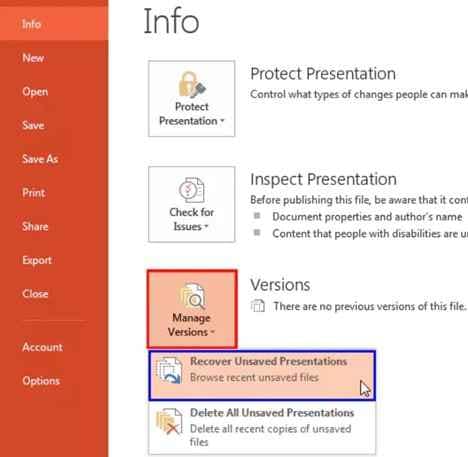
Step 2. Locate the most recent recovery version and save it as a new presentation file.
Fix 3. Restore Previous Versions
Windows or cloud storage services may contain earlier versions created before the interrupted save.
Step 1. Right-click the damaged PowerPoint file and select Properties.
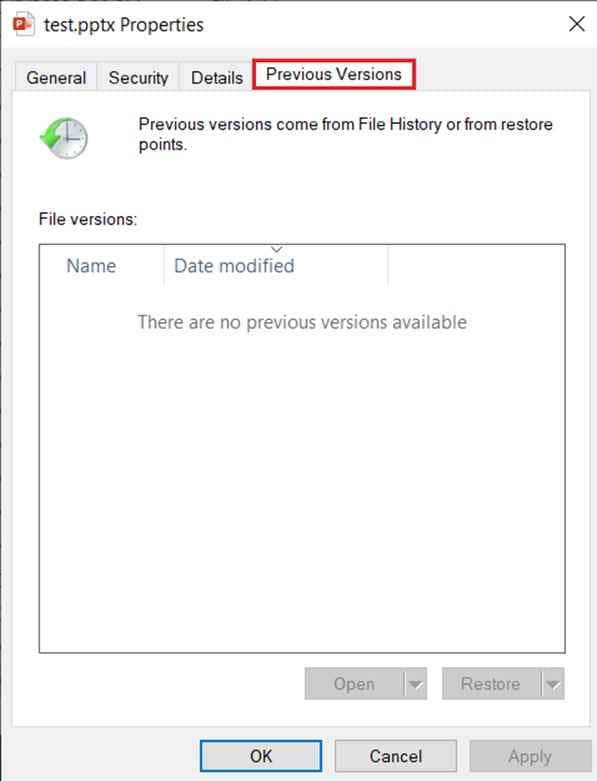
Step 2. Open the Previous Versions tab and restore an earlier version of the presentation.
Fix 4. Create a New Presentation and Reuse Slides
Sometimes only parts of the presentation structure are damaged.
Step 1. Open a new blank PowerPoint presentation and select Reuse Slides or Insert Slides from File.
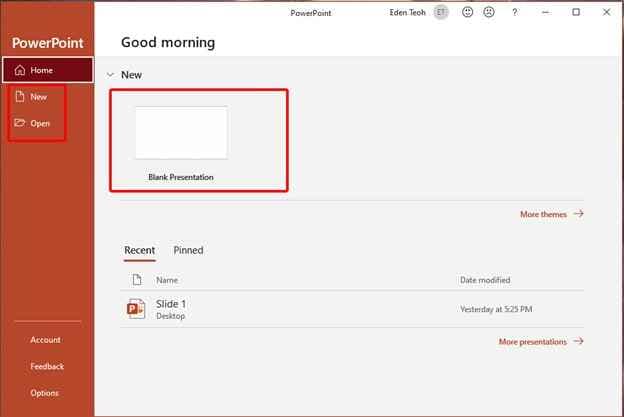
Step 2. Import readable slides from the damaged presentation into the new file and save it separately.
Advanced Fix to Restore Severely Corrupted PowerPoint Files
When built-in recovery methods fail, the presentation may have severe structural corruption caused by incomplete save operations or damaged storage sectors. Advanced repair tools can scan and rebuild damaged presentation components.
It CAN:
- Restore damaged PPT and PPTX file structure.
- Recover slides, images, charts, animations, and embedded media.
- Repair presentations that fail to open normally.
- Recover partially saved PowerPoint files.
- Repair multiple corrupted presentation files at once.
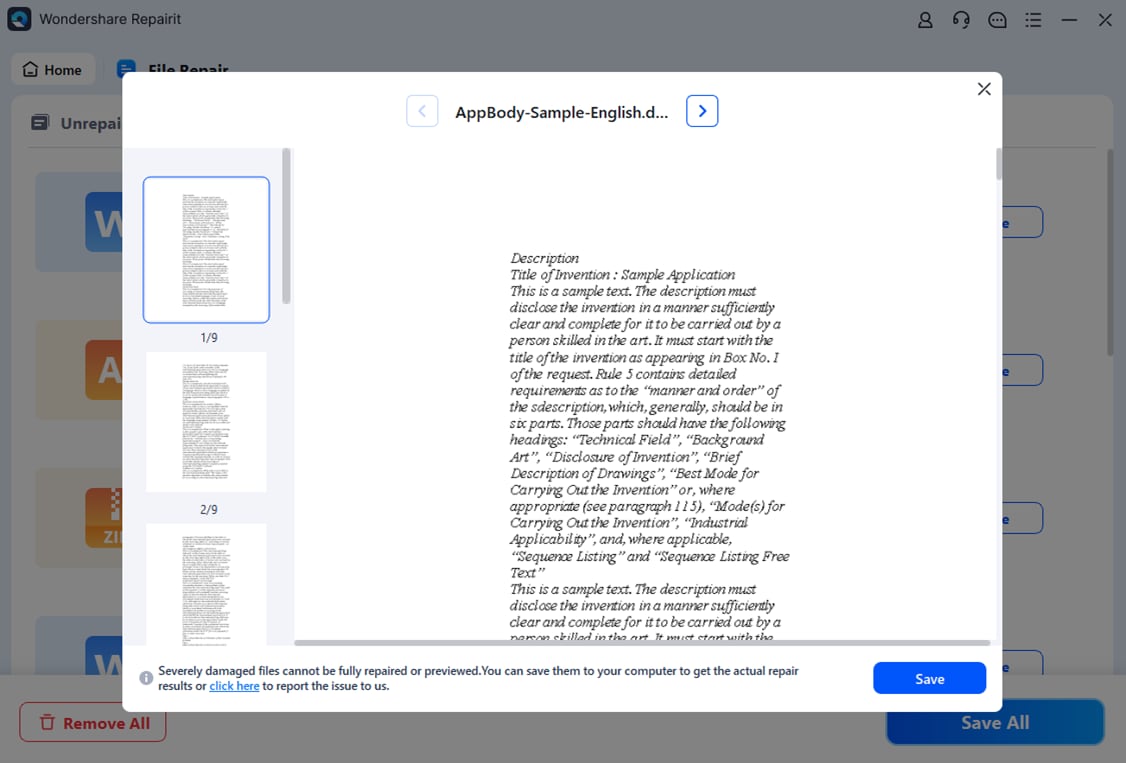
If the presentation remains inaccessible, a repair solution like Repairit File Repair can help repair corrupted PowerPoint files and restore usability.
Step-by-Step:
Step 1. Upload the corrupted powerpoint file.

Step 2. Start the Repair process.

Step 3. Preview the repaired presentation and save it to a different storage location.
How to Prevent PowerPoint File Corruption
Reducing interruptions during saving can help prevent presentation corruption and data loss.
1. Enable AutoSave and AutoRecover: Backup copies improve recovery chances.
2. Avoid forced shutdowns: Let PowerPoint finish saving before restarting.
3. Store presentations on reliable drives: Faulty storage increases corruption risks.
4. Compress large media files: Large videos and images may increase save instability.
5. Back up presentations regularly: Cloud and local backups help protect important work.
Conclusion
Fixing a PowerPoint file that won’t open after an interrupted save often involves recovery versions, built-in repair features, or advanced repair software. Save interruptions can leave presentations incomplete or structurally damaged, preventing normal access to slides and media. In many cases, recovery methods can successfully restore presentation content.
For long-term protection, enabling AutoSave and maintaining healthy storage systems can help prevent future PowerPoint corruption.
FAQs
-
Why won’t my PowerPoint file open after saving?
The save process rewrites parts of the file structure. If the process is interrupted, the document may not finish saving correctly. -
Can PowerPoint repair damaged presentations automatically?
Yes. Many applications store temporary AutoRecover or backup files that can restore recent changes. -
Are unsaved PowerPoint presentations recoverable?
The content section of the file may have been damaged even though the document container still exists. -
Why are images or videos missing from my presentation?
Yes. Built-in repair tools and specialized file repair software can often restore damaged Office documents. -
Should I continue using the same storage drive?
If corruption happens repeatedly, the storage drive may have underlying hardware or file system issues that should be checked immediately.




