A CSV export can be too large for a spreadsheet, a CRM upload limit, or an email attachment. The right CSV splitter divides the file without silently changing headers, quoted fields, or character encoding. But not every tool means the same thing by "split": some cut by row count or file size, while others create one file per column value. This guide compares five real options so you can choose the best CSV splitter for your job, including free browser tools and desktop software.
In this article
Part 1: Best CSV Splitter Tools at a Glance
Use the type of split you need as your first filter. The comparison below summarizes functions listed on the providers' current pages; it is not the result of a controlled speed or accuracy benchmark.
| CSV splitter | Best for | Split options | Pricing model |
| SysTools CSV Splitter | Desktop CSV Splitter for Batch Jobs | Rows; file size; batch input | Free demo / paid |
| CSV Tools | Free Online CSV Splitter for Quick Tasks | Rows; file size; file count | Free |
| MegaRows CSV Splitter | for Splitting CSV by Column Values | Rows; file size; column value | Free |
| Runcell CSV Splitter | for Streaming Very Large CSV Files | Rows; file size; file count | Free |
| split.tools CSV Splitter | for Preserving Original CSV Bytes | Rows; file size; file count | Free |

Part 2: 5 Best CSV Splitter Tools Compared
1. SysTools CSV Splitter - Best Desktop CSV Splitter for Batch Jobs
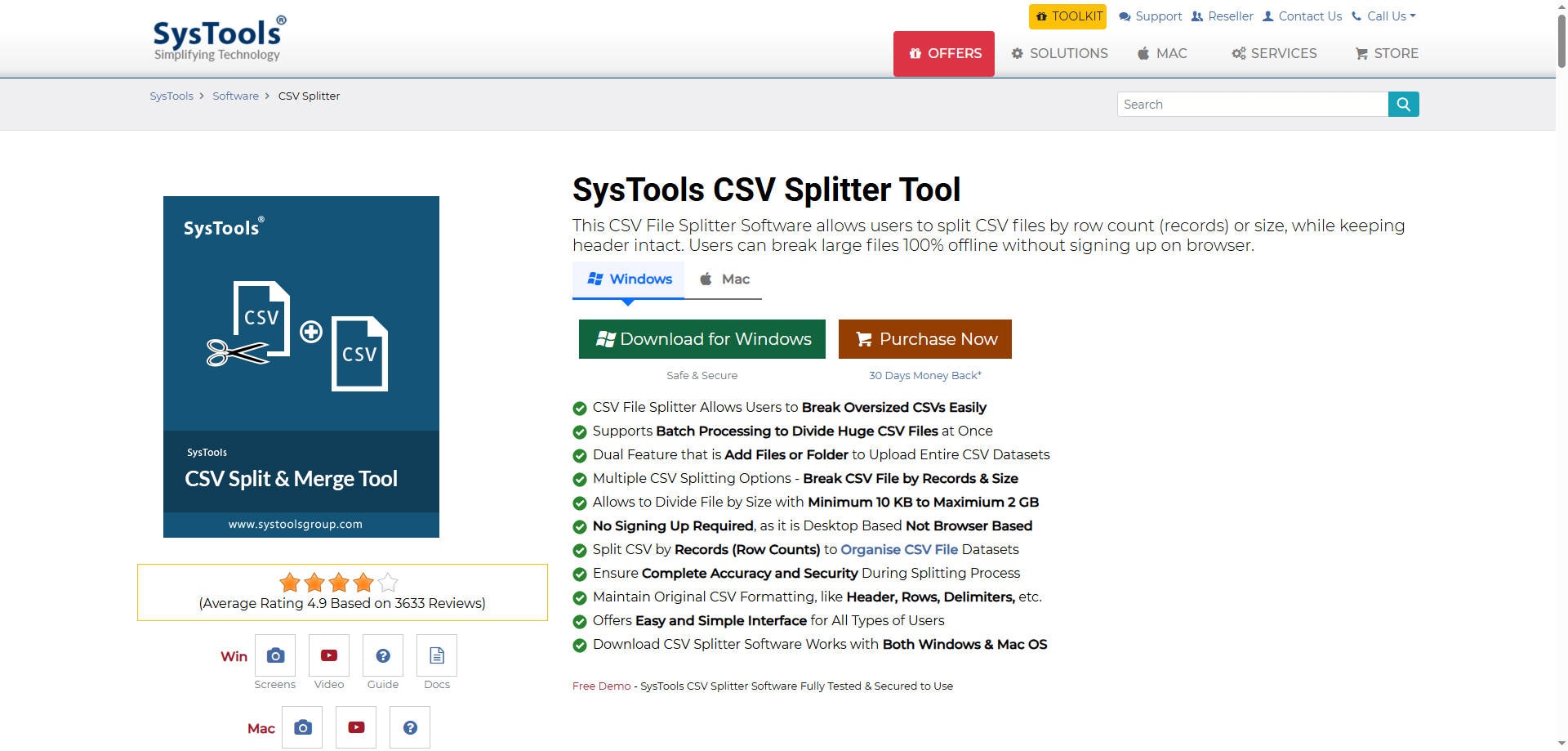
Overview: For teams that routinely receive bulky database exports, SysTools CSV Splitter is a dedicated Windows and Mac program rather than an upload-based web utility. It lets you add individual CSV files or folders and divide them by a record count or target file size. That makes it a practical option when you need a repeatable desktop workflow for many files, rather than a quick one-off split.
Key Features:
- Split by record count or specified output size.
- Add multiple CSV files or folders for batch operations.
- Carry header rows and delimiters into the resulting files.
- Choose a local destination for generated parts.
Pricing: Free demonstration version; its published demo limit is 25 records per CSV. Paid license required for unrestricted splitting. Verify the live checkout price before publication.
Best For: Operations teams that regularly split multiple exports on a desktop computer.
Our Take: Choose it if a desktop batch workflow matters more than an instant browser tool. The demo limit is too restrictive for validating a production-sized export end to end.
2. CSV Tools - Best Free Online CSV Splitter for Quick Tasks
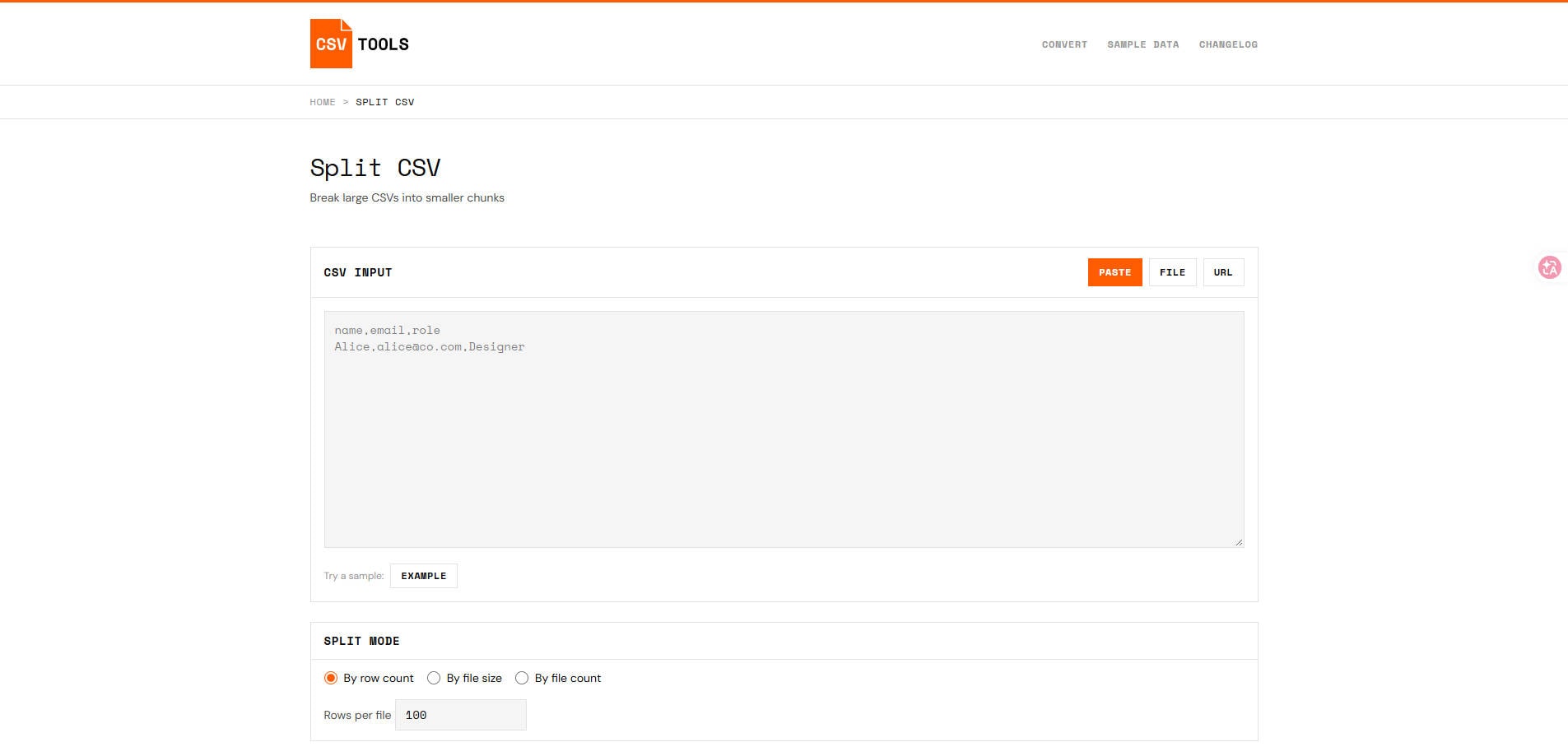
Overview: If you need a smaller CSV for an upload form or email attachment, CSV Tools offers a straightforward browser-based splitter. You can load a file, paste CSV text, or provide a URL, then select row count, file size, or the number of output files. Its page states that the splitting operation runs locally in your browser rather than uploading the CSV to a server.
Key Features:
- Choose row-count, file-size, or output-file-count splitting.
- Repeat the source header in each output when needed.
- Set separator and quote-character options.
- Download individual parts or all parts in a ZIP archive.
Pricing: Free online utility according to its current product page.
Best For: Anyone splitting an occasional CSV for an upload or sharing task.
Our Take: A good first option for small and moderate jobs, especially when you want to inspect the CSV parsing controls before downloading the parts.
3. MegaRows CSV Splitter - Best for Splitting CSV by Column Values
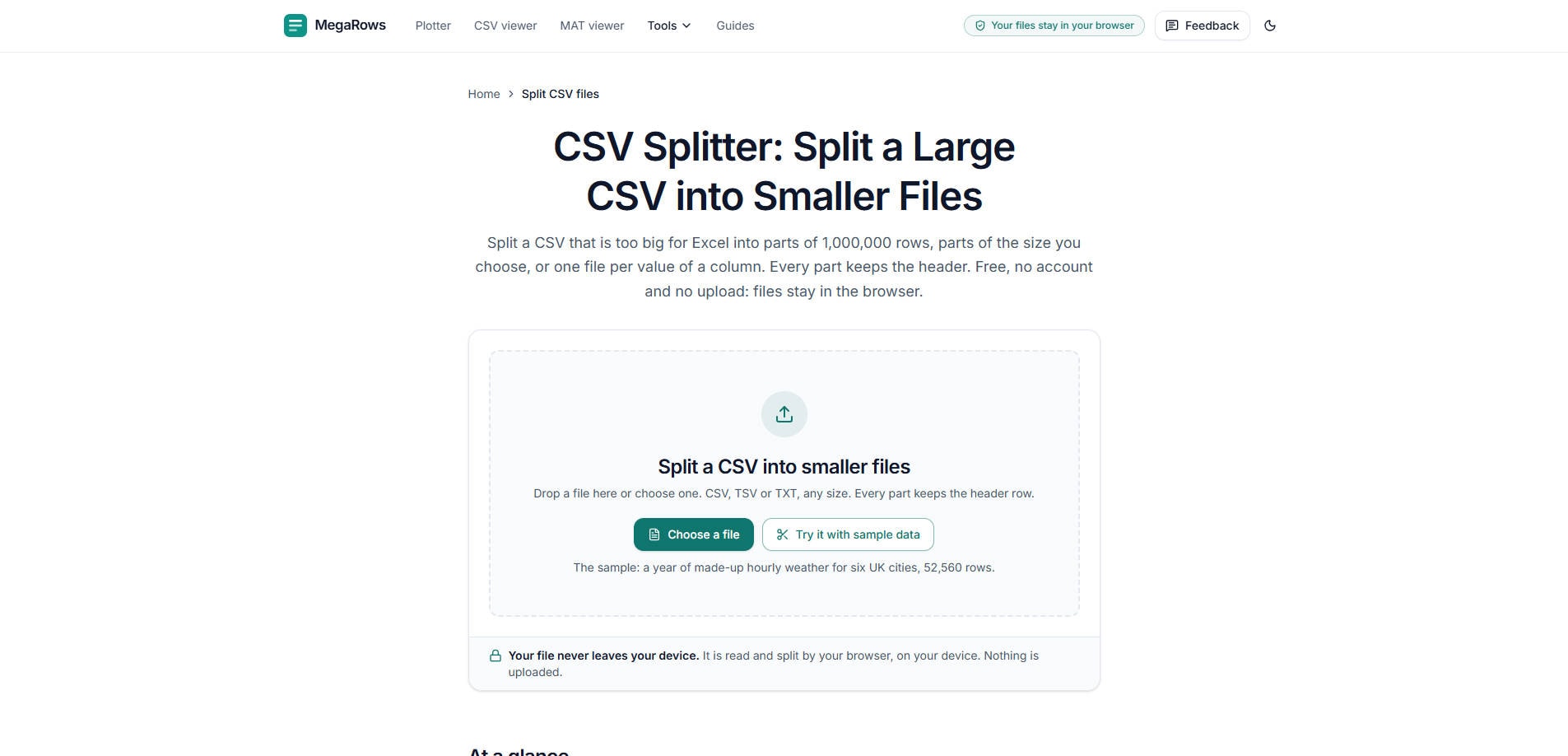
Overview: When one large export contains records for different departments, cities, or clients, MegaRows CSV Splitter provides a particularly useful third option: create a separate CSV for each distinct value in a chosen column. It also splits by rows or output size. The site says processing happens on your device, and the outputs can be downloaded as a ZIP or, in supported desktop browsers, written to a selected folder.
Key Features:
- Split by row count, target size, or column value.
- Repeat header rows in all generated CSVs.
- Accept CSV, TSV, and delimited TXT files.
- Download a ZIP or use supported direct-to-folder saving.
Pricing: Free; the vendor states no account is required.
Best For: Analysts separating one combined export into files per customer, region, or category.
Our Take: This is the more relevant choice if “split” means one output file per value, rather than simply cutting the data into equal pieces.
4. Runcell CSV Splitter - Best for Streaming Very Large CSV Files
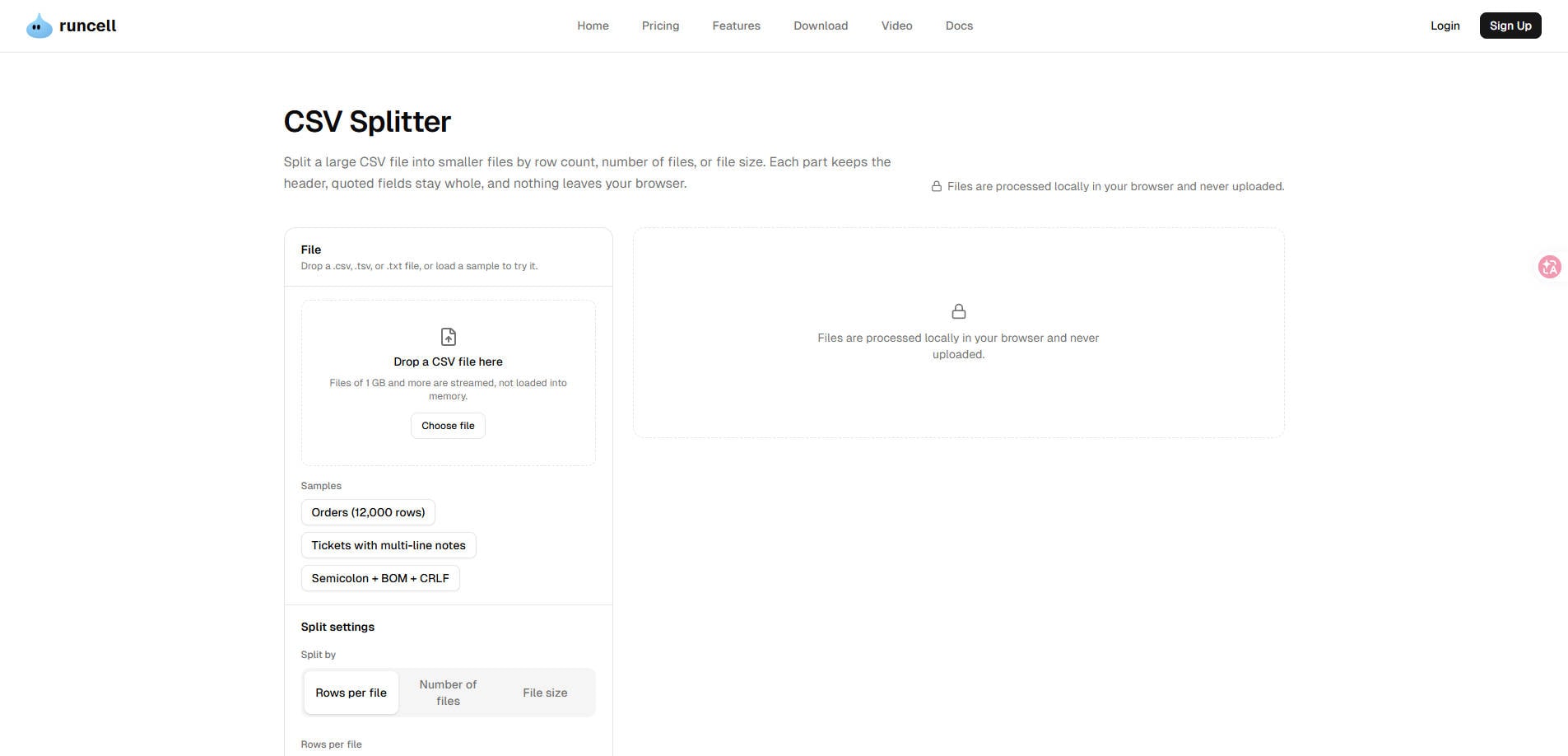
Overview: For a CSV that is too bulky to load comfortably into a traditional spreadsheet, Runcell CSV Splitter uses a stream-oriented, local-browser workflow. Its documentation describes files of 1 GB and more being streamed rather than loaded wholesale into memory. It also accounts for quoted fields containing line breaks, an important detail when splitting exports with notes or addresses.
Key Features:
- Split by rows per file, number of files, or file size.
- Read large files as a stream in the browser.
- Keep headers in each output as configured.
- Recognize quoted multiline CSV records rather than cutting at every newline.
Pricing: Free browser tool as displayed on the current page; recheck if commercial terms change.
Best For: Users handling oversized, quote-heavy CSV and TSV exports locally.
Our Take: A sensible option to investigate when a CSV has messy multiline records and you need a browser splitter that is explicit about record boundaries.
5. split.tools CSV Splitter - Best for Preserving Original CSV Bytes
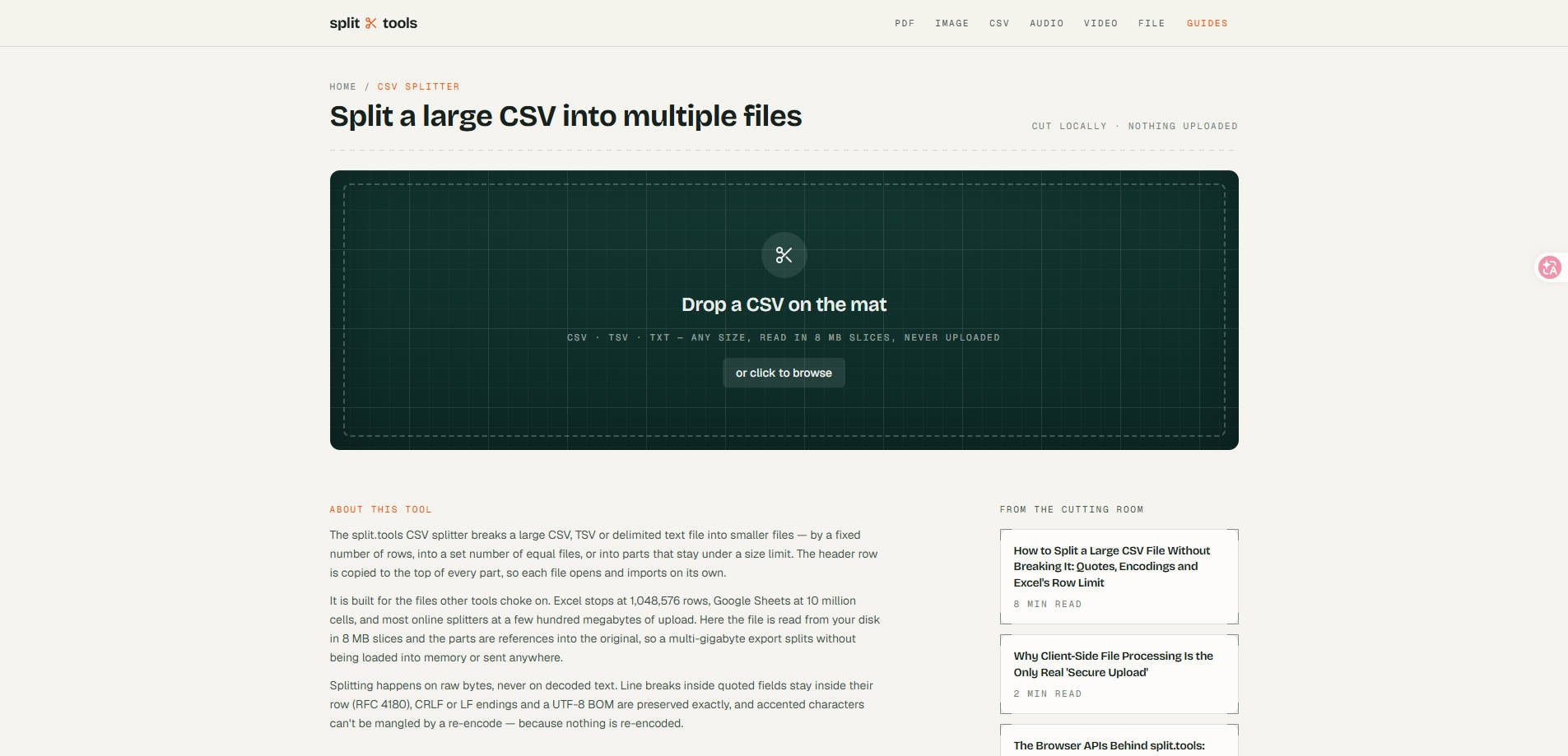
Overview: Some CSV exports use unusual line endings, byte-order marks, or legacy encodings. split.tools CSV Splitter takes a byte-preserving approach: the site says it reads the source in 8 MB slices and avoids decoding and re-encoding data while dividing files. That emphasis can matter when preserving the original representation of CSV rows is a higher priority than adding more editing features.
Key Features:
- Split by row count, number of output files, or maximum size.
- Process files in 8 MB slices locally in the browser.
- Preserve quoted multiline fields and original line endings.
- Carry UTF-8 BOM or other supported original byte encodings through the operation.
Pricing: Free browser-based splitter according to the current site.
Best For: Users who must avoid unintended character encoding and line-ending changes.
Our Take: Consider it when the goal is to split an existing export as faithfully as possible, rather than transform or clean the data.
Part 3: How to Split a Large CSV File Without Losing Rows
For a straightforward split, start with a copy of your original CSV. If you are using an online splitter, check whether the site processes files locally or sends them to a server before opening anything confidential.
- Inspect the source: Identify the delimiter (comma, tab, or semicolon), whether the first row is a header, and whether quoted fields can contain commas or line breaks.
- Pick your split rule: Use rows per file for a spreadsheet or database import limit, file size for an upload limit, or column value for one file per team, city, or customer.
- Keep headers where required: If each part must import independently, repeat the header row. If the destination app expects only one shared header, configure accordingly.
- Export the parts: Save them to a separate folder or download the generated ZIP. Avoid overwriting the source.
- Verify the result: Sum the data-record counts from all outputs and compare with the original, excluding repeated headers. Check the first and last records, text encoding, and any multiline quoted fields.
Example: If a CSV has 2,250,000 data rows and you set 750,000 rows per part, you should expect three output files. If each includes a header, each file contains 750,001 physical records in the simplest case where fields do not contain embedded newlines. Count parsed CSV records, not raw text lines, when multiline fields are possible.
Part 4: What to Check Before and After Splitting
Do quoted commas and multiline cells remain intact?
A naive text splitter may cut a file in the middle of a quoted value. This can break records when addresses, notes, or descriptions contain embedded line breaks. Prefer a CSV-aware tool that recognizes quotation marks and logical row boundaries.
Does the tool preserve encoding, headers, and delimiters?
Verify special characters, the original delimiter, and whether UTF-8 BOM or other encoding markers matter to the downstream system. A file that opens in one program can still import incorrectly in another if these settings change.
Is a "500 MB output" the same as exactly 500 MB?
Not always. A splitter that avoids cutting a row in half may finish the current record before producing the next part. If the destination imposes a strict upload ceiling, leave some headroom rather than setting the maximum equal to the upload limit.
Can a CSV splitter repair a corrupted spreadsheet?
No. CSV splitting changes how valid tabular data is divided; it does not reconstruct missing records or repair a damaged Excel workbook. If your original spreadsheet cannot open, diagnose that problem first. For genuinely damaged XLSX or other supported document files, Repairit File Repair may be relevant; it is not presented here as a CSV splitter. You can also find the broader repair tools on Wondershare Repairit.
Part 5: Which CSV Splitter Should You Choose?
| Your situation | Suggested option | Why |
| You need scheduled-looking, repeated manual batches on Windows or Mac | SysTools CSV Splitter | Dedicated desktop input and batch selection |
| You have a quick browser-based split | CSV Tools | Direct row, size, and part-count controls |
| You need one file per region or category | MegaRows CSV Splitter | Explicit column-value split mode |
| You have a very large file with quoted multiline fields | Runcell CSV Splitter | Vendor documents stream-based row-aware processing |
| Preserving original byte representation matters | split.tools CSV Splitter | Vendor documents byte-preserving output |
The most appropriate tool is the one that supports your exact split rule and preserves the parts your destination system needs. For sensitive data, verify privacy and local-processing claims yourself, and avoid assuming that a website is private merely because it says "online."
Part 6: Conclusion
There is no universal winner among the best CSV splitter tools. SysTools suits repeat desktop jobs; CSV Tools offers a simple free split; MegaRows handles grouping by column values; and Runcell and split.tools make large-file integrity a central part of their design. Start with a sample or a copy, verify the record counts and formatting, and only then use the results in your production workflow.
FAQ
-
Can I split a CSV without Excel?
Yes. All five options in this comparison work without opening the file in Microsoft Excel. Browser-based tools can be particularly useful when the dataset exceeds spreadsheet row limits. -
Will splitting a CSV create duplicate header rows?
It can repeat the header once at the top of each output file, depending on the setting you choose. Those repeated headers are intentional; exclude them when counting original data rows. -
Can I split a CSV into one file per customer or country?
Yes, if the tool supports splitting by column value. MegaRows currently advertises that option. A row-count splitter alone does not group records by customer or country. -
Is it safe to split confidential CSV files online?
Check the vendor's current processing and privacy terms. CSV Tools, MegaRows, Runcell, and split.tools describe local browser processing, but your organization may still require approved software, offline workflows, or independent verification. -
Why are some split CSV files slightly bigger than my size limit?
The tool may preserve a complete record rather than cut it in half, or repeat header rows in each output. Set the maximum below the upload threshold and check the actual saved file sizes.