
Excel usually makes copy and paste simple—until the selection jumps and you notice Excel is pasting into the wrong cells or clicking on the wrong cell. This kind of behavior can look random, but it’s often triggered by specific conditions like Scroll Lock, filters/hidden rows, frozen panes, merged cells, or add-ins. Less commonly, it happens because the workbook itself is damaged.
In this guide, you’ll learn how to diagnose whether the issue is operational or file-related, then follow low-risk fixes first before moving to repair options.
Table of Contents
Part 1. Common Causes of Excel Copy-Paste and Selection Issues
Excel relies on a combination of keyboard input, visual rendering, worksheet layout, and internal file structure to determine how selections behave. When any of these layers becomes misaligned, selection and copy-paste operations may appear incorrect.
- Keyboard/Input Settings: Some keyboard settings can affect Excel’s navigation behavior. When features like Scroll Lock, extended selection modes, or accessibility options such as Sticky Keys are enabled, Excel may scroll the sheet rather than move the active cell, or it may unintentionally extend a selection.
- Visual Alignment Problems: Excel’s screen rendering can occasionally make cell selections appear misaligned, even when the underlying data remains correct. Factors such as non-standard zoom levels, split windows, or frozen panes can cause the highlighted area on screen to differ from the actual range being copied.
- Hidden or Filtered Data: Active filters, hidden rows, or hidden columns change how Excel processes copy and paste actions. Excel may skip hidden cells or paste data into visible rows only, which can look like incorrect selection behavior.
- Merged Cells or Special Formatting: Merged cells interrupt Excel’s grid-based structure. When copying or pasting across merged and unmerged ranges, Excel may shift the target area or reject part of the selection.
- File-Level Corruption: In some cases, workbook corruption causes Excel to misinterpret cell references internally. This can result in selections that behave incorrectly even when settings and layout appear normal.
Part 2. Quick Diagnosis: Is This an Operational Issue or a File Problem?
Before applying fixes, it is important to determine whether the issue is related to Excel’s environment or to the file itself. A short diagnostic check can clarify the correct troubleshooting path.
- If the issue occurs in all Excel files, the cause is likely operational, such as settings, layout, or input behavior.
- If the issue occurs in only one workbook, file-level corruption is more likely.
- If selections look wrong but formulas calculate correctly, the problem is probably visual rather than structural.
- If errors appear mainly in filtered or merged ranges, the layout is the most likely cause.
- Quick confirmation test: Try the same copy/paste action in a new blank workbook. If it works there, the issue is likely file-specific.
Part 3. Operational / User-Level Fixes to Excel Copy and Paste Selecting Incorrect Cells
The following fixes address Excel configuration, layout, and input-related problems. Each solution is safe to try and reversible. After each fix, test copy/paste again before moving on.
1. Disable Scroll Lock or Extended Selection
Scroll Lock changes how arrow keys behave in Excel, causing the worksheet to move instead of the active cell. This can make selections appear incorrect.
Step 1. Look at the Excel status bar (bottom of the window) and check if Scroll Lock is enabled.
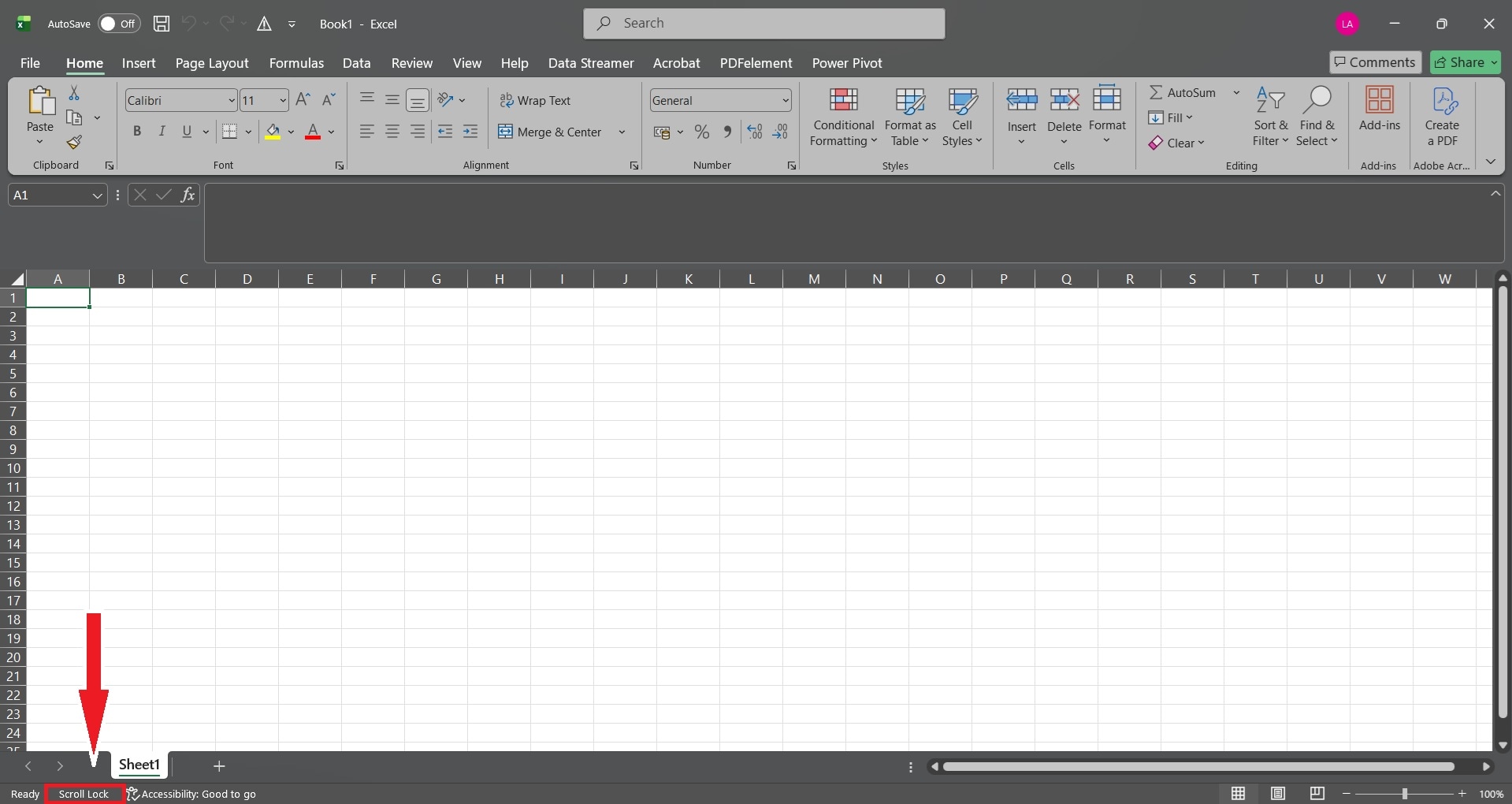
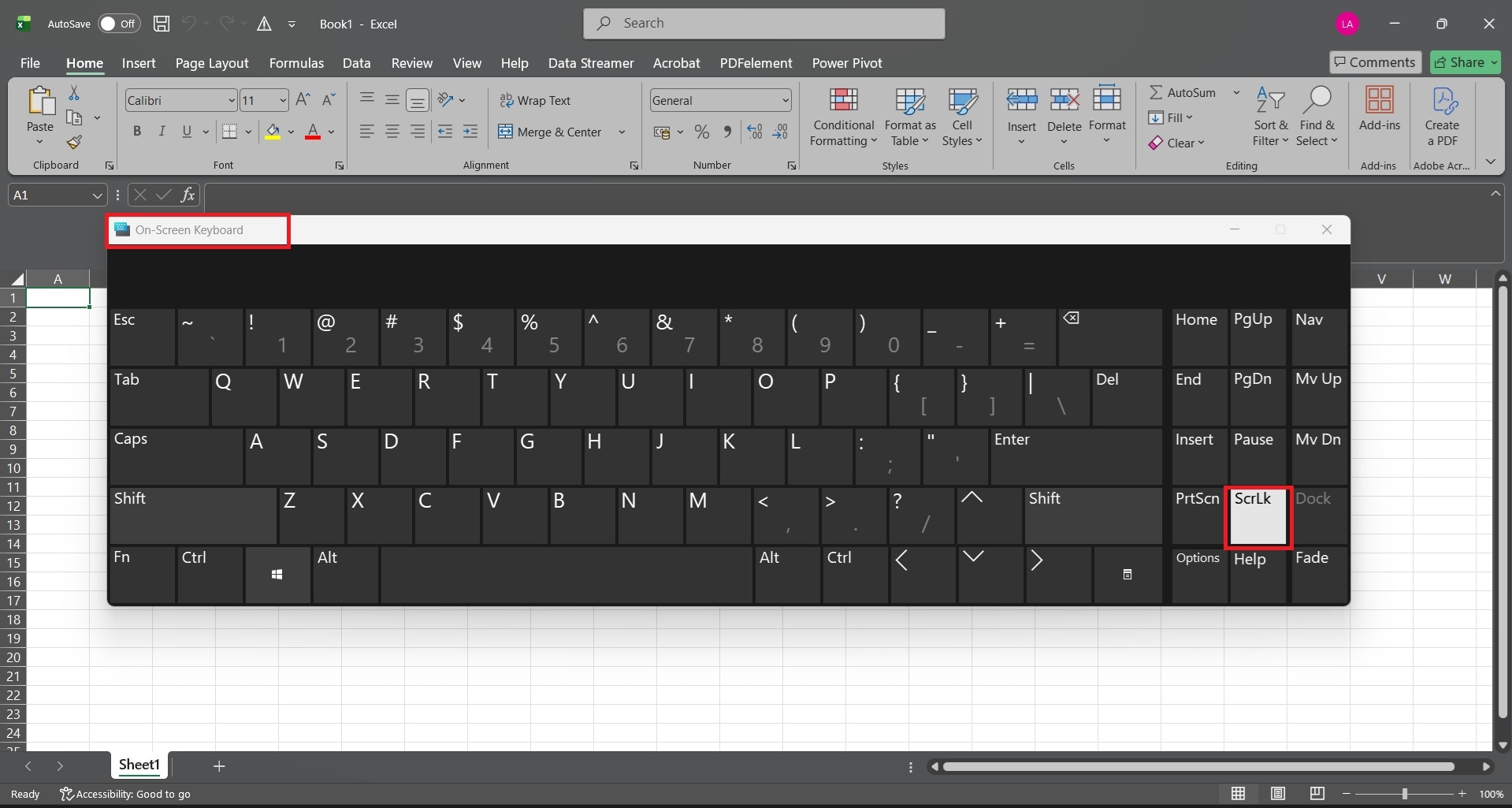
Step 2. Press the Scroll Lock (ScrLk) key on your keyboard to turn it off. If your keyboard lacks this key, open the On-Screen Keyboard in Windows and disable it there.
2. Clear Filters and Unhide Rows or Columns
Filters and hidden data can cause Excel to copy only visible cells, which may not match the selected range.
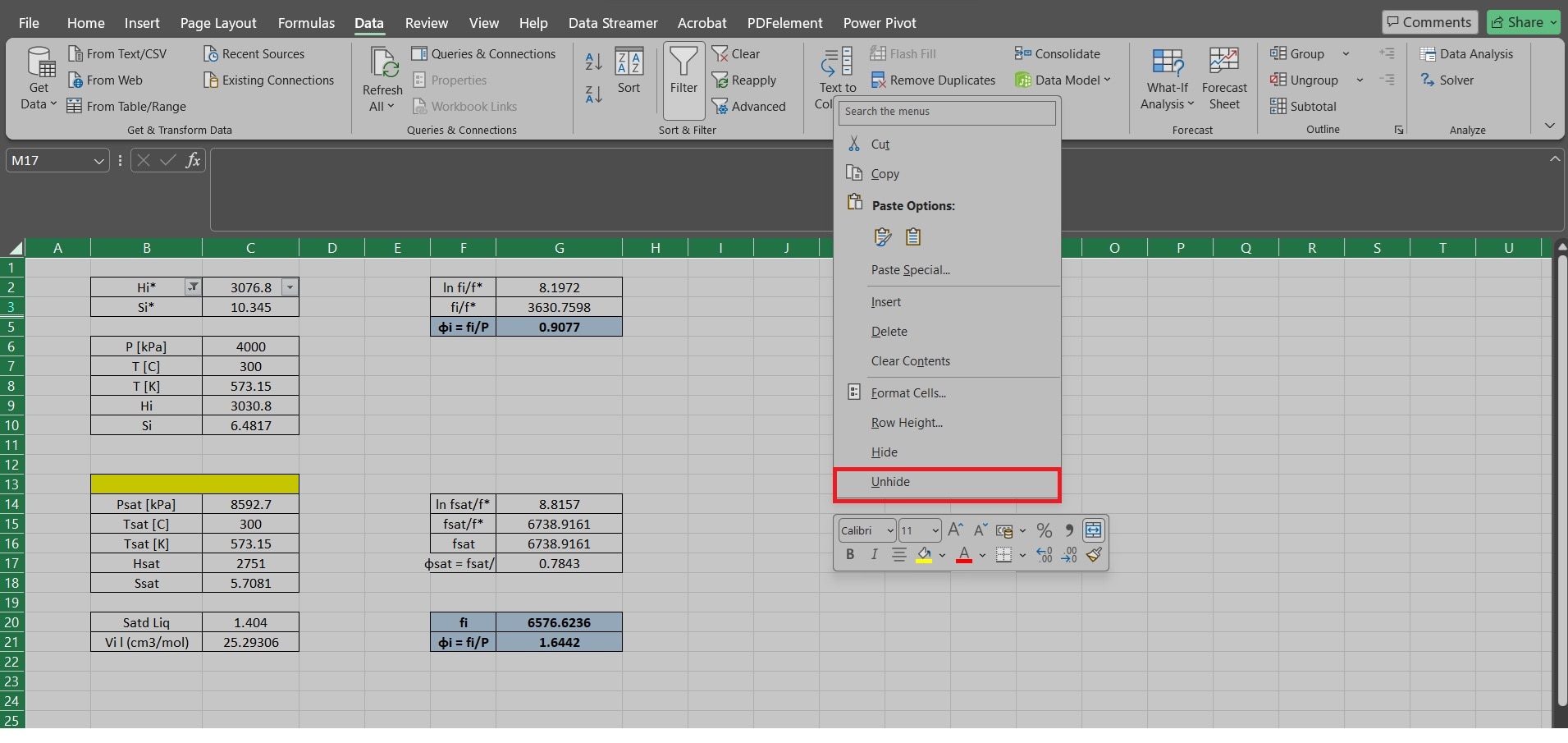
Step 1. Go to the Data tab in Excel. Click Clear to remove active filters.
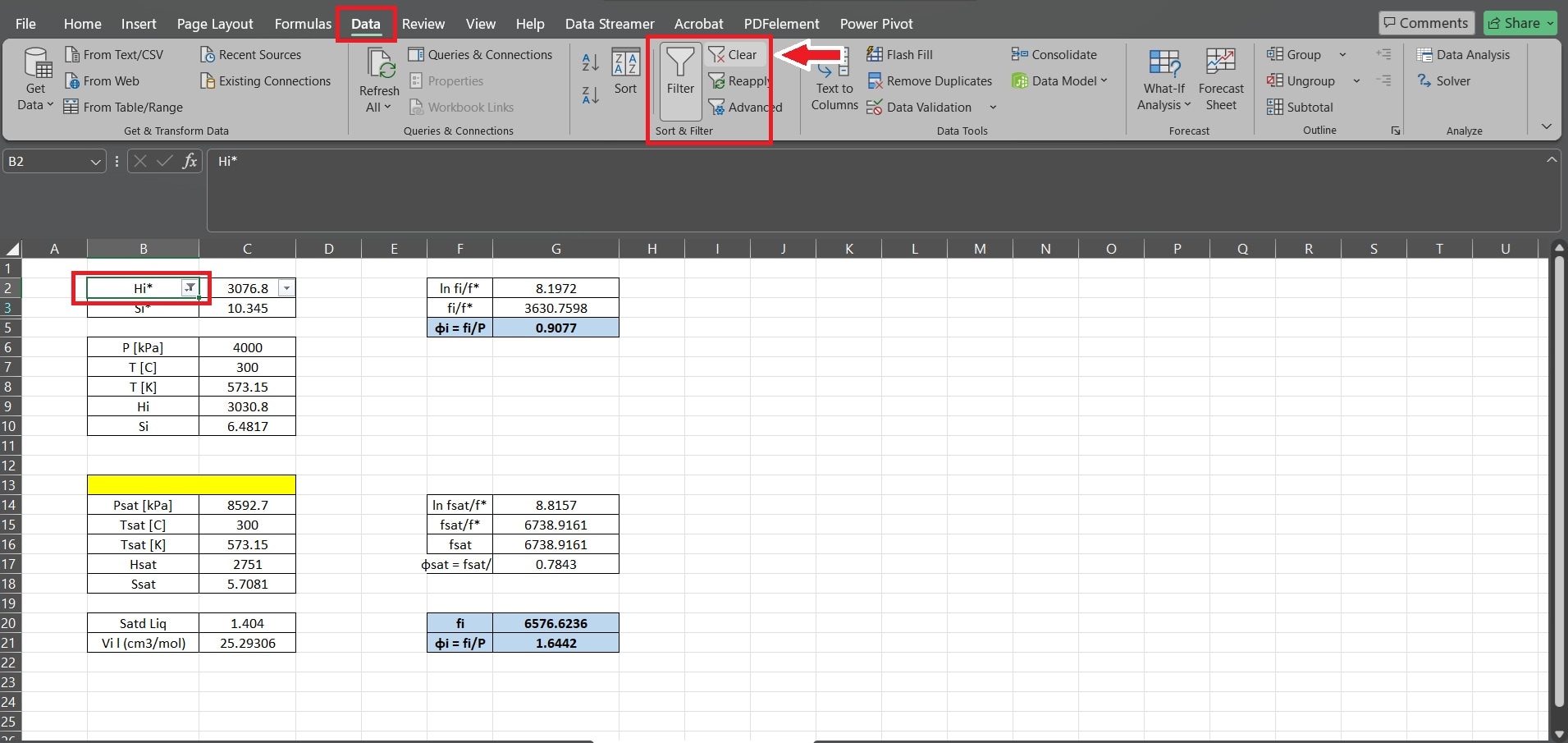
Step 2. Select the entire worksheet using Ctrl + A. Right-click any row or column header and choose Unhide. Retry the copy-paste action.
3. Unfreeze Panes
Frozen panes can make selections look misaligned, especially when copying across large ranges.
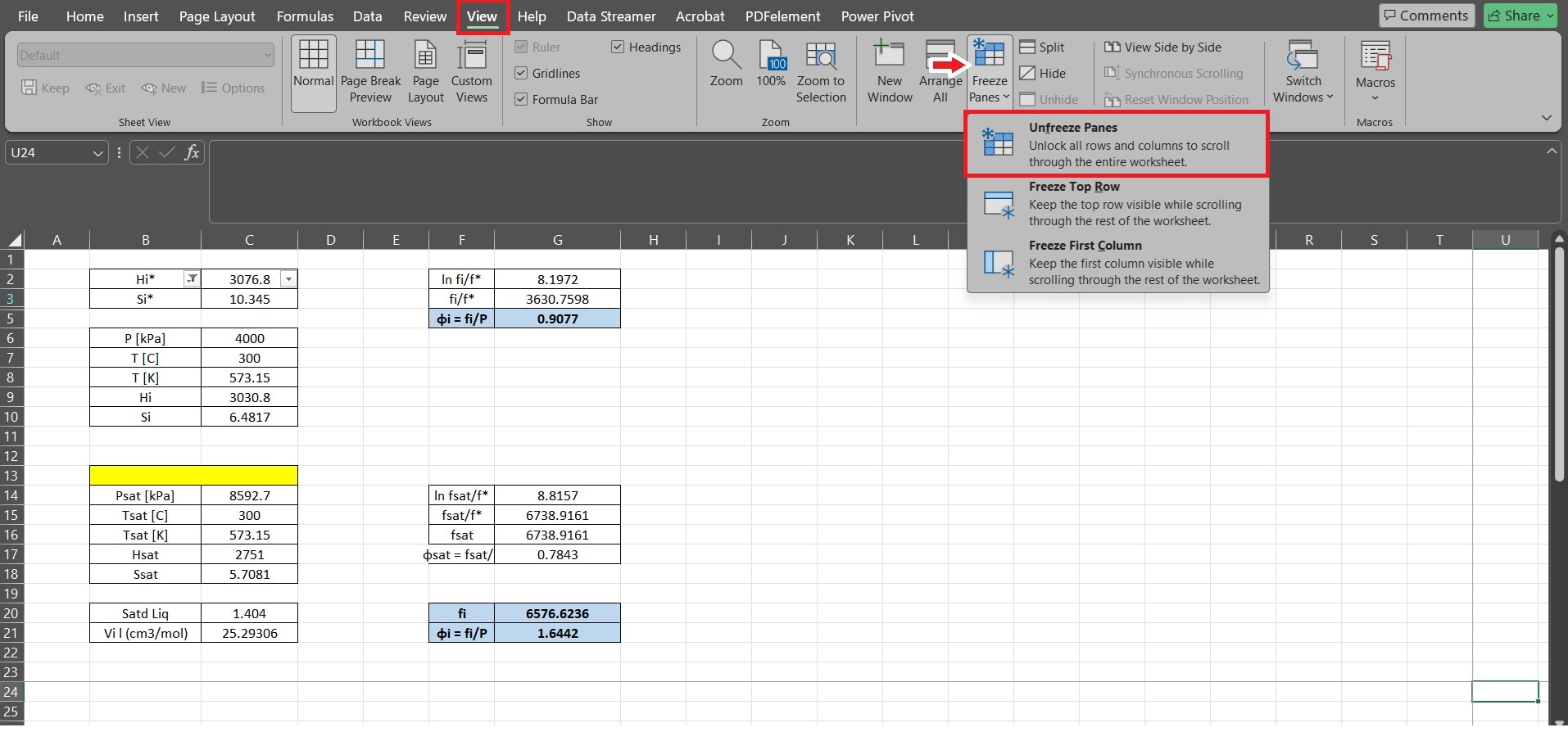
Step 1. Open the View tab. Click Freeze Panes.
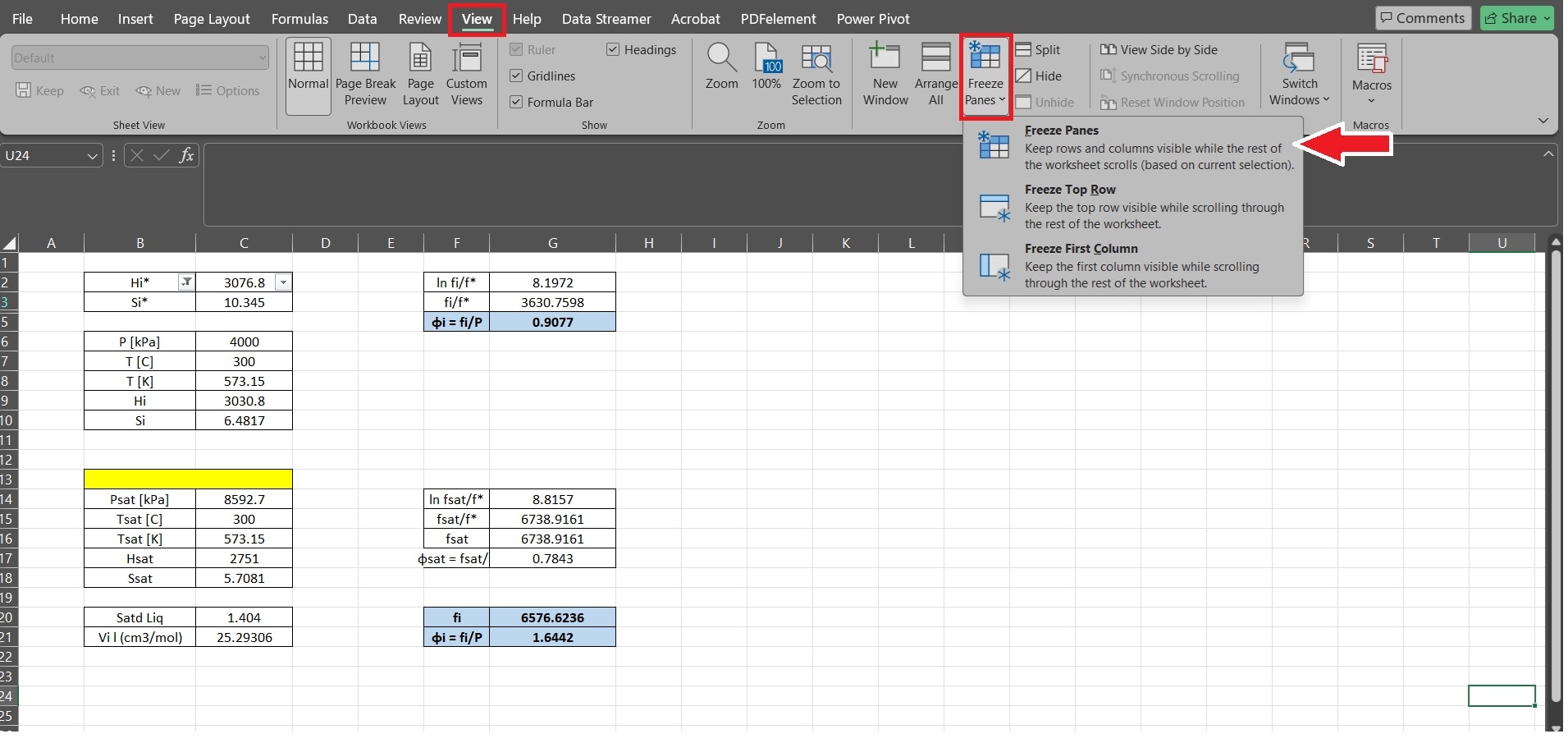
Step 2. Select Unfreeze Panes. Scroll back to the affected area and test selection accuracy.
4. Remove or Redesign Merged Cells
Merged cells interfere with Excel’s selection logic and often cause paste offsets.
⚠️Note: Unmerging cells can change the visual layout. If the sheet is important, consider saving a copy first.
Step 1. Select the affected range. Go to Home. Choose Merge & Center. Click Unmerge Cells.
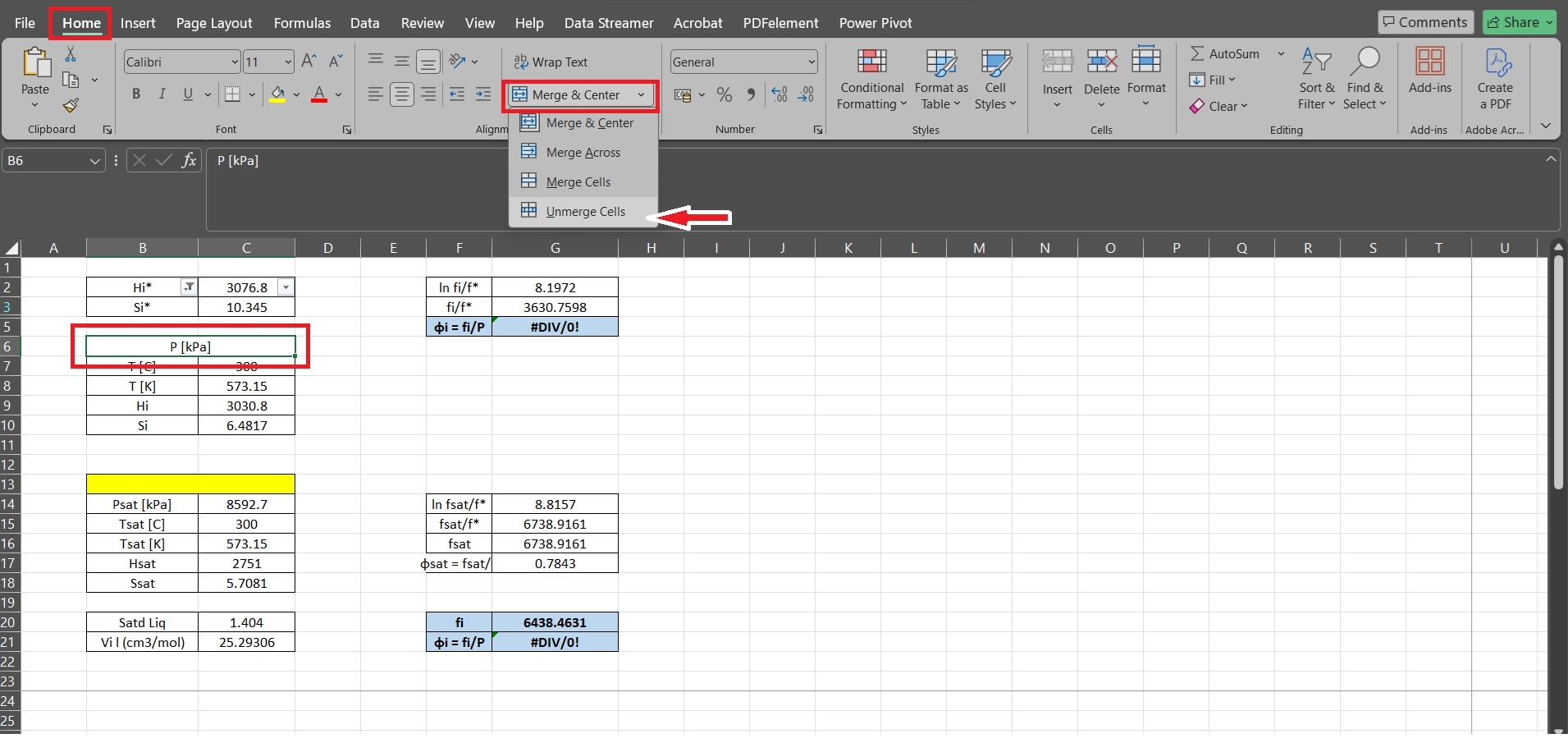
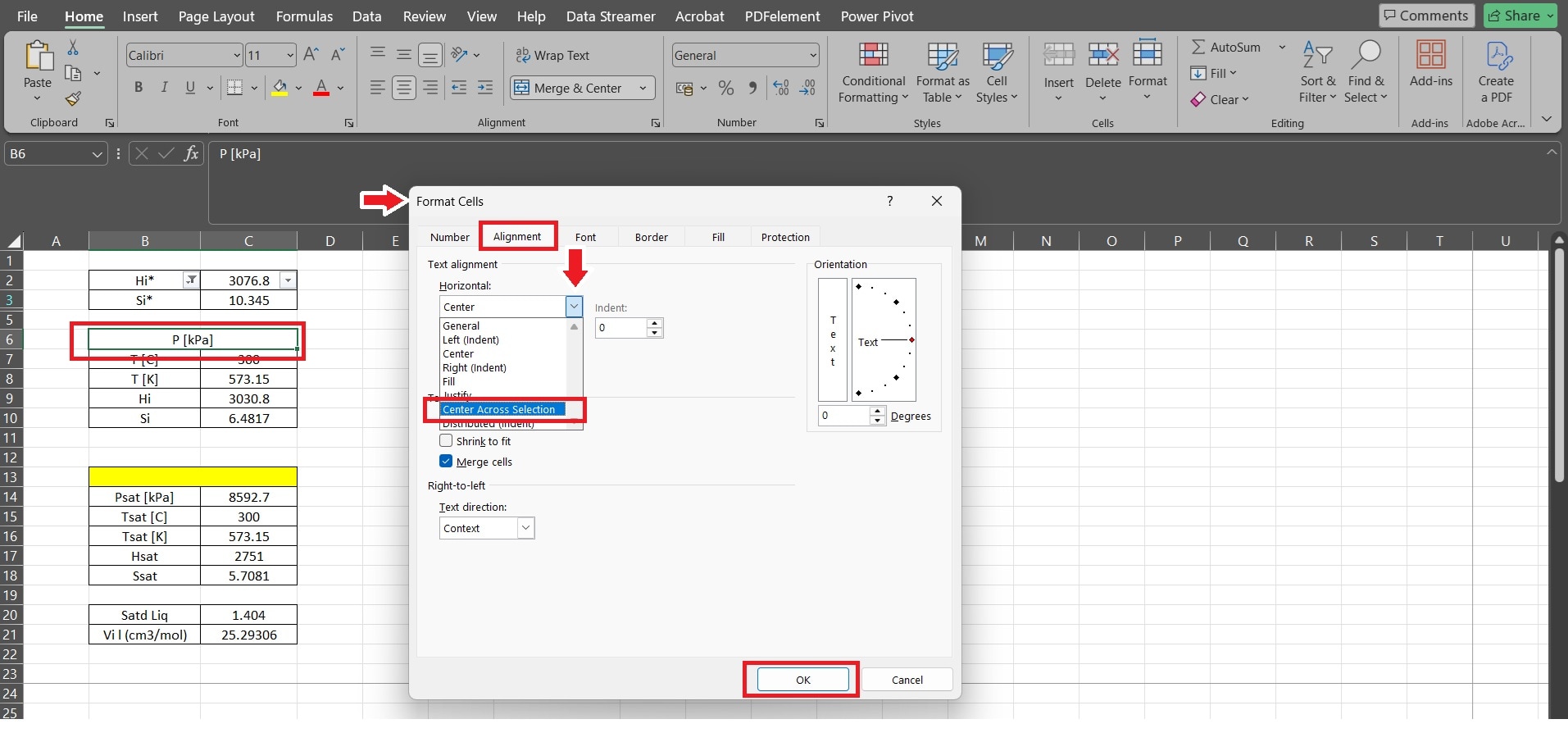
Step 2. Adjust column widths or use Center Across Selection as an alternative. Right-click on the affected cell, choose Format Cells, then select Alignment.
5. Reset Zoom Level and Remove Window Splits
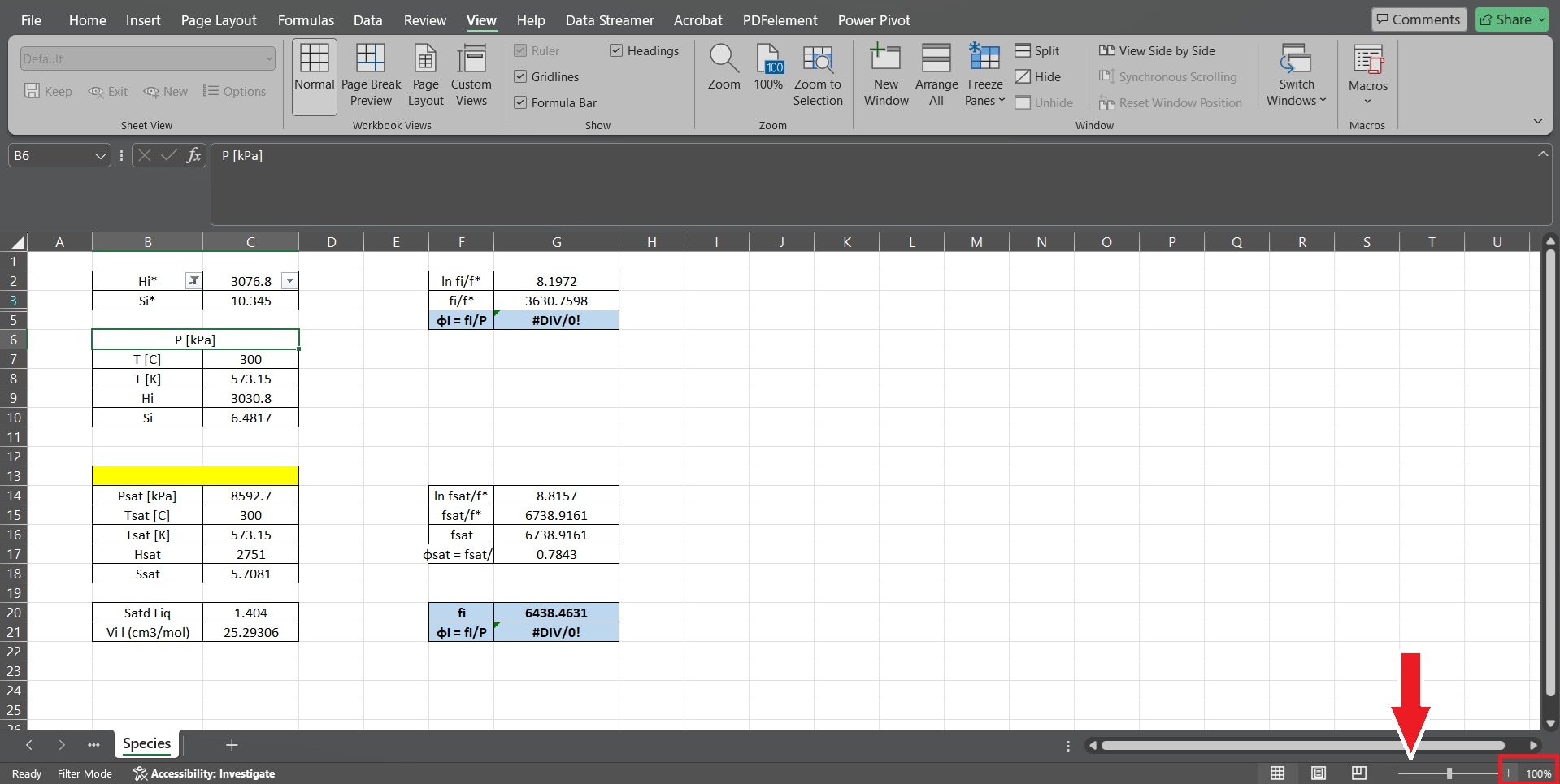
Non-standard zoom levels and split views can distort how selections are rendered.
Step 1. Set the zoom level to 100% using the slider at the bottom right.
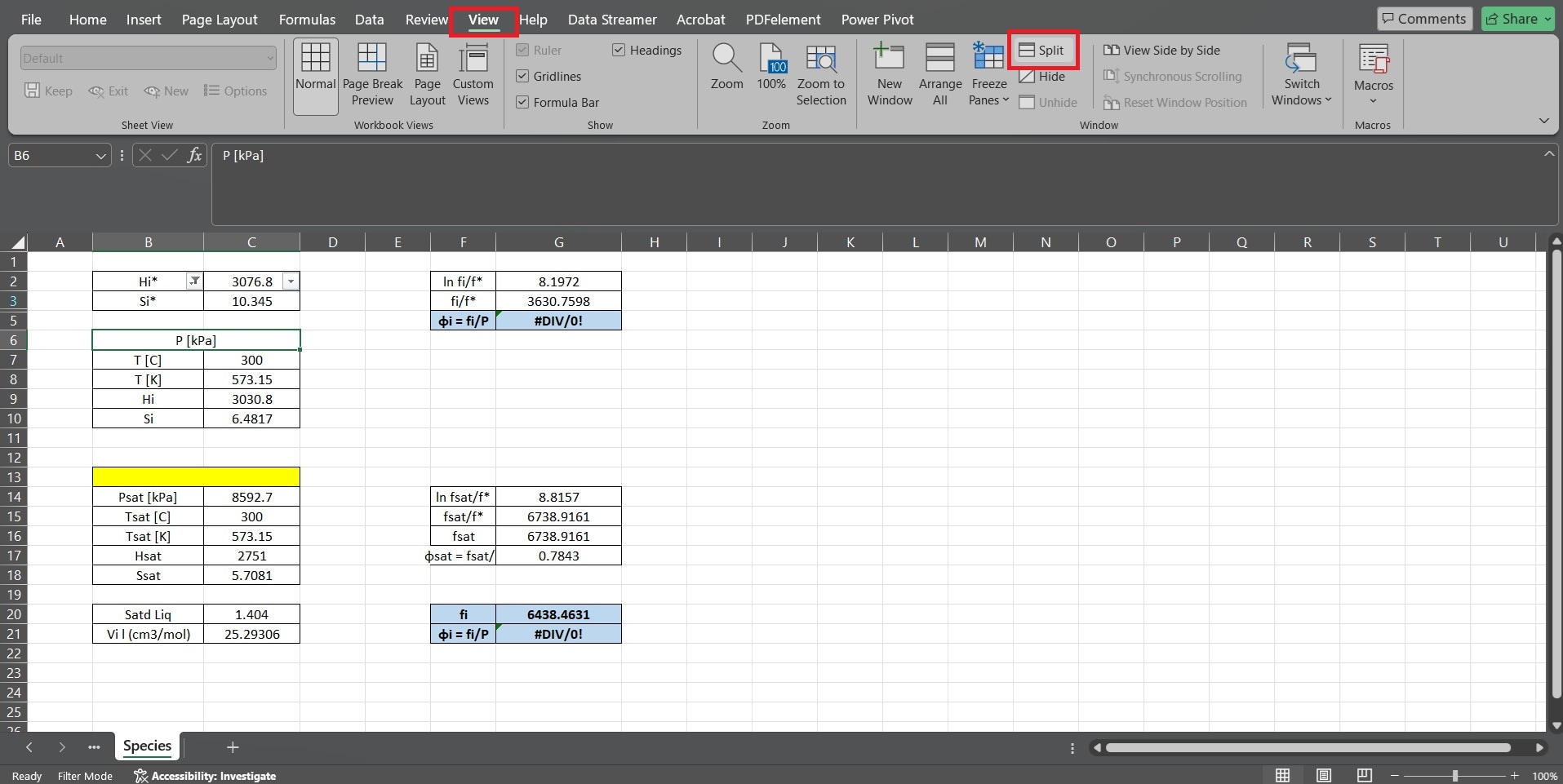
Step 2. Go to View. Click on Split and disable it if active. Close and reopen the workbook to refresh the display.
6. Start Excel in Safe Mode
Safe Mode disables add-ins and custom settings that may interfere with selection behavior.
⚠️Note: Safe Mode disables add-ins and some customizations. If your work depends on add-ins/macros, this is a diagnostic step.
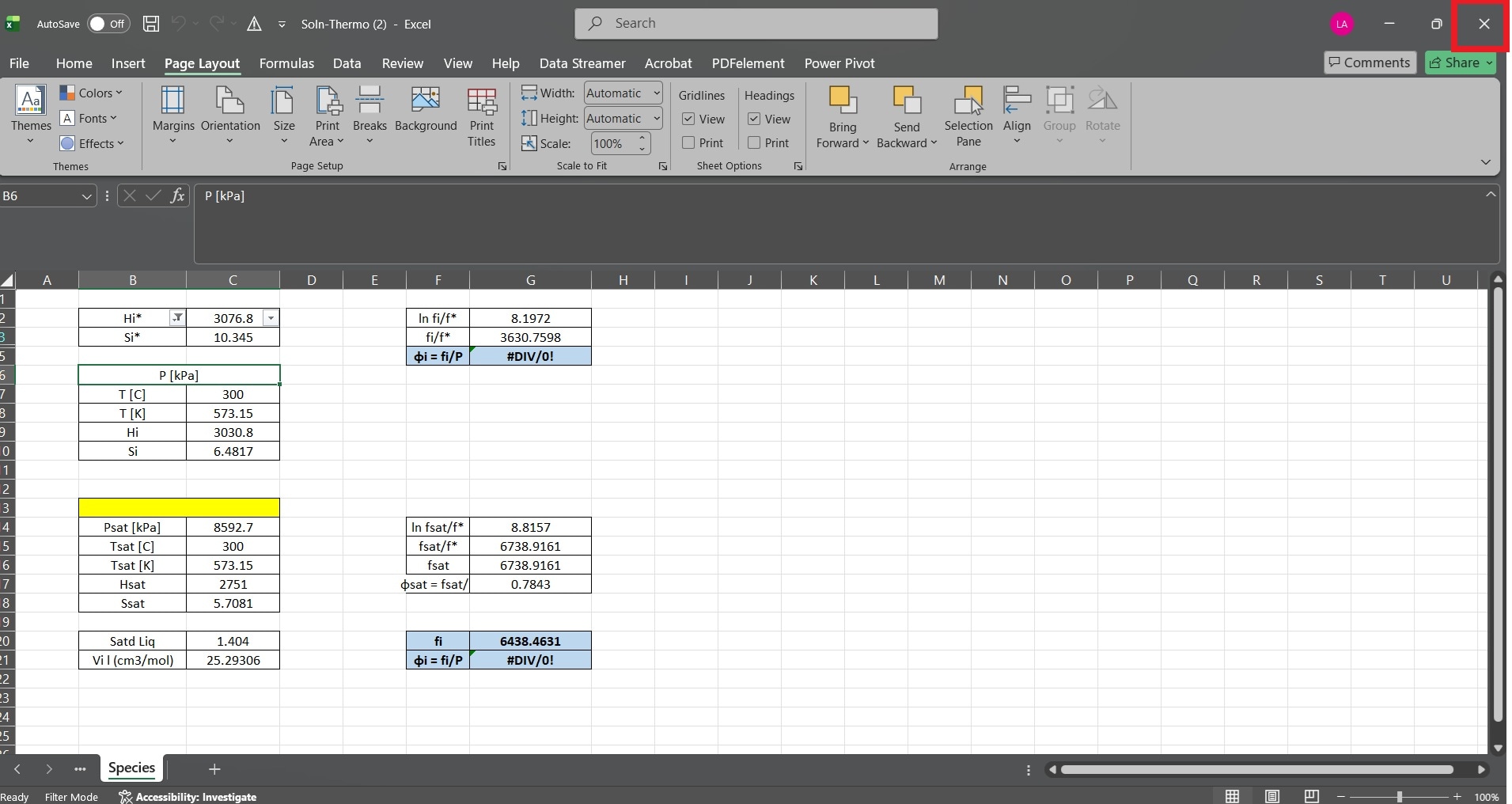
Step 1. Close Excel completely. You can also do this by pressing Alt + F4.
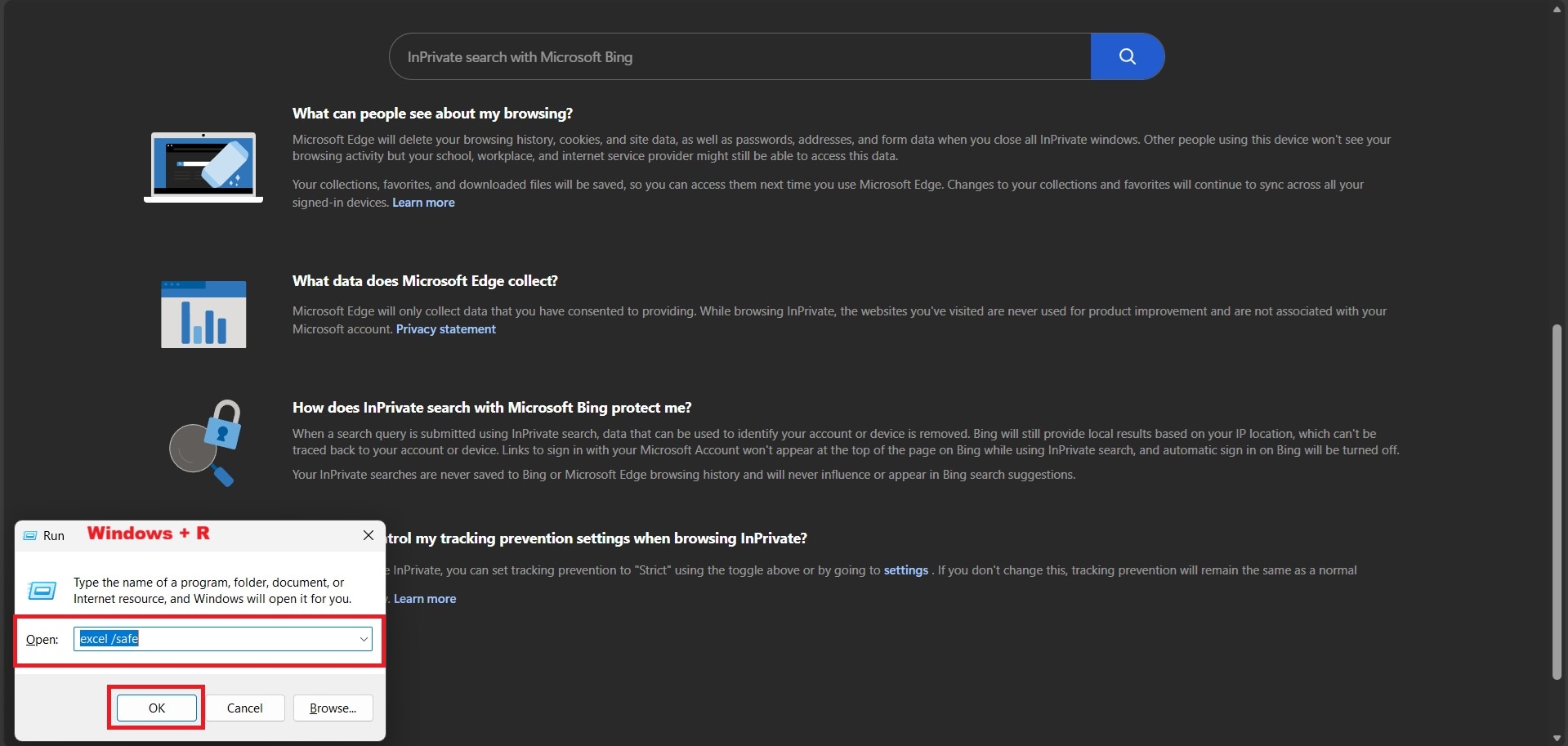
Step 2. Press Windows + R, type excel /safe, and press Enter. Open the affected workbook.
Part 4. When Excel Copy-Paste Issues Are Caused by File Corruption (Optional)
If all operational fixes fail and the problem persists in only one workbook, file corruption becomes a reasonable consideration.
4.1 How to Tell If the Problem Is File-Level (Not Settings or Layout)
Check whether the issue appears only in a specific workbook. Key indicators include:
- Copy-paste works normally in other Excel files.
- Cells appear misaligned, blank, or behave inconsistently.
- Formulas may return errors or unexpected results.
- Excel crashes, freezes, or slows down when interacting with certain ranges.
4.2 What File Repair Tools Can and Cannot Fix
It CAN:
- Restore broken formulas and cell references.
- Correct corrupted formatting, merged cells, or hidden data
- Rebuild internal metadata causing selection errors.
It CANNOT:
- Recover deleted or unsaved data.
- Solve Excel application or system-level bugs.
- Repair hardware-related issues.
4.3 Using an Excel File Repair Tool (If File Corruption Is Confirmed)
Once you have confirmed that the workbook is corrupted, an Excel file repair tool provides a safe, structured approach to restore functionality. One recommended tool is Repairit Excel File Repair, which is compatible with common formats, including XLS, XLSX, XLSM, XLSB, and CSV.

-
Repair damaged Excel files with all levels of corruption, including blank files, files not opening, unrecognizable format, unreadable content, files layout changed, etc.
-
Repairs all kinds of data stored in damaged Excel files such as tables, charts, formulas, comments, images, etc.
-
Support all formats of Excel files: XLSX/XLSM/XLTX/XLTM/XLS
-
Perfectly repair corrupted files with a very high success rate, without modifying the original file.
-
No limit to the number and size of the repairable files.
-
Support Windows 11/10/8/7/Vista, Windows Server 2003/2008/2012/2016/2019/2022, and macOS 10.12~macOS 15.
-
Except Excel, Repairit also supports all formats of PDF, Word, Excel, PowerPoint, ZIP, and Adobe files.
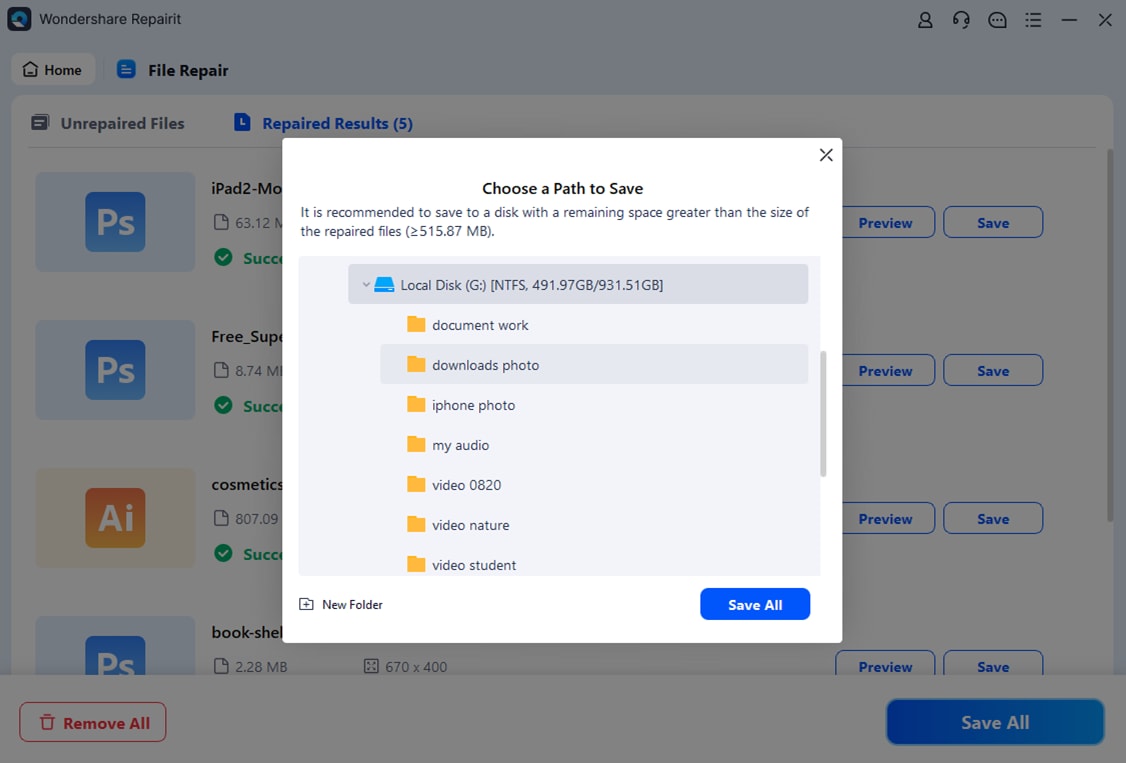
⚠️Note: Save repaired results to a new location to avoid overwriting the original file.
Step 1. Add the corrupted Excel file.

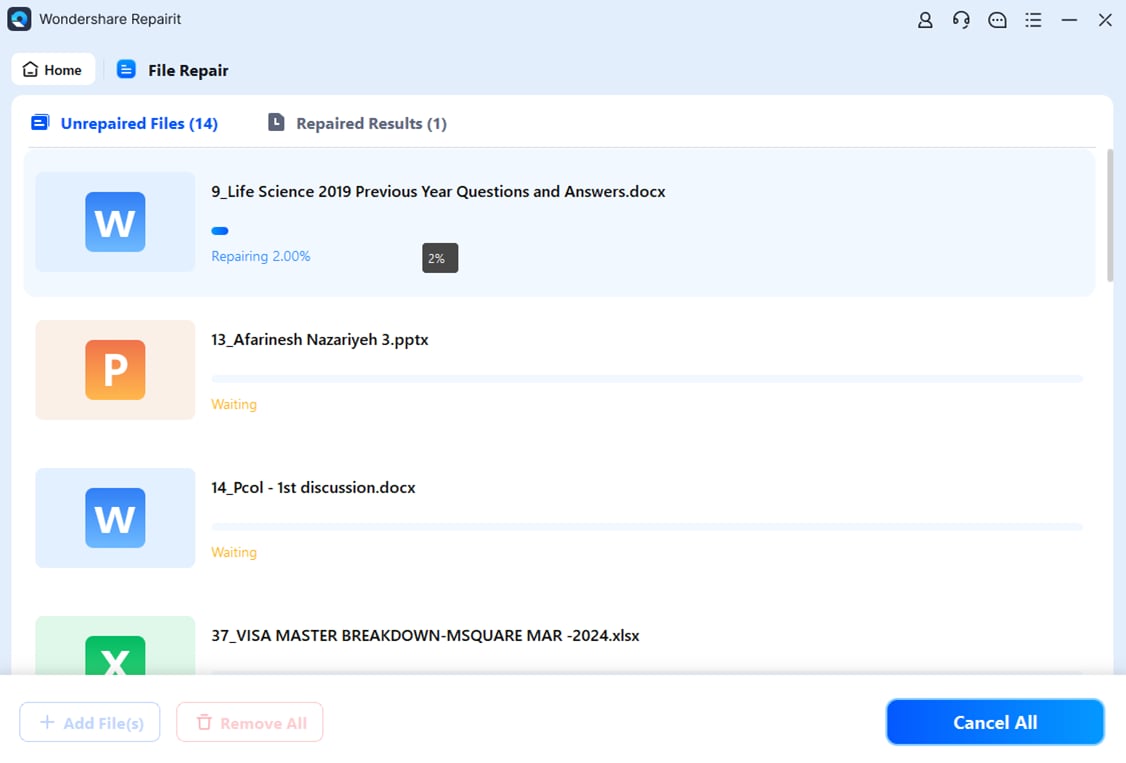
Step 2. Start the repair process.
Step 3. Preview the repaired file and save it to a new location.
Part 5. Best Practices to Prevent Copy-Paste and Selection Errors
Small adjustments in how you work with Excel can prevent most selection and copy-paste problems. Here are some user-friendly tips:
- Avoid unnecessary merged cells: Merged cells often shift ranges unexpectedly when copying. Use center-across-selection formatting instead of merging whenever possible.
- Check filters and frozen panes before copying: Active filters or frozen rows/columns can make Excel skip cells. Clear filters or unfreeze panes if you need to copy large ranges.
- Keep your workbook organized: Consistent column widths, row heights, and simple formatting reduce misalignment issues.
- Restart Excel if it starts acting up: Temporary glitches can interfere with selections. Restarting the program often resets the behavior.
- Save and back up regularly: Frequent saves prevent loss if Excel crashes, and keeping a backup ensures you can restore files if corruption occurs.
- Update Excel and your system: Updates fix bugs that may cause selection errors or copy-paste glitches.
These habits minimize common mistakes, make selections more predictable, and reduce the chance that Excel will behave inconsistently.
Conclusion
Excel copy and paste selecting incorrect cells can result from simple configuration issues or more complex file-level problems. Most cases are resolved through low-risk operational fixes such as clearing filters, disabling Scroll Lock, or adjusting layout settings.
File repair should be considered only after operational causes have been ruled out. Identifying the root cause early leads to faster resolution and reduces unnecessary risk to your data.
If you still can’t fix it: try copying the affected data into a new workbook (Paste Values if needed), update Office, or use Microsoft Office’s built-in repair option—these steps help when the workbook or installation is unstable.
FAQs
-
Why does Excel copy-paste select the wrong cells?
This usually happens because of settings like Scroll Lock, hidden rows/columns, merged cells, or temporary glitches. -
How can I fix Excel selecting the wrong cell?
Adjust Excel settings, unmerge cells, clear filters, or restart the program to restore normal behavior. These steps usually resolve selection issues without affecting your data. -
Can file corruption cause selection or copy-paste errors?
Yes, if the issue occurs only in one workbook, it may indicate file-level corruption. Using a repair tool can restore proper functionality. -
What repair options exist for corrupted Excel files?
File repair tools can fix damaged formulas, formatting, and cell references. It cannot recover deleted files or fix application-level bugs. -
How can I prevent Excel copy-paste problems in the future?
Avoid excessive merged cells, keep filters and frozen panes in check, and save backups regularly.




