
Print errors are frustrating enough, but seeing "Print Preview is not available" in Excel right when a deadline is approaching can be frustrating. This issue can be caused by various factors, such as disabled printing-related commands or a corrupted Office program.
For your convenience, this article covers all efficient methods to resolve the "Print Preview is not Available in Excel" error. Furthermore, we will provide a dedicated file-repairing tool to fix corrupted Excel files.
Table of Contents
Part 1. Understanding "Print Preview Is Not Available in Excel" Error
"Print Preview is not available in Excel" usually means that Excel cannot generate a preview of your worksheet because it cannot communicate with the selected printer. In most cases, this message appears with a grey-out Print button or a black preview pane. This does not mean that your Excel sheet is damaged by default; it's just a printing issue.
Why "Print Preview Is Not Available in Excel" Happens
If you are wondering why Excel shows "Print Preview is not available in Excel," then explore the following section:
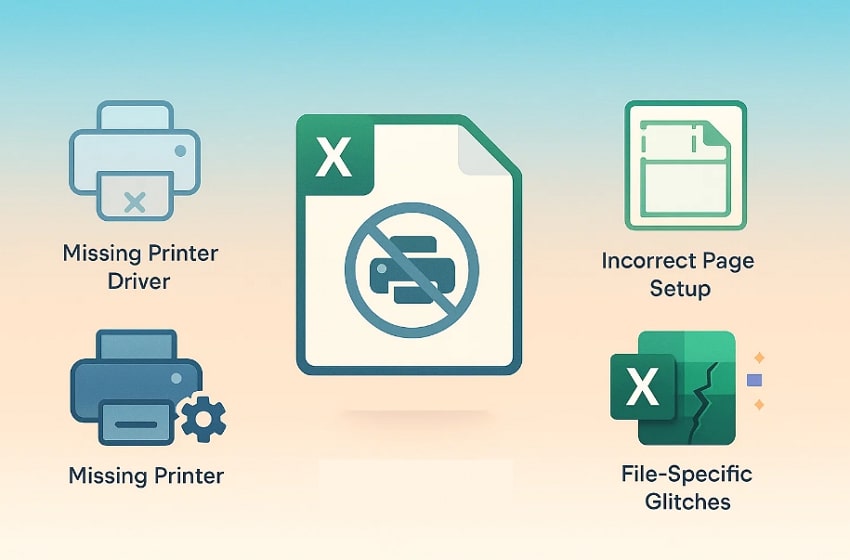
- No Default Printer Service: As Excel relies on the default printer, if no default printer is set or connected, it will automatically display an error message.
- Missing Printer Driver: If the selected printer has no driver installed, or the driver is outdated, Excel cannot read supported paper sizes or other settings.
- Page Setup Options: When your Excel file has incorrect page setup settings, such as an empty or incorrect print area, it leads to an error.
- Damaged Office Installation: If core Excel or Office components are corrupted, features such as printing and previewing may fail.
- File‑Specific Glitches: Sometimes, only a particular workbook shows an error, indicating that the embedded objects within the file might be the cause behind it.
Part 2. 6 Basic Fixes for "Print Preview Is Not Available in Excel"
With the reasons identified, let's walk through 6 simple solutions to restore the "Print Preview is not Available in Excel" error:
Fix 1. Restart Print Spooler Service
Restarting the Print Spooler is helpful because it clears and refreshes the Windows printing system and removes all unnecessary cache. When the spooler is stuck, Excel often cannot read the printer settings, so restarting the spooler mostly resolves this error. Furthermore, you don't need to access any third-party software to fix this issue. So, if you want to use this quick method, go through the following guide:
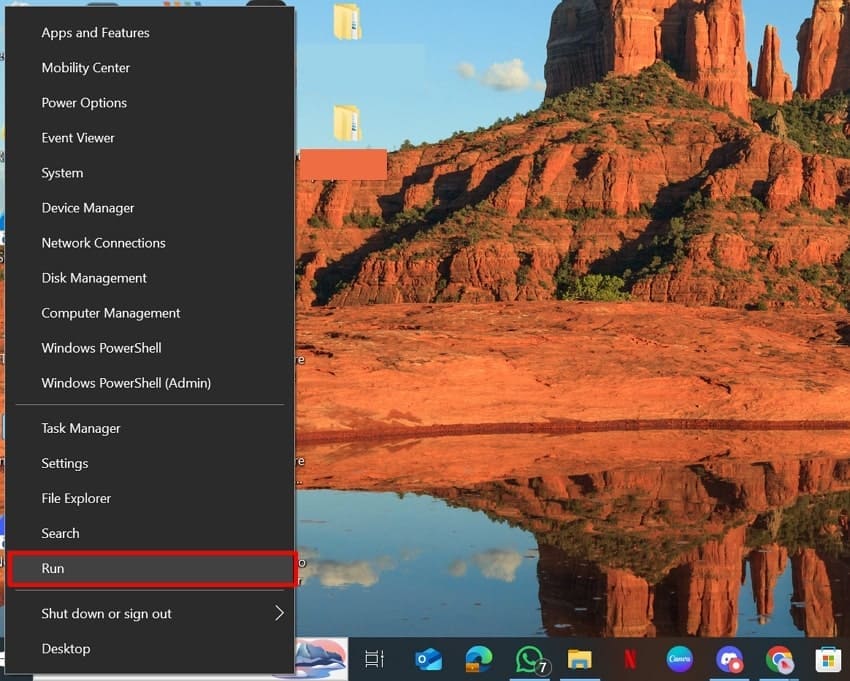
Step 1. Initiate by right-clicking the Windows icon and hitting the "Run" button placed at the end.
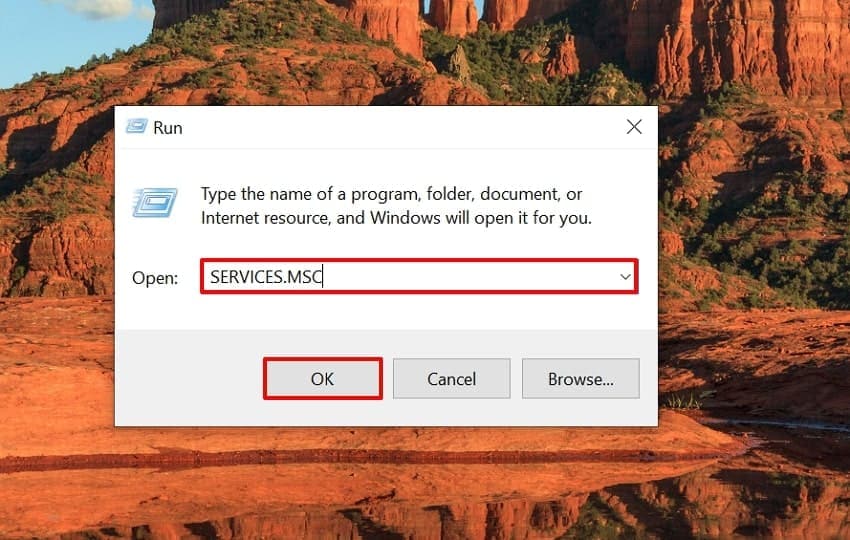
Step 2. Here, write the "services.msc" command in the "Open" tab and hit the "OK" button.
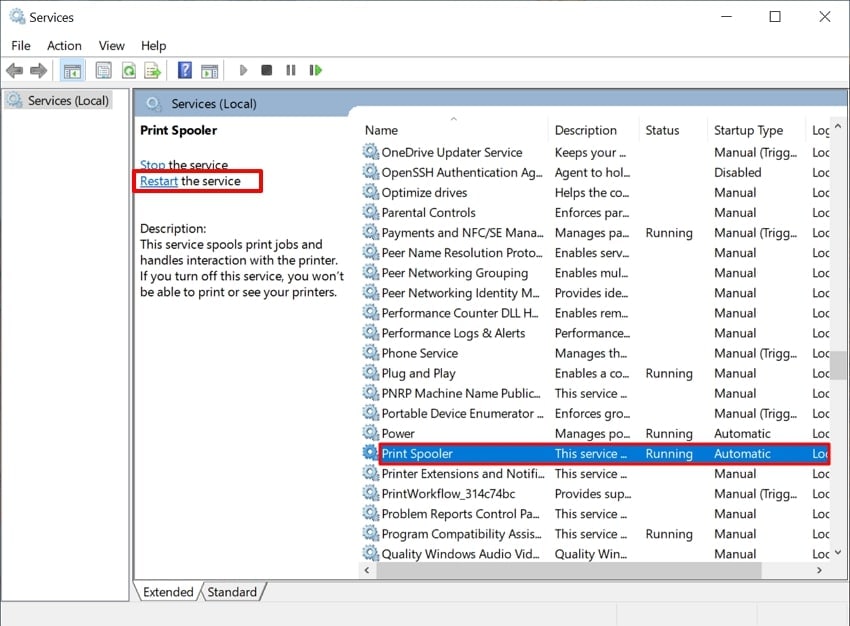
Step 3. As the "Services" window opens, navigate to the "Print Spooler" option and choose the "Restart the Service" option. This process will take a while, and you will need to restart the PC to make your Excel file printable and accessible.
Fix 2. Make Sure a Printer Is Installed and Connected
This method is essential to resolve the "Print Preview is not Available in Excel" error, as you can't print anything without having a printer. Within this method, you make sure that your PC is connected to the printer. It ensures a default printer is set, which greatly reduces random preview/printing errors. Moreover, this method lets you quickly switch to a different printer if needed, so let's explore its guide below:
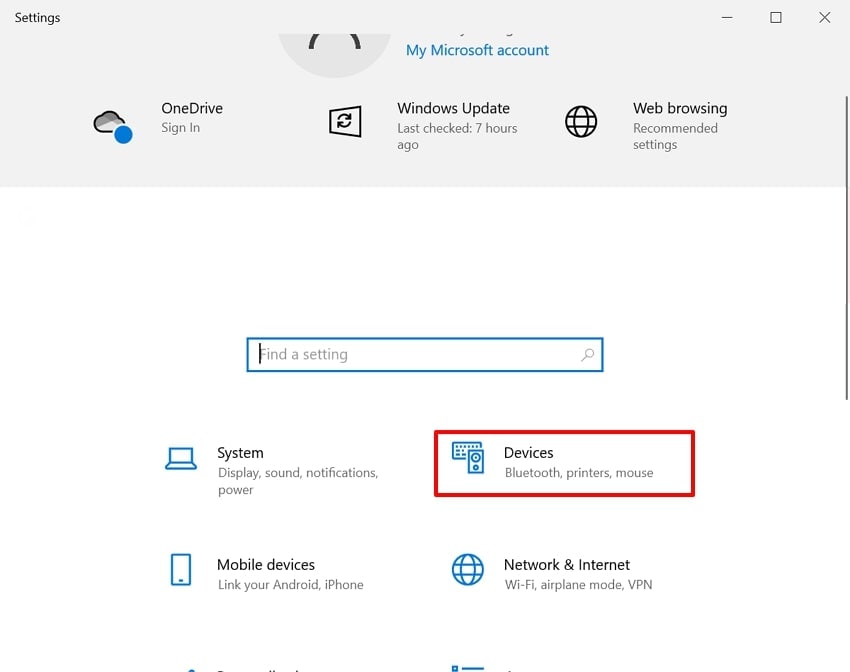
Step 1. Access the "Settings" app and click on the "Devices" option available on its main page.
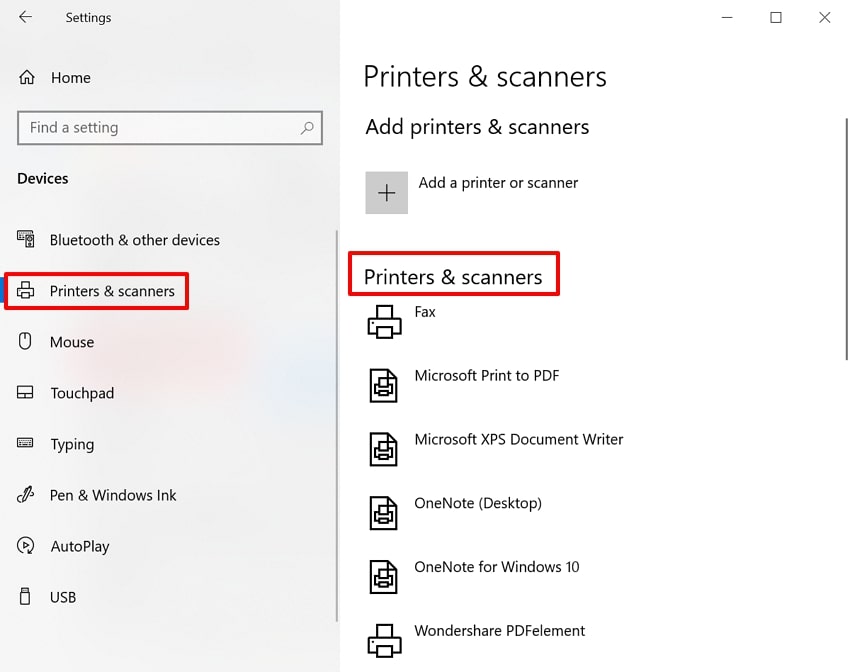
Step 2. Here, choose the "Printers & Scanners" option from the left tab. Ensure one of the printers shows the "Ready to Print" option so you can instantly start printing files.
Fix 3. Repair Office Installation
This method fixes deep Excel/Office problems that simple methods like restarting the spooler or changing printers cannot fix. This method is capable of resolving all major Office-related issues like damaged binaries and registry entries. Moreover, it effectively resolves issues across all installed Office apps, so explore this guide:
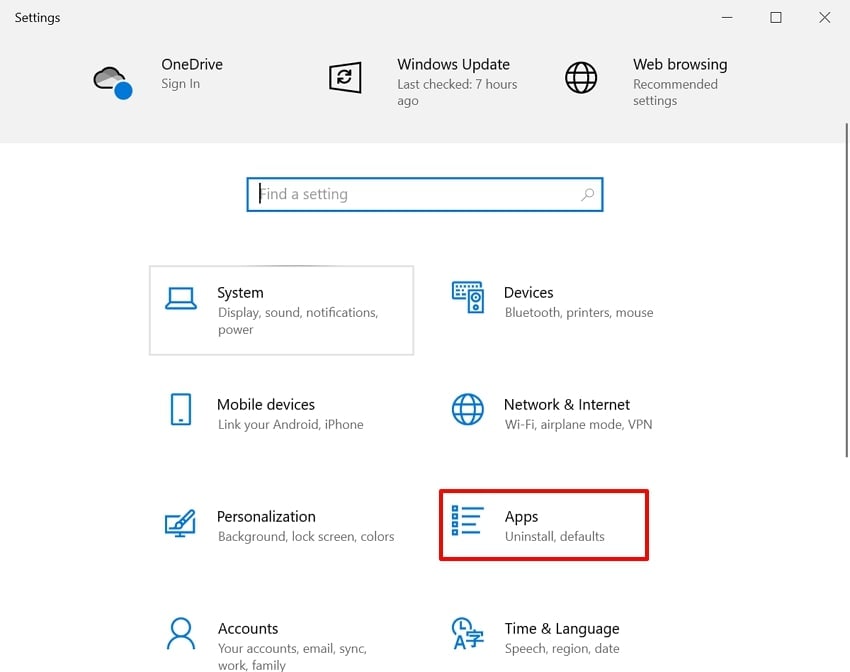
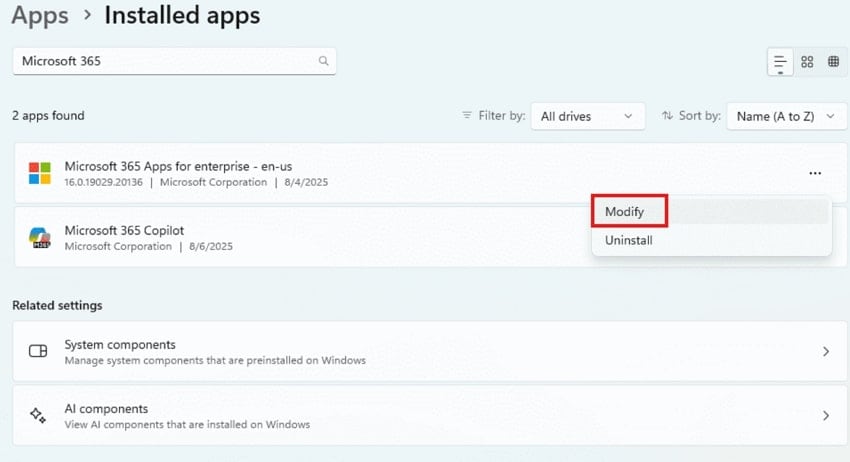
Step 1. Within the "Settings" window, choose the "Apps" option to enter its editing interface.
Step 2. Navigate to "Microsoft 365 Apps," and tap on the three dots to select the "Modify" option in the pop-up menu.
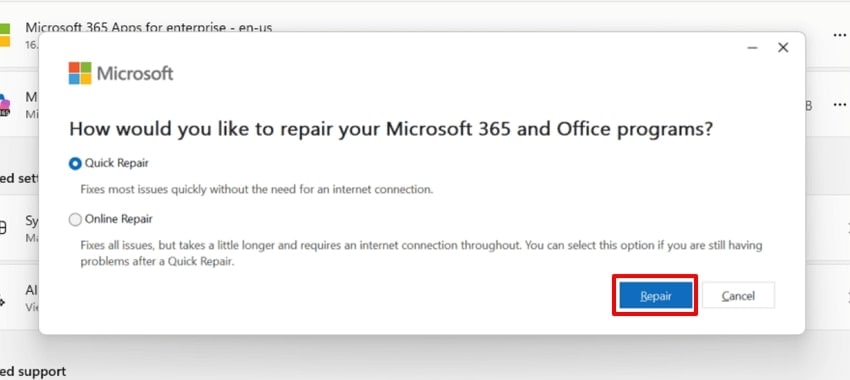
Step 3. Here, click on the "Repair" button to initiate the repair procedure. When the procedure ends, restart your Excel to check if the error is fixed.
Fix 4. Customize Quick Access Toolbar for Print Preview
Users can opt for this method as it always shows the "Print" option on the Quick Access toolbar, so you can easily spot the printing option. Having a dedicated preview button lets you quickly check whether Excel can reach the printer and render a preview. Furthermore, QAT is the same across workbooks, so let's explore the following guide to fix the "Print Preview is not available in Excel" error.
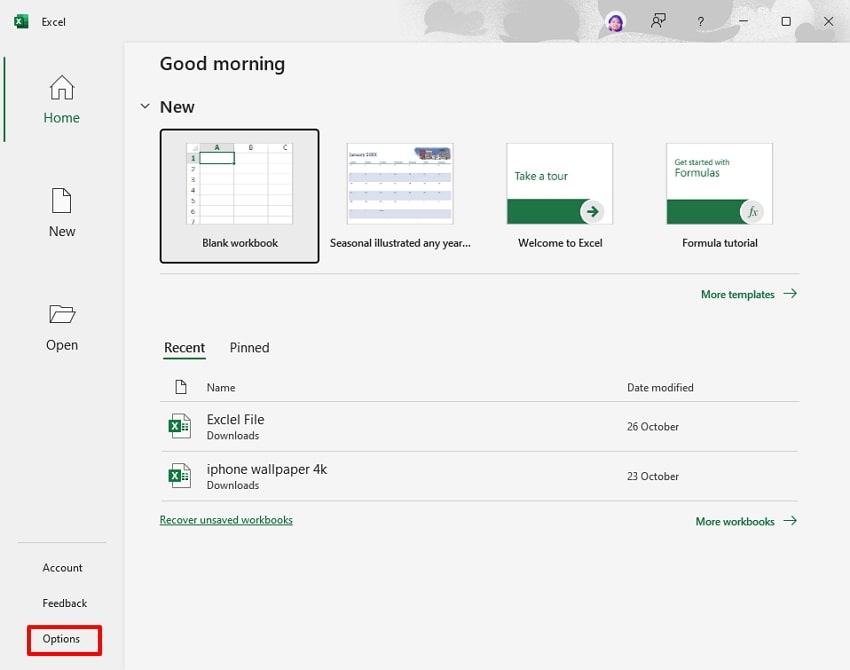
Step 1. Upon entering Excel, click on the "Options" button located at the bottom left of the screen.
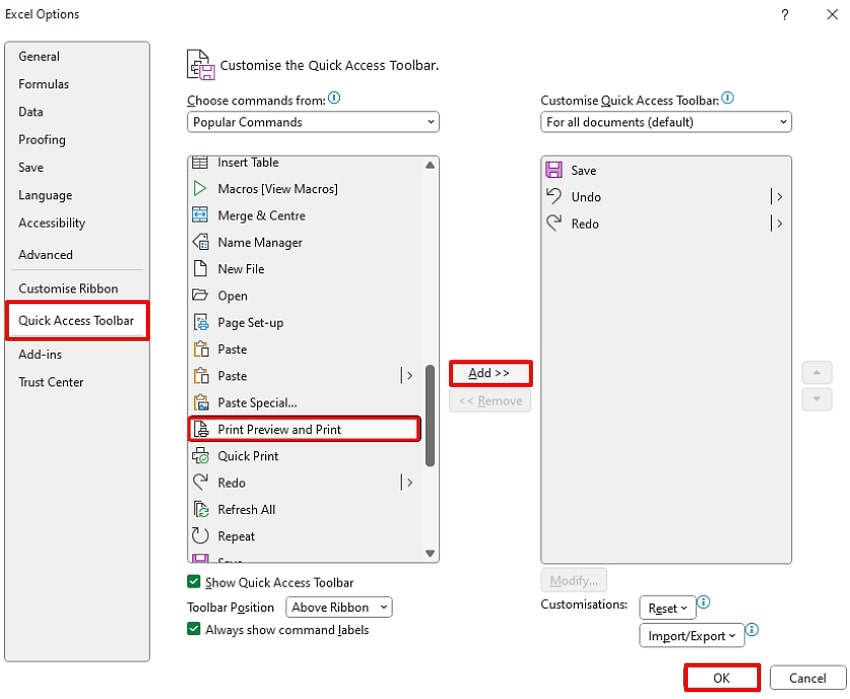
Step 2. Choose the "Quick Access Toolbar" and navigate to the "Print Preview and Print" option within the "Popular Commands" menu. Following this, hit the "Add" button and click on the "OK" button to save the changes.
Fix 5. Clear Print Area and Reset Page Layout
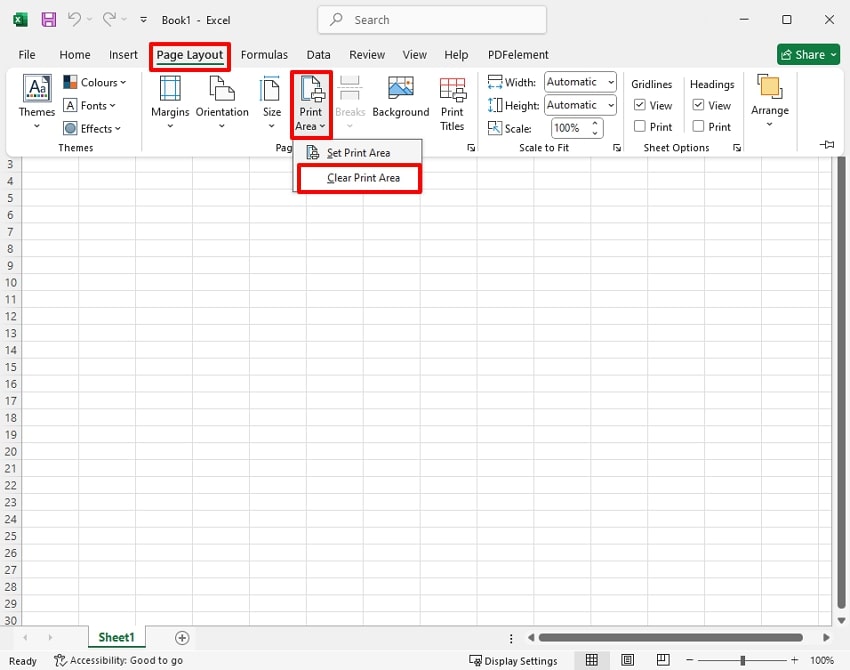
By clearing all extra cache data and resetting the page layout of the file, it instantly fixes the "Print Preview is not Available in Excel" error. It automatically removes outdated data that is causing the print preview error. Furthermore, adjust the page layout, and it will show you a proper print preview rather than a blank page. So, if you are eager to use this method, then read the following guide:
Instructions. After opening the error file, expand the "Page Layout" menu from the toolbar. Following this, choose the "Print Area" option and click on the "Clear Print Area" option. Here, you can also adjust the "Margins, Orientation, and Size" of the file. Afterwards, press "Ctrl + P" to confirm that "Print Preview" is available now.
Fix 6. Update Printer Drivers
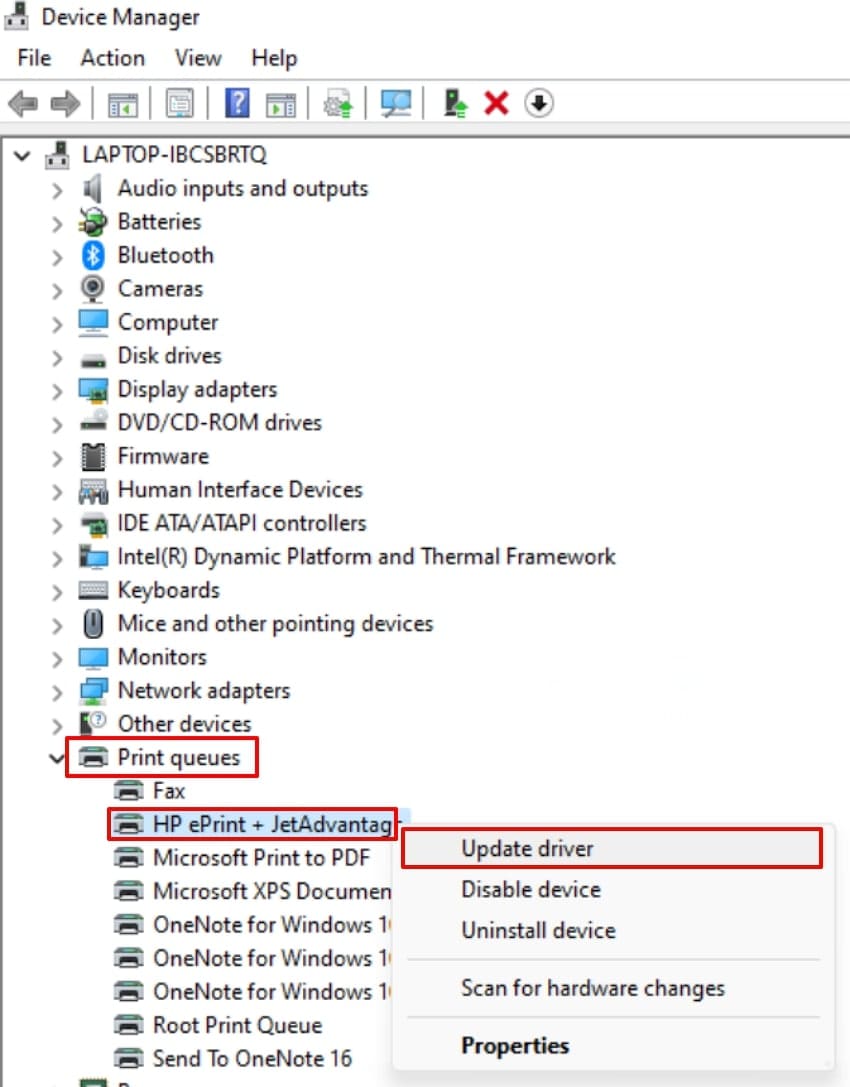
Updating printer drivers is essential because Excel relies on those drivers to understand paper sizes, margins, and color options. This method replaces corrupt driver files that can cause Excel to crash, freeze, or show "Print Preview Is Not Available." Furthermore, it ensures full compatibility with the latest versions of Windows and Microsoft 365, reducing random issues. Upon hearing the need for checking this method, let's explore the guide:
Instructions. Access the "Device Manager," choose the desired printer from the options, right-click, and hit the "Update Driver" option to start the updating procedure.
Pro Tip. Use Repairit for Quick Excel Recovery for Damaged Spreadsheets
A business accountant usually keeps all monthly sales, tax calculations, and payroll data in one master Excel workbook. However, one day, upon opening the file, they discovered an error that the workbook was corrupted, and many sheets were blank. In such a situation, we recommend using Repairit, which lets you repair corrupted data files with complete accuracy.
Key Features

-
Repair damaged Excel files with all levels of corruption, including blank files, files not opening, unrecognizable format, unreadable content, files layout changed, etc.
-
Repairs all kinds of data stored in damaged Excel files such as tables, charts, formulas, comments, images, etc.
-
Support all formats of Excel files: XLSX/XLSM/XLTX/XLTM/XLS
-
Perfectly repair corrupted files with a very high success rate, without modifying the original file.
-
No limit to the number and size of the repairable files.
-
Support Windows 11/10/8/7/Vista, Windows Server 2003/2008/2012/2016/2019/2022, and macOS 10.10~macOS 13.
-
Except Excel, Repairit also supports all formats of PDF, Word, Excel, PowerPoint, ZIP, and Adobe files.
Guide on How to Use Repairit for Damaged Spreadsheet Recovery
Upon hearing the efficient key features of Wondershare Repairit, let's explore its detailed step-by-step guide to repair damaged spreadsheets:
Step 1. Select the Repair Option to Access Document Repair
Upon entering the tool, click on the "More Type Repair" section to select "Document Repair" further. Following this, hit the "Start" button to initiate the procedure.

Step 2. Begin the Repairing Procedure with Repairit
After adding the corrupted spreadsheet file, click on the "Repair" button to let the tool start repairing.

Step 3. Save the Repaired Outcome to the Device Folder
Once the spreadsheet is repaired, click on the "Save All" button to export the file to the device folder.

Repair Corrupted Excel Files
 Security Verified. Over 7,302,189 people have downloaded it.
Conclusion
Summing up, in this article, we have listed the most efficient methods to fix the "Print Preview is not available in Excel" error. We have also provided a detailed step-by-step guide for each method, making it easier for you to use them. Furthermore, if your Excel file gets corrupted, we recommend using Repairit, which is capable of repairing numerous file types simultaneously.
FAQs
-
Q1. Why does Excel say "Print Preview is not available" even though my printer is ready?
This usually means that Excel cannot access the full printer settings from Windows. This error happens due to spooler glitches, driver issues, or a missing/default printer, even if the device shows it online. -
Q2. Do I need to reinstall Excel if Print Preview stops working?
It is not necessary, as you can try basic steps like checking printers, clearing the print area, or updating drivers. However, if these DIY methods don't work, we recommend using Repairit, which lets you repair the corrupted Excel file instantly. -
Q3. Is there a quick way to access Print Preview if the usual route bugs out?
Yes, you can add a "Print Preview" command to the Quick Access Toolbar of the Excel app. Furthermore, sometimes pressing Ctrl + P can also bypass the print preview errors.




