
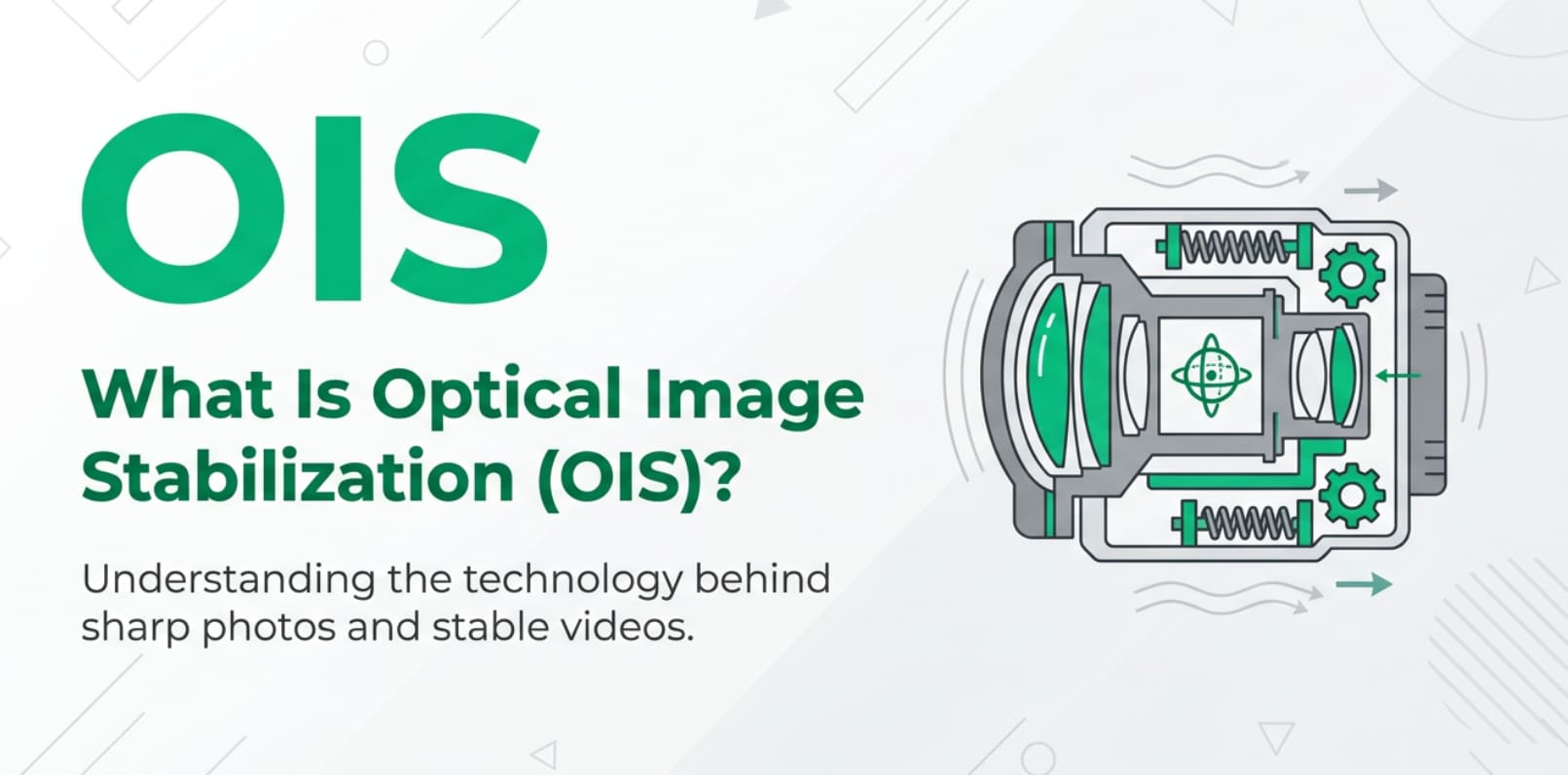
Optical Image Stabilization is a camera technology you will see in smartphone specs, lens names, and video settings. It matters whenever you shoot handheld photos, capture vlog footage, record low-light clips, or stream live video and want less blur and shake. Understanding what OIS does, and what it cannot do, helps you choose the right gear, tweak your shooting settings, and avoid ruined clips during recording, editing, exporting, and playback across different platforms.
Repair Corrupted Files To Save Your Data
 Security Verified. Over 7,302,189 people have downloaded it.
In this article
Introduction
When you shoot handheld photos, vlog clips, live streams, or social videos, tiny hand movements can easily blur the image or make footage look shaky. Optical Image Stabilization (OIS) is a hardware feature in many cameras, lenses, and smartphones that physically compensates for this motion. Whether you are recording, editing, exporting, or playing back your content on different platforms, understanding how OIS works helps you get sharper images and cleaner, more watchable video.
What Is Optical Image Stabilization (OIS)?
Optical Image Stabilization (OIS) is a hardware-based camera stabilization system that reduces blur caused by small, unintentional movements while you are shooting. Instead of adjusting the image after it is captured, OIS moves parts inside the camera or lens in real time to keep the image steady on the sensor.
In photography and videography terms, OIS is a form of camera stabilization. It belongs in the same family as tripods, gimbals, and software-based video stabilization, but it operates optically, inside the lens or camera module. You will commonly see it in:
- Interchangeable camera lenses labeled as "IS," "VR," "OSS," or similar
- Smartphones marketed with smartphone OIS or "optically stabilized main camera"
- Compact cameras and action cams that combine OIS with electronic stabilization
The basic role of OIS in shooting is to counteract hand shake so you can use slower shutter speeds, longer focal lengths, and handheld framing while still getting sharp photos and smoother footage. It is especially valuable in low light, when the camera needs more exposure time and is more vulnerable to blur.
How Does Optical Image Stabilization (OIS) Affect Your Image or Footage?
Because OIS works optically, it changes how motion and sharpness appear in your final photos and video files before you ever open them in an editor or export them for sharing. It does not change brightness, colors, or depth of field directly, but by enabling slower shutter speeds and steadier framing, it indirectly improves overall image quality, noise levels, and viewing comfort.
Impact on photos
In still photography, optical image stabilization affects several visible aspects of the image:
- Sharpness and motion blur: OIS lets you handhold at slower shutter speeds without the whole image smearing from camera movement. Fine details like text, hair, or architectural lines stay readable instead of turning soft.
- Noise levels: Because you can keep the shutter open longer without blur, the camera does not have to push ISO as high. That means cleaner files with less noise and more detail when you view, edit, or print them.
- Composition and framing: Less visible shake in the viewfinder or live view makes it easier to fine-tune framing, line up horizons, and keep a subject centered, especially with telephoto lenses.
- Consistency across a series: When shooting bursts or brackets, OIS helps keep more of the set usable, so you have better options when culling and editing later.
Impact on video, streaming, and playback
In moving footage, OIS has a direct impact on how steady and professional your clips look during recording and at playback on any device or platform.
- Stability and jitter: OIS reduces small jitters and micro-shakes from your hands, breathing, or pressing the record button. This is essential for vlog shots, walk-and-talks, and handheld B-roll.
- Rolling shutter and wobble: On some cameras, sudden jerks combined with a rolling shutter can cause warping. OIS helps tame minor shakes before they hit the sensor, reducing visible "jello" artifacts in your exported video.
- Editing and encoding: Smoother source footage compresses better and looks cleaner after encoding for YouTube, TikTok, or live streaming platforms. Encoders have an easier job with stable frames, which can mean fewer compression artifacts at a given bitrate.
- Viewer comfort: Less shake means less dizziness and eye strain for viewers when watching on phones, TVs, or during long viewing sessions, which can improve watch time and engagement for creators.
However, OIS does not replace dedicated video stabilization in post or gimbals for very dynamic shots. It is designed mainly for small, quick hand movements, not big motion like running or fast pans.
How Does Optical Image Stabilization (OIS) Work in Real Shooting?
In real-world shooting workflows, OIS is something you feel more than see: the image in your viewfinder or screen simply looks steadier. Internally, a gyroscope and accelerometer detect tiny movements. The camera or lens then shifts either a floating lens group or the image sensor itself in the opposite direction to keep the projected image aligned.
You typically encounter controls for optical image stabilization in these places:
- Interchangeable lenses: A physical switch labeled "ON/OFF," "IS," "VR," "OSS," or similar on the side of the lens barrel.
- Cameras with in-body stabilization (IBIS): A menu option under "Stabilization," "SteadyShot," or "Image Stabilizer," sometimes with modes like "Normal," "Sport," or "Active."
- Smartphones: No direct OIS toggle in many cases, but stabilization settings in the camera app (e.g., on/off or "enhanced stabilization") that combine OIS and electronic methods.
- External monitors or camera control apps: Options to enable or disable stabilization for specific recording modes.
Here are some practical examples of how OIS shows up in a full workflow from recording to playback:
- Low-light street photography: You are shooting handheld at night with a lens that has lens stabilization. Turning OIS on lets you use a slower shutter (like 1/15s instead of 1/60s) without mangling fine details. The files look sharp when imported into Lightroom, and you do not have to push noise reduction as hard.
- Mobile vlogging: Your smartphone has smartphone OIS on the main camera. While walking and talking, OIS takes the harsh edge off hand shake so in-camera video stabilization and any editing apps you use later (for trimming, color, captions, and exporting) have a cleaner starting point.
- Zoomed-in event recording: Filming a concert from the back of the room with a telephoto lens, you enable OIS on the lens and IBIS in the body. Combined stabilization keeps the singer from bouncing all over the frame. The final H.264 or HEVC export holds detail and compresses well because frame-to-frame changes are smoother.
- Live streaming: When streaming handheld from a phone, OIS works from the moment the sensor captures light, so the stream encoder receives steadier frames. Viewers on platforms like YouTube Live or Twitch see less micro-shake even if you do not add extra software stabilization.
Best Uses, Common Mistakes, and Quick Tips
Knowing when to rely on OIS and when to turn it off can save you from unexpected blur or strange artifacts.
When optical image stabilization matters most
- Low light and indoor shooting: Slower shutter speeds are common here. OIS helps you avoid raising ISO too high while still getting usable, sharp images.
- Telephoto lenses and long focal lengths: The longer the lens, the more visible any shake. Lens-based camera stabilization is especially important at 85mm, 200mm, and beyond.
- Handheld video, vlogs, and walk-throughs: For run-and-gun shooting, OIS is your first line of defense against distracting shake.
- Casual smartphone use: Quick snaps and clips benefit from smartphone OIS by default, especially in dim restaurants, concerts, and nighttime scenes.
Common mistakes and misunderstandings
- Leaving OIS on when using a tripod: Some systems can overcorrect and introduce a small "wobble" when the camera is already solid. For long exposures on a stable tripod, many manufacturers recommend turning OIS off.
- Expecting OIS to freeze subject movement: OIS corrects camera movement, not your subject. If people or cars are moving quickly, you still need a fast shutter speed.
- Assuming OIS fixes everything in video: It reduces micro-shake but will not fully stabilize running shots, heavy footsteps, or vehicle vibrations. You may still need a gimbal or additional video stabilization in post.
- Thinking OIS can repair corrupted files: OIS only affects how footage is captured. It cannot fix files damaged by card errors, interrupted recording, or transfer issues; you need a repair tool for that.
Quick tips for using OIS correctly
- Enable optical image stabilization whenever you shoot handheld in low light or with telephoto lenses.
- Turn OIS off for long tripod-mounted exposures or when doing controlled pans, unless your camera specifically supports tripod mode.
- Combine OIS with good technique: stable stance, gentle shutter press, and bracing against a surface.
- For video, let OIS handle small shake, then add gentle software stabilization only if needed during editing.
The takeaway: OIS is a powerful ally for making your images and clips sharper and steadier, but it works best when paired with proper settings, shooting technique, and a reliable safety net for file protection.
How to Use Repairit to Fix a Corrupted Photo File
Repairit introduction
Even with perfectly used optical image stabilization, your photos can still become unreadable due to memory card errors, power loss, or transfer interruptions. Wondershare Repairit offers a simple way to rescue damaged images that refuse to open, show gray areas, or display artifacts. You can learn more and download the tool from the Repairit official website, then repair corrupted photo files from cameras, smartphones, drones, and other devices with just a few clicks.
Key features
- Repairit repairs broken or unreadable photo and video stabilization-affected files from many devices and storage media.
- It offers an intuitive interface with a clear, guided workflow suitable for both beginners and advanced creators.
- You can preview repaired photos before saving them, ensuring that important details look correct across editing apps and playback platforms.
Step-by-step guide
- Add corrupted photo files
Install and open Wondershare Repairit, then choose the Photo Repair feature from the main screen. Click the "Add" button and browse to the folder where your damaged shots are stored, such as your memory card backup or a project folder. Select one or multiple corrupted photos to put them into the repair queue so Repairit knows exactly which files to analyze.

- Repair photo files
Once your images are listed, hit the "Repair" button to start the fixing process. Repairit scans each file structure, looks for broken headers, missing data links, and visual glitches, then reconstructs the photos as completely as possible. You can monitor progress from the interface and, when it is finished, click individual entries to preview how the repaired images will appear in your editing software or viewing apps.

- Save the repaired photo files
Review the previews and tick the images you want to keep. Click "Save" or "Save All," then choose a safe destination folder different from where the corrupted files were stored, such as a new folder on your computer or backup drive. Repairit exports clean, repaired copies that you can now import into your usual editing workflow, encode into slideshows, or share online without worrying about corruption errors.

Conclusion
Optical Image Stabilization is a hardware-based solution that keeps your camera or smartphone footage steadier by physically counteracting hand shake during capture. By shifting lens elements or the sensor, OIS lets you shoot at slower shutter speeds, use longer focal lengths, and record handheld video with noticeably less blur and jitter.
However, stabilization cannot stop every issue. Fast-moving subjects, severe camera motion, and technical glitches can still result in soft images or even corrupted files. Combining smart use of OIS with careful shooting technique and a dedicated repair tool like Wondershare Repairit gives you the best chance of preserving both sharpness and file integrity from recording to final playback.
Next: Electronic Image Stabilization (Eis)
FAQ
-
1. What is the main benefit of Optical Image Stabilization (OIS)?
The main benefit of OIS is reducing blur caused by small hand movements so you can capture sharper photos and smoother videos when shooting handheld, especially in low light or at longer focal lengths. -
2. Is OIS better than Electronic Image Stabilization (EIS)?
Optical image stabilization is usually better for still photos and low-light scenes because it stabilizes the image before it reaches the sensor. Electronic Image Stabilization (EIS) works in software on the captured frames and often shines in video. Many modern cameras and phones combine OIS and EIS for the best overall result. -
3. Does OIS help with video recording and streaming?
Yes. OIS reduces micro-shakes during video capture, which leads to steadier footage for local recording, live streaming, and later playback. It improves viewer comfort and gives post-production or platform encoders cleaner frames to work with. -
4. Can OIS cause any problems in photos or video?
In some situations, such as tripod-mounted long exposures or very predictable motion, OIS can overcompensate and introduce slight wobble or double edges. In those cases, it is often better to turn stabilization off or use a specific tripod mode if your camera offers one. -
5. Can OIS repair a corrupted photo or video file?
No. OIS only affects how the image is stabilized during capture; it cannot fix damaged or unreadable files. If a photo or clip becomes corrupted due to card errors, power loss, or transfer issues, you need a dedicated repair tool such as Wondershare Repairit to scan and rebuild the file.




