
In-body image stabilization, often shortened to IBIS, is now a key selling point for many mirrorless and DSLR cameras. You will see it mentioned in spec sheets, YouTube reviews, photo forums, and even phone camera marketing. Understanding how camera stabilization works helps you choose gear wisely, shoot sharper photos, record smoother video, and avoid problems such as jittery footage or corrupted files during recording and playback.
Repair Corrupted Files To Save Your Data
 Security Verified. Over 7,302,189 people have downloaded it.
In this article
What Is In-Body Image Stabilization (IBIS)?
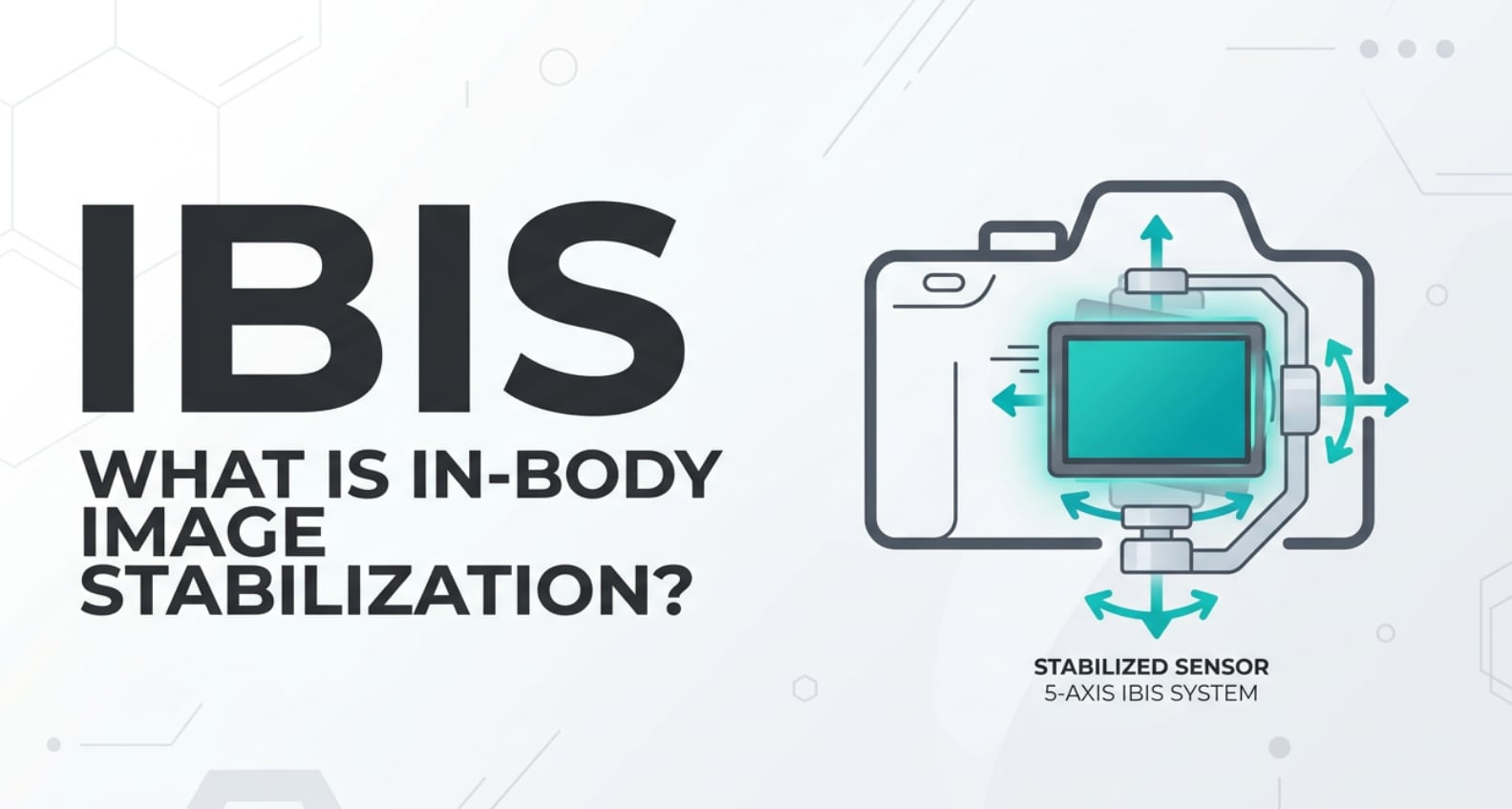
In-body image stabilization is a photo stabilization and video stabilization technology built into the camera body instead of (or in addition to) the lens. In cameras with IBIS, the image sensor itself floats on a miniature platform that can move in multiple directions to counteract tiny shakes from your hands or body.
From a technical perspective, IBIS is a camera stabilization system that detects motion using gyroscopic and acceleration sensors. It then shifts the sensor in real time to keep your framing steady during recording or when you half-press the shutter. This matters in still photography, handheld video, live streaming, and even when capturing clips to edit and export later, because stability directly affects sharpness and how much motion blur or jitter shows up in the final file.
Unlike lens-based optical stabilization, which is limited to specific stabilized lenses, IBIS works with almost every lens you mount: modern autofocus zooms, vintage manual glass with adapters, fast primes without stabilization, and even cinema lenses. That universality makes it one of the most important features to understand when buying or using a modern camera.
How Does In-Body Image Stabilization (IBIS) Affect Your Image or Footage?
Effects on photos
For still photos, IBIS primarily improves sharpness and reduces camera-shake blur. When you shoot at slower shutter speeds, any tiny movement of your hands can smear detail across the frame. The sensor movement inside the camera attempts to cancel out that motion so the subject stays in the same place on the sensor while the exposure is being recorded.
This has several practical effects:
- Sharper handheld shots at slow shutter speeds. You might handhold at 1/10s or 1/4s that would normally be unusable, especially with wide or standard lenses.
- Cleaner low-light images. With stabilization helping you hold the camera steady, you can sometimes use a lower ISO for the same exposure, reducing noise in night scenes or indoor environments.
- Better framing in the viewfinder. Because the sensor is being actively stabilized, the live view or EVF image appears calmer, making it easier to refine composition and focus.
However, IBIS does not stop subject motion. If a person is walking or a car is driving by, they can still blur at slow shutter speeds even if the background looks sharp. It also does not directly change depth of field, color, or perspective; instead, it allows you to choose exposure settings (like slower shutter speeds or lower ISO) that indirectly influence those characteristics.
Effects on video
For video, IBIS primarily affects stability and motion smoothness. Its benefits show up during recording, editing, encoding, exporting, and playback in several ways:
- Reduced handheld jitter. Walking, breathing, and tiny hand tremors create micro-movements that can be distracting in 4K or high-resolution footage. Sensor stabilization dampens these, so clips look more polished right out of the camera.
- Less reliance on post-stabilization. When your source clips are already stable, software stabilizers in editing tools (like Premiere Pro or DaVinci Resolve) do not need to crop or warp as aggressively, helping preserve resolution and avoid artifacts.
- More consistent results across platforms. Stable video compresses better when you encode, upload, and stream on platforms like YouTube, Instagram, or TikTok. Excessive shake can trigger compression artifacts or rolling wobble that becomes more obvious during playback on phones and TVs.
On the downside, aggressive IBIS can sometimes introduce a faint "wobble" or "jello" effect, especially with ultra-wide lenses, complex panning, or fast walking shots. When encoding or exporting, this wobble is baked into the files, and some streaming platforms may exaggerate it with their own compression. Balancing IBIS with lens stabilization and in-camera electronic stabilization is key to avoiding such distortions.
How Does In-Body Image Stabilization (IBIS) Work in Real Shooting?
In actual shooting workflows, IBIS is something you control directly from your camera menus or quick settings. Many cameras offer options such as "IBIS ON/OFF," "Stills only," "Video," or combined stabilization modes when a stabilized lens is attached.
Here is how it typically shows up in practice:
- Viewfinder or LCD preview. As soon as IBIS activates (often with a half-press of the shutter or record button), the live image becomes noticeably steadier. This makes it easier to frame, nail critical focus, and compose precise shots, particularly with telephoto lenses.
- Lens and focal length coordination. With native lenses, the camera automatically knows the focal length and tunes stabilization accordingly. With adapted manual lenses, you may need to input focal length in a menu so the IBIS system can react correctly.
- Interaction with tripods and gimbals. On a rock-solid tripod, IBIS can sometimes overcorrect for non-existent movement, potentially softening long exposures. On motorized gimbals, too many overlapping stabilization systems can fight each other.
Example scenarios:
- Street photography at dusk. You may keep ISO low and shutter around 1/20s while handholding a 35mm lens. IBIS keeps buildings and static elements sharp even as you work quickly.
- Run-and-gun vlogging. Walking with a 24mm lens, IBIS smooths your steps enough that footage looks more watchable without a gimbal, especially for talking-head clips intended for YouTube or Reels.
- Event coverage. While filming on the move at a wedding or conference, you avoid bumping ISO too high by trusting IBIS to handle extra stability, knowing the footage still needs to survive editing, color grading, export, and streaming.
Best Uses, Common Mistakes, and Quick Tips
When IBIS matters most
- Handheld shooting in low light (concerts, indoor events, night streets).
- Travel and documentary work where you cannot always carry a tripod or gimbal.
- Using small, fast prime lenses that lack optical stabilization.
- Recording clips that will be cropped, stabilized further, or heavily processed in post.
Common mistakes and misunderstandings
- Relying on IBIS to freeze motion. Stabilization reduces camera shake, not subject movement. You still need sufficiently fast shutter speeds for sports, wildlife, and action.
- Leaving IBIS on for every tripod shot. In some cameras, stabilization can create micro-blur in long exposures or macro work when there is no real movement to correct.
- Stacking too many stabilizers. Combining strong IBIS, lens stabilization, in-camera electronic stabilization, and heavy software stabilization in editing can lead to warping edges or rubbery motion.
- Ignoring focal length settings for manual lenses. If you forget to set the correct focal length, IBIS may under- or over-compensate, reducing its effectiveness.
Quick tips for better results
- Use IBIS for handheld stills and video, but test your camera on a tripod to see whether turning it off yields sharper results for static scenes.
- For panning shots, some cameras offer modes that stabilize only certain axes, preserving smooth horizontal movement while still reducing vertical shake.
- With ultra-wide lenses, watch playback carefully to spot any unnatural wobble and adjust stabilization settings if needed.
- When editing, apply additional digital stabilization sparingly, since your IBIS-stabilized footage should already be relatively smooth.
The takeaway: IBIS is a powerful camera stabilization tool that helps you get sharper photos and steadier video across many shooting scenarios, but it works best when you understand its strengths and limits and pair it with solid shooting technique.
How to Use Repairit to Fix a Corrupted Photo File
Repairit Introduction
Even with excellent image stabilization, recording errors, power loss, or transfer glitches can still leave you with damaged or unplayable photo files. Wondershare Repairit is designed specifically to repair corrupted images and videos so you can recover important shots from your IBIS-equipped camera, phone, or action cam. You can explore all features and get the installer from the Repairit official website.
Key features of Repairit
- Fix corrupted video files and photo files from cameras, phones, drones, dashcams, and other storage devices using an automated workflow.
- Support for multiple formats and scenarios, including files damaged during recording, editing, exporting, or transfer.
- Preview repaired photos and videos before saving them to ensure that quality and details meet your expectations.
Step-by-step: repair corrupted photo files
- Add corrupted photo files
Launch Repairit on your computer and choose the Photo Repair module from the main interface. Click the add or plus icon to browse your folders, then select the corrupted photos that refuse to open, display errors, or appear broken after transferring from your camera or memory card. Confirm your choices so they appear in the file list, ready for repair.

- Repair photo files
After your damaged images are loaded, start the repair process by hitting the Repair button. Repairit analyzes each file, looks for structural issues and missing metadata, and attempts to rebuild the image data. When the first pass is complete, use the built-in preview window to check key photos, zoom into important areas, and confirm that the restored files look correct before saving.

- Save the repaired photo files
Once you are satisfied with the previews, click Save or Save All to export the fixed images. Choose a safe destination folder on your computer that is different from the original storage location, which helps avoid overwriting problematic files. After saving, back up the repaired photos to an external drive or cloud storage so you do not risk losing them again due to future corruption.

Conclusion
In-body image stabilization gives your camera sensor the ability to fight hand shake directly, improving sharpness in stills and delivering smoother video without relying only on stabilized lenses. By understanding how IBIS behaves at different focal lengths, shutter speeds, and motion types, you can decide when to enable it, when to combine it with lens or electronic stabilization, and when to switch it off for the cleanest tripod-based results.
Even with excellent camera stabilization, technical problems, power interruptions, or transfer issues can still corrupt your media files. Having a dedicated repair tool like Wondershare Repairit ensures that if important photos or videos become damaged, you have a practical way to restore them and protect your creative work across capture, editing, exporting, streaming, and playback.
Next: Optical Image Stabilization (Ois)
FAQ
-
1. What is the difference between IBIS and optical image stabilization in lenses?
IBIS (in-body image stabilization) moves the camera sensor to counteract shake, and it works with almost any attached lens. Optical image stabilization in lenses shifts elements inside the lens itself and is often very effective at long focal lengths. Many modern systems combine both for stronger overall camera stabilization, especially for telephoto shooting and video work.
-
2. Does IBIS help when recording video for YouTube, TikTok, or streaming?
Yes. IBIS reduces small handheld jitters, so your source clips look smoother before editing and encoding. This helps your video survive compression when you export and upload to platforms like YouTube, TikTok, or Instagram, and it can make handheld streams more comfortable to watch on mobile devices.
-
3. Should I turn IBIS off on a tripod or gimbal?
On a solid tripod, many photographers prefer to disable IBIS to avoid the system trying to correct non-existent movement, especially for long exposures or macro work. On a gimbal, some users also reduce or turn off stabilization to prevent overlap between motor corrections and sensor movement. Always test your specific camera to see which combination yields the sharpest, most natural-looking result.
-
4. Can IBIS cause wobble or distortion in video?
In some cases, yes. With ultra-wide lenses, strong IBIS plus rolling shutter can create subtle "jello" wobble, especially when walking or panning quickly. If you notice this in playback, try a less aggressive stabilization mode, pair it carefully with lens or electronic stabilization, slow down your movement, or turn IBIS off for locked-off tripod shots.
-
5. What can I do if a stabilized recording becomes corrupted or will not open?
Stabilization does not prevent file corruption caused by power loss, card issues, or transfer errors. If important photos or videos from your IBIS-equipped camera will not open or show errors, you can use Wondershare Repairit to scan and repair the damaged files. After recovery, back them up immediately to multiple locations to avoid data loss in the future.




