
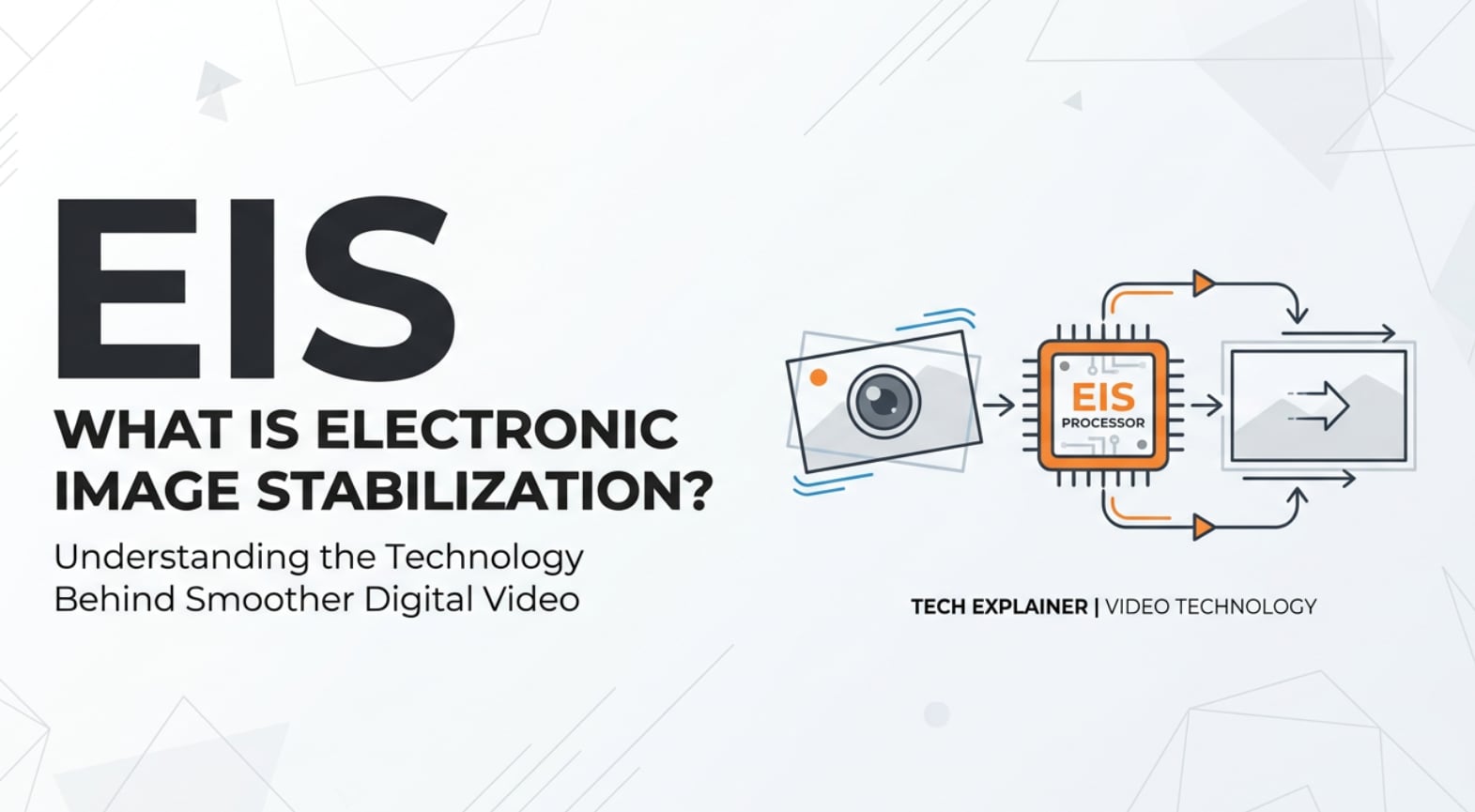
Electronic image stabilization, often labeled as EIS in camera menus, is a software-based way to calm shaky video. You will see it in smartphone cameras, action cams, mirrorless bodies, editing apps, even streaming tools. Understanding how it works, when to use it, and where it can hurt image quality helps you shoot smoother clips, export cleaner files, and avoid weird wobble or cropped frames across social platforms and playback devices.
Repair Corrupted Files To Save Your Data
 Security Verified. Over 7,302,189 people have downloaded it.
In this article
What Is Electronic Image Stabilization (EIS)?
Electronic image stabilization is a digital video stabilization method that uses software to reduce visible shake and jitter. Instead of moving the lens or sensor like optical systems, video stabilization with EIS analyzes each frame, detects camera motion, and shifts the image inside a slightly cropped frame to keep the scene more stable.
In photography and videography, camera stabilization is all about keeping your image steady during recording, editing, encoding, streaming, and playback. EIS lives mainly in smartphones, drones, webcams, dash cams, and action cameras because it is compact, affordable, and easy to enable in software. You will usually find it as a toggle called "EIS," "SteadyShot," "HyperSmooth," or "digital stabilization" in your camera or app settings.
Its basic role during shooting is to counteract small hand movements and bumps when you shoot handheld, walk, or mount the camera to a helmet or vehicle. That smoother capture then flows into editing apps, export files, and streaming platforms like YouTube, TikTok, or Instagram, where stabilized footage is easier to watch and compress.
How Does Electronic Image Stabilization (EIS) Affect Your Image or Footage?
Impact on framing, sharpness, and motion
Because digital stabilization relies on extra pixels around the main frame, your camera slightly crops the image when EIS is active. This tighter field of view can be helpful for telephoto shots but can feel restrictive for wide landscapes or cramped interiors.
On the positive side, your video usually looks much smoother: micro-shakes from breathing, pressing the shutter, or walking are reduced. This makes moving subjects easier to follow and helps viewers focus on the story instead of the wobble.
However, EIS works frame by frame and can create artifacts:
- Warping and wobble: In fast movements, footage can look like a jelly effect as the software tries to predict motion.
- Softness and noise: In low light, the camera uses slower shutter speeds and high ISO, so EIS may amplify blur or grain instead of fixing it.
- Edge distortion: With very wide lenses or action cams, parts of the image may bend slightly when stabilization is too aggressive.
For still photos, EIS is less common than for video, but similar processing can subtly affect sharpness or alignment. It may also reduce the usable resolution if the device uses digital cropping for stabilization during burst shooting or live photos.
Compression, codecs, and playback
Stabilized clips from phones and action cams are usually encoded in H.264 or H.265/HEVC. Smooth motion helps these codecs compress more efficiently because there is less chaotic frame-to-frame change. This can slightly lower bitrates while keeping visual quality, which is useful when exporting for streaming or social uploads.
On the other hand, aggressive action camera eis can introduce subtle warping that some encoders struggle with, leading to blocky areas or banding after heavy compression. If you plan to grade footage heavily or deliver to broadcast platforms, you may prefer milder EIS settings to avoid artifacts that show up after multiple exports.
During playback, EIS-processed clips are fully compatible with major players and platforms. There is no special requirement for YouTube, Instagram, or offline playback; the stabilization is baked into the pixels. Problems only arise when files become corrupted during recording, transfer, or export, which is where repair tools become essential.
How Does Electronic Image Stabilization (EIS) Work in Real Shooting?
In real-world shooting, you typically enable eis in the camera's video settings. On a smartphone, it might live under "Video stabilization" or "Enhanced stabilization." On action cameras and drones, it can appear as modes like "Standard," "High," or "Boost," each using stronger digital correction and a heavier crop.
Here is what happens while you shoot:
- Sensor reads motion: The camera uses motion sensors (gyroscope, accelerometer) and the image itself to estimate shake.
- Software tracks movement: The processor compares frames, finds how the scene shifts, and predicts where the next frame should be.
- Image is re-framed: The camera records a slightly larger image than needed and then repositions the active frame inside that buffer to keep the subject steady.
In a handheld vlog, for example, EIS smooths the natural sway of your arm so your face stays centered. On a bike ride with an action cam, EIS tames the high-frequency vibrations, producing more watchable clips when you later edit and export them in your NLE.
During live streaming, many apps apply real-time EIS to the camera feed before encoding and sending it to platforms. This ensures the audience sees a stable image even if you walk around with your phone. Some desktop streaming tools also offer software stabilization filters for webcams, though with more CPU load.
In editing, you might stack additional stabilization on top of in-camera EIS. Most professional editors and consumer apps (such as Premiere Pro, DaVinci Resolve, or mobile editors) include warp or digital stabilizers. Combining in-camera EIS and timeline stabilization can be powerful but may exaggerate warping if overused, so test small samples before applying globally.
Best Uses, Common Mistakes, and Quick Tips
When EIS matters most
- Handheld vlogging, run-and-gun shooting, and travel videos.
- Sports and POV content on bikes, boards, helmets, and cars.
- Quick social clips where convenience matters more than perfect image quality.
- Recording for streaming or screen sharing when you move while talking.
Common mistakes with EIS vs OIS
- Thinking eis vs ois is an either/or choice. Many phones and cameras combine both for better results.
- Leaving EIS on for tripod shots, which can cause weird micro-movements in an otherwise locked-off image.
- Using the strongest stabilization mode in low light, leading to noisy, cropped, and smeared footage.
- Relying on EIS to fix big bumps or rapid pans that really need a gimbal, rig, or better technique.
Practical tips for better digital stabilization
- Use moderate camera stabilization levels for general shooting and save "Boost" modes for intense motion.
- Hold the camera close to your body, bend your knees slightly, and walk heel-to-toe to give EIS cleaner motion to correct.
- Avoid sudden direction changes and whip pans; slow, intentional moves stabilize more cleanly and compress better.
- For low-light scenes, consider turning EIS down or off and stabilizing physically with a tripod, monopod, or gimbal.
- When editing, apply extra stabilization lightly and preview exports to make sure artifacts do not get worse after compression.
The key takeaway: what is eis in practice? It is a powerful, software-based helper that can make average handheld clips look much smoother, but it cannot replace good shooting technique or careful handling of your footage through editing, export, and backup.
How to Use Repairit to Fix a Corrupted Photo File
Repairit introduction
When files from your stabilized shoots refuse to open, glitch, or show errors after transfer or export, Wondershare Repairit can help. This dedicated repair toolkit is built to fix corrupted photos, videos, and documents from cameras, phones, drones, and computers. You can learn more and access the full feature set on the Repairit official website, where both desktop and online options are available.
Key features of Repairit
- Repairs corrupted or unplayable photos and videos from cameras, action cams, memory cards, and other storage.
- Supports batch repair so you can fix many damaged files from a shoot in one streamlined process.
- Offers an intuitive preview window so you can check repaired results before saving them to a safe location.
Step-by-step: repair corrupted photo files
- Add corrupted photo files

Open Wondershare Repairit and switch to the Photo Repair module on the main screen. Click the "Add" or plus icon and browse to the folder that contains your corrupted or unreadable photos from your camera or phone. Select all problematic images you want to restore and confirm so they appear in the file list inside Repairit.
- Repair photo files

After your photos are loaded, press the "Repair" button to begin. Repairit quickly scans each file, checking headers, structure, and image data for damage. The tool then automatically reconstructs missing or broken information where possible, aiming to restore normal previews and fix issues such as photos not opening or showing gray areas.
- Save the repaired photo files

When the repair process finishes, use the Preview option next to any file to visually inspect the result. If the repaired image looks correct, click "Save" and choose a secure output folder that is different from the original storage or SD card. Once the files are saved, you can organize, edit, or back them up with your usual workflow.
Conclusion
Electronic image stabilization uses software to analyze and adjust each frame, delivering smoother handheld footage without extra hardware. It shines in smartphones, action cams, and lightweight setups where physical space and budget are limited, and its benefits carry through recording, editing, encoding, export, and streaming.
To get the best results, know the trade-offs: EIS crops the image, can struggle in low light, and may introduce warping if pushed too far. Combine solid shooting technique with the right stabilization mode and back everything up. If any files become corrupted along the way, Repairit gives you a straightforward way to bring precious photos and videos back to life.
Next: Gamma Curve
FAQ
-
1. Is Electronic Image Stabilization better than Optical Image Stabilization?
Neither system is universally better. EIS vs OIS comes down to the situation: OIS physically moves lens elements or the sensor and works great in low light and for still photos, while EIS uses software and extra pixels to stabilize video, especially on compact devices. Many modern cameras combine both for the best overall stability. -
2. Does EIS work for photos or only for video?
EIS is primarily designed for video, where continuous frame-by-frame analysis is possible. Some devices use similar digital techniques for burst photos or live photos, but traditional still photography usually benefits more from OIS, fast shutter speeds, or a tripod. -
3. Should I keep EIS on when my camera is on a tripod or gimbal?
It is usually better to turn EIS off when your camera is completely stable on a tripod or balanced on a gimbal. In these situations, EIS may misinterpret tiny sensor noise as motion and introduce unwanted micro-shifts or warping into an otherwise steady shot. -
4. Why does my EIS footage look noisy or smeared at night?
In low light, cameras raise ISO and slow shutter speeds, creating more noise and motion blur. EIS can only reposition frames; it cannot fix blur from long exposures. As a result, the combination of shake, blur, and heavy processing can make night footage look smeared or grainy. Use physical stabilization and brighter lenses when possible. -
5. Can I repair videos that were stabilized with EIS if they become corrupted?
Yes. If your EIS-stabilized videos become corrupted due to interrupted recording, SD card issues, or transfer errors, tools like Wondershare Repairit can analyze the damaged containers and rebuild playable files. The stabilization is baked into the video data, so if the file is successfully repaired, you keep the stabilized look.




