

The Windows 10 orange screen of death (OSOD) is a system crash that causes the screen to turn solid orange while the computer becomes unresponsive. It is less common than the Blue Screen of Death (BSOD), but it can still interrupt normal system operations.
In many cases, the OSOD occurs when Windows encounters problems related to graphics drivers, GPU processing, or hardware instability. The system may freeze during intensive tasks such as gaming, video playback, or graphic rendering. This guide walks through practical solutions step by step, beginning with simple recovery actions and progressing to driver repairs, system file restoration, and hardware checks.
In this article
Part 1. Quick Diagnosis: What Is Most Likely Causing the Orange Screen?
Before trying every fix, identify when the problem happens.
| Situation | More likely cause | What to try first |
| Happens during gaming, rendering, or fullscreen video | GPU driver or GPU instability | Roll back or update graphics driver |
| Started after a Windows or graphics driver update | Driver conflict | Safe Mode + driver rollback |
| Only one specific video file triggers it | File-level decode issue | Test in VLC, then repair the file if needed |
| Still happens in Safe Mode | Hardware issue more likely | Check RAM, GPU temperature, and system stability |
| The system freezes without auto-restart | Driver/GPU hang or hardware instability | Force restart, Safe Mode, graphics troubleshooting |
In many reported cases, orange-screen crashes are tied to graphics driver instability rather than a permanently failed GPU. Microsoft community answers about orange-screen and Video TDR cases frequently point first to NVIDIA or AMD display drivers.
Part 2. What Is the Windows 10 Orange Screen of Death?
The orange screen of death is a critical system crash where Windows stops functioning and displays a solid orange screen.
Unlike standard crashes that show detailed error messages, OSOD often appears without a clear explanation, making troubleshooting slightly more complex.
2.1 How It Differs from the Blue Screen of Death
Although both errors represent system failures, OSOD behaves somewhat differently from a traditional BSOD.

Key differences include:
- OSOD is more commonly related to graphics drivers
- The screen may remain frozen without restarting automatically
- The system may become completely unresponsive
Because of this, most troubleshooting efforts focus on graphics drivers and GPU stability.
2.2 Common OSOD Behavior Patterns
When the Orange Screen of Death occurs, users may notice patterns such as:
- The display turns solid orange, and the system freezes: This indicates that Windows encountered a critical error during operation. Input devices such as the keyboard and mouse may stop responding.
- The crash appears during GPU-intensive tasks: Activities like gaming, rendering, or video playback often trigger OSOD. These tasks rely heavily on graphics drivers and hardware acceleration.
- The computer requires a manual restart: In some cases, Windows does not automatically reboot. Holding the power button may be necessary to restart the system.
Part 3. What Causes the Orange Screen of Death?
The orange screen of death usually occurs due to conflicts between system components and graphics processing tasks. Below are the most common causes:
3.1. Graphics Driver Corruption (Most Common)
Graphics driver problems are the most common cause of OSOD. This may occur when:
- GPU drivers become outdated - Older drivers may not fully support new Windows updates or applications. This mismatch can cause communication errors between the GPU and the operating system.
- Windows installs incompatible driver updates - Automatic updates sometimes replace stable drivers with newer versions. If the new driver conflicts with existing hardware, system crashes may occur.
- Driver files become corrupted - Interrupted installations or system errors can damage driver files. When Windows loads corrupted drivers, it may trigger a system failure.
3.2 GPU or RAM Instability
Hardware instability can also lead to system crashes. Possible factors include:
- Overheating GPUs - High temperatures reduce hardware stability and performance. When temperatures exceed safe limits, Windows may crash to prevent damage.
- Faulty RAM modules - RAM temporarily stores data used by running processes. If memory becomes defective, incorrect data may be processed and cause system instability.
- Overclocked hardware - Overclocking increases CPU or GPU speed beyond factory settings. If the system cannot maintain stable performance, crashes may occur.
3.3. Corrupted Windows System Files
Damaged Windows components can interfere with essential system processes. Common causes are as follows:
- Interrupted Windows updates - Updates that stop midway due to power loss or forced shutdowns may leave system files incomplete. These damaged files can cause system services to malfunction.
- Software conflicts - Some third-party applications modify system components during installation. Conflicts between software and Windows services may lead to instability.
- Sudden power outages - Unexpected shutdowns interrupt background processes and file operations. This may corrupt system files required for Windows to function properly
3.4. SSD or Storage Errors
Storage issues can also contribute to OSOD crashes. Examples are:
- Bad sectors on the drive - Damaged storage areas prevent Windows from reading important data correctly. If system files are affected, Windows may crash.
- File system corruption - Errors in the disk structure can cause Windows to misread stored information. This may disrupt system operations.
- Failed reads of system data - When Windows cannot retrieve required files from storage, processes may fail unexpectedly. In severe cases, this can trigger a system crash.
Part 4. Quick Recovery Steps (Immediate Stabilization)
Start with these quick recovery steps to steady the system before moving on to advanced troubleshooting.
4.1. Force Restart and Boot into Safe Mode
Temporary system errors or driver conflicts can occasionally trigger a system crash. Restarting the computer clears active processes and reloads essential system components.
Step 1. Press and hold the Power button until the computer shuts down completely.

Step 2. Turn the computer back on and check whether the system starts normally.
4.2. Boot into Safe Mode
Safe Mode loads Windows with only essential drivers and services. This environment allows you to troubleshoot problems without interference from faulty drivers or software.
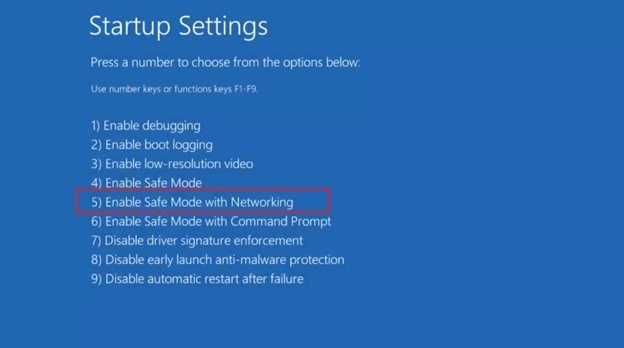
Step 1. Restart the computer and interrupt the boot process several times to open Advanced Startup Options.
Step 2. Select Troubleshoot. Choose Advanced Options. Under Startup Settings, select Restart and Enable Safe Mode with Networking.
4.3. Disconnect External Hardware
External hardware devices can sometimes create driver conflicts. Removing these devices helps determine whether a peripheral is triggering the crash.
Step 1. Shut down the computer and unplug all external devices such as USB drives, printers, or external storage.
Step 2. Restart the system and check whether the Orange Screen error occurs again.
Part 5. Fix Graphics Driver Issues (Most Common Solution)
Graphics drivers manage communication between Windows and the GPU. If these drivers become corrupted or incompatible, the system may crash during graphics processing tasks.
5.1. Roll Back Graphics Driver
If OSOD began after installing a new driver, the update may have introduced compatibility problems. Rolling back the driver restores the previously stable version.
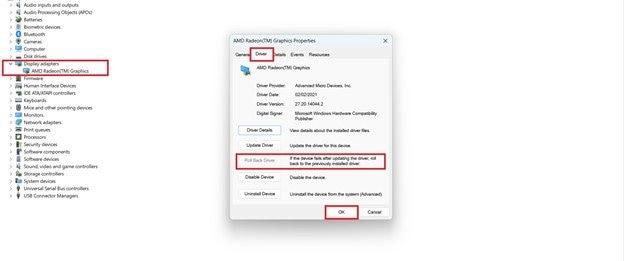
Step 1. Open Device Manager and expand Display Adapters.

Step 2. Right-click your GPU. Select Properties. Under the Driver tab, select Roll Back Driver if available.
5.2. Update GPU Drivers
Outdated drivers may not function properly with newer Windows updates or applications. Installing the latest driver version can improve compatibility and stability.
Step 1. Visit the official website of your GPU manufacturer (NVIDIA, AMD, or Intel).
Step 2. Download and install the latest compatible graphics driver for your system.
Part 6. Repair Corrupted Windows System Files
Windows relies on thousands of system files to manage processes and services. If these files become corrupted, system instability or crashes may occur.
6.1. Run System File Checker
The System File Checker (SFC) scans Windows for corrupted or missing system files. It automatically replaces damaged files with correct versions stored in the system cache.
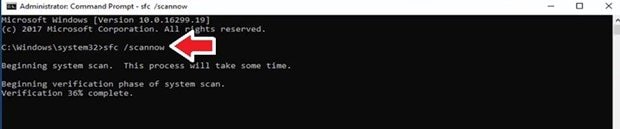
Step 1. Open Command Prompt as Administrator.
Step 2. Run the command: sfc /scannow
6.2. Run DISM Repair Tool
The Deployment Image Servicing and Management (DISM) tool repairs deeper Windows component store corruption. It is commonly used when SFC alone cannot resolve system issues.
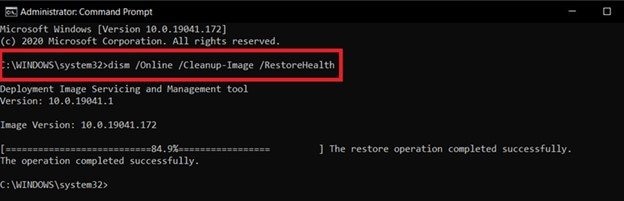
Step 1. Open Command Prompt as Administrator.
Step 2. Run the command: DISM /Online /Cleanup-Image /RestoreHealth
Part 7. Additional Fix: Check Hardware Stability
If software fixes do not resolve the problem, hardware stability should be examined. Faulty or overheating components can trigger system crashes during heavy workloads.
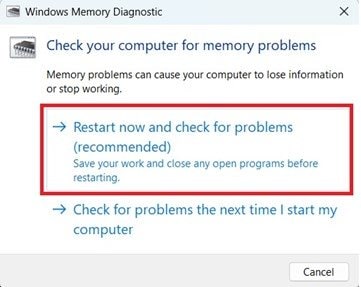
7.1. Run Windows Memory Diagnostic
RAM errors can cause incorrect data processing and system instability. Running the Windows Memory Diagnostic tool helps identify faulty memory modules.
Step 1. Press Windows + R, type mdsched.exe, and press Enter.
Step 2. Select Restart now and check for problems to begin the memory test.
7.2. Check GPU Temperature
High GPU temperatures can reduce system stability and cause crashes. Monitoring temperatures helps determine whether overheating is contributing to the issue.
Step 1. Use a hardware monitoring tool to track GPU temperatures during normal system use.
Step 2. If temperatures are high, clean dust from fans and improve airflow inside the computer case.
Part 8. Rare but Possible: Media File--Triggered GPU Crash
OSOD can occasionally occur when specific video files are opened. Although rare, this file-triggered crash is possible.
When This Happens
This scenario may apply if:
- The crash happens only during video playback
- Other applications run normally
- The issue appears during video rendering
Why It Happens
Corrupted video files may contain damaged headers or container metadata, which can trigger GPU decoding errors. These errors may cause:
- GPU decode pipeline failures
- Driver timeout detection (TDR)
- Memory decoding errors
Test the Video File
To determine whether the video file itself is causing the crash, start by testing its playback.
Step 1. Try playing the file in another media player such as VLC.
Step 2. If playback crashes or fails, the file may be corrupted.
Repair the Corrupted Video
Repairit Video Repair can repair damaged video files by rebuilding container structures and restoring missing metadata. It supports a wide range of video formats, ensuring compatibility across different devices and platforms.
The tool can also fix issues like audio-video sync errors, playback interruptions, and corrupted frames. With its intuitive interface, users can quickly restore videos without needing advanced technical knowledge.
Step 1. Add the corrupted video file.

Step 2. Run the repair process. This may take time.

Step 3. Save the repaired file to a new location after previewing it.

If the crash occurs only with certain media files, repairing those files may resolve the issue.
Part 9. When to Reset or Reinstall Windows 10
If none of the previous methods resolve the issue, deeper system problems may exist. Resetting or restoring Windows can help remove persistent corruption.
9.1: System Restore
System Restore returns Windows to a previously stable configuration. It can undo recent driver installations or system changes that caused the crash.
Step 1. Open Advanced Startup Options and select System Restore.
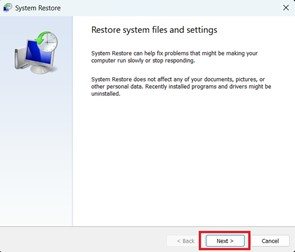
Step 2. Choose a restore point created before the Orange Screen problem started.
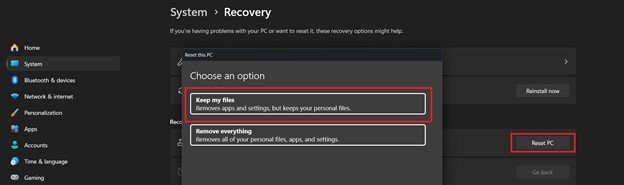
9.2. Reset This PC (Keep Files Option)
Resetting Windows reinstalls the operating system while preserving personal files. This process removes corrupted system components that may be causing instability.
Step 1. Open Settings. Under System, choose Recovery.
Step 2. Select Reset this PC. Choose to Keep my files.
Part 10. How to Prevent the Orange Screen of Death in the Future
To reduce the chances of encountering OSOD in the future:
- Keep graphics drivers updated - Updated drivers often include stability fixes and compatibility improvements. Installing official drivers helps reduce the risk of crashes.
- Avoid unstable overclocking settings - Overclocking can increase performance, but may reduce system stability. Keeping hardware within safe limits helps prevent crashes.
- Monitor GPU temperatures - High temperatures can cause hardware instability during heavy workloads. Regular monitoring helps prevent overheating issues.
- Install Windows updates carefully - Updates can introduce driver changes or system modifications. Checking system behavior after updates helps detect issues early.
- Avoid frequent forced shutdowns - Forced shutdowns interrupt active system processes. Over time, this may lead to system file corruption.
- Use surge protection for power stability - Electrical surges or outages can damage hardware components. A surge protector helps safeguard the system from power-related issues.
Conclusion
The Windows 10 orange screen of death is often caused by graphics driver conflicts, system corruption, or hardware instability. Although it can interrupt system activity, it is usually possible to resolve the issue through structured troubleshooting.
Start with basic fixes such as restarting the system and entering Safe Mode. If the problem continues, update graphics drivers, repair Windows system files, and check hardware stability.
FAQs
-
What is the Windows 10 Orange Screen of Death?
It is an informal community term for a crash where the screen turns orange and the system freezes or becomes unresponsive, usually in graphics-heavy situations. It is not as standardized as BSOD. -
Is OSOD a sign of GPU failure?
Not always. Many cases are caused by graphics driver conflicts or instability rather than permanent GPU hardware failure. -
Can corrupted video files cause OSOD?
Rarely, but it is possible if the crash happens only with one specific media file and the decode path triggers a GPU or driver failure. This is a narrower scenario than standard driver-related OSOD cases. -
Why does OSOD appear after a Windows update?
Because Windows updates can also replace graphics drivers or change graphics-related system components, which may introduce instability on some hardware. -
Should I reinstall Windows immediately?
No. Reinstalling Windows should come after simpler steps such as Safe Mode testing, graphics driver rollback/update, and system file repair. -
Is OSOD more serious than BSOD?
Not necessarily. Both indicate serious instability, but OSOD reports are more often associated with graphics-related hangs or crashes rather than a consistent official stop-screen format.




