
Many applications automatically open when your computer starts. This behavior is managed through the Windows 10 Startup folder, a special system directory that stores shortcuts to programs that should run when Windows loads. For example, many users place tools like messaging apps, work utilities, cloud storage programs, or monitoring software inside the startup folder in Windows 10 so they open immediately after login.
This guide explains everything you need to know about the Windows 10 startup folder location, how to access it, and how to manage startup programs safely.
In this article
Part 1. What is a Startup Folder?
The startup folder is a special directory used by Windows to launch programs automatically when a user logs in. Any shortcut placed inside the folder will run as part of the startup process.
This mechanism allows users to automate tasks or ensure important applications are ready as soon as the system becomes available. For example, productivity tools, synchronization software, or messaging applications may start automatically so they are ready immediately after login.
Typical programs that may appear in the startup folder include:
- Cloud storage clients
- Messaging or collaboration software
- Backup utilities
- Monitoring tools
- Productivity apps
While the startup folder provides convenience, adding too many applications can slow down system startup. Managing this folder carefully helps maintain a balanced startup process.
Part 2. Where Is the Startup Folder in Windows 10?
One of the most common questions users ask is "where is the startup folder in Windows 10?" because Windows stores it in hidden system directories.
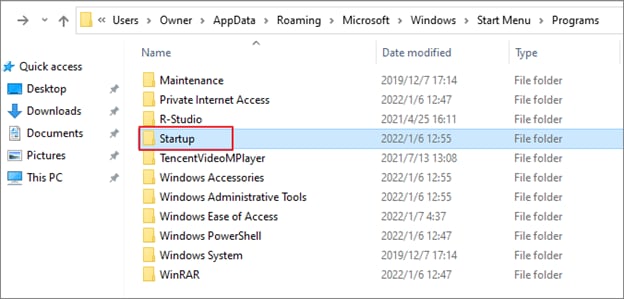
- User Startup Folder Location - Programs stored here will start automatically only when the current user logs in.
C:\\Users\\Username\\AppData\\Roaming\\Microsoft\\Windows\\Start Menu\\Programs\\Startup - All Users Startup Folder Location - Programs placed in this folder launch for every account on the system.
C:\\ProgramData\\Microsoft\\Windows\\Start Menu\\Programs\\StartUp
Tip: Knowing these folders helps you decide where to place shortcuts depending on whether a program should start for one user or all users.
Part 3. How to Open the Startup Folder in Windows 10
Because the startup Windows 10 folder is located inside hidden directories, navigating to it manually can be inconvenient. The easiest method is using the built-in Run command.
Method 1. Open the User Startup Folder
This method opens the startup folder linked to your user account.
Step 1. Press Windows + R to open the Run dialog box.
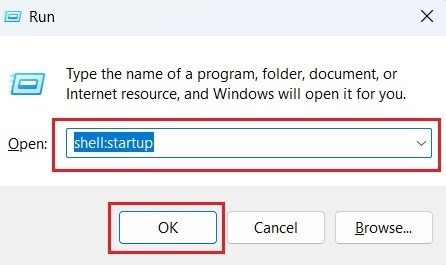
Step 2. Type shell:startup and press Enter.

Note: Windows will immediately open the startup folder for the current user.
Method 2. Open the All Users Startup Folder
This method opens the shared startup folder used by all system accounts.
Step 1. Press Windows + R to open the Run dialog.
Step 2. Type shell:common startup and press Enter.
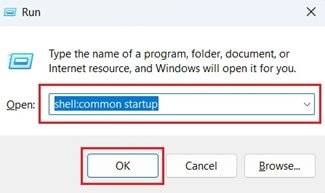
Note: Windows will open the Windows startup folder for all users.
Part 4. How to Add Programs to the Windows 10 Startup Folder
Adding programs to the startup folder on Windows 10 allows them to launch automatically whenever the system starts. Users often configure frequently used tools to open automatically so they do not need to launch them manually each time the computer starts.
Add a Program to Startup
Step 1. Create a shortcut for the application you want to launch during startup.
Step 2. Move the shortcut into the Windows 10 startup folder.
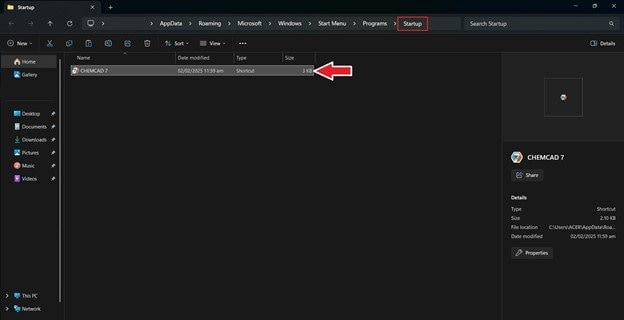
After restarting your computer, Windows will automatically launch the program.
Part 5. How to Remove Programs from the Startup Folder
Over time, some startup programs may become unnecessary or slow down the startup process. Removing these entries can help improve boot performance.
Deleting a startup shortcut does not uninstall the program; it only prevents the application from launching automatically.
Remove a Startup Program
Step 1. Open the startup folder.
Step 2. Delete the shortcut for the program you want to remove from startup.
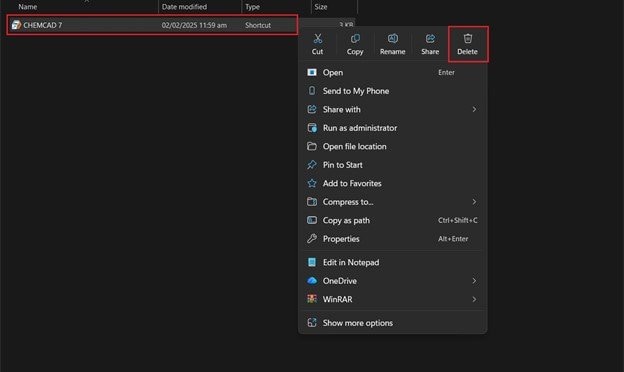
The application will remain installed but will no longer start automatically.
Part 6. Startup Folder vs Task Manager Startup Programs
The startup folder in Windows 10 controls some programs that launch automatically, but it's only one of several mechanisms Windows uses. Applications can also configure startup through other methods listed below, which means not everything is tied to the folder.
- Registry startup entries
- Scheduled tasks
- Windows services
- Task Manager startup settings
Because of these different methods, some applications may appear in the Task Manager Startup tab but not inside the startup folder. To check additional startup programs:
Step 1. Press Ctrl + Shift + Esc to open Task Manager.
Step 2. Click the Startup apps tab to view enabled startup applications.
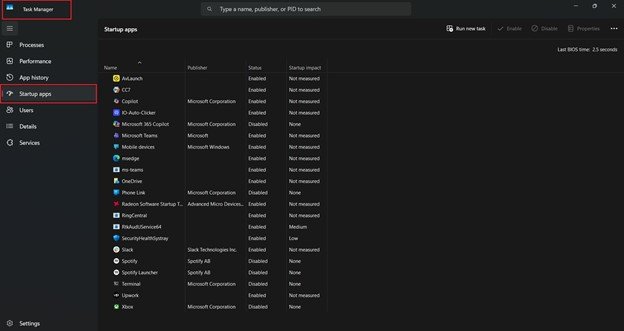
Managing programs through both Task Manager and the startup folder provides better control over system startup behavior.
Part 7. How to Fix the Startup Folder Not Working in Windows 10
Sometimes programs placed in the startup folder fail to launch during startup. This issue can occur due to system errors, corrupted shortcuts, or damaged system files. Below are several troubleshooting methods.
Fix 1: Verify the Shortcut Is Correct
The most common issue is an incorrect shortcut path.
Step 1. Right-click the startup shortcut. Select Properties
Step 2. Check the Target path. Confirm the program file still exists.
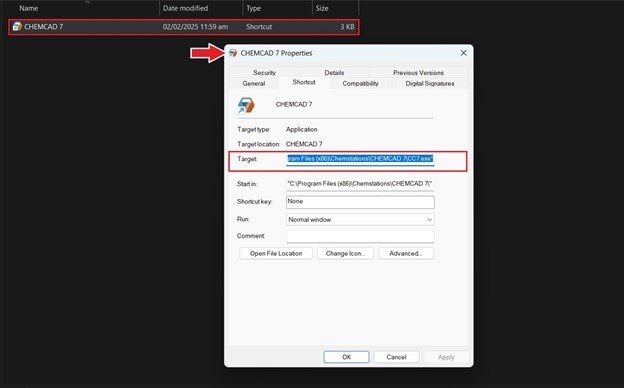
If the program location changed after an update or reinstall, the shortcut may no longer work.
Fix 2: Check Startup Permissions
Sometimes, startup programs require administrator privileges. Try the following:
Step 1. Right-click the program shortcut. Select Properties.
Step 2. Open the Compatibility tab. Enable Run this program as an administrator.
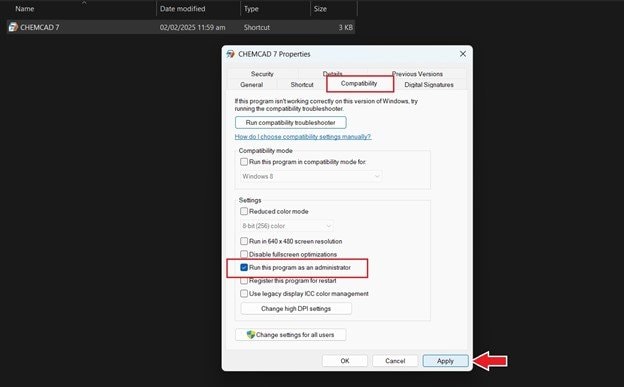
This can fix startup apps that fail to launch due to permission restrictions.
⚠️ Sometimes applications placed in the startup folder on Windows 10 may fail to start automatically. Several common issues can cause this problem:
- The shortcut path is incorrect
- The application was moved or updated
- Startup entries are disabled in Task Manager
- The program requires administrator permissions
In some cases, application files themselves may be damaged or corrupted, preventing the program from launching correctly.
Part 8. Fix Corrupted Files That Prevent Startup Programs from Running
Sometimes, programs placed in the startup folder may fail to launch because the files they depend on are damaged or corrupted. When Windows starts, it loads the program shortcut from the startup folder and then attempts to read the application's files.
If those files are corrupted due to system crashes, interrupted updates, disk errors, or failed downloads, the program may not open correctly during startup.
Repairit File Repair is designed to rebuild corrupted file structures and restore readable data. This type of repair is useful when documents, archives, or other files required by an application prevent the program from launching properly.
Step 1. Upload the damaged file that may be preventing the program from functioning correctly.

Step 2. Click the repair button to start the process.
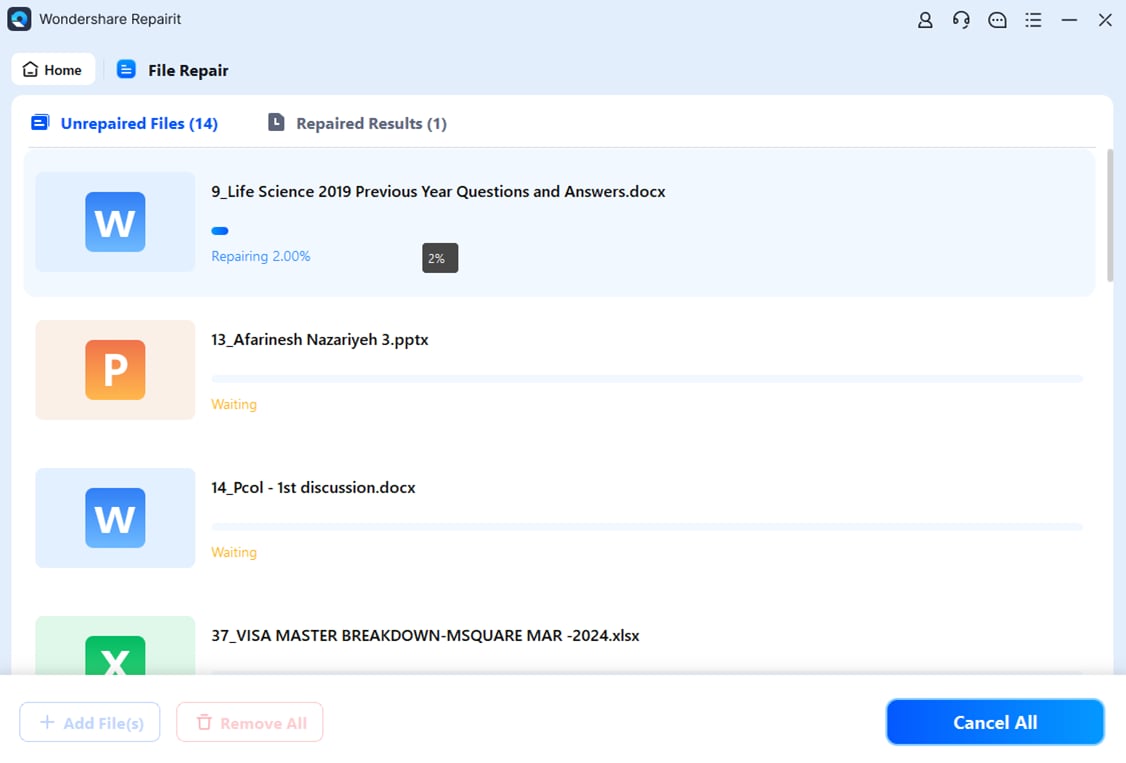
Step 3. Preview the restored file and save the repaired version.
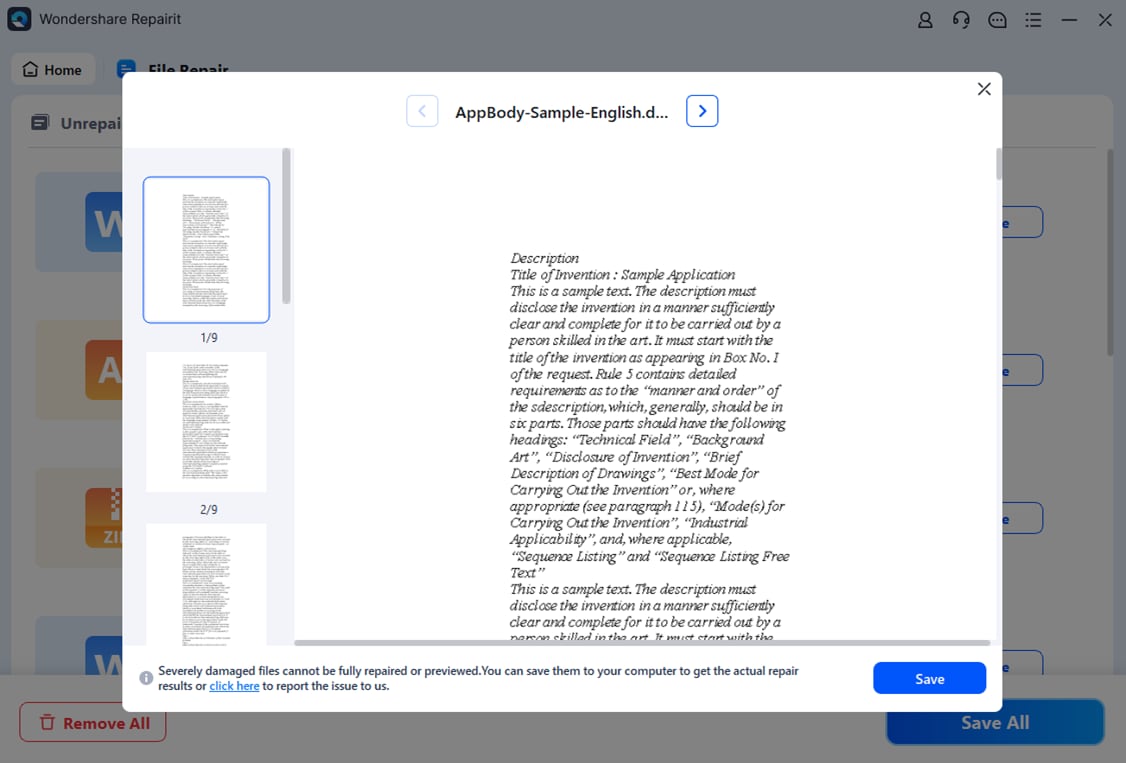
⚠️ After repairing the damaged file, restart Windows and check whether the startup program launches normally.
Part 9. Tips for Managing the Windows 10 Startup Folder
Efficient management of the Windows 10 startup folder can lead to noticeable improvements in system performance. Consider the following best practices:
- Limit Startup Programs - Too many startup items can slow your computer during boot. Keep only essential programs such as antivirus software, cloud storage tools, and work utilities to maintain speed.
- Use Shortcuts Instead of Program Files - Always add shortcuts to the startup folder rather than full program files. This prevents accidental deletion or system conflicts that could affect stability.
- Periodically Review Startup Items - Over time, many applications automatically add themselves to the startup list. Review the folder occasionally and remove anything unnecessary to avoid clutter.
- Delay Non-Essential Programs - Some applications can be set to launch a few minutes after startup rather than immediately. This reduces the initial boot load and helps your system reach a usable state faster.
- Keep the Folder Organized - Arrange shortcuts logically and label them clearly so you know what each entry does. A tidy folder makes it easier to spot unwanted or duplicate items during reviews.
Conclusion
Managing the startup folder on Windows 10 is an effective way to customize how your computer loads applications after login. By adding useful programs and removing unnecessary ones, users can optimize startup behavior and improve system performance.
If startup programs fail to launch due to corrupted files, specialized repair tools may help restore the affected data and allow applications to run normally again.
FAQs
-
Where is the startup folder on Windows 10?
The user's startup folder is located at:
C:\\Users\\Username\\AppData\\Roaming\\Microsoft\\Windows\\StartMenu\\Programs\\Startup.
Windows also includes a shared startup folder that launches programs for all users. -
How do I open the startup folder quickly?
Press Windows + R, type shell:startup, and press Enter. This command opens the user's startup folder instantly. -
Can I add any program to the startup folder?
Yes, you can add any program by placing its shortcut inside the startup folder. Once added, it will launch automatically when Windows starts. -
Why are some startup apps not in the startup folder?
Some applications configure startup through registry entries or Task Manager, which means they do not appear in the startup folder. -
Should I reinstall Windows immediately?
No, reinstalling Windows should be a last resort. Try simpler steps first, such as Safe Mode testing, graphics driver rollback/update, and system file repair. -
Does removing a program from the startup folder uninstall it?
No, removing the shortcut only stops the application from launching automatically during startup. The program itself remains installed on your system.




