
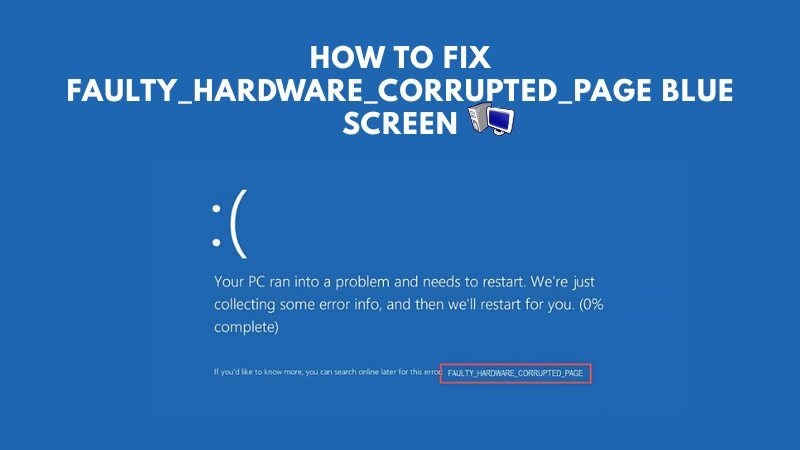
The FAULTY_HARDWARE_CORRUPTED_PAGE blue screen usually appears when Windows detects memory corruption. This stop code often points to unstable or faulty RAM, RAM overclocking/XMP issues, low-level driver conflicts, or related hardware problems. Microsoft’s bug check documentation states that this stop code means the Windows memory manager detected corruption, which is fundamentally a hardware memory error scenario.
You may see this BSOD during gaming, while using heavy applications, after waking the PC from sleep, or even during startup. Because repeated crashes can interrupt writes and damage open files, it is smart to back up important data as soon as possible. This guide starts with low-risk checks, then moves into deeper memory, driver, storage, firmware, and last-resort system fixes.
In this article
Part 1. Quick Checklist Before You Start
Before trying all fixes, identify which situation best matches your case.
| Situation | More likely cause | What to do first |
| BSOD appears during gaming or heavy apps | RAM instability, XMP, heat, driver load | Disable overclocking, test memory |
| BSOD started after a Windows or driver update | Driver/software conflict | Roll back recent drivers, Safe Mode |
| BSOD still happens in Safe Mode | Hardware issue is more likely | RAM test, disk health, BIOS check |
| BSOD disappears in Safe Mode | Software/driver issue is more likely | SFC, DISM, rollback, clean startup |
| Memory diagnostic reports errors | Faulty or unstable RAM | Reseat or replace RAM |
In many real-world cases, this stop code still traces back to RAM corruption or instability, even when the user initially suspects disk or software issues.
Part 2. 8 Proven Fixes for Faulty_Hardware_Corrupted_Page
When the Faulty Hardware Corrupted Page error appears, your Windows screen will turn blue and show an error message. After that, your computer will automatically restart. This restart helps protect your system from further damage.
In some cases, the problem disappears after the reboot. But for many users, the error keeps coming back again and again. If you are facing the same issue, try the methods below to fix the problem.
Disable Fast Startup
Fast Startup helps your computer start faster. It saves some system data so your PC can boot quickly the next time you turn it on. This feature is helpful, but it can sometimes cause system errors or blue screen issues.
If you are seeing the Faulty Hardware Corrupted Page error on Windows 10 or Windows 11, try turning off Fast Startup to see if it fixes the problem. Here are the steps:
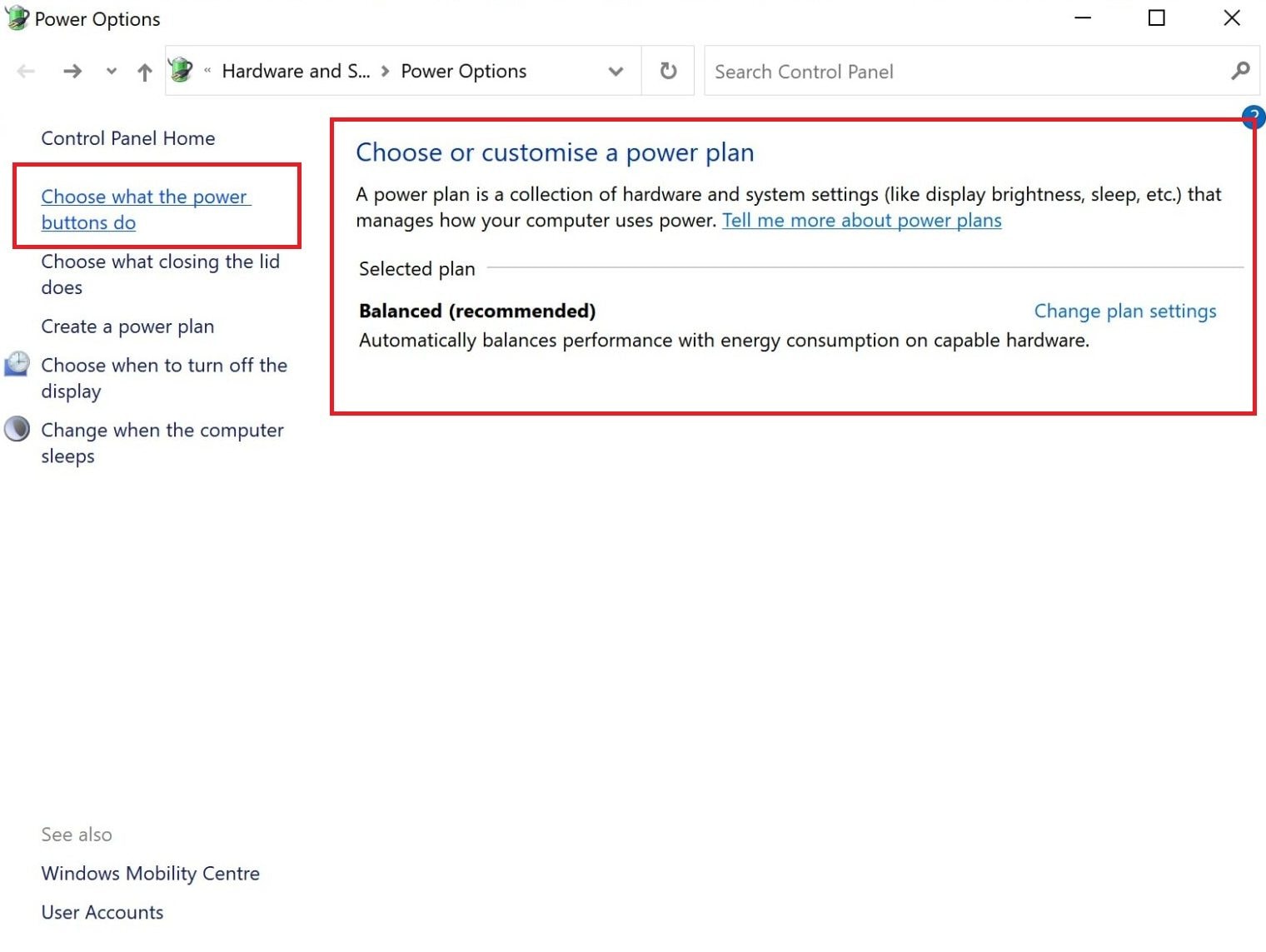
Step 1: Open your Windows Control Panel and pick Power Options.
Step 2: Tick Choose what the power buttons do.
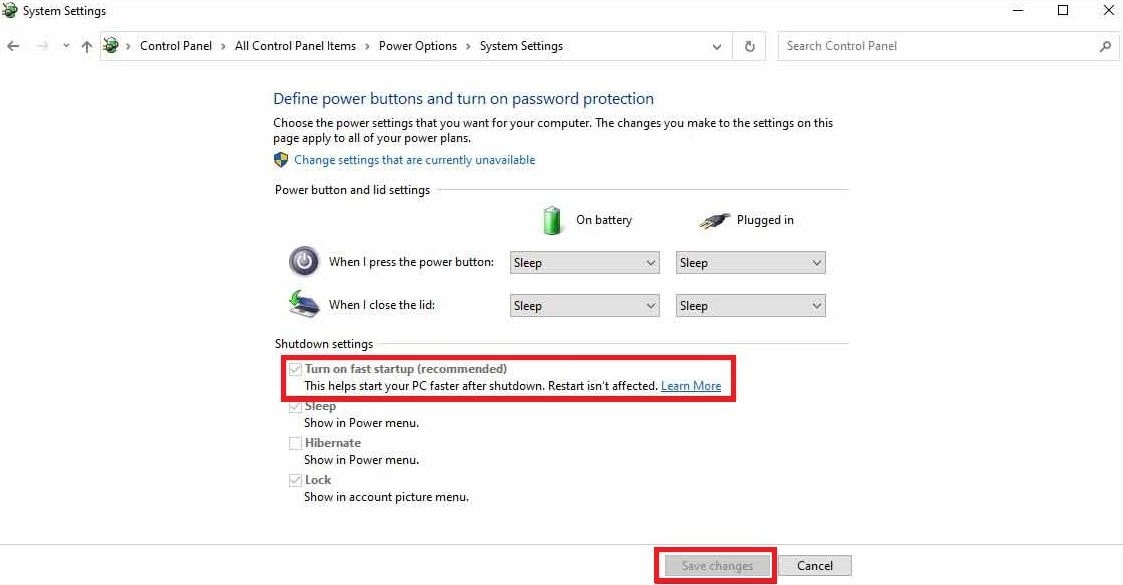
Step 3: Uncheck Turn on fast startup (recommended).
Step 4: Click Save changes. After that, restart your computer and check if the error is gone.
Run Windows Memory Diagnostic
Memory problems often cause the Faulty Hardware Corrupted Page error. Run a memory diagnostic to catch faulty or unstable RAM before it causes bigger issues. Fixing these problems can stop repeated blue screens.
Here’s how:
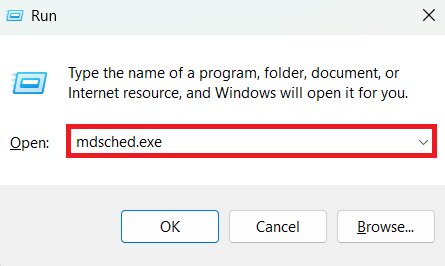
Step 1: Press Windows + R to launch your Run dialog.
Step 2: Enter mdsched.exe in the box.
Step 3: Pick Restart now and check for problems. Your computer will restart and automatically scan the RAM for errors. When the test is finished, Windows will start again.
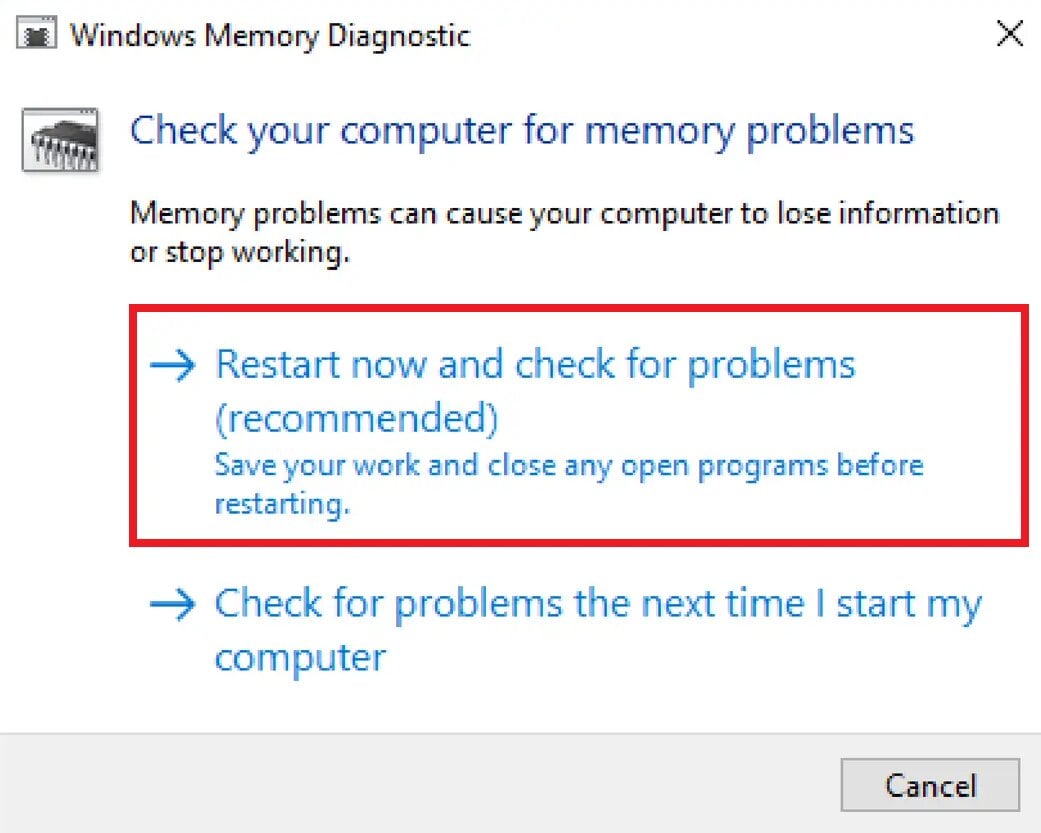
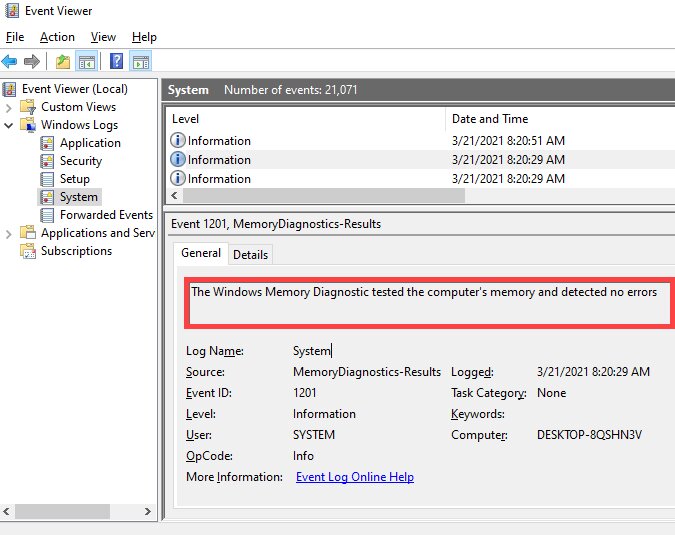
Step 4: If the results don’t appear automatically, you can find them in the Event Viewer.
Step 5: Expand Windows Logs.
Step 6: Click System. Hit Action, then choose Find.
Step 7: Search for memorydiagnostics to see the results. If the output shows memory issues, your RAM will be replaced.
Reseat or Replace RAM
Even properly installed RAM can become loose or wear out over time. Check the connections or replace a faulty module to ensure your memory is functioning correctly. Stable RAM can prevent unexpected crashes and errors during heavy tasks.
Remember, this step is only recommended if you’re confident enough in your hardware skills. Here are the steps:
Step 1: Power down your Windows and detach the power cable.
Step 2: Detach the side panel to access the inside of your PC.
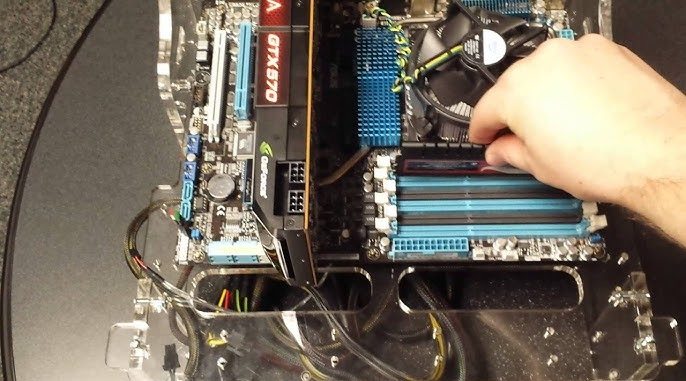
Step 3: Find the RAM sticks or the long memory modules on the motherboard.
Step 4: Press the clips on both sides of the slot, then gently pull the RAM out.
Step 5: Line up the notch and press the RAM back into the slot until the clips lock.
Step 6: If you have more than one RAM stick, use one at a time to find a faulty one.
Step 7: If a stick causes problems, replace it with a new compatible RAM.
Run SFC and DISM
Damaged or missing system files can make your Windows unstable and may cause the Faulty Hardware Corrupted Page blue screen. You can repair these files using the SFC (System File Checker) and the Deployment Image Servicing and Management (DISM) tool. They ensure your operating system can handle memory and hardware properly.
Step 1: Run the SFC Scan
- Right-click the Start button. Select Windows PowerShell (Admin) or Command Prompt (Admin).
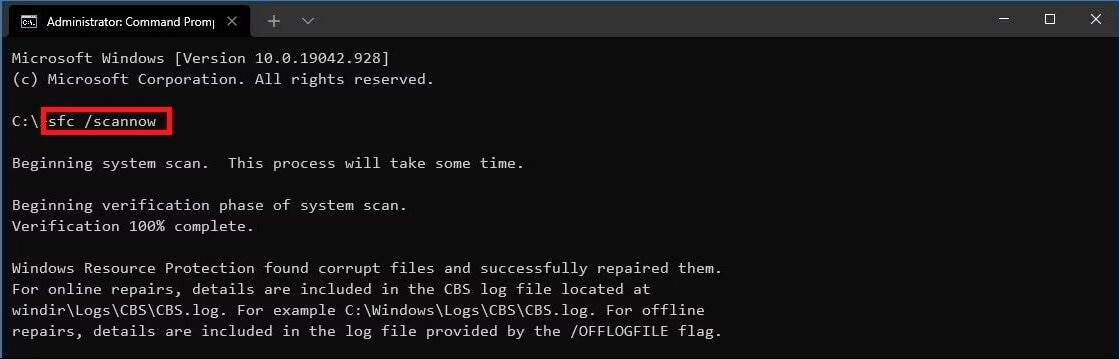
- Type the command below and press Enter:
sfc /scannow
- Windows will scan your system and repair any corrupted files it finds.
Step 2: Run the DISM Tool
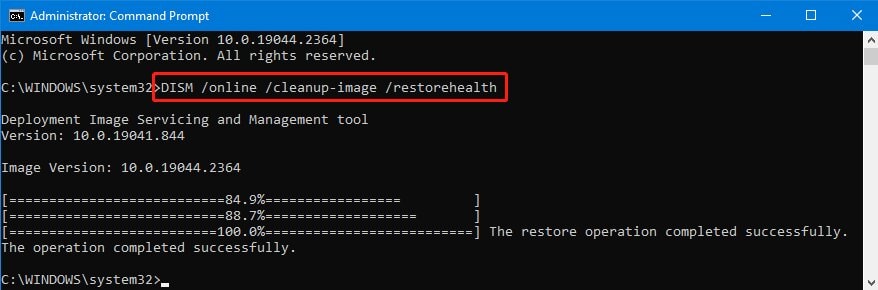
If the problem continues, run the DISM tool to repair the Windows system image. Type these commands one at a time and press Enter after each one:
DISM /Online /Cleanup-Image /CheckHealth
DISM /Online /Cleanup-Image /ScanHealth
DISM /Online /Cleanup-Image /RestoreHealth
These commands check and repair deeper system issues that may cause blue screen errors.
Check Disk Health (CHKDSK + SMART)
Issues with your hard drive or SSD can cause memory errors and system crashes. So, check disk health to identify bad sectors or failing storage devices. Fix or replace the found problematic drive to stop blue screen errors linked to storage issues.
Here are the steps to run Check Disk:
Step 1: Access your Windows PowerShell (Admin) or Command Prompt (Admin).
Step 2: Type the syntax below and press Enter:
chkdsk C: /r
(Replace C: with the dedicated drive letter where your Windows is installed if it’s different.)
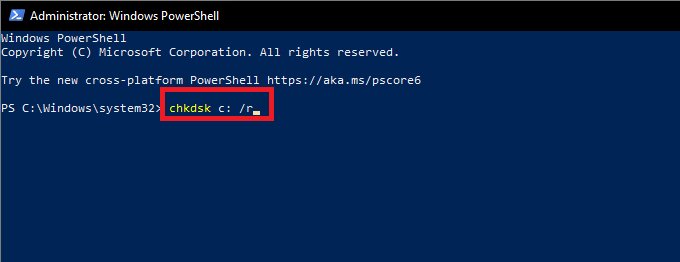
Step 3: When asked to schedule the scan, type Y and press Enter.
Step 4: Restart your computer. When your PC restarts, Windows will begin scanning the drive and fixing any errors it finds. This process may take up to an hour or more, depending on your drive size.
Update BIOS and SSD Firmware
Old BIOS versions or outdated SSD firmware can cause conflicts between your hardware and Windows. Updating them ensures your system communicates properly with all components. This can resolve errors that happen even when everything else seems fine.
Here’s an easy way to do it.
Step 1: Press Windows + R and enter msinfo32. Look for BIOS Version/Date and your motherboard model.
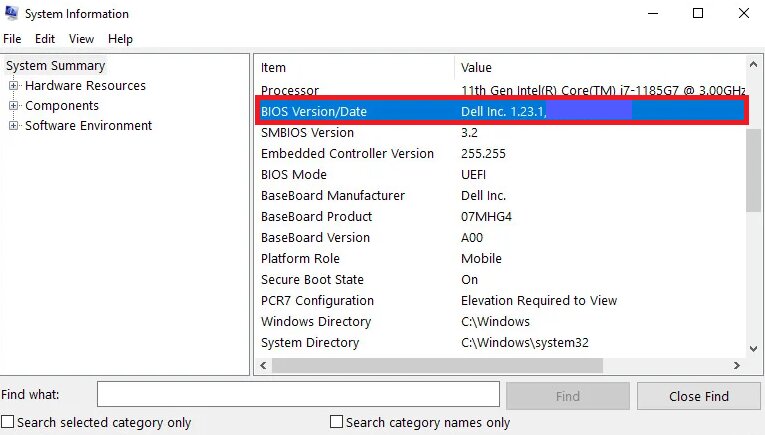
Step 2: Go to your computer or motherboard manufacturer’s support page. Find the current BIOS update for your model.
Step 3: Open the ZIP file. Click Extract All and choose a folder to save the files.
Step 4: Insert a USB drive and format it to FAT32. Copy the extracted BIOS files to the USB drive.
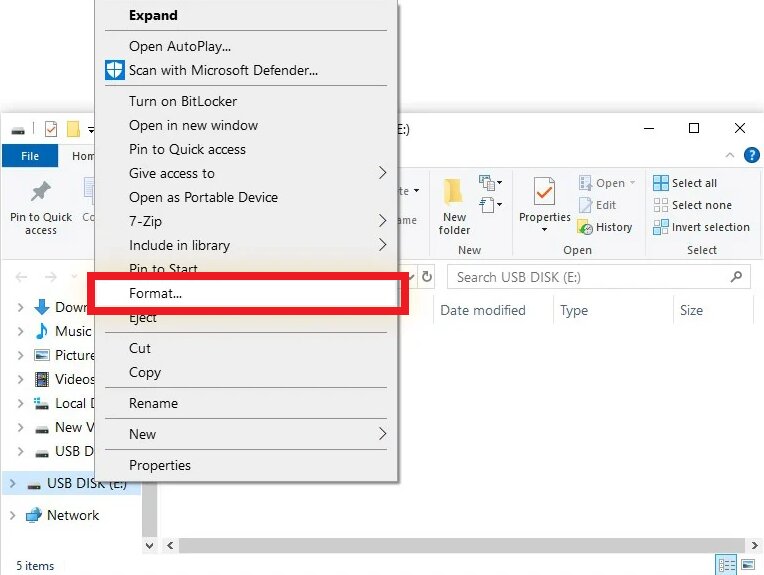
Step 5: Access the BIOS Menu during boot and restart your PC.
Step 6: In BIOS, find the Boot or Update section. Select your USB drive with the BIOS files. Commence the Windows BIOS update process and wait until it’s done.
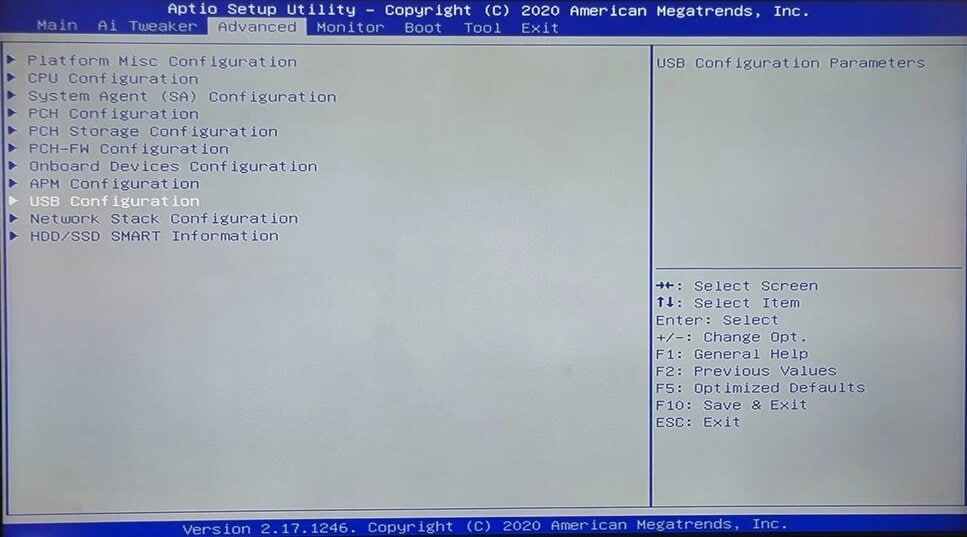
Note: Don’t power down your Windows. Doing so can corrupt the BIOS and prevent your computer from starting. Once done, your PC will restart automatically, and your BIOS will be updated.
Reset Windows (Last Resort)
If the error keeps coming back despite trying everything else, a Windows reset can restore system files and settings to their defaults. This eliminates any hidden software issues that root the blue screen. But first, back up your significant files before the reset.
Here are the steps to reset Windows:
Step 1: Navigate to Settings, Update & Security and tick Recovery.
Step 2: Under the Reset this PC section, tick Get started.
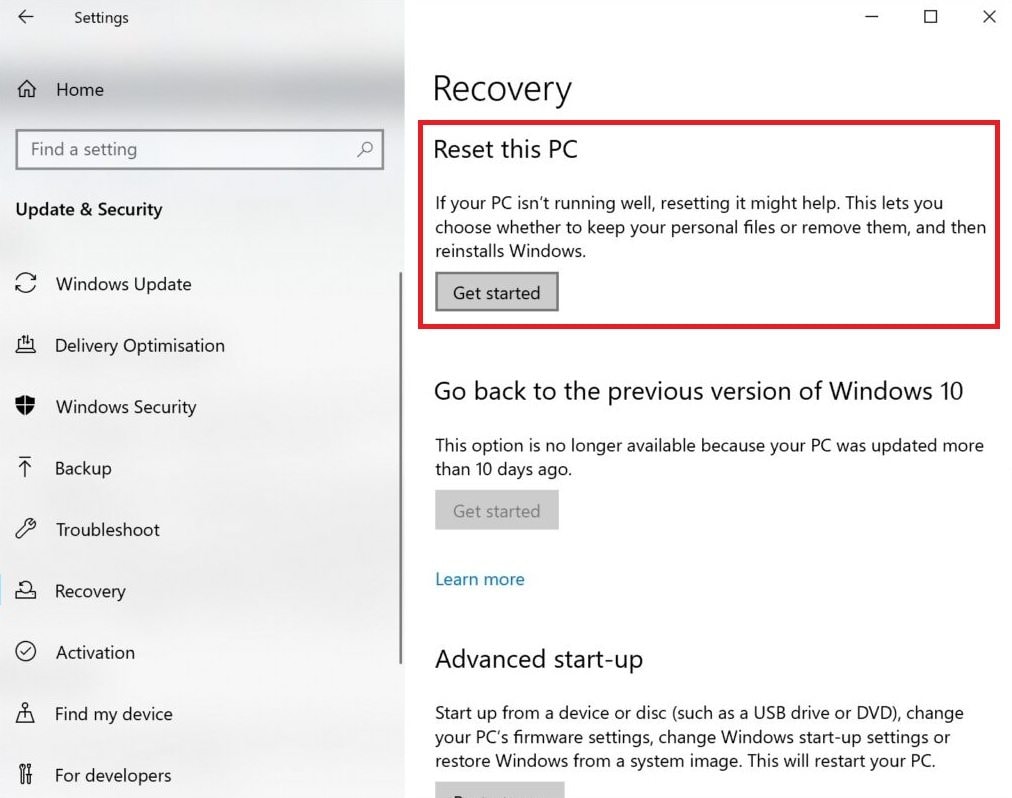
Step 3: Choose Keep my files (this saves your personal files).
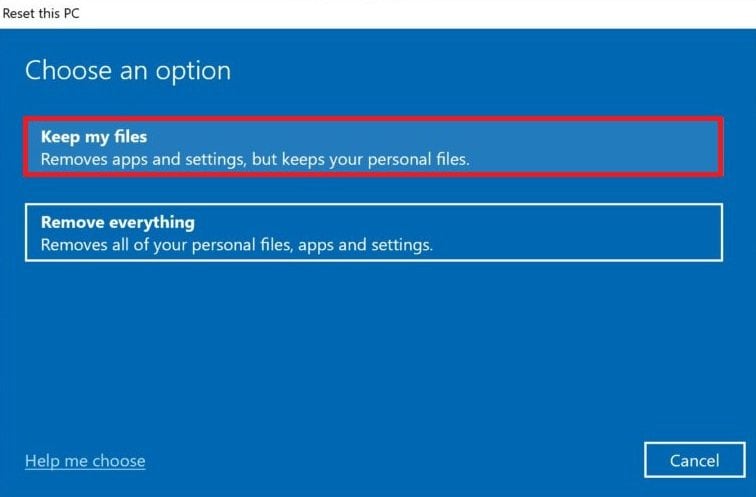
Step 4: Select Local reinstall and hit Next.
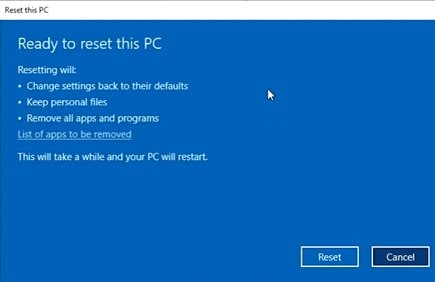
Step 5: Click Reset to start the process. Your PC will restore Windows to its default state. After it finishes, check if the blue screen is gone.
Part 3. What Causes Faulty_Hardware_Corrupted_Page?
The Faulty_Hardware_Corrupted_Page error sometimes appears due to issues with your computer's memory, parts, or settings. These are some usual reasons for it:
- Faulty RAM (most common): Problems with memory can make Windows stop working properly and show this blue screen.
- Driver conflicts: Outdated or incompatible drivers can sometimes cause hardware not to work as expected, leading to errors.
- SSD firmware issues: Old or faulty SSD firmware may create trouble with how your storage talks to Windows.
- BIOS misconfiguration: Incorrect BIOS settings, especially for memory or overclocking, might make your computer unstable.
- Overheating: If your Windows is too hot, it can lead to unusual crashes and memory problems.
- Corrupted system files: Damaged or missing Windows files can affect how your system works with memory and hardware, causing a blue screen.
Part 4. How to Tell If It’s Hardware or Software
Not all Faulty_Hardware_Corrupted_Page errors come from the same source. See if it’s a hardware or software problem to troubleshoot it more quickly.
- If the blue screen keeps happening after a clean boot or when Windows starts with only essential programs, the problem is likely hardware.
- If the error appeared after a Windows or driver update, it may be caused by a conflict with the new software or drivers.
- If your RAM fails a memory test, it needs to be reseated or replaced. Faulty memory causes repeated crashes, which is a hardware issue.
- If the blue screen goes away in Safe Mode, a software or driver running in normal mode is causing the problem.
Part 5. Repair Corrupted Videos Caused by System Crash (Bonus Solution)
A sudden blue screen (BSOD) can stop your computer from saving files properly. This can corrupt videos or documents, leaving them damaged or unusable. You might notice this if:
- A video won’t play
- A file shows 0KB
- A video or document is damaged right after a crash.
To troubleshoot corrupted videos caused by a system crash, you can utilize Repairit Video Repair. It can restore damaged video files so you can play them again. But keep in mind that this tool only repairs corrupted files. It does not fix the BSOD error or repair hardware.
What it can do
- repair damaged video headers
- fix broken container structure
- restore playback in corrupted MP4/MOV/MKV/AVI files
What it cannot do
- fix the BSOD itself
- repair RAM, drivers, BIOS, or Windows crashes
- recover 0 KB files with no usable data
Step-by-Step Guide:
Step 1: Press the Add video and start repairing, or the Add button to input your corrupted videos caused by a system crash.

Step 2: Hit Repair to start fixing the corrupted videos caused by the system crash.

Step 3: If the preview is great, hit Save and pick a new location path on your Windows.

Part 6. How to Prevent a Faulty Hardware Corrupted Page Error
You can reduce the chances of seeing the Faulty_Hardware_Corrupted_Page error by taking some simple precautions:
- Keep RAM stable. Avoid unstable overclocking or aggressive XMP settings to prevent memory issues.
- Update BIOS carefully. Only install official updates, and follow instructions to avoid system conflicts.
- Avoid beta drivers. Beta or untested drivers can cause crashes, so stick to stable versions.
- Monitor temperature: Keep your CPU, GPU, and system cool to prevent overheating-related errors.
- Test memory regularly. Running occasional memory checks helps catch RAM problems before they cause a blue screen.
Conclusion
The Faulty Hardware Corrupted Page blue screen can be exhausting to solve, but you can fix it easily with the right steps. Check your memory and system files, update your BIOS or SSD firmware, or reset Windows if needed. Back up your files, keep an eye on your hardware, and follow the tips above to prevent future crashes so your PC runs smoothly again.
FAQs
-
Can a faulty hardware corrupted page error be fixed without replacing hardware?
Yes. Sometimes the issue is caused by unstable memory settings, driver conflicts, or system corruption. But if RAM tests show errors, replacement is often necessary.
-
Is a faulty and corrupted hardware page related to overheating?
It can be. Overheating can make memory or hardware unstable, especially under load.
-
Can BIOS settings cause a faulty hardware corrupted page blue screen?
Yes. Incorrect RAM speed, XMP, or other memory-related settings can make the system unstable.
-
Is it safe to keep using my PC after a faulty hardware corrupted page error?
Not really. Repeated crashes increase the risk of file corruption and may point to worsening hardware instability. Back up important data first.




