
“When I watch a video on my device, the video lags just a bit, then starts fine again. The audio doesn't change, and then the video is behind the audio. Does anyone know a fix?” - Reddit user
YouTube audio out of sync can happen on computers, phones, and TVs. Sometimes the sound plays slightly earlier or later than the video, which is especially noticeable in interviews, tutorials, and music.
The key is to identify whether this is a playback/device issue or a specific-video problem. Most cases are caused by temporary playback glitches, device performance, Bluetooth delay, or TV audio output settings—and can be fixed with simple steps.
Table of Contents
Part 1. What Does “YouTube Audio Out of Sync” Mean?

“YouTube audio out of sync” means the audio and video are not aligned during playback. You might see someone speak, but the voice comes later—or you may hear sound first and the video catches up after.
There are two common types of sync issues:
- Audio lagging behind video: you see actions first, then hear sound a moment later..
- Video lagging behind audio: you hear sound before visuals appear.
Note: Changing resolution can affect buffering and smoothness, but persistent sync issues are usually related to playback processing, device performance, Bluetooth latency, or audio output settings—not volume.
Part 2. Quick Self-Check: Identify Your YouTube Sync Issue
Before trying fixes, check these questions to choose the right path:
- Does the issue happen on all videos or just one? If it’s only one video, the file itself may be the problem. If it happens on many videos, the cause is likely your settings, device, or connection.
- Does it occur only on a specific device or browser? Try another browser or device. If the problem disappears, the issue is likely tied to that browser or device.
- Does changing the video quality affect the delay? Switching between resolutions can sometimes fix or trigger sync issues, especially on slower connections or older devices.
- Does the problem disappear after restarting the app or device? If a restart fixes it, the issue was probably a temporary glitch.
Part 3. Why YouTube Audio and Video Get Out of Sync
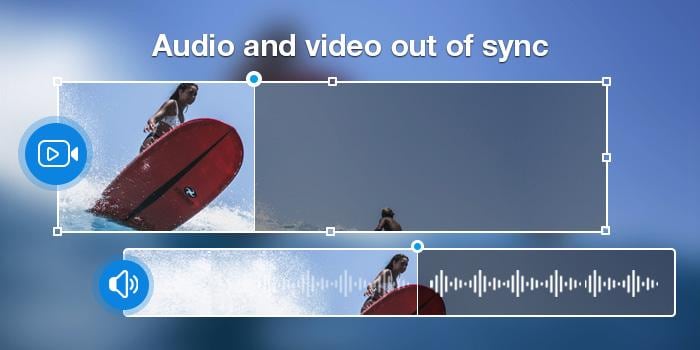
The sound on a YouTube video doesn’t line up with the picture due to annoying glitches and delays. There are a few common reasons this happens:
- Network & Playback Problems: Slow or unstable internet can cause buffering that makes audio and video drift.
- Device & App Issues: App glitches, outdated software, or heavy background tasks can affect playback timing.
- Hardware Performance: Older devices may struggle to decode high-quality streams smoothly, causing audio delay.
- File or Upload Problems: Some videos are uploaded with incorrect encoding, damaged audio tracks, or timeline issues. These problems may repeat every time you play that specific video.
Part 4. How to Fix YouTube Audio Video Out Of Sync on Windows & Mac
Most sync problems are easy to fix on Windows or Mac. Here’s a simple guide to get your YouTube videos playing smoothly again.
1. Run Audio Troubleshooter (Windows)
If the sound is off, the first step is to let your computer check for problems automatically. Your computer has built-in tools that scan your audio setup and fix common issues. It’s quick, easy, and often solves the problem without any complicated steps.
Here’s how to run the audio troubleshooter on Windows:
Step 1: Open your Windows Settings and go to the System tab.
Step 2: Scroll down and click Troubleshoot common sound problems under Advanced options.
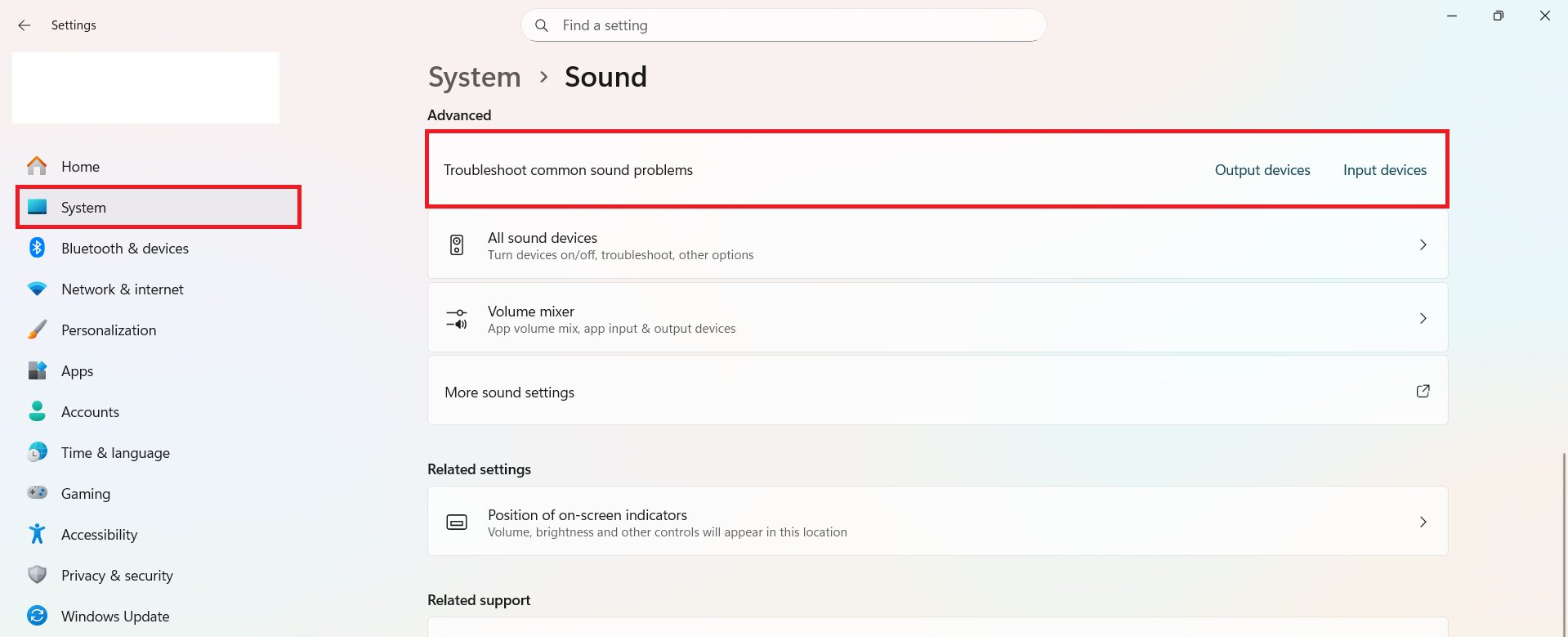
Step 3: Select the audio device (Output or Input) you’re having trouble with.
Step 4: Follow the on-screen steps and apply any suggested fixes.
Note: macOS doesn’t have a built-in audio troubleshooter like Windows.
2. Update Audio and Graphics Drivers
Outdated drivers can make your video and audio fall out of sync. Windows installs driver updates automatically as part of a bundled update. Keeping all drivers updated helps your PC run smoothly and stay stable. A fresh update can improve performance and prevent lag.
See the steps below to update audio & graphics drivers on Windows:
Step 1: Open your Device Manager and expand Sound, video and game controllers.
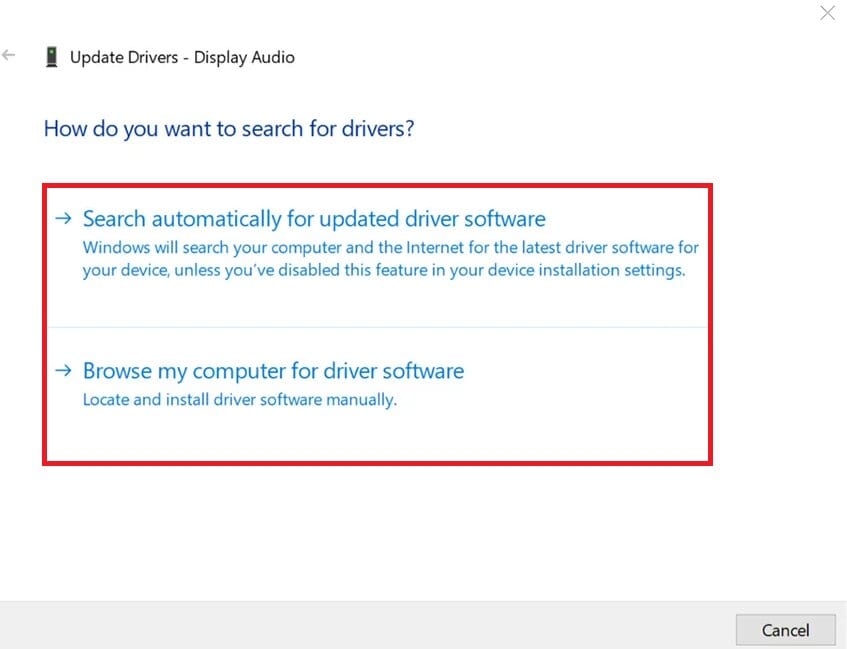
Step 2: Right-click your sound device and choose Update Driver Software.
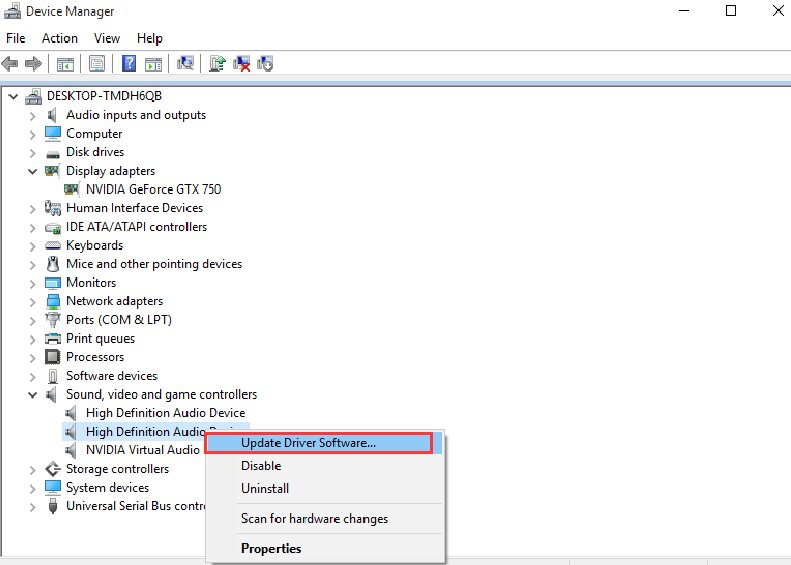
Step 3: Select Search automatically for drivers.
Step 4: If Windows can’t find a new driver, download the latest one from the sound card manufacturer’s website. Hit Browse my computer for driver software, and install it manually.
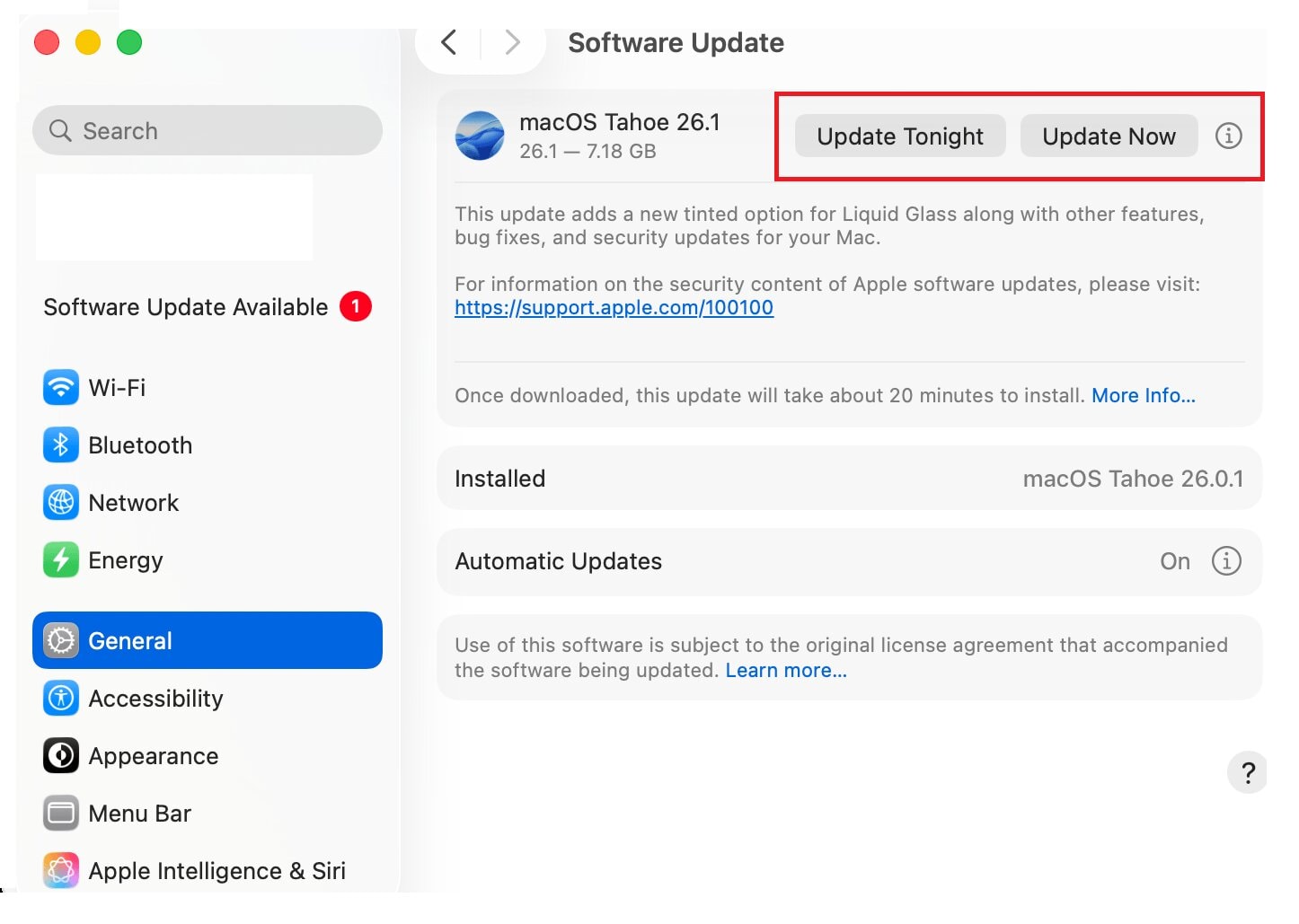
On macOS, audio and graphics drivers are updated automatically through system updates.
Step 1: Click the Apple menu and open System Settings.
Step 2: Select General and Software Update.
Step 3: Click Update Tonight or Update Now if an update is available.
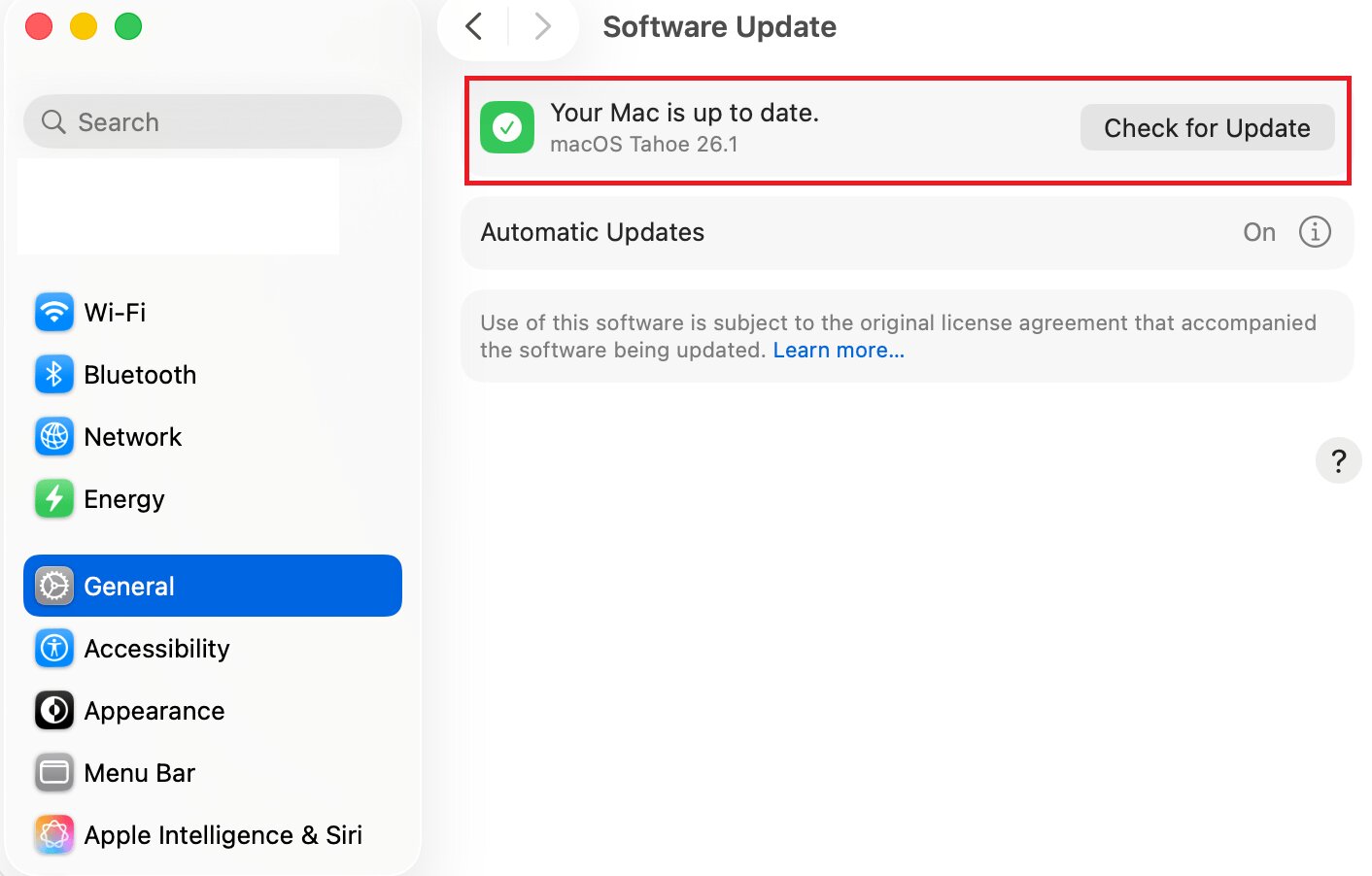
Step 4: If your Mac is up to date, it will say so. You can click Check for Update to refresh.
3. Adjust Audio Sync in VLC (Downloaded Videos Only)
This applies to downloaded YouTube videos, not normal online streaming. Here's how to adjust audio sync in VLC on Windows and Mac:
Step 1: Open VLC Media Player and play the video with sync issues.
Step 2: On Windows, open the Synchronization tab and adjust Audio track synchronization.
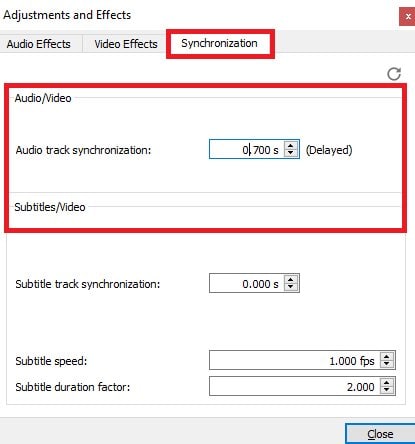
On Mac, select Track Synchronization and find Audio track synchronization.
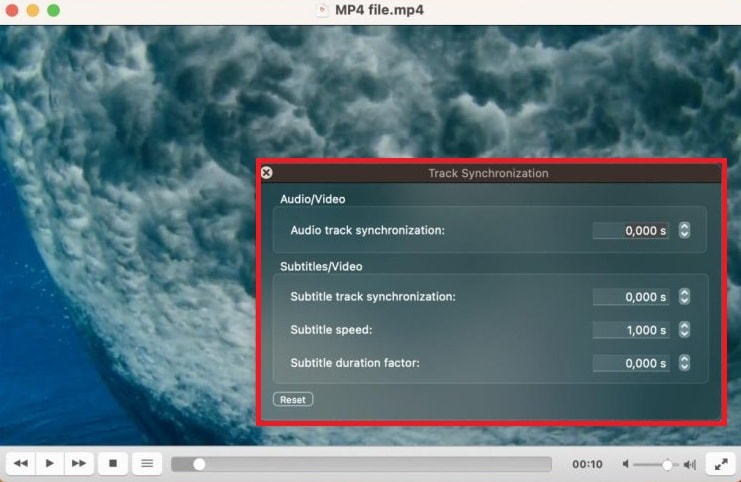
Step 3: Adjust the following:
- Use a positive value if audio is ahead.
- Use a negative value if audio is delayed.
Tip: Small adjustments (like ±0.1 or ±0.2 seconds) usually work best.
4. Set Up the Latency Settings (If Available)
Sometimes changing audio format can reduce processing delay, but options differ by device and system version.
⚠️ If you don’t see these options or you’re unsure, skip this step and move on.
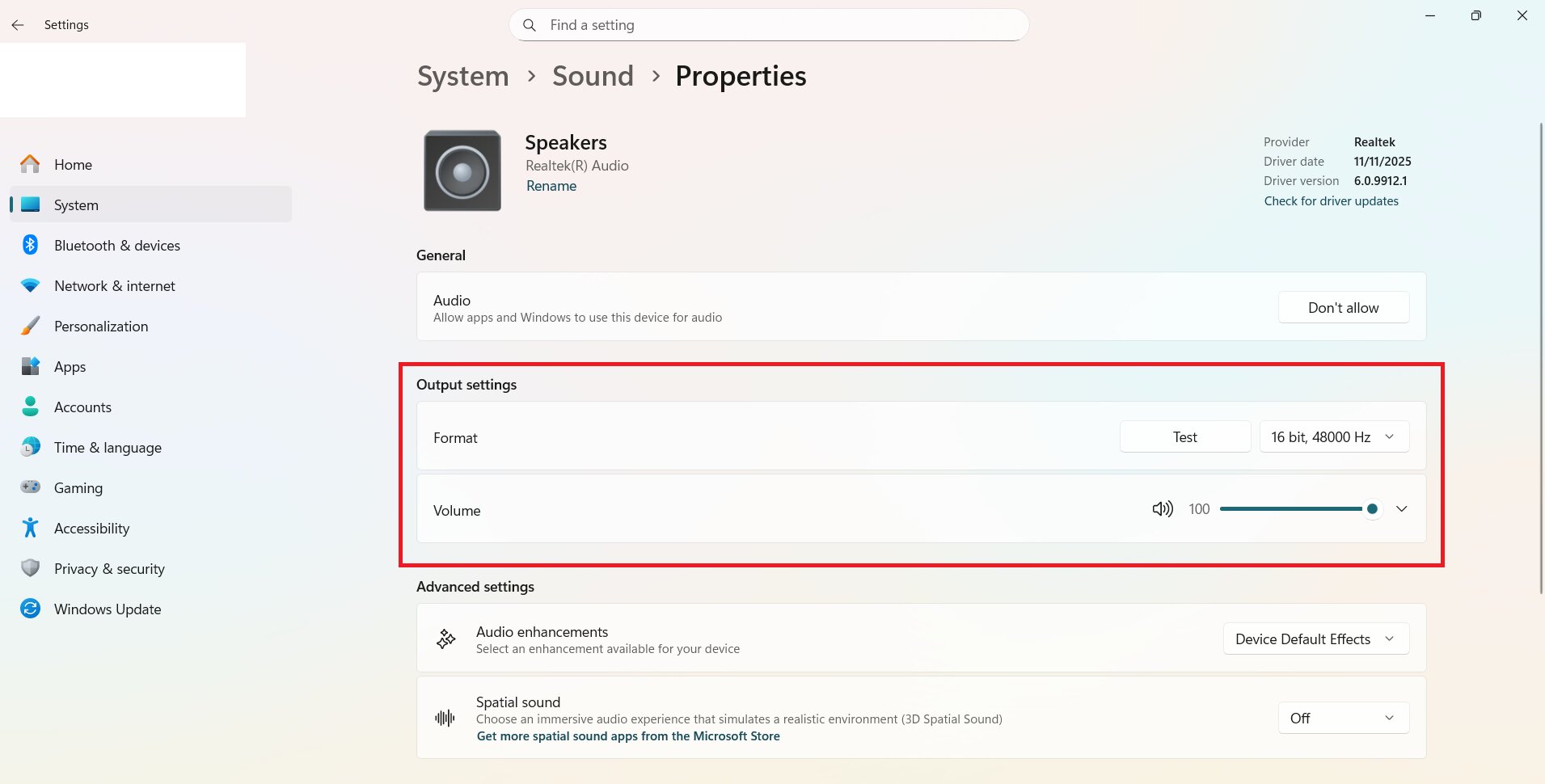
Step 1: Right-click the little speaker icon in the taskbar and pick Sound settings.
Step 2: Under Output, choose your active audio device to see its properties.
Step 3: For the Output settings, choose a lower default format (16-bit, 48000Hz) to reduce latency.
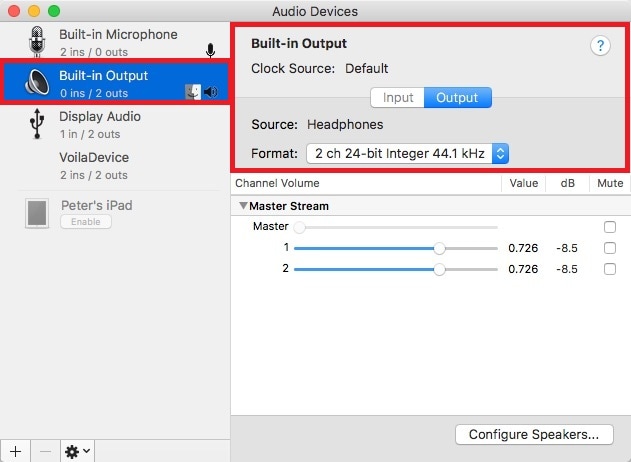
Follow the steps to set up audio latency on Mac:
Step 1: On your Audio Devices, select your Built-in Output.
Step 2: Adjust the Format (sample rate and bit depth) to a standard value, such as 44.1 kHz.
Step 3: Close to save the changes.
Part 5. How to Fix Audio Delay on YouTube on iOS & Android
Audio delay is also a common problem on iOS and Android. You can instantly fix it in just a few steps. Here’s how to get your videos back in sync.
1. Restart Your Phone and YouTube App
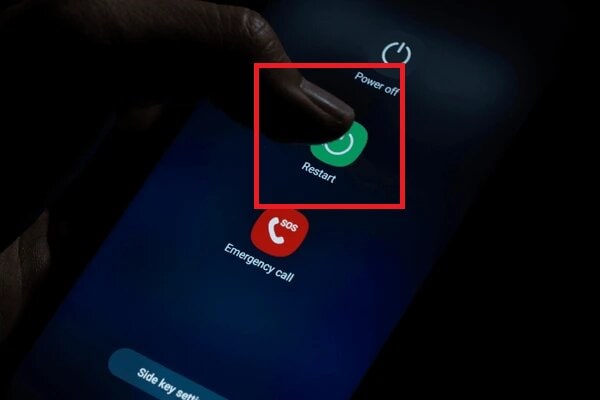
Close YouTube completely, restart the phone, then test playback again. Many sync issues are temporary. Here’s how to do it on Android and iPhone.
Step 1: First, close the YouTube app.
Step 2: Restart your Android and iPhone.
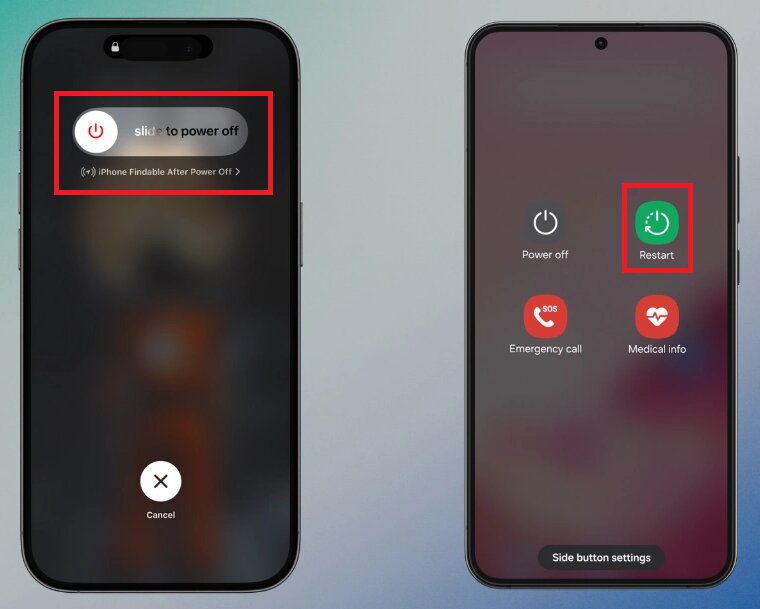
Step 3: After the phone turns back on, relaunch YouTube and check playback.
2. Clear the App Cache (Android)
Clearing cache removes temporary files that can cause lag, freezing, or audio sync issues, without deleting your account data. Adhere with the instructions below to clear the YouTube cache on Android:
Step 1: Open your phone’s Settings and find YouTube in the Apps section.
Step 2: Select Clear cache.
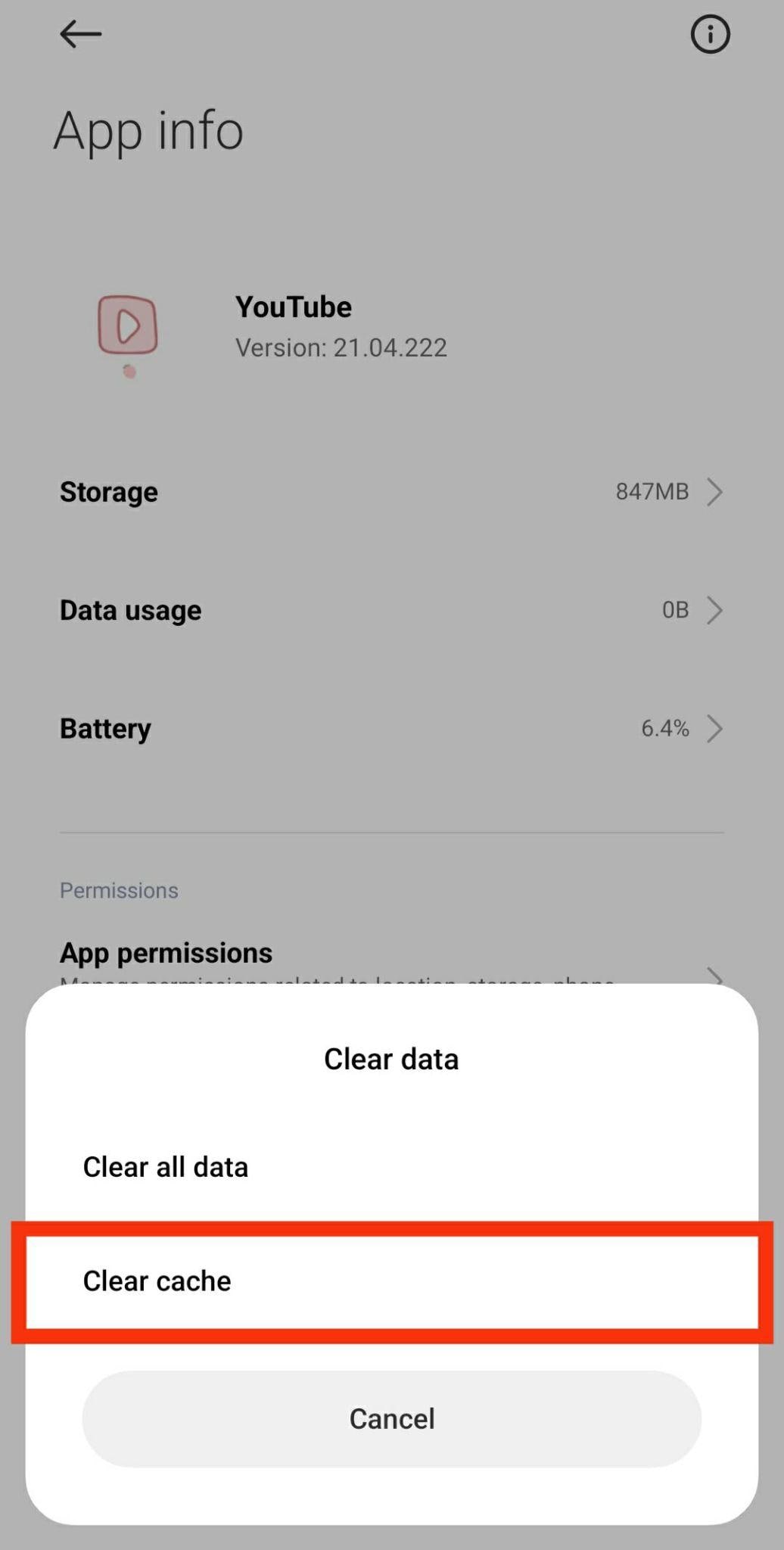
Step 3: Reopen the app and check performance.
Note: iPhones don’t have a direct “clear cache” option for apps.
3. Disconnect or Reset Bluetooth Audio Devices
If the delay happens only with headphones/speakers, Bluetooth latency is a top suspect.
Android
Step 1: Open your Android’s Bluetooth settings.
Step 2: Find your connected audio device (headphones, speaker, etc.).
Step 3: To disconnect temporarily, tap the device and select Disconnect.
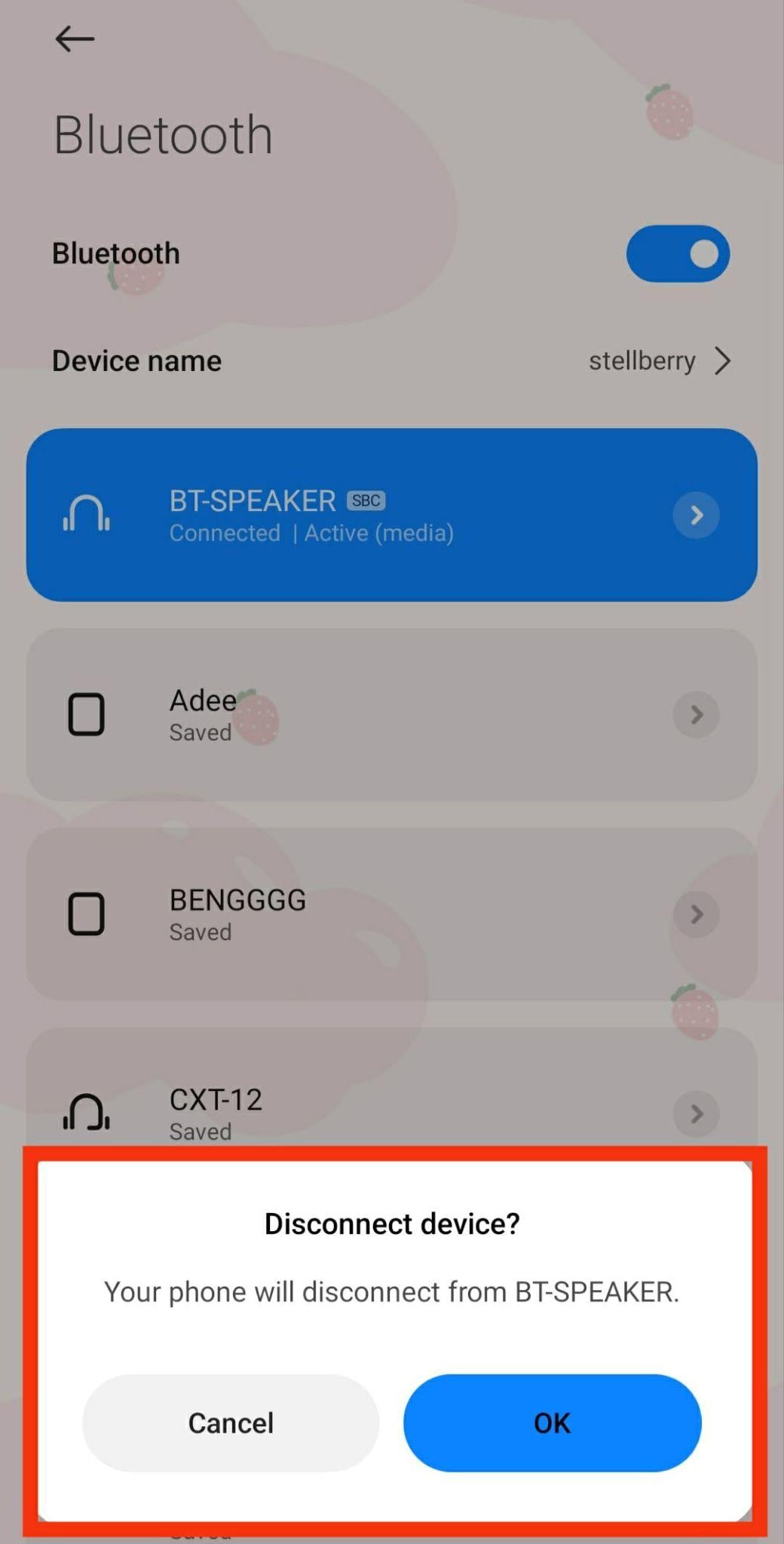
Step 4: To reset/remove the device, tap the device and choose Unpair.
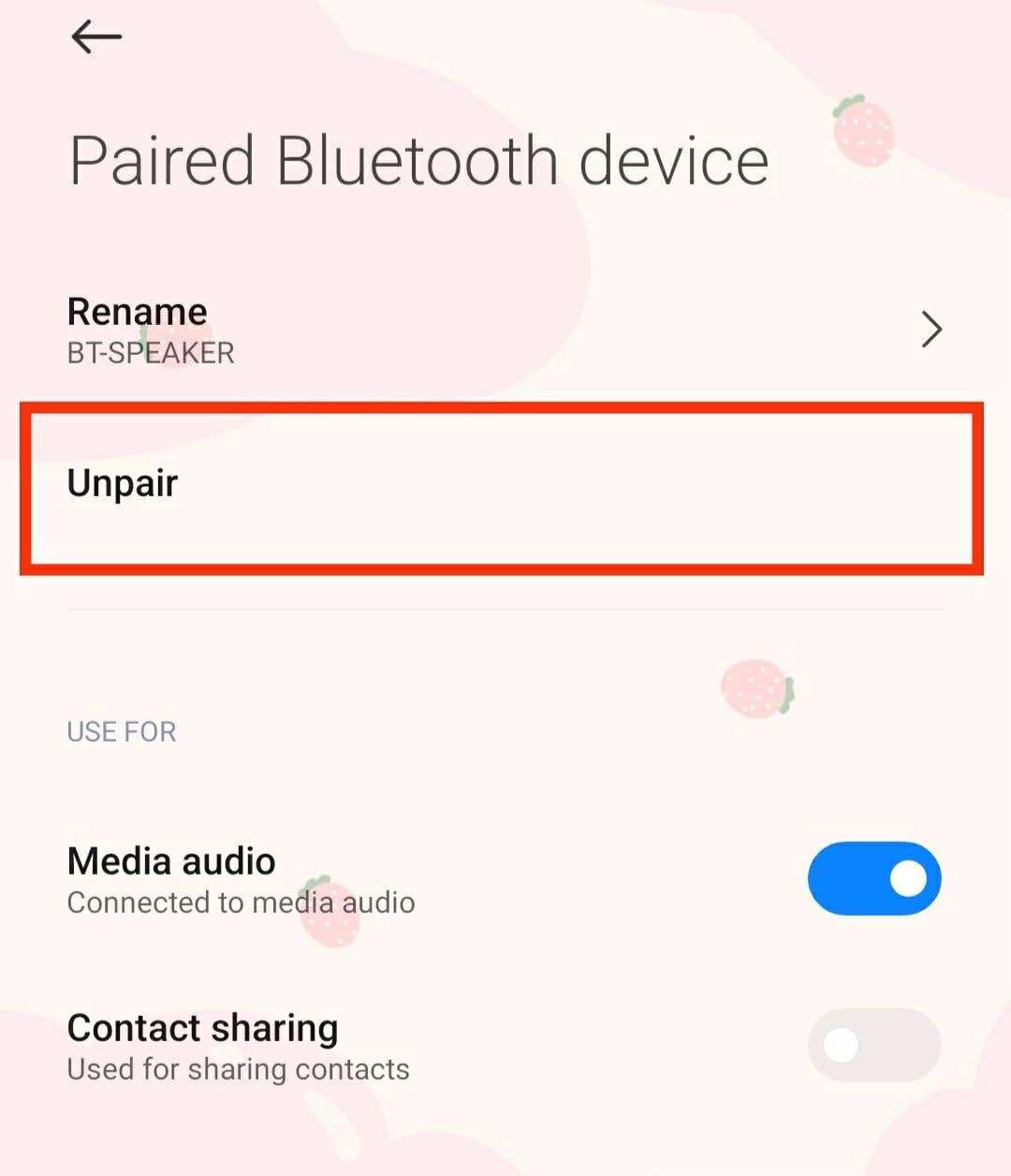
Step 5: To reconnect, put your device in pairing mode and choose from the Bluetooth list.
iPhone
Step 1: Open your iPhone’s Bluetooth settings.
Step 2: Find your connected audio device under My Devices.
Step 3: To disconnect temporarily, tap the i icon and Disconnect.
Step 4: To reset/remove the device, tap Forget This Device, then confirm.
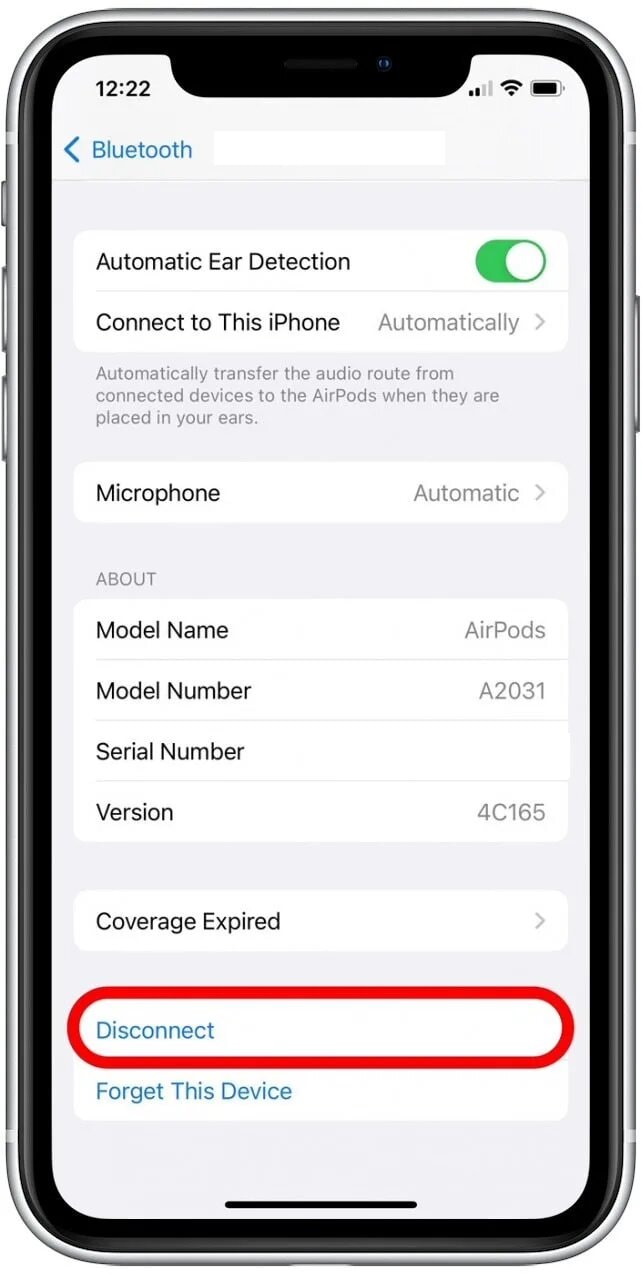
Step 5: To reconnect, put your device in pairing mode and pick from the available devices list.
Part 6. Fix YouTube Sound Delay on Smart TVs & Streaming Devices
Are your YouTube videos playing perfectly on your computer or phone, but the sound is still off on your TV? Smart TVs and streaming devices can have their own audio hiccups, but most issues can be fixed with a few simple tweaks. Here are the steps to sync your YouTube audio back on the big screen.
1. Restart and Update Your Smart TV
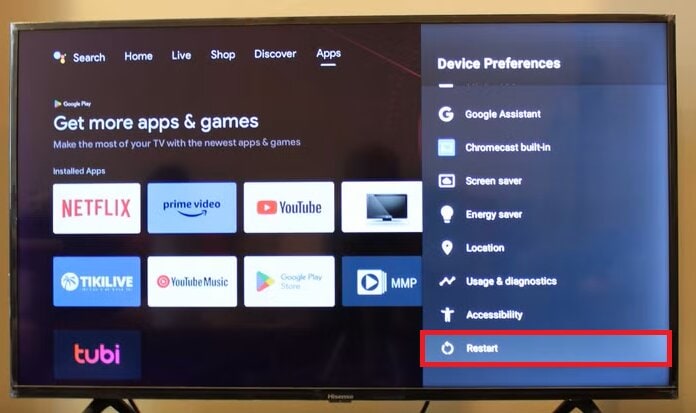
Restarting clears temporary cache and frees memory. Install system updates if available. To restart Android TV:
Step 1: Go to Settings.
Step 2: Select Device Preferences.
Step 3: Hit Restart.
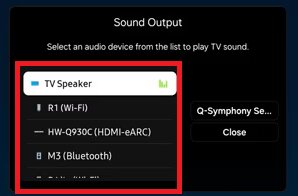
2. Select the Correct Speaker Output
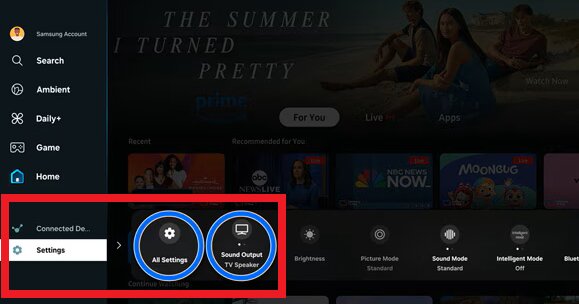
Incorrect output routing (TV speakers vs soundbar vs HDMI ARC) can introduce delay. Confirm the correct output device is selected. You can choose your audio device from the Sound Output menu:
Step 1: Open Settings and select All Settings. You can also open Sound Output from Quick Settings.
Step 2: Select Sound and pick Sound Output.
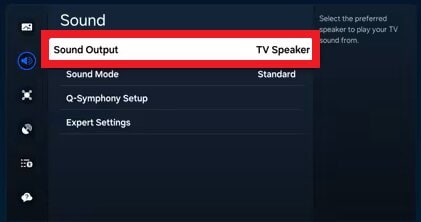
Step 3: A list of connected audio devices will appear. Select the one you want.
3. Clear the YouTube App Cache
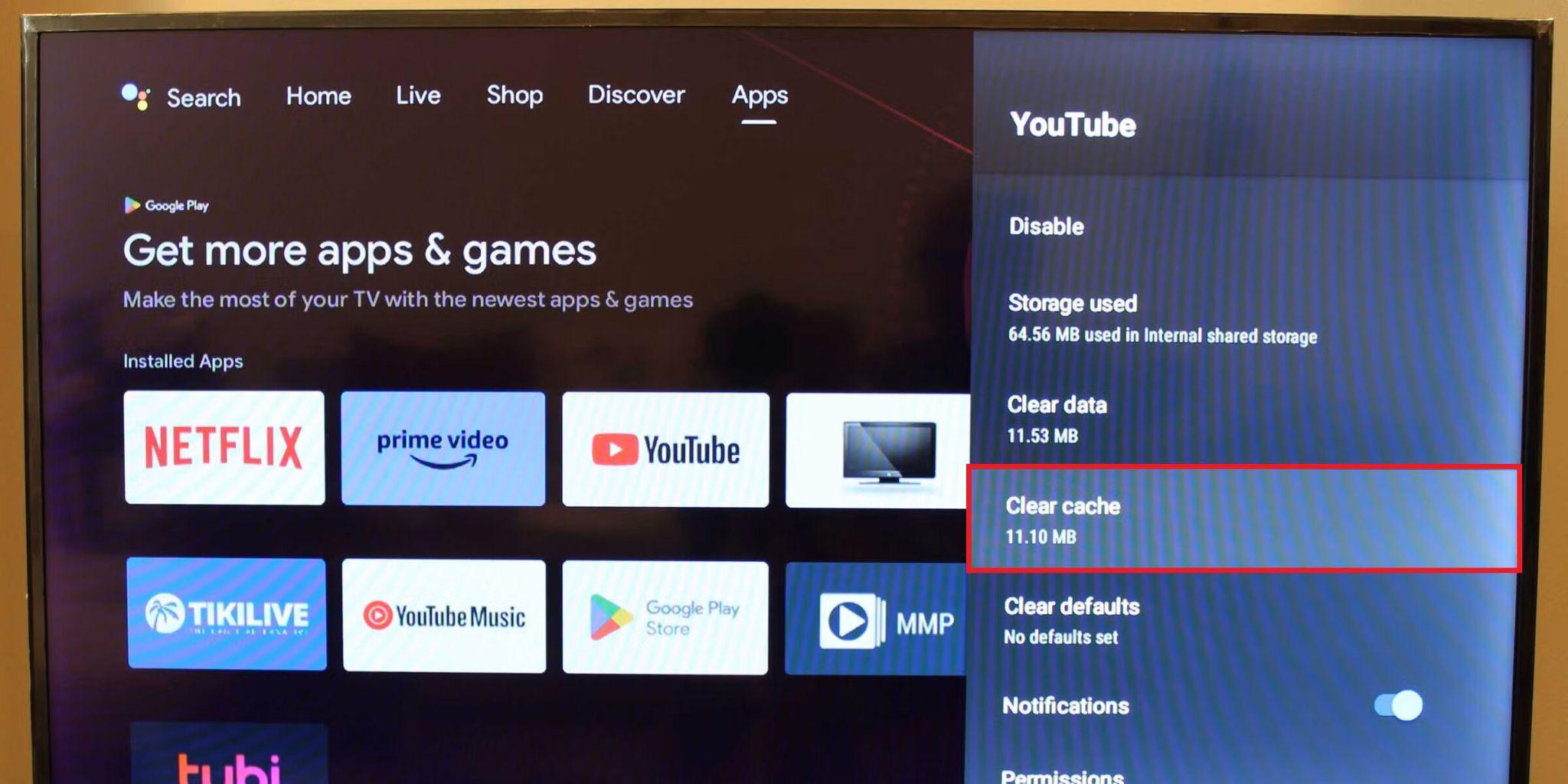
If the issue isn’t with your TV, the YouTube app itself may be the problem. Clearing the app cache refreshes the app and helps audio sync correctly with the video.
How to clear YouTube cache on Android Smart TV:
Step 1: Open your Smart TV Settings.
Step 2: Go to Apps (or a similar option).
Step 3: Select YouTube.
Step 4: Choose Clear Cache.
4. Switch Audio Output to PCM
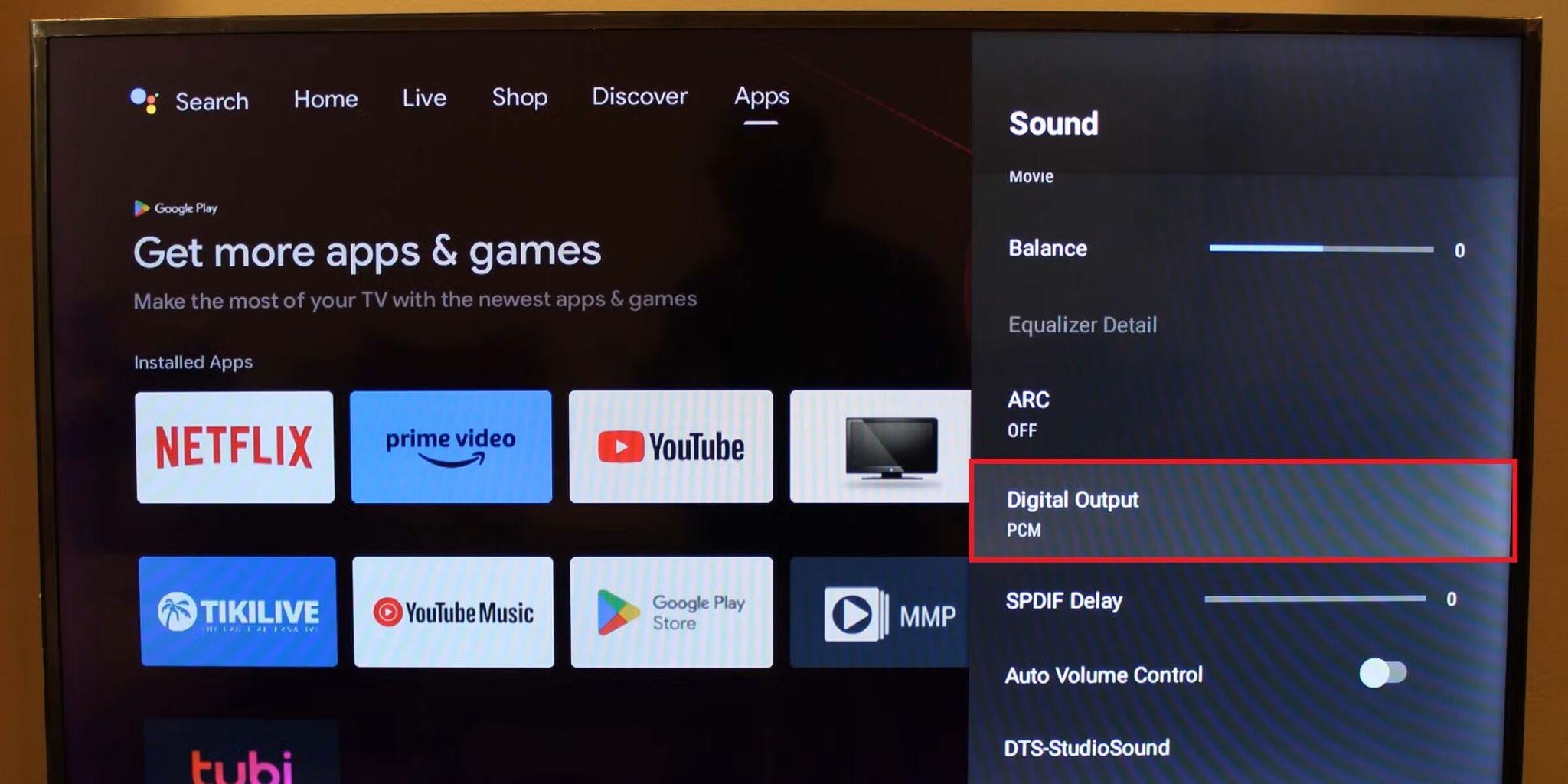
Some TVs/soundbars introduce delay with compressed formats. Switching to PCM can reduce latency. Here’s how to change it:
Step 1: Open your TV’s Settings.
Step 2: Go to sound or audio settings.
Step 3: Find Digital Output.
Step 4: Set it to PCM.
5. Factory Reset the Smart TV
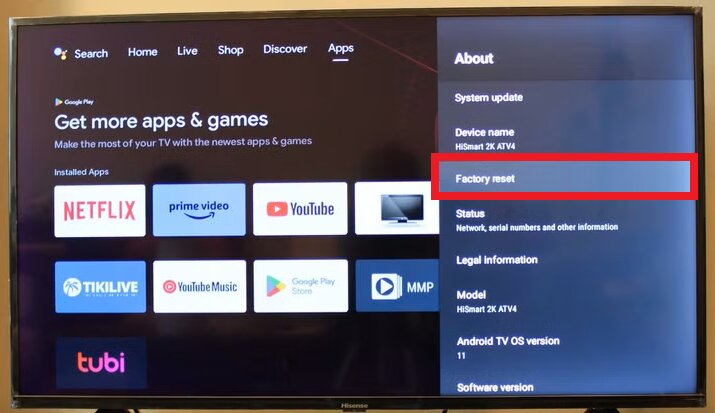
If all fixes above fail, a factory reset is now needed. It can restore your TV to its original settings and remove persistent audio issues.
⚠ Warning: Factory reset will erase installed apps, settings, and saved preferences. Only use this if the issue affects many apps/videos and all other steps fail.
Step 1: Open Settings and go to About.
Step 2: Select Factory Reset.
Step 3: Enter your PIN to confirm.
More solutions to YouTube issue:
YouTube Videos Lagging or Loading Slowly? Get Fixed Here!
Fix YouTube Lagging on Opera GX: Step-by-Step Guide
Part 7. When YouTube Audio Out of Sync Is Caused by Corrupted Video Files
If audio/video is out of sync only for a specific video, and the same issue happens across multiple devices, the problem may be in the video itself (encoding timeline, damaged audio track, or a corrupted downloaded/recorded file).
This scenario is common with:
- Downloaded videos
- Screen recordings
- Poorly exported or interrupted files
Try these before using tools
- Re-download the video (if you obtained it locally)
- Re-export the video with a constant frame rate (for creators)
- Test playback in another player (VLC/QuickTime)
If the file is truly damaged, a video repair tool can sometimes rebuild the audio/video timeline. In this example, Repairit Video Repair is used to demonstrate the workflow.
What it can help with:
- Repair corrupted video files where audio/video timelines are broken
- Fix playback issues caused by damaged data (for local files)
What it cannot help with:
- Live streams
- DRM/protected content
- YouTube platform-side issues (online playback problems)
- Files with missing data that was never recorded or saved
Step-by-Step Guide:
Step 1: Open Repairit. Click Add video and start repairing or the Add button to upload your corrupted YouTube video files due to out of sync issues

Step 2: Hit Repair to start fixing the corrupted YouTube video files due to out of sync issues.

Step 3: If the preview is OK, hit Save and pick a new location on your computer.

Part 8. Tips to Prevent Audio Sync Issues on YouTube
Preventing audio and video from going out of sync is much easier than fixing it later. Here are some practical tips:
- Export videos with a constant frame rate. This ensures the audio and video stay aligned, especially when uploading recorded or edited videos.
- Test videos locally before upload. Watch your video on your device first to catch any sync problems early.
- Keep devices and apps updated. Using the latest version of YouTube, your browser, or editing software helps prevent glitches.
- Use a stable internet connection. Slow or unstable connections can cause buffering and timing issues, especially at higher resolutions.
- Close unnecessary background apps. Freeing up memory and CPU helps your device handle playback smoothly.
- Avoid overly low resolutions when possible. Streaming in very low quality, like 480p, can sometimes worsen sync shifts.
Conclusion
YouTube audio out-of-sync issues are easy to fix once you know the cause, whether it’s your device, app, connection, or settings. By following the steps in this guide, you can quickly restore proper audio and video sync across computers, phones, and smart TVs. If the problem comes from a corrupted downloaded or recorded video, file repair tools can help when regular playback fixes can’t.
FAQs
-
Why does YouTube audio out of sync happen only on some videos?
If only certain videos have sync issues across devices, the file may be improperly encoded or damaged. -
Is low audio related to sync issues?
Low volume doesn’t directly cause sync problems, but it can make timing issues feel more noticeable. -
Can YouTube fix audio delay on upload?
YouTube generally can’t correct a broken audio/video timeline inside an uploaded file. Re-exporting with correct settings is usually required. -
How to prevent sync problems before uploading?
Use constant frame rate, test locally, keep editing software updated, and avoid interrupted exports.




