
You’re all ready to tap on your favorite YouTube video, and just as it begins to load, a playback ID YouTube error appears. One moment you're ready to relax, learn, or laugh, and the next you're staring at an error message; all confused. No one wants to waste time guessing what's wrong or juggling random fixes to keep going.
Considering the need, the article below provides clear, simple guidance to get things working again. Essentially, you’re sorted with the main reasons behind this error to address them accordingly with guided tutorials.
Table of Contents
Part 1. Main Reasons Behind the “Playback ID YouTube” Error
When this issue keeps popping up, it's usually a sign that something in the background is disrupting how YouTube processes. To reveal the main triggers behind the playback ID in YouTube error, read this section for a clear image:
- Browser Cache or Cookies Problem: Once your browser’s collected cookies get corrupted or overloaded, they interfere with how websites function. This can prevent video pages from loading correctly, leading to persistent playback ID errors until the browser is refreshed.
- Due to Conflicting Browser Extensions: While extensions are meant to block ads or scripts, they can unintentionally disrupt YouTube’s essential playback functions. When an extension blocks a required video script or restricts a network request, YouTube can’t load the video player properly.
- Device DNS Configuration Issue: DNS translates the website name into addresses your device can understand to facilitate uninterrupted playback. A slow DNS server or one improperly configured interrupts your ability to reach YouTube's servers smoothly.
Part 2. Playback ID YouTube Error: 7 Quick Fixes You Can Try Immediately
Even the most recurrent playback ID YouTube error can be solved through proven workarounds, as guided in the section ahead:
1. Log Out and Log Back In
Properly signing out of your YouTube account and then logging back in resets your session and clears minor glitches. This action often resolves problems caused by account sync issues or temporary authentication errors, ensuring clear communication with the server. Follow the provided tutorial to refresh the connection that can resolve account-related playback disturbance:
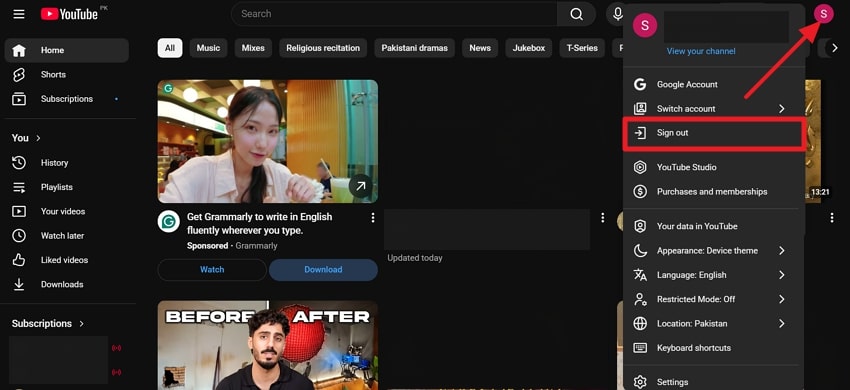
Step 1. Access YouTube on your Windows, navigate to the “Profile” icon, and press the “Sign Out” button from the menu.
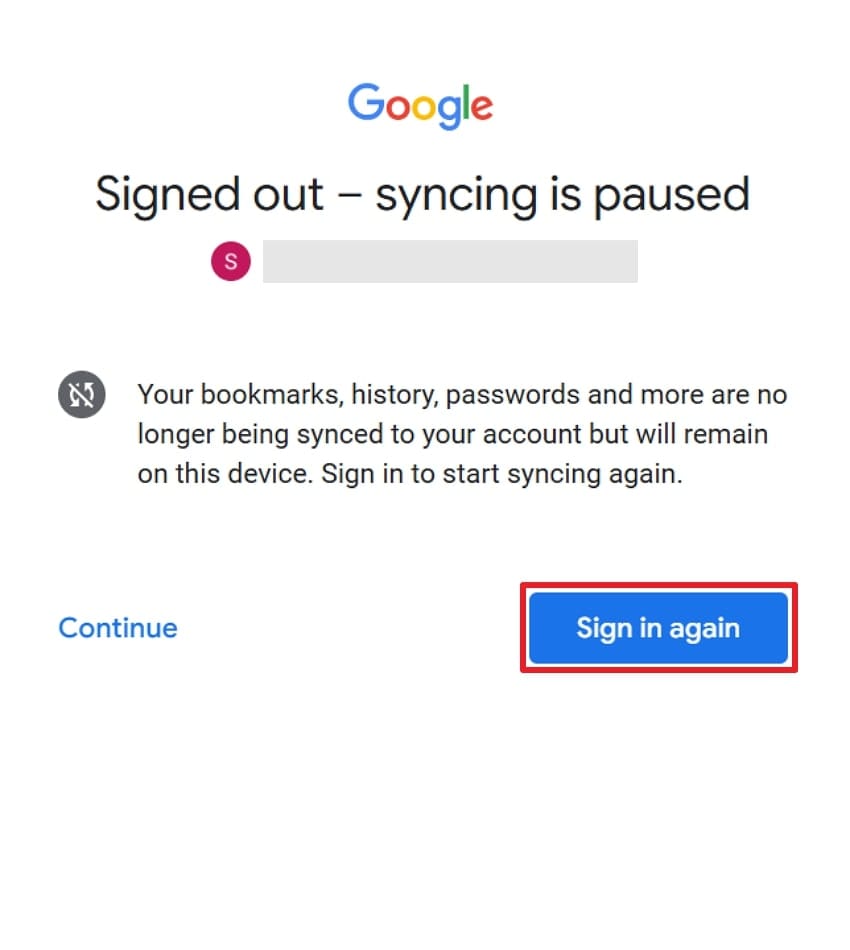
Step 2. Once signed out, click the “Sign in Again” button and enter your email again to re-access YouTube.
2. Switch to a Different Browser
When you switch browsers, it helps determine if the problem is related to your original browser’s configuration or compatibility. Accessing YouTube on another browser besides the regular one can address the playback ID in YouTube error. This even clears that your problem isn’t tied to browser cache, extensions, or rendering issues in the app. For this, simply attempt to play YouTube in Firefox or Edge if you’re a frequent Chrome user.
3. Disable Browser Extensions
As explained, browser extensions or add-ons, especially ad blockers or privacy tools, can hinder YouTube’s script. A temporary or one-at-a-time disable allows users to identify and remove the extension causing the problem, restoring overall video playback. To have a clutter-free video experience and a better browsing space, follow the manual and disable unnecessary extensions:
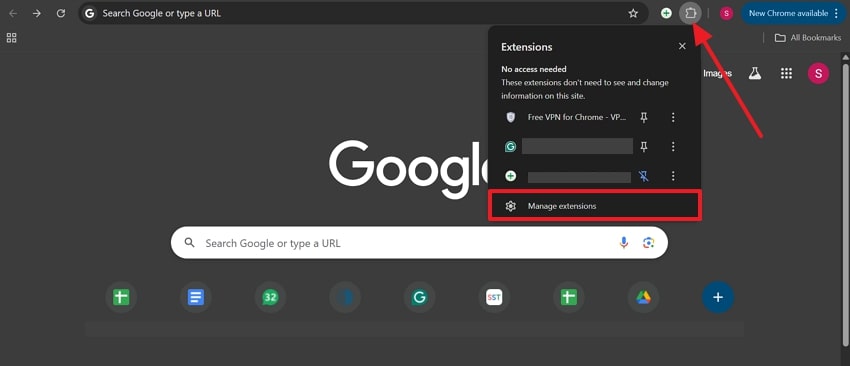
Step 1. Open your browser, locate the “Extensions” icon, and choose the “Manage Extensions” option from the menu.
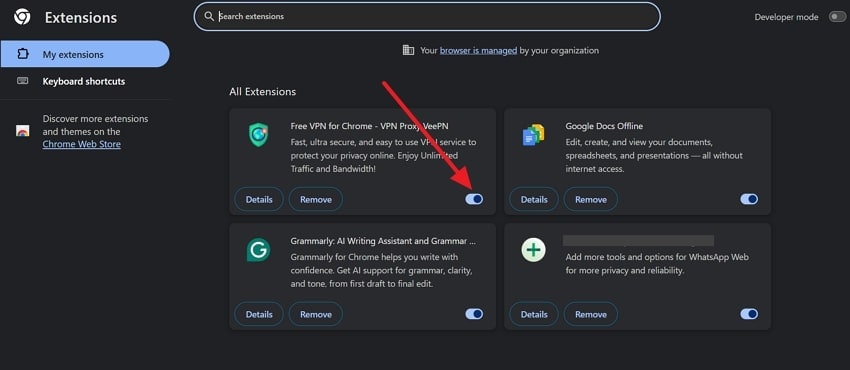
Step 2. Next, review all the extensions and toggle off the ones that aren’t needed. Move forward, re-open YouTube on your browser, and check if the playback ID issue is resolved.
4. Update Your Browser or YouTube App
If you ensure your browser or YouTube app is up to date, you can prevent errors caused by outdated software. Every new update includes security patches and bug fixes that might overcome issues like playback ID on YouTube. This way, you’re not only resolving the current playback issues but also protecting your device against future glitches. Adhere to the instructions and learn how to update your browser for improved YouTube performance:
Instructions: Enter your browser first, access the “Three Dots” icon, and expand the menu for “Help.” From the sub-menu, select the “About Google Chrome” option to start an automatic browser update. After this, re-open YouTube and analyze whether the issue is resolved or persists.
5. Temporarily Disable VPN or Proxy
VPN and proxies can sometimes block or reroute YouTube data in a way that causes playback errors or content restrictions. Try disabling these services and allowing your device to connect directly to the YouTube server.
This way, you’ll have a more stable connection, with every playback ID in YouTube error resolved if caused by a VPN. Explore the manual and turn off the temporary VPN proxy and access content without regional blockage:
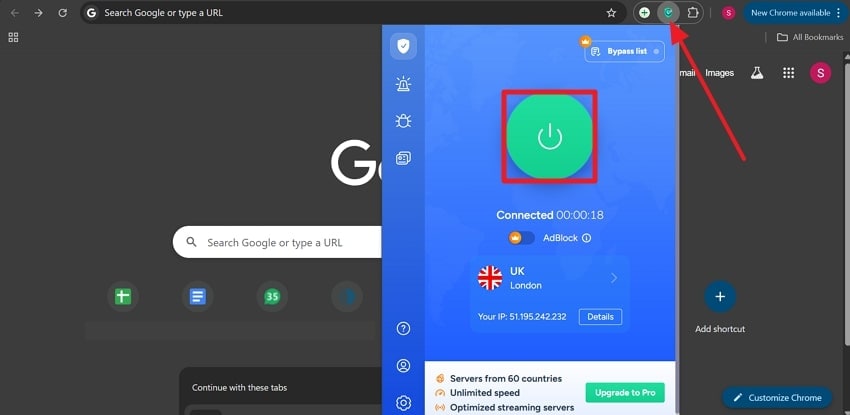
Instructions: First, click the “VPN” icon in the toolbar, then press the “ON/OFF" button to disable the VPN service. Once done, re-open YouTube and ensure the playback ID error is resolved.
6. Clear Browser Cache and Cookies
As you use your browser, it's natural that cached files or cookies can become outdated, resulting in a playback ID issue in YouTube. Thus, clearing the cache and cookies forces your browser to fetch the latest version of every page and resets site-specific data. This even helps remove hidden faults, speed up loading, and often fixes playback errors. For a better YouTube performance, follow the guidelines and eradicate obsolete browser cache:
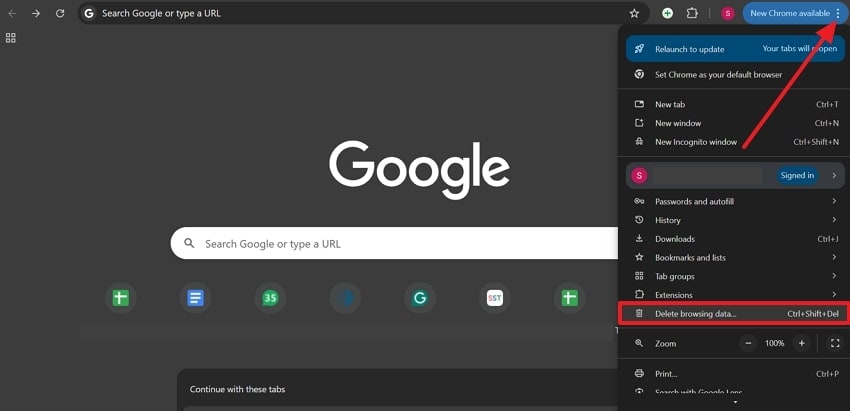
Step 1. To do so, access your browser and press the “Three Dots” icon at the top right. Once done, select the “Delete Browsing Data” option to reveal additional options.
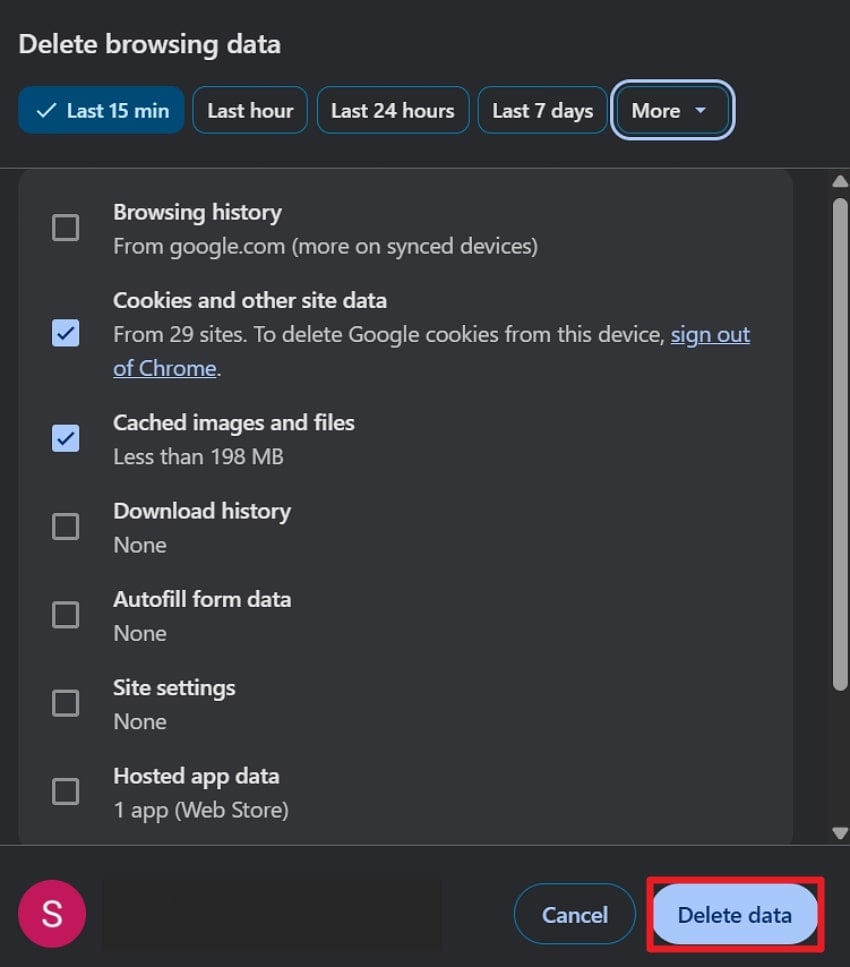
Step 2. Proceed ahead, select all the options with respect to the time, and click the “Delete Data” button. Following this, all stored corrupted cached files will be removed, offering a smoother YouTube playback.
7. Reset DNS Settings
Your device utilizes DNS (Domain Name System) settings to find websites and load videos. With corrupted or outdated DNS settings, sites like YouTube can fail to load and show the playback ID YouTube error. The only workaround is to reset your DNS settings to clear out old records and instruct your device to get fresh connections. Dive into the guidelines and have a renewed path to YouTube with cleared DNS settings:
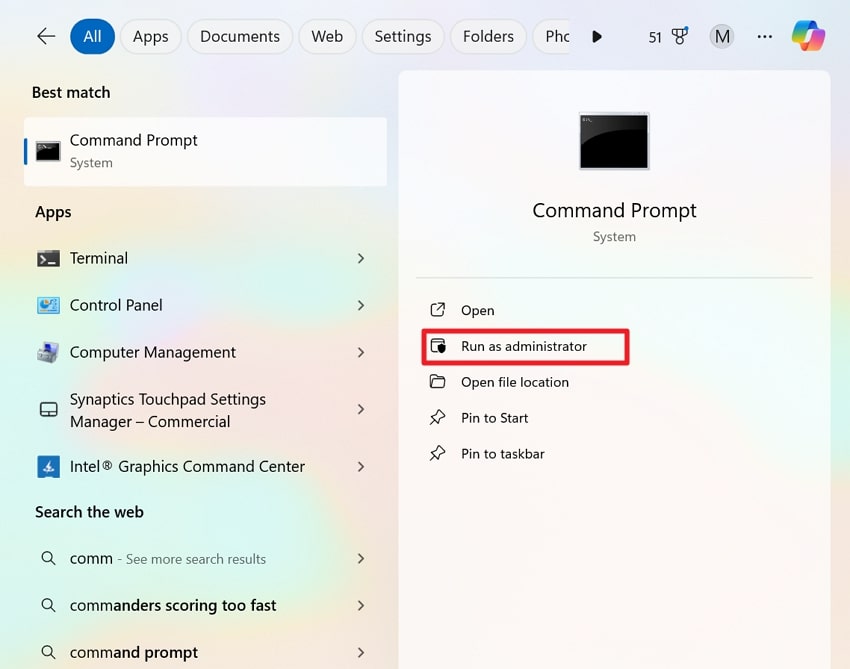
Step 1. In your Windows search bar, type CMD and press the “Run as Administrator” option for the command prompt.
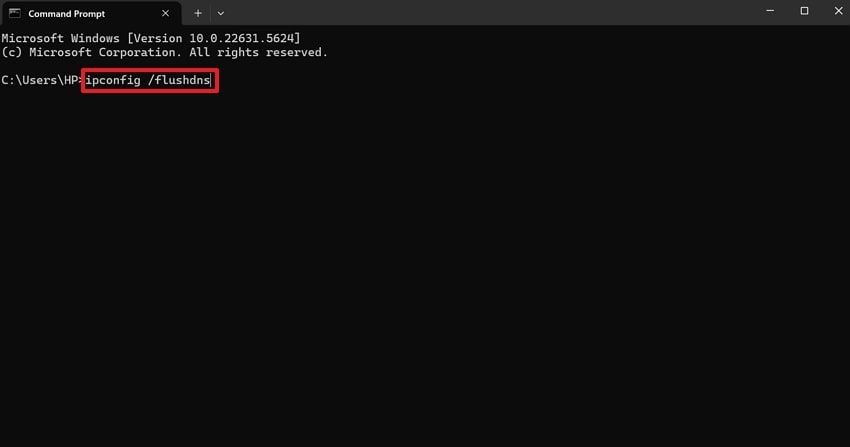
Step 2. Next, in the given space, type “ipconfig /flushdns” and hit Enter on your keyboard. Doing so, your windows will run as per command and reset all the DNS settings. After this, simply restart your PC and open YouTube again to check the playback issue.
Pro Tip. Quickly Restore Your Corrupt Videos on Windows PC or MacBook
Situations like this occur very often when you record or download a video, and then, upon accessing it, it refuses to play. Whether it's file corruption or simply not accessible, it's a total frustration until Repairit is used as a savior. Without limitation to the corruption scenario, the platform supports repairing all your precious footage. Most importantly, it supports all major formats, whether mainstream, device-specific, or pro-level formats.
Beyond supporting HD and 8K videos, the software delivers high-definition repairs with a 99.5% success rate. Essentially, it offers broad compatibility with all versions of Windows and macOS, as well as direct online access. Besides, its Advanced Repair mode repairs severely damaged videos using sample files to preserve their integrity. Not only that, the platform guarantees that all repaired videos retain their resolution, encoding, and clarity.
Key Features

-
Preview Repaired Videos: You’re allowed to review your fixed footage before considering downloading it to your device.
-
Professional Video Repair Mode: This mode handles all RAW formats, advanced video codecs, and HDR/LOG footage, preserving their original encoding.
-
Batch Video Repair Process: At the same time, users can add multiple corrupted or broken videos and get them fixed instantly.
Comprehensive Tutorial to Restore Corrupted Videos Using Repairit
In the provided stepwise tutorial, you’re guided on how to bring your corrupted videos back without any technical assistance:
Step 1. Open the Video Repair Tool & Add Corrupted Footage
To begin, access the “Video Repair” module and press the “Start” button to insert your corrupted videos.

Step 2. Initiate the Repair Process on Videos
Once done, proceed to the “Repair” button and get all your broken videos fixed. Soon, when the process completes, click the “Preview” button to review and save the videos.

Repair Your Corrupted Youtube Videos Now
 Security Verified. Over 7,302,189 people have downloaded it.
Conclusion
In conclusion, whenever the playback ID YouTube error occurs during your viewing, it eventually becomes frustrating. Most of the time, it's caused by common issues as discussed and sorted in the article above, supported by tutorials. In addition, users might encounter video corruption or damage, requiring Repairit for an ultimate repair.
Frequently Asked Questions
-
Q1. Does this error mean my video is deleted or removed?
Not necessarily, because the playback ID in YouTube issues is typically related to playback and connectivity issues. Even if the video appears unplayable on your device, it may still exist on YouTube's servers. In most cases, refreshing the page or checking the connection can help confirm that the video has not been removed. -
Q2. Why does playback ID appear only on certain videos?
When the error occurs on specific videos, it might be due to issues with those particular video files, such as improper upload. At times, regional restrictions or high traffic on YouTube servers can prevent certain videos from playing, while others load fine. -
Q3. Can I still watch videos if I keep seeing this error?
If the error persists after trying all the workarounds, it's often a sign that the issue may be device-specific or browser-related. You can switch to a different browser or device, as per your convenience, to solve it. For instance, a playback error highlights a corrupted video; refer to Repairit to get it fixed at once.




