
![Subnautica 2 Keeps Crashing on PC? Full Fix Guide [Tested]](https://images.wondershare.com/repairit/article-trans-image/4809/subnautica-2-keeps-crashing-on-pc-1.jpg)
 TL;DR:
Resolving frequent Subnautica 2 crashes and black screens on PC requires eliminating system conflicts by configuring game permissions, disabling background overlays, and repairing corrupted installation or runtime files.
● Modify the Subnautica 2 application properties to run as an administrator and check the Disable Fullscreen Optimizations box to force hardware prioritization and bypass presentation freezing.
● Turn off Steam and Discord in-game overlays to free up system resources, and perform a clean graphics driver installation using Display Driver Uninstaller in Safe Mode if standard NVIDIA updates fail to stabilize gameplay.
● Fix immediate startup failures by utilizing the Steam client to verify the integrity of installed game files and manually reinstalling fresh copies of DirectX and the x64 version of Microsoft Visual C++.
Ask AI for a summary
 ChatGPT
 Perplexity
 Gemini
 Claude
 Grok
Grok
Subnautica 2 is a highly anticipated alienscape survival adventure set in an amazing ocean. Players will find concealed areas as they build tools and bases. Nonetheless, many gamers encounter technical issues that disrupt the adventure. Players on Reddit also reported that Subnautica 2 keeps crashing on PC frequently.
Moreover, players reported performance issues and crashes within launch week on the Steam Community. These interruptions can cause stress and prevent smooth gameplay progression. Yet, several proven methods can improve stability and prevent recurring crashes. That’s why this guide explains common causes and effective fixes for reliable gameplay.
In this article
Part 1. Why Subnautica 2 Keeps Crashing on PC?
Finding a permanent Subnautica 2 crashing fix requires understanding your system conflicts. Therefore, this part covers 5 reasons why your game keeps crashing:
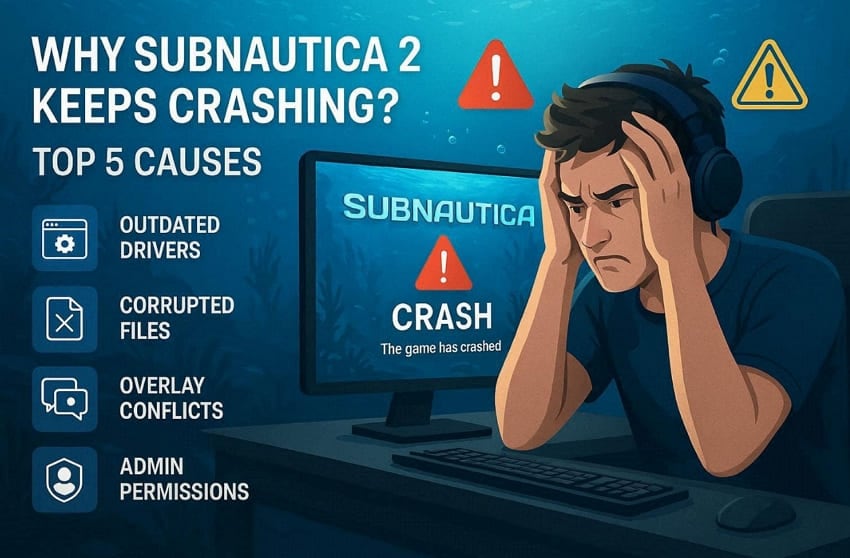
- Outdated Drivers: Old graphics drivers cannot handle Subnautica 2's demanding visual requirements. Such a driver causes instability and sudden crashes during gameplay.
- Corrupted Files: Game files can get corrupted during download or storage drive failure. It prevents the game from loading correctly and triggers unexpected shutdowns.
- Overlay Conflicts: Discord and Steam overlays run in the background while your game is active. These overlays conflict with game processes and cause frequent crashes.
- Permissions Issues: Without admin privileges, your game will limit access to system resources. This restriction gives rise to instability and random crashes during sessions.
- Runtime Files: DirectX and Visual C++ are critical runtime files required for proper playability. Thus, missing or outdated versions of these files cause the game to crash.
Part 2. Fix Subnautica 2 Black Screen and Crash to Desktop - 7 Ways
It is possible to solve a Subnautica 2 crash on startup with the correct process. Thus, here are 7 proven ways to stop crashes and restore stable gameplay without hassle:
Way 1. Update Graphics Drivers
Old graphics drivers are one of the biggest reasons behind game crashes. Subnautica 2 requires updated drivers to run its advanced underwater visuals. Your GPU cannot process new game data with outdated driver versions installed. Manufacturers like NVIDIA frequently release updates for optimal game optimization. Avast claims that drivers cause 70–75% of all PC stop errors and crashes. Hence, you can update your drivers by executing these steps:
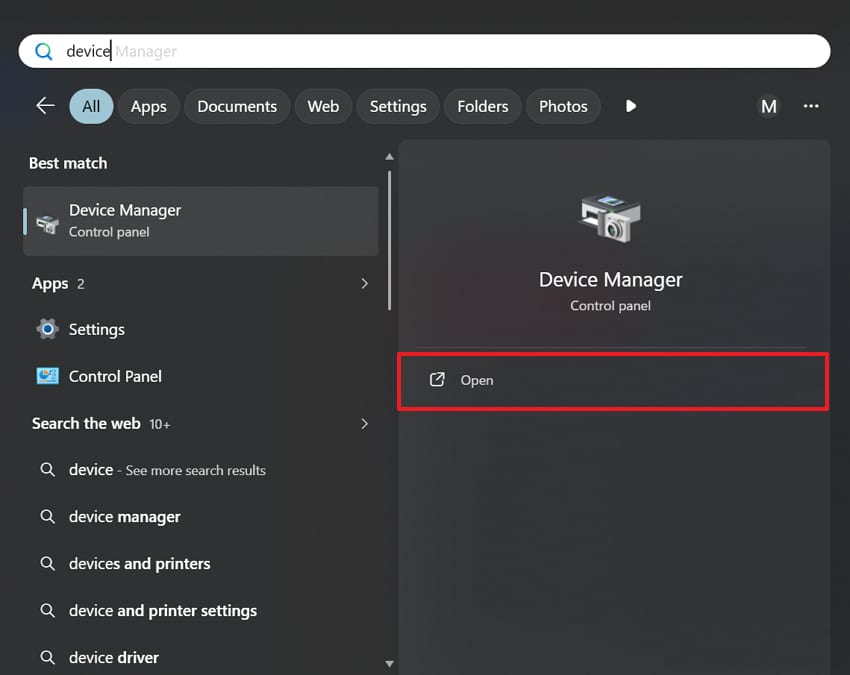
Step 1. When you click the "Start" menu, look for "Device Manager" and launch it via "Open."
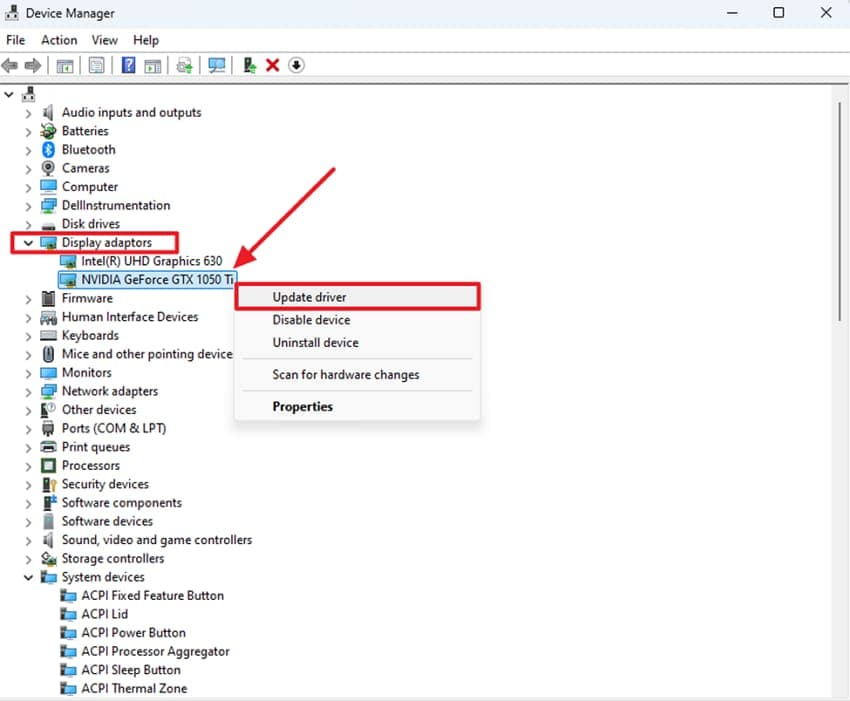
Step 2. In the upcoming screen, expand the "Display Adapters" category to view your GPU. Subsequently, opt for "Update Driver" upon right-clicking the graphics driver.
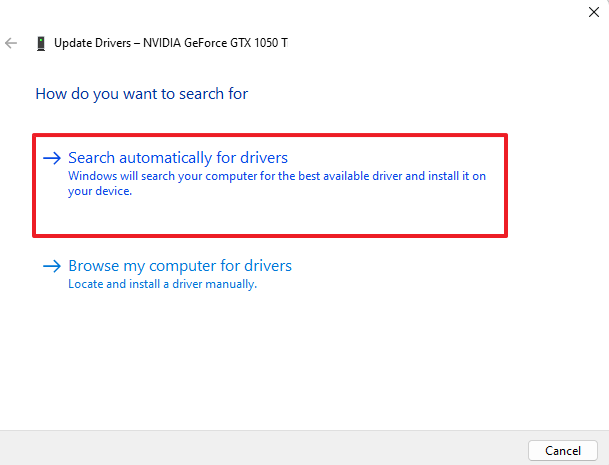
Step 3. Finally, you need to select the "Search Automatically for Drivers" option. It lets your system check for and install any available updates, then applies them upon rebooting.
Way 2. Verify Subnautica 2 Game Files
Many times, missing game files may also trigger crashes and startup failures. Subnautica 2 not launching on PC is often directly linked to damaged installation files. Game launchers such as Steam have a native tool that scans and repairs these files. This process replaces any broken files without touching your saved game progress. So, adhere to the given steps below to verify your game's files:
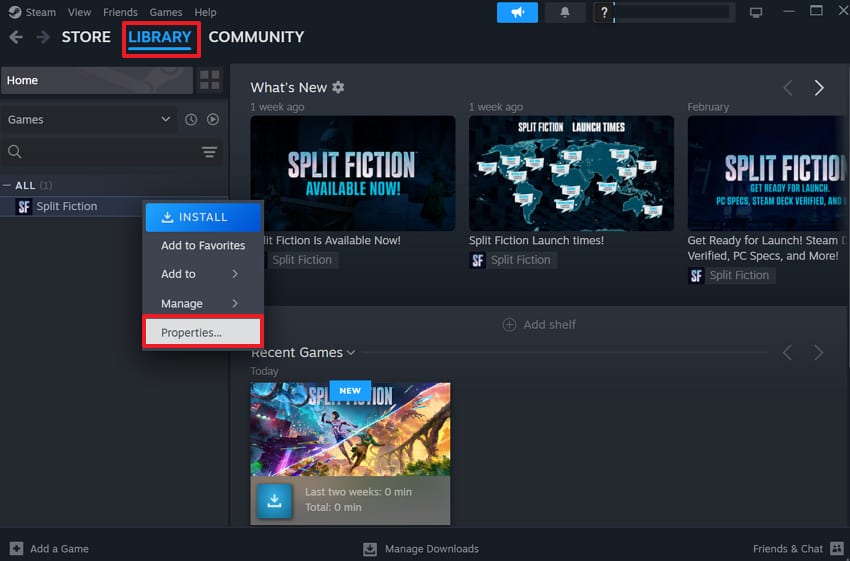
Step 1. Players have to access the "Library" tab as they launch their game client, such as Steam. Right-click on your game title and select "Properties."
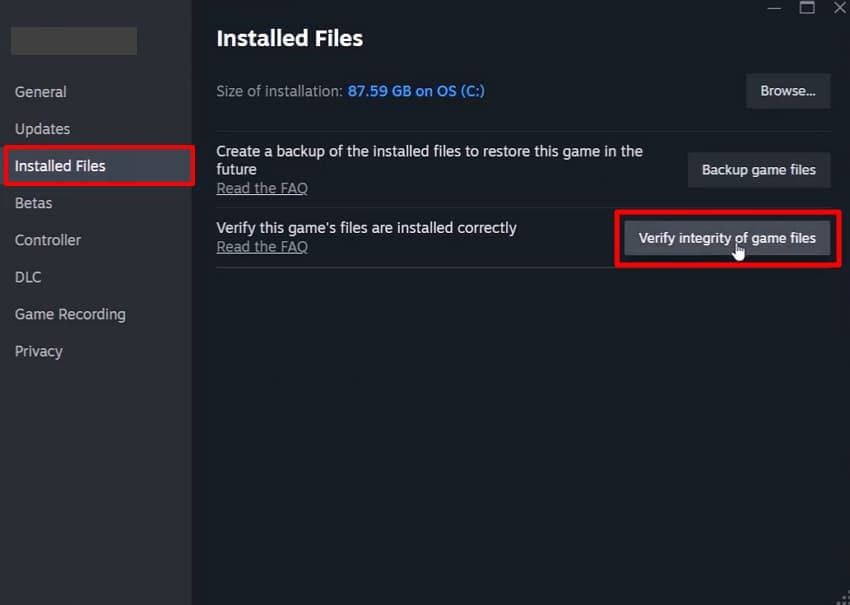
Step 2. Going ahead, open the "Installed Files" tab and click "Verify Integrity of Game Files." The launcher will inspect the installation and replace any missing or corrupted files.
Way 3. Run Subnautica 2 as Administrator
Your system sometimes blocks games from accessing critical system resources without admin rights. This is a hidden reason why Subnautica 2 keeps crashing on PC for many players. Therefore, administrator privileges allow games to access important system resources. Granting such rights ensures the game can utilize all required files without restrictions. Anyhow, you can configure these essential system permissions by following these steps:
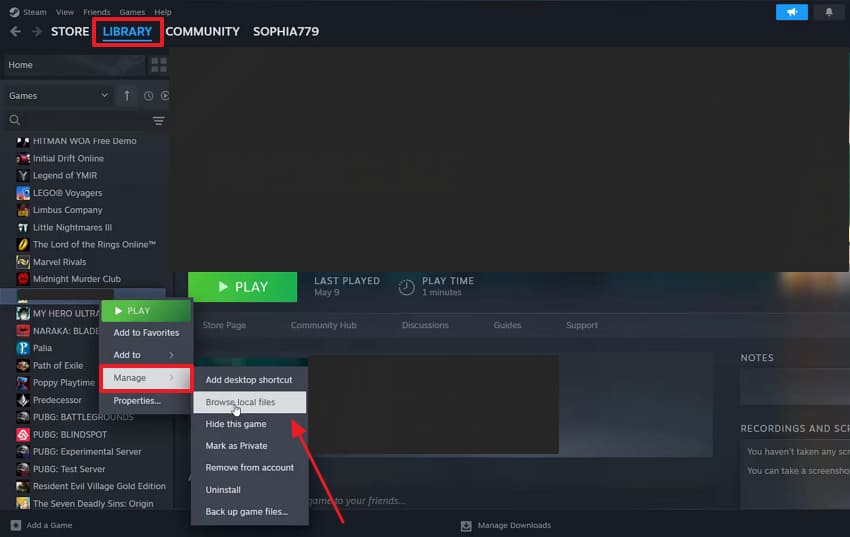
Step 1. When you right-click the "Subnautica 2," head to "Manage" and opt for "Browse Local Files."
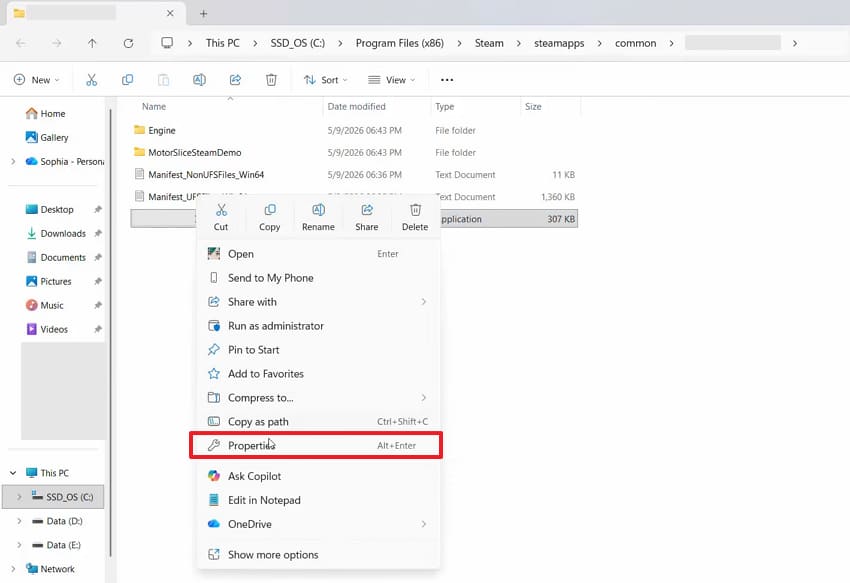
Step 2. Moving ahead, you need to right-click the game’s app file and select "Properties."
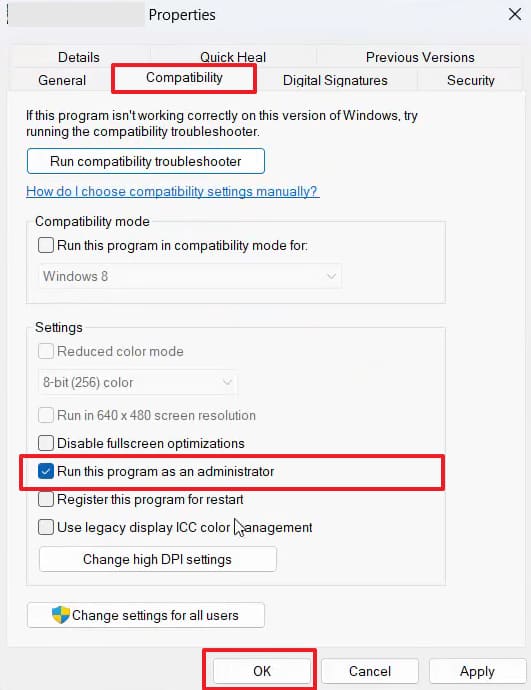
Step 3. Access "Compatibility" and tick "Run this Program as an Administrator" before pressing "OK."
Way 4. Disable Fullscreen Optimizations
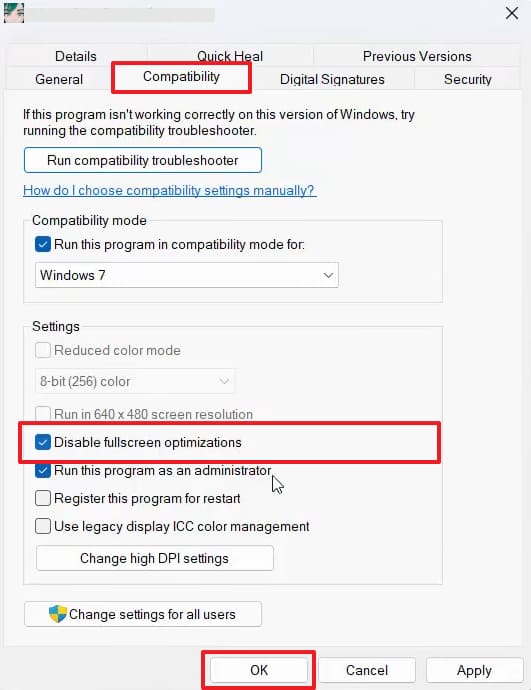
This particular optimization feature was designed to improve overall gaming performance. However, it often does the opposite and causes unexpected crashes instead. Your survival experience might stutter heavily or freeze due to this presentation conflict. Yet, turning off this default optimization forces your hardware to prioritize the game. Therefore, go through the steps to turn off such optimizations and stabilize your gameplay:
Instructions. From the "Properties" of your game, navigate to the "Compatibility" tab. After that, enable "Disable Fullscreen Optimizations" and then press the "OK" button.
Way 5. Disable Overlays (Discord/Steam)
Apps like Steam or Discord create interactive overlays while you play games. These overlays constantly consume system resources that Subnautica 2 desperately needs to run. A reliable Subnautica 2 crashing fix is to turn off these background overlay features. Discord officially acknowledged its overlay caused gameplay problems across multiple games. So, gamers need to review these steps to turn off such apps' overlays on their system:
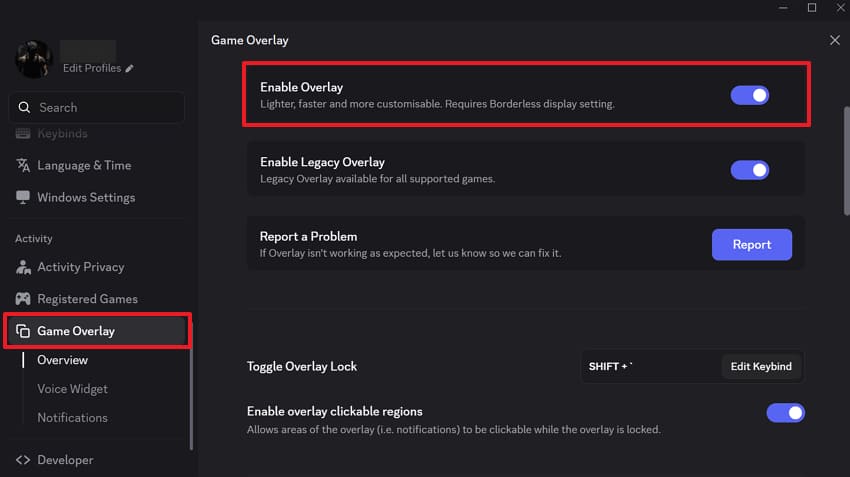
Step 1. Launch an app like "Discord" and select the "Gear" icon to open the user settings panel.

Step 2. Within the settings menu, head to the "Game Overlay" section. Then, locate the "Enable Overlay" option and turn it off to prevent it from displaying overlays.
Way 6. Reinstall DirectX and Visual C++
Essential runtime packages allow your operating system to execute complex game instructions. Missing or corrupted library files directly cause a Subnautica 2 crash on startup. The application cannot load vital engine components without functioning them. Therefore, installing fresh copies of these software files repairs your broken system foundation. You can download and reinstall these crucial components by executing these steps:
Reinstall DirectX
Step 1. Access "DirectX End-User Runtime Web Installer" and select "Download" to obtain the setup file.

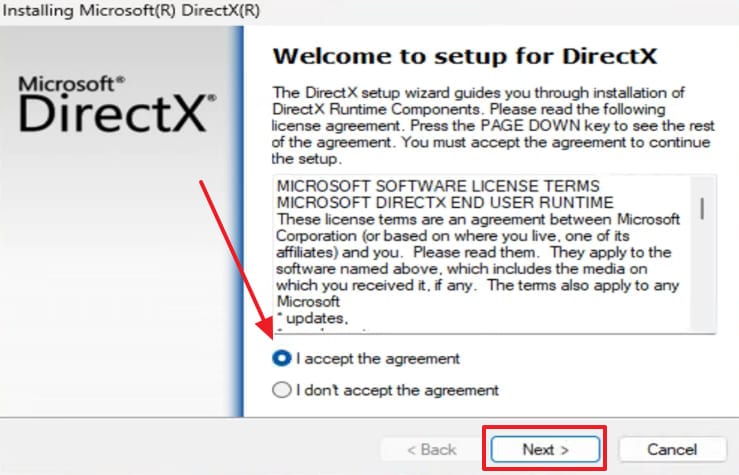
Step 2. Upon getting the installer, opt for "I Accept the Agreement" and proceed by clicking "Next."
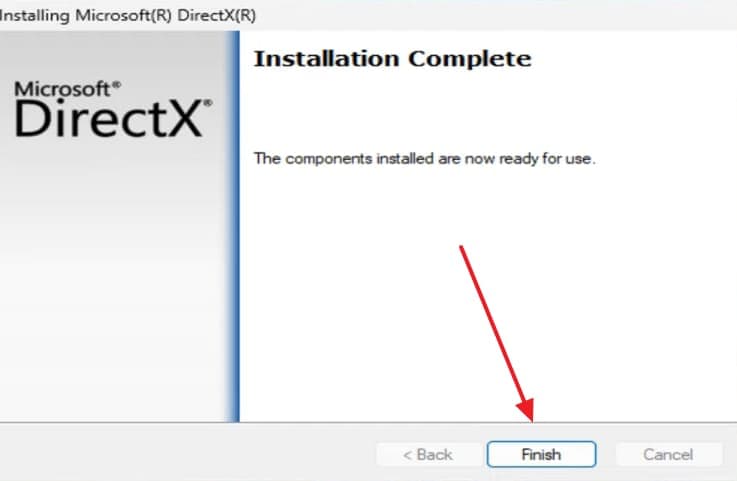
Step 3. Approve the prompts to install "DirectX" components as required. Upon seeing the "Installation Complete" screen, opt for "Finish" to exit this task.
Reinstall Visual C++
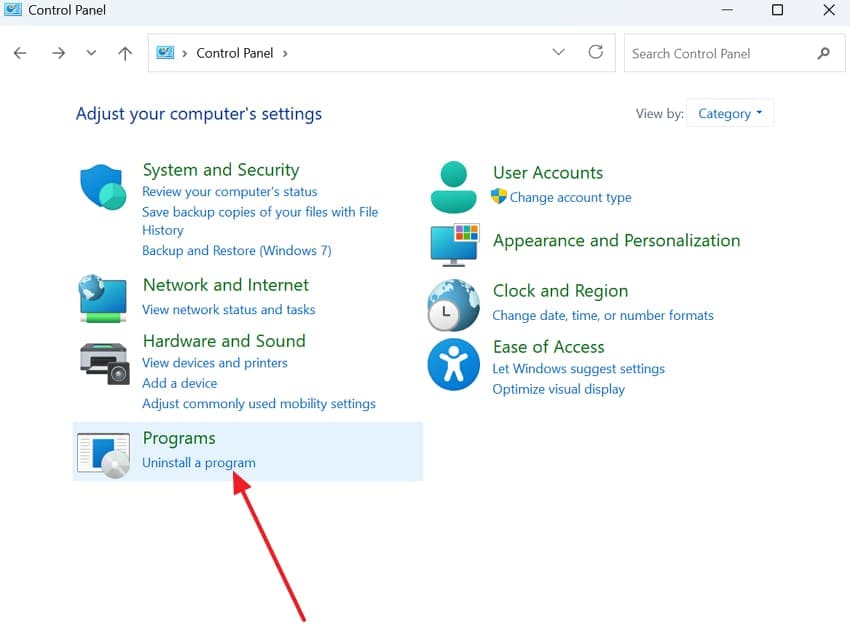
Step 1. Upon locating the "Control Panel," opt for the "Uninstall a Program" option.
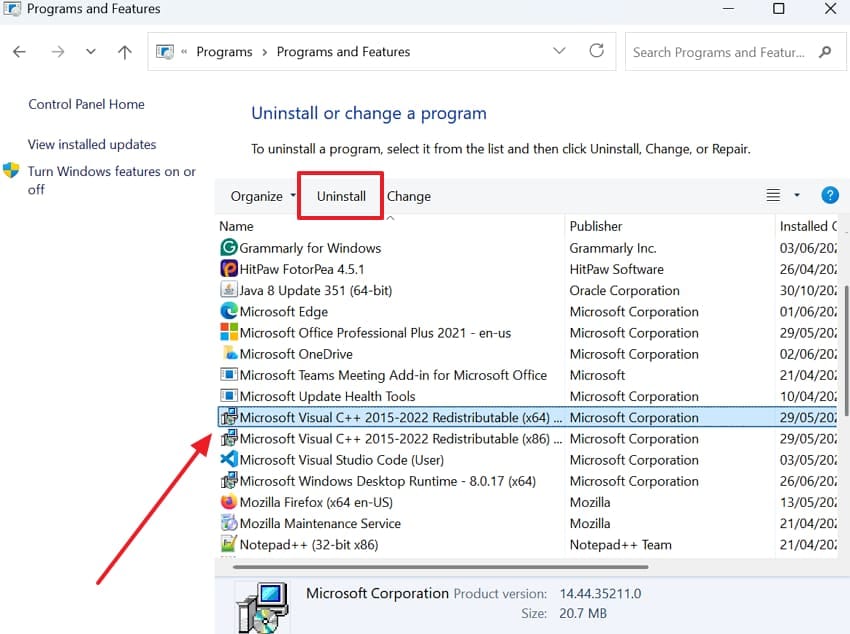
Step 2. From the installed apps, select all "Microsoft Visual C++ Redistributable" options one by one and choose "Uninstall."
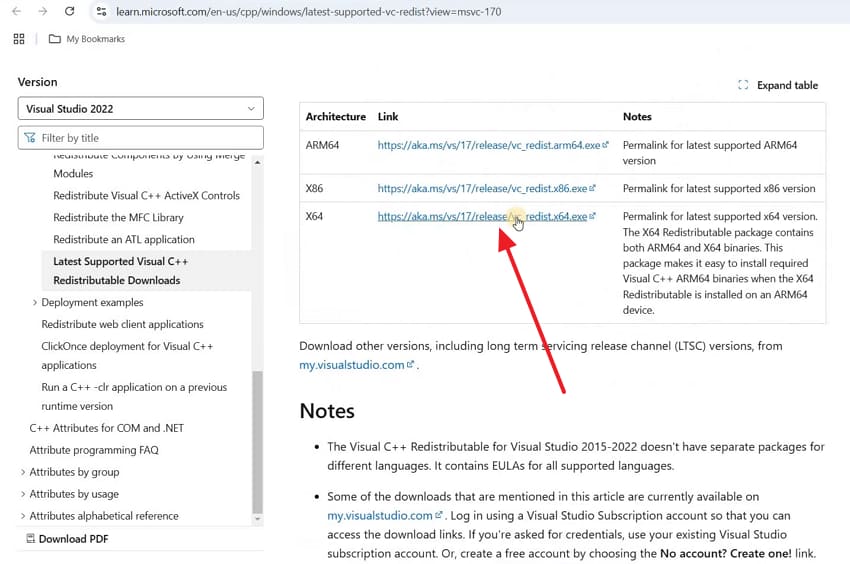
Step 3. Then, access the official "Visual C++ Redistributable" download page. Finally, choose the "x64" version and save the installation package to your system.
Step 4. As you run the downloaded setup file, accept the agreement box and click "Install."
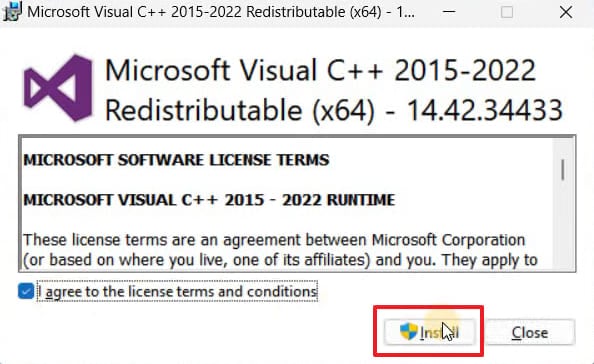
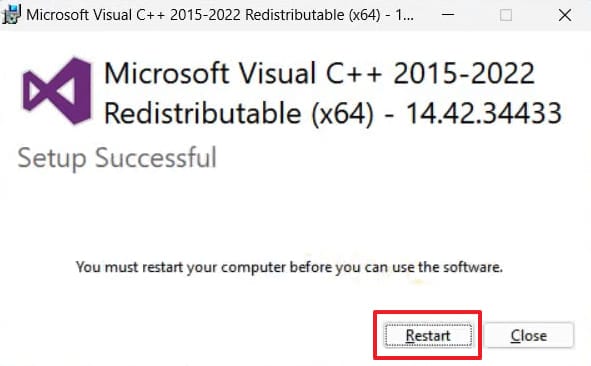
Step 5. The installer process will then require you to follow the instructions. When prompted at the final screen, select "Restart" to finalize the installation.
Way 7. Clean Reinstall Graphics Drivers
Driver updates sometimes leave behind corrupted files and conflicting settings. These leftover components can continue causing crashes despite regular updates. Nonetheless, a clean reinstall removes old driver files from your system. Fresh installation files help eliminate conflicts affecting game stability. This method often resolves stubborn crashes that other solutions cannot fix. So, take guidance from the steps below to ensure a clean driver reinstallation:
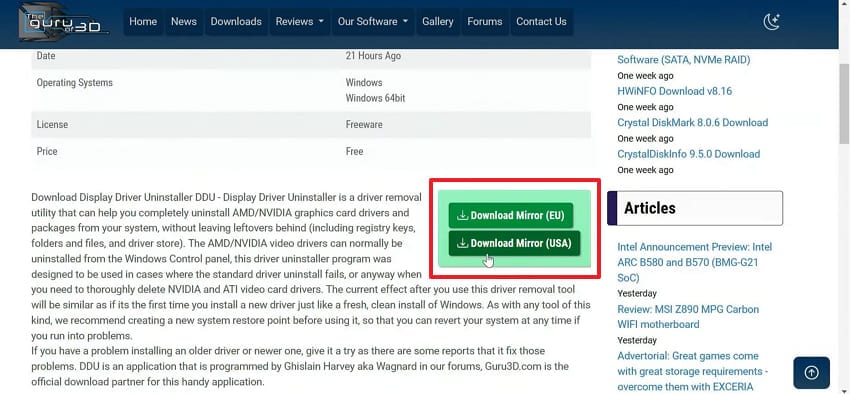
Step 1. Once you visit a trusted source such as "Guru3D," click "Download" to get the "DDU" file.
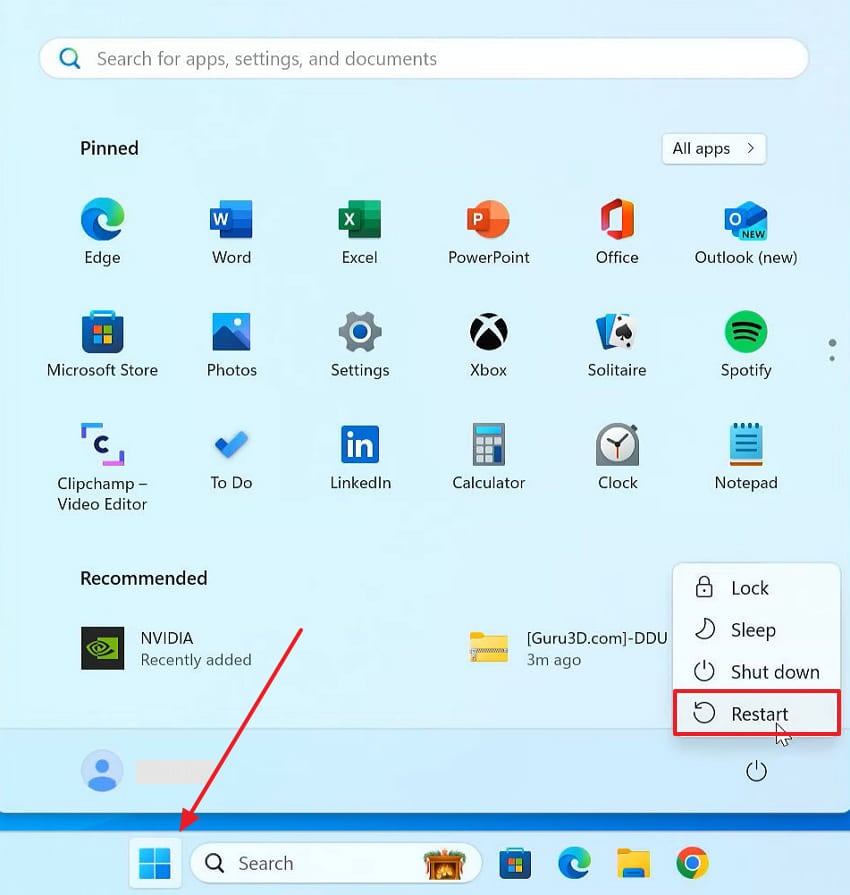
Step 2. As the file is downloaded and extracted, go ahead and open the "Start" menu. Then, click the "Power" icon and hold down the "Shift" key while selecting "Restart."
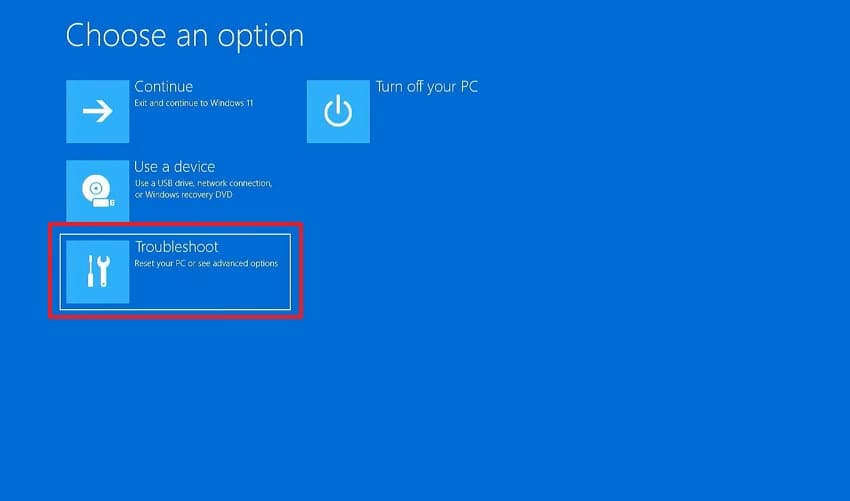
Step 3. A "Choose an Option" screen will appear, so navigate to the "Troubleshoot" section.
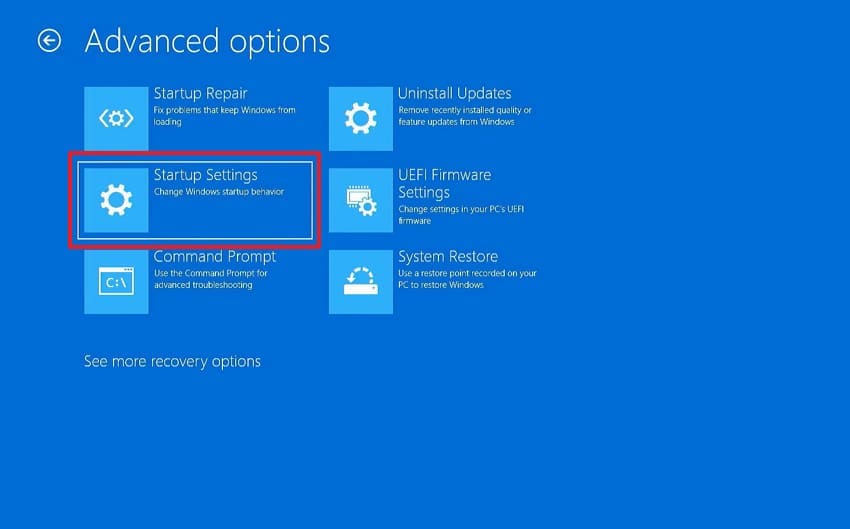
Step 4. Inside this menu, go ahead and open "Advanced Options" for "Startup Settings."
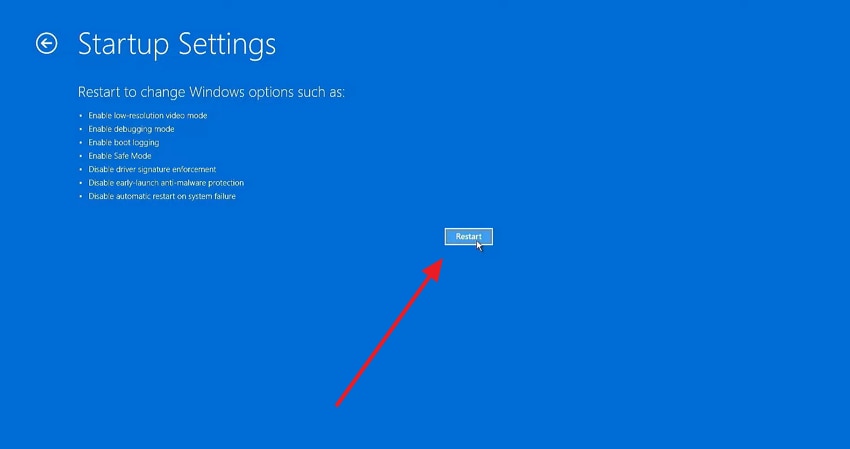
Step 5. Once the next screen appears on the display, click the "Restart" button now.
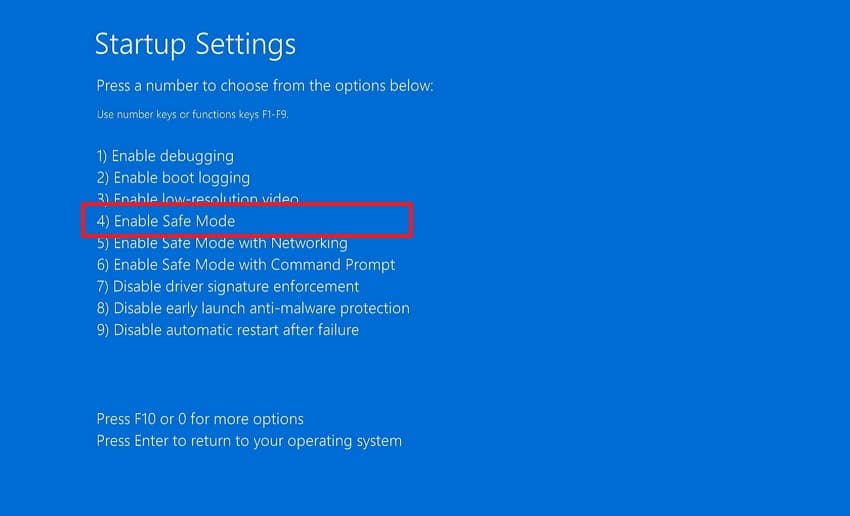
Step 6. Additional boot options will now appear, so press the "4" key to enter Safe Mode.
Step 7. After entering this mode, launch the "Display Driver Uninstaller" application.
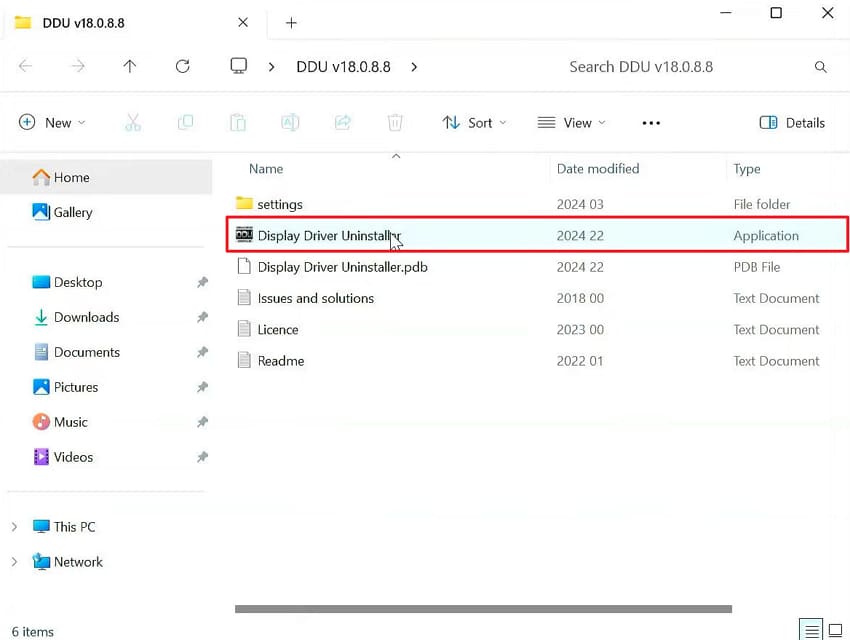
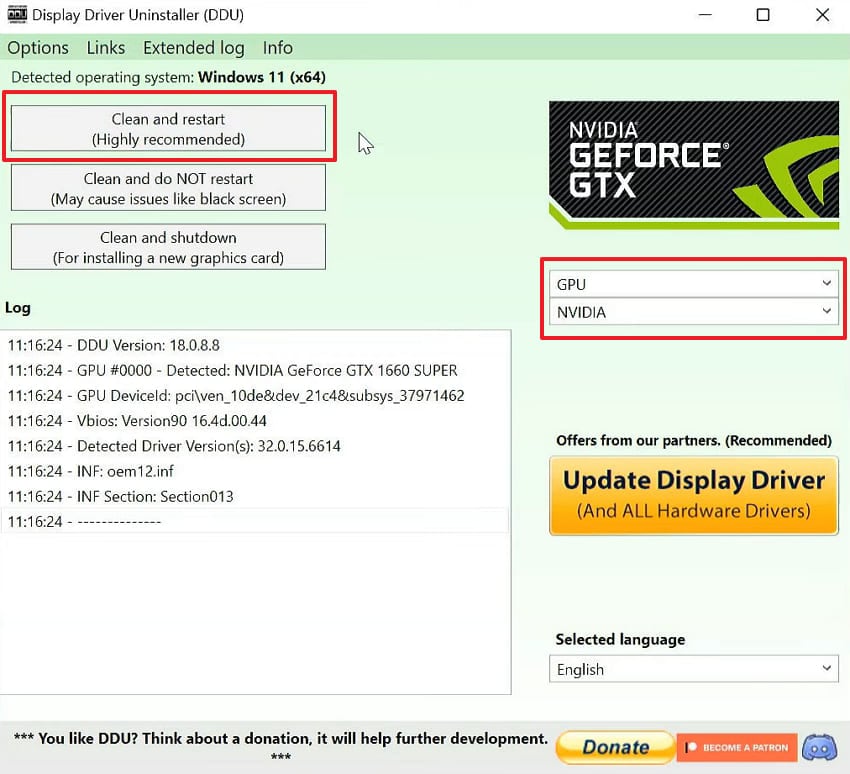
Step 8. Now, set the drop-downs to "GPU" and "NVIDIA," then click the "Clean and Restart" button.
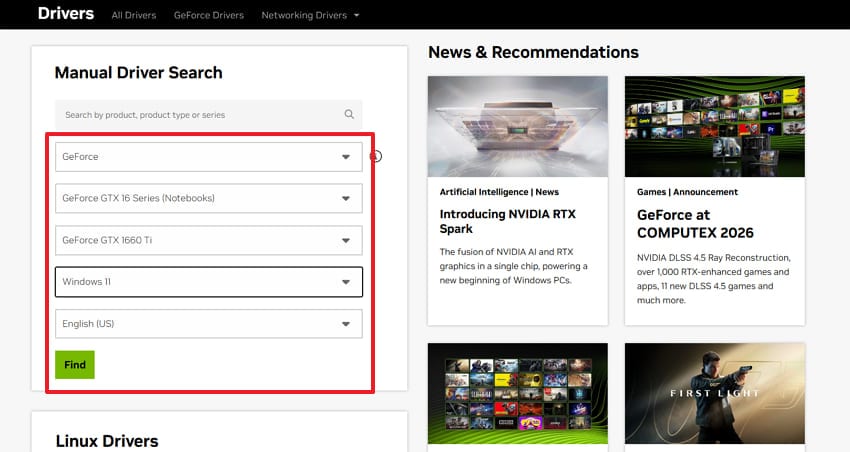
Step 9. Your system will restart cleanly, so head to the "Official NVIDIA Drivers" site. Use the "Manual Driver Search" section and select your preferred driver options. Then, click the "Find" button to search for your compatible drivers.
Step 10. As you select your preferred driver option, click the "View" button to see the results.
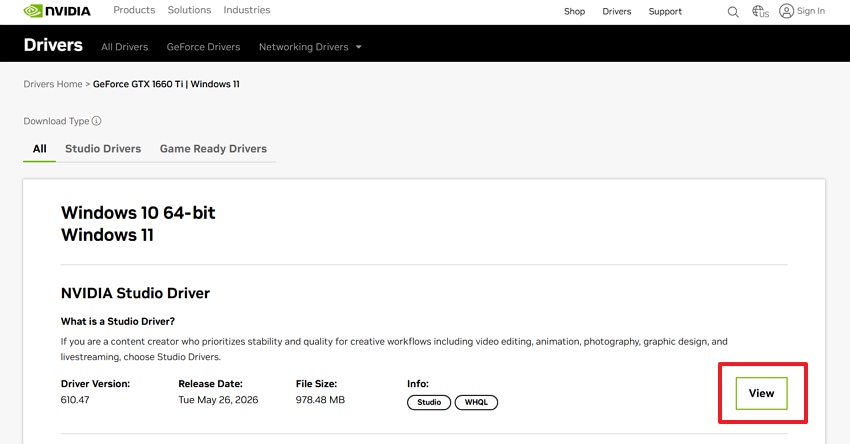
Step 11. Take a moment to confirm the latest driver release date shown there. Once verified, press the "Download" button to save the driver file locally.
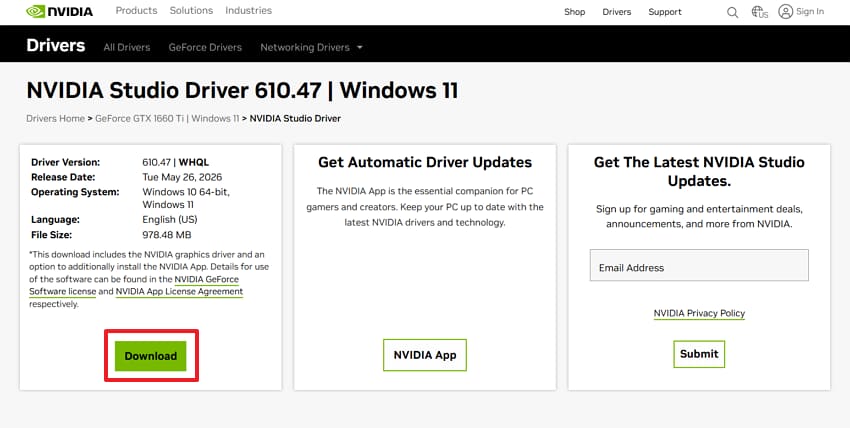
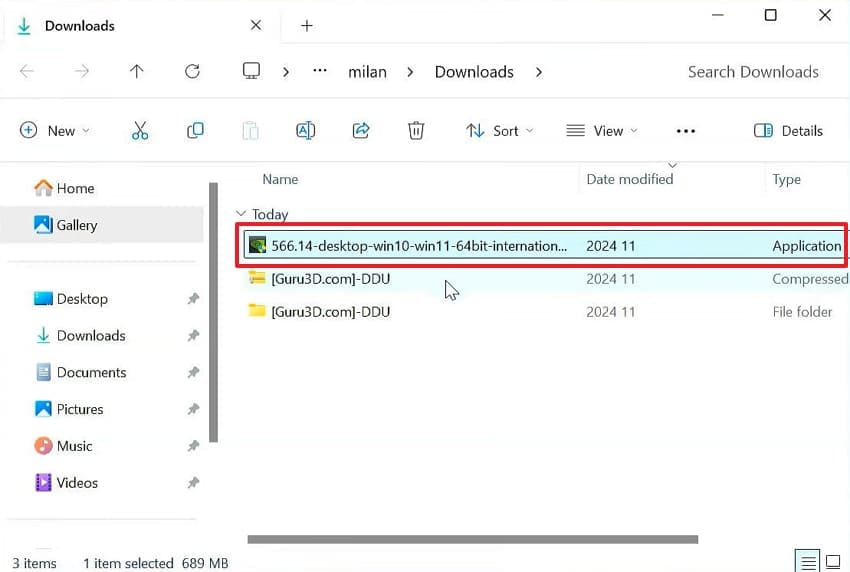
Step 12. After that, navigate to the folder where it was saved and run the ".exe" file.
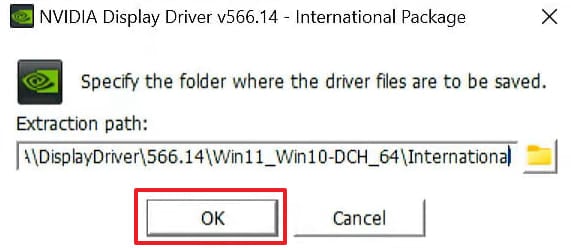
Step 13. An installation prompt will appear on your screen after launching. Press the "OK" button to acknowledge and continue the installation process.
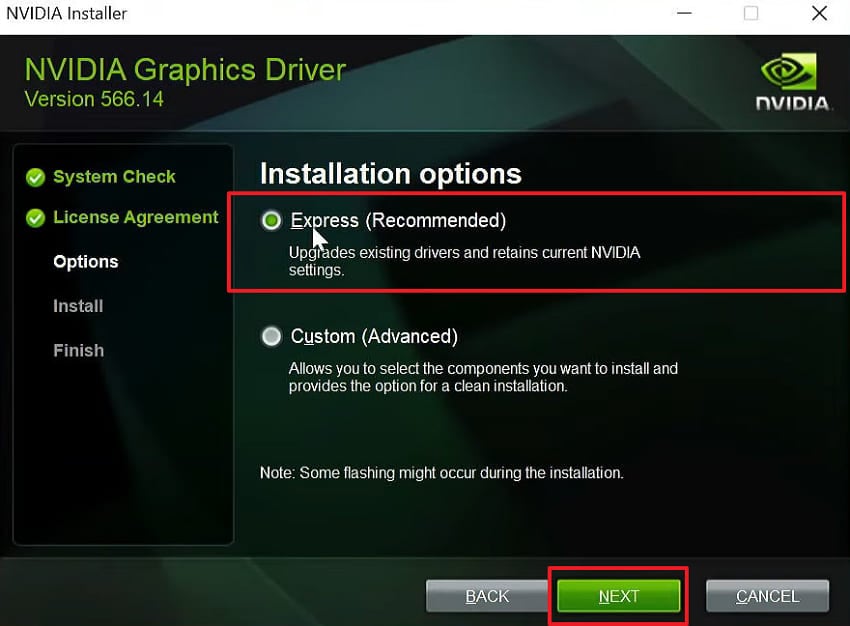
Step 14. On the next screen, opt for "Express (Recommended)" and then click "Next" to continue.
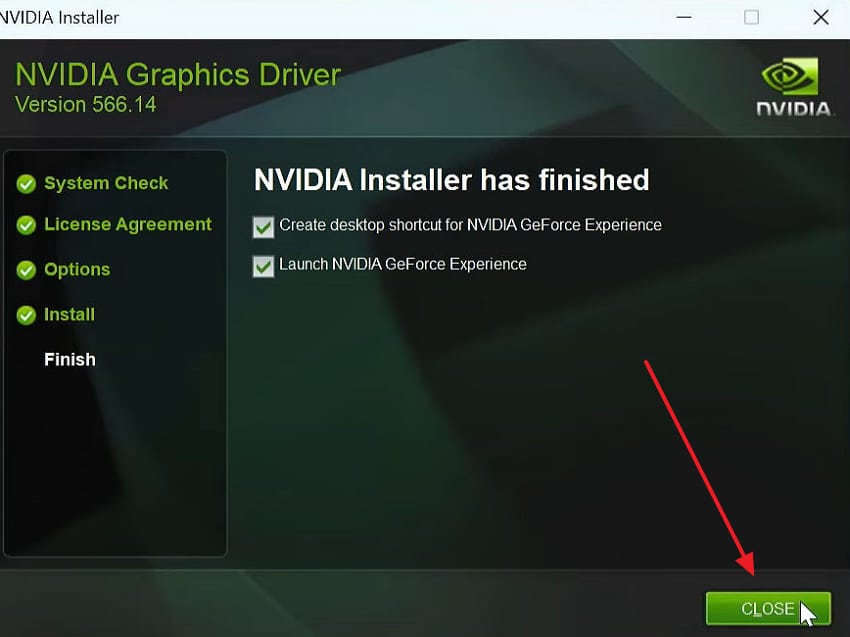
Step 15. The installer will now begin applying the latest driver to your system. After a few moments, press "Close" upon seeing the confirmation display.
Pro Tip. Restore Damaged Game Video Files Using Repairit for Stable Gameplay
Many players also lose their recorded gameplay footage due to sudden corruption issues. Issues like Subnautica 2 keep crashing on PC can also corrupt your saved video recordings. Corrupted game recordings become unplayable without the right repair tool. That is where tools like Repairit steps may provide a video recovery solution. This tool uses intelligent algorithms to reconstruct and restore severely damaged game recordings.
To fix corrupted Subnautica 2 clips, Repairit supports batch repair so that you can fix multiple corrupted video files. Its enhancement tool, powered by AI, restores lost details and sharpens blurry gameplay footage. This video repair tool also reduces noise and upscales resolution to bring back original video clarity. Alongside that, you can even preview the repaired Subnautica 2 clips before saving them to your system.
Key Features

-
Resolution Upscaling Tool: Repairit can enhance the resolution of blurry clips to an HD output without compromising the quality of your Subnautica 2 recording.
-
Audio Sync Repair: The program will fix audio and video sync issues with corrupted Subnautica 2 clips, allowing both to play in perfect sync.
-
Frame Drop Recovery: This feature can recover "dropped" or missing frames in corrupted recordings and provide seamless video playback.
Guide to Restore Damaged Game Video Files Using Repairit for Stable Gameplay
Restoring your corrupted Subnautica 2 recordings is a simple process. There, you need to review these easy steps below to repair your damaged game video files:
Step 1. Import Damaged Subnautica 2 Video Recordings
Head over to the "Video Repair" tab within the tool and press the "Start" button. A new screen will appear where you can import the corrupted Subnautica 2 recordings.

Step 2. Repair Your Added Subnautica 2 Clips
Next, click the "Repair" button once all the damaged video files are imported. The software will then scan and resolve all detected issues within your recordings.

Step 3. Check the Subnautica 2 Recordings
After a few moments, press the "Preview" button to review the quality of each restored game clip. When everything looks good, select "Save All" to export the repaired clips to your device.


Conclusion
To summarize, this guide has provided all the reasons why Subnautica 2 keeps crashing on PC. Nonetheless, each fix targets a specific cause to help restore your stable gaming experience. Test each of these solutions individually until the game runs smoothly. Moreover, crashes can also corrupt your recorded gameplay footage and make it unplayable as well. For this purpose, a tool like Repairit may help gamers repair their video recordings.
FAQ
-
Q1. Does Subnautica 2 have an official patch for fixing PC crashes?
Developers at Unknown Worlds release patches to address reported performance issues. It is always better to keep your game updated via Steam to receive the latest fixes. Not to mention, reading the official patch notes will let you know what each update solves. -
Q2. Does antivirus software interfere with Subnautica 2 and cause crashes?
Such programs sometimes flag game files as threats and block them automatically. This interference will not allow the game to access the important files required. Thus, players should add their game as an exclusion in the antivirus settings to address and remove this issue. -
Q3. Can blurry or pixelated Subnautica 2 recordings be restored to original quality?
Yes, video repair tools have the capacity to make blurry and pixelated videos clear. Tools such as Repairit use AI-powered enhancement to sharpen edges and recover lost visual. It also upscales resolution to bring your recordings back to their original quality.




