
Windows 11 KB5127648 arrived on October 13, 2026, with security improvements and fixes for specific black-screen, AC-3 audio, and connectivity problems. It also has documented known issues. This guide explains what the update changes, how to install it, and how to identify the right fix when problems continue.
Quick Answer: KB5127648 is the October 13, 2026 cumulative security update for Windows 11 24H2, 25H2, and 26H2. It fixes an Explorer black-screen issue affecting some virtual desktop sessions and AC-3 decoding crashes in certain applications. However, Microsoft still lists issues involving Smart App Control, Remote Desktop error 0xC000000D, and some USB Audio Class 1.0 devices. Install through Windows Update, check your build, and diagnose the specific symptom rather than assuming files are corrupted.
In this article
Part 1. What Is Windows 11 KB5127648?
KB5127648 is Microsoft's October 13, 2026 cumulative security update for Windows 11 versions 24H2, 25H2, and 26H2. It combines security changes with quality fixes from prior updates. It is not itself the Windows 11 26H2 feature upgrade, which Microsoft began rolling out separately on September 29, 2026.
| Item | KB5127648 details |
|---|---|
| Release date | October 13, 2026 |
| Applicable versions | Windows 11 24H2, 25H2, 26H2 |
| OS builds | 26100.9711 (24H2), 26200.9711 (25H2), 26300.9711 (26H2) |
| Update category | Cumulative security update |
| Distribution | Windows Update, Microsoft Update Catalog, enterprise update channels |
| Related servicing stack | KB5127647 |
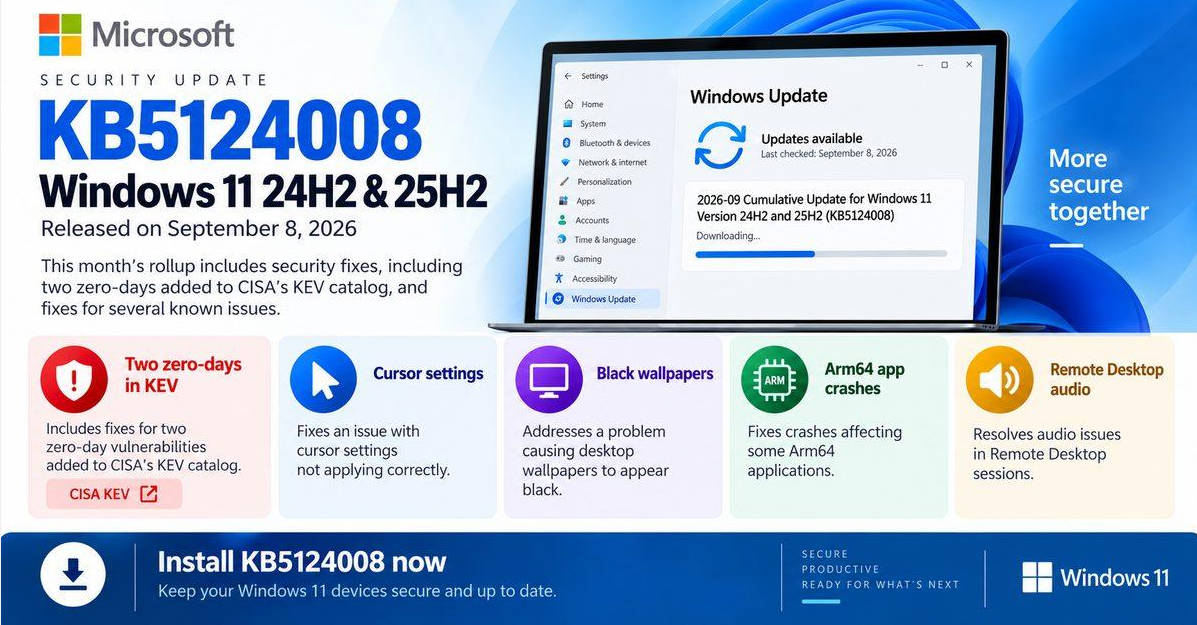
Microsoft also notes that Windows 11 24H2 Home and Pro reached the end of updates with the October 2026 monthly security release. Devices on those editions should move to a supported Windows 11 version to keep receiving routine protections. The complete release history and supported devices are documented in the official KB5127648 release notes.
Part 2. What Problems Does KB5127648 Fix?
KB5127648 addresses several different Windows components. Each fix applies to a particular scenario; it should not be taken as proof that the update previously damaged personal documents or video files.
Black Screen After Sign-in in AVD and FSLogix Environments
In certain multi-user environments, especially Azure Virtual Desktop (AVD) sessions using FSLogix, Explorer.exe could fail to start or crash repeatedly after users signed in. That left a black screen rather than a working desktop. KB5127648 fixes the reported Windows Explorer issue. This is a targeted enterprise and virtual-desktop fix, not a guarantee that every possible Windows 11 black screen has been resolved.
AC-3 (Dolby Digital) Audio App Crashes
Following the September 22 preview update KB5124010 and later updates, some applications relying on Windows to decode AC-3 audio could close unexpectedly. Older games, media players, and selected productivity apps were among the possible affected categories. KB5127648 fixes this issue. If the same media file plays normally in another application, an application or codec fault is more likely than a damaged source file. The Dolby Digital/AC-3 audio codec is a distinct concept from the Windows component that decodes it.
Always On VPN and Other Fixes
The update also resolves an Always On VPN problem in which connections using automatic protocol selection or fallback could get stuck on Connecting or report an in-use port after an unsuccessful attempt. Microsoft lists additional fixes for selected Storage Spaces Direct virtual disks, printing, gaming mouse stutter, and Windows Hello fingerprint sign-in. KB5127648 also introduces an NTLMv1-related security behavior change that administrators should evaluate when older Wi-Fi, Ethernet, or VPN authentication relies on MS-CHAPv2.
| Issue | KB5127648 status | Important limitation |
|---|---|---|
| Black screen after AVD/FSLogix sign-in | Fixed | Specific virtual desktop scenario |
| Apps crashing during Windows AC-3 decoding | Fixed | Not evidence of corrupted media files |
| Always On VPN reconnecting incorrectly | Fixed | Applies to the documented configuration |
| Selected Storage Spaces Direct disks offline | Fixed | Enterprise/cluster storage scenario |
Part 3. KB5127648 Known Issues and Problems
As of October 19, 2026, Microsoft's official release notes identify the following issues in or associated with this update. Their status can change; use the same Microsoft release page for the latest guidance.
Smart App Control Cannot Be Turned On
On some systems, Smart App Control that was already turned off cannot be turned on again because its setting appears grayed out. Systems where Smart App Control is already enabled are not affected by this particular issue. Microsoft documents a registry-based mitigation and separate Group Policy options for managed computers. Editing the Windows registry has risks; back it up first, and prefer your IT administrator's guidance on managed devices. Microsoft is developing a further resolution.
Remote Desktop Error 0xC000000D
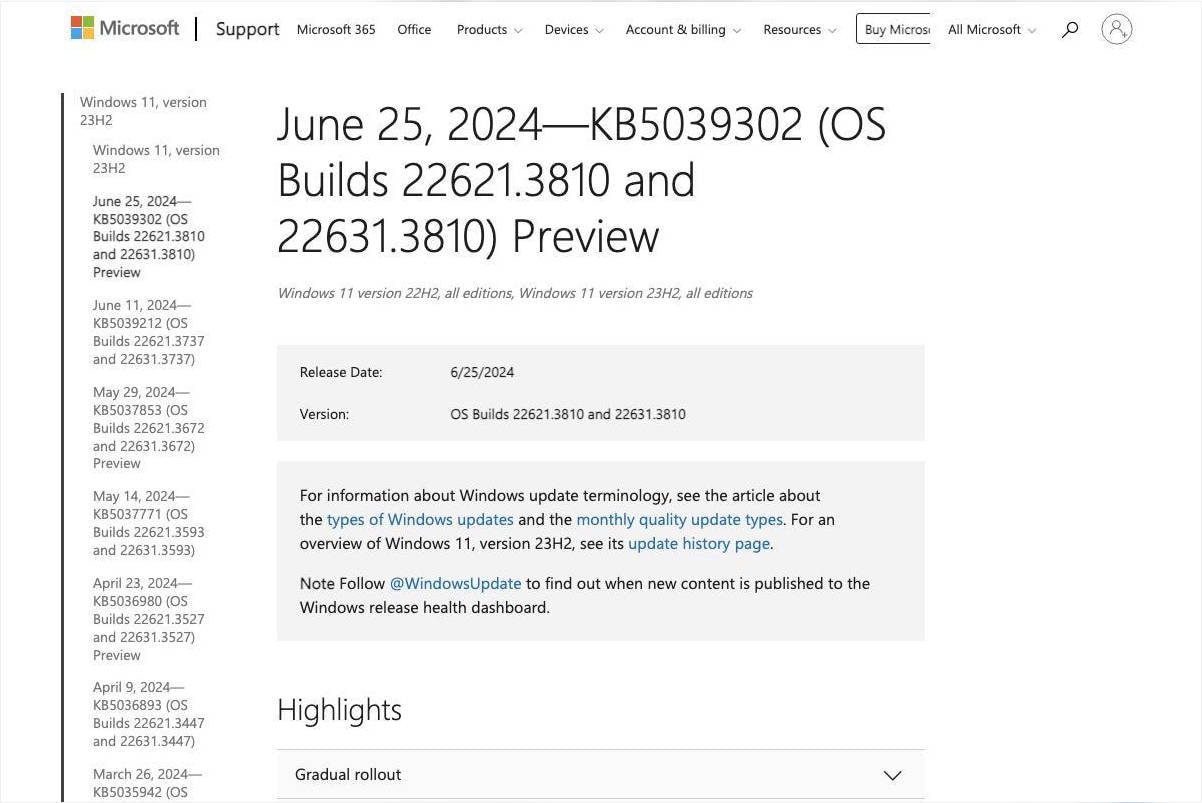
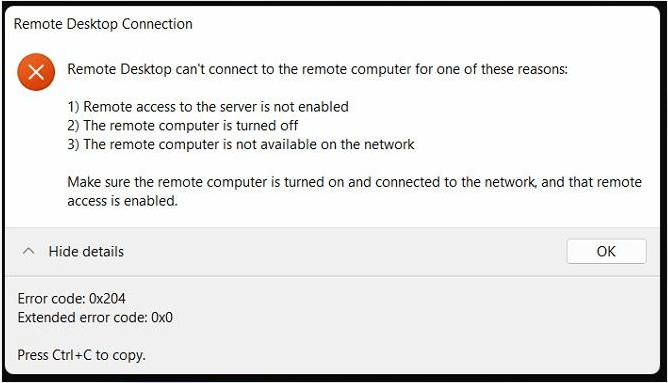
Non-administrator users may be unable to connect to enterprise-managed Remote Desktop hosts with Administrator protection enabled after KB5124010 or later updates. The error may be 0xC000000D. Microsoft's interim administrative mitigation is to change the Administrator protection policy on affected hosts; ordinary users should ask the organization's IT team rather than reducing device security themselves.
USB Audio Class 1.0 Has No Sound or Shows Code 10
A separate issue originating with the September 8 update KB5124012 affects certain USB Audio Class 1.0 devices. Symptoms include no audio, Device Manager Code 10, or failures in multichannel audio modes. The September 14 out-of-band update KB5129195 partially resolved the multichannel symptoms; Microsoft was still investigating other symptoms as of this article's review date. This USB device issue is not the same as the AC-3 app-crash problem that KB5127648 fixed.
| Reported symptom | Official status | Next step |
|---|---|---|
| Smart App Control option grayed out | Known issue; mitigation available | Review Microsoft's registry/Group Policy instructions |
| Remote Desktop 0xC000000D | Known issue; mitigation available | Contact IT administrator |
| USB Audio Class 1.0 silent or Code 10 | Partially resolved | Check device class, updates, and Microsoft guidance |
Part 4. How to Download and Install KB5127648
Method 1. Install KB5127648 With Windows Update
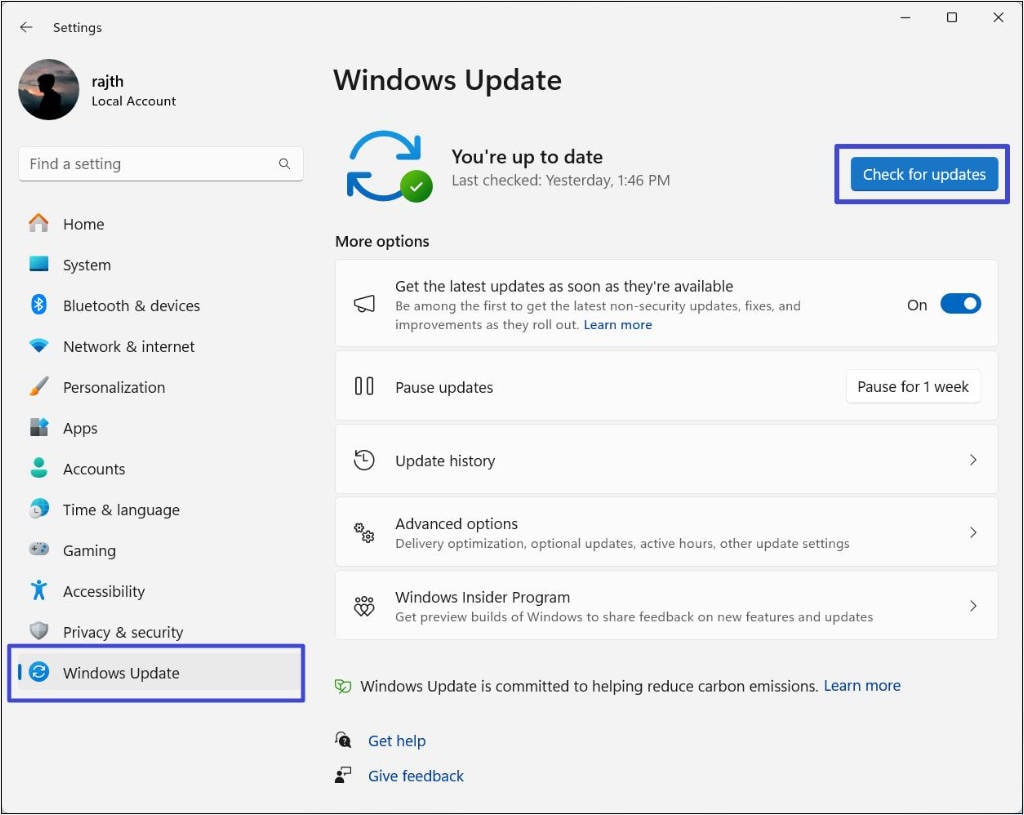
- Save important work, connect to reliable power, and open Settings > Windows Update.
- Select Check for updates. If KB5127648 or a newer applicable cumulative update is offered, allow Windows to download and install it.
- Restart when prompted. Do not interrupt the restart while Windows is configuring updates.
- Open Settings > Windows Update > Update history and check whether the update appears.
If a newer cumulative update supersedes KB5127648, Windows may install the newer package instead. You generally do not need to install an older cumulative update first when the current Windows Update channel supplies a later applicable update.
Method 2. Use Microsoft Update Catalog
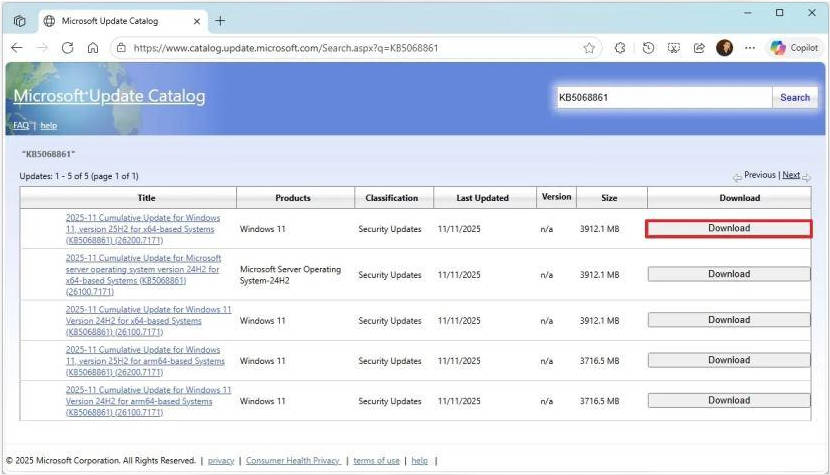
For a managed, offline, or manually updated PC, obtain the package through the Microsoft Update Catalog search for KB5127648. Match the package to the Windows version and CPU architecture. This release uses checkpoint cumulative updates for some manual installation paths; Microsoft provides the required package order and DISM instructions in its release notes. Do not assume a single MSU file is sufficient for every device.
Check the Installed Build
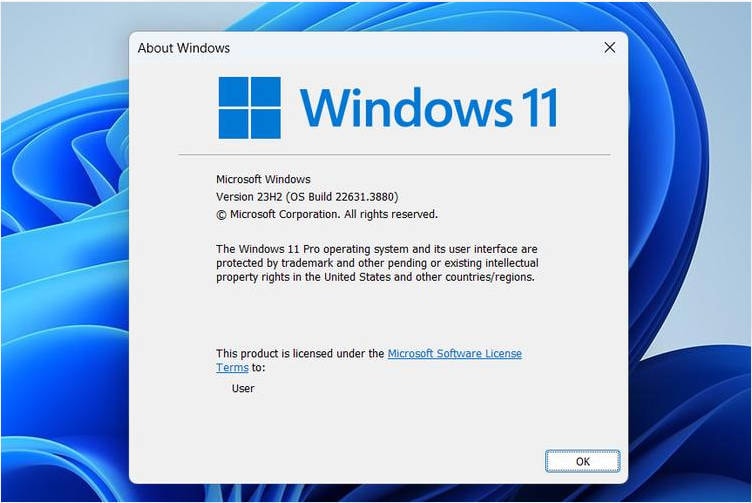
- Press Win + R, type
winver, and press Enter. - Read the Windows version and OS build.
- Compare with 26100.9711, 26200.9711, or 26300.9711, depending on the installed Windows release. A higher build may indicate a newer cumulative update.
Part 5. How to Troubleshoot Problems After KB5127648
The right response depends on what stopped working. Start with the least invasive checks and avoid resetting Windows or formatting storage without backups.
KB5127648 Not Installing or Stuck Downloading
- Restart Windows, check free storage, network access, and any pending restart requests.
- Open Windows Update again and retry. Note the exact error code if installation fails.
- Use the Windows Update troubleshooter under Settings > System > Troubleshoot > Other troubleshooters, if available on your build.
- If the error persists, consult your IT team or Microsoft support before manually deploying packages or repairing Windows components.
Black Screen Still Appears After Sign-in
Determine whether the affected computer is an AVD/FSLogix virtual desktop or a personal PC. If it is a managed virtual desktop, IT can confirm the installed build and inspect Explorer-related event logs. In an affected session where Task Manager opens, manually launching explorer.exe can be a temporary way to restore the shell. Persistent black screens on ordinary PCs require their own display, driver, startup, and account checks; they should not automatically be attributed to KB5127648.
Media Player or Game Still Crashes
Verify that the cumulative update installed successfully, then update the affected app and test a different media file or application. If crashes occur only when an AC-3 soundtrack is decoded by one program, troubleshoot that program and its decoding path first. If audio comes from a USB Audio Class 1.0 device, check the separate USB known issue instead of assuming an AC-3 decoder failure.
Remote Desktop, VPN, or Smart App Control Problems
Record the error message and check the associated known-issue entry before changing security settings. Enterprise authentication, Administrator protection, and VPN protocol changes may have organization-wide consequences. For Smart App Control, follow Microsoft's documented mitigation only after backing up relevant settings and obtaining administrative approval when required.
Part 6. What If Video or Audio Files Still Won't Play After KB5127648?
A Windows update can expose a media playback compatibility issue without changing the underlying file. For example, an AC-3 video may fail in a legacy program because of the Windows decoder while remaining intact. The same distinction applies to videos that won't play after a Windows update: the symptom alone does not identify the cause.
| Test result | Most useful next action |
|---|---|
| File works in a different player or another computer | Check the original player's codecs, settings, and app updates |
| All AC-3 content crashes one legacy app | Confirm KB5127648/newer updates and app compatibility |
| Only one locally stored MP4/MOV is unplayable in multiple players | Compare a backup or original and assess possible file damage |
| File is missing, inaccessible, or the drive is not detected | Protect the storage medium and investigate data access/recovery first |
Repair an Independently Corrupted Video With Wondershare Repairit
If a supported video file remains damaged even when tested outside the affected Windows application, Wondershare Repairit Video Repair may help repair its file structure. This does not repair the Windows operating system, reinstall a codec, or restore missing files. Work on a copy of the original file.
Step 1. Add the damaged video
Open Repairit Video Repair and import the damaged, supported video file from a safe local copy.

Step 2. Start the repair
Select the imported file and run the standard repair process. If the file is severely damaged, check whether the product's advanced repair option is applicable to that format.

Step 3. Preview and save a separate copy
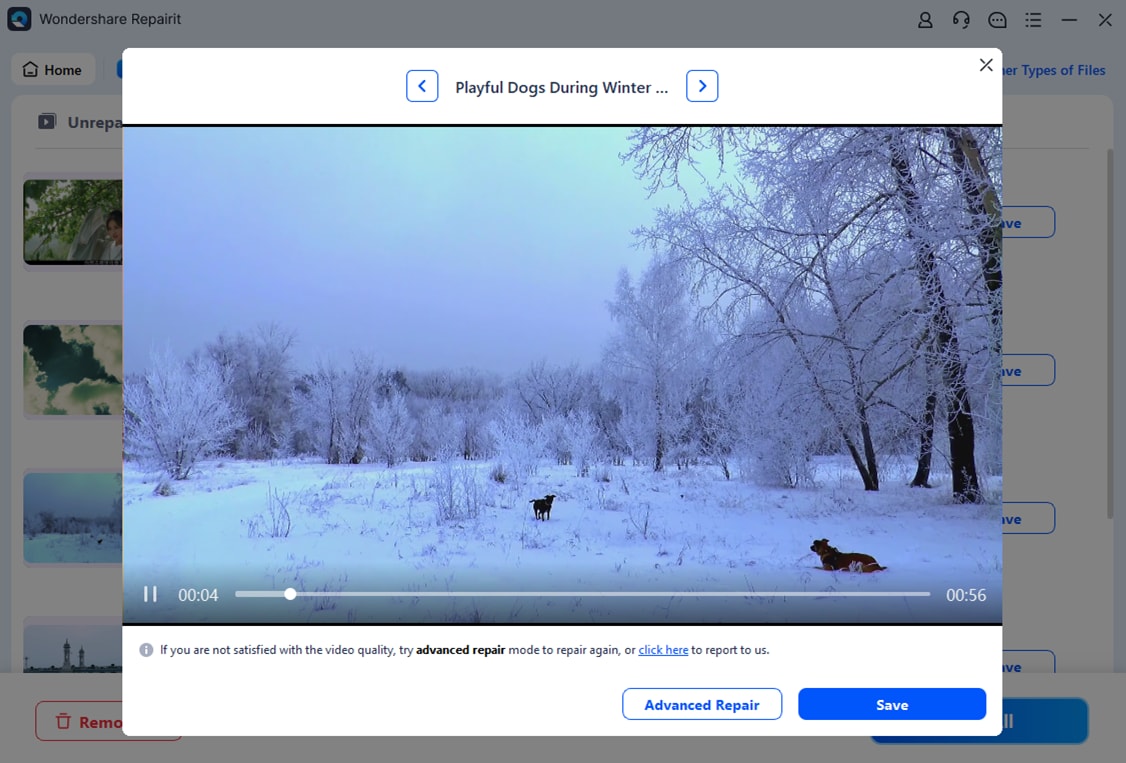
Preview the repaired result, check both picture and sound, and save it to a different location. Successful repair depends on the type and extent of the damage.
Conclusion
KB5127648 is primarily a Windows 11 security and quality update. It fixes specific Explorer black-screen and AC-3 app-crash problems, but some Smart App Control, Remote Desktop, and USB audio issues remain documented. Start with the exact symptom and the official update status. Only use a file-repair workflow when the media file itself is demonstrably damaged, not simply because an application stopped working after a Windows update.
Frequently Asked Questions About KB5127648
-
1. What is KB5127648 for Windows 11?
It is Microsoft's October 13, 2026 cumulative security update for Windows 11 24H2, 25H2, and 26H2. It includes security improvements and targeted fixes for Explorer, AC-3 audio applications, Always On VPN, and other components. -
2. Does KB5127648 fix the black screen after login?
It fixes a specific Explorer.exe black-screen issue mainly observed in multi-user AVD and FSLogix environments. It does not automatically fix every black screen on a personal Windows 11 PC. -
3. Does KB5127648 fix AC-3 audio problems?
It fixes the known issue in which some applications could close unexpectedly when using Windows AC-3 decoding. It does not guarantee that every unsupported, missing, or physically damaged audio file will play. -
4. What are the known issues with KB5127648?
Microsoft documents Smart App Control activation difficulties, certain Remote Desktop failures with error 0xC000000D, and a partially resolved USB Audio Class 1.0 issue originating from an earlier September update. Check official release notes for changing statuses. -
5. How do I download KB5127648 manually?
Use the Microsoft Update Catalog and select the correct package for your Windows version and architecture. Review Microsoft's checkpoint update and installation-order requirements before installing manually. -
6. Can I uninstall KB5127648?
Whether an update can be removed depends on the installed build and update type. If Windows offers an uninstall option in update history, review the security implications and seek Microsoft or administrator guidance before removing a security update. A later cumulative update may be a safer path. -
7. Can Repairit fix files lost or damaged by KB5127648?
Repairit is not a Windows update repair or lost-file recovery tool. It may help with certain independently corrupted, supported local media files. Missing files, inaccessible drives, and operating-system problems require different diagnosis.