
 TL;DR:
Video playback failures after a Windows update are typically caused by outdated graphics drivers or missing codecs, which can be resolved by updating display adapters via Device Manager, running the built-in Video Playback Troubleshooter, or reverting the recent OS update.
● Test the unplayable video on another device first to determine if the issue stems from your local Windows system settings or if the file itself was physically damaged.
● If the file was actively being saved or accessed during the update and now displays error 0xc00d36c4 or visual glitches, use a dedicated tool like Repairit Video Repair to reconstruct the corrupted MP4, MOV, or MKV data.
● Prevent future media corruption by creating a system restore point and strictly avoiding large file transfers or video editing while Windows is actively installing updates.
Ask AI for a summary
 ChatGPT
 Perplexity
 Gemini
 Claude
 Grok
Grok
Updating your operating system is meant to improve performance, but it can sometimes cause unexpected video playback issues. If your video won’t play after a Windows update, you’re not alone, this usually happens due to driver issues or corrupted system files during the update process. This guide will show you simple and effective ways to repair video after Windows update problems and get your videos working again quickly.
In this article
Why Videos Fail to Play After a Windows Update
Windows updates can sometimes cause playback issues. If a video won’t play after a Windows update, it’s usually due to system changes that affect drivers, codecs, or file access.
Common Causes
- Driver issues - Graphics drivers may become outdated or incompatible after an update.
- Codec problems - Required codecs for formats like MP4 or MKV may get corrupted or replaced.
- System conflicts - Audio or system changes can prevent videos from loading properly.
- Corrupted system files - Failed updates may damage important media-related settings.
File-related issues
- Broken file paths - The system may fail to properly locate video files after updates.
- Interrupted processes - Videos being accessed during updates can become partially corrupted.
Signs of Video Corruption After a Windows Update
When a system update affects your media setup, video problems can show up in different ways. Spotting these signs early helps you choose the right way to repair video after Windows update issues.
Common Symptoms
- Video freezes but audio continues - The picture stops, but sound keeps playing.
- Visual glitches - You may see pixelation, green screens, or broken image blocks.
- Media player crashes - Apps like VLC or Windows Media Player may hang or close when opening a file.
- Error messages - You might see errors like “Class Not Registered” or “0xc00d36c4.”
- Lag or stuttering - Videos may constantly freeze or skip frames, even for saved files.
Basic Troubleshooting and Fixes
Before using advanced tools, try these simple fixes first. They often resolve issues caused by system changes after an update and help you repair video after Windows update problems quickly.
Fix 1. Update Graphics Drivers
Windows may install basic drivers that don’t work well with high-quality video. Updating your graphics driver can restore proper playback.
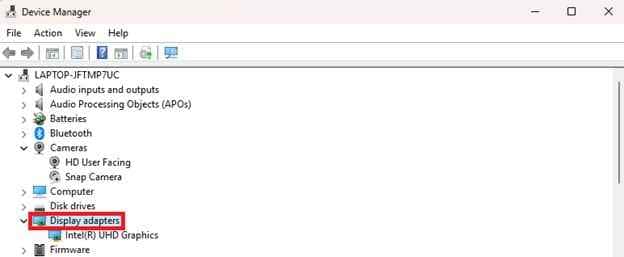
Step 1. Right-click the Start button, choose Device Manager, then open the Display adapters section.
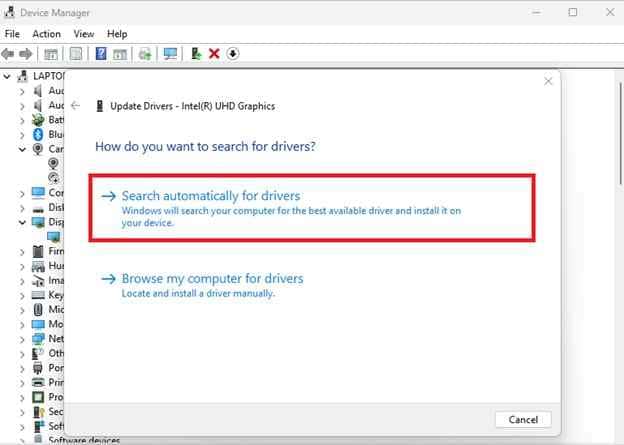
Step 2. Right-click your dedicated graphics card (e.g., NVIDIA, AMD, or Intel), select Update driver, and choose Search automatically for drivers.
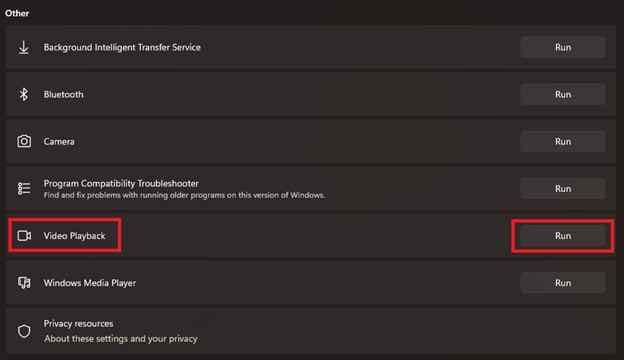
Fix 2. Run the Video Playback Troubleshooter
Windows has a built-in tool that can automatically detect and fix common video playback issues.
Step 1. Navigate to Settings, System, and Troubleshoot, then Other troubleshooters.
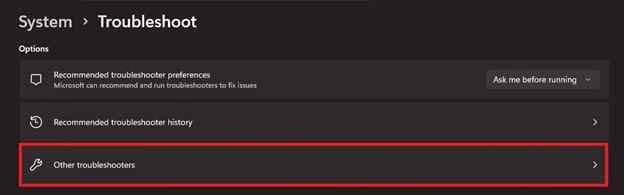
Step 2. Locate Video Playback, click Run, and follow the on-screen prompts to reset your display settings or HEVC codecs.
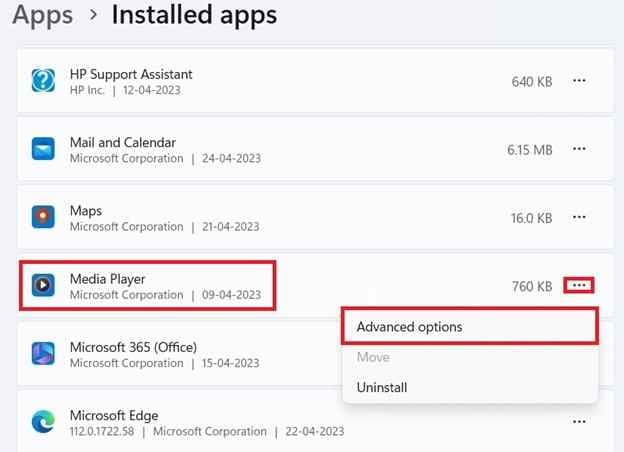
Fix 3. Reset or Reinstall Media Player
If the update damages the app, resetting or reinstalling it can clear errors and restore normal playback.
Step 1. Go to Settings, Apps, and Installed Apps then find your preferred media player (like Windows Media Player).
Step 2. Click the three dots, select Advanced options, and click Reset to restore the app to its original state.
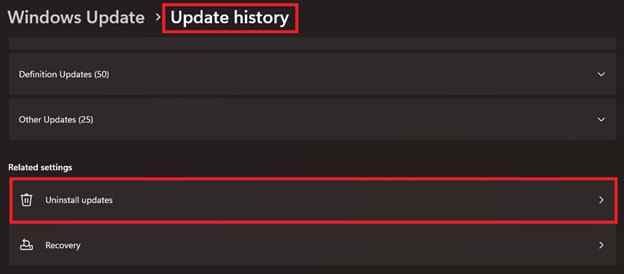
Fix 4. Uninstall Recent Updates
If the problem started right after an update, removing that update may fix the issue.
Step 1. Open Settings, Windows Update, and Update history, then scroll down and select Uninstall updates.
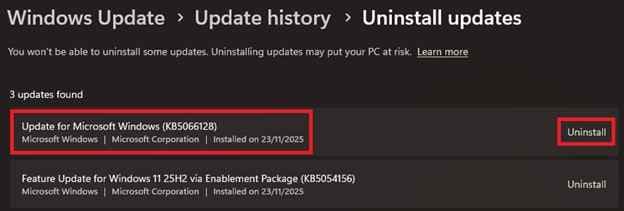
Step 2. Locate the most recent Update for Microsoft Windows, click Uninstall, and restart your computer to test the video.
Advanced Fix to Restore Severely Video Corruption
If basic fixes don’t work, the issue is likely with the video file itself, not Windows. Updates can sometimes interrupt saving or processing, which can damage parts of the video file and require a repair tool to fix.
It CAN
- Fix the part that allows the video to open and play.
- Realign sound and picture that are out of sync.
- Restore missing visual data so the video displays properly.
- Repair videos damaged during updates, transfers, or sudden shutdowns.
If your video is truly corrupted, using a dedicated repair tool is often the most effective solution to repair video after Windows update issues. Tools like Repairit Video Repair support formats such as MP4, MOV, MKV, M2TS, and AVI and can help restore playable files.
Step-by-Step (Optional)
Step 1. Upload the corrupted video file.

Step 2. Start the Repair process.

Step 3. Preview and save the restored file to a new location.

How to Prevent Video Problems After Windows Updates
Windows updates are important, but they can sometimes affect your media files. With a few simple habits, you can reduce the risk of needing to repair video after Windows update issues in the future.
Best Practices for Protection
- Avoid file transfers during updates - Don’t move or edit large video files while Windows is updating to prevent file corruption.
- Back up your drivers - Save a working version of your graphics drivers so you can quickly restore them if problems appear.
- Use external or cloud storage - Keep important videos on an external drive or cloud storage instead of only your main system drive.
- Create a restore point - Before updating, make a system restore point so you can roll back if something breaks.
- Check your disk after updates - Run a quick disk check to make sure your storage system is still healthy after major updates.
Conclusion
Fixing a video won’t play after a Windows update issue usually involves both system fixes and file-level solutions. By updating drivers, using built-in troubleshooters, or applying tools to repair video after Windows update corruption, you can often restore normal playback quickly. To avoid future problems, keep backups and create restore points before updating your system.
FAQs
-
Why did my videos stop working after a Windows update?
This usually happens because the update changed or replaced drivers, codecs, or system settings needed for video playback. -
Can a Windows update corrupt video files?
Yes. If a file is being used or saved during an update, it may become damaged and stop playing properly. -
Which video formats are most affected?
Formats like MP4, MOV, and MKV are more sensitive to codec or driver changes, but any format can be affected. -
How can I tell if the issue is my PC or the file?
Try playing the video on another device. If it works elsewhere, the issue is likely your Windows system; if not, the file is probably corrupted. -
Is it safe to uninstall a Windows update?
Yes, it’s generally safe to remove a recent update if it caused the issue, but you should update again later once a fix is available.