
DNxHD and DNxHR are Avid-designed intermediate (mezzanine) codecs built for professional post-production. They deliver high-quality, edit-friendly video with predictable file sizes, making them ideal for broadcast, film, and long-form projects. DNxHD targets HD resolutions, while DNxHR supports higher resolutions like 2K and 4K. These codecs matter because they keep timelines responsive during editing, color grading, and VFX, while preserving enough detail for mastering and delivery and maintaining reliable performance in demanding workflows.
Repair Corrupted Files To Save Your Data
 Security Verified. Over 7,302,189 people have downloaded it.
In this article
How DNxHD/DNxHR Works
Compression approach and quality
Both DNxHD and DNxHR are intra-frame codecs. This means each frame is compressed independently, similar to a series of still images. The codec uses DCT-based compression and visually optimized quantization to reduce data while preserving detail in areas that matter most to the viewer. Because frames are self-contained, editors can scrub, trim, and apply effects quickly without the heavy decoding overhead seen in long-GOP codecs like H.264.
This intra-frame structure improves responsiveness in the timeline, particularly on multi-layer edits, complex composites, and sequences with lots of transitions or effects. The trade-off is that files are larger than highly compressed distribution formats, but the payoff is smoother real-time playback and more predictable performance on a wide range of workstations.
Bit depth, chroma, and data rates
DNxHD variants are designed around fixed HD resolutions such as 720p and 1080p, with specific bit rates and quality levels (e.g., DNxHD 36, 120, 185, 220). You can choose between 8-bit and 10-bit modes and between 4:2:2 chroma subsampling profiles depending on your project needs. Higher bit depth and data rate options protect gradients, skin tones, and fine detail for heavy color grading.
DNxHR extends this idea to resolutions beyond HD, offering profiles labeled LB (Low Bandwidth), SQ (Standard Quality), HQ, HQX, and others. These profiles scale bit rate and quality with frame size, so a UHD or 4K project can remain responsive while keeping files within manageable limits. In practice, DNxHR lets you balance clarity, storage, and playback speed to fit your hardware and delivery goals.
Key Features, Pros, and Cons
Main features of DNxHD/DNxHR
Core design for professional post
- Intermediate video editing codec and mezzanine format optimized for multi-generational workflows.
- Intra-frame compression for frame-accurate editing, reliable seeking, and consistent decoding load.
- Configurable bit depths and chroma sampling for different quality and grading needs.
- Predictable bit rates for easier storage planning and bandwidth calculations in shared environments.
- Tight integration with Avid Media Composer and interoperability with other major NLEs.
Pros, cons, and real-world performance
Pros
Excellent balance between image quality and file size for HD and high-resolution media.
Smooth playback even on moderately powered systems, especially compared with heavy long-GOP codecs.
Robust through multiple renders and exports, which is crucial in long-form or collaborative projects.
Well-established in broadcast, film, and corporate environments with standardized profiles.
Cons
Larger files than delivery formats like H.264, H.265, AV1, or VP9, increasing storage costs.
Requires converting camera originals into DNxHD/DNxHR for optimal editing performance, adding a transcode step.
Real-world usage
In practice, editors use DNxHD for HD broadcast shows, news, and documentaries where predictable performance is essential. DNxHR is favored for 4K and HDR projects that require room for grading and VFX. Facilities often standardize on specific bit rates (for example, DNxHD 185x or DNxHR HQX) to keep consistency across teams and ensure that media behaves the same in online, offline, and finishing stages.
DNxHD/DNxHR vs Other Codecs
DNxHD/DNxHR vs H.264 and H.265
H.264 and H.265 (HEVC) are highly compressed, long-GOP codecs designed mainly for distribution and streaming. They offer much smaller file sizes than DNxHD/DNxHR for a given resolution, which is ideal for web playback and consumer delivery. However, the heavy compression and inter-frame dependencies make them harder to decode during intense editing and compositing.
By contrast, DNxHD/DNxHR favor editing speed over compression efficiency. Timelines with multiple tracks, heavy color grading, or many effects are typically smoother when using DNx media instead of native H.264 or H.265 camera files. The trade-off is larger files but a more responsive creative experience, especially on older CPUs or systems without strong hardware decoding.
DNxHD/DNxHR vs ProRes, CineForm, and others
Avid's codecs compete most directly with Apple ProRes and GoPro CineForm as professional intermediate formats. All three focus on preserving quality while remaining NLE-friendly.
| Codec | Typical Use and Traits |
|---|---|
| DNxHD/DNxHR | Cross-platform, Avid-centric but widely supported; fine control over bit rates and profiles; excellent for shared storage and broadcast workflows. |
| ProRes | Deep integration on macOS and in Final Cut Pro; very popular in production and post; slightly broader hardware support on Apple devices. |
| CineForm | Wavelet-based, efficient for high resolutions and 3D; popular in some niche and archival workflows. |
Compared with newer codecs like AV1 or VP9, DNx formats are far less compressed but decode much faster, which remains more important for editing than raw storage savings. Many facilities will master from DNx to H.264, H.265, or AV1 for final delivery, combining the strengths of both types of codecs.
Compatibility and Practical Use
Supported software, hardware, and workflows
DNxHD and DNxHR originated in Avid Media Composer, but they are now widely supported across major post-production tools. Most editors can work with DNx media without extra steps, especially on modern systems.
- NLEs: Avid Media Composer, Adobe Premiere Pro, DaVinci Resolve, Final Cut Pro (via compatible wrappers), and others.
- VFX and finishing: After Effects, Nuke, Fusion, and color grading suites that support DNx in MXF or MOV.
- Hardware: Professional cameras and recorders from brands like ARRI, Blackmagic Design, and Atomos may record directly to DNxHD or DNxHR for edit-ready files.
- Servers and MAM systems: Many broadcast servers, playout systems, and media asset management tools are tuned for DNx-based workflows.
Typical containers and delivery considerations
The most common containers for DNxHD/DNxHR are:
- MXF OP1a (standard in Avid-centered and broadcast environments).
- QuickTime MOV (frequently used in cross-platform and Adobe workflows).
- Occasionally other wrappers where supported by specific tools or recorders.
While you might deliver master files to a broadcaster in a DNx-based MXF, consumer-facing versions are usually transcoded to H.264 or H.265 for upload and streaming. DNx media is best treated as the high-quality "working" or mezzanine format that sits at the heart of your post pipeline rather than as the final streaming codec.
How to Use Repairit to Fix a Corrupted DNxHD/DNxHR File
Why use Repairit for DNxHD/DNxHR issues
When a critical DNxHD or DNxHR file becomes unplayable due to a crash, power failure, or storage error, your entire production schedule can be at risk. Wondershare Repairit is designed to tackle corrupted or damaged media files, including professional codecs used in post-production. It analyzes broken containers and streams and attempts to rebuild valid, playable video so you can keep editing without going back to set or redoing a costly export. Learn more on the Repairit official website.
Key Repairit features for video repair
- Repairs multiple corrupted videos in one batch, which is invaluable when several DNxHD/DNxHR timelines or exports fail at once.
- Supports a wide range of containers and codecs used in professional editing, so you can handle DNx-based MXF or MOV files alongside other formats.
- Provides an instant preview of repaired clips, allowing you to confirm picture, audio, and sync before committing the fixed file back into your NLE project.
Step-by-step: Repair corrupted DNxHD/DNxHR
- Add corrupted video
Install and open Wondershare Repairit, then choose the Video Repair module. Click the add button and browse to your affected DNxHD or DNxHR files stored on local drives, RAIDs, memory cards, or external disks. Import all problematic clips in one go so you can repair them together.

- Repair video codecs
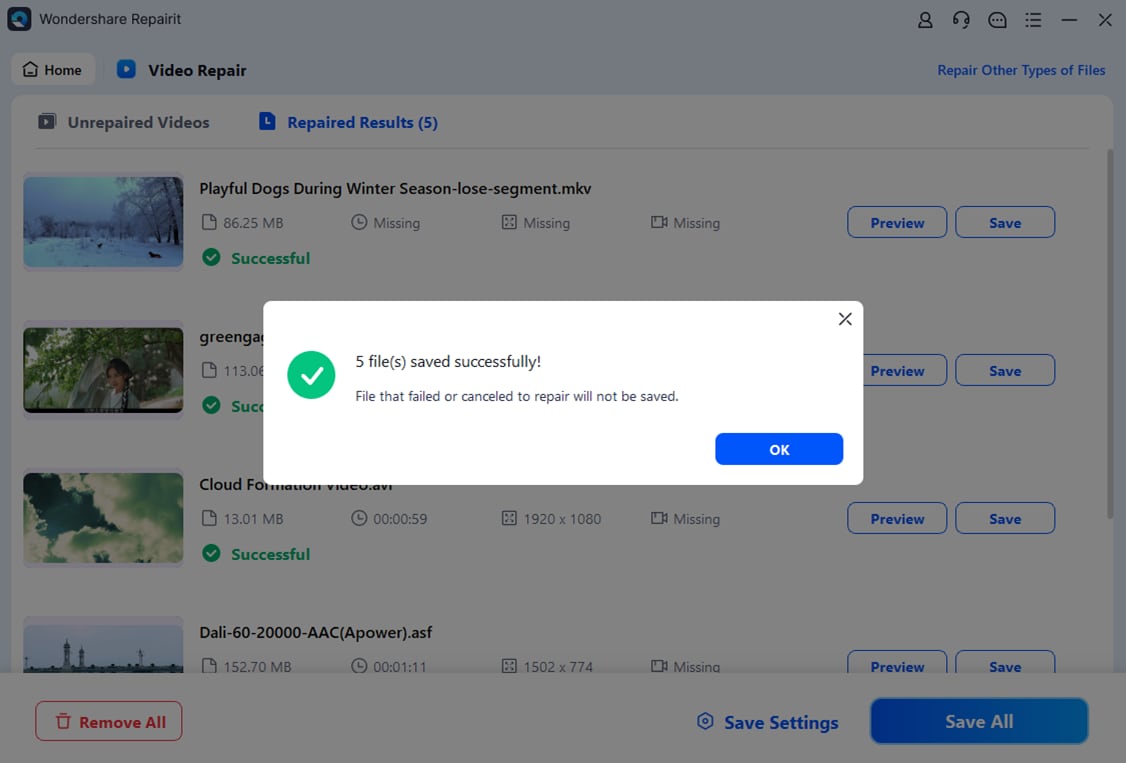
After importing, start the repair process. Repairit will scan the structure of your MXF or MOV files, identify damaged headers, metadata, or stream segments, and attempt to rebuild a clean version of the dnxhd/dnxhr data. When the process completes, use the built-in player to preview each clip and verify that playback, audio, and lip-sync look correct throughout.

- Save the repaired videos
Once you are satisfied with the preview, choose a safe output folder that is different from the original source location. This avoids overwriting any remaining data on the damaged drive. Click Save to export the repaired DNxHD/DNxHR files, then relink them in your NLE or archive them as new masters so your edit can continue without further interruption.
Conclusion
DNxHD and DNxHR provide a stable, high-quality backbone for modern post-production. Their intra-frame design, flexible quality profiles, and wide support across NLEs make them a reliable choice for broadcast, film, and long-form projects where smooth editing and grading matter more than maximum compression.
Because key sequences often exist only in a handful of DNx-based files, protecting and repairing that media is crucial. With careful storage practices and a dedicated repair solution like Wondershare Repairit, you can recover corrupted DNxHD/DNxHR footage, keep your timelines on track, and maintain confidence from ingest all the way through final delivery.
Next: What is Cineform Codec?
FAQ
-
1. What is DNxHD/DNxHR used for in post-production?
DNxHD and DNxHR are used as intermediate or mezzanine codecs in professional workflows. Editors rely on them for offline and online editing, color grading, VFX, and mastering because they keep image quality high while allowing smooth real-time playback on complex timelines.
-
2. Is DNxHR better than DNxHD?
DNxHR is not strictly "better," but it is more flexible. DNxHD is optimized for HD resolutions like 1080p, while DNxHR supports higher resolutions such as 2K, 4K, and beyond with a range of quality profiles. Use DNxHD for HD-only projects and DNxHR when working with higher resolutions or when you need more headroom for grading.
-
3. Can I work with DNxHD/DNxHR outside of Avid Media Composer?
Yes. Most major NLEs and finishing tools, including Adobe Premiere Pro, DaVinci Resolve, and others, can read and write DNxHD/DNxHR in MXF or MOV containers. Some systems may require Avid codec components to be installed, but support is generally broad and mature.
-
4. Why might a DNxHD or DNxHR file become corrupted?
Common causes include interrupted file transfers, sudden power loss during recording or export, NLE or system crashes while writing the file, failing storage media, or improper ejection of cameras and external drives. These issues can damage file headers, metadata, or the underlying dnxhd/dnxhr streams, making the clip partially or totally unplayable.
-
5. How can I repair a corrupted DNxHD/DNxHR video file safely?
First, stop using the affected drive to avoid overwriting data. Then open Wondershare Repairit, add the corrupted DNxHD/DNxHR files, run the repair process, and preview the results. If playback looks correct, save the repaired version to a different storage location and relink it in your editing project.




