
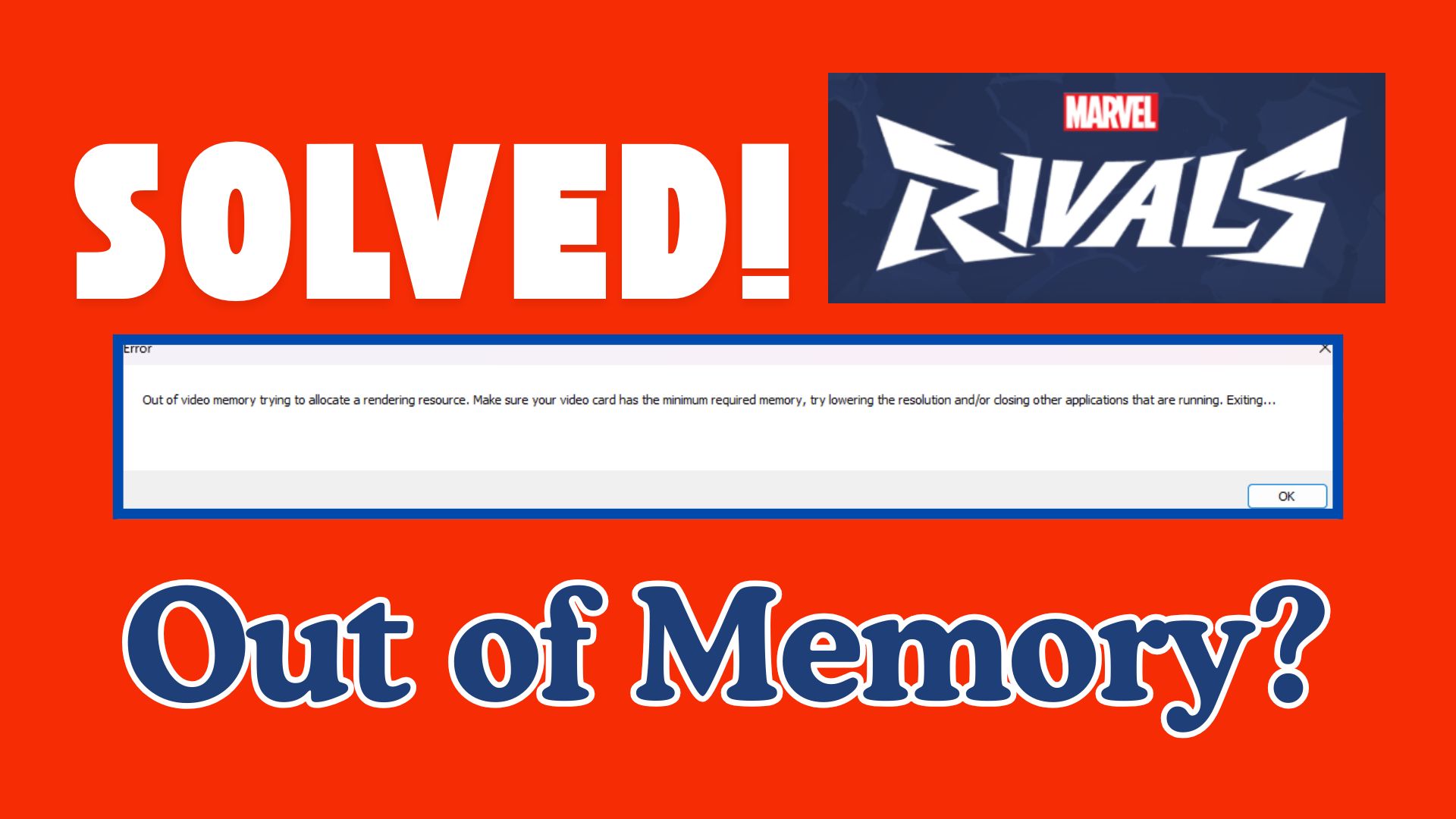
The marvel rivals video memory error usually appears with a message such as “Out of video memory trying to allocate a rendering resource.” When this happens, the game may suddenly crash, freeze, or show a black screen during gameplay or loading.
This issue affects not only low-end systems but also mid-range and high-end PCs, especially when VRAM usage interrupts or when the game suffers from temporary memory leaks. In most cases, the problem is related to how the game allocates graphics memory rather than a hardware defect.
This guide explains what the video memory error actually means, how to quickly identify the underlying scenario, and five proven fixes you can apply safely. It also clarifies when video repair tools are relevant, which applies only to corrupted game video files, not performance issues.
Table of Contents
Part 1. What the Marvel Rivals Video Memory Error Actually Means
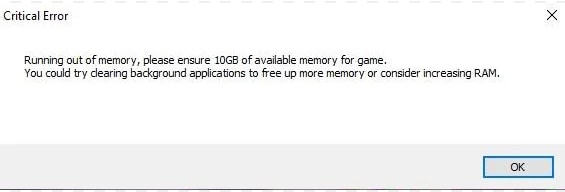
The marvel rivals video memory error occurs when the game engine cannot allocate enough VRAM (Video RAM) to render graphics properly. Video memory, or VRAM, is a specialized type of memory located on your GPU. Unlike system RAM, which handles general computing tasks, VRAM is dedicated to storing textures, shaders, and rendering data for games.
When VRAM allocation fails, the game engine cannot load essential assets, leading to crashes, freezes, or rendering errors. Common triggers include shader overload, texture streaming spikes, engine-level memory leaks, or improper graphics/FPS settings.
Part 2. Quick Check: Which Video Memory Scenario Are You In?
This quick check helps you avoid wasting time on irrelevant solutions and ensures you apply the right fix from the start.
- Launch Crash: If the error appears immediately when launching marvel rivals, the issue is likely related to shader compilation, outdated GPU drivers, or incompatible DirectX components.
- Mid-Game Crash: If the game crashes after several minutes of gameplay, VRAM exhaustion or an engine-level memory leak caused by high graphics settings or uncapped FPS is more likely.
- Cutscene or Replay Crash: If the error happens specifically during cutscenes, replays, or intro videos, the cause may be corrupted or incomplete video files rather than GPU memory limits.
- Stutter Before Crash: If stuttering, lag, or frame drops occur before the crash, the system RAM or VRAM is being pushed beyond capacity, often due to background applications or high-resolution textures.
- Persists After Reinstall: If the video memory error continues even after reinstalling the game, the issue is less likely to be installation-related and more likely tied to drivers, system configuration, or damaged media files.
Identifying the scenario early helps avoid unnecessary fixes and speeds up troubleshooting.
Part 3. Why Marvel Rivals Uses So Much Video Memory
Marvel Rivals pushes GPUs hard, relying heavily on VRAM (Video RAM) to render its cinematic visuals and complex effects. Unlike system RAM, which manages general tasks, VRAM is dedicated to textures, shaders, and real-time rendering.
VRAM vs System RAM: What’s the Difference?
VRAM is memory built directly into your graphics card and is used exclusively for rendering visuals. It handles textures, shaders, lighting effects, shadows, and frame buffers.
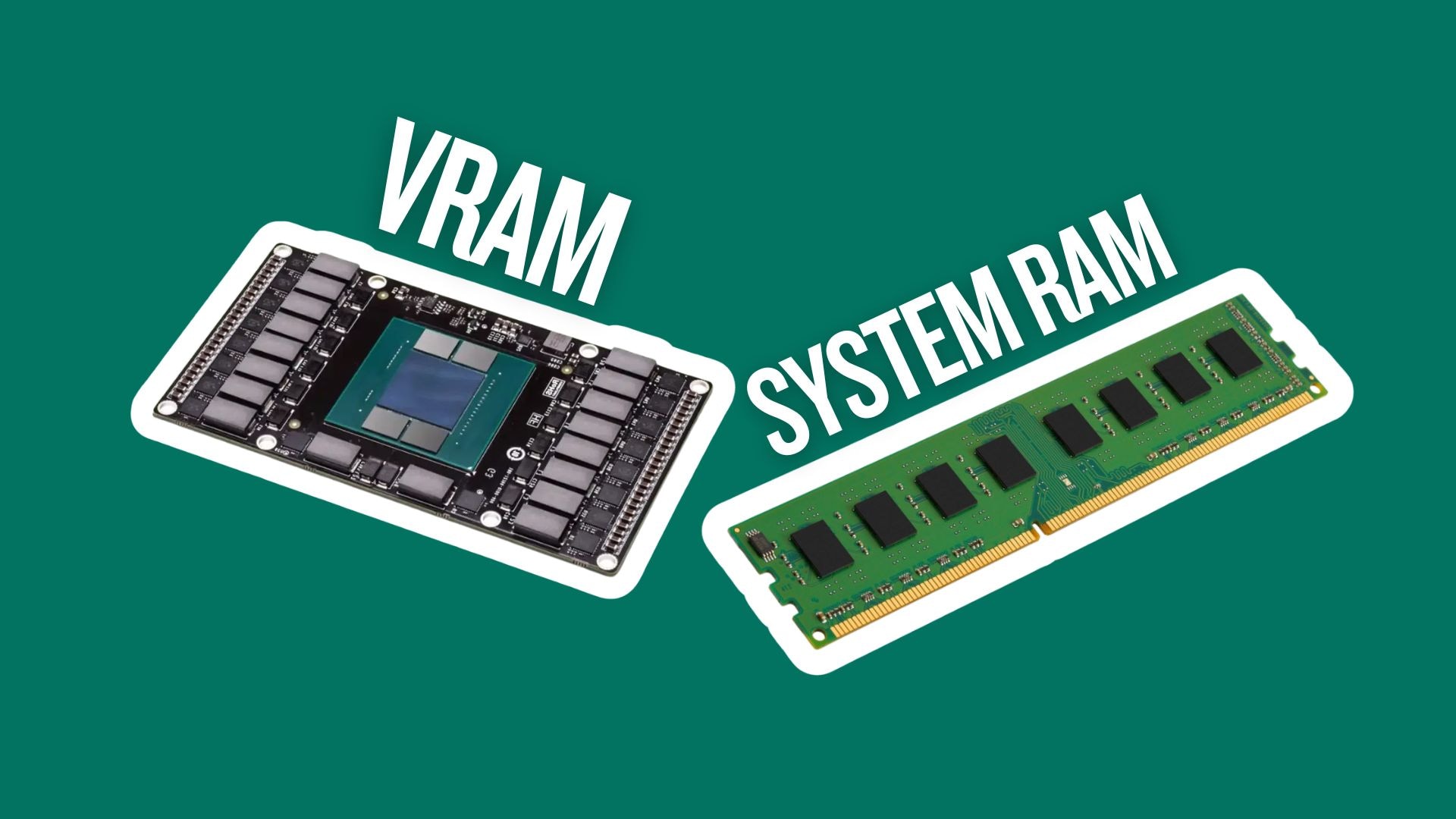
System RAM, on the other hand, supports general tasks such as game logic, background processes, and loading assets before they are sent to the GPU.
When VRAM is exhausted, the GPU cannot allocate space for new rendering tasks, which leads to crashes, freezes, or the “out of video memory” error, even if system RAM is still available.
How Marvel Rivals Uses VRAM
Marvel Rivals consumes VRAM continuously during gameplay for:
- High-resolution textures for characters, environments, and UI elements
- Dynamic lighting and shadows that update in real time
- Visual effects and particle systems during combat
- Shader compilation, especially during the first launch or after updates
As matches progress, VRAM usage can spike due to texture streaming and shader caching, increasing the risk of memory allocation failures.
Common Reasons for High Video Memory Usage in Marvel Rivals
Several factors can push VRAM usage beyond safe limits:
- Inefficient shader compilation - Shaders may compile repeatedly or fail to cache properly, causing memory spikes during gameplay or loading.
- High-resolution textures - Ultra or high texture settings significantly increase VRAM consumption, especially at 1440p or 4K resolutions.
- Memory leaks in beta or updated builds - Some game versions may fail to release VRAM properly, causing usage to grow over time until a crash occurs.
- Maximum graphics settings or uncapped FPS - Running the game at maximum settings or very high frame rates can overwhelm GPUs with limited VRAM.
- Outdated DirectX or GPU drivers - Older drivers may mishandle VRAM allocation, which leads to inefficient memory use or compatibility issues.
Minimum vs Recommended System Requirements
While exact requirements may vary by update, memory-related expectations typically look like this:
| Component | Minimum | Recommended |
| OS | Windows 10 (64-bit) | Windows 10/11 (64-bit) |
| CPU | Intel i5-8400 / AMD Ryzen 3 3100 | Intel i7-9700K / AMD Ryzen 5 5600X |
| GPU | NVIDIA GTX 1060 (6GB VRAM) | NVIDIA RTX 3060 (12GB VRAM) |
| RAM | 8 GB | 16-32 GB |
| DirectX | Version 11 | Version 12 |
Even systems that meet the recommended specifications can encounter video memory errors if graphics settings, drivers, or background processes are not properly managed.
Part 4. 5 Proven Fixes for Marvel Rivals Video Memory Error
The steps below are general guidelines. Menu names and options may vary depending on your Windows version, GPU brand, and driver software.
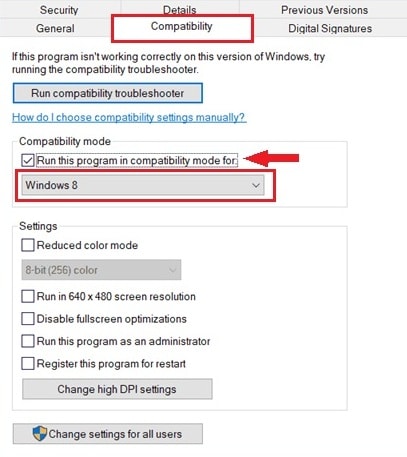
Fix 1. Run Marvel Rivals in Windows 8 Compatibility Mode
This can improve stability by adjusting how Windows handles memory allocation for older or evolving game engines.
Step 1. Right-click the Marvel Rivals executable or shortcut. Select Properties and choose the Compatibility tab. Check Run this program in compatibility mode for.
Step 2. Choose Windows 8 from the dropdown. Click Apply and OK, then launch the game.
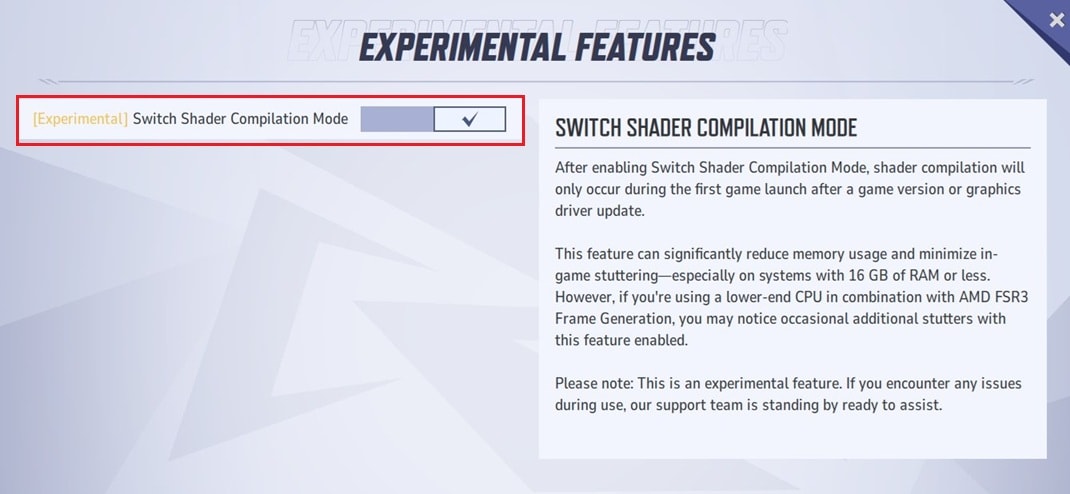
Fix 2. Compile Shaders and Restart the Game
This option helps reduce video memory spikes by changing how shaders are processed during gameplay.
Step 1. Open Marvel Rivals in its launcher (Steam, Epic Games, or official launcher).
Step 2. Check “Switch Shader Compilation Mode” in the box next to the Launch button, then start the game.
Fix 3. Adjust Shader Cache Size in GPU Settings
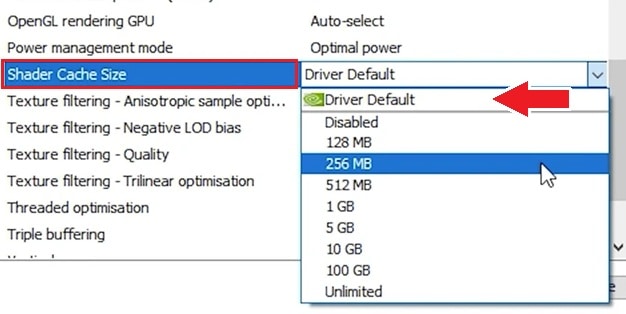
Limiting or optimizing shader cache usage reduces VRAM pressure. For NVIDIA:
Step 1. Open NVIDIA Control Panel. Go to Manage 3D Settings.
Step 2. Locate Shader Cache Size. Set it to Driver Default or a moderate value. Apply changes and restart the game.
Fix 4. Update GPU Drivers and DirectX
Updated drivers ensure proper VRAM handling and compatibility with newer game builds.
Step 1. Visit your GPU manufacturer’s official website. Download and install the latest driver for your GPU.
Step 2. Check Windows Update for DirectX-related updates. Restart your PC after installation.
Fix 5. Close Background Apps to Free System RAM
While VRAM is separate, insufficient system RAM can still trigger memory throttling.
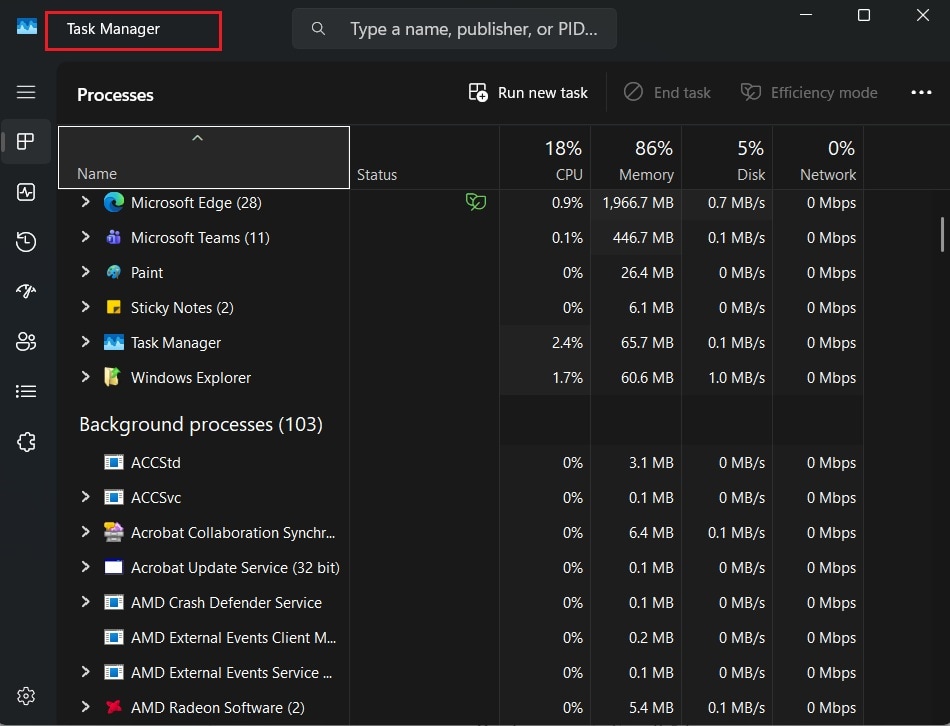
Step 1. Press Ctrl + Shift + Esc to open Task Manager.
Step 2. Close unnecessary background applications. Avoid running browsers, recorders, or overlays while gaming. Launch Marvel Rivals again.
Part 5. When Video Repair Is Relevant for Marvel Rivals (Conditional)
Video repair tools are only necessary if cutscenes, replays, or downloaded videos fail to play even after applying all fixes.
What File Repair Tools CAN Do:

-
Repair damaged videos with all levels of corruption, such as video not playing, video no sound, out-of-sync video or audio, playback errors, header corruption, flickering video, missing video codec, etc.
-
Repair full HD, 4K, and 8K videos and support 20+ popular formats, including MOV, MP4, M2TS, MDT, RSV, WMV, MPEG, DAT, etc.
-
Repair damaged or corrupted videos caused by video compression, system crash, video format change, etc.
-
Repair critically damaged or corrupted RAW/Log/HDR videos from professional cameras such as Blackmagic Design, RED Digital, and ARRI, etc.
-
Repairit has a quick and advanced scanning mode. You can use either depending on the level of corruption the video file has undergone.
-
No limit to the number and size of the repairable videos.
-
Repaired videos are more compatible with professional editing software such as DaVinci, Composer, Final Cut Pro, and Premiere Pro.
-
Support Windows 11/10/8/7/Vista, Windows Server 2003/2008/2012/2016/2019/2022, and macOS 10.12~macOS 15.
What File Repair Tools CANNOT Do:
- Increase VRAM or system RAM
- Repair engine-level memory leaks
- Recover files that were never downloaded
Fix Gameplay Videos Using Repairit Video Repair
Repairit Video Repair is a tool designed to fix corrupted or damaged video files. It works by restoring missing headers, repairing broken indexes, and correcting playback issues such as black screens, stuttering, or audio-video sync errors.
For Marvel Rivals, this tool is particularly useful if cutscenes, replays, or downloaded videos fail to play even after applying standard fixes.
Step 1. Import the corrupted video into the software.

Step 2. Start the repair process.

Step 3. Preview and save the repaired video.

These steps are conditional and should only be attempted if gameplay-related videos remain broken after standard troubleshooting.
Part 6. Tips to Prevent Marvel Rivals Video Memory Error in the Future
While fixes can solve immediate crashes, prevention is the best way to keep Marvel Rivals running smoothly. Here are some easy ways to keep VRAM usage under control:
- Set an FPS cap: Ultra textures and uncapped frame rates look great, but they can overwhelm your GPU. Choosing “High” instead of “Ultra” or limiting FPS to 60–120 often makes gameplay more stable.
- Update your GPU drivers regularly: Driver updates often include fixes and optimizations for new games. Keeping them current helps Marvel Rivals use VRAM more efficiently.
- Close background apps: Programs like browsers, streaming tools, or overlays (Discord, Steam) get into system memory. Shutting them down before playing frees resources for the game.
- Monitor your VRAM usage: Windows Task Manager let you see how much GPU memory is being used. Keeping an eye on this helps you spot problems before they cause a crash.
- Check your virtual memory settings: Windows uses virtual memory (page file) as a backup when RAM runs low. Making sure it’s properly sized can prevent system bottlenecks during long play sessions.
⚠️ Important Note: These steps won’t repair corrupted files, but they’ll go a long way toward preventing the video memory error from interrupting your matches in the future.
Conclusion
The marvel rivals video memory error reflects the strain placed on GPU resources when VRAM allocation exceeds capacity or when engine-level inefficiencies occur. In most cases, stability can be restored through practical measures such as adjusting shader settings, updating GPU drivers, or reducing background system load.
If corrupted files are the issue, a repair tool may help, but for most cases, prevention and optimization are the real solution. With the right setup, you’ll spend less time troubleshooting and more time enjoying uninterrupted matches.
FAQs
-
How much RAM does Marvel Rivals use during high settings?
At ultra settings, the game can use 16–32 GB of system RAM, especially during multiplayer battles. -
Why does the video memory error appear even on high-end GPUs?
Even high-end GPUs can hit VRAM limits if textures and shaders exceed capacity, or if memory leaks occur in certain builds. -
Will updating DirectX or GPU drivers fix the error?
Yes. Updates often improve VRAM allocation and compatibility, reducing crashes and stuttering. -
Can closing background apps prevent crashes and freezes?
Yes. Freeing system RAM ensures Marvel Rivals has enough resources to run smoothly. -
When should I use a video repair tool for Marvel Rivals files?
Only if cutscenes, replays, or downloaded videos remain corrupted after applying all standard fixes and reinstalling the game.




