
What if your YouTube Shorts stop, stutter, or freeze at the worst moment? Not just that, you tap, swipe, and wait, but the clip feels slow and broken. While this problem affects iPhone, Android, and desktop users, poor network connectivity, app bugs, outdated files, or weak settings often cause this lag.
Regardless of the reason, you do not need expert skills or costly tools to resolve this issue, as this guide has you covered. This guide shares quick, straightforward fixes that help resolve the “YouTube Shorts lagging” issue in real time.
Table of Contents
-
- Fix 1. Check Internet Connection and Playback Quality
- Fix 2. Force Close YouTube and Restart Your Phone
- Fix 3. Clear YouTube Cache or Reinstall the App
- Fix 4. Update the YouTube App and System Software
- Fix 5. Turn Off VPN, Proxy, or Private DNS
- Fix 6. Disable Battery Saver and Close Background Apps
- Fix 7. Free Up Storage and Prevent Overheating
Part 1. Why YouTube Shorts Lagging Happens
For a better understanding of what YouTube shorts lag, head to the section and look what's actually happening behind the scenes:
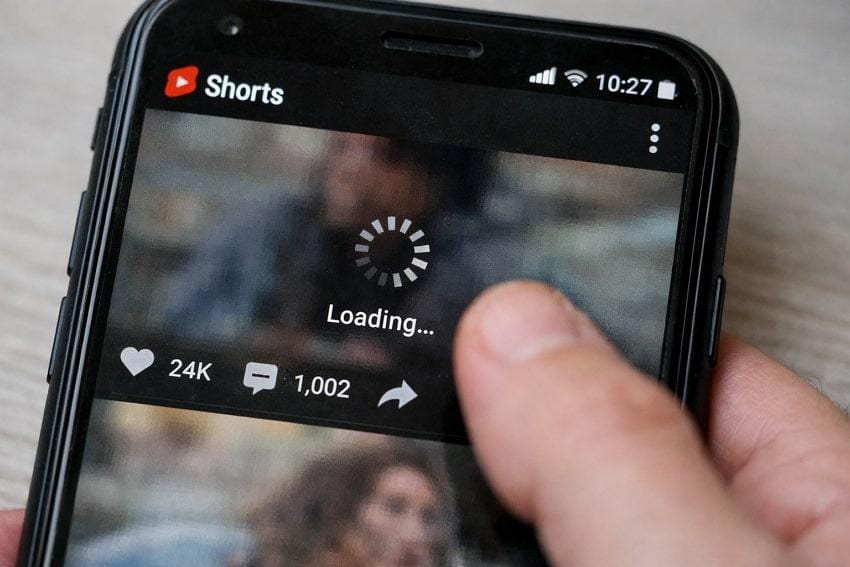
- Wrong Format, Codec, or Bitrate: Shorts exported with unsupported/odd settings may appear choppy when recompressed by YouTube itself. Creators report that the Shorts lag disappears when they render to MP4 at standard frame rates and YouTube-recommended bitrates.
- Re‑Uploaded or Heavily Processed Clips: The Shorts that are downloaded from other platforms like TikTok, then reuploaded to YouTube, can carry odd encoding. Such clips might also have extra compression that makes them appear glitchy on YouTube after reuploading.
- Very High Default Quality for Shorts: If Shorts auto-play in high resolution on mobile data or weak Wi-Fi, vertical clips may buffer significantly. In this context, when you manually lower the quality or use data saver, it often stops stuttering for shorts specifically.
- Device-Specific Video Enhancement Settings: Android devices often apply additional video enhancement that can interfere with the smooth playback of YouTube Shorts. Once turned off, these vendor-specific enhancements have fixed stutter and lag for many users watching shorts.
- Due to Obsolete or Buggy YouTube App: While app updates sometimes introduce playback bugs, an older version might not work well with new YouTube features. As an outcome, YouTube Shorts might stutter, freeze, or lag unexpectedly during scrolling or heavy playback.
Part 2. YouTube Shorts Lag: 60-Second Diagnosis (Start Here)
Since YouTube Shorts lagging can show up in different ways, a quick diagnosis might help you apply the right solution promptly:
Constant Buffering (Spinning Circle)
Shorts pause with a loading spinner, then resume for a few seconds before stopping again, indicating slow internet.
Quick Rule-Out Checker: Switch between Wi-Fi and mobile data; if one is smooth and the other buffers, then your original network is the problem.
Choppy/Stuttering Video, but Audio Is Fine
When the audio plays smoothly, but the picture freezes, it often indicates issues with device performance or graphics settings.
Quick Rule-Out Checker: Close all other apps, restart the phone, and play the same clip; if it plays, your device is overloaded.
3. Complete Freeze or When Opening Shorts
The lag issue occurs when you open the Shorts feed, and the app becomes unresponsive, or Shorts never start playing.
Quick Rule-Out Checker: Try updating YouTube or your OS, then retry, as this issue is likely due to an outdated version.
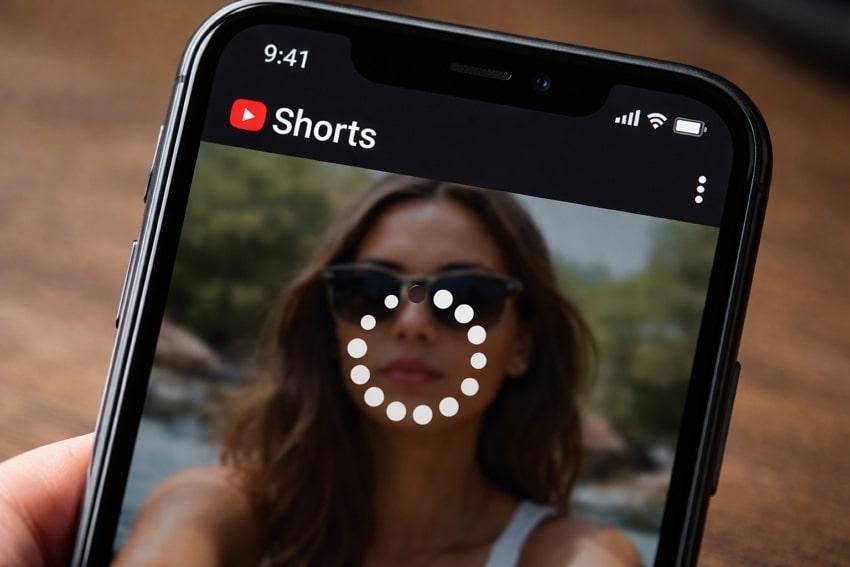
4. Only Shorts Lag, Normal Videos Are Fine
While regular YouTube videos play but Shorts stutter or freeze, this often indicates a clip-specific bug on your device.
Quick Rule-Out Checker: Test different shorts from different creators; if only a few specific Shorts lag, those clips were likely poorly encoded.
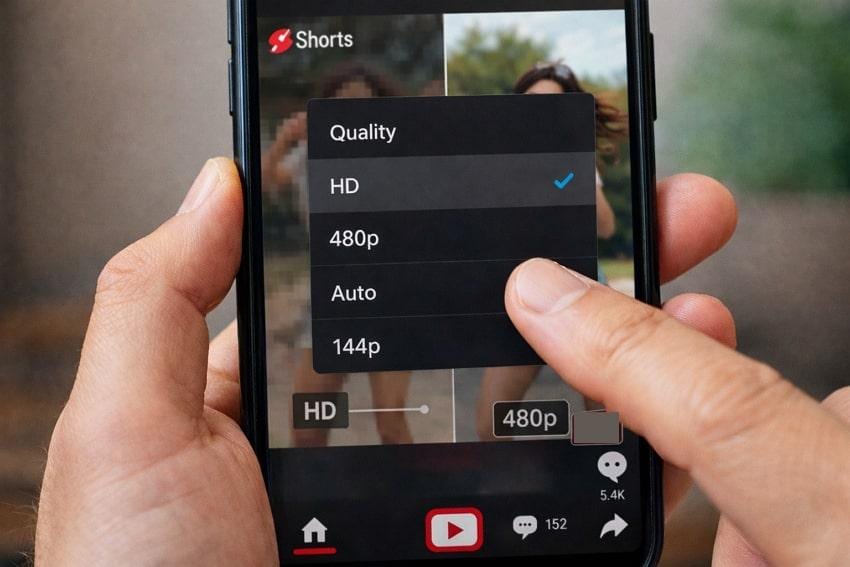
5. Low-Quality or Suffer Quality Drops
Some shorts quickly drop to very low resolution or keep switching quality because YouTube is trying to keep the playback smooth.
Quick Rule-Out Checker: Manually set a fixed quality, rather than auto, because auto-quality can be affected by unstable bandwidth.
Part 3. Fix YouTube Shorts Lagging on Phone (Android & iPhone)
Give a walk-through of the section and fix the YouTube Shorts lag issue on your Android/iPhone with complete guided tutorials:
Fix 1. Check Internet Connection and Playback Quality
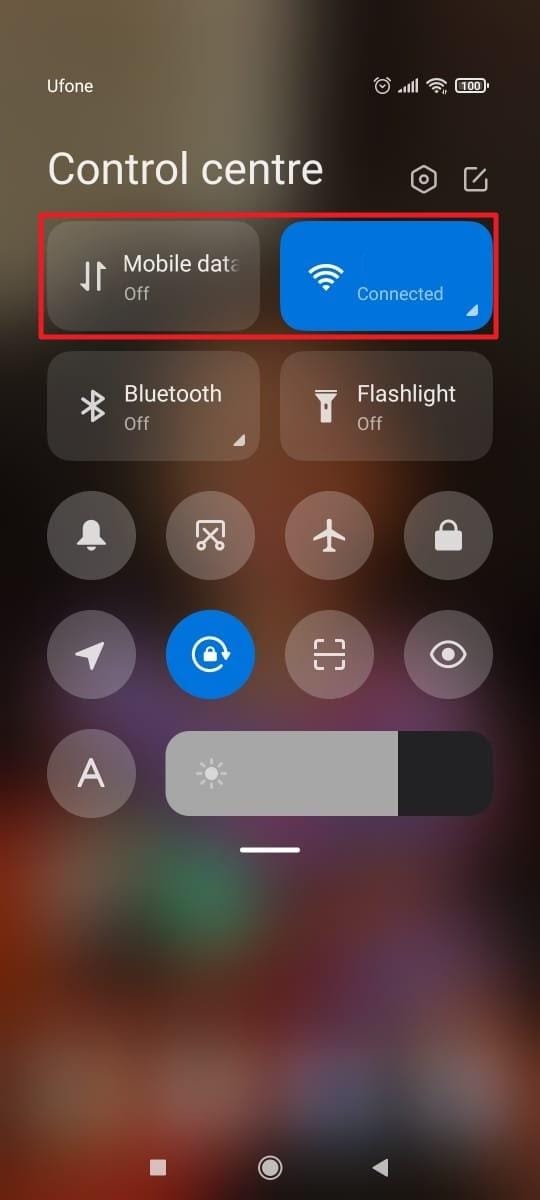
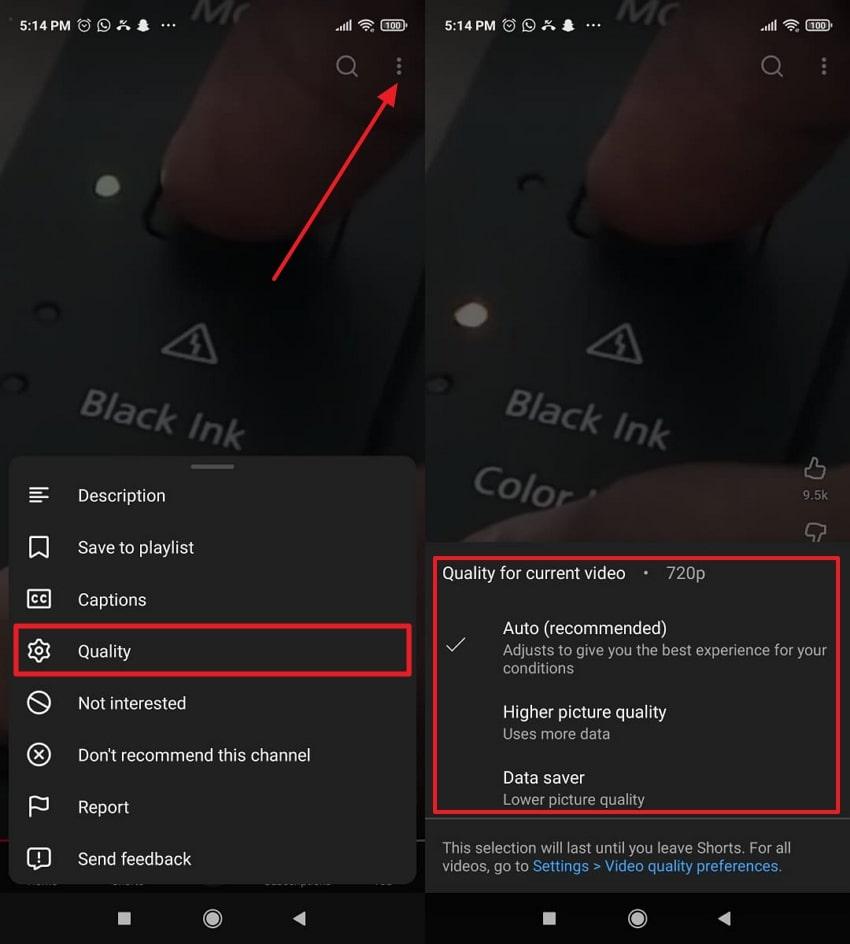
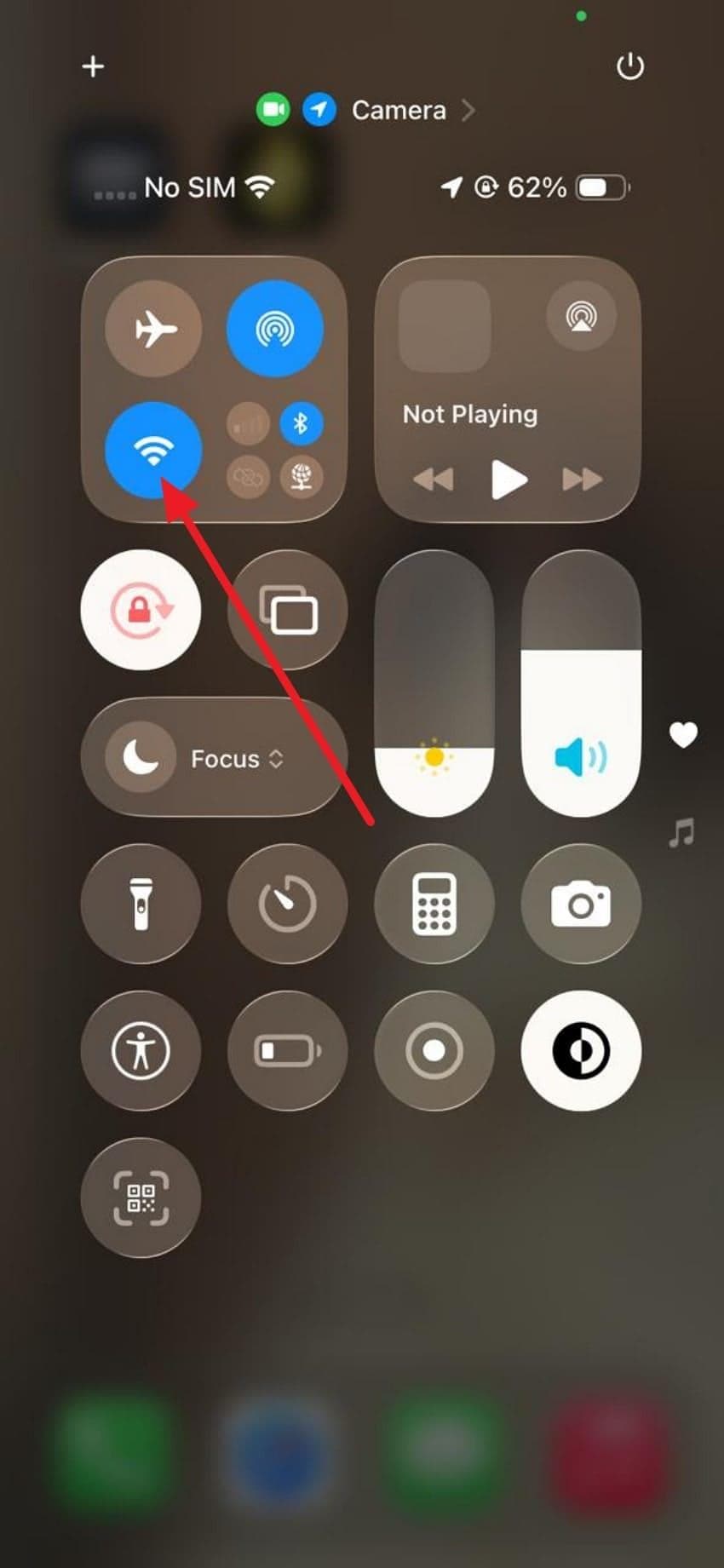
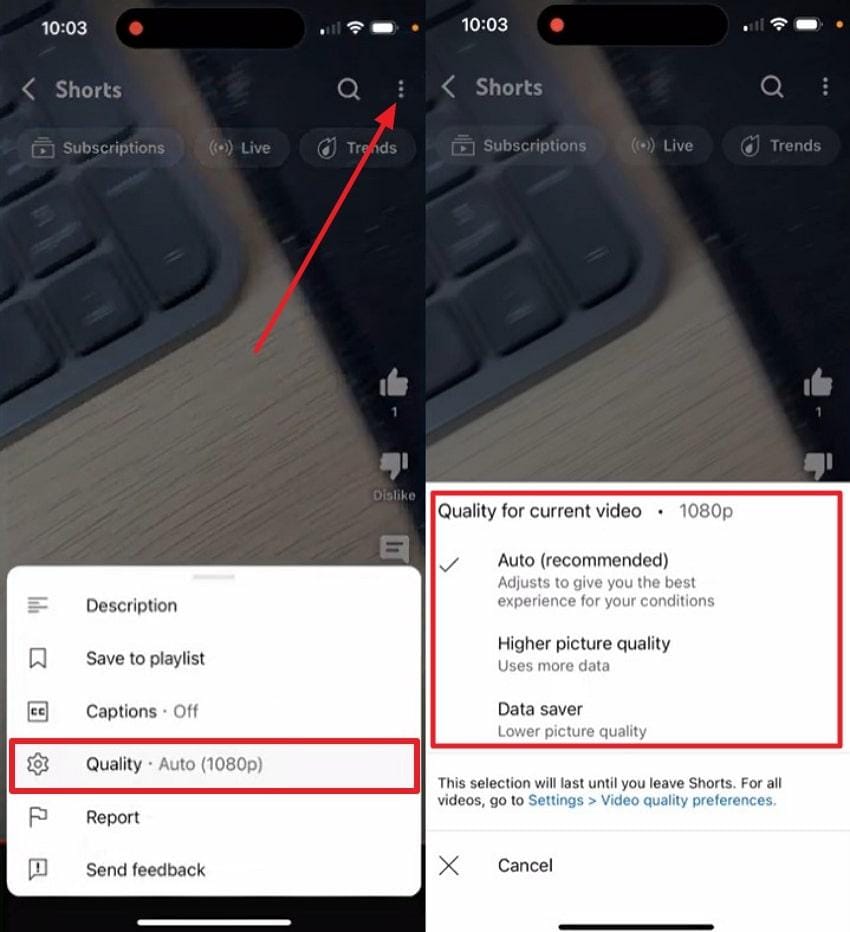
For this lag issue on YouTube Shorts, check your internet connection and adjust the video quality to reduce buffering. This way, you can have smoother scrolling, faster video loading, and an interruption-free viewing experience. Follow the guidelines and make Shorts watchable even when your connection isn’t perfect:
On Android
Step 1. Access the “Control Centre” > Turn “Wi-Fi” on and off > switch between Wi-Fi and mobile data or check internet connection.
Step 2. Open “YouTube Shorts” section > “Three Dots” > choose “Quality,” check and adjust playback quality.
On iPhone
Step 1. Switch between “Wi-Fi” and “Mobile Data” > toggle “Airplane Mode” on, wait for 5 seconds, and turn it off.
Step 2. For playback quality, access the "Three Dots" icon > Choose the "Quality” option, then check and adjust the playback quality accordingly.
Fix 2. Force Close YouTube and Restart Your Phone
Memory overload or background processes can slow down YouTube Shorts and cause stuttering or freezing. Here, force-stopping the app and restarting your phone clears your phone's temporary data or refreshes system resources. To eradicate minor software conflicts that might cause YouTube Shorts lagging, follow the provided manual:
On Android
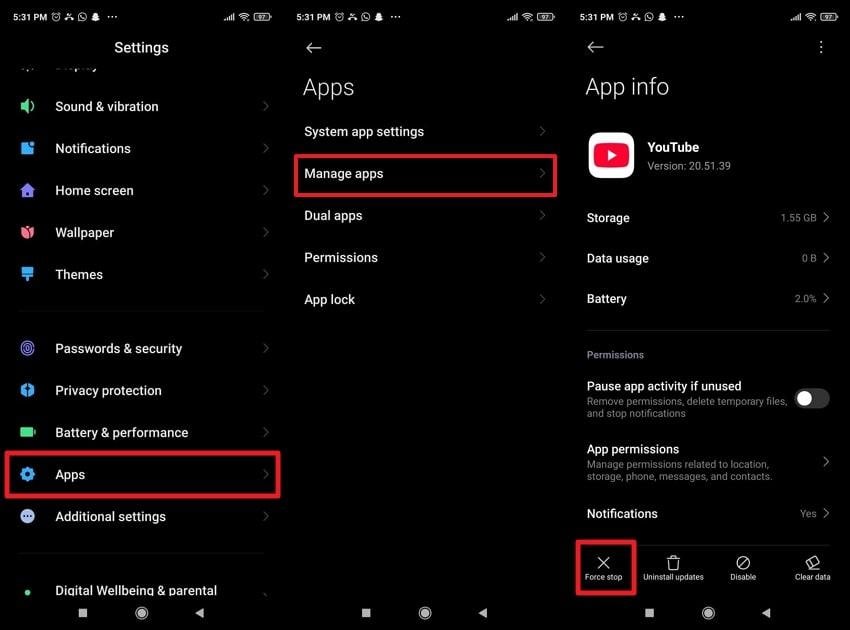
Step 1. Enter Android “Settings” > select “Apps” > choose “Manage Apps” > search for the “YouTube” app, then press “Force Stop.”
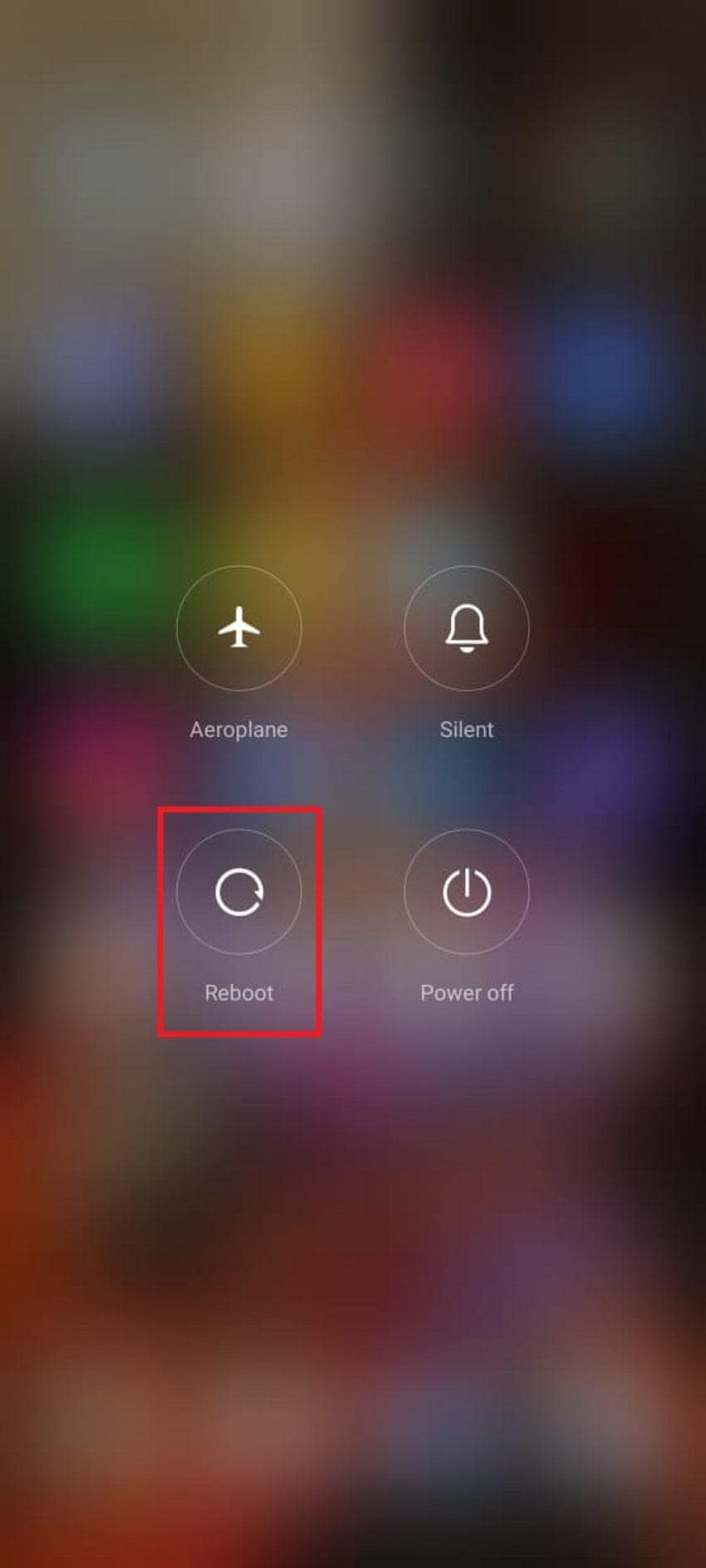
Step 2. Hold the “Power” button and choose the “Reboot” option. Upon restarting, access YouTube again on your Android and test Shorts.
On iPhone
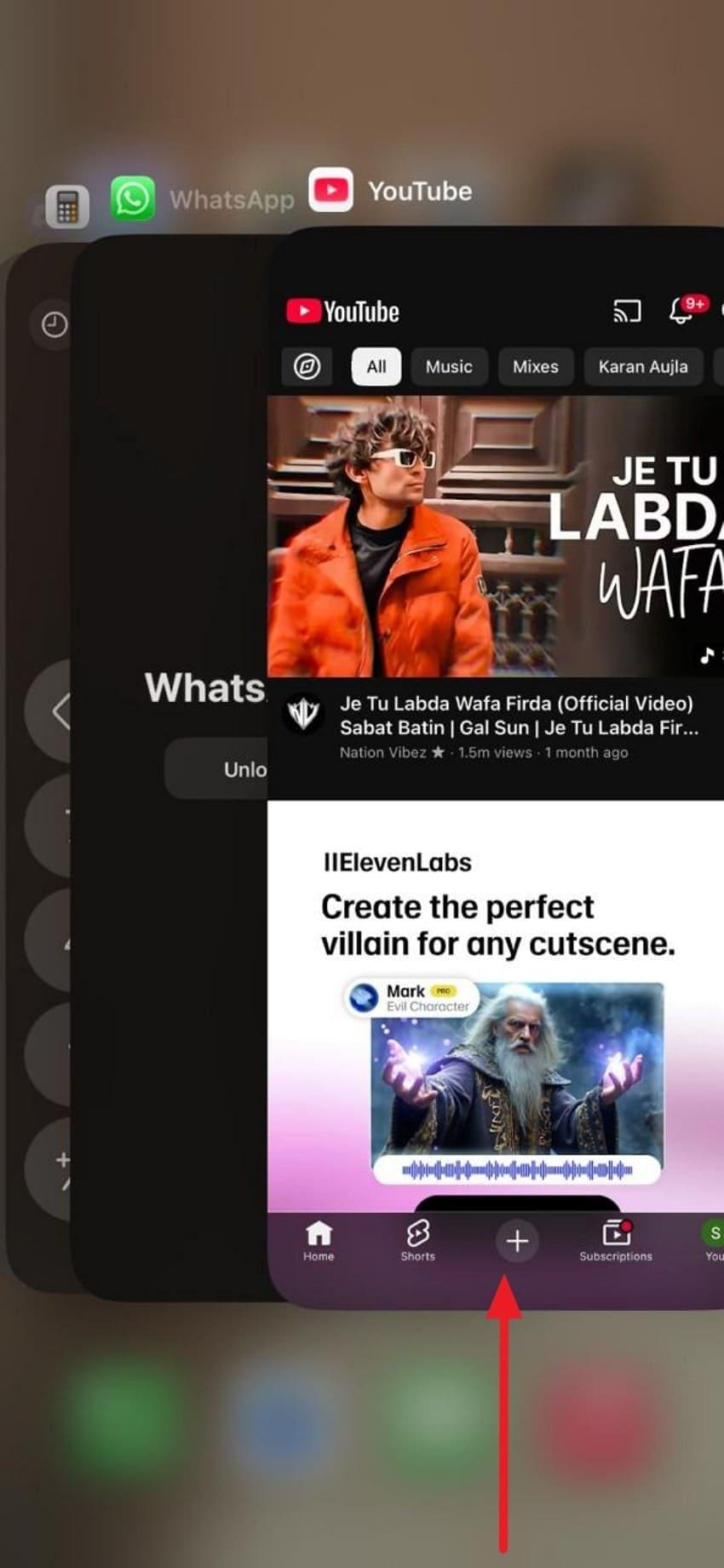
Step 1. Swipe up from the bottom of your iPhone, look for the YouTube card, and swipe up to close it.
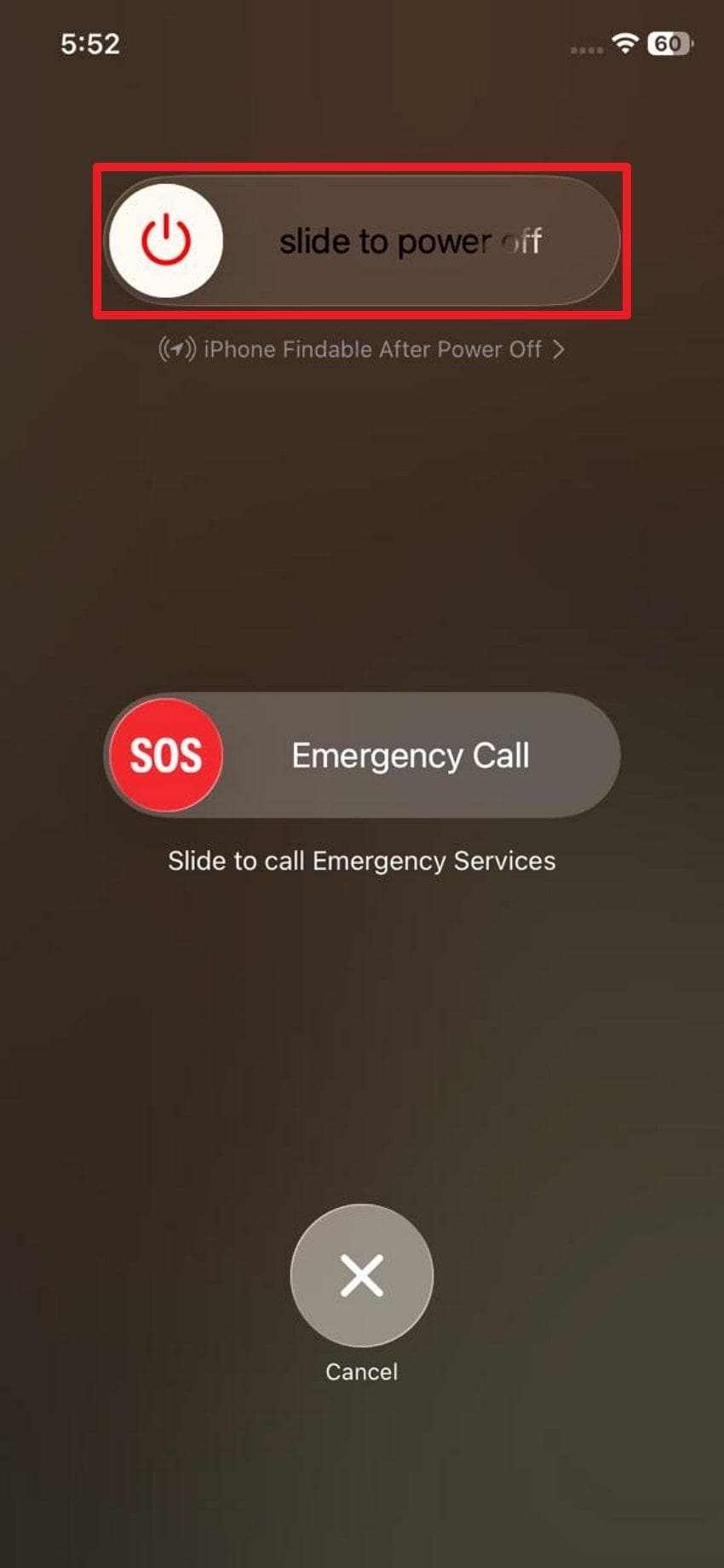
Step 2. Long-press the "Power” and “Volume Down” buttons together and swipe the “Slide to Power Off” option. Wait for a few seconds and turn your iPhone back on.
Fix 3. Clear YouTube Cache or Reinstall the App
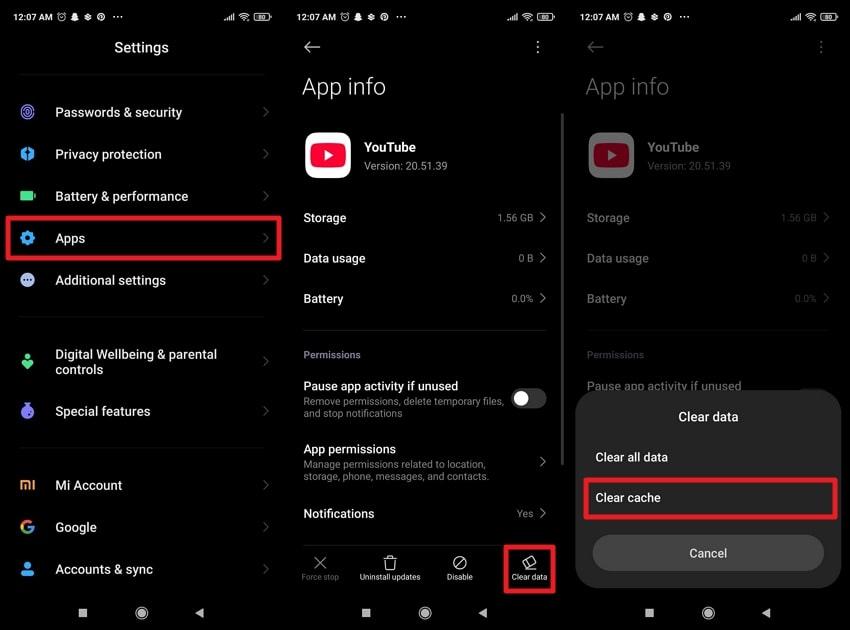
YouTube accumulates cache files to speed up loading, but they can become corrupted or outdated over time. Therefore, clearing this corruption is even more important, as it can interfere with Short's playback and cause stutter. Alternatively, reinstalling the app removes these problematic files without affecting your account, providing a fresh start. Explore the tutorial and learn how to clear the YouTube Cache to overcome the YouTube Shorts lag issue:
Instructions. Open Android “Settings” > Access “Apps” > “Manage Apps” > locate the YouTube app > "Clear Data” > and finally select the “Clear Cache” option.
Note: iOS does not have a separate cache button; instead, delete and reinstall the app.
Fix 4. Update the YouTube App and System Software
Updates to either apps or firmware include bug fixes, performance improvements, and compatibility enhancements that directly address playback issues. Keeping both the app and system up to date ensures smoother scrolling and better video optimization, especially when YouTube Shorts lag. Explore the tutorial to update the app and system software on your devices:
For Android
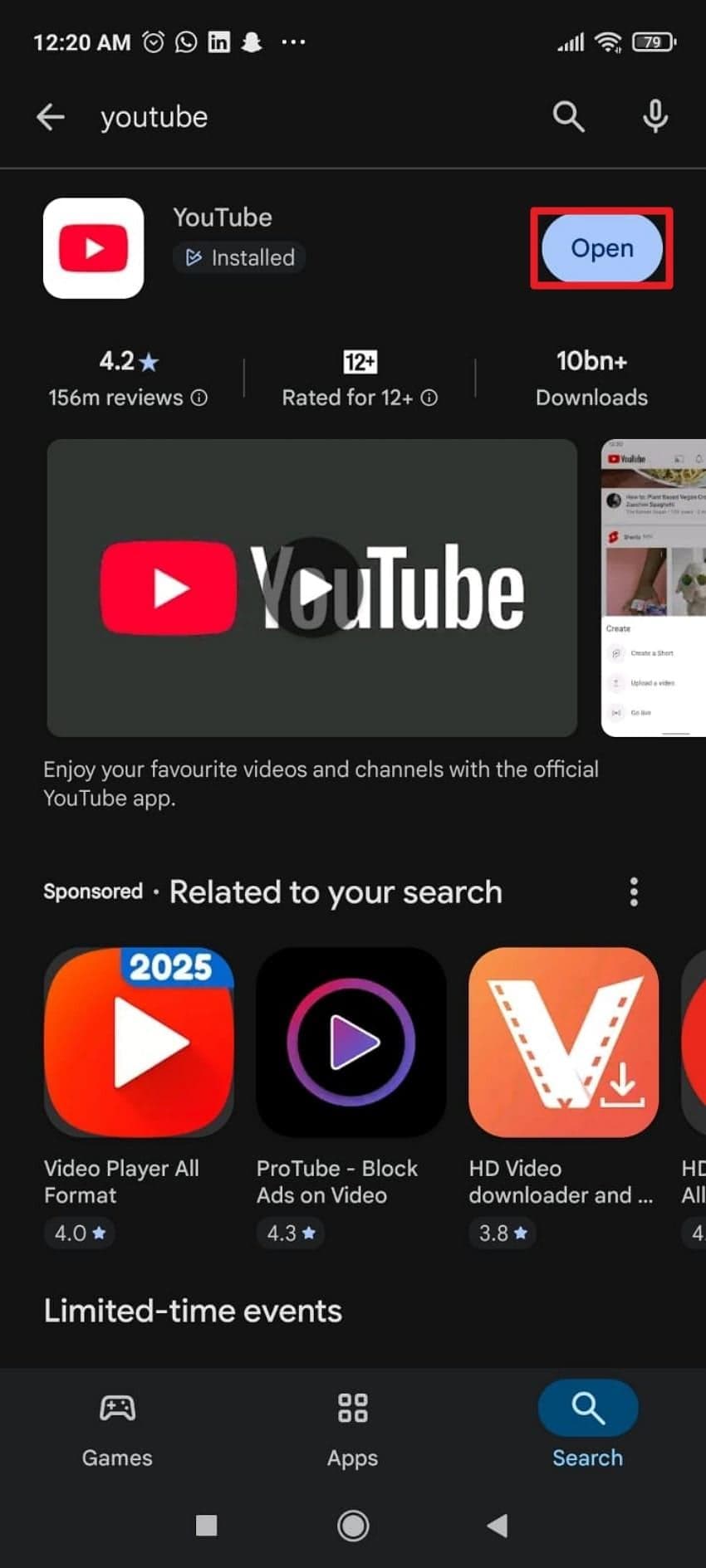
Step 1. Enter “Google Play Store” > Search for “YouTube” > Press the “Update” button (if available) beside it.
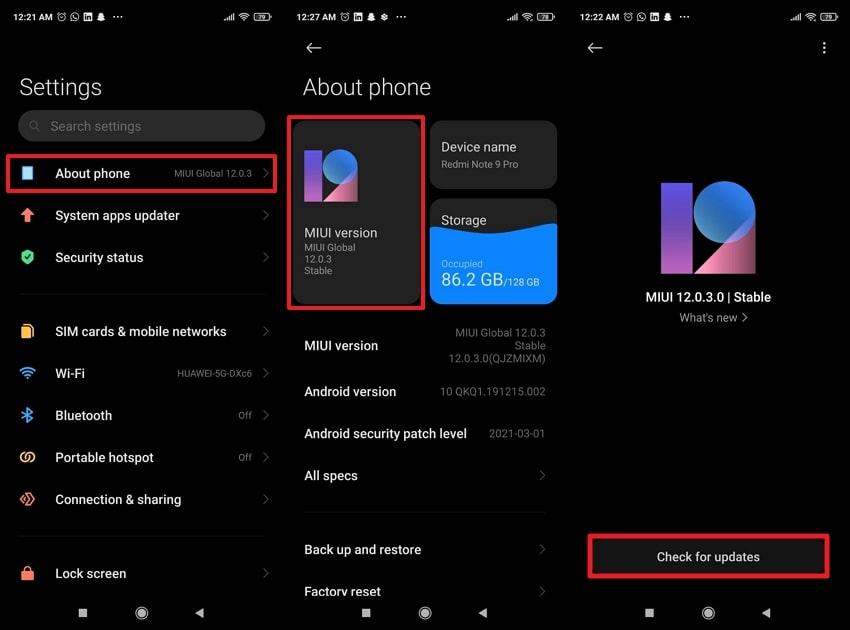
Step 2. Choose “About Phone” from “Settings” > select “MIUI Version” option and look for “Check for Updates.”
For iPhone
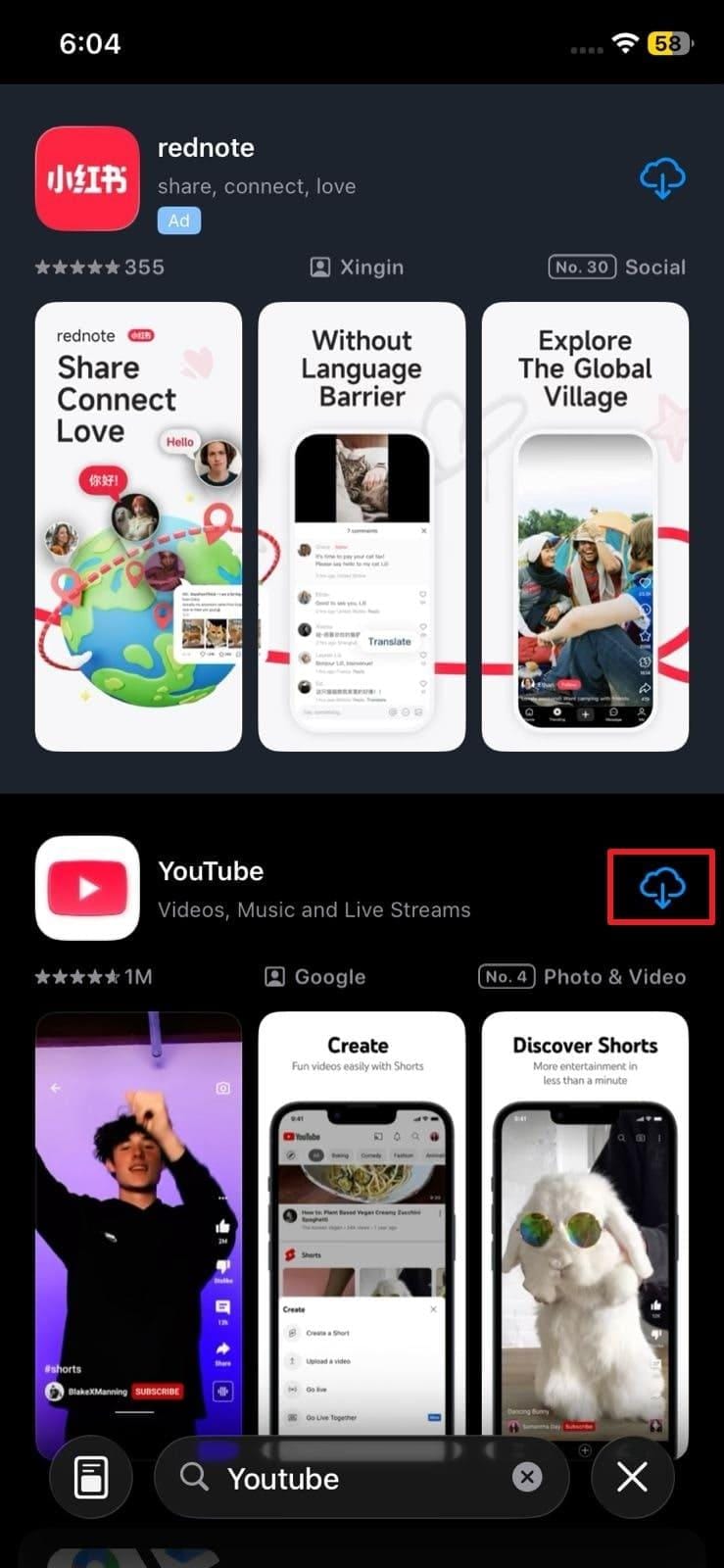
Step 1. Gain access to “App Store” > look for the "YouTube” app, and press the “Update” button (if available).
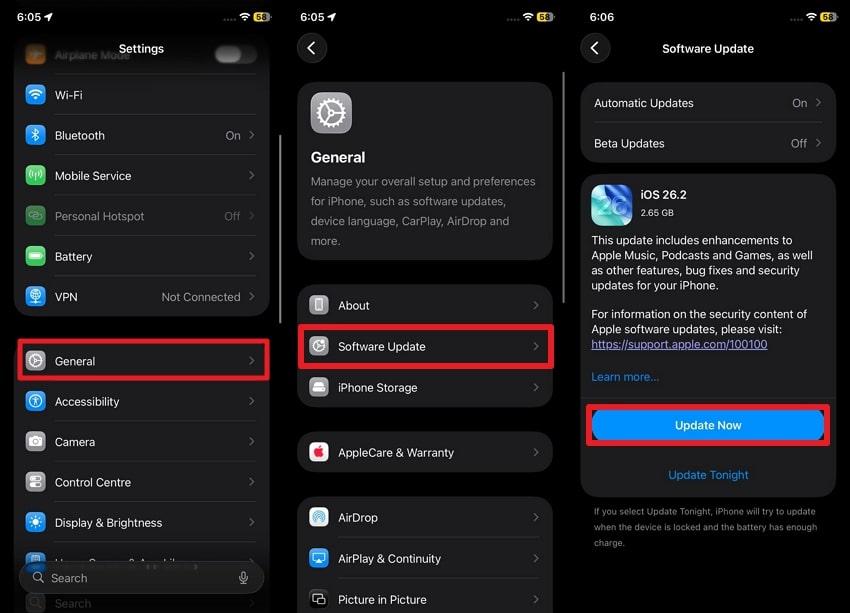
Step 2. Select the "General” option from iPhone “Settings” > “Software Update” option > Tap the “Update Now” button.
Fix 5. Turn Off VPN, Proxy, or Private DNS
VPNs, proxies, and custom DNS services reroute your internet traffic, which can slow down YouTube video streaming. Considering this, if you disable these services, it will allow YouTube to connect directly to the fastest available servers. Follow the tutorial and turn off VPNs or proxy services for the YouTube Shorts lagging problem:
On Android
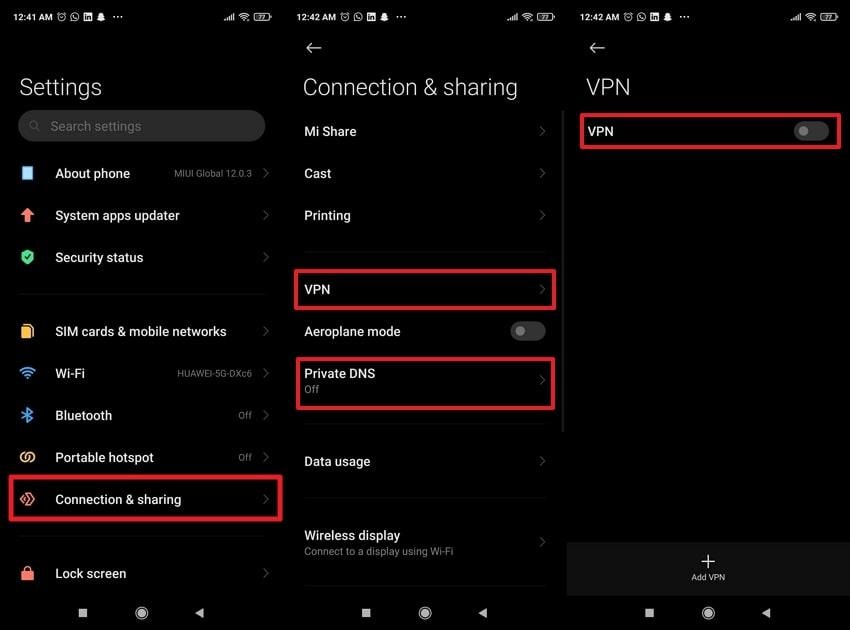
Select “Connection & Sharing” option > choose “Turn Off” option for Private DNS > access “VPN” > Toggle off “VPN.”
On iPhone
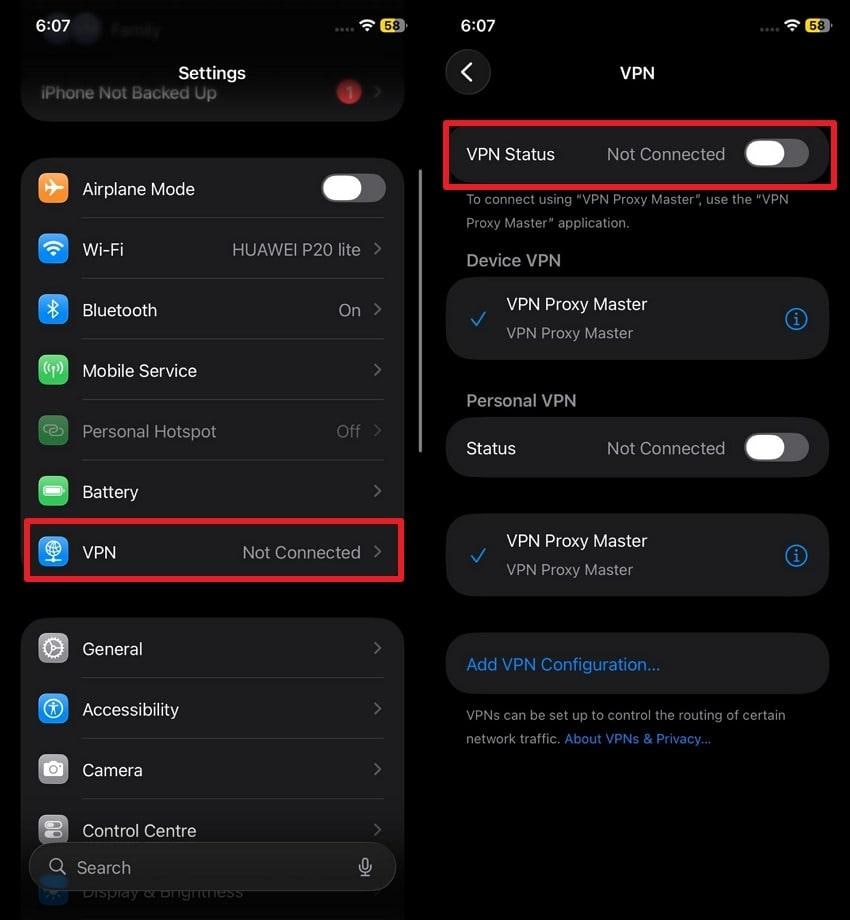
Go to “Settings” > choose “VPN” > turn off the “VPN Status” option.
Fix 6. Disable Battery Saver and Close Background Apps
Battery saver modes intentionally limit CPU power, background activity, and data usage to conserve energy. When you turn off battery saver and close unnecessary apps, you can free up significant processing power and memory. For smoother playback, simply follow the guidelines and solve the YouTube Shorts lag issue:
For Android
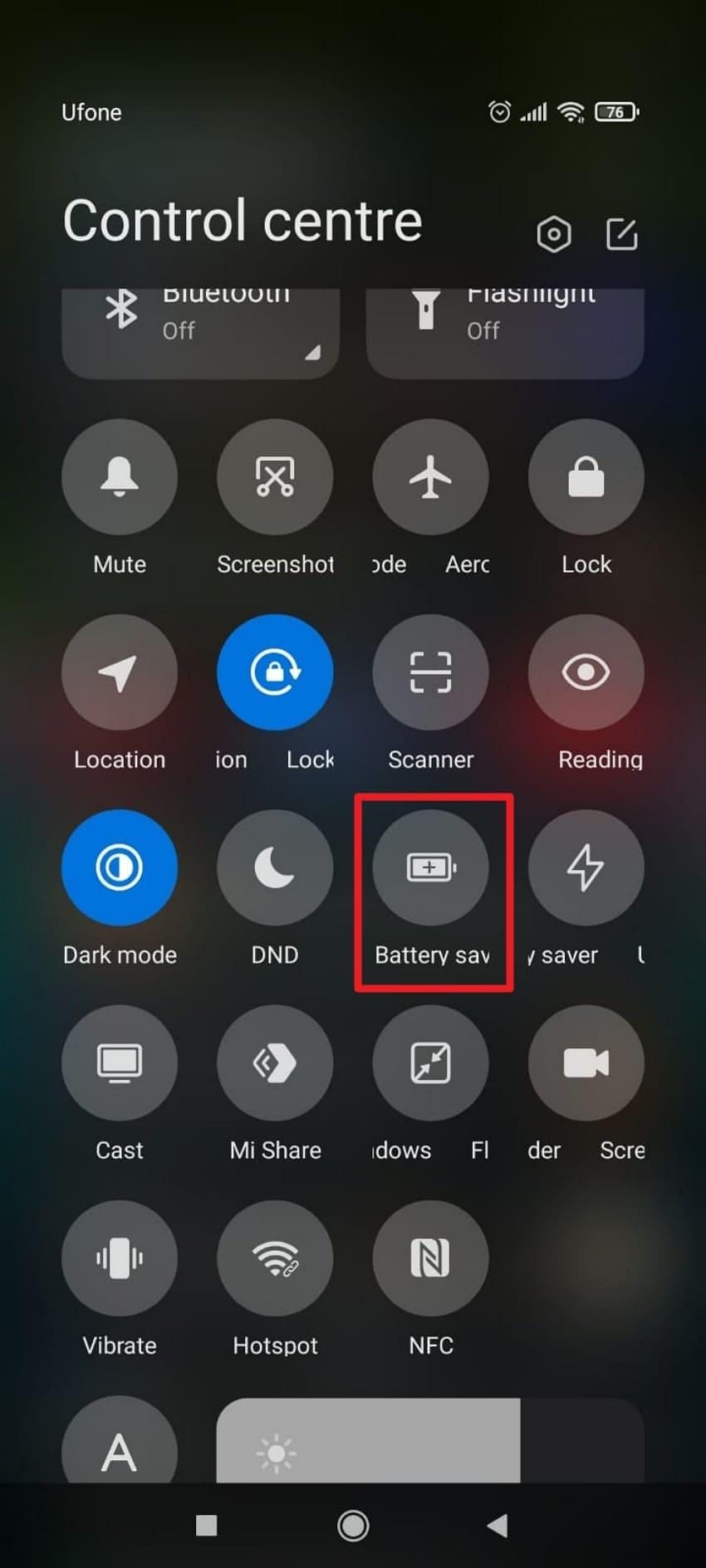
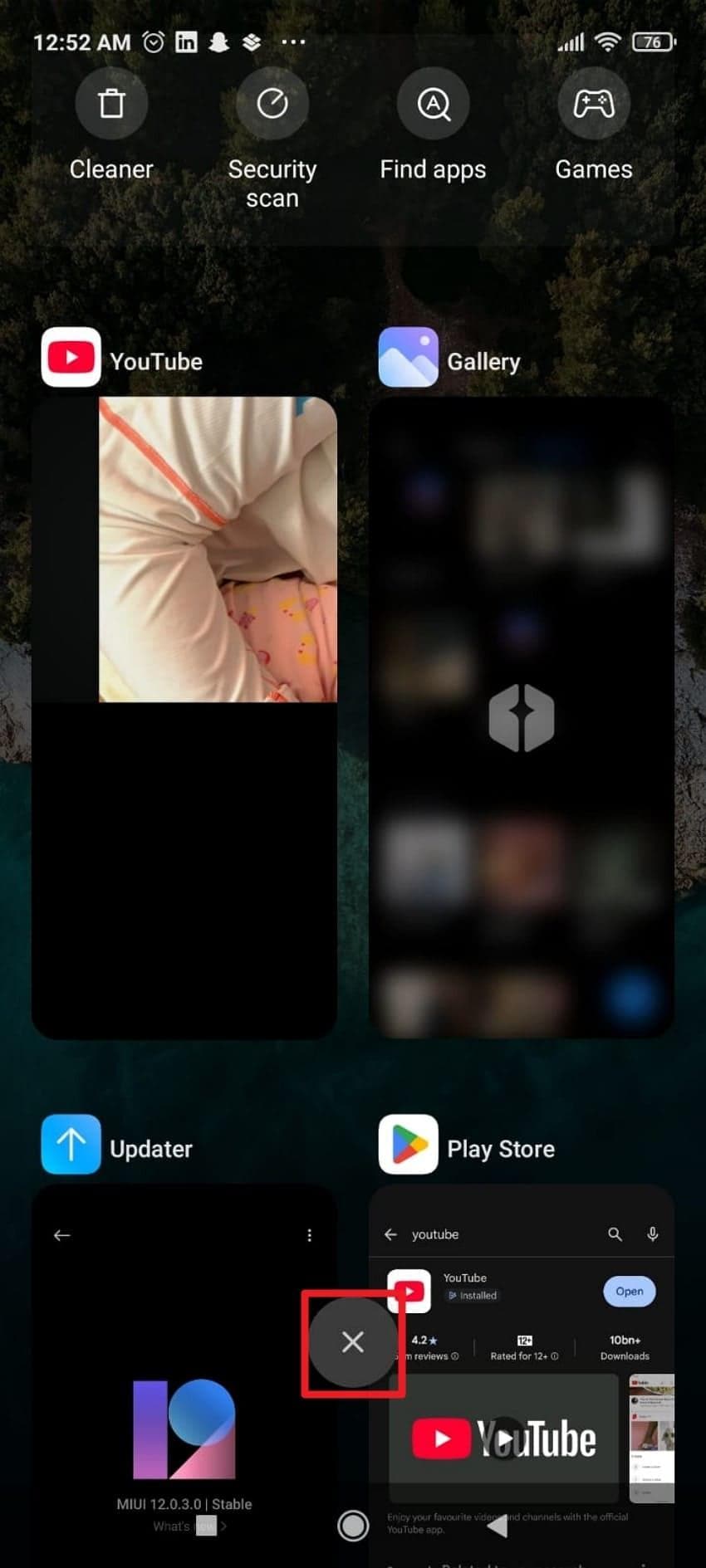
Step 1. Pull down “Control Centre” and turn off the “Battery Saver” option.
Step 2. Press the “Cross” icon from the “App Switcher” screen to close all unnecessary apps on Android.
For iPhone
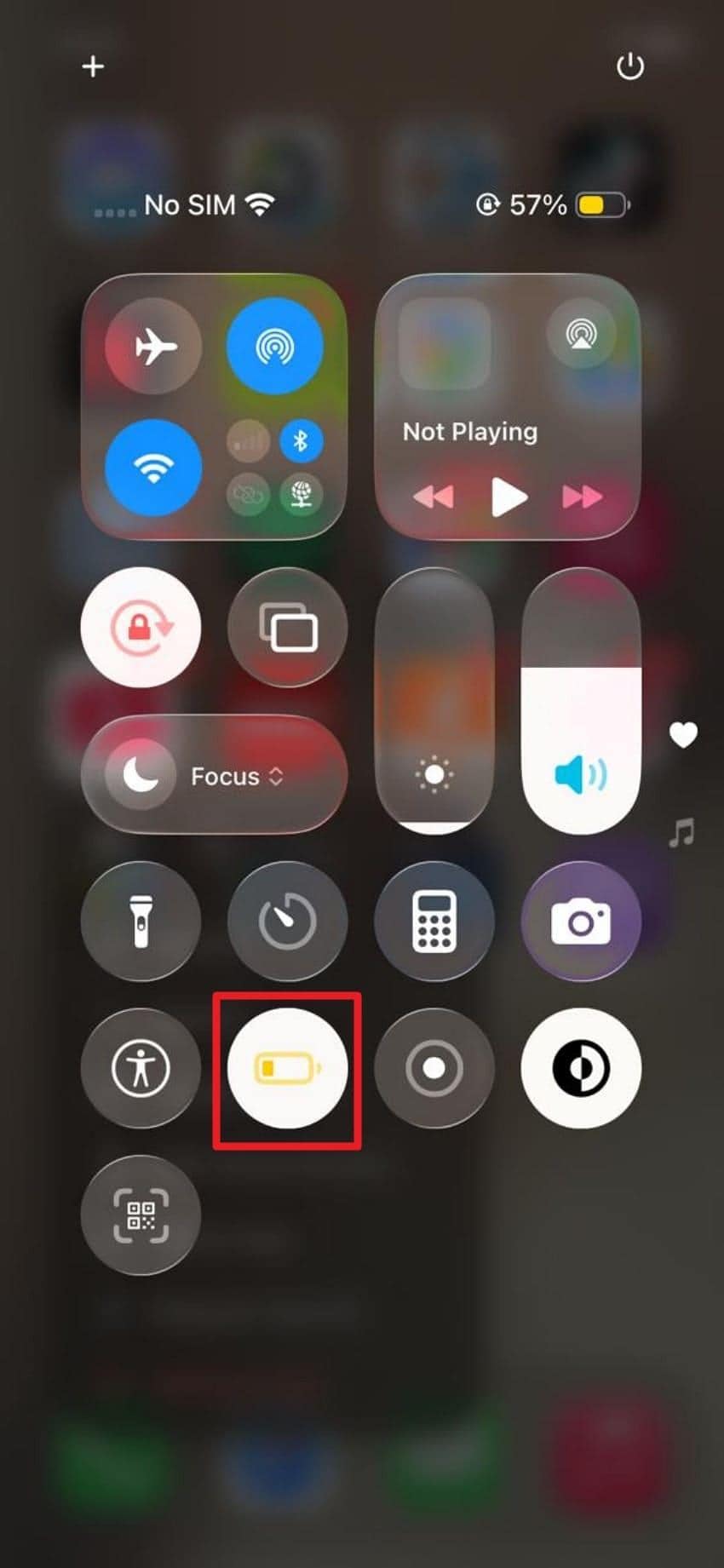
Access the Control Center of your iPhone and press the “Battery Saver" option. To close background apps, simply swipe up and swipe away unused apps (similar to closing the YouTube app on iPhone).
Fix 7. Free Up Storage and Prevent Overheating
When your phone runs low on storage or becomes too hot, the system automatically reduces performance to protect hardware. Freeing up storage and keeping your device cool helps maintain stable performance and prevents YouTube Shorts lag during extended use. To get sorted, dive into the tutorial and clear up space on Android and iPhone:
On Android
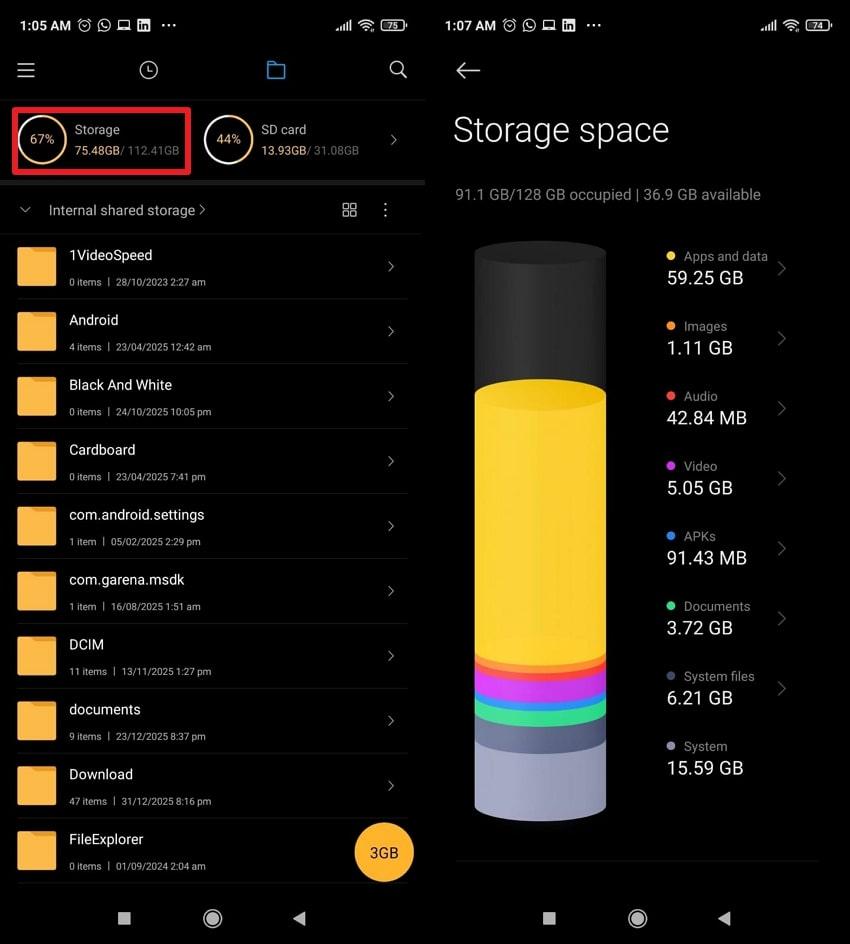
Open “File Manager” > select “Storage” > check for apps using space > delete unnecessary apps to free up space.
On iPhone
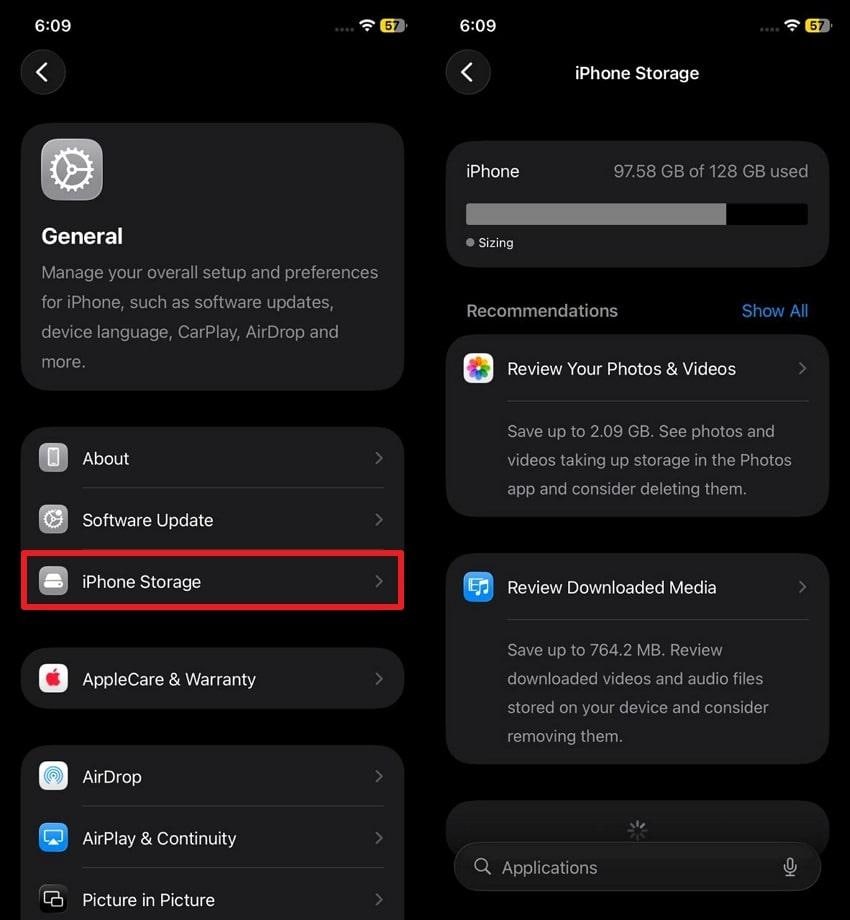
Access “General” settings > choose the “iPhone Storage” option > check storage and delete unwanted apps.
Part 4. Fix YouTube Shorts Lag on Desktop (Chrome, Edge, Safari)
If your YouTube Shorts lag when you play them on a browser, try the 4 simple and practical solutions given below:
Fix 1. Clear Browser Cache and Hard Refresh
This step removes old or broken data that can cause freezes, black screens, or slow loading. Not just that, a hard refresh forces the browser to load fresh code and video files from YouTube. Thus, this helps after site updates that clash with saved files. It also reduces unnecessary storage that can slow down weak systems, once performed via the given steps:
Clear Browser Cache: (Chrome and Edge)
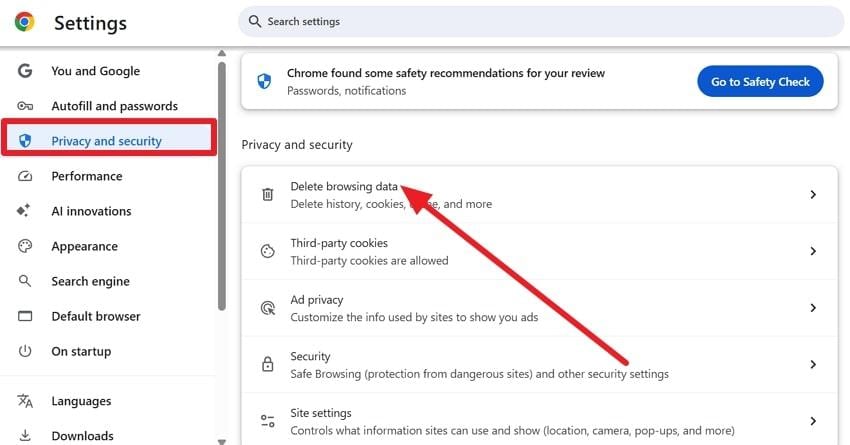
Step 1: From the Chrome settings, head to the “Privacy and Security” > “Delete Browsing Data” option.
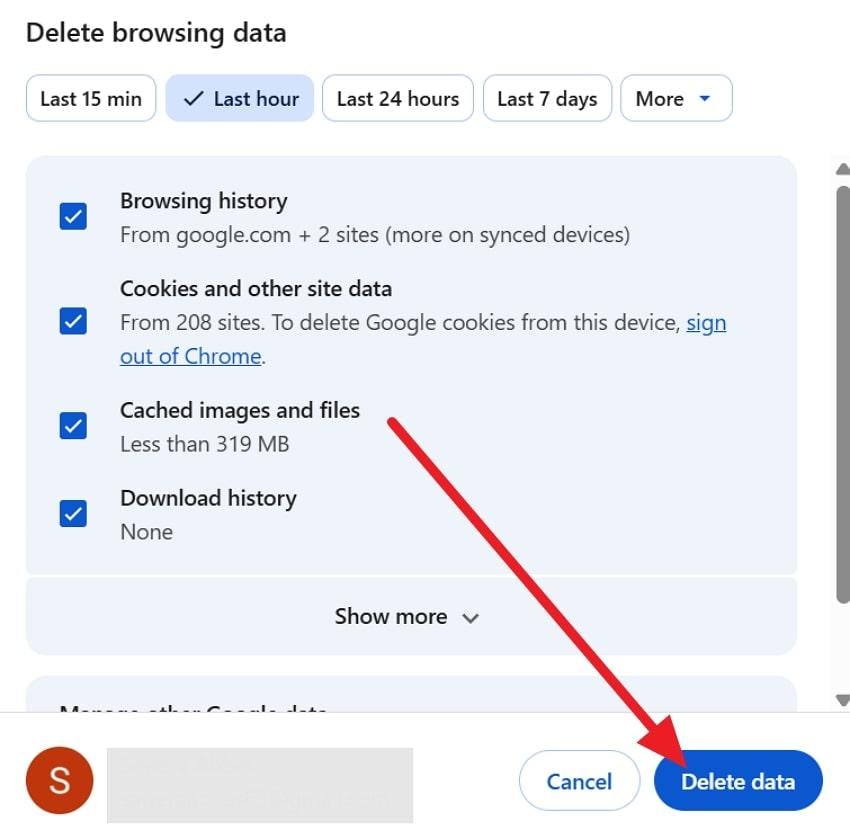
Step 2. Select “Cached images and files,” then click the “Delete Data” option.
Clear Browser Cache: (Safari)
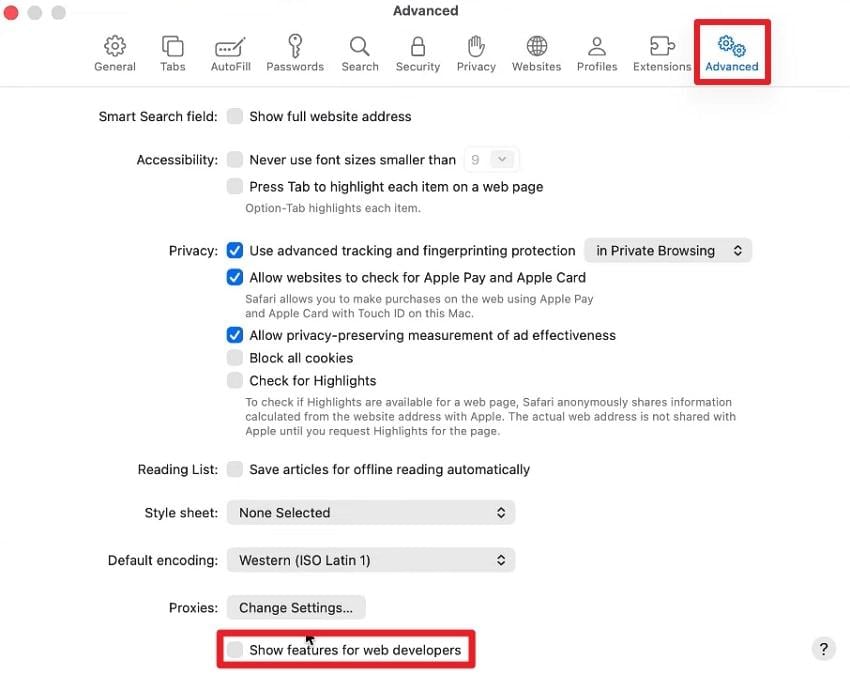
Step 1. Within the Safari settings, choose “Advanced” > Show Features for Web Developers.”
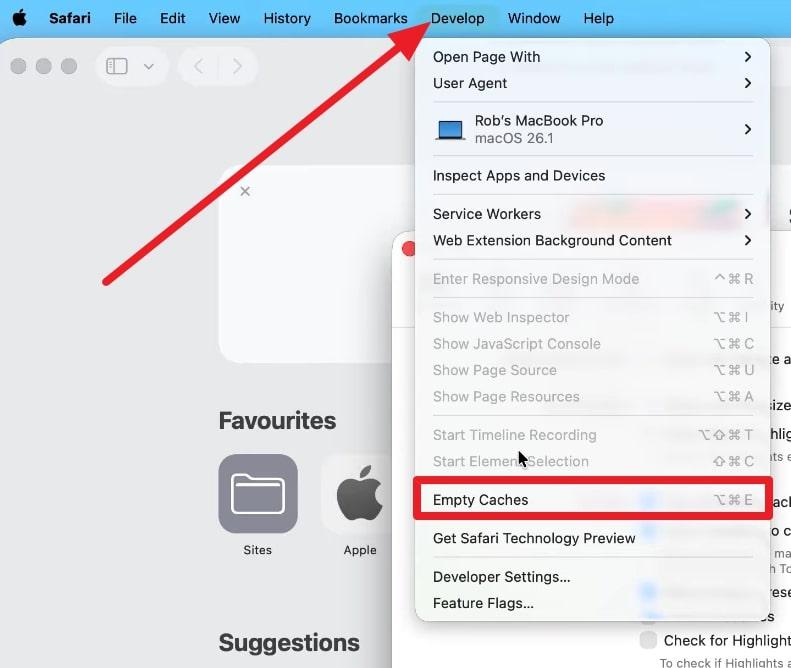
Step 2. As you access the “Develop” menu, choose the “Empty Caches” option.
Hard Refresh (Single Page)
In Chrome or Edge on Windows: Open YouTube, then press “Ctrl+F5” or “Ctrl+Shift+R.”
macOS Chrome or Edge: Open YouTube, then press “Cmd + Shift + R.”
macOS Safari: Enable “Develop,” select “Empty Caches,” then press “Option + Cmd + R” on YouTube.
Fix 2. Disable Browser Extensions (Especially Ad Blockers)
To fix the “YouTube Shorts lagging” issue, turn off browser extensions, especially ad blockers. This step helps Shorts load faster, play smoothly, and react well to scroll and clicks. Additionally, it cuts extra CPU and RAM use, which allows weak systems and avoids slow checks that YouTube may run due to ad block use, once performed via the listed steps:
Chrome
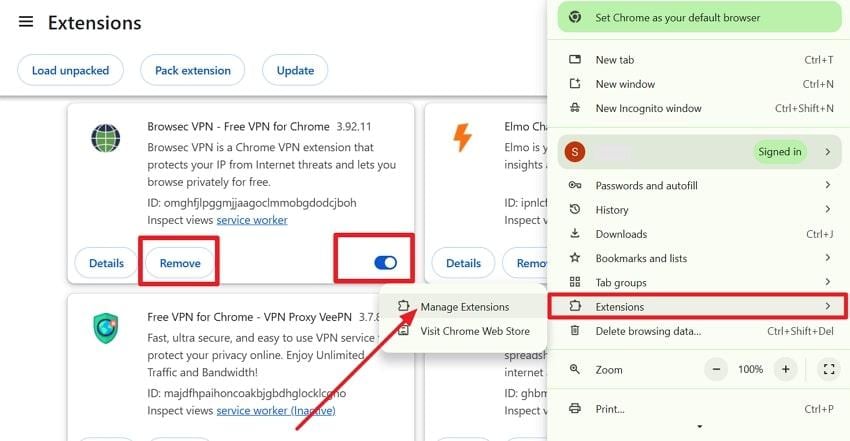
Open the three-dot menu, select “Extensions” and “Manage Extensions.” After that, turn off the blue switch to disable an extension or select “Remove” to delete it.
Edge
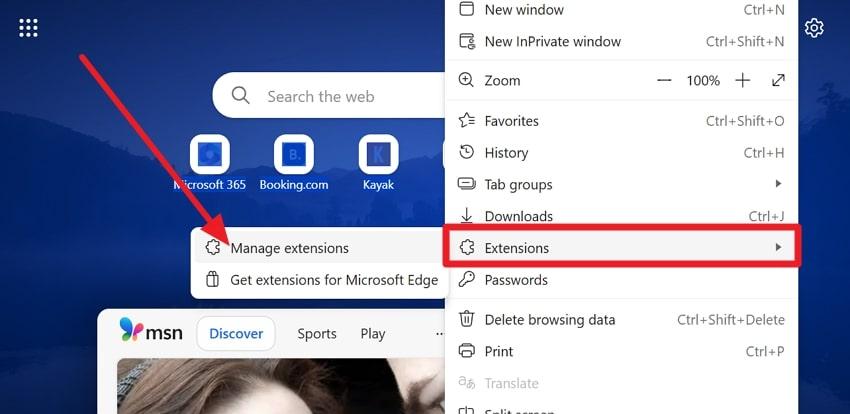
After tapping “Three Dots,” go to the “Extensions” then “Manage Extensions” option. Toggle the switch off to disable an extension, or right-click the icon and choose "Remove” to delete it.
Safari
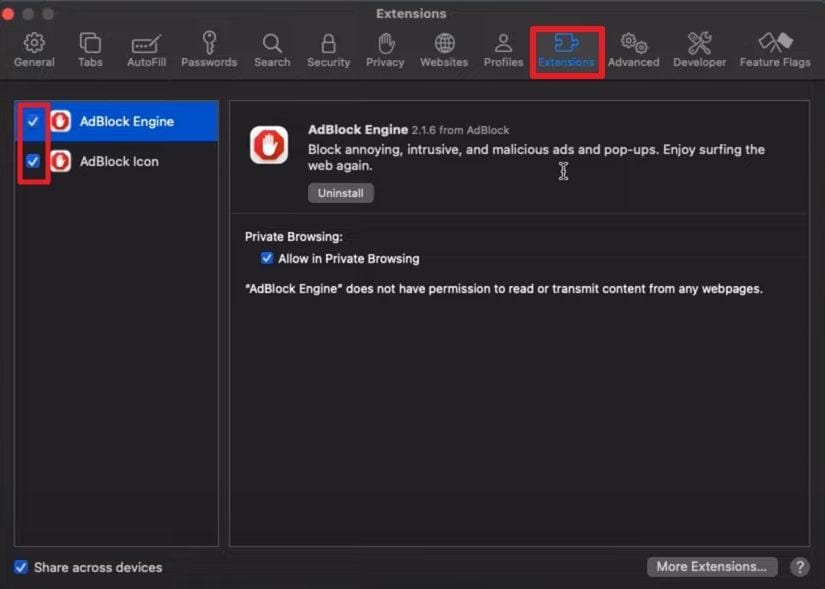
Go to its “Settings,” select the “Extensions” tab, then clear the checkbox next to the extension to disable it.
Fix 3. Toggle Hardware Acceleration and Restart the Browser
When the YouTube Shorts lag even after removing or disabling the extension, turn hardware acceleration off or on and restart the browser. This step resets how the browser uses the GPU and CPU, which can remove glitches and driver conflicts. Additionally, it lets you test if GPU or CPU decoding works best for smooth video, as illustrated below:
Chrome (Windows/macOS)
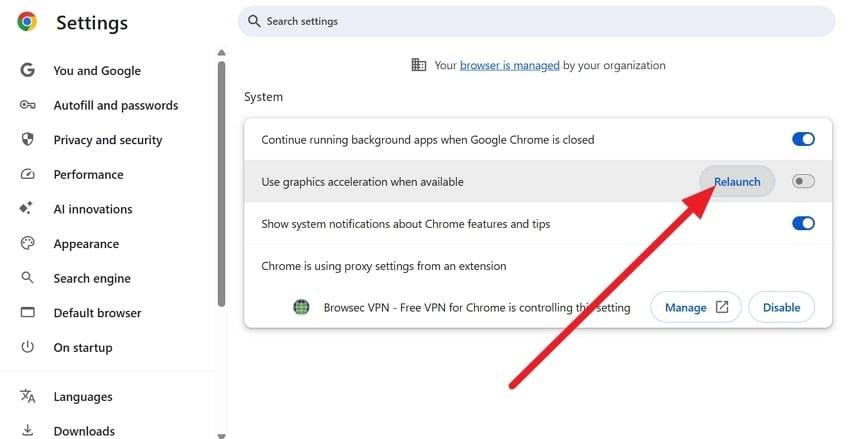
Step 1. Go to the “System” tab in Chrome settings and toggle off the “Use Graphics Acceleration When Available” option.
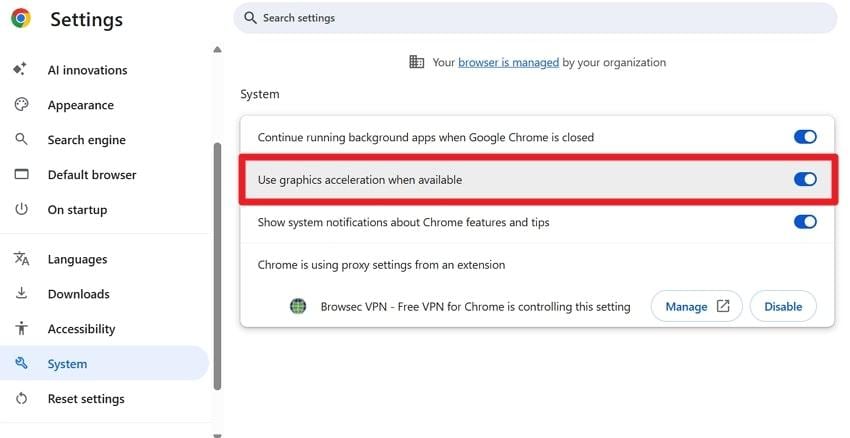
Step 2. Later, click “Relaunch” when prompted to restart Chrome and apply the changes.
Microsoft Edge
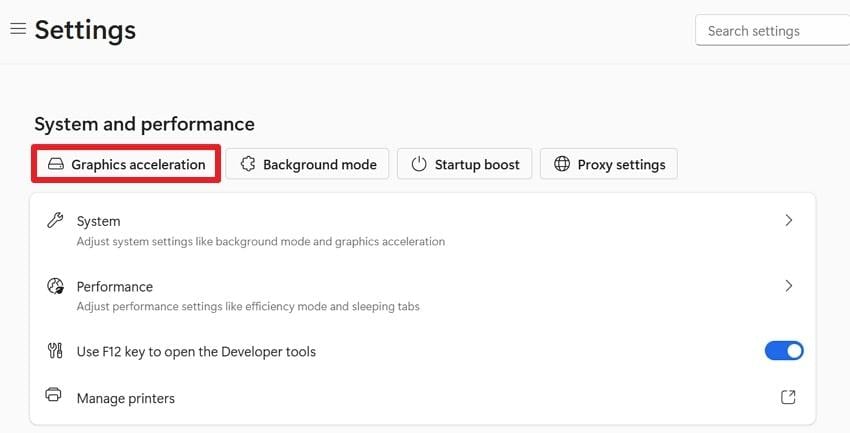
Step 1. In the Edge’s settings, locate “System and Performance” > “Graphics Acceleration” section.
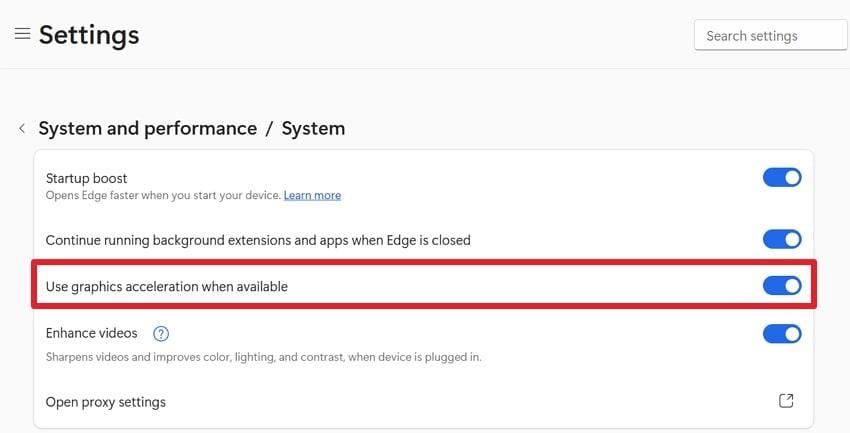
Step 2. There, toggle “Use Graphics Acceleration When Available” on or off to reopen Edge with the new setting.
Safari (macOS)
Safari handles graphics acceleration automatically on recent macOS versions, so there is no user option to change it. To refresh the video, close all Safari windows, quit Safari fully, then reopen it and reload YouTube Shorts.
Fix 4. Update Browser
For the “YouTube Shorts lagging” issue, update the browser since newer versions improve video play, fix bugs, and match YouTube’s latest updates. Also, they improve rendering, reduce dropped frames, and lower CPU use. Additionally, new builds handle modern codecs and GPU paths better, enabling videos to decode faster and run without stutter, once updated via the given steps:
Chrome (Windows/macOS)
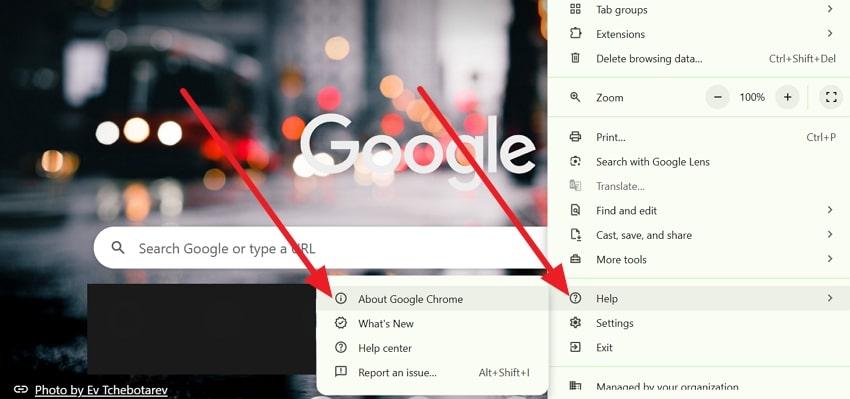
Press “Three Dots,” then select “Help” > “About Google Chrome” to automatically check for updates and install them.
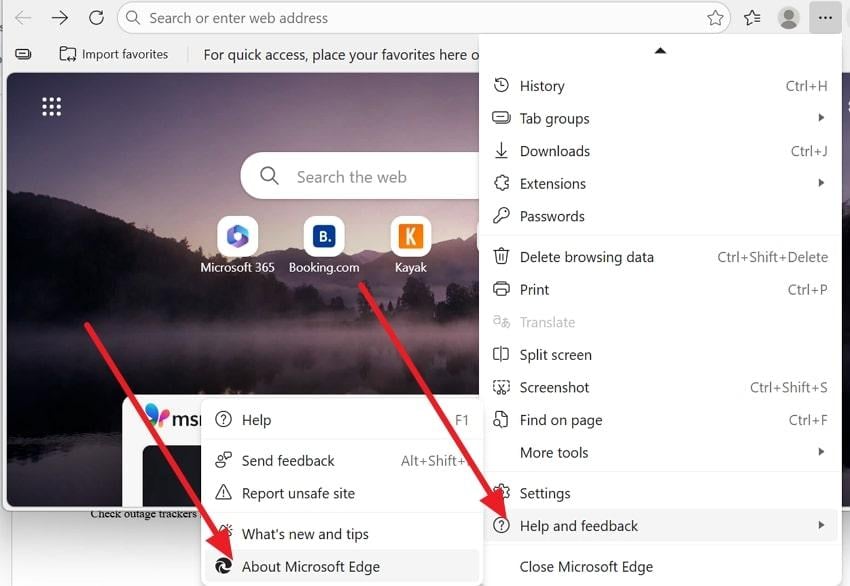
Microsoft Edge
Select “Help and Feedback > About Microsoft Edge” to download and install updates.
Safari (macOS)
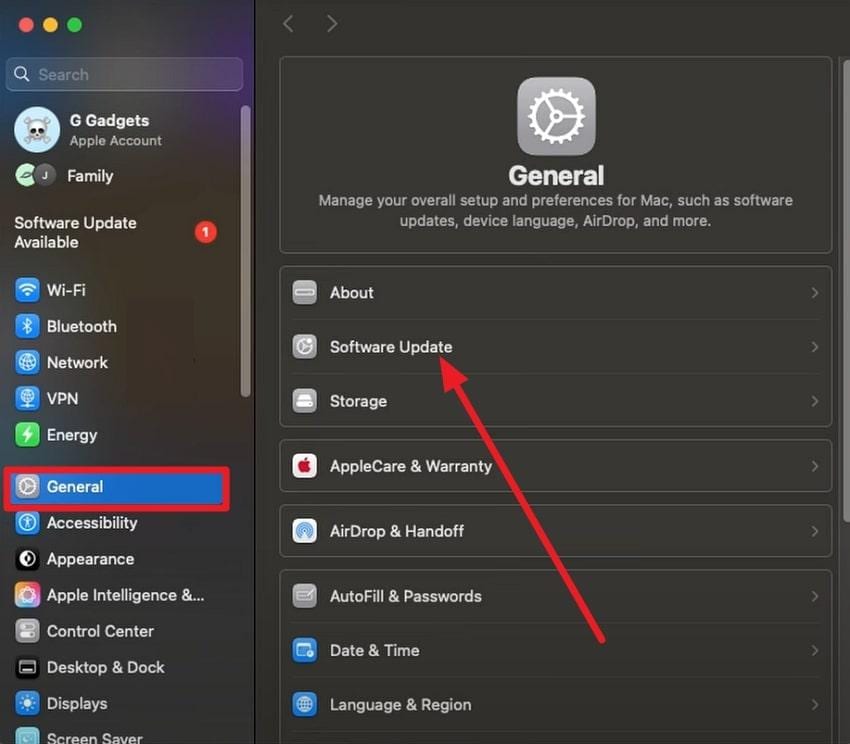
To update Safari on a Mac, you must update your entire macOS through System Settings > General > Software Update. Install any macOS or Safari updates, then restart your Mac if prompted.
Part 5. When It’s Not You: YouTube Bugs, Outages, or Platform Issues
Sometimes, there is no issue with the browsers or app, and the problem is with the platform itself, or bugs cause the “YouTube Shorts lagging” issue. If that’s so, review the given details and learn how you can deal with such situations:
Check If YouTube Is Having Issues
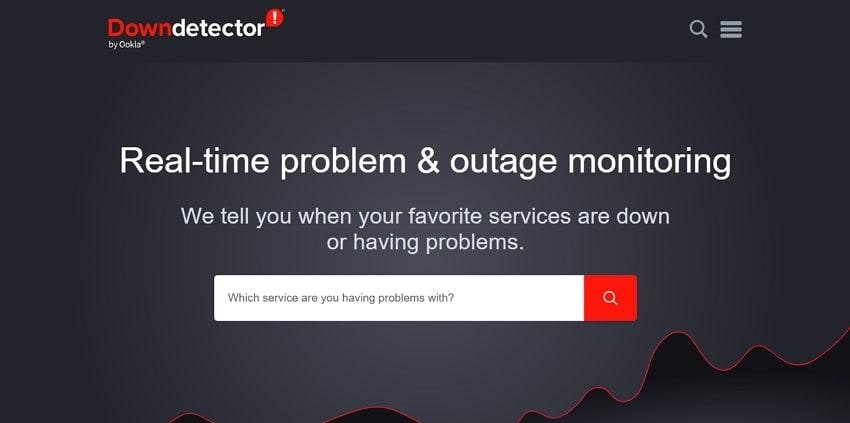
Check outage trackers like DownDetector or “Is YouTube down?” sites to see if many users report issues.
Confirm It’s Not Just Your Setup
Test YouTube on another device or network, like a phone with mobile data or a different Wi-Fi, to see if Shorts lag persists. If several devices have the same issue while other sites work fine, it likely indicates a problem on YouTube’s side, not your browser.
What To Do While You Wait
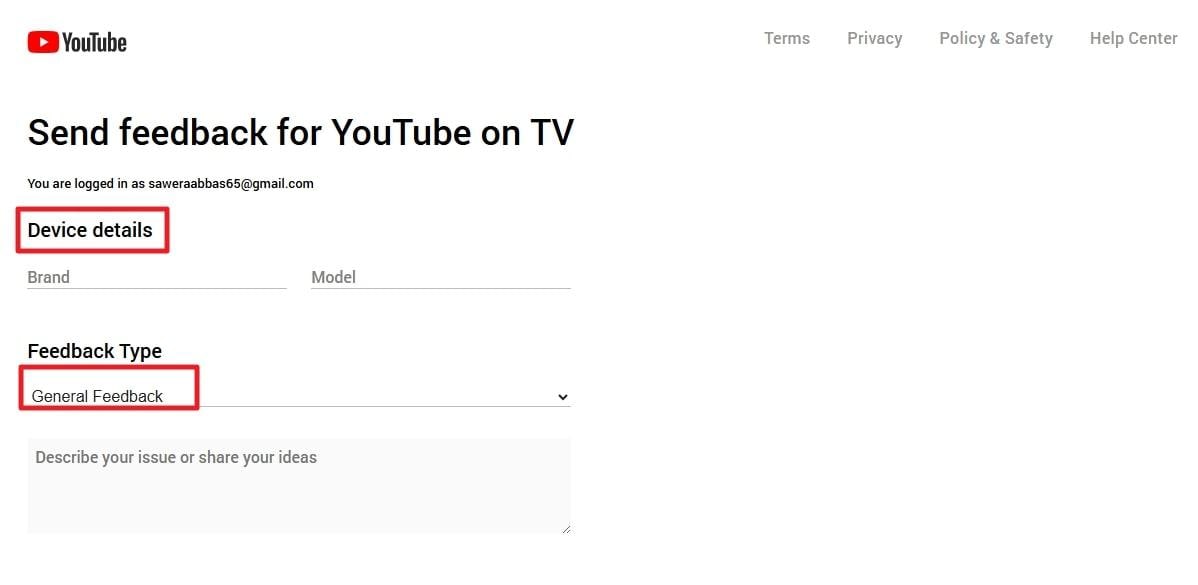
Avoid heavy troubleshooting, such as reinstalls or OS resets, when outage sites confirm issues; YouTube fixes them. Else, use Send feedback on YouTube to report the problem, then retry later or watch regular videos until Shorts stabilize.
Enter the device details, such as “Model” and “Brand,” and expand the “General Feedback” menu to select “Video Playback - Video Doesn’t Play” or a related topic. After that, press the “Submit” button and wait for confirmation that your report was sent successfully.
Pro Tip: Repair Damaged YouTube Shorts Videos for Smooth Playback
If your YouTube Shorts lag or stutter even when played offline, the issue is often caused by video file corruption or improper encoding during recording or export. In this case, repairing the video file itself can be an effective solution. Repairit Video Repair helps fix unplayable or lagging Shorts videos by repairing damaged video structures caused by:
- Recording interruptions
- Incorrect export settings
- Frame or audio-video sync errors
- Compression or format conversion issues
The tool supports common Shorts-compatible formats such as MP4, MOV, MPEG, MPG, TS, and DAT, ensuring smooth playback after repair. For more severe corruption, Repairit’s Advanced Repair Mode can rebuild the video using a healthy sample file from the same device, which is especially useful for Shorts recorded on:
- Smartphones (Android / iPhone)
- Action cameras
- Screen recorders or video editing apps
After repair, your Shorts videos can play smoothly again, making them ready for re-uploading or editing without lag.
Step 1. Press the “Start” button in the “Video Repair” section and add the corrupted Shorts.

Step 2. After that, import more if you like, and press the “Repair” button to start the process.

Step 3. Once it ends, preview the fixed Shorts by selecting “Save All,” then tap “Save” to export.

Repair Damaged YouTube Shorts Videos for Smooth Playback
 Security Verified. Over 7,302,189 people have downloaded it.
Conclusion
To wrap up, this guide has addressed the “YouTube Shorts lagging” issue, with extensive details on why it occurs and how. However, if you face lag in saved Shorts too, the usage of the Repairit Video Repair tool is suggested to deal with video corruption.
Frequently Asked Questions
-
Why are YouTube Shorts lagging, but Regular Videos Play Fine?
YouTube Shorts lag because they use a different player and load many short clips fast. -
How Do I Fix YouTube Shorts Lagging on iPhone or Android?
Fix YouTube Shorts lag on iPhone or Android by clearing the cache, restarting the app, or updating the app. -
Why Does YouTube Shorts Lag on Chrome After Scrolling for a While?
YouTube Shorts lag on Chrome after scrolling due to old cache, heavy extensions, or high CPU load. -
Can a Corrupted Video Cause YouTube Shorts Lag?"
A corrupted video can cause YouTube Shorts lag by freezing or stopping playback on your device.




