

CineForm is a high-quality intermediate video codec designed for professional post-production. Instead of editing highly compressed camera files, creators convert footage to the CineForm codec to get smoother timelines, stable playback, and robust color grading performance. It matters because it balances visual quality and file size, making 4K and higher-resolution workflows practical on typical workstations for editing, grading, visual effects, streaming deliverables, and archival masters.
Repair Corrupted Files To Save Your Data
 Security Verified. Over 7,302,189 people have downloaded it.
In this article
How CineForm Works
The CineForm format uses wavelet-based compression rather than the block-based methods found in many delivery codecs. Video frames are analyzed and stored in a way that preserves fine detail and color information while discarding data the eye is less likely to notice. This results in files that are much smaller than uncompressed video but still visually lossless for editing.
Because the CineForm workflow is optimized for random access to frames, software can scrub, trim, and apply effects quickly without heavy CPU load. The codec supports high bit depths, high resolutions, and alpha channels, giving editors a practical balance between file size, image quality, and real-time performance on typical workstations.
Key Features, Pros, and Cons
Main CineForm Features
The CineForm editing experience is built around features that suit modern post-production pipelines:
- Wavelet compression that maintains visually lossless quality even after multiple renders.
- Support for high resolutions such as 4K, 6K, and beyond, including high frame rates.
- High bit-depth color and wide-gamut support for reliable color correction and grading.
- Alpha channel support in some profiles for compositing and visual effects work.
- Efficient decoding that provides smooth timeline playback on capable CPUs and GPUs.
- Flexible use in different containers, often MOV or AVI, depending on the host application.
Pros and Cons of CineForm
Pros
CineForm codec files are easier to edit than many camera-native or delivery formats, reducing stutters and dropped frames during playback.
High color fidelity and bit depth make it suitable for demanding color grading tasks and visual effects pipelines.
Files are much smaller than uncompressed video, cutting storage costs while remaining robust enough for multi-generation workflows.
Editing performance is consistent on long timelines, even with multiple layers of video and effects.
Cons
The cineform format is not as universally supported as mainstream delivery codecs like H.264, meaning you may still need to export to another codec for final distribution.
File sizes are larger than those of highly compressed codecs, which can impact storage and transfer times.
Real-world performance
In day-to-day post-production, CineForm editing offers snappy scrubbing, fast response when trimming, and reliable rendering behavior. You can stack multiple correction layers or effects while maintaining a real-time preview more easily than with heavy delivery codecs. For teams collaborating on large projects, CineForm often becomes the shared intermediate format that keeps performance and quality consistent from ingest to final export.
CineForm vs Other Codecs
To understand where CineForm vs other codecs fit, it helps to compare it with some common standards.
| Codec | Typical Use and Behavior |
|---|---|
| CineForm | Intermediate codec for editing and grading; visually lossless; larger files than H.264 but much faster to edit; good for high resolution workflows. |
| H.264 / AVC | Delivery and recording codecs are widely used for streaming and cameras; small file sizes but more CPU-intensive to edit; not ideal as an intermediate format. |
| H.265 / HEVC | More efficient successor to H.264 with better compression for 4K and HDR; highly compressed and demanding to decode; mainly for distribution, not editing. |
| AV1 / VP9 | Modern streaming-focused codecs with excellent compression ratios; strong for online delivery but still less convenient and slower for real-time editing. |
Compared with these options, the CineForm codec prioritizes speed and quality inside the editing application. You trade somewhat larger files for smoother timelines and more predictable render quality. For final delivery, you usually export your CineForm master to H.264, H.265, or AV1, depending on where the video will be viewed.
Compatibility and Practical Use
Despite its specialized role, Cineform enjoys support across a range of professional tools. Major NLEs and finishing tools, including Adobe Premiere Pro, After Effects, and DaVinci Resolve, can decode or use CineForm format files in many workflows. Some versions of VEGAS Pro and other utilities also recognize the codec, either as GoPro CineForm or via legacy installations.
In practical use, editors often transcode camera originals into cineform workflow intermediates stored in MOV or AVI containers. The choice of container can depend on the operating system and host software: MOV is common on macOS and many cross-platform tools, while AVI has historically been used on Windows-centric systems. Once editing and grading are finished, the final master is usually exported from CineForm to more portable delivery formats.
How to Use Repairit to Fix a Corrupted CineForm File
About Repairit for CineForm Repair
Even robust cineform files can become corrupted by failed transfers, damaged storage media, or sudden power loss during recording or rendering. Wondershare Repairit is a dedicated repair utility that can help recover such videos, including those encoded with the CineForm codec. With an intuitive interface and automated analysis, it is suitable for both beginners and experienced editors. You can access it directly from the Repairit official website to start repairing corrupted media files in a few guided steps.
Key Features of Repairit
- Repairs videos from different cameras, devices, and codecs like CineForm in one unified workspace.
- Provides both quick and advanced repair modes to handle everything from minor glitches to severe corruption.
- Let you preview repaired cineform files before saving them, so you can confirm the result.
Step-by-step: Repairing CineForm Files
- Add corrupted video
Open Wondershare Repairit and switch to the Video Repair module. Click the add or plus icon to browse your drives, then import the corrupted fix corrupted cineform files from local storage, an external disk, or a memory card backup. Multiple files can be added if you need to restore several clips at once.

- Repair video codecs
After the damaged clips are listed, select them and start the repair. Repairit will scan the structure of your repair cineform files, analyze headers, frames, and codec data, and automatically rebuild what it can. If the quick repair does not fully solve playback issues like errors, artifacts, or missing sections, switch to Advanced Repair and follow the prompts, such as providing a sample healthy file from the same camera or project.

- Save the repaired videos
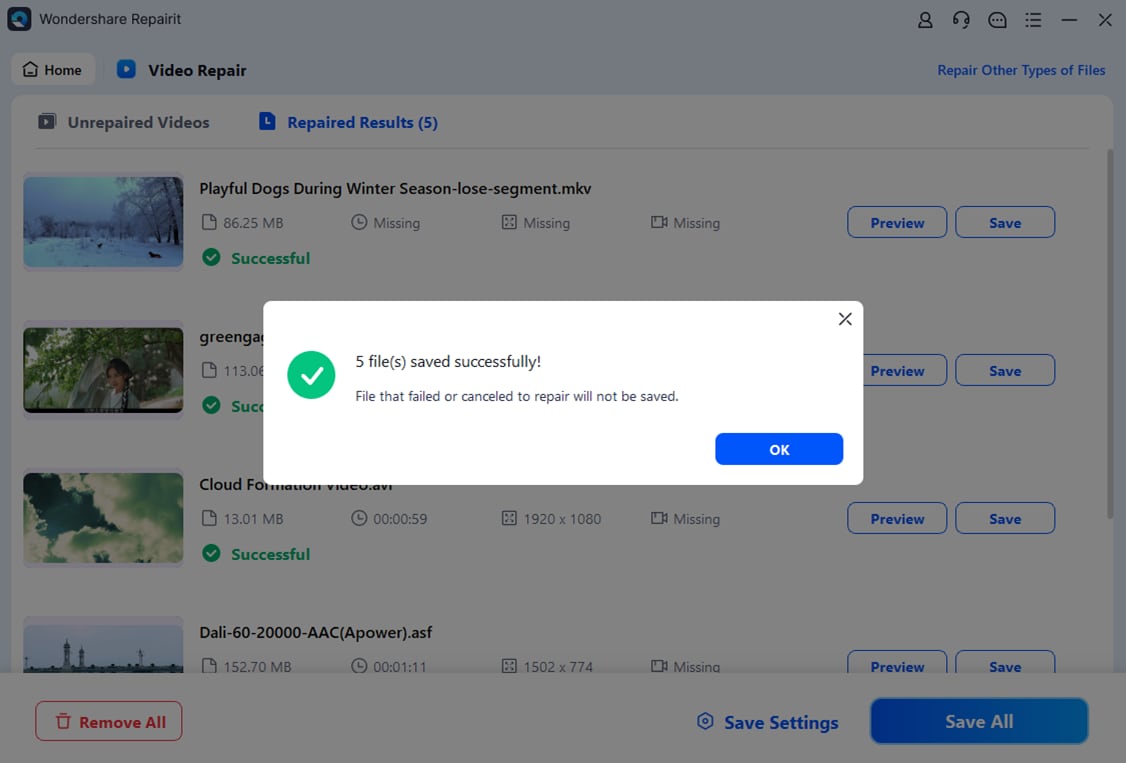
When the process is complete, preview the repaired clips in Repairit to make sure they play smoothly and that video and audio stay in sync. If the preview looks correct, click Save, choose a reliable output location on a healthy drive, and export your restored cineform files. Use the repaired versions in your editing or archiving workflow, and keep backups to avoid repeating the recovery process.
Conclusion
The CineForm codec is a powerful intermediate format built for smooth editing, high-quality color work, and efficient performance on typical production machines. By converting camera-native formats to cineform editing files, you gain faster timelines, cleaner grading, and a stable foundation for complex projects at 4K and beyond.
Still, no codec is immune to corruption. When your cineform format clips refuse to play or show errors, a specialized repair solution such as Wondershare Repairit can help restore them quickly. Repairit lets you repair cineform files, preview the results, and get your production back on track without re-shooting or losing valuable footage.
Next: What is Divx Codec?
FAQ
-
1. What is CineForm used for?
CineForm is mainly used as an intermediate codec in professional post-production. Editors transcode camera footage into cineform editing files to get smoother playback, higher-quality images, and more reliable performance during editing, color grading, and compositing.
-
2. Is CineForm lossless or lossy?
The CineForm codec is visually lossless but technically uses lossy compression. It is designed so that any quality loss is almost impossible to see in normal viewing and remains stable even after several generations of rendering.
-
3. Which software supports CineForm?
The cineform format is supported in major tools such as Adobe Premiere Pro, After Effects, DaVinci Resolve, and certain versions of VEGAS Pro, along with players and utilities capable of decoding GoPro CineForm or legacy CineForm installations.
-
4. Why choose CineForm over camera-native codecs?
Camera-native codecs are optimized for recording and storage efficiency, not editing speed. Using a cineform workflow gives you smoother scrubbing, better color handling, and more durable files across multiple rounds of edits and exports.
-
5. How can I fix a corrupted CineForm video file?
First, copy the corrupted file to a safe drive and avoid changing it further. Then open Wondershare Repairit, add the damaged cineform files, run the repair (using Advanced mode if needed), preview the result, and save the restored video to a reliable storage location.




