

It's a frustrating feeling when you are done transferring your video from your camera or phone to your computer, but while opening it, it won't play or looks glitchy. If you're dealing with a corrupted video after transfer, it means your file is there, but you can't use it right now.
The good news is that most of the time, the video isn't completely lost. The problem is usually caused by damaged file information called metadata, not the video itself. This means there's still a good chance you can fix it.
Here's how you can find out what caused the problem and recover your video.
In this article
Why Videos Corrupt During Transfer
When a video file is damaged after transfer, it usually means something went wrong while the file was being copied. Video files are made up of many parts (like video, audio, and timing), so even a small interruption can make the whole file stop working.
Here are the most common reasons why this happens:
- Sudden disconnection - Removing a USB cable or SD card before the transfer is fully finished.
- Damaged storage - Problems like bad sectors on a hard drive or a failing memory card.
- Power issues - Your laptop shuts down, goes to sleep, or runs out of battery during the transfer.
- System crash - The computer or transfer app freezes, leaving the file incomplete.
Signs Your Video Is Corrupted After Transfer
When a video gets damaged during transfer, it's usually easy to notice. Sometimes it won't open at all, and other times it plays with problems. Here are the most common signs:
1. The Video Won't Open at All (Complete Failure)
This is the most obvious problem. The file is there, but it doesn't work.
- Unsupported format error - Your video player says it can't recognize the file or that something is missing, even if the format is correct.
- File size is too small or 0 KB - The file appears, but it's empty or much smaller than it should be.
- App crashes - When you try to open the video, your player freezes or suddenly closes.
2. Glitches in Video or Audio
Sometimes the video opens, but it doesn't play properly.
- Weird visuals - You might see blocks, green screens, or blurry/ghost-like images.
- Audio and video don't match - The sound comes earlier or later than the video.
- No sound - The video plays, but there's no audio at all.
3. Playback Problems (File Structure Issues)
The video works, but something feels off while playing it.
- Can't skip parts - You can play from the start, but skipping ahead causes errors or restarts the video.
- Frozen screen - The audio keeps playing, but the video gets stuck on one frame.
- Wrong video length - The player shows an incorrect duration (for example, a 10-minute video appears as 2 seconds or several hours long).
Simple Ways to Fix a Corrupted Video
If your video is not working properly, don't panic right away. Before trying advanced repair tools, there are a few simple fixes you can try that often solve the problem.
Fix 1. Redo the transfer
Most video corruption happens because the transfer was interrupted or unstable. Re-copying the file correctly often solves the problem.
Step 1. Delete the corrupted video file from your device. Check that both devices have enough battery or are plugged in.
Step 2. Reconnect your devices properly and transfer the video again. If you used Wi-Fi before, switch to a USB cable for a more stable connection.
Fix 2. Use VLC Media Player to fix the file
VLC can automatically repair minor issues in video files, especially those with broken or incomplete data.
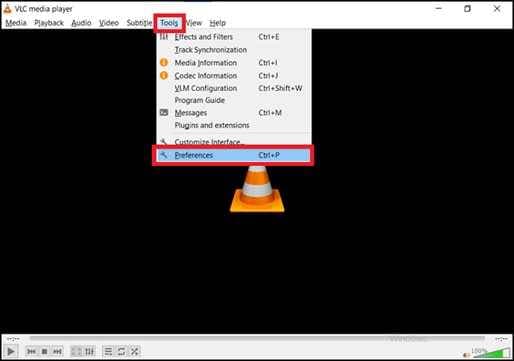
Step 1. Open the Tools menu, then click Preferences.
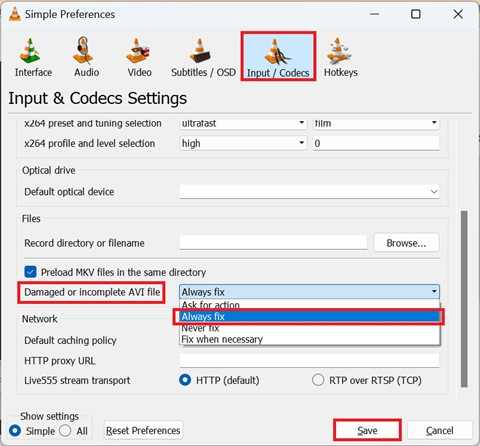
Step 2. Locate the option labeled "Damaged or incomplete AVI file", then change its setting to Always Fix. Save your changes and try playing the video again.
Fix 3. Change the file extension
Sometimes the file is labeled incorrectly after transfer, which prevents your media player from recognizing it properly.
Step 1. Look for the video file on your device. Right-click the file and select Rename. Change the file extension (for example, from .avi or unknown format to .mp4 if that was the original).
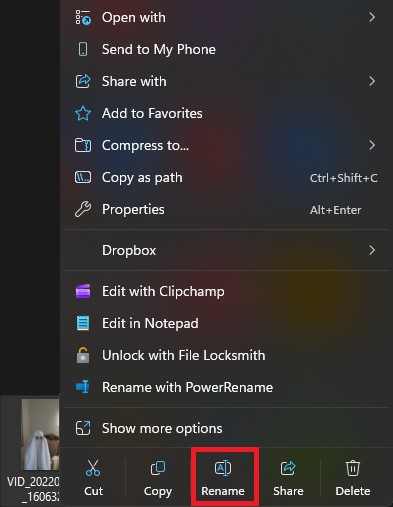
Step 2. Press Enter to confirm the change, then open the file again to see if it works.
Fix 4. Try a different media player
The issue may not be the video itself, but the player you are using. Some players cannot handle certain formats or minor file errors.
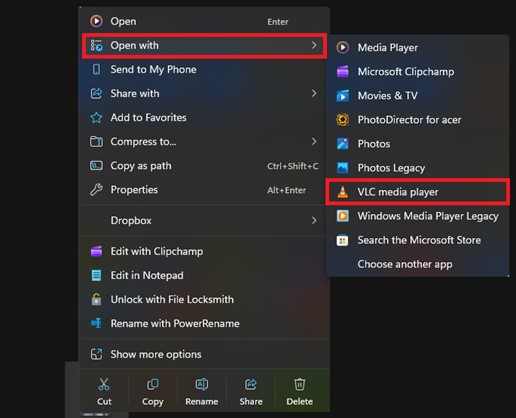
Step 1. Download or open another media player like VLC Media Player, then launch the media player.
Step 2. Click Open File or drag your video into the player. Check if the video plays properly.
Fix 5. Check your storage device
Storage problems or file size limits can interrupt transfers and cause incomplete or corrupted videos.
Step 1. Open your storage or file manager. Check if your drive has enough free space. Right-click the drive and select Properties to see its format.
⚠️Note: If the drive is FAT32 and your file is larger than 4GB, back up your data.
Step 2. Reformat the drive using exFAT or NTFS. Transfer the video again after reformatting.
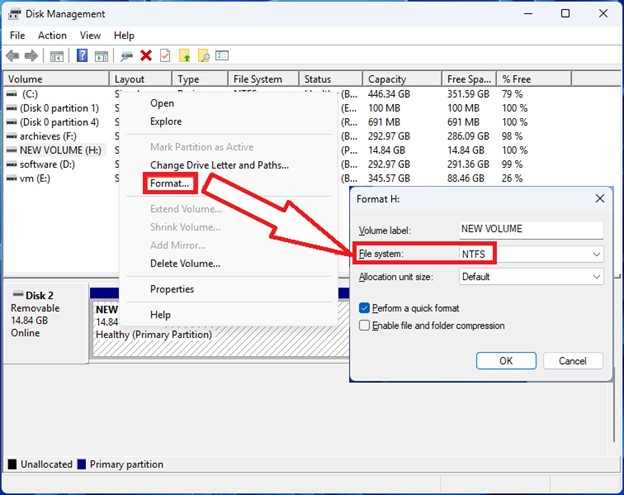
⚠️Note: Always eject your drive safely. Before removing your USB or external drive, always use the "Eject" option on your computer. This ensures that all data is fully saved and helps prevent file corruption.
Advanced Fixed for Severely Corrupted Videos
Before using advanced tools, it's important to confirm whether your video is actually corrupted or just having playback or compatibility issues.
- The file won't open at all, even in multiple media players
- The file size is unusually small (0 KB or much lower than expected)
- The video displays severe glitches, frequent freezing, or parts that are missing
- The player crashes every time you try to open it
- The video duration is incorrect or shows strange values
- The file cannot be copied or moved properly
If you confirm the video is corrupted, a repair tool can safely restore its functionality. One example is the Repairit Video Repair, which supports common file types like MP4, MOV, AVI, and MKV.
Step-by-Step (Optional)
Step 1. Upload the corrupted video file.

Step 2. Start the Repair process.

Step 3. Preview and save the restored file to a new location.

Tips for Future Transfer
The best way to fix corrupted videos is to prevent them from happening in the first place. With a few simple habits like the following, you can greatly reduce the risk of losing your files during transfer:
- Always safely eject devices
- Use good-quality cables
- Check your battery before transferring
- Don't use or edit files while transferring
- Format SD cards using the camera
- Avoid overheating
- Check your storage regularly
Conclusion
Fixing a corrupted video after transferring it can be very frustrating, but it usually doesn't mean your video is completely lost. In most cases, only the file information (the "structure" of the video) is damaged, not the actual video itself.
You can often fix the problem by starting with simple solutions like copying the file again or using basic video repair tools. If that doesn't work, more advanced repair methods may help recover most or even all of the video, especially if the file size is still normal.
FAQs
-
Can a 0 KB video file still be fixed?
No. A 0 KB file means no actual video data was saved during the transfer. Since there is nothing inside the file, it cannot be repaired. You will need to transfer the video again from the original device. -
Will fixing a corrupted video lower its quality?
Usually no. Most repair tools only fix the file structure, not the actual video quality. However, if some data is missing, you might see small glitches or skipped parts in the video. -
Why does the video work on my camera but not on my computer?
Cameras can read their own video files better than computers. Also, your computer may be missing the correct video software or codec. Try using a media player like VLC or updating your video support tools. -
Can viruses cause video corruption?
It is rare, but possible. Some viruses can damage files or interfere with transfers. It's a good idea to scan your SD cards or drives if they were used on different devices. -
Are online video repair tools safe to use?
They can work for small files, but they are not always ideal. Uploading large videos takes time and may risk another error. For important or large videos, desktop repair tools are usually safer and more reliable.




