
Watching YouTube can be troublesome when the screen keeps flickering. You might notice quick flashes, black screens, or sudden brightness changes for a split second while a video is playing.
YouTube flickering can be caused by your browser (especially hardware acceleration), graphics drivers, display/refresh-rate settings, or, in less common cases, the video data itself. The fastest way to fix it is to identify which scenario you’re in, then apply the right steps in order.
Table of Contents
Quick Self-Check: What’s Causing the YouTube Flickering?
Use these quick clues to choose the right fix path (no extra tools needed):
- Only happens in Chrome / Edge (Chromium browsers): Start with hardware acceleration and graphics drivers.
- Only happens in full-screen mode: Check refresh rate / scaling and then hardware acceleration.
- Happens across multiple browsers/apps: Focus on display settings and GPU drivers first.
- Only one or a few specific videos flicker (others are fine): It may be video-specific.
- Only on mobile: Try app and quality settings first.
Part 1. What Causes YouTube Flickering or Blinking?
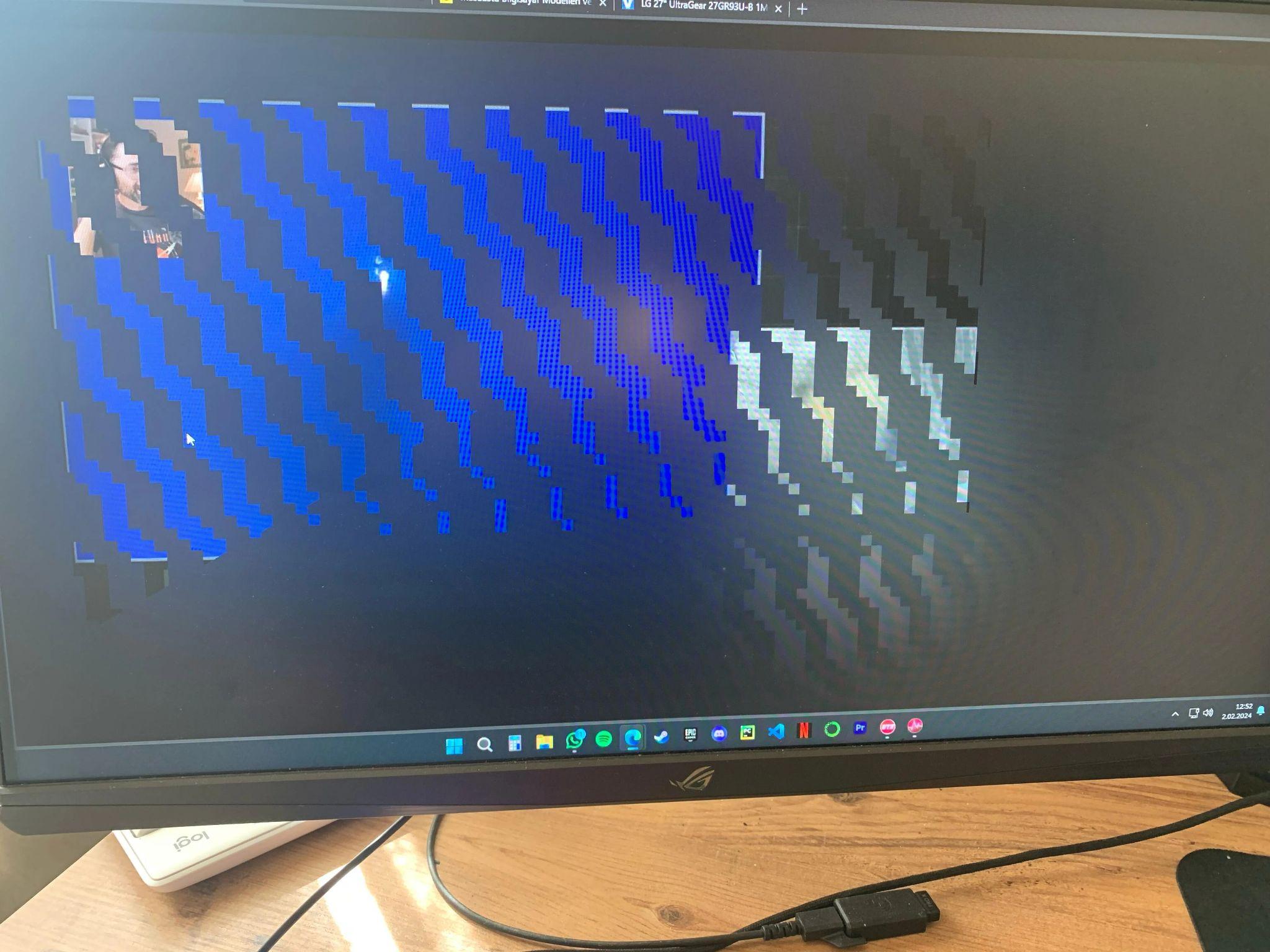
Screen flickering happens when YouTube videos briefly flash or blink during playback. It can affect only the video area or the entire browser/app window.
Common signs include:
- Browser or app glitches - Bugs, outdated versions, or too many tabs and extensions can disrupt video playback, especially after updates.
- Hardware acceleration conflicts - When hardware acceleration does not work well with your GPU or drivers, it can cause flashing, black screens, or flickering.
- Outdated graphics drivers - Old or incompatible drivers may not handle YouTube’s video formats properly, leading to playback issues.
- Display or refresh rate issues - Wrong resolution or refresh rate settings can cause flickering, particularly on high-refresh-rate or external monitors.
- Corrupted video data or playback cache - A damaged video file or corrupted browser cache can trigger visual glitches even if your system is otherwise fine.
Part 2. Quick Fixes for YouTube Flickering (Desktop)
If YouTube flickers on desktop, try these in order and stop when the issue is gone. Test YouTube after each fix.
Fix 1: Inspect and Disable Browser Extensions
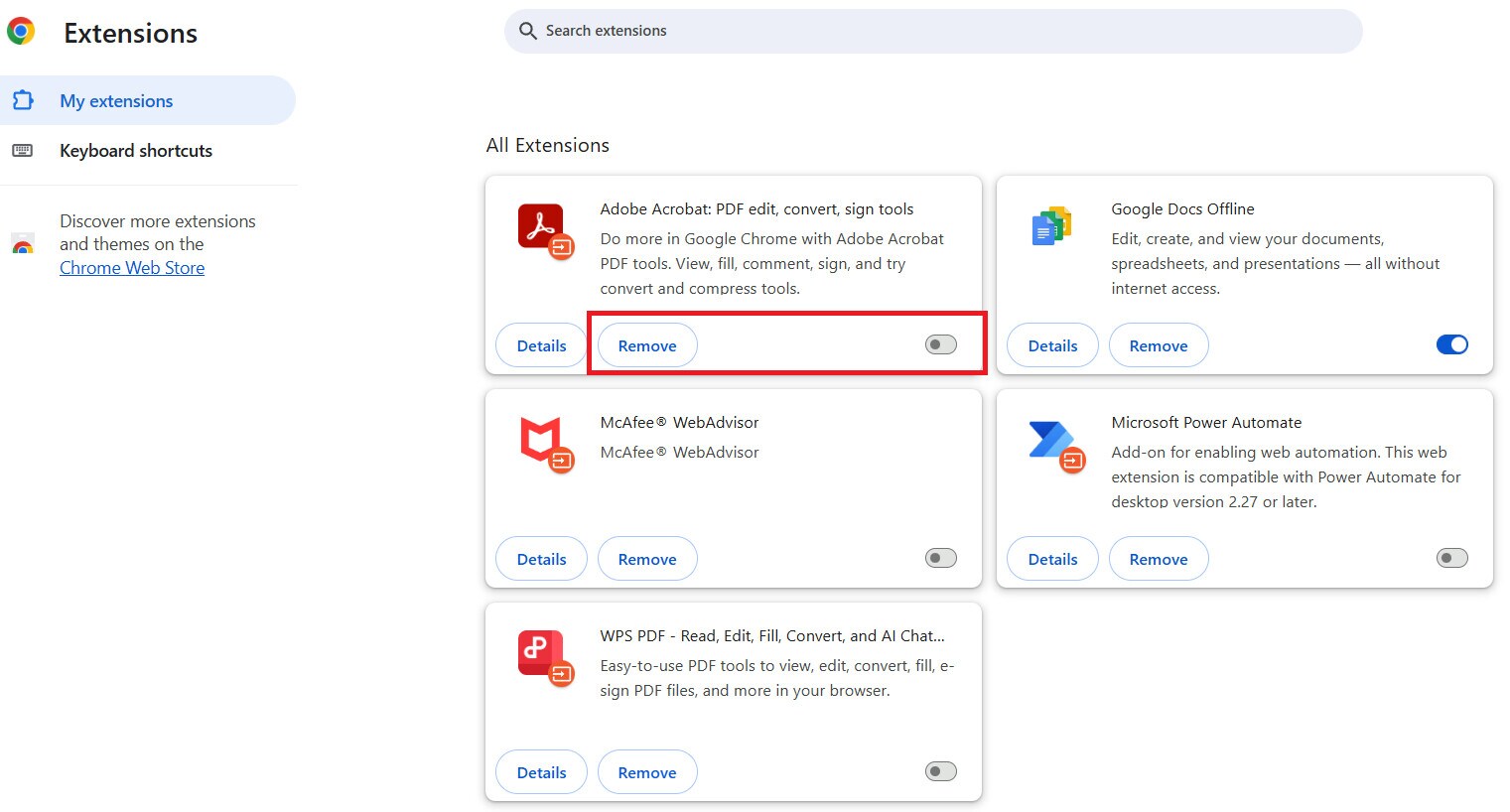
Some extensions, especially ad blockers, video enhancers, or screen recorders, can interfere with YouTube playback and cause flickering. Disable all extensions, then turn them on one by one to find the one causing the problem.
Here are the steps:
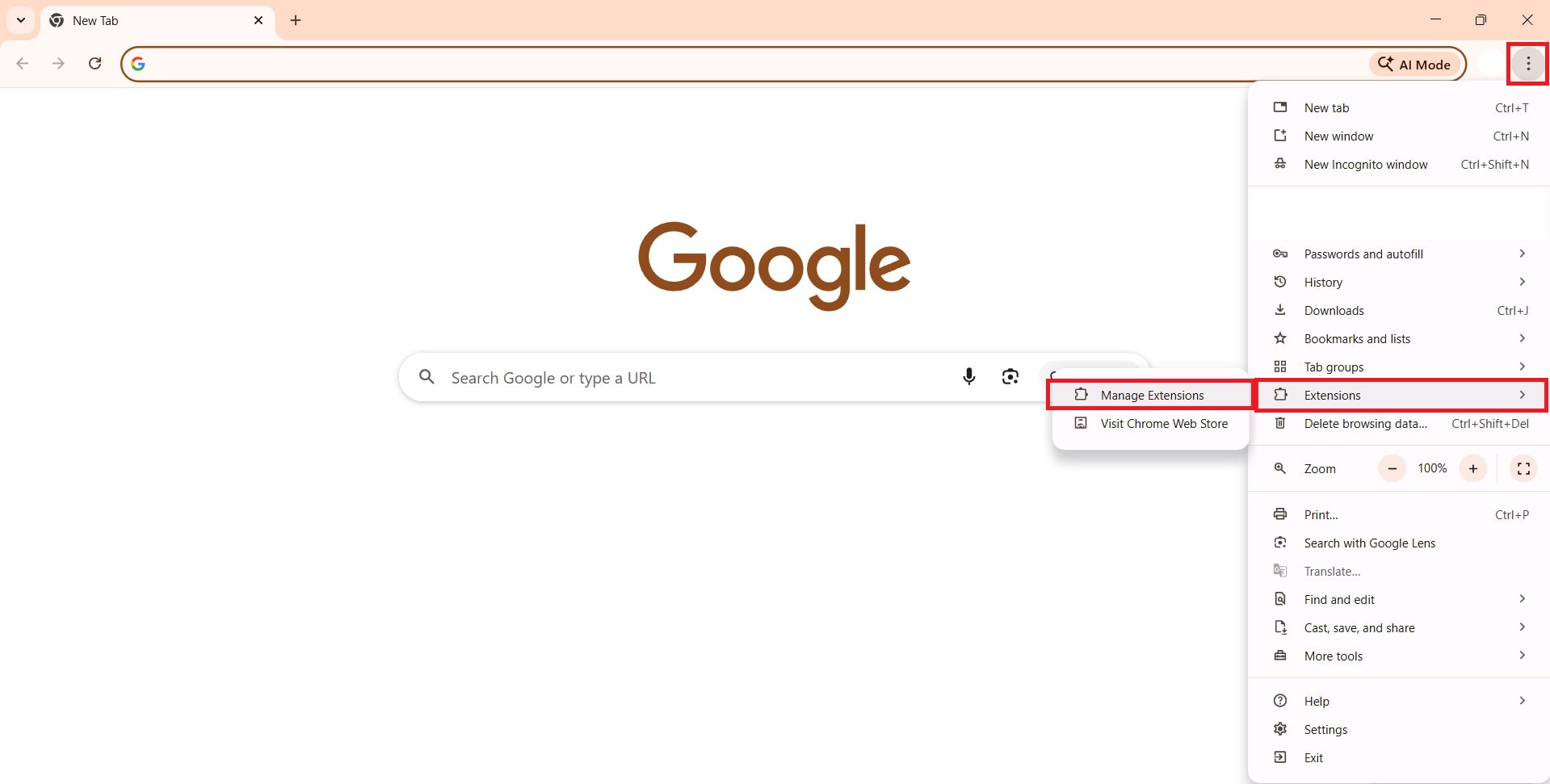
Step 1: Access Chrome and press the three-dot menu in the top-right corner.
Step 2: Pick Extensions, then hit Manage Extensions.
Step 3: Click Remove. Turn off the toggle next to the extension you want to disable.
Fix 2: Clear Browser Cache and Cookies
Browsers store cache and cookies to load sites faster. But over time, this data can become outdated or corrupted and cause playback glitches on YouTube.
Note: Clearing cookies may sign you out of websites (including YouTube/Google).
Here are the steps to clear browser cache and cookies:
Chrome:
Step 1: Click the three-dot menu and search for Settings.
Step 2: Find Privacy and security, and press Delete browsing data.
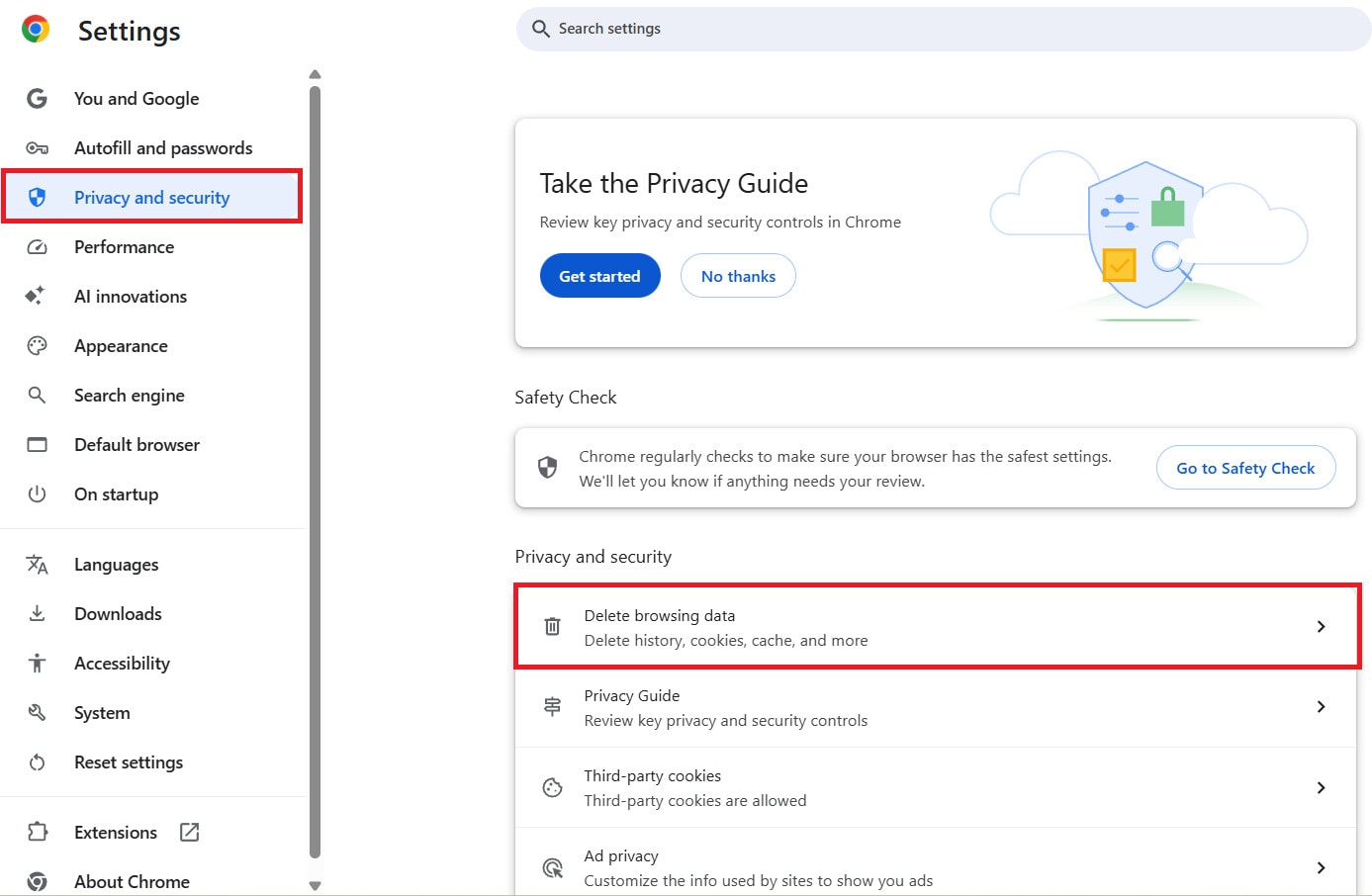
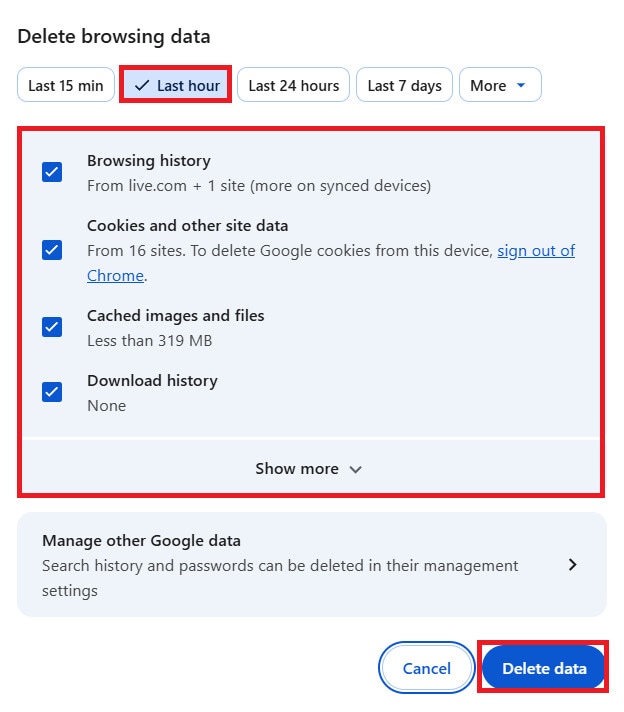
Step 3: Select Cached images and files, Cookies, and other site data. Choose also a time range (e.g., All time).
Step 4: Click Delete data.
Firefox:
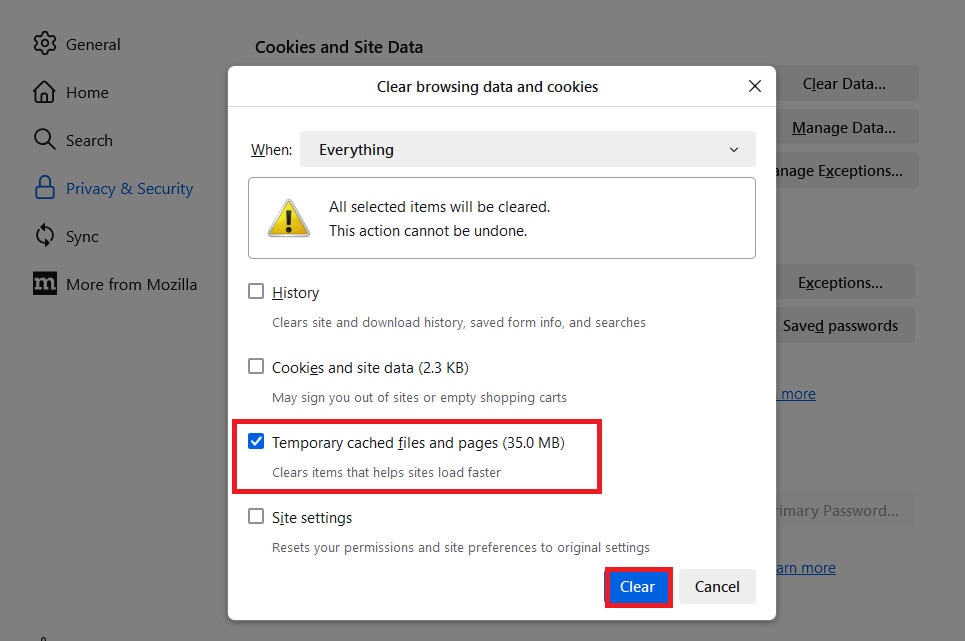
Step 1: Find Settings and go to the Privacy & Security panel.
Step 2: In Cookies and Site Data, click Clear Data…
Step 3: In the dialog, choose Everything for the time range. Ensure only Temporary cached files and pages are checked to be deleted.
Step 4: Hit Clear.
Edge:
Step 1: Access Settings and go to Privacy and services.
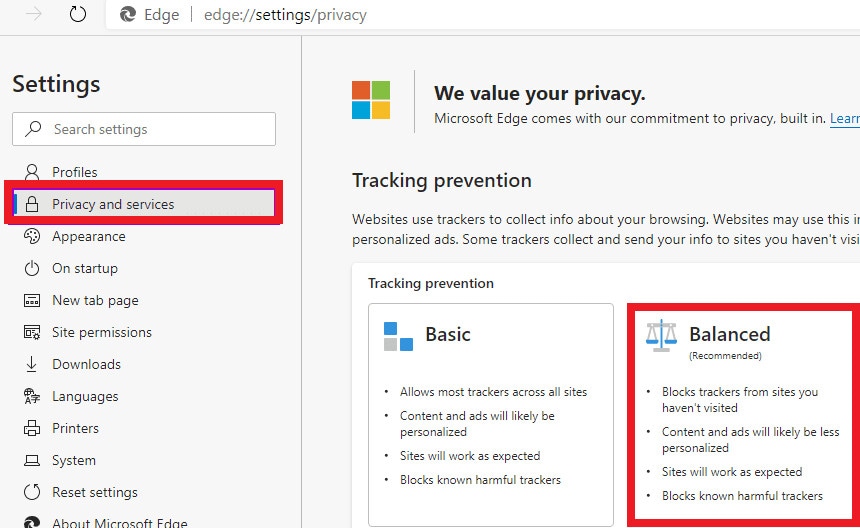
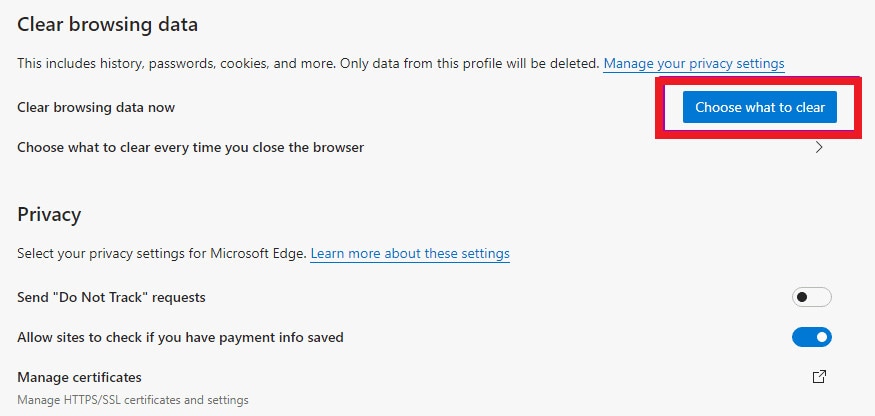
Step 2: Scroll to Clear browsing data and click Choose what to clear.
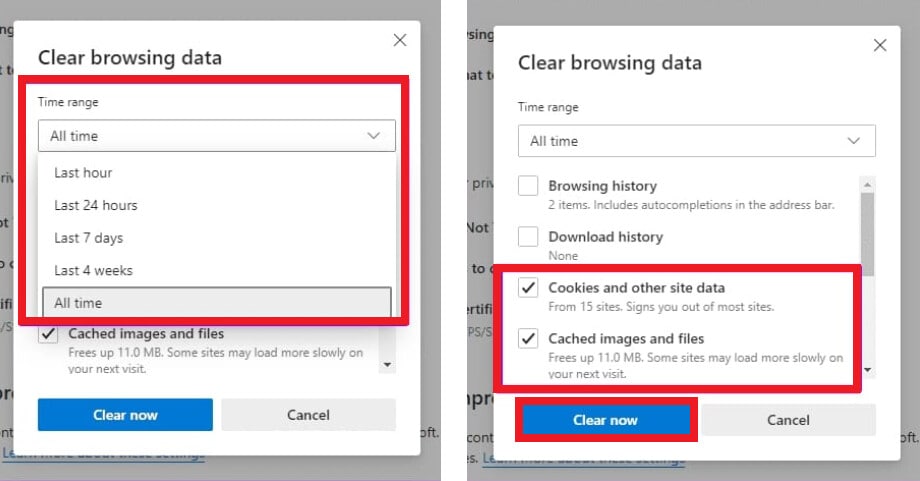
Step 3: Select a Time range from the drop-down menu.
Step 4: Toggle on Cookies and other site data, and Cached images and files. You can also clear browsing or download history for privacy.
Step 5: Hit Clear now.
Note: Restart your browser after clearing, then check YouTube again.
Fix 3: Adjust Windows or macOS Display Settings
Wrong refresh rates, screen resolutions, or scaling can cause flickering, especially with high-resolution YouTube videos. Set your display to its recommended resolution and refresh rate with the following steps:
Note: If you use an external monitor or high refresh rate, apply changes carefully and revert if it worsens.
Windows:
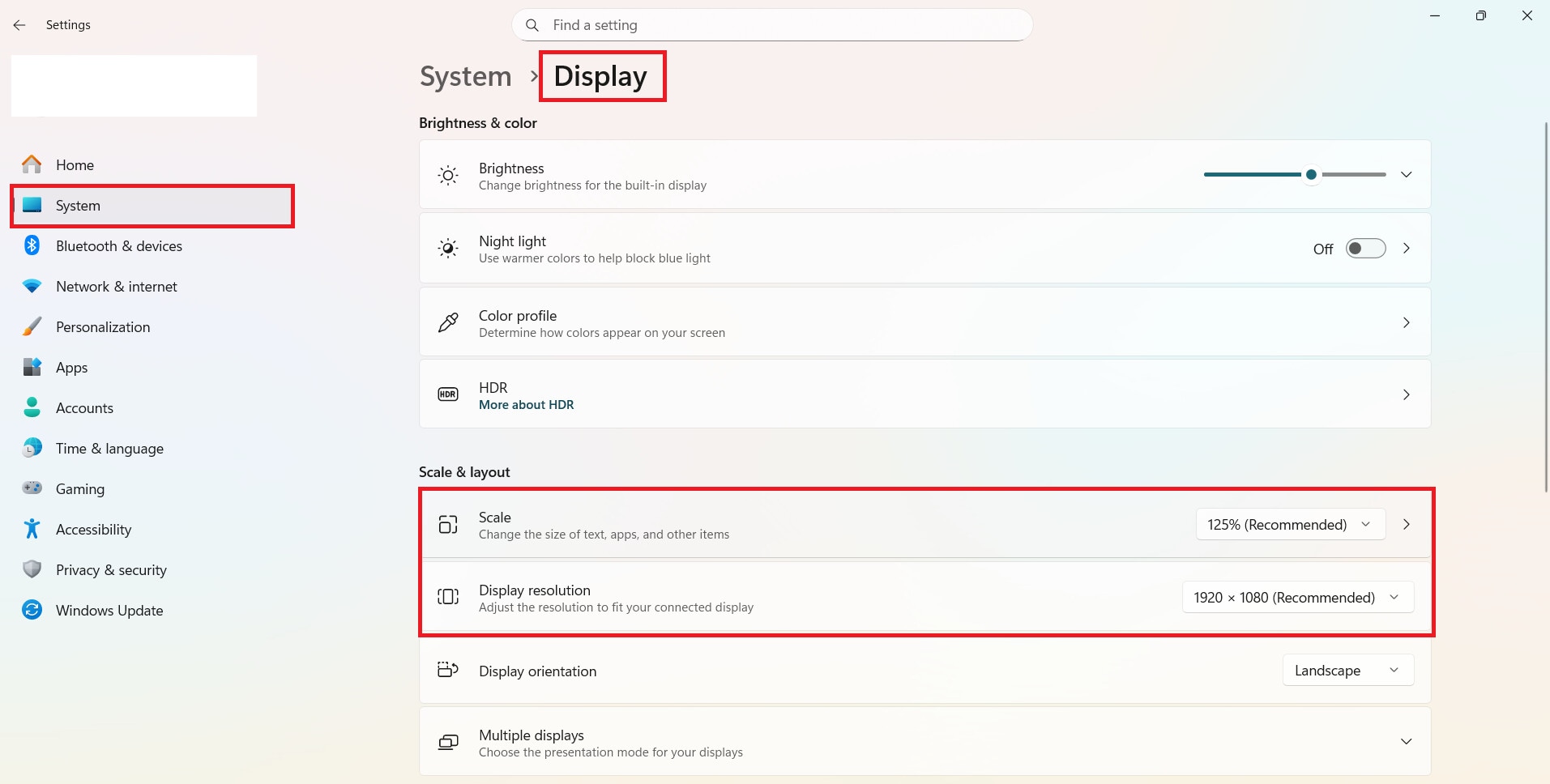
Step 1: Open your Windows Settings. Find the System tab and click Display.
Step 2: Adjust Scale and Resolution to Recommended values.
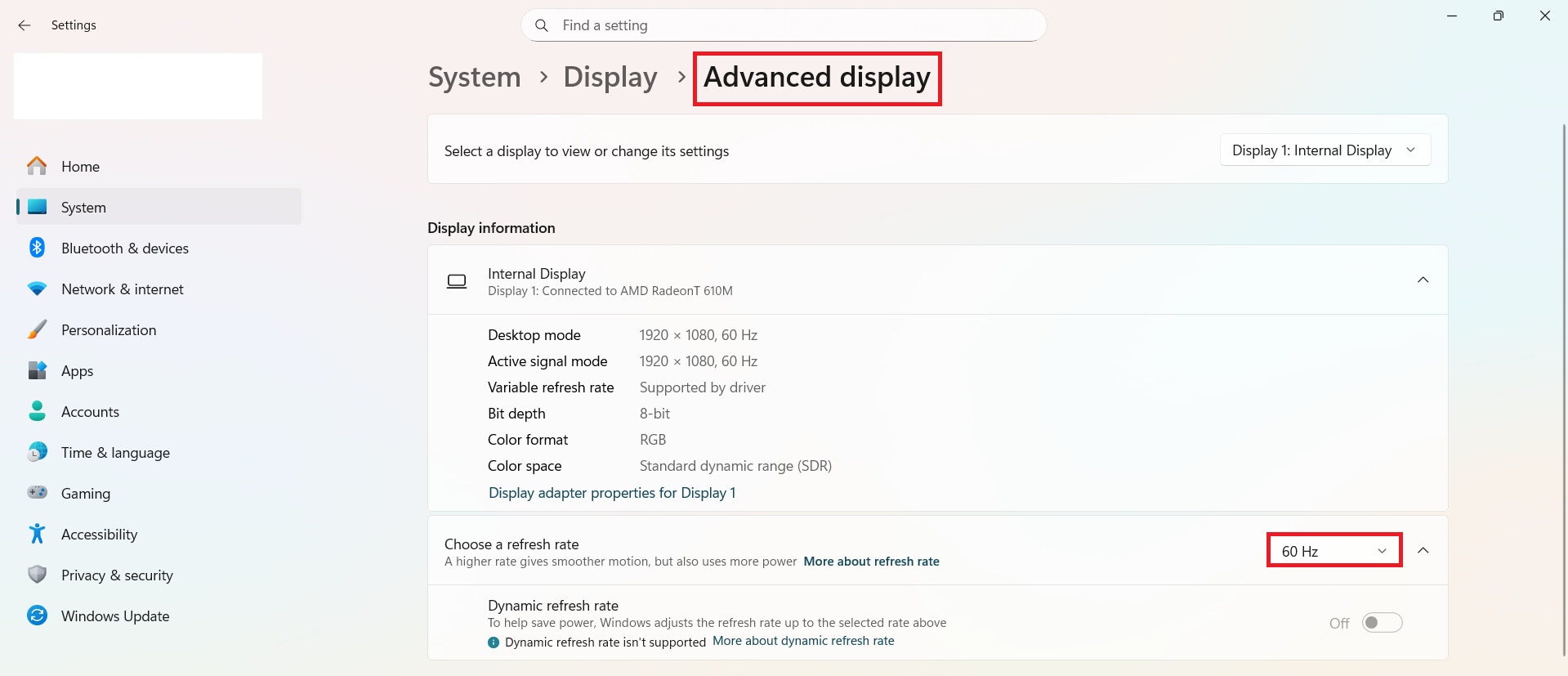
Step 3: Scroll to Advanced display settings.
Step 4: Set the Refresh rate to the recommended level (usually 60 Hz or higher).
macOS:
Step 1: Click the Apple menu and open System Settings. Go to Displays.
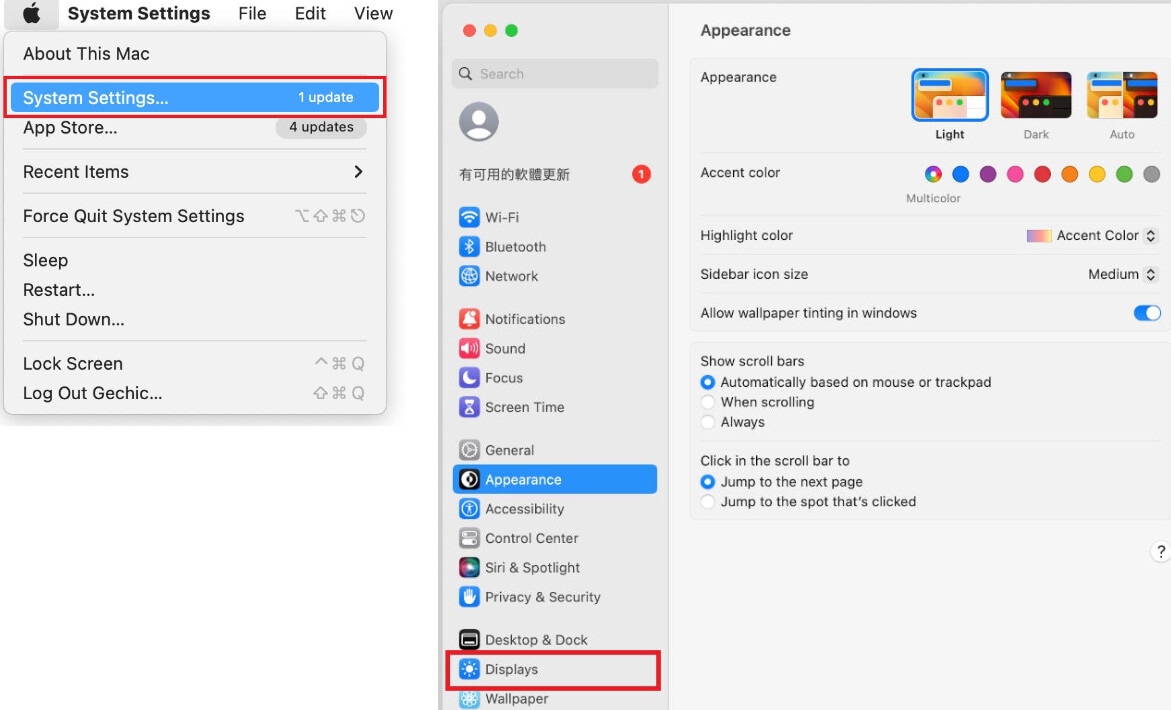
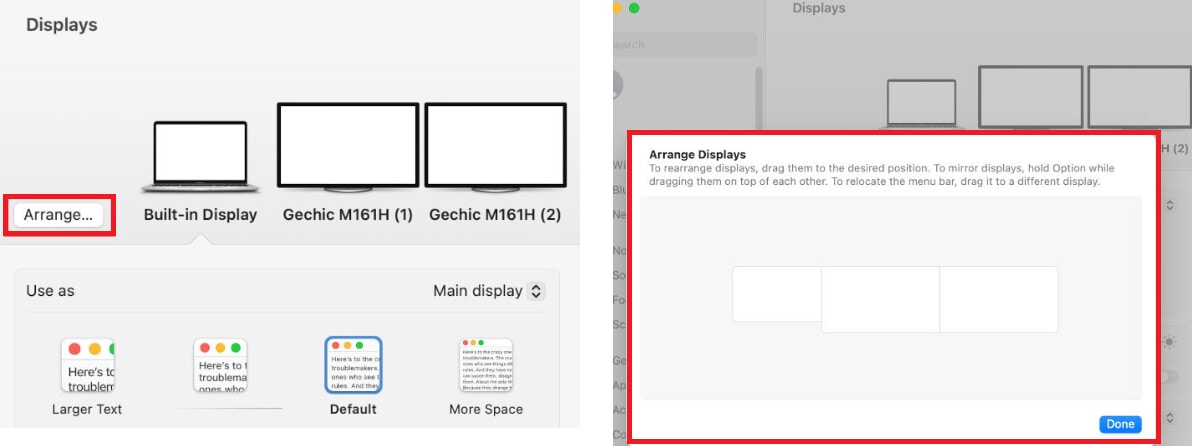
Step 2: Select the external monitor. Then, start adjusting your display and monitor:
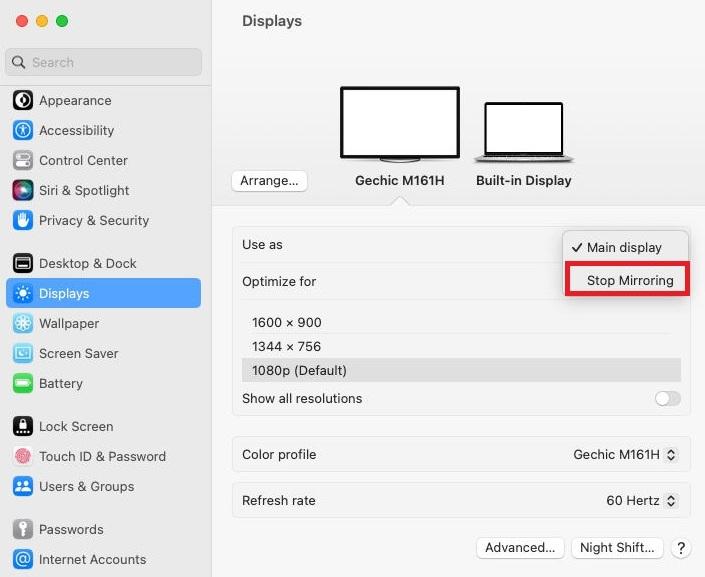
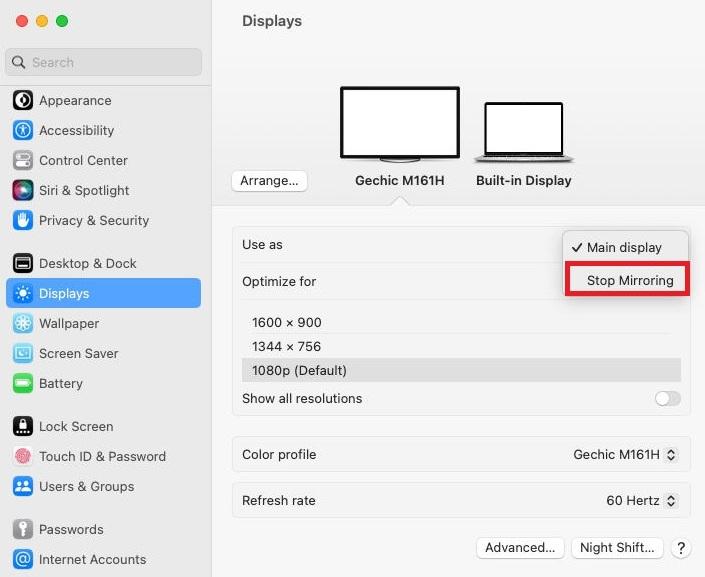
1. To set an extended display in macOS:
- Click Use as and choose Stop Mirroring.
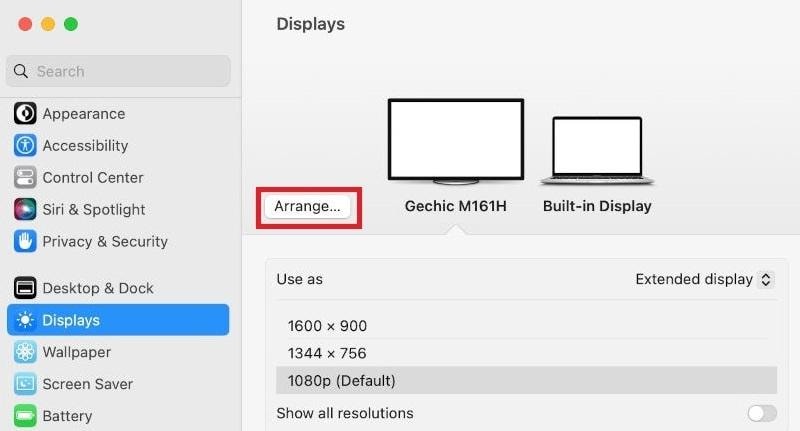
- Select Arrange and set the display icons matching the position of your monitors.
2. To set a vertical display in macOS:
- Click Rotation and choose 90° to revert to vertical display.
Note: If the screen appears upside down, select 270° instead.
3. To set multiple displays in macOS:
- Click Arrange, then drag each monitor to the correct position.
- Hit Done to save.
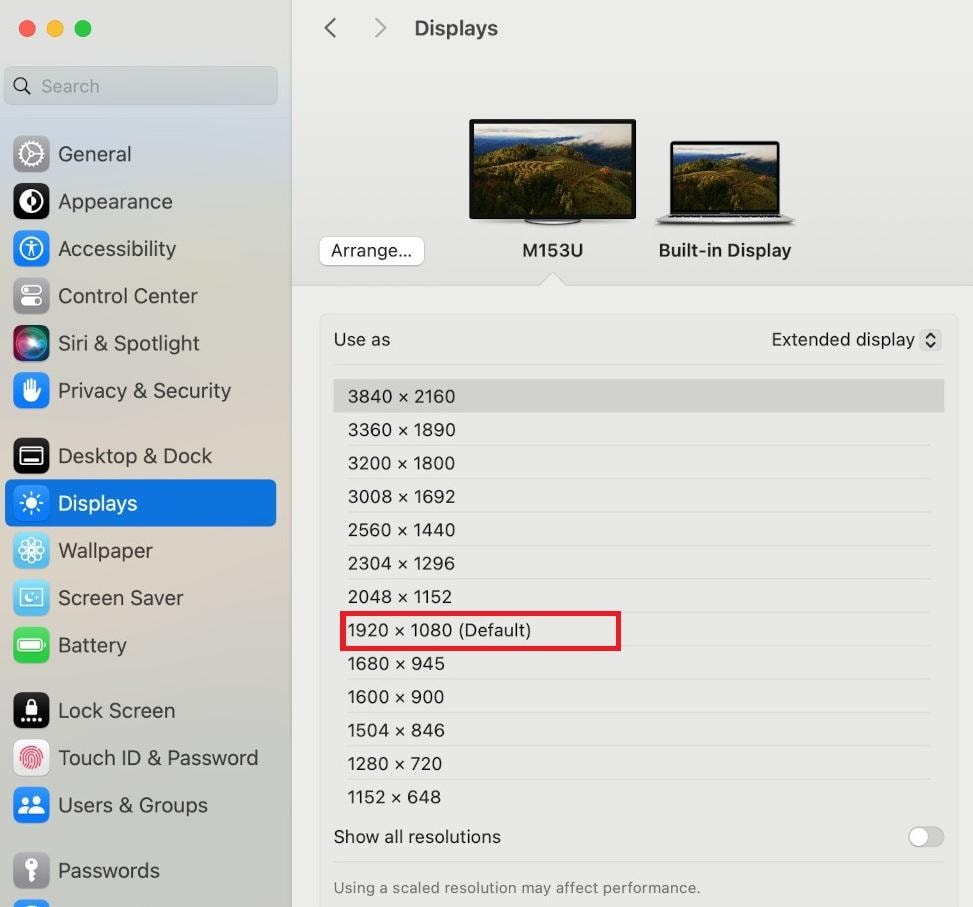
4. To set scaling for a 4K external monitor in macOS:
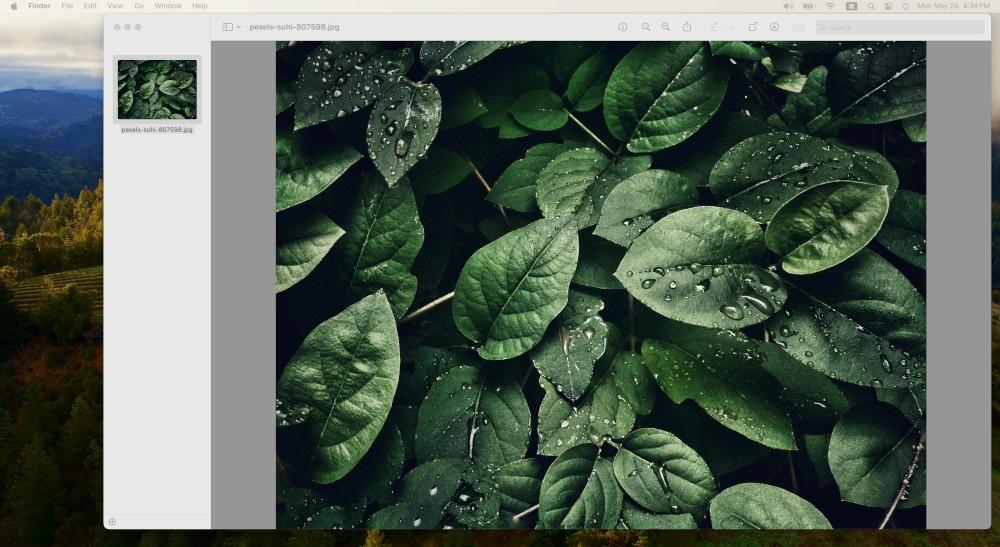
- macOS automatically uses the native 4K resolution, which can make text look very small. Choose a scaled resolution, such as 1920×1080, to make text larger.
- This changes the size of the macOS interface without reducing image quality on the display.
Fix 4: Disable or Toggle Hardware Acceleration
Browsers use hardware acceleration to improve video playback, but it can sometimes conflict with your graphics driver and cause YouTube flickering.
Chrome/Edge:
Step 1: Open your Chrome or Edge Settings.
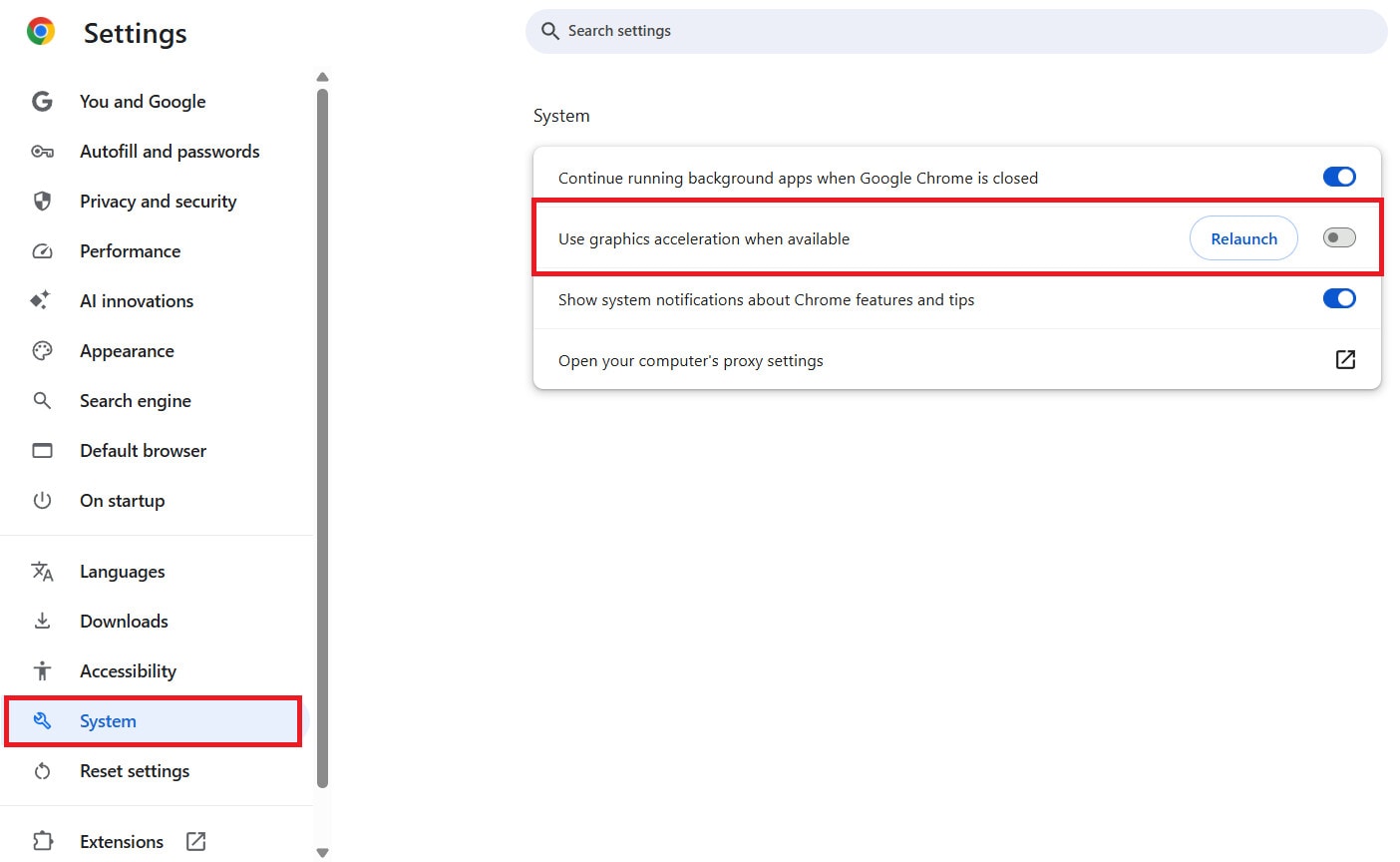
Step 2: Click System.
Step 3: Find Use graphics acceleration when available.
Step 4: Turn it off (or on if it’s already off).
Step 5: Restart the browser.
Firefox:
Step 1: Open Settings.
Step 2: Go to General.
Step 3: Scroll to Performance.
Step 4: Uncheck Use recommended performance settings.
Step 5: Toggle Use hardware acceleration when available.
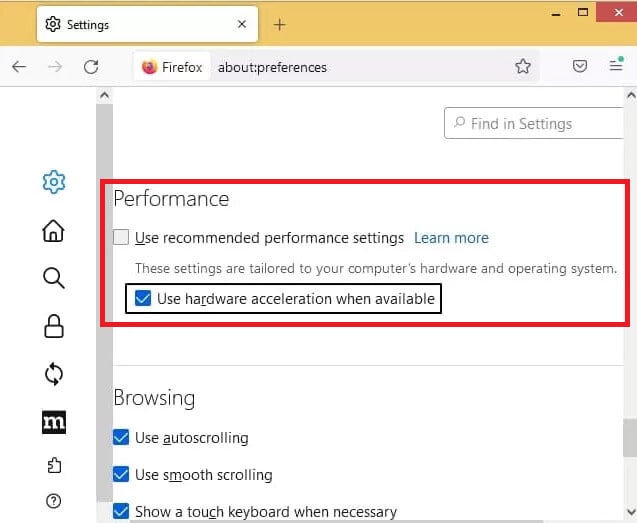
Step 6: Restart the browser.
Fix 5: Update Your Graphics Drivers
Graphics drivers help your computer work with your graphics card. If they are outdated or incompatible, YouTube videos may flicker. You can update graphics drivers on Windows 10 using Device Manager, either automatically or manually. Here are the steps:
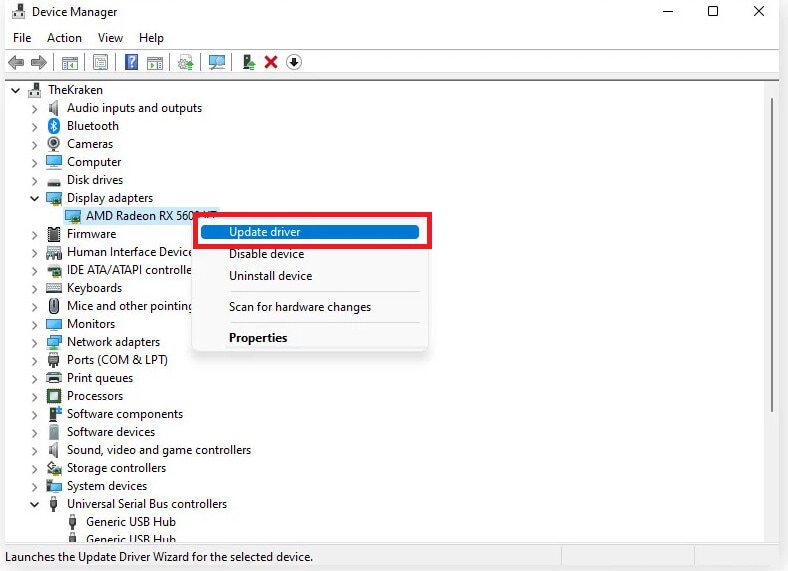
Step 1: Access Device Manager from the Start menu.
Step 2: Expand Display adapters.
Step 3: Right-click your own graphics card and hit Update driver.
Step 4: Choose Search automatically for updated driver software to let Windows find updates, or select Browse my computer for driver software to download one you want to install manually.
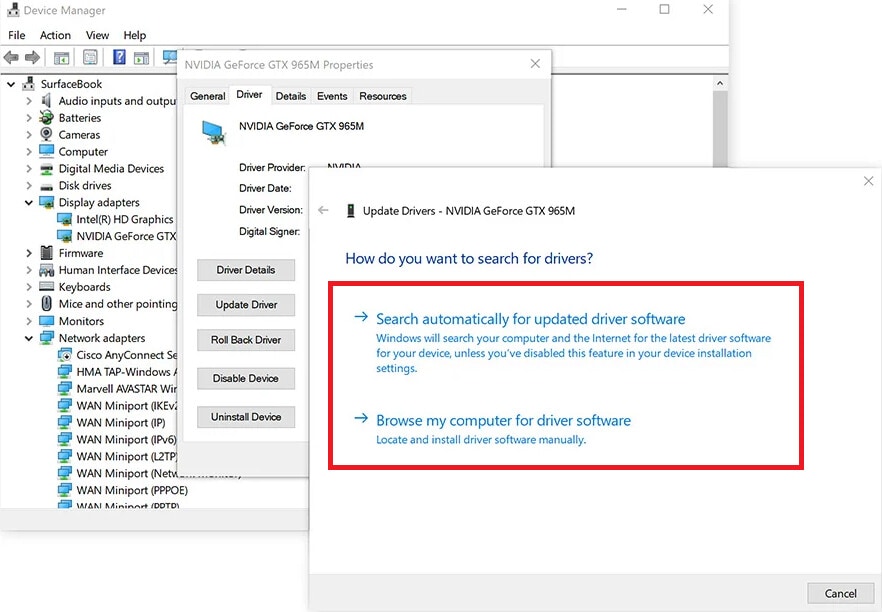
Step 5: Follow the on-screen steps and restart your computer if prompted.
Part 3. Fixes for YouTube Blinking on Mobile Devices
If YouTube videos blink or flash on your phone or tablet, these simple fixes resolve the issue. Mobile devices have different causes than desktops, so the solutions focus on the app and display settings.
Restart the YouTube App
Closing and reopening the app can clear temporary glitches that cause YouTube videos to flicker or blink. Make sure to fully exit the app instead of just minimizing it.
On Android:
Step 1: Open Recent apps (Overview) on your phone.
Step 2: Find the YouTube app.
Step 3: Swipe it up or off the screen to close it completely.
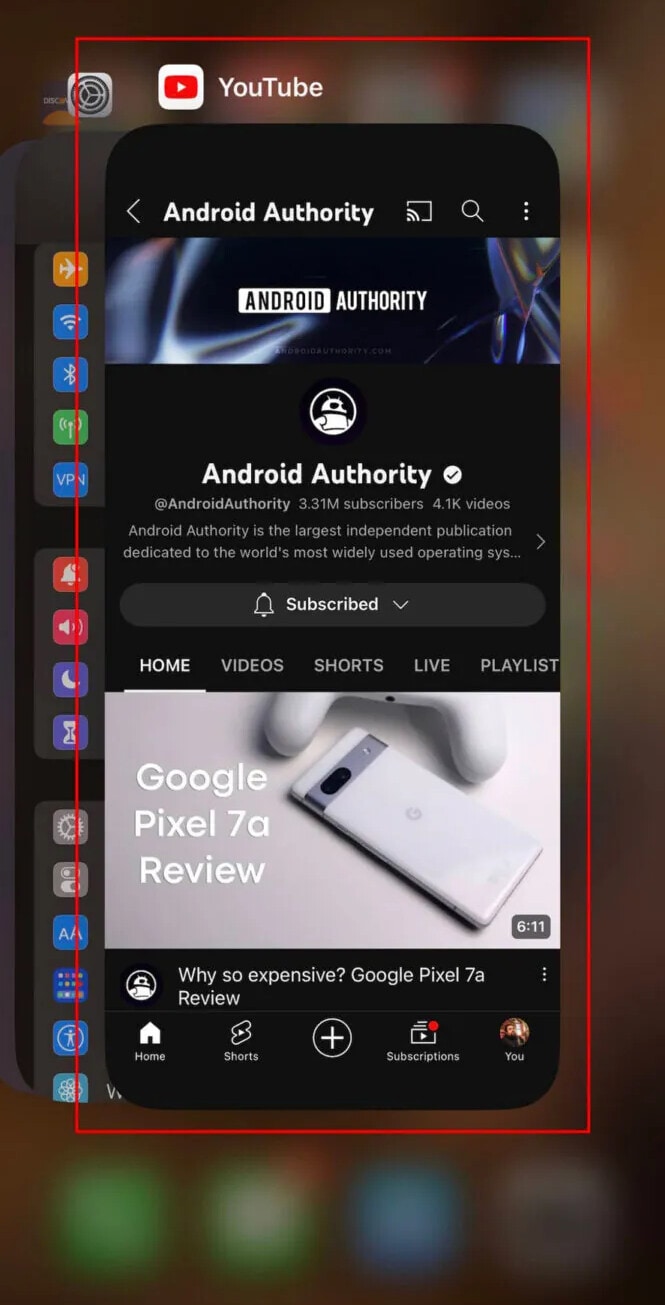
Step 4: Reopen YouTube from the app drawer.
On iPhone:
Step 1: Swipe up from the screen’s bottom and pause to open App Switcher.
Step 2: On older iPhones, double-press the Home button.
Step 3: Find the YouTube app.
Step 4: Swipe the app up to close it.
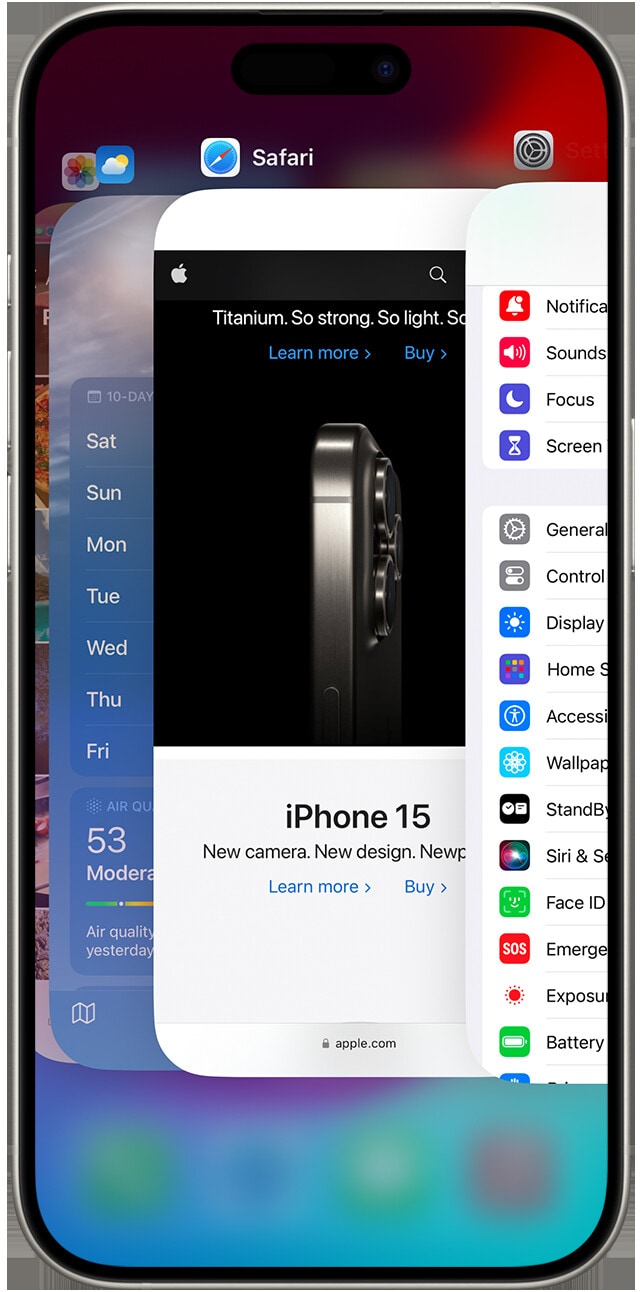
Step 5: Open YouTube again from the Home screen.
Update the YouTube App
Running an outdated version of YouTube can lead to YouTube playback and display issues. Follow the steps below to update your YouTube on Android and iPhone.
Android:
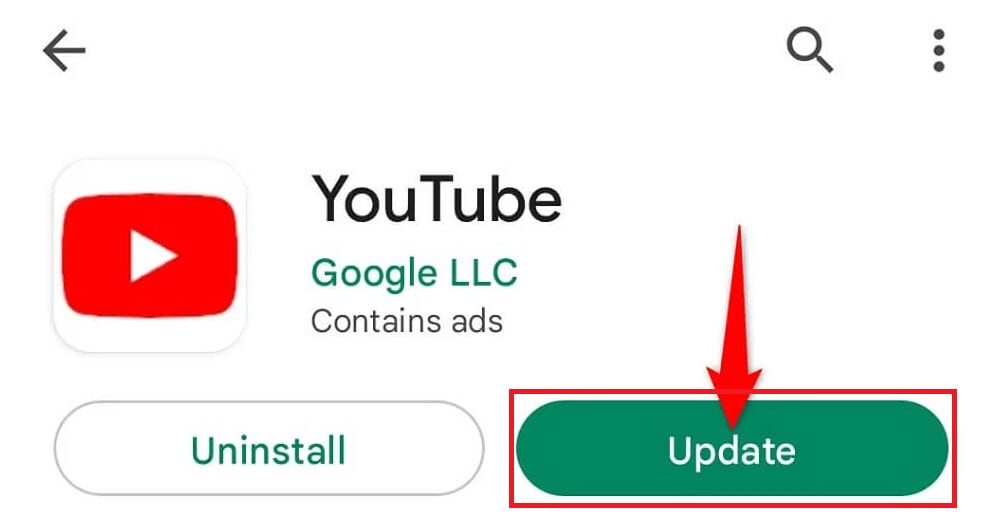
Step 1: Open theGoogle Play Store.
Step 2: Search for YouTube.
Step 3: Tap Update if it is available.
Step 4: Wait until the update finishes, then open the app.
iPhone:
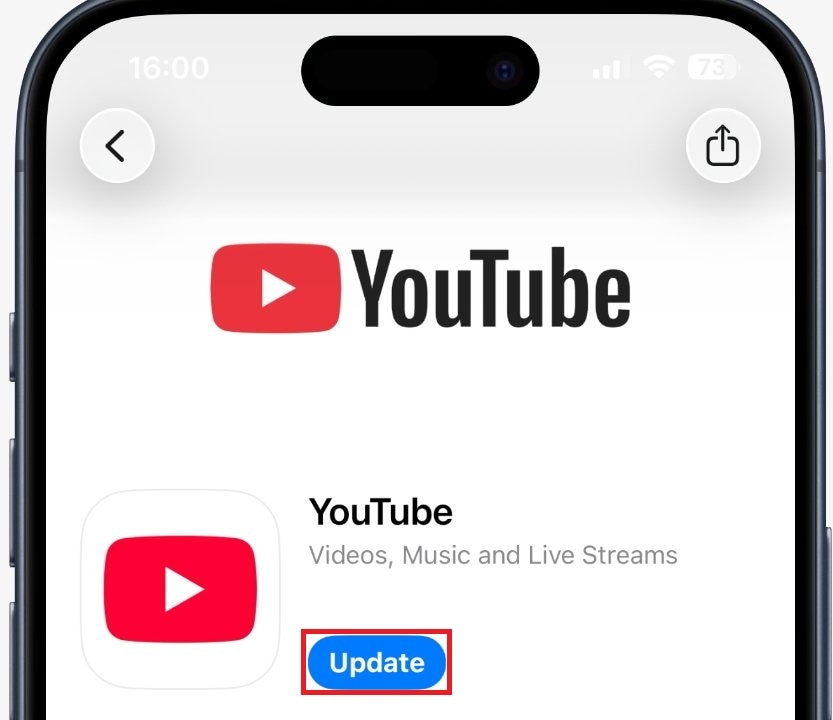
Step 1: Open theApp Store.
Step 2: Search for YouTube.
Step 3: Tap Update if available.
Step 4: Open the app after the update completes.
Switch Video Quality Manually
YouTube lets you set video quality for each device. But sometimes, automatic video quality can cause flickering if your device struggles with higher resolutions. So, you should lower the quality to save data and see if the blinking stops.
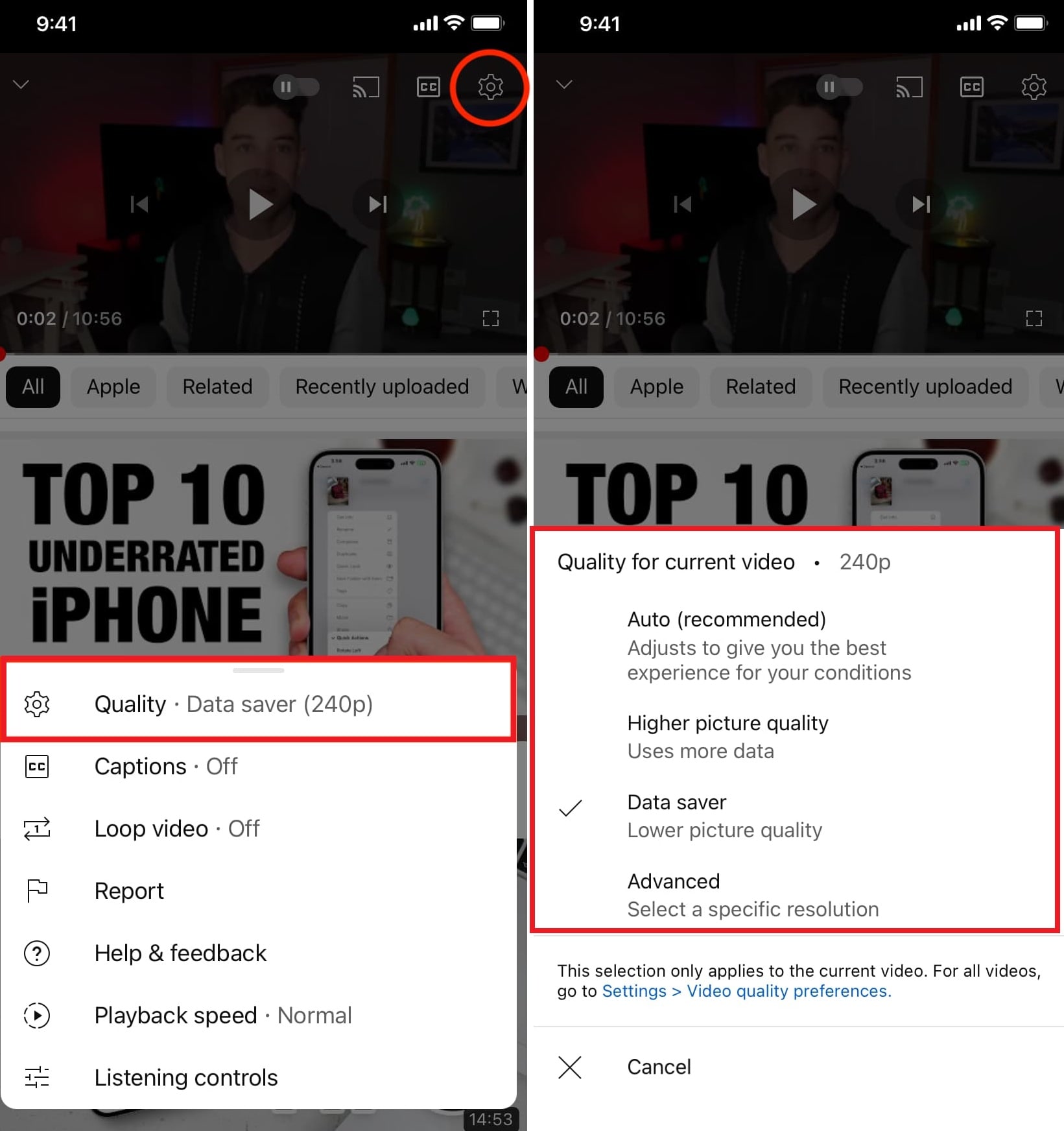
To change the quality of the current video on Android and iPhone:
Step 1: Tap the screen, then tap the settings icon.
Step 2: Tap Quality and pick one of the following:
- Auto: Adjusts automatically for the best experience.
- Higher picture quality: Uses more data for sharper videos.
- Data saver: Lower quality for faster playback.
- Advanced: Pick a specific resolution (144p–2160p).
Set default quality for all videos:
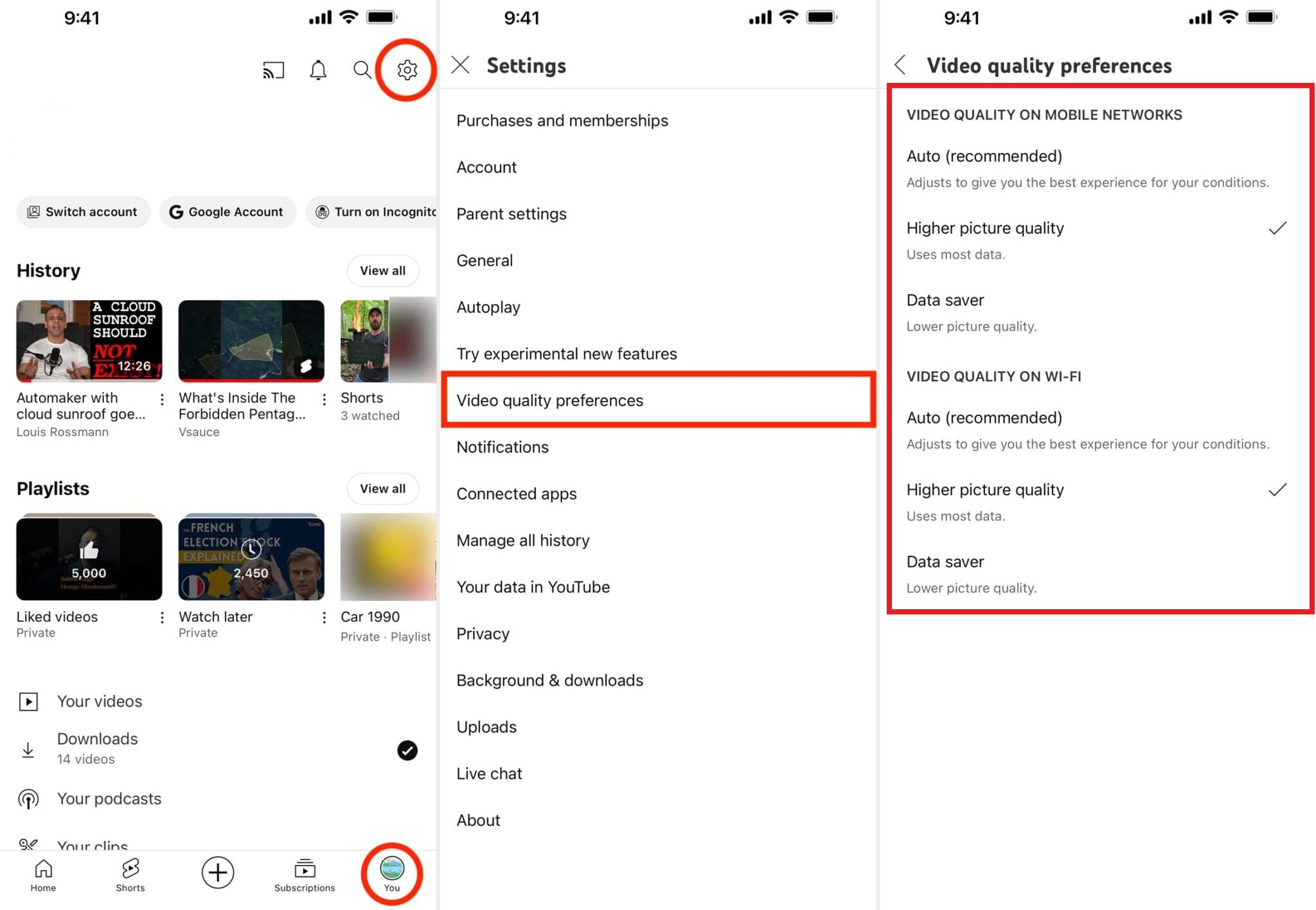
Step 1: Tap your Settings and go to Video quality preferences.
Step 2: Set preferred quality separately for mobile networks and Wi-Fi.
Step 3: Choose from Auto, Higher picture quality, or Data saver.
Step 4: Now, all videos will play at your chosen quality by default.
Check Screen Display Settings
Mobile screen settings like brightness, refresh rate, or adaptive display modes can interfere with video playback. Ensure your display settings match your device’s recommended values, and disable any experimental modes that might be causing flickers. See the steps below:
On Android:
Step 1: Open Settings on your Android device and tap Display.
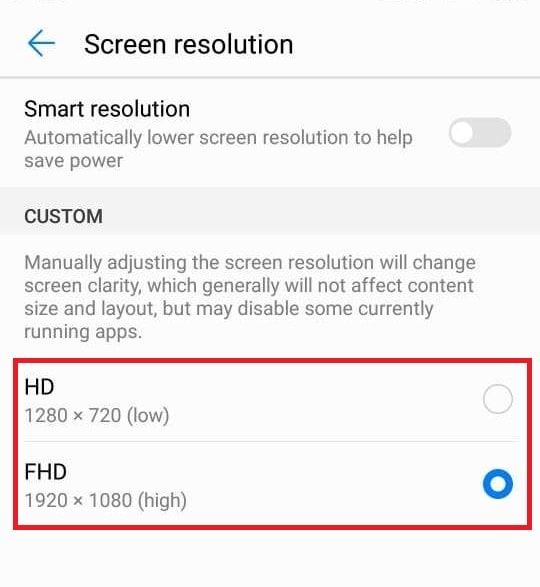
Step 2: Find the Screen resolution or a similar option.
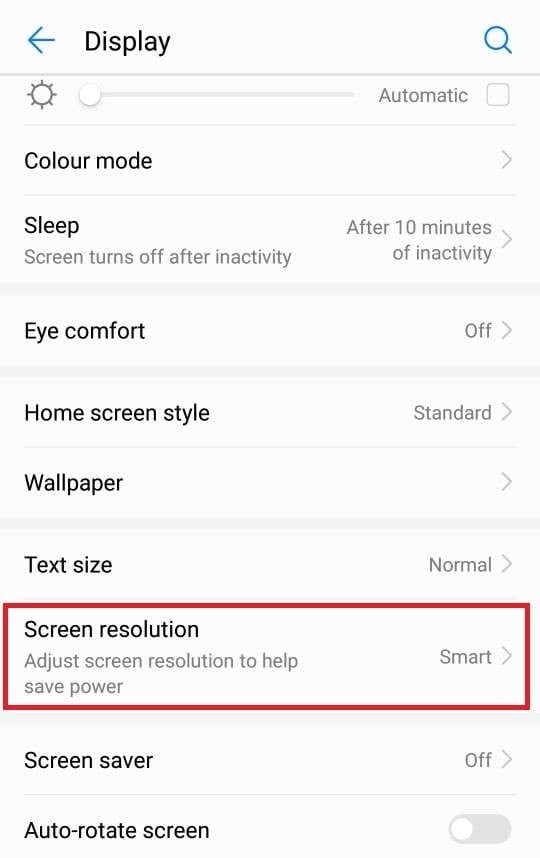
Step 3: Your resolution will be shown in pixels, such as 1920 × 1080.
On iPhone:
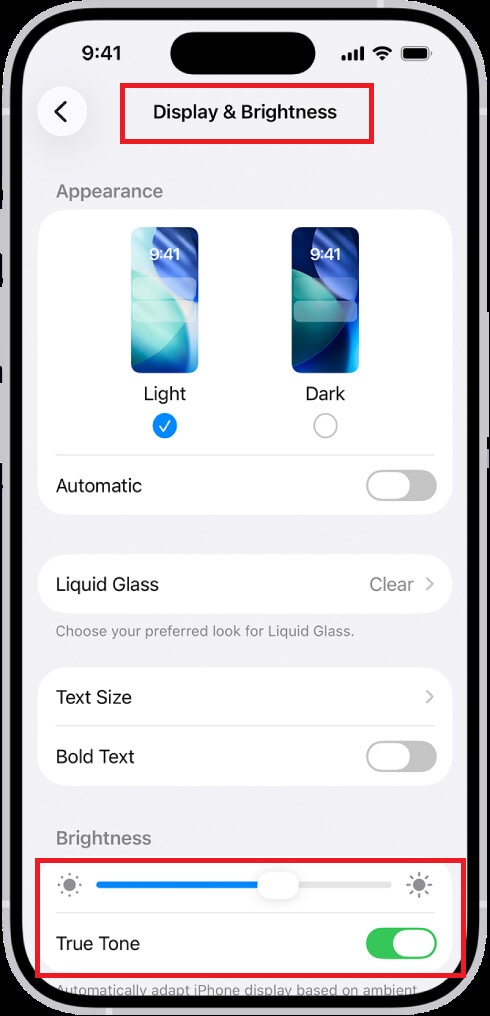
Step 1: Open Settings.
Step 2: Tap Display & Brightness.
Step 3: Check Brightness and True Tone settings.
Part 4. Repair Flickering YouTube Videos Caused by Corrupted Local Files
Sometimes, YouTube flickering or blinking isn’t caused by your device or browser at all. It happens because the video file itself is damaged. This is most common with downloaded or locally recorded videos. Corrupted files may have missing frames, broken encoding, or playback glitches, which can make the video flash, blink, or freeze intermittently.
If you’re dealing with this, using a reliable video repair tool can help.Repairit Video Repair is designed to fix damaged videos quickly without affecting the original file. It works especially well for downloaded or recorded videos that flicker or won’t play smoothly.

-
Repair damaged videos with all levels of corruption, such as video not playing, video no sound, out-of-sync video or audio, playback errors, header corruption, flickering video, missing video codec, etc.
-
Repair full HD, 4K, and 8K videos and support 20+ popular formats, including MOV, MP4, M2TS, MDT, RSV, WMV, MPEG, DAT, etc.
-
Repair damaged or corrupted videos caused by video compression, system crash, video format change, etc.
-
Repair critically damaged or corrupted RAW/Log/HDR videos from professional cameras such as Blackmagic Design, RED Digital, and ARRI, etc.
-
Repairit has a quick and advanced scanning mode. You can use either depending on the level of corruption the video file has undergone.
-
No limit to the number and size of the repairable videos.
-
Repaired videos are more compatible with professional editing software such as DaVinci, Composer, Final Cut Pro, and Premiere Pro.
-
Support Windows 11/10/8/7/Vista, Windows Server 2003/2008/2012/2016/2019/2022, and macOS 10.12~macOS 15.
Important Note: This solution only repairs video files on your device. It does not fix YouTube live streams or videos played directly on the platform. For those, browser or device fixes are still the way to go.
Step-by-Step Guide:
Step 1: Open Repairit and add the corrupted video file.

Step 2: Hit Repair to start fixing the corrupted video files due to flickering issues.

Step 3: If the preview looks good, press Save and pick a new location on your computer.

Repair Flickering YouTube Videos Caused by Corrupted Local Files
 Security Verified. Over 7,302,189 people have downloaded it.
Part 5. Tips to Prevent YouTube Flickering in the Future
Once you fix YouTube flickering or blinking, taking important preventive steps can help you avoid the problem later.
- Keep browsers, apps, and drivers updated. Regular updates ensure that your browser, YouTube app, and graphics drivers have the latest bug fixes and performance improvements. This reduces the chances of playback glitches.
- Avoid unstable networks during playback or downloads. Poor or fluctuating internet connections can cause videos to stutter or appear to flicker. Use a stable Wi-Fi or cellular connection, especially for high-resolution videos.
- Use supported display settings and resolutions. Set your monitor or mobile device to its recommended resolution and refresh rate. Unsupported or mismatched settings can cause flickering during video playback.
- Limit unnecessary browser extensions or apps. Too many extensions or background apps can interfere with video rendering. Keep only the essential ones active to maintain smooth playback.
- Clear cache periodically. Old cache and cookies can build up and cause playback issues. Clearing them every so often helps your browser or app run videos more smoothly.
Conclusion
YouTube flickering or blinking is annoying, but most cases are fixable. The most common causes are browser settings (especially hardware acceleration), extension conflicts, outdated GPU drivers, or display/refresh-rate mismatches. On mobile, restarting/updating the app and adjusting video quality often helps.
Only consider video repair when specific downloaded or recorded files flicker across multiple players—because file repair addresses local corruption, not streaming playback behavior.
FAQs
-
How do I know if flickering is caused by my display or YouTube?
If flickering occurs on all videos, apps, or screens (not just YouTube), it is likely a display or GPU issue. If it only happens on YouTube videos, it is more likely related to the browser, app, or video playback. -
Can slow internet connections cause YouTube videos to blink?
Yes. Slow or unstable internet can cause buffering, skipped frames, or temporary black screens, which may appear as blinking or flickering during playback. -
Why does YouTube flicker only in full-screen mode?
Full-screen mode uses different rendering and scaling processes. Flickering in full-screen indicates a graphics driver, display refresh rate, or hardware acceleration issue. -
Can corrupted videos cause flickering even offline?
Yes. Downloaded or recorded videos with damaged frames or broken encoding can flicker, blink, or freeze during playback, regardless of internet connection.




