
Few things are more frustrating than moving an important project and then finding your files corrupted after drag and drop. While drag-and-drop is easy and quick, it doesn't always check if everything was copied properly, especially for large or important files. If you've experienced drag and drop transfer corruption, it usually means something went wrong during the transfer, like the file not finishing properly or an error that wasn't shown. Before trying to copy the files again or deleting the originals, it's important to follow a safer recovery process to protect your data.
In this article
Part 1. What Causes Drag and Drop Errors and File Corruption
Dragging and dropping files seems simple, but your system is actively reading and rewriting data in the background. If something interrupts this process, it can result in incomplete or corrupted files. Unlike dedicated transfer tools, file explorers like File Explorer or Finder don't always verify file integrity after transfer.
Common Causes of Data Loss
- Low system memory (RAM) - Heavy usage can disrupt file copying and cause missing data.
- Faulty or old storage - Bad sectors on drives or USBs can prevent proper saving.
- Interrupted transfer - Sleep mode or unplugging early leaves files incomplete.
- Antivirus scanning delays - Security checks can interrupt or stall file transfers.
- System glitches - Explorer/Finder crashes may make transfers appear complete but incomplete in reality.
- File system differences - Incompatibility between systems (e.g., Mac and Windows) can cause transfer errors or limits.
Part 2. How to Recognize Signs Your Drag and Drop Transfer Failed
Not all failed drag-and-drop transfers are immediately visible. A file may look normal in the folder but fail when opened due to incomplete or corrupted data transfer.
Common Signs of a Failed Transfer
- File won't open: File appears, but errors like "File Not Found" or "Path Does Not Exist" occur.
- 0 KB file size: File exists but contains no actual data.
- Broken media: Images show corruption; videos may glitch, freeze, or distort.
- File mismatch: Checksum or verification tools show differences from the original file.
Other Warning Signs
- Incorrect file details: Wrong dates or missing file extensions (e.g., .mp4, .doc).
- App freezing: Programs hang or fail to load the file due to unreadable data.
Part 3. How to Start Repairing Failed File Transfers
Before moving on to advanced recovery methods, it's best to try some basic fixes first. These steps help check if your computer can automatically repair small errors caused by files corrupted after drag and drop. They focus on fixing system errors and restoring missing or broken file information.
Fix 1. Utilize the CHKDSK Utility
This Windows-native tool scans the file system's metadata and fixes logical errors on the storage drive that may be preventing the file from being read correctly.
Step 1. Open the Command Prompt as an Administrator, type chkdsk X: /f (replacing "X" with your drive letter), and hit Enter.

Step 2. Allow the utility to locate and repair "orphan" files or cross-linked sectors, then restart your computer to refresh the file table.
Fix 2. Restore via System Shadow Copies
If the files were moved from a location monitored by Windows "File History" or a "Restore Point," you may be able to roll back the specific folder to its pre-corruption state.
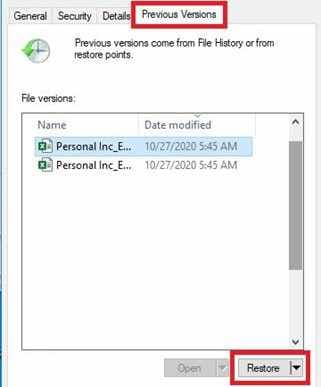
Step 1. Right-click the folder where the corrupted files are currently located and select Properties, then navigate to the Previous Versions tab.
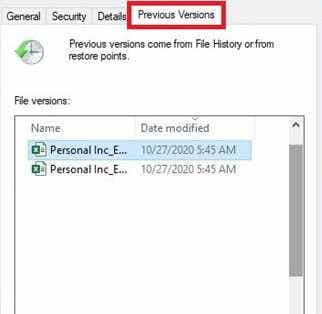
Step 2. Identify a version of the folder dated before the move occurred, click Restore, and verify if the files are accessible in their original, uncorrupted form.
Fix 3. Force a "Copy-Verify" via Command Line
Sometimes the GUI (Graphical User Interface) fails while the underlying kernel can still handle the data. Using the Robocopy command ensures a more robust bit-by-bit transfer.
Step 1. Open PowerShell and use the command robocopy [source] [destination] /z to initiate a restartable mode transfer.
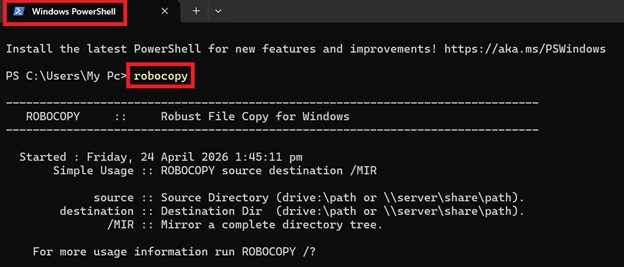
Step 2. Monitor the output for "Skipped" or "Failed" tags, which will specifically identify which files are physically unreadable versus those that just had a drop error.
Fix 4. Update or Reinstall Storage Drivers
Corrupted transfers are frequently a symptom of an outdated chipset or USB controller driver failing to communicate with the OS during high-volume data moves.
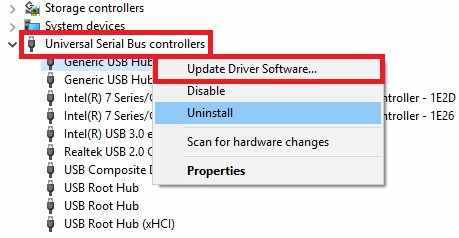
Step 1. Access Device Manager, expand the Universal Serial Bus controllers section, and right-click your host controller to select the Update driver.
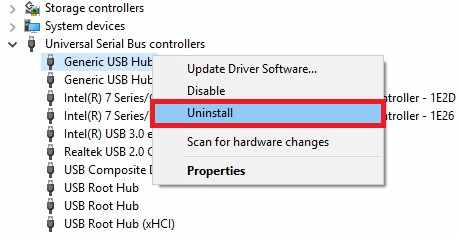
Step 2. If no update is found, select Uninstall device, unplug your drive, and restart your PC to force the OS to reinstall a clean driver stack.
Part 4. Advance Fix to Restore Severely Corrupted Files
If the file is confirmed corrupted, you can use repair software to try restoring it. Tools like Repairit Video Repair Tool can fix common file types such as videos, images, and documents These tools work by rebuilding the file structure so it can be opened again They are most effective when the file still has some recoverable data inside At this stage, the goal is not perfect recovery, but restoring as much usable data as possible.
Step-by-Step (Optional)
Step 1. Upload the corrupted video file.

Step 2. Start the Repair process.

Step 3. Preview and save the restored file to a new location.

Part 5. Why External Drives Often Cause File Transfer Errors
File transfers are usually stable inside a computer, but issues often occur when using external devices like USB flash drives or external hard drives. Interruptions such as unstable connections or power loss can lead to drag-and-drop transfer corruption.
Fixes for External Transfer Problems
- Enable Quick Removal - Disable write caching so data is saved immediately before removal.
- Use stable USB ports - Rear motherboard ports are generally more reliable than front ports or hubs.
- Use proper formats - NTFS and exFAT improve compatibility and reduce errors.
- Check drive health - Tools like CrystalDiskInfo can detect failing drives or bad sectors.
- Copy instead of drag-and-drop - Keeps the original file safe until transfer is fully complete.
Part 6. Best Practices for Safe File Transfers
The best way to deal with drag and drop transfer corruption is actually to prevent it before it happens. While recovery tools can help after damage is done, large file transfers need more care than just dragging and dropping. With better habits, you can reduce the risk of files corrupted after drag and drop and make sure your data moves safely.
Simple Ways to Prevent Transfer Problems
- Use "copy--verify--delete" instead of move. Instead of dragging files (which often moves them right away), copy the files first. After the transfer is finished, check if everything is complete and working. Only then delete the original files. This gives you a backup in case something goes wrong.
- Avoid overloading USB hubs. Plugging too many devices into one USB hub can weaken power and cause unstable transfers. For important files, connect external drives directly to your computer instead of using hubs.
- Check your driving health regularly. Storage tools can show if your drive is starting to fail. If a drive has many errors or bad sectors, it can cause drag and drop transfer corruption, so it may need replacement soon.
- Transfer files in smaller batches. Moving too many large files at once can slow down your system and increase the chance of errors. It's safer to transfer files in smaller groups instead of everything in one go.
Conclusion
Protecting your data means going beyond just dragging and dropping files. When you experience files corrupted after drag and drop, it often means your computer's normal transfer process was interrupted due to system errors, unstable hardware, or software glitches. Using repair tools or recovery software can sometimes fix drag and drop transfer corruption, but the best solution is to prevent it by using safer transfer methods and regularly checking your storage health.
FAQs
-
Why do my files show 0 KB after drag and drop?
This happens when the file name is created, but the actual data was not fully copied. The transfer was interrupted, so the file ends up empty. In most cases, the original file is still needed to recover the data. -
Is copy and paste safer than drag and drop?
Yes. Copy and paste is safer because it keeps the original file unchanged until the transfer is complete. Drag and drop may move the file immediately, which can lead to DRAG AND DROP TRANSFER CORRUPTION if something goes wrong. -
Can a bad USB cable cause file corruption?
Yes. A damaged or low-quality cable can cause unstable connections, leading to interrupted transfers and FILES CORRUPTED AFTER DRAG AND DROP. -
Will formatting my drive fix file corruption?
It can help if the problem is caused by system errors or file format issues. However, if the drive is physically damaged, formatting will not fully fix the issue. -
How do I know if the file is corrupted or just the app is broken?
Try opening the file using another program or device. If it still won't open or shows errors everywhere, the file is likely corrupted.




