
An SD card can disconnect without warning, during transfer, recording, or even while simply plugged into a device. When that happens, your photos or videos may suddenly become unreadable or corrupted.
Even though the files are still there, they may no longer open properly because the data wasn't fully written or saved before the disconnection.
The good news is that in many cases, you can still repair media files from a disconnected SD card with the right steps.
In this article
Why SD Card Disconnection Causes File Corruption
Media files rely on a structured format that must be fully written to storage. When an SD card disconnects suddenly, this process is interrupted.
As a result:
- Parts of the file may be missing
- Metadata may not be saved
- File structure may be incomplete
Common Causes of Sudden Disconnection:
- Removing the SD card without ejecting
- Loose or faulty card reader
- Power interruption during transfer
- Device crash or shutdown
- Worn or damaged SD card
SD Card--Specific Risks:
- Small size makes them easy to loosen
- Frequent use increases wear
- Sensitive to improper handling
Signs Your Media Files Were Affected
When corruption or transfer errors hit your files, the symptoms are often easy to spot:
- Photos won't open or appear blank: Images may refuse to load, show only a white or black screen, or display distorted visuals instead of the original picture.
- Videos won't play or freeze: Playback may stop midway, stutter, or fail to start at all, often leaving you with a frozen frame while audio continues---or nothing plays at all.
- Files show errors when opening: You might see error messages like "file format not supported" or "cannot read file", even though the file type is normally compatible with your device.
- Missing thumbnails or previews: Instead of a quick preview, you'll see generic icons or blank spaces, which usually means the metadata that describes the file has been damaged.
- File size looks normal, but content is unreadable: The file may appear to have the right size in storage, yet attempts to open it fail because the internal structure is corrupted.
How to Confirm File Corruption
If you suspect your media files were damaged during transfer, there are a few ways to verify whether corruption is the cause:
- Try opening them on another device: Sometimes playback issues are device-specific. Testing the file on a different computer, phone, or tablet helps rule out compatibility problems.
- Use a different viewer or media player: Switching to another app can reveal whether the issue lies with the file itself or with the software you're using. If multiple players fail, corruption is more likely.
- Compare file size with original files: A corrupted file may look normal at first glance, but checking its size against a known good copy can expose missing data or incomplete transfers.
- Check if multiple files are affected: If several files from the same batch show errors, it points to a broader transfer or storage issue rather than an isolated glitch.
- Look for consistent failures: When files repeatedly refuse to open, freeze, or display errors across different devices and apps, it's a strong indicator that corruption occurred during the disconnection or transfer process.
Basic Fixes to Try First
If your files fail to open, start with these quick checks:
Fix 1: Reconnect the SD Card Properly
Sometimes the issue is caused by an improper connection rather than file damage.
Step 1: Remove the SD card and insert it again securely into the reader or device.
Step 2: Reopen the files and check if they load properly.
Why this works: A loose connection can prevent files from being read correctly.
Fix 2: Copy Files to Your Computer
Working directly from the SD card can sometimes cause access issues.
Step 1: Copy the affected files from the SD card to your computer.
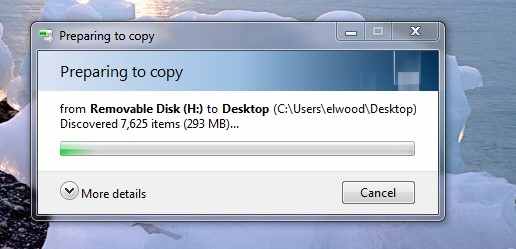
Step 2: Open the files from your internal storage.
Why this works: This isolates whether the issue is with the card or the file itself.
Fix 3: Try Another Card Reader or Device
The reader or port may be causing the issue.
Step 1: Insert the SD card into a different card reader or device.
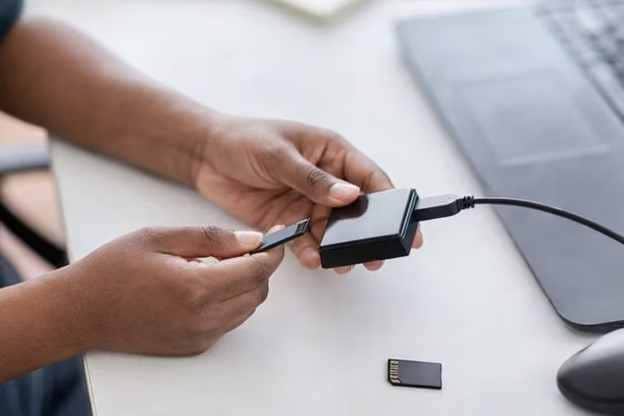
Step 2: Try accessing and opening the files again.
Why this works: This eliminates hardware-related reading issues.
Fix 4: Check the SD Card for Errors
File system errors can occur after a sudden disconnection.
Step 1: Connect the SD card to your computer.
Step 2: Run an error-checking scan from the drive properties.
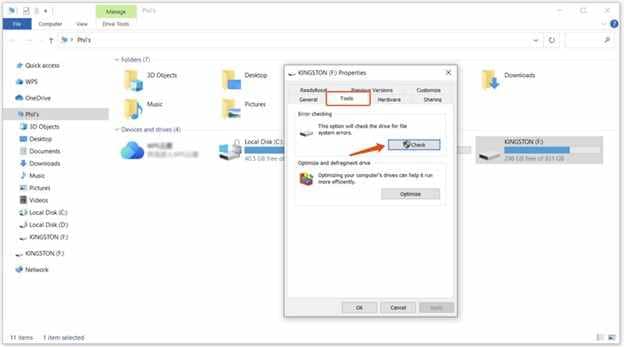
Why this works: Fixing file system errors can restore access to damaged files.
Fix 5: Use a Different Media Viewer
Some applications can open partially corrupted files.
Step 1: Open the file using another viewer or media player.
Step 2: Check if the file loads or partially displays.
Why this works: Certain programs can bypass minor corruption.
Advanced Fix: Repair Corrupted Media Files
If the files still won't open, they likely have structural damage caused by the sudden disconnection.
How to Confirm:
- Files fail on multiple devices
- Files won't open in any app
- Playback or viewing errors persist
What Repairit Video Repair Can Do:
- Rebuild the damaged file structure
- Restore playback or viewing
- Fix missing data or broken metadata
Step 1. Add the corrupted video file.

Step 2. Run the repair process.

Step 3. Preview the repaired result, then save the fixed media file.

Prevent SD Card Disconnection Issues in the Future
To reduce the risk of losing valuable photos, videos, or documents, do the following:
- Always safely eject the SD card -- Use your device's "Eject" or "Safely Remove" option before unplugging. This ensures all data is finalized and prevents incomplete writes.
- Avoid removing during transfer or recording -- Interrupting a file transfer or pulling the card out while recording video can instantly corrupt files. Wait until the process is fully complete.
- Use high‑quality card readers -- Cheap or faulty readers often cause unstable connections. Investing in a reliable reader helps maintain consistent data flow and reduces errors.
- Handle SD cards carefully -- Physical damage like bending, scratching, or exposure to dust and moisture can weaken the card's connectors and increase the chance of disconnections.
- Regularly back up important files -- Even with careful handling, SD cards can fail over time. Keeping duplicates on external drives or cloud storage ensures you won't lose irreplaceable data.
Conclusion
If you need to repair media files from a suddenly disconnected SD card, the issue is usually caused by interrupted data writing during disconnection.
Start with basic fixes like reconnecting the card and copying files safely. If the issue persists, repair methods can help restore your media files and make them usable again.
FAQs
-
Can files from a disconnected SD card be repaired?
Yes, files can often be repaired if the corruption only affected part of the data. -
Why does sudden disconnection cause corruption?
Sudden disconnection causes corruption because it interrupts the file writing process. -
Is my SD card damaged?
Not necessarily, though repeated disconnections may eventually indicate physical wear or failure. -
Should I format the SD card?
You should only format the SD card after attempting repair or recovery methods.




