
If your SD card is not showing up on Mac, it can be difficult to tell whether the issue is with the card, the Mac, or the connection itself. Some users find that the SD card does not appear in Finder, while others notice that it shows in Disk Utility but cannot be accessed or mounted.
This issue affects different macOS devices, including MacBook Air, MacBook Pro, and iMac, and can occur after file transfers, improper ejection, system updates, or hardware changes. In some cases, the SD card is completely undetected, while in others, it is partially recognized but unusable.
This guide provides a detailed and structured approach to diagnosing and fixing the problem, including system-level fixes, disk repair methods, and solutions for corrupted files stored on the SD card.
In this article
Part 1. What Does "SD Card Not Showing Up on Mac" Mean?
When an SD card fails to appear on macOS, the issue is not always caused by a single fault. Instead, it can occur at different levels within the system, ranging from physical hardware detection to how the operating system recognizes the device, and finally to whether the stored data is accessible. Because macOS handles external storage in multiple stages (connection → detection → mounting → file access), identifying where the failure occurs is essential for applying the correct solution.
In many cases, users assume the SD card is "not working," when in reality the system may already detect it but simply cannot display or access it properly. This is why understanding the exact behavior of the issue can save time and prevent unnecessary troubleshooting steps that could risk data loss.
Different Ways the Issue Appears
- Not visible in Finder - The SD card is physically connected and may even be recognized by the system, but it does not appear in Finder. This is often due to Finder preferences being configured to hide external drives, or because the SD card has not been automatically mounted. In this case, the data is usually still intact, and the issue is more about visibility than functionality.
- Visible in Disk Utility but not mounted - Here, macOS detects the SD card at a system level, and it shows up in Disk Utility, but it is not mounted. Without mounting, the drive cannot be accessed through Finder. This situation commonly occurs when the card was improperly ejected, has minor file system inconsistencies, or macOS cannot automatically mount it due to errors.
- Greyed out in Disk Utility - If the SD card appears greyed out, it typically signals file system corruption or structural damage within the card. The system can detect the hardware, but it cannot properly interpret its contents. This often happens after sudden removal, power interruptions, or prolonged usage without proper maintenance.
- Detected but inaccessible - In some cases, the SD card appears in Finder or Disk Utility, but attempting to open it results in errors. This could be due to an unsupported file system format (for example, a format not fully compatible with macOS), permission issues, or corrupted files. The card is technically present, but its data cannot be read normally.
- Not detected anywhere - If the SD card does not appear in Finder, Disk Utility, or System Information, the issue is likely at the hardware level. This could involve a faulty SD card reader, damaged connectors, incompatible adapters, outdated system drivers, or even physical damage to the card itself.
Part 2. Why the SD Card Does Not Show Up on Mac?
The issue can be caused by a combination of system settings, software conflicts, and hardware limitations.
- Finder Visibility Settings Disabled - macOS allows users to hide external storage devices from Finder. If this setting is turned off, the SD card may be fully functional but invisible to the user.
- SD Card Not Mounted Automatically - Even when macOS detects the SD card, it may fail to mount it automatically. This prevents access and makes it seem like the card is missing.
- Faulty Adapter or Card Reader - Many Macs rely on external adapters, especially USB-C hubs. Low-quality or incompatible adapters may fail to transmit data properly.
- File System Incompatibility - If the SD card uses a format not supported by macOS, it may not mount or appear correctly. This is common with certain Windows-specific formats.
- File System Corruption - Improper ejection, interrupted transfers, or sudden power loss can damage the SD card's file system, making it unreadable.
- macOS System Glitches - Temporary system errors or bugs may prevent external devices from being recognized correctly.
- Physical Damage or Wear - Over time, SD cards can degrade due to repeated use. Physical damage can prevent detection entirely.
Part 3. 4 Quick Checks Before Fixing
Before performing advanced troubleshooting, basic checks can quickly identify the source of the issue.
- Test the SD Card on Another Device - Insert the SD card into another computer or smartphone. If it works there, the problem is likely with your Mac.
- Try Another Adapter or Card Reader - Switching adapters helps rule out hardware compatibility issues.
- Restart Your Mac - Restarting clears temporary system errors and refreshes hardware detection processes.
- Inspect the SD Card - Check for dust, scratches, or bent connectors. Even small physical issues can affect detection.
Part 4. 7 Fixes for SD Card Not Showing Up on Mac
Before assuming the card is permanently damaged, it's worth trying a series of practical fixes that address detection, mounting, and accessibility. The following methods progress from quick checks to more advanced solutions, helping you systematically identify and resolve the problem.
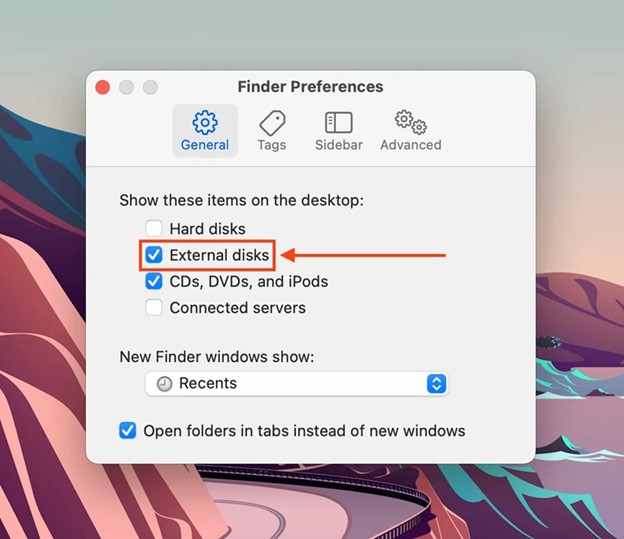
Fix 1. Enable External Drives in Finder
Sometimes the SD card is hidden from Finder due to disabled sidebar settings.
Step 1. Open Finder, click Preferences, then go to the Sidebar tab.
Step 2. Enable External disks and check if the SD card appears.
Fix 2. Mount the SD Card Manually
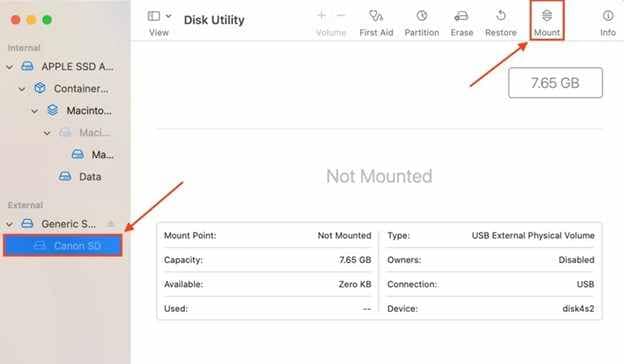
If macOS detects the card but doesn't mount it, you need to mount it yourself.
Step 1. Open Disk Utility, locate the SD card in the sidebar.
Step 2. Click Mount and check if it becomes accessible.
Fix 3. Reconnect the SD Card Properly
Loose connections or faulty adapters can prevent proper detection.
Step 1. Remove the SD card and reconnect it securely using the adapter.
Step 2. Try a different USB port or card reader and check detection.
Fix 4. Run First Aid in Disk Utility
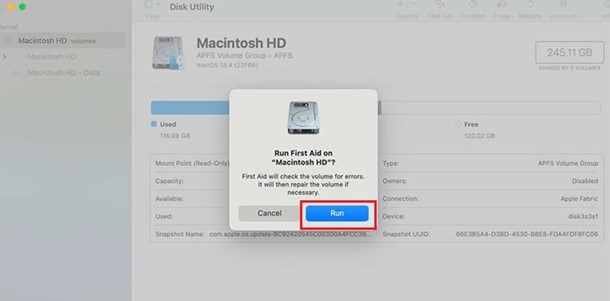
Disk Utility's First Aid tool can repair common file system errors.
Step 1. Open Disk Utility, select the SD card, and click First Aid.
Step 2. Run the scan and allow macOS to repair any detected issues.
Fix 5. Reset NVRAM/SMC
Resetting system-level settings can resolve hardware recognition conflicts.
Step 1. Restart your Mac and reset NVRAM using the appropriate key combination.
Step 2. Boot normally and check if the SD card appears.
Fix 6. Format the SD Card (Last Resort)
Formatting erases all data but can fix severe file system corruption.
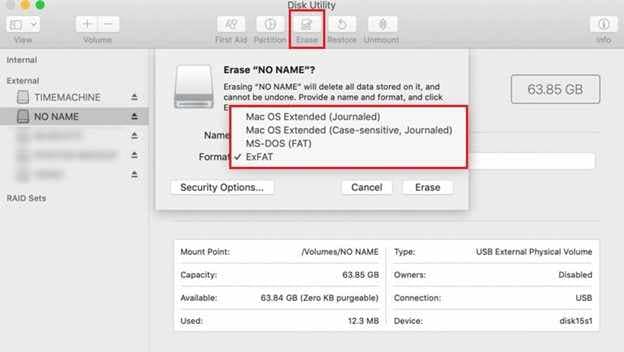
Step 1. Open Disk Utility, select the SD card, and click Erase.
Step 2. Choose a compatible format (exFAT/FAT) and confirm.
Fix 7. Check System Information for Detection
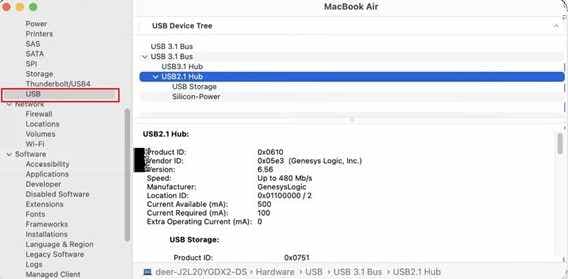
System Information reveals whether macOS recognizes the card at the hardware level.
Step 1. Click Apple Menu, select About This Mac, then open System Report.
Step 2. Check under USB or Card Reader to see if the SD card is listed.
Part 5. MacBook SD Card Not Showing Up (Hardware-Specific Issues)
If your SD card isn't showing up at all, even in Disk Utility or System Information, the issue may lie in the physical connection or the adapter itself. Not all USB-C hubs are created equal, and some lack proper support for SD card protocols or fail to deliver consistent power.
Even if the adapter works for other devices, it may not be reliable for SD card access.
Common Hardware Problems to Watch For
- Low-quality adapters that do not support SD cards properly or lack necessary drivers
- Insufficient power delivery from USB hubs, especially when multiple devices are connected
- Loose or unstable connections that interrupt data transfer or prevent recognition
- Compatibility issues between certain adapters and specific macOS versions
To rule out hardware faults, try using a different adapter, preferably one from a reputable brand known to support SD cards. Also test the card on another Mac or device to confirm whether the issue is with the card or the connection.
Using a reliable, high-quality adapter significantly improves detection reliability and reduces the chances of intermittent failures or complete invisibility.
Part 6. (Bonus) Repair Corrupted Files from SD Card
If your files, especially videos, are corrupted, repairing them can restore usability without replacing the SD card. Repairit Video Repair can rebuild damaged media files caused by transfer errors or storage issues.
Why File Corruption Happens on SD Cards
File corruption is common due to:
- Sudden removal of the SD card during transfer
- Interrupted file writing processes
- Power failure during recording
- Storage sector degradation over time
These issues damage the internal file structure, making files unreadable. Here's how to repair it:
Step 1. Add the corrupted video file.

Step 2. Click Repair to start the process.

Step 3. Preview and save the fixed file.

What the Tool CAN Do
- Repair corrupted video files from SD cards
- Restore playback functionality
- Fix audio-video sync issues
- Rebuild damaged file structures
What the Tool CANNOT Do
- Fix SD card detection problems
- Repair physical hardware damage
- Recover deleted files
- Restore fully overwritten data
⚠️ Note: This solution is only applicable when files are corrupted, not when the SD card is undetected.
Part 7. Prevent SD Card Not Showing Up Issues on Mac
Whether you're transferring photos, backing up documents, or using an SD card for extended storage, these best practices help ensure smooth operation and long-term reliability.
Best Practices to Avoid Future Problems
- Always eject the SD card safely before removal - Use the "Eject" option in Finder or Disk Utility to prevent file system damage.
- Avoid interrupting file transfers - Never remove the card or shut down your Mac while data is being copied.
- Use high-quality adapters and card readers - Cheap accessories often cause unstable connections or fail to support SD protocols properly.
- Keep macOS updated - System updates often include bug fixes and improved hardware compatibility.
- Back up important files regularly - Even with proper care, SD cards can fail---so don't rely on them as your only copy.
By adopting these habits, you minimize the risk of corruption, improve device recognition, and maintain a smoother workflow with your SD cards on Mac.
Conclusion
When an SD card is not showing up on a Mac, the issue is often related to Finder settings, mounting errors, or file system corruption rather than permanent hardware failure. Most problems can be resolved by enabling visibility settings, mounting the disk, or repairing it using Disk Utility.
If the SD card is detected but files are corrupted, repair tools provide a way to recover important data. With proper troubleshooting and preventive practices, you can ensure stable and reliable SD card performance on macOS.
FAQs
-
Why is my SD card not showing up on my Mac?
This is usually caused by Finder settings, mounting issues, or hardware problems. Checking Disk Utility can help identify whether the card is detected. -
How do I make my SD card appear on Mac?
Enable external drives in Finder and manually mount the SD card in Disk Utility. These steps resolve most visibility issues. -
Why is my MacBook not reading my SD card?
It may be due to a faulty adapter, system glitch, or file system error. Trying another reader or running First Aid often helps. -
Can a corrupted SD card still show up on Mac?
Yes, but files may not be accessible. Repair tools can help restore corrupted media files. -
Should I format my SD card if it's not showing?
Formatting should only be done as a last resort. It fixes file system issues but permanently deletes all stored data.




