
Choosing between Repairit Video Enhancer vs DaVinci Resolve comes down to what you actually need: fast AI-powered quality improvements or manual, high-end color grading and editing. This comparison explains how each tool enhances video quality, what the workflows look like, and who each option fits best. Use it to decide whether an AI video enhancer or a full post-production suite makes more sense for your next project.
In most cases, Repairit Video Enhancer focuses on guided AI models for upscaling, denoising, and sharpening, while DaVinci Resolve offers detailed manual control inside a complete editing and color grading environment. Understanding these trade-offs helps you avoid overcomplicating simple enhancement tasks or underpowering a complex production.
Enhance Video Quality with Repairit Video Enhancer
 Security Verified. Over 7,302,189 people have downloaded it.
In this article
- Repairit Video Enhancer vs DaVinci Resolve: Quick Verdict
- Repairit Video Enhancer vs DaVinci Resolve: Key Differences
- Repairit Video Enhancer vs DaVinci Resolve: Comparison Table
- What Repairit Video Enhancer and DaVinci Resolve Are Best For
- Repairit Video Enhancer vs DaVinci Resolve: Technology and Enhancement Approach
- Repairit Video Enhancer vs DaVinci Resolve: Output Quality and Real-World Results
- Repairit Video Enhancer vs DaVinci Resolve: Workflow and Ease of Use
- Repairit Video Enhancer vs DaVinci Resolve: Pricing and Trial Options
- Who Should Choose Repairit Video Enhancer
- Who Should Choose DaVinci Resolve
- Pros and Cons of Repairit Video Enhancer and DaVinci Resolve
- How to Enhance Videos After Choosing the Right Tool
Repairit Video Enhancer vs DaVinci Resolve: Quick Verdict
If your main goal is to improve video clarity and sharpness, reduce noise and blur, or upscale low resolution video without learning a complex editor, Repairit Video Enhancer is usually the more efficient choice. It uses AI models to automatically enhance typical camera and phone footage in a few guided steps.
DaVinci Resolve is better suited when you need a full editing and color grading suite, are comfortable with technical tools, and want detailed manual control over color, contrast, and fine texture. It can deliver excellent enhancement results but typically requires more time, experience, and a deeper workflow.
In practice, many users benefit from a hybrid approach: use Repairit Video Enhancer first for AI upscaling, denoising, and deblurring, then bring the improved clip into DaVinci Resolve for creative grading and final finishing.
Repairit Video Enhancer vs DaVinci Resolve: Key Differences
The key difference between Repairit Video Enhancer vs DaVinci Resolve is focus. Repairit is a dedicated AI video enhancer centered on clarity, sharpness, and noise reduction, while DaVinci Resolve is a full post-production suite where enhancement is part of a wider toolset.
Based on the provided overview:
- Best for: Repairit targets users who want to quickly improve soft, noisy, or low-resolution clips. DaVinci Resolve targets editors and colorists delivering high-end commercial, film, or broadcast work.
- Ease of use: Repairit offers AI presets and a short, guided workflow. DaVinci Resolve presents a complex interface with many panels, timelines, and nodes that can overwhelm beginners.
- Enhancement approach: Repairit leans on AI models to decide how to balance sharpening, smoothing, and upscaling. DaVinci Resolve relies on manual grading tools, effects, and filters configured by the user.
- Time to result: For simple enhancement tasks, Repairit typically reaches a good result faster. DaVinci Resolve can be slower because you need to build and tweak a grading setup.
- Depth of control: DaVinci Resolve provides deeper control over every aspect of the image. Repairit deliberately limits controls to stay approachable and time-saving.
Repairit Video Enhancer vs DaVinci Resolve: Comparison Table
| Dimension | Repairit Video Enhancer | DaVinci Resolve |
|---|---|---|
| Best for | Everyday users and creators who want to quickly enhance low-quality or soft footage with guided AI. | Users focused on high-end color correction and grading within a full editing environment. |
| Ease of use | Simple, task-focused interface with AI presets that require little experience. | Complex interface that generally requires editing and grading experience to use effectively. |
| Output quality focus | AI upscaling, denoising, and clarity improvements for typical and legacy footage. | Excellent quality when a skilled colorist manually tunes color, contrast, and detail. |
| Workflow style | Import, select AI model, preview, export in a few guided steps. | Import, grade, adjust contrast and sharpness, preview with scopes, then export via a full timeline. |
| Key strengths | Fast AI enhancement, minimal learning curve, focused on quality improvement tasks. | Industry-leading color tools, precise manual control, and a capable free version. |
| Key weaknesses | Not a full editor; advanced users may want deeper timeline and compositing tools. | Steep learning curve and time-consuming setup for simple enhancement jobs. |
What Repairit Video Enhancer and DaVinci Resolve Are Best For
According to the overview, DaVinci Resolve is professional color grading and editing software aimed at high-end finishing. It shines when you need detailed control over color balance, contrast, and stylized looks across full projects with multiple clips and tracks.
Repairit Video Enhancer instead focuses on AI-driven video enhancement. It is best when you want to:
- Improve video clarity in soft, slightly out-of-focus, or compressed clips.
- Reduce noise and blur in low-light or old footage without tuning complex filters.
- Upscale low resolution video to make it more suitable for modern displays.
- Prepare clips for later editing in tools like DaVinci Resolve or other NLEs.
In short, choose Repairit when your main job is quality enhancement on individual clips. Choose DaVinci Resolve when enhancement is part of a broader editing, grading, and finishing pipeline.
Repairit Video Enhancer vs DaVinci Resolve: Technology and Enhancement Approach
The technology and enhancement approach differs significantly:
Repairit Video Enhancer uses AI models trained to recognize patterns in low-quality footage and automatically adjust sharpness, noise, and perceived detail. As described in the core features summary, it centers on:
- AI-based enhancement profiles for clarity, sharpness, and noise levels.
- AI upscaling to increase resolution and perceived detail in low-resolution or older videos.
- Noise and blur reduction models that aim to improve motion clarity without heavy manual tweaking.
- Smart processing that balances sharpening and smoothing to avoid an overly harsh, artificial look.
DaVinci Resolve relies more on manual grading and effects, where users combine tools such as curves, color wheels, sharpening, and noise reduction. Depending on the edition and hardware, it may also support some AI-assisted features, but the core workflow is you deciding how to adjust each parameter.
For users who prefer an automated approach, Repairit removes much of the trial-and-error. For those who enjoy fine-tuning every frame, DaVinci Resolve offers the wider technical canvas.
Repairit Video Enhancer vs DaVinci Resolve: Output Quality and Real-World Results
Both tools can significantly enhance video quality, but how you get there differs.
With Repairit Video Enhancer, you typically import footage, select an AI profile (for example, for denoising or upscaling), and let the model decide how to sharpen edges, smooth grain, and improve perceived detail. This is particularly effective for:
- Old family recordings or archival clips with soft focus and visible noise.
- Compressed social media or screen recordings that need clearer text and edges.
- Smartphone videos shot in low light that suffer from grain and motion blur.
With DaVinci Resolve, output quality strongly depends on your grading skills and time investment. Skilled users can combine noise reduction, detail recovery, and color grading to create very refined results, especially for log footage or professionally shot material.
In most everyday scenarios, Repairit will get non-experts to a strong result faster, especially for denoising and deblurring soft clips. DaVinci Resolve may be a better fit if you already know its tools and want to craft a specific look or need precise matching across multiple shots.
Repairit Video Enhancer vs DaVinci Resolve: Workflow and Ease of Use
Workflow is often the deciding factor between an AI video enhancer vs professional editor.
Repairit Video Enhancer workflow (from the workflow and ease-of-use description):
- Import a clip.
- Choose an AI model based on what you want to fix, such as noise, blur, or low resolution.
- Adjust intensity if needed and preview changes.
- Export the enhanced video.
DaVinci Resolve workflow commonly looks like this:
- Import video into a project and organize clips on a timeline.
- Use the Color page to adjust exposure, contrast, and color balance.
- Add sharpening, noise reduction, and other detail controls using nodes and effects.
- Check results on scopes and different monitors.
- Export via the Deliver page with chosen codec and settings.
For users who mainly want to denoise and deblur footage or improve details in low-quality videos, Repairit is less intimidating and quicker. For editors already comfortable with timelines, nodes, and scopes, DaVinci Resolve provides deeper control but adds complexity to simple enhancement tasks.
Repairit Video Enhancer vs DaVinci Resolve: Pricing and Trial Options
From the pricing and trial summary, the cost comparison is mostly about scope rather than raw price.
Repairit Video Enhancer typically offers a focused paid plan with trial options so you can test how the AI handles your own clips. Since it is dedicated to quality enhancement, you are paying for a targeted workflow instead of a full post-production system.
DaVinci Resolve is known for having a substantial free version, plus a paid Studio edition with additional capabilities. For some users, the free version may be enough if they only need basic editing and grading tools and are comfortable with the interface.
In practice, the decision often depends on your workflow:
- If you mainly need a quick way to enhance low-quality or compressed videos, a focused tool like Repairit can save you time, even if you also keep a free editor for cutting.
- If you need full editing, audio, effects, and color in one place, DaVinci Resolve (free or paid) may already cover your enhancement needs, provided you are willing to learn it.
Who Should Choose Repairit Video Enhancer
Based on the provided guidance on who should choose Repairit, Repairit Video Enhancer is a stronger choice for users who:
- Need to enhance low-quality or compressed videos without learning a complex editor.
- Want to upscale resolution and improve details in old or soft footage quickly.
- Prefer AI-guided presets for denoising, deblurring, and sharpening instead of manual node setups.
- Plan to run a quick enhancement pass before editing in DaVinci Resolve or another NLE.
It is particularly suitable for content creators, educators, and small teams who handle a lot of screen recordings, smartphone clips, and social content and care more about clarity and legibility than advanced cinematic color work.
Who Should Choose DaVinci Resolve
The description of who should choose DaVinci Resolve points to a different audience. DaVinci Resolve may be the better fit if you:
- Are an editor or colorist who wants precise, manual control over color, contrast, and sharpness.
- Deliver high-end commercial, film, or broadcast work that requires consistent grading across many shots.
- Are comfortable working with nodes, scopes, keyframes, and complex timelines.
- Prefer an all-in-one environment for editing, color, audio, and finishing instead of multiple separate tools.
In these cases, enhancement is only one step in a broader professional pipeline, and DaVinci Resolve lets you keep everything in a single project rather than jumping between apps.
Pros and Cons of Repairit Video Enhancer and DaVinci Resolve
Repairit Video Enhancer Pros and Cons
DaVinci Resolve Pros and Cons
How to Enhance Videos After Choosing the Right Tool
Once you have compared Repairit Video Enhancer vs DaVinci Resolve and decided which role each should play in your workflow, the next step is actually improving your footage. A practical approach for many users is to run clips through a guided enhancer first, then move into a full editor only if you need deeper color grading or complex timelines.
Repairit Video Enhancer works well in this role: it focuses on AI-powered video enhancement to clean up and upscale footage before you spend time on creative edits.
Key Features
The core features of Repairit focus on simplifying quality improvement tasks while still keeping results natural:
- AI-based enhancement profiles for improving clarity, sharpness, and noise levels in everyday footage.
- AI upscaling to increase resolution and perceived detail in low-resolution or older videos.
- Noise and blur reduction models that aim to improve motion clarity and reduce grain without heavy manual tuning.
- Smart processing that balances sharpening and smoothing to avoid an over-processed look.
- Direct export of enhanced clips for use in editors, social platforms, or presentations.
Key scenarios where these features help include cleaning up smartphone videos, screen recordings, and legacy footage before editing or publishing.
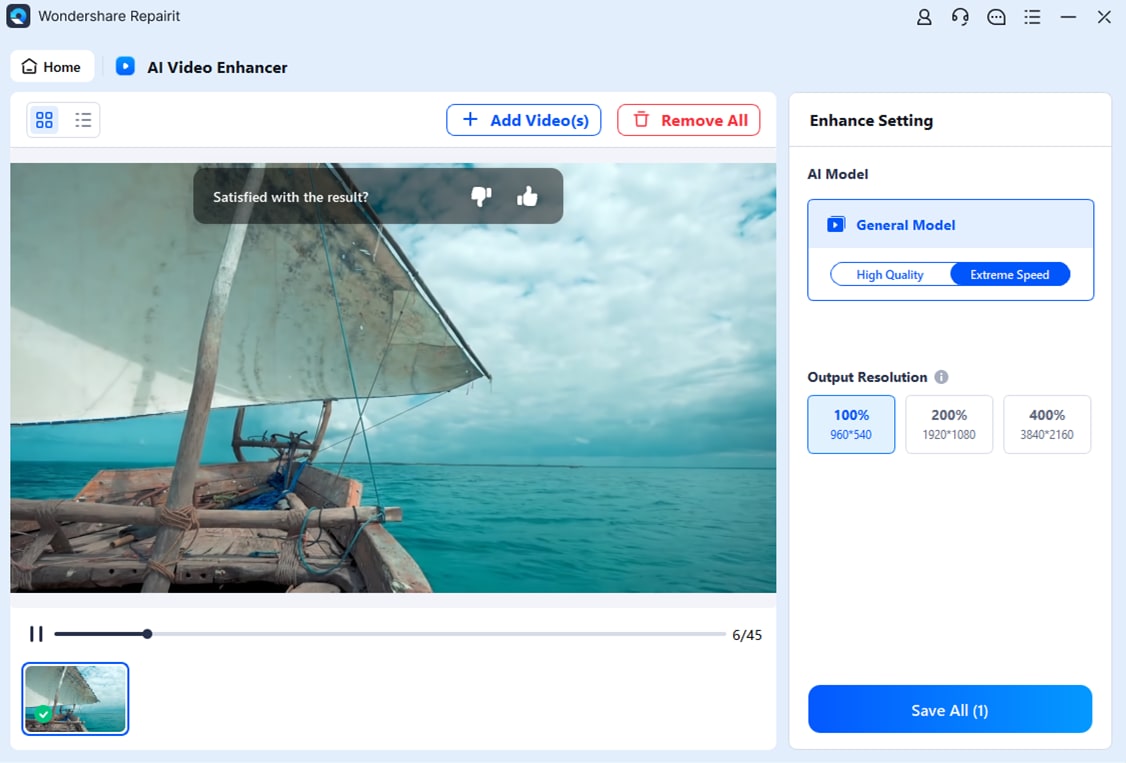
Step-by-step guide
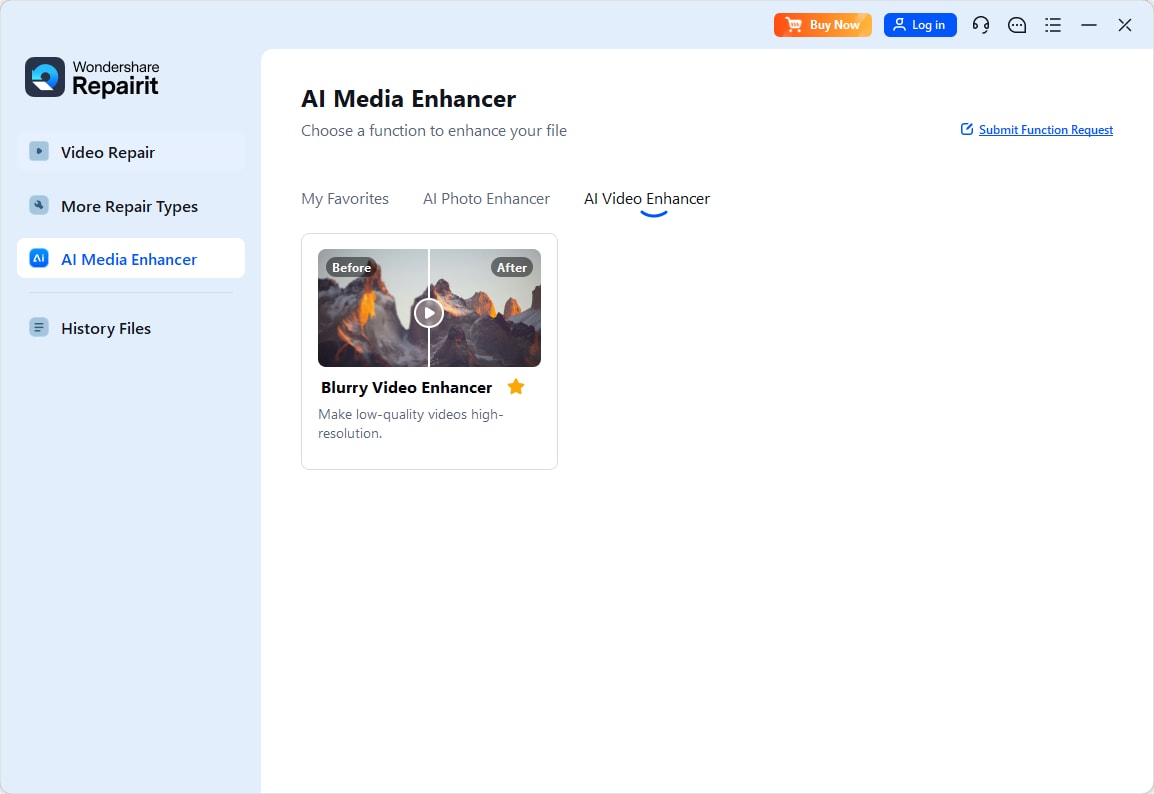
Step 1. Choose an AI enhancement model based on your video quality needs, such as upscaling, denoising, or overall clarity improvement.
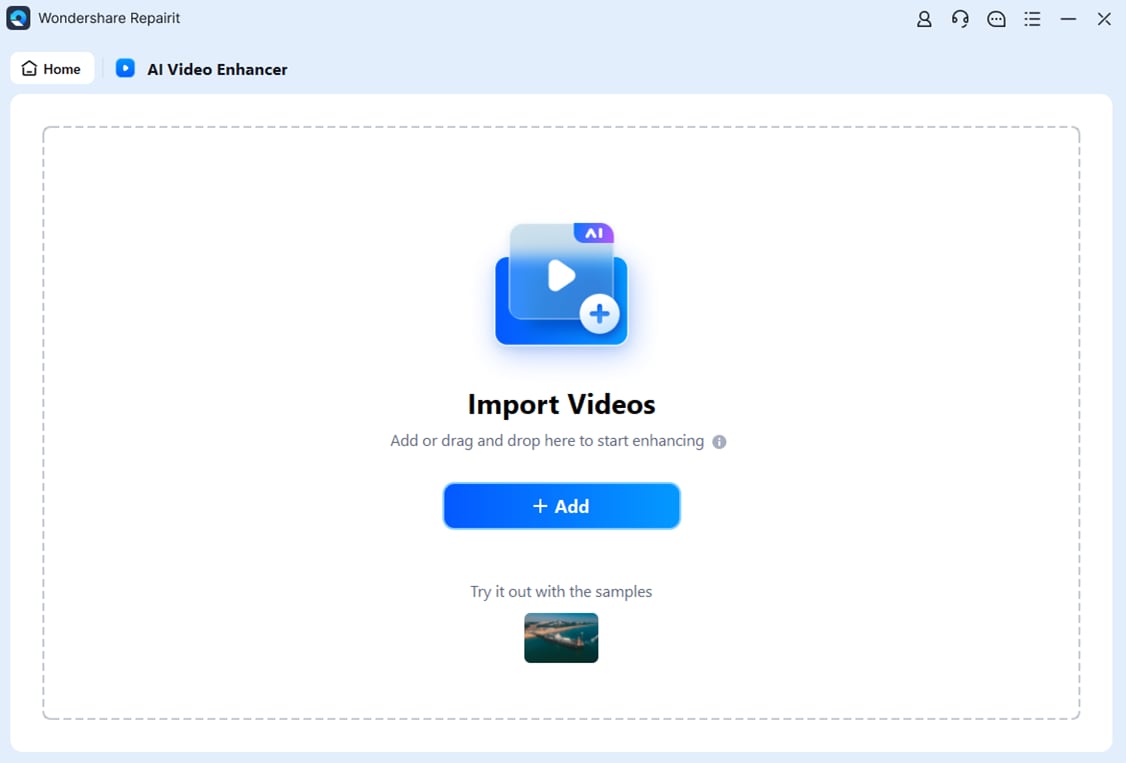
Step 2. Import your video into Repairit Video Enhancer to begin the enhancement process.
Step 3. Start enhancing and let the AI improve sharpness, reduce blur, and enhance the overall video quality.
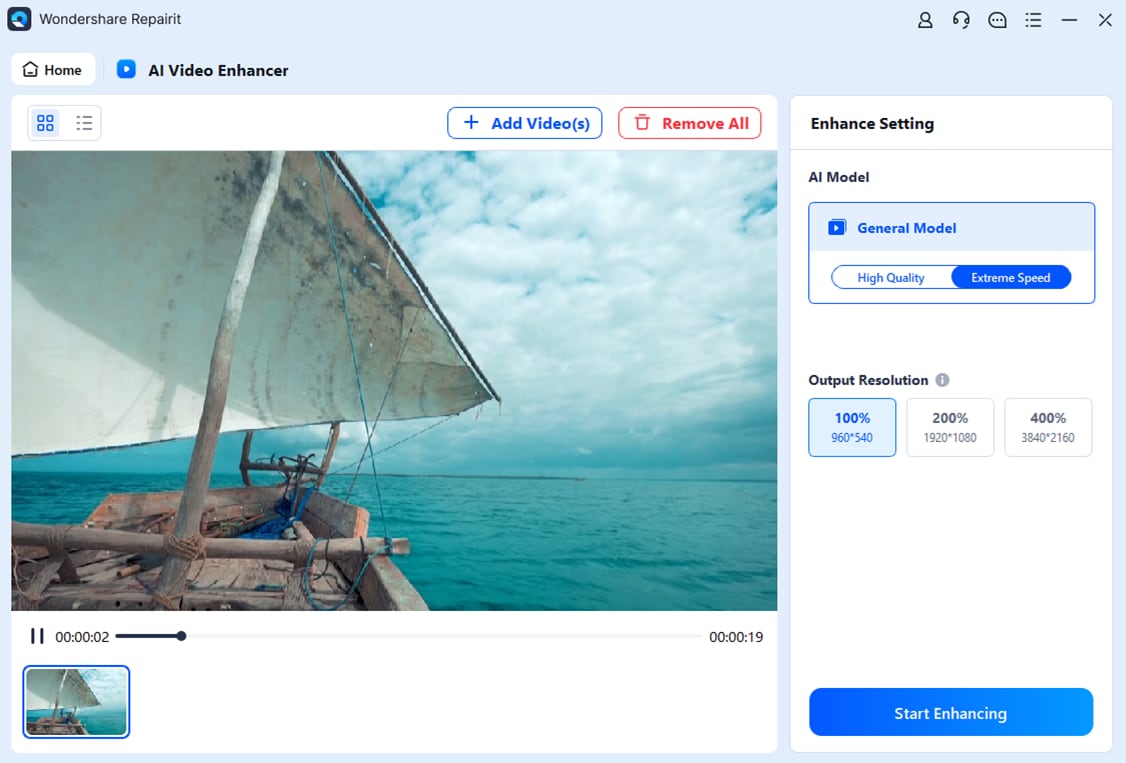
Step 4. Preview the enhanced result and save the improved video to your device.
Final Verdict
For most users who simply want to enhance video quality, reduce noise, sharpen soft footage, or upscale low resolution video without a steep learning curve, Repairit Video Enhancer offers a faster, more guided path than building a full grading project in DaVinci Resolve.
DaVinci Resolve remains a strong option when you need end-to-end editing and high-end color grading with precise manual control. If you are already comfortable with its workflow, you may be able to handle many enhancement tasks entirely inside Resolve.
In many real-world cases, the most efficient setup is a combination:
- Use Repairit Video Enhancer to denoise, deblur, and upscale challenging footage quickly.
- Then, import the enhanced clips into DaVinci Resolve for creative grading, editing, and final output.
This way, AI handles the heavy lifting on difficult footage, while your editor focuses on storytelling and style.
Next: Repairit Video Enhancer vs Final Cut Pro
FAQ
-
1. Is Repairit Video Enhancer better than DaVinci Resolve for improving low-quality videos?
For most low-quality or soft clips, Repairit Video Enhancer is usually quicker because its AI models automatically denoise, deblur, and upscale without complex settings. DaVinci Resolve can achieve excellent results too, but it typically requires more manual adjustments and grading experience to reach similar clarity. -
2. Can I use Repairit Video Enhancer and DaVinci Resolve together in one workflow?
Yes. Many users first run footage through Repairit Video Enhancer to improve clarity, reduce noise, and upscale, then import the enhanced files into DaVinci Resolve for detailed color grading, editing, and final delivery. This split keeps enhancement fast while still giving you full creative control later. -
3. Which is easier for beginners: Repairit Video Enhancer or DaVinci Resolve?
Repairit Video Enhancer is generally easier for beginners because it focuses on a small set of AI enhancement tasks with clear presets and minimal controls. DaVinci Resolve is powerful but has a steeper learning curve, especially for users who only want basic quality improvements rather than full editing and grading. -
4. Which gives better output quality: Repairit Video Enhancer or DaVinci Resolve?
Output quality depends on your skills and goals. Repairit Video Enhancer can quickly produce strong results on noisy or low-resolution footage using AI. DaVinci Resolve can match or exceed this quality when a skilled user carefully tunes color, contrast, and detail, but that process usually takes more time and expertise. -
5. Do I still need an editor if I use Repairit Video Enhancer?
In most cases, yes. Repairit Video Enhancer focuses on improving visual quality, not full editing. After enhancing footage, you will typically use an editor such as DaVinci Resolve or another NLE to cut, add audio, and prepare the final sequence for export.




