

Watching YouTube on Firefox can be frustrating when videos lag, stutter, or freeze. This issue can stem from browser settings, outdated software, conflicting extensions, or even corrupted video files. Before giving up on smooth playback, it’s important to understand the common causes and apply the right fixes to restore seamless streaming.
This guide walks you through practical solutions, from basic browser tweaks to more advanced options, and also introduces a tool that can fix corrupted local video files that may be causing playback issues.
Key Takeaways:
- YouTube lag on Firefox is often caused by browser settings, extensions, or outdated software.
- Quick fixes include clearing cache, disabling unnecessary add-ons, and adjusting hardware acceleration.
- Advanced solutions involve updating Firefox, checking system performance, and repairing corrupted video files.
- Identifying whether the issue is browser-specific, system-wide, or file-related helps resolve lag faster.
Table of Contents
Part 1. Why YouTube Lags on Firefox
Experiencing lag while watching YouTube on Firefox is common, but understanding the root causes can save time and frustration. Several factors can contribute to choppy or delayed video playback:
- Outdated Firefox version: Older versions may not be fully optimized for YouTube’s latest features, causing performance issues.
- Browser cache and cookies buildup: Over time, cached data and cookies can slow down video loading and playback.
- Hardware acceleration conflicts: Firefox uses your device’s GPU to improve performance, but sometimes this can conflict with YouTube videos, causing stutter or lag.
- Slow internet or network congestion: Buffering or low frame rates often occur when connection speeds fluctuate or multiple devices share the same network.
- Multiple extensions or add-ons: Some add-ons interfere with video rendering, ad-blockers being a frequent culprit.
- Corrupted browser or video files: Damaged cache, temporary files, or even downloaded YouTube videos can cause playback issues.
- System resource limitations: High CPU or RAM usage from other apps may leave insufficient resources for smooth video streaming.
Identifying the likely cause—whether it’s browser-specific, network-related, or system-level—helps determine the right fix, ensuring smoother YouTube playback on Firefox.
Part 2. Quick Checks Before Troubleshooting
Before diving into detailed fixes, it’s helpful to run a few quick checks to pinpoint the source of YouTube lag on Firefox. These fast diagnostics can often be completed in under a minute:
- Test YouTube on another browser: Open the same video in Chrome, Edge, or Safari. If it plays smoothly elsewhere, the issue is likely Firefox-specific.
- Check internet speed and stability: Use an online speed test to ensure your connection can handle YouTube streaming, especially at HD or 4K resolutions.
- Open a simple video in low resolution: Play a standard-definition video to see if lag persists. If it runs fine, the problem may be resolution-related or bandwidth-constrained.
- Restart Firefox and your computer: Temporary glitches or memory leaks can often be cleared with a quick restart.
Outcome logic:
- Plays well on other browsers: Focus on Firefox-specific solutions such as clearing cache, disabling extensions, or updating the browser.
- Still lagging: The problem may lie with your system resources, network, or even the video file itself, requiring broader troubleshooting steps.
Part 3. 6 Proven Fixes to YouTube on Firefox Lagging Issues
Now that you’ve checked the common causes, start working through the fixes below. Begin with the simplest solutions first, then move to the more advanced steps if YouTube is still lagging on Firefox. Test video playback after each fix to see what resolves the issue.
Fix 1: Clear Browser Cache and Cookies
Over time, Firefox stores temporary data such as cached files and cookies to speed up website loading. However, when this data becomes outdated or corrupted, it may interfere with YouTube playback and cause videos to lag or stutter.
Clearing cached data forces Firefox to reload fresh files from YouTube servers, which often resolves playback issues.
Note: Clearing cookies may sign you out of websites, but it will not remove bookmarks or saved passwords.
Steps to Clear Cache and Cookies in Firefox:
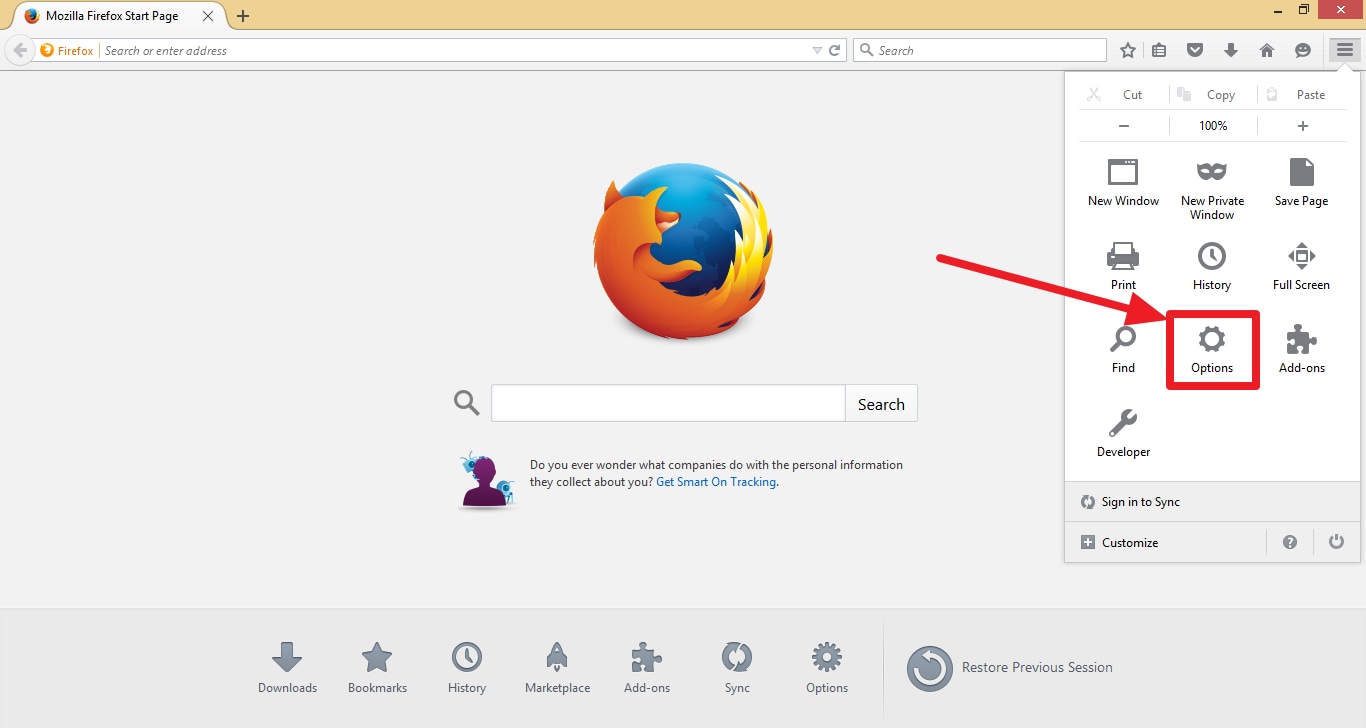
1. Open Firefox and go to Options/Settings.
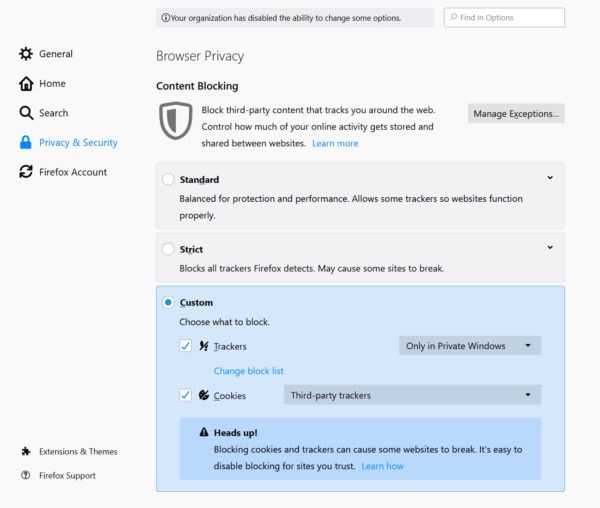
2. Navigate to Privacy & Security.
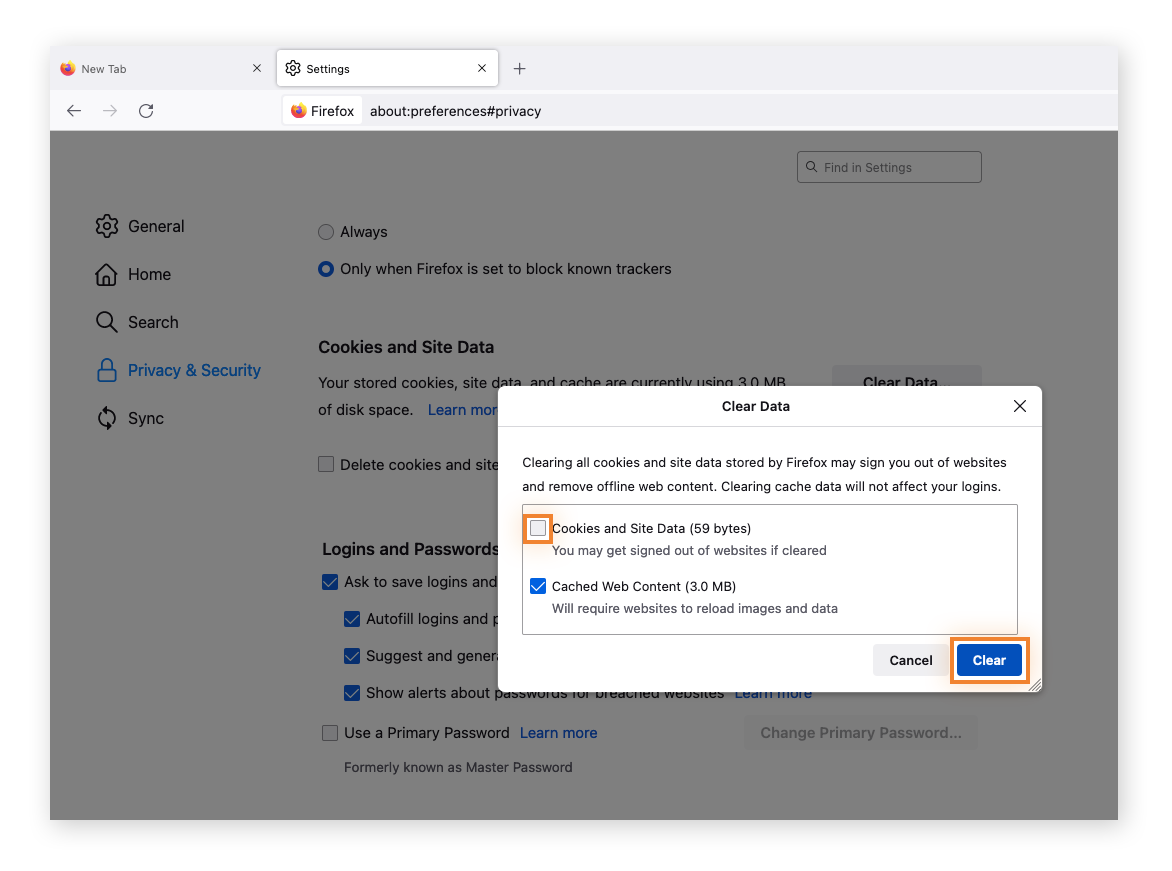
3. Scroll to Cookies and Site Data and click Clear Data.
4. Select Cookies and Site Data and Cached Web Content, then click Clear.
5. Restart Firefox to apply the changes.
Confirmation: After restarting, open YouTube and play a video. Videos should now load faster and play more smoothly without lag.
Fix 2: Disable or Update Problematic Add-ons
Browser extensions or add-ons can sometimes interfere with YouTube playback, causing lag, stuttering, or freezing. Common culprits include ad blockers, video downloaders, and privacy extensions that alter how videos load.
Steps to Manage Add-ons in Firefox:
1. Open Firefox and go to Add-ons and Themes (or press Ctrl+Shift+A).
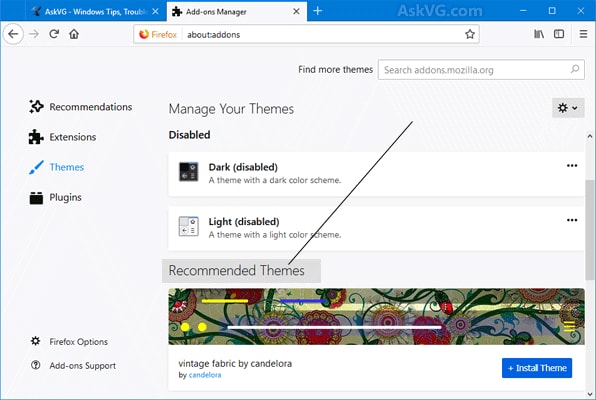
2. Disable all extensions temporarily.
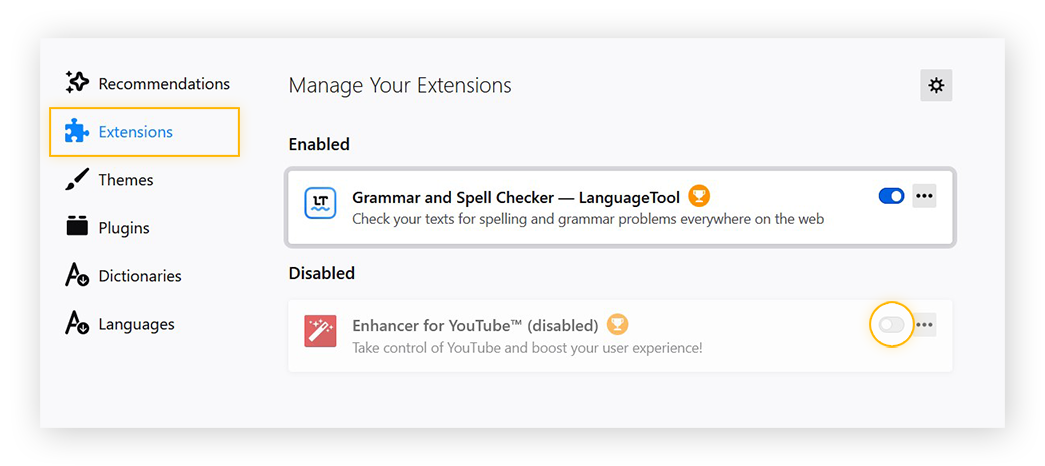
3. Restart Firefox and check YouTube playback.
4. Re-enable extensions one by one to identify which add-on causes the lag.
5. For essential extensions, check for updates and install the latest version.
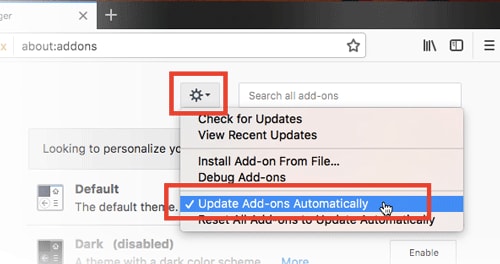
Confirmation: After disabling or updating problematic add-ons, YouTube videos should play more smoothly without interruptions or lag.
Fix 3: Enable or Disable Hardware Acceleration
Hardware acceleration allows Firefox to offload certain tasks, like video rendering, to your GPU instead of the CPU. While this can improve performance, it may sometimes conflict with your system’s graphics drivers, causing YouTube videos to lag or stutter.
Steps to Adjust Hardware Acceleration in Firefox:
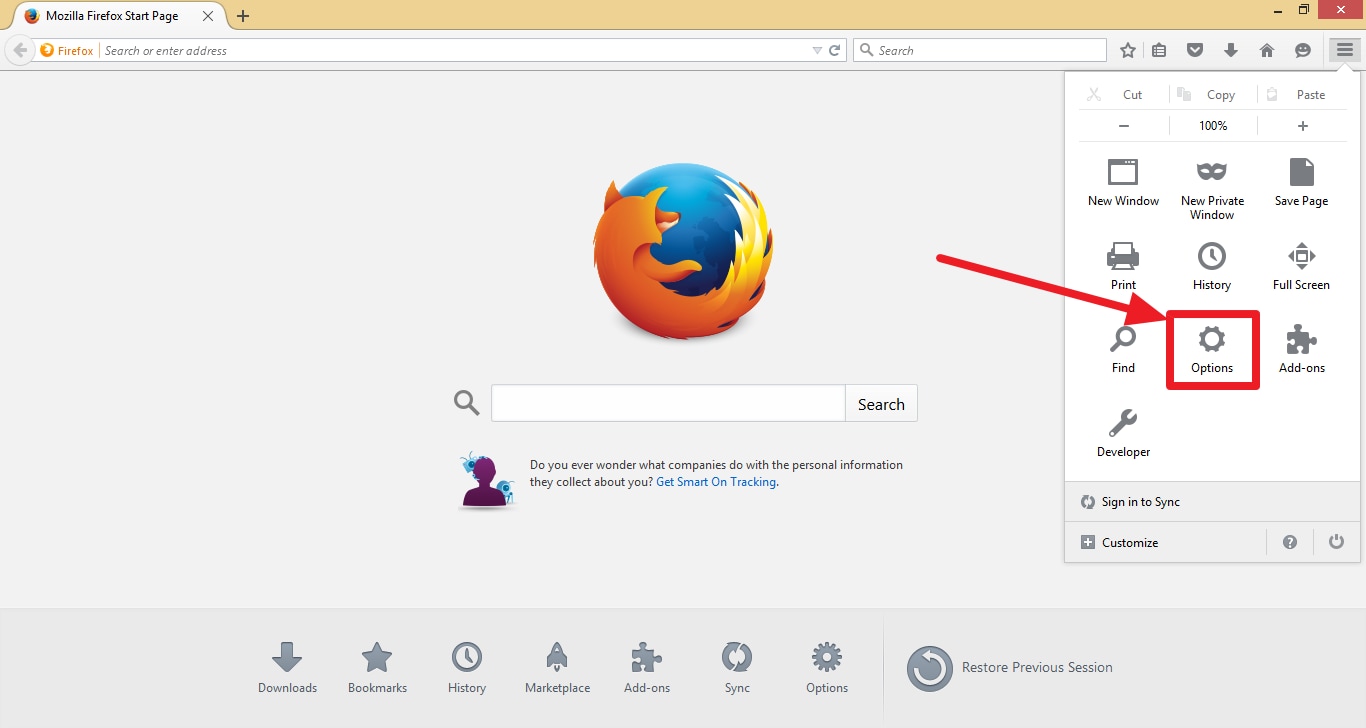
1. Open Firefox and go to Options/Settings.
2. Scroll down to Performance.
3. Uncheck “Use recommended performance settings”.
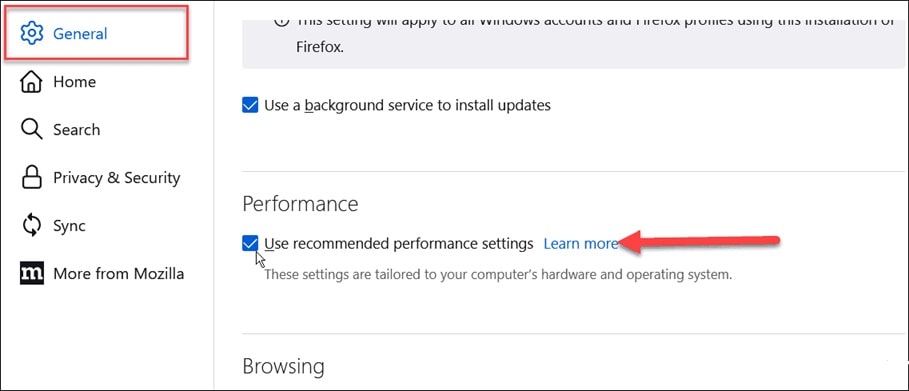
4. Toggle “Use hardware acceleration when available” on or off (try both settings to see which works better).
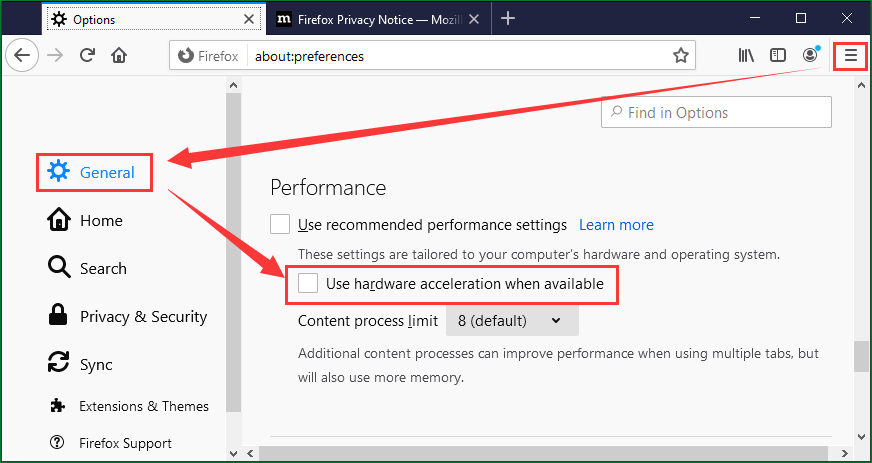
5. Restart Firefox.
Confirmation: After adjusting hardware acceleration, YouTube videos should play smoother, with reduced lag or stuttering.
Fix 4: Lower Video Resolution on YouTube
High-resolution videos such as 1080p, 1440p, or 4K require more bandwidth and system resources. If your internet connection is unstable or your computer has limited CPU/RAM, YouTube may lag, buffer, or drop frames on Firefox.
Lowering the video resolution reduces the load on both your network and system, often resulting in smoother playback.
Steps to Lower Video Quality on YouTube:
1. Play the YouTube video.
2. Click the gear icon (Settings) in the bottom-right corner of the video player.
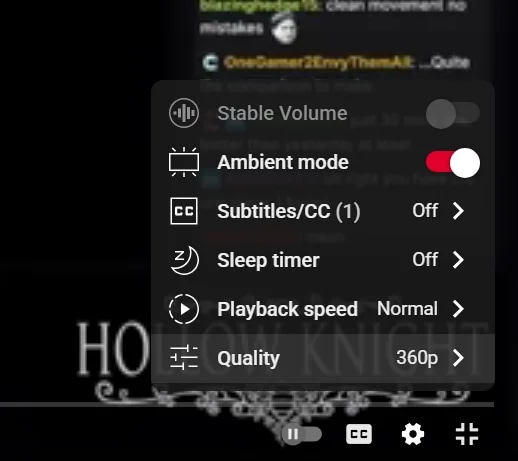
3. Select Quality.
4. Choose 480p or 720p instead of 1080p or higher.
Confirmation: If the video plays smoothly after lowering the resolution, the lag was likely caused by bandwidth limitations or system performance constraints.
Fix 5: Update Firefox and System Drivers
Outdated software is a common cause of YouTube lag on Firefox. Newer versions of Firefox include performance improvements, security patches, and better compatibility with modern video streaming technologies. Similarly, outdated graphics or audio drivers can cause rendering issues, dropped frames, or playback stutter.
Keeping both your browser and system drivers updated ensures smoother video playback and fewer compatibility conflicts.
1. Open Firefox.
2. Click the Menu (three lines) in the top-right corner.
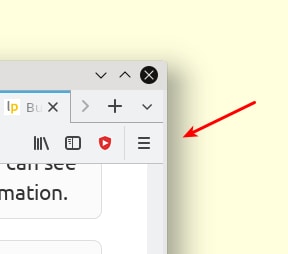
3. Go to Help → About Firefox.
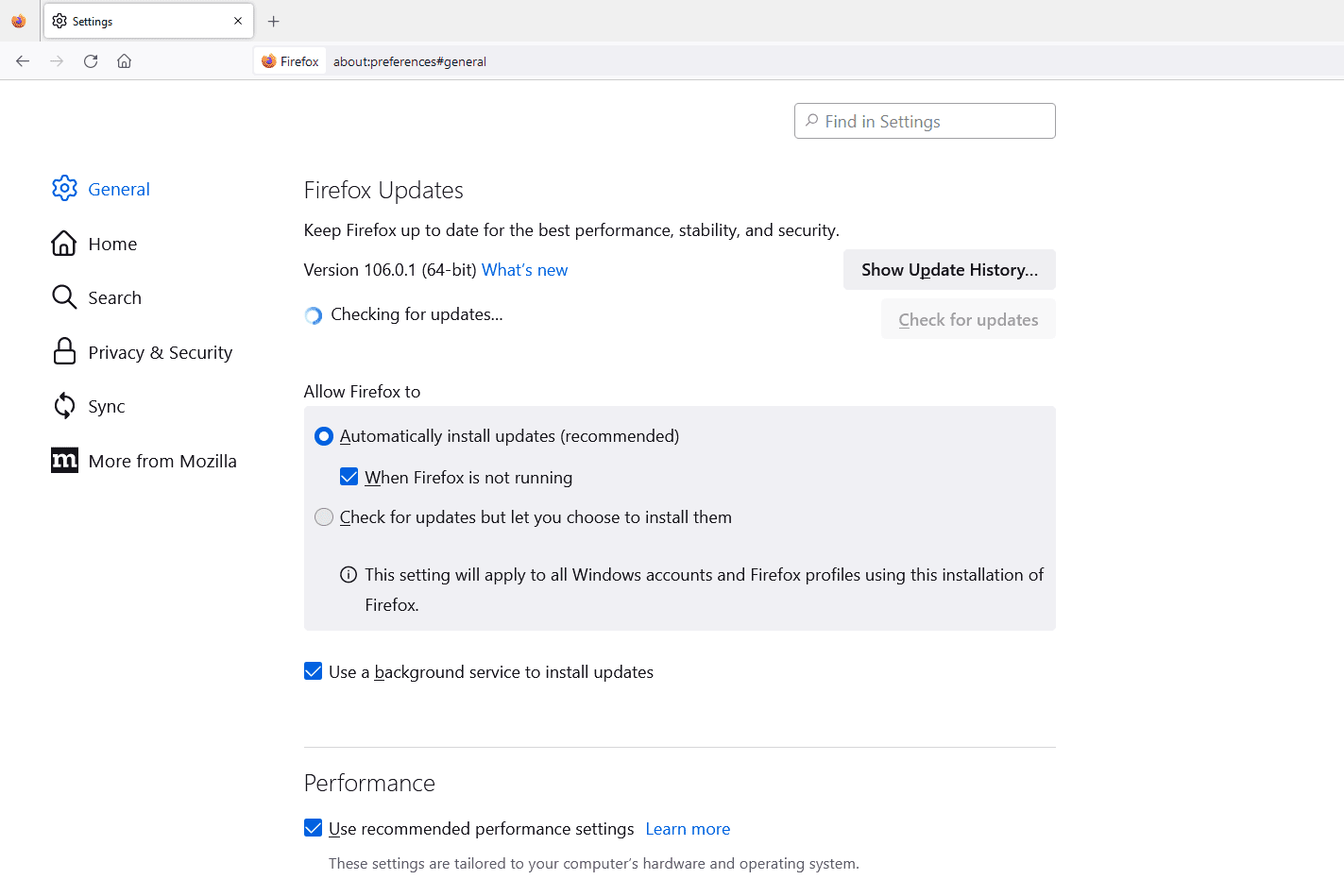
4. Firefox will automatically check for updates and install them if available.
5. Restart the browser after the update completes.
Update Graphics and Audio Drivers
On Windows: Use Device Manager or your GPU manufacturer’s website (NVIDIA, AMD, Intel) to download the latest drivers.
On macOS: System updates typically include driver updates via System Settings → Software Update.
Fix 6: Restart Your System and Close Background Apps
If YouTube is still lagging on Firefox, your system may simply be overloaded. Running multiple applications—especially video editors, games, or background sync tools—can consume significant CPU and RAM, leaving fewer resources available for smooth video playback.
When system resources are stretched too thin, YouTube videos may stutter, buffer, or freeze.
1. Close Unused Applications: Shut down unnecessary programs and browser tabs. Open Task Manager (Windows) or Activity Monitor (Mac) to check CPU and memory usage.
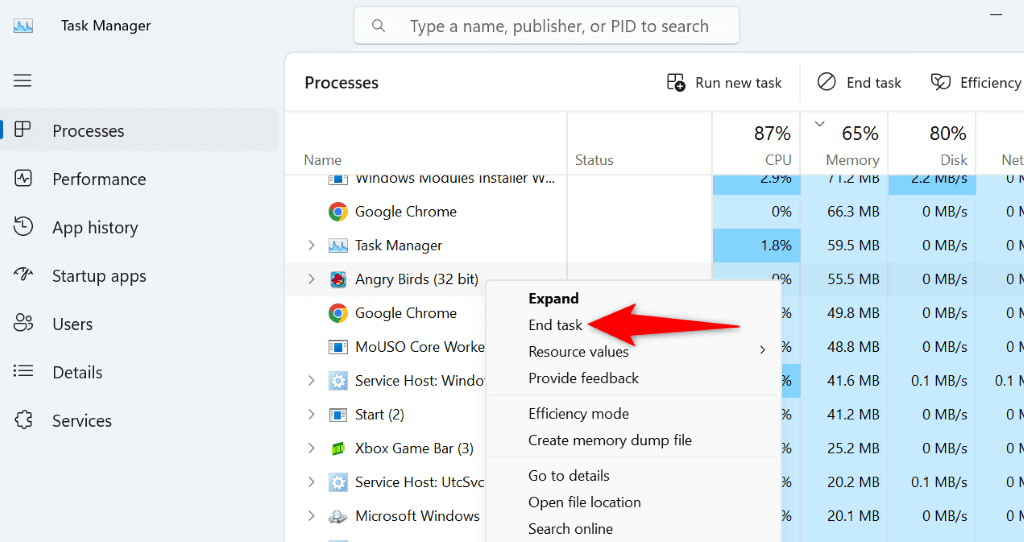
2. Restart Your Computer. A full restart clears temporary processes and memory leaks. Wait for the system to fully reboot before reopening apps.
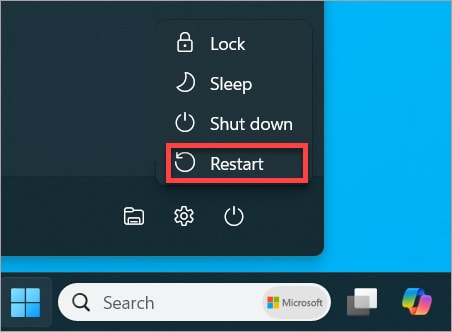
3. Open Firefox and Test YouTube. Launch Firefox. Play a YouTube video and check if playback has improved.
Part 4. When Lag Is Caused by Corrupted Video Files
Most YouTube lag problems are related to browser settings, extensions, or system performance. However, if you experience lag only when playing downloaded YouTube videos in Firefox, the issue may be caused by a corrupted video file.
File corruption can occur when:
- A video download is interrupted
- A file transfer fails
- The video container (MP4/MKV) becomes damaged
- Metadata or headers are missing
In these cases, the browser itself may not be the problem—the video file simply cannot decode properly. Repairit Video Repair is designed to fix corrupted, damaged, or unplayable video files without affecting their original quality.
A video repair tool can help when:
Downloaded videos freeze or stutter
The video plays without audio
The file cannot be opened normally
The container structure (MP4, MOV, AVI) is damaged
However, it cannot fix:
- YouTube streaming lag
- Slow internet connections
- Browser cache conflicts
- Hardware performance limitations
If your issue occurs only during online streaming, focus on the browser fixes earlier in this guide.
Step 1: Visit the official website, download and install Repairit Video Repair. After installing, open the Video Repair module.

Step 2: Click Add to upload the problematic video file and Click the Repair button to repair the broken video.

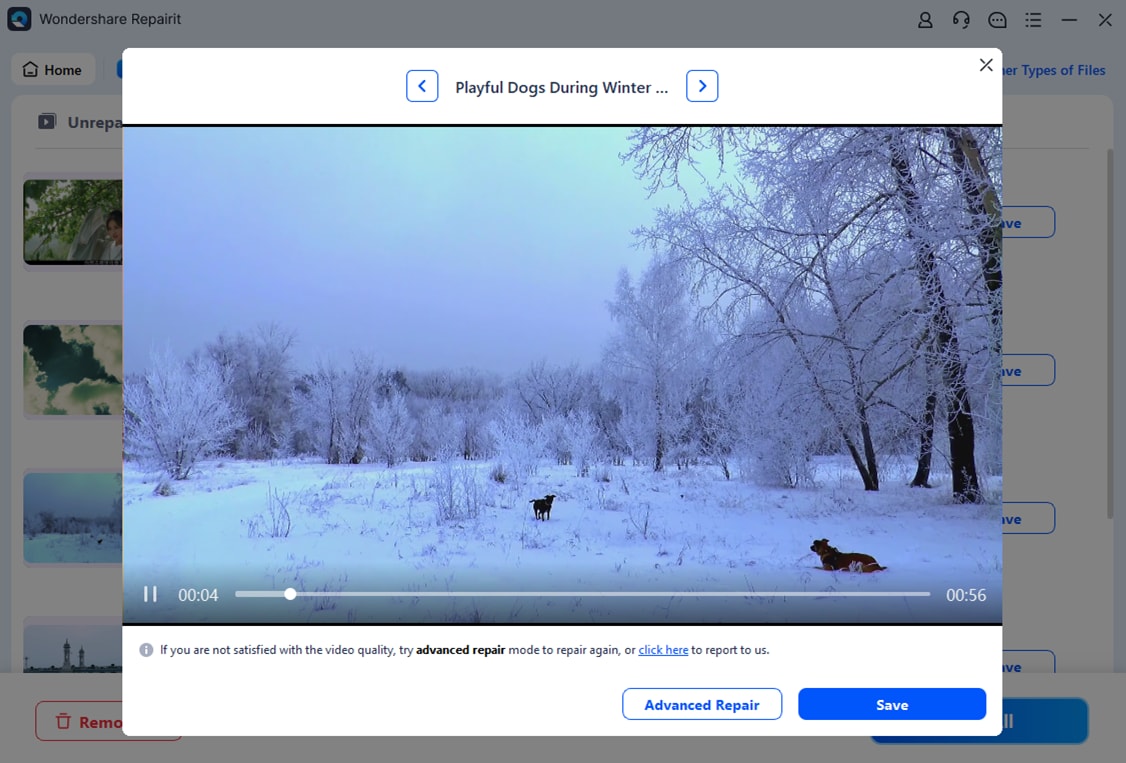
Step 3: Preview the repaired videos and save the files to your desired location.
More related articles to Firefox issues:
8 Proven Ways to Fix Firefox Not Playing Videos
7 Ways to Fix YouTube Videos Not Playing Firefox Issue
Part 5. How to Prevent YouTube Lag in Firefox in the Future
Once you’ve fixed the lag issue, a few simple habits can help keep YouTube running smoothly on Firefox long-term.
- Keep Firefox and Drivers Updated: Regular updates improve browser performance, fix bugs, and enhance compatibility with YouTube’s latest streaming technology. Also keep your graphics drivers updated to avoid rendering conflicts.
- Clear Cache Regularly: Cached data builds up over time and may slow down video loading. Clearing cache every few weeks helps maintain optimal browser performance.
- Limit Heavy Add-ons and Open Tabs: Too many extensions or dozens of open tabs can consume memory and CPU resources. Disable unnecessary add-ons and close unused tabs while streaming.
- Monitor System Resources: Occasionally check Task Manager (Windows) or Activity Monitor (Mac) to ensure CPU and RAM usage aren’t maxed out while watching videos.
- Use a Wired Internet Connection When Possible: If you frequently experience buffering or lag, switching from Wi-Fi to a wired Ethernet connection can provide more stable and consistent speeds.
If none of the fixes above resolve the issue, you can try these additional troubleshooting steps:
- Start Firefox in Troubleshoot Mode to disable all extensions temporarily
- Create a new Firefox profile to eliminate corrupted browser settings
- Reset Firefox to its default configuration
These options help rule out deeper browser configuration issues.
Conclusion
YouTube lagging on Firefox is usually caused by browser cache conflicts, problematic extensions, outdated software, or limited system resources. In most cases, clearing cached data, disabling add-ons, adjusting hardware acceleration, or lowering video resolution can restore smooth playback within minutes.
If lag occurs only when playing downloaded videos rather than streaming content, the issue may be related to file corruption. In such cases, repairing the video file with a dedicated repair tool may help restore proper playback.
By following the troubleshooting steps in order—from quick browser fixes to system checks—you can quickly identify the cause and enjoy smoother YouTube streaming on Firefox.
FAQs
-
Q1: Why does YouTube lag only on Firefox, not other browsers?
Firefox may have specific settings, extensions, or cached data causing conflicts with YouTube. If videos play smoothly on Chrome or Edge, the issue is likely browser-specific rather than network or system-related. -
Q2: Can disabling hardware acceleration fix all lag issues?
Not always. Hardware acceleration can cause lag if there’s a GPU driver conflict, but lag can also result from slow internet, heavy extensions, or limited system resources. It’s one possible fix—not a universal solution. -
Q3: Will clearing cache delete my bookmarks or saved passwords?
No. Clearing cache and cookies does not remove bookmarks. However, clearing cookies may sign you out of websites. Saved passwords remain intact unless you specifically choose to remove them. -
Q4: Can Repairit fix streaming lag?
No. Wondershare Repairit Video Repair only fixes corrupted or damaged video files. It cannot resolve browser-related streaming lag or internet speed issues. -
Q5: Why do some high-resolution videos still lag even on fast systems?
High-res videos (1080p, 1440p, 4K) require significant GPU and CPU processing power. Even with fast internet, outdated drivers, hardware acceleration conflicts, or background apps consuming resources can still cause lag.




