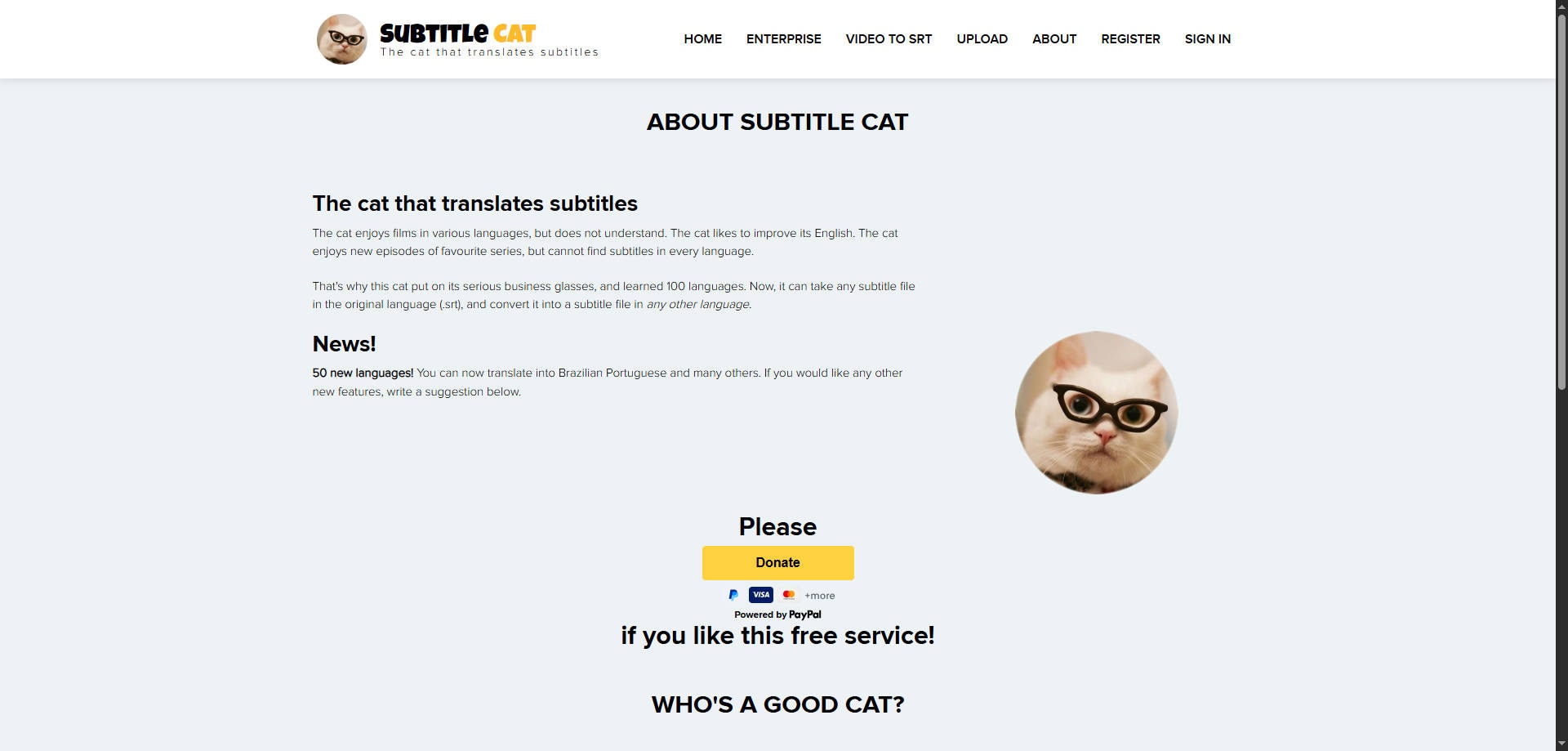
Looking for a SubtitleCat alternative? The best choice depends on whether you need to find a subtitle file for a film, translate an existing SRT, or generate brand-new captions from your own video. Those are different jobs, and most tools are strong at only one or two of them. This guide compares seven options so you can find the right workflow without paying for features you will not use.
In this article
Part 1. Why Look for SubtitleCat Alternatives?
SubtitleCat is useful for searching for an existing subtitle track and translating an SRT into another language. Its own help page describes both finding a subtitle by movie name and uploading a subtitle file when a search fails. People who need to edit timestamps, transcribe speech, or localize a finished video may need a different kind of tool.
Before choosing, check your starting point: (1) a title with an existing subtitle, (2) an SRT file that needs translation, or (3) a video that has no subtitles at all. Also check output format (SRT versus VTT), translation quality for names and slang, timing control, and the export requirements of your platform.
Part 2. 7 Best SubtitleCat Alternatives Compared
These recommendations are grouped by task, not by an invented laboratory score. Website features and plan restrictions can change, so confirm the details that matter to your project before uploading media or paying.
| Tool | Best For | Start With | Primary Output |
| OpenSubtitles | Finding Existing Movie and TV Subtitles | Existing title/subtitle library | Existing subtitle tracks |
| SubDL | Searching and Downloading Subtitle Files | Existing title/subtitle library | Existing subtitle tracks |
| Subtitle Edit | Free Desktop Editing and Subtitle Timing | Subtitle file or your own video | Edited/translated caption or media output |
| Kapwing | Translating SRT Files with Video Preview | Subtitle file or your own video | Edited/translated caption or media output |
| VEED | Auto-Subtitles and Multilingual Video Editing | Subtitle file or your own video | Edited/translated caption or media output |
| Maestra | Multilingual Subtitle Localization | Subtitle file or your own video | Edited/translated caption or media output |
| Rask AI | Video Localization with Dubbing | Subtitle file or your own video | Edited/translated caption or media output |
1. OpenSubtitles — Best for Finding Existing Movie and TV Subtitles
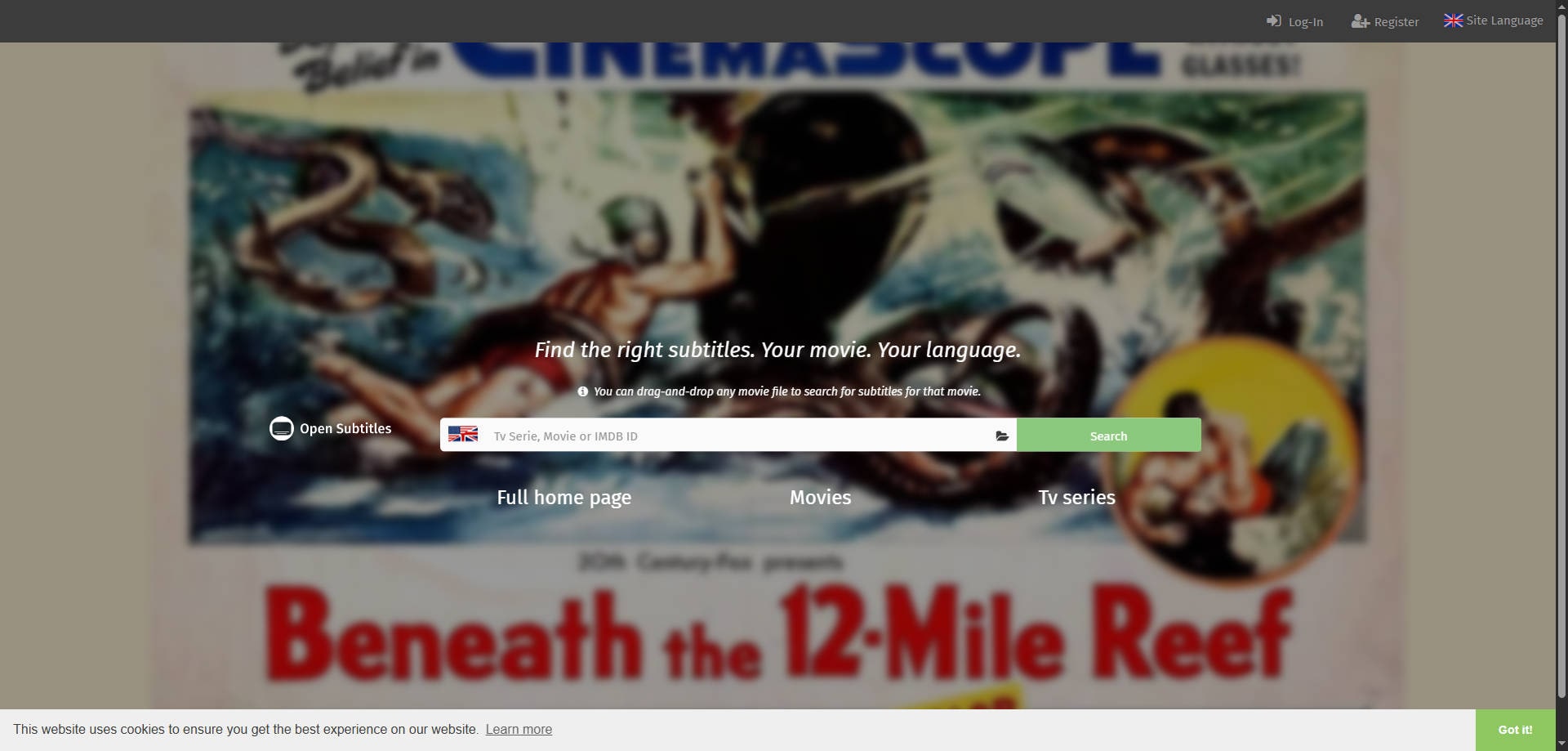
Overview: OpenSubtitles If you already have a movie or episode and need an existing subtitle file, OpenSubtitles is closer to SubtitleCat's search-based experience than a video editor. Search by title and language, then inspect the available releases before downloading. This is a subtitle catalogue, not a substitute for creating a transcript from private footage.
Key Features:
- Subtitle catalogue with title and language search
- Subtitle downloads that can be matched to a video release
- Integrations and workflows built around existing video libraries
Pricing: Access may be free subject to account, download and usage limits; verify current allowances before repeated downloads.
Best For: Finding Existing Movie and TV Subtitles.
Our Take: Choose OpenSubtitles when finding a matching caption file is the job. If the subtitle does not exist, a transcription tool is the next step.
2. SubDL — Best for Searching and Downloading Subtitle Files
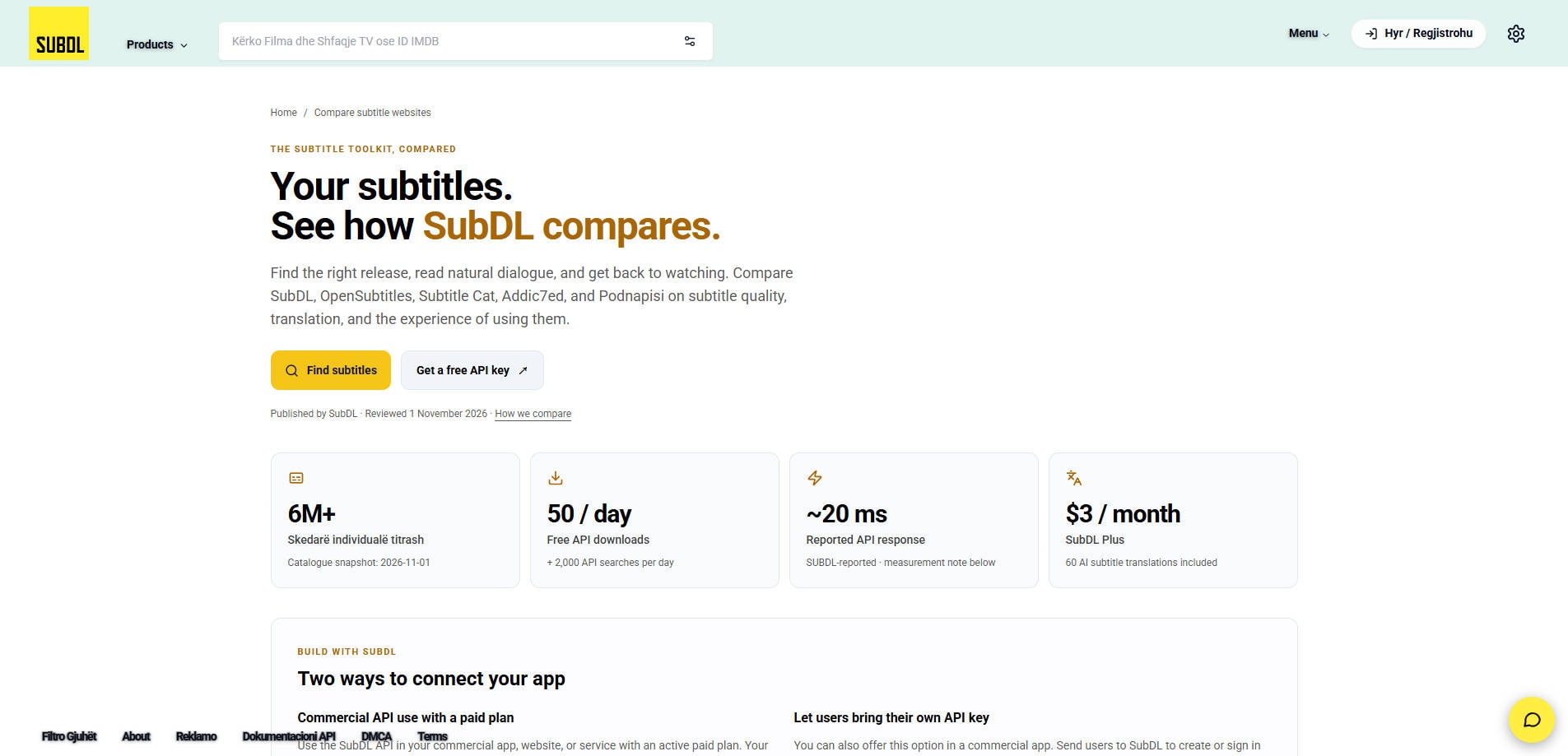
Overview: SubDL SubDL focuses on subtitle discovery for films and television. It is a sensible alternative when your goal is a downloadable caption track rather than voice dubbing or on-video caption design. Select the release carefully, because two copies of the same movie may use different cuts or timing.
Key Features:
- Searchable movie and television subtitle library
- Language and release-specific subtitle listings
- Separate tools and integrations in its broader subtitle ecosystem
Pricing: Subtitle search and basic downloads are offered without requiring a paid video-editing subscription; API and additional features can have their own terms.
Best For: Searching and Downloading Subtitle Files.
Our Take: Try SubDL if SubtitleCat is not returning the caption file you need. It is not the best choice for translating a video you recorded yourself.
3. Subtitle Edit — Best for Free Desktop Editing and Subtitle Timing
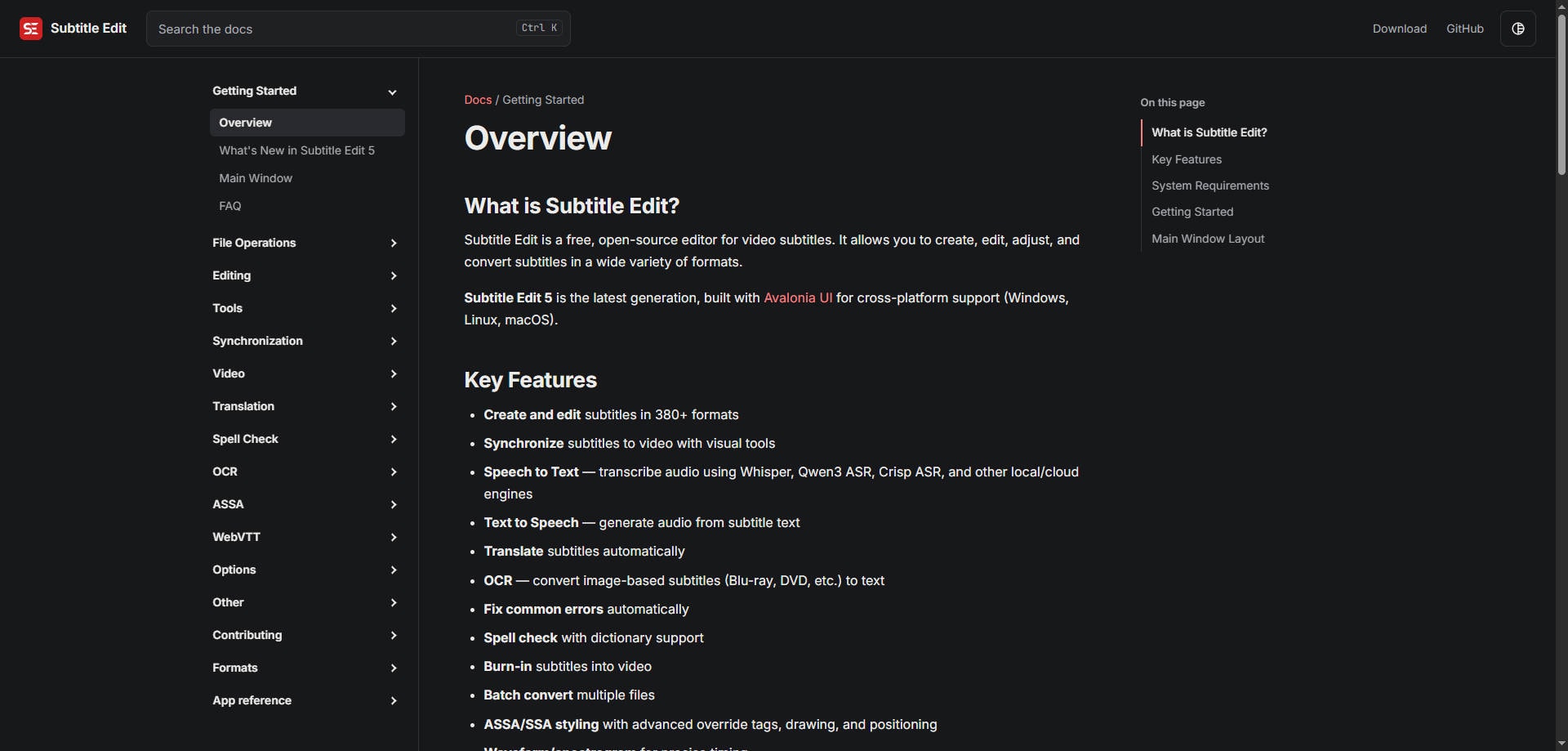
Overview: Subtitle Edit Subtitle Edit is an open-source subtitle editor for people who need control over text and timestamps. Unlike a basic subtitle-search site, it lets you create, adjust, synchronize, translate and convert captions. Its cross-platform generation also documents speech-to-text options, but individual engines and dependencies may need configuration.
Key Features:
- Visual synchronization with waveform and video context
- Subtitle creation, format conversion and automated error checks
- Speech-to-text and translation workflows with selectable engines
Pricing: Free, open-source application; optional external AI services or infrastructure may incur separate costs.
Best For: Free Desktop Editing and Subtitle Timing.
Our Take: The most flexible pick for precise SRT corrections and local editing, particularly when you are comfortable with an editor rather than a one-click website.
4. Kapwing — Best for Translating SRT Files with Video Preview
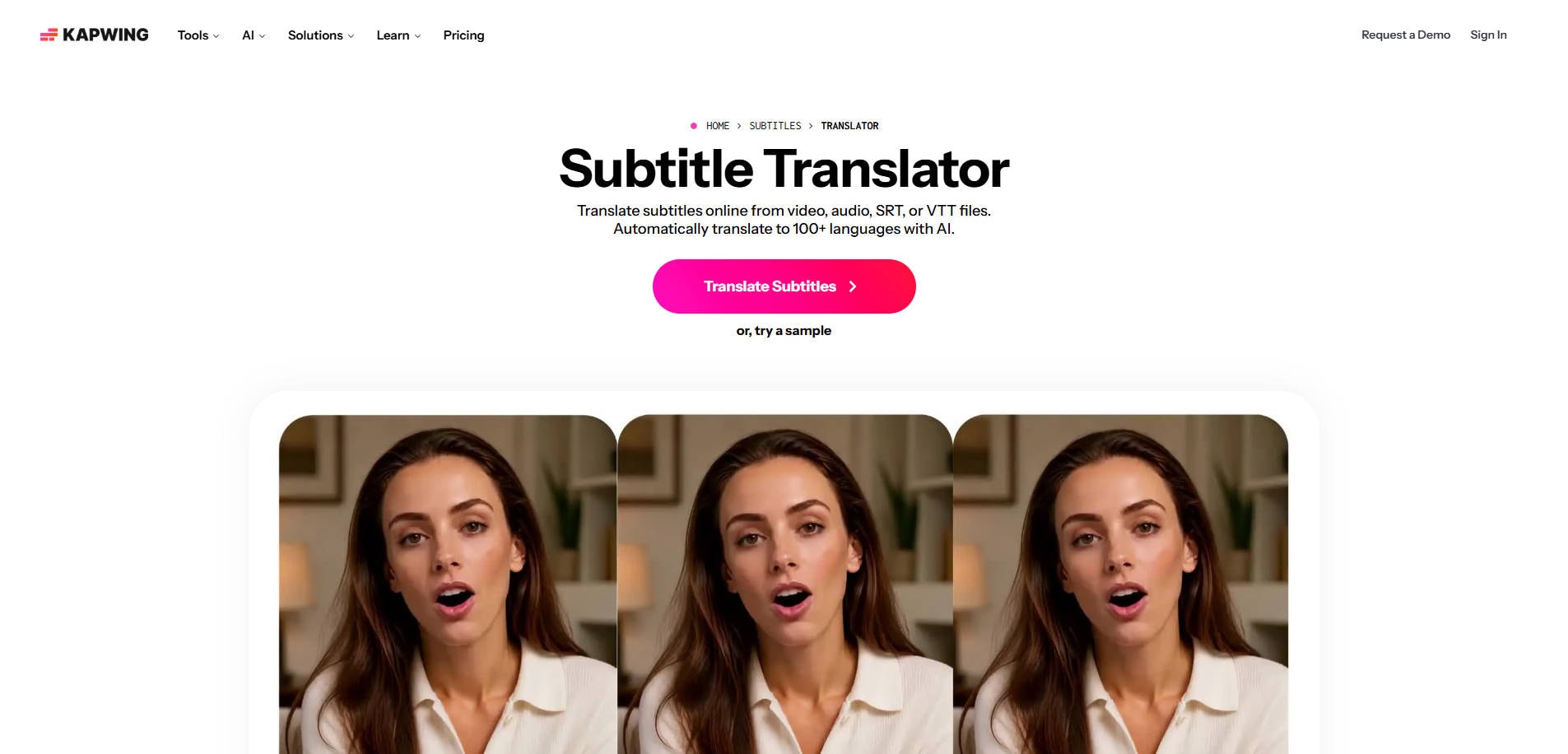
Overview: Kapwing Kapwing brings subtitle translation into an online video editor. Upload an existing SRT/VTT file or work from a video or audio track, then review the translated text alongside the footage. This is especially practical when a creator needs both a subtitle file and a publishable captioned video.
Key Features:
- Translate SRT, VTT, audio and video content
- Edit translated captions in a visual video workspace
- Export subtitle files or a video with captions
Pricing: Online access includes plan-dependent free and paid usage; confirm current export limits and watermark conditions.
Best For: Translating SRT Files with Video Preview.
Our Take: Pick Kapwing if you want to inspect subtitle placement on the actual clip instead of only translating a separate text file.
5. VEED — Best for Auto-Subtitles and Multilingual Video Editing
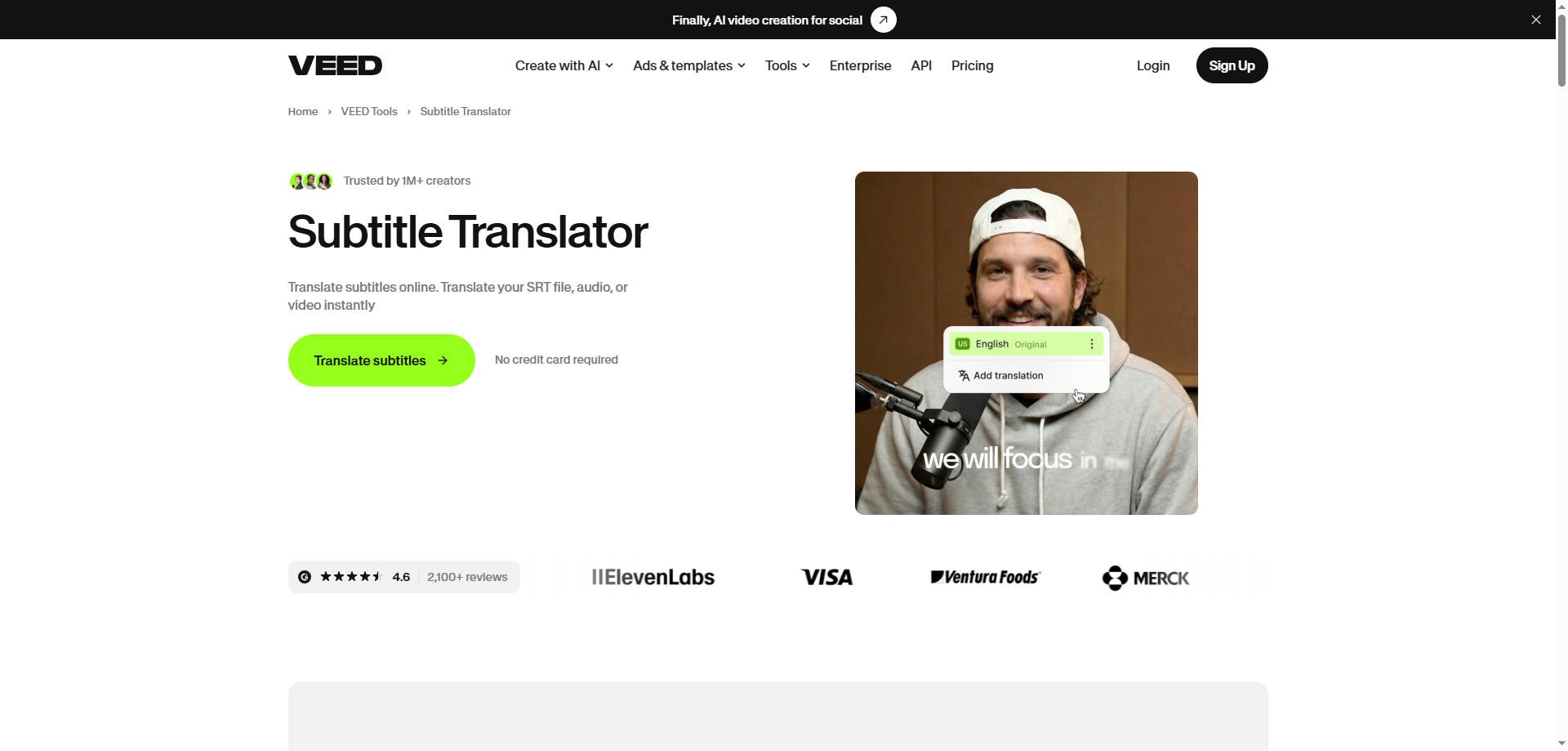
Overview: VEED VEED supports subtitle creation and translation in a browser editor. It can start with an audio or video upload or an existing subtitle track. Its help documentation explains that subtitle translation uses AI credits and that access differs by plan, so it is important to confirm the allowance before a large batch.
Key Features:
- Auto-subtitles and translated caption tracks
- Import existing SRT/VTT tracks for translation
- Export caption files or videos with subtitles applied
Pricing: Plan-specific translation credits and export limits; free-tier translation may be restricted to a trial.
Best For: Auto-Subtitles and Multilingual Video Editing.
Our Take: Choose VEED when you have the video but lack a reliable subtitle track and need a visual editing workflow.
6. Maestra — Best for Multilingual Subtitle Localization
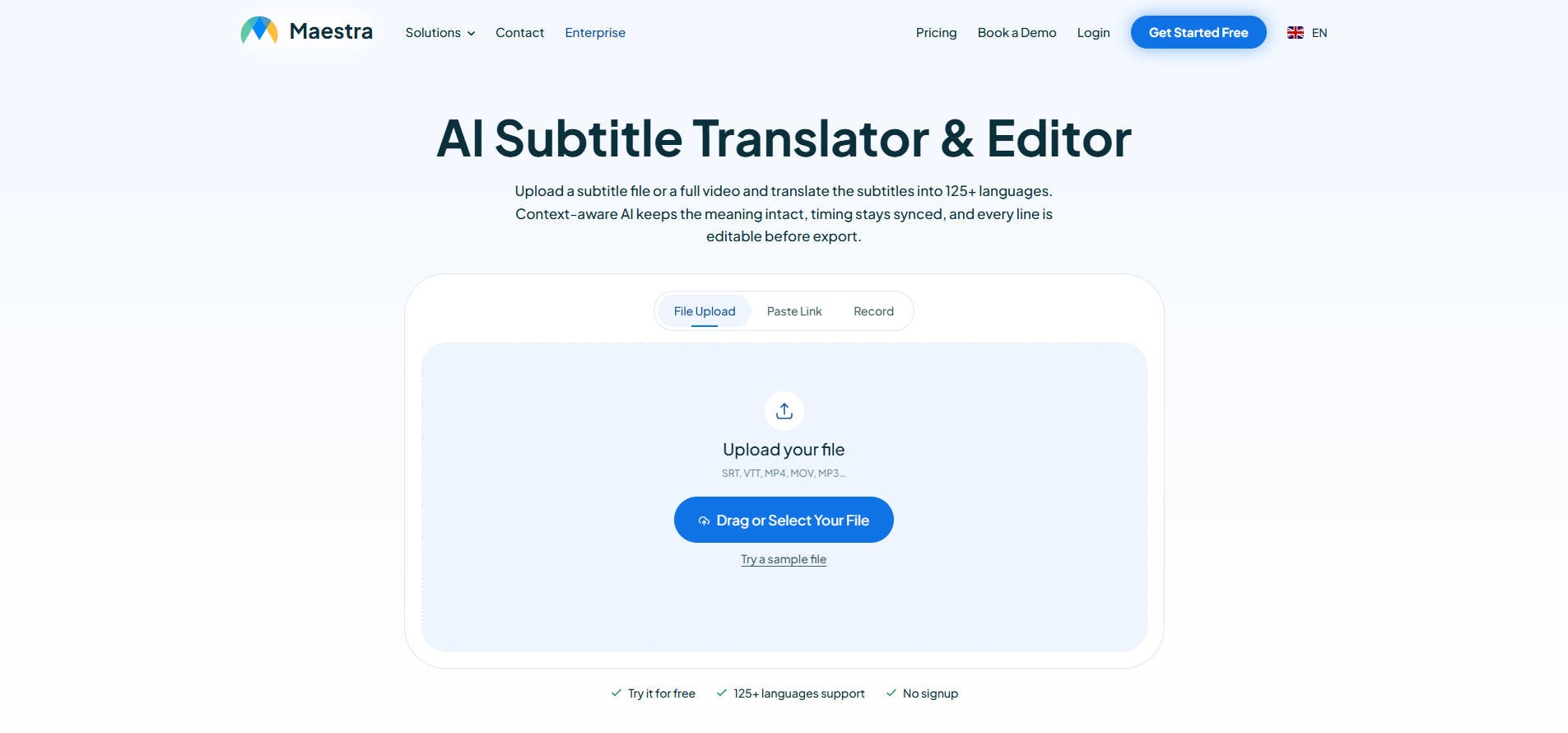
Overview: Maestra Maestra is designed around transforming spoken media or an uploaded subtitle track into translated captions. It provides an editor to review language choices and timing after the automatic pass. A sign-up or paid allowance may be required to export a finished file; a preview is not the same as an unrestricted free download.
Key Features:
- Upload an SRT/VTT file or start with media transcription
- Translate subtitle tracks into multiple languages
- Edit and export translated caption files
Pricing: Trial and paid usage vary by duration, languages and export requirements; verify the checkout terms.
Best For: Multilingual Subtitle Localization.
Our Take: Best for teams converting their own videos into several languages rather than hunting for existing release subtitles.
7. Rask AI — Best for Video Localization with Dubbing
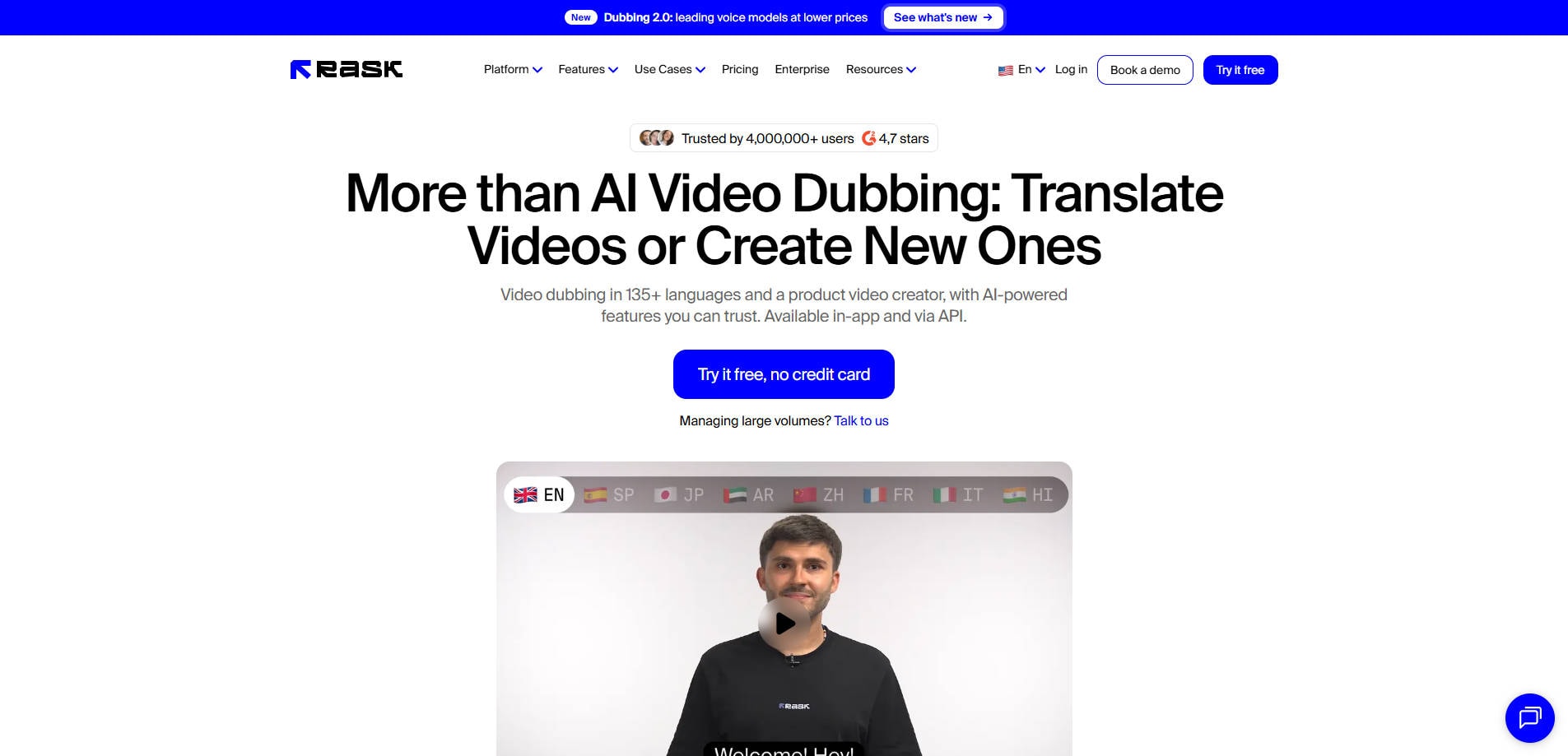
Overview: Rask AI Rask AI targets a broader localization workflow, including speech translation and dubbing. It is a related alternative for teams who start with a video and need localized audiovisual output, not a direct replacement for a subtitle catalogue. Verify the current subtitle-export and language support needed for your project before committing.
Key Features:
- Video translation and voice-localization workflows
- AI dubbing options for multilingual video output
- Editor-led review of localized content
Pricing: Paid, usage-based localization plans may apply; confirm minutes, export rights and features on the current pricing page.
Best For: Video Localization with Dubbing.
Our Take: Use Rask AI for multilingual video production, not merely to look up a subtitle file for a movie.
Part 3. Which SubtitleCat Alternative Should You Choose?
For a movie or TV episode, search OpenSubtitles or SubDL first and match the subtitle release and frame timing to your video. If you already have an SRT file and mainly want to correct its text or timestamps, Subtitle Edit is a stronger fit. If you are publishing a new video, Kapwing, VEED and Maestra can combine creation, translation and review. Rask AI is more relevant when voice translation is part of the deliverable.
If privacy matters, compare an offline editing route with a cloud upload. Caption files can contain private dialogue or identifying information. Also distinguish translated captions from dubbed audio: not every subtitle translator provides the latter, and voice dubbing is unnecessary for a simple SRT download.
Part 4. How to Translate or Replace an SRT File
- Locate the right source. If a subtitle already exists, compare the language, release version and runtime. Otherwise generate a transcript from the video in a tool that supports transcription.
- Import the SRT. Choose a compatible subtitle editor or translator, and keep the original track available for reference.
- Translate and review. Check names, idioms, sentence breaks and reading speed. Machine translation may be technically complete but still sound unnatural.
- Check timing. Preview captions alongside the video. Fix a global offset if every line is early or late; correct individual cues if drift varies.
- Export and test. Save SRT or VTT in UTF-8 encoding as required, then test it in the destination player or publishing platform.
For additional guidance on external SRT tracks and burned-in captions, see our guide to adding subtitles to video.
Part 5. What If the Source Video Cannot Open?
Sometimes the real obstacle is not the subtitle file: the video itself stops playing, freezes, or will not open in an editor. In that case, test the source clip in another compatible player and check whether the file is actually damaged. If it is a supported corrupted video, Wondershare Repairit offers a video repair workflow that may help restore playable footage before you work on captions. Results depend on the remaining file data and damage; it does not translate SRT files, generate captions, or solve a simple subtitle time offset.
After repairing the clip, preview it and save the usable result to a different folder before adding subtitles. If the video plays normally and only the subtitle track is out of sync, use your subtitle editor instead of a file-repair tool.
Conclusion
The best SubtitleCat alternative depends on your starting file and the output you actually need. Choose OpenSubtitles or SubDL for an existing subtitle track, Subtitle Edit for precise caption correction, Kapwing or VEED for editable video captions, Maestra for multilingual subtitle projects, and Rask AI for dubbing-led localization. For a quick translation of a subtitle you already have, a complete video-production platform may be more than you need.
FAQ
-
What is the best free alternative to SubtitleCat?
For locating existing subtitles, start with OpenSubtitles or SubDL and check current download limits. For editing and translating your own subtitle files, Subtitle Edit is free and open source, although some optional speech or translation services can have separate costs. -
Can I translate an SRT file without uploading a video?
Yes. Subtitle Edit works with subtitle files, and browser tools such as Kapwing and Maestra describe direct subtitle-file translation workflows. Review the chosen tool's export limits. -
Which SubtitleCat alternative creates subtitles from a video?
Subtitle Edit provides speech-to-text options. Kapwing, VEED and Maestra can work from audio or video, generating captions before translation. Results should be reviewed for names, punctuation and timing. -
Why do subtitles not match my video?
A different cut, release, frame rate or opening sequence can shift timestamps. Use a subtitle editor to correct the offset or retime cues; translating the text will not solve timing drift. -
Are SRT and VTT the same format?
No. Both store time-coded subtitle text, but VTT has a different file header and additional web-caption features. Export the format expected by your player or platform. -
Does Wondershare Repairit translate subtitles?
No. Repairit is relevant only if a supported video file is genuinely damaged or unplayable before subtitle work. For SRT translation and caption timing, use a subtitle translation or editing tool. -
Can I use a downloaded subtitle file for any video?
Not always. Check rights and source legitimacy, and ensure the subtitle release matches your video. A subtitle track that fits one edition may be out of sync with another.