 TL;DR:
Because YouTube network restrictions are causing repeated media download failures on Cobalt Tools' main instance, users must migrate to stable alternative desktop software, browser extensions, or command-line managers based on their specific batch-processing needs.
● Desktop applications like 4K Video Downloader and JDownloader are optimal for managing large queues and playlists, whereas technical users should utilize yt-dlp for terminal-level metadata control, and casual users can rely on Video DownloadHelper for immediate in-browser extractions.
● Each platform carries specific operational constraints, such as 4K Video Downloader's free-plan quantity caps, Video DownloadHelper requiring a separate Companion Application alongside HLS limits in Firefox, and SnapDownloader lacking a finished Ubuntu Linux release.
● If saved MP4, MOV, AVI, MKV, FLV, or WEBM files exhibit blurriness or heavy compression artifacts, users can process the footage through Repairit AI Video Enhancer using its 200% or 400% scaling models to restore visual clarity.
Ask AI for a summary
 ChatGPT
 Perplexity
 Gemini
 Claude
 Grok
Grok
TL;DR
- Cobalt remains useful, but YouTube restrictions can affect main-instance reliability and download success.
- A good Cobalt Tools alternative should feel safe, clear, stable, and legally responsible.
- The list covers extensions, desktop software, command-line tools, and download managers.
- After saving files, Repairit AI Video Enhancer can improve blurry or compressed playback.
- Readers should match each platform with their download habits, device needs, and comfort level.
Quick Answer: A Cobalt Tools alternative should offer stable downloads, clean pages, and clear usage limits for safer media access. Furthermore, Repairit AI Video Enhancer can improve blurry saved clips after downloading them.
Cobalt remains available, but YouTube downloads on its main instance have become less reliable due to network-side restrictions. The platform supports downloading public videos, audio, photos, and GIFs via links. However, YouTube restrictions have caused blocked requests and repeated main-instance failures. Developers now point users toward local processing or self-hosted server options.
This shift in reliability explains why readers compare other tools before downloading media. A strong Cobalt Tools alternative should support formats without confusing redirect loops. It should also respect public-content limits and avoid unsafe advertising pages. Therefore, this guide reviews platforms for smoother video and audio downloads.
In this article
Part 1. What is Cobalt Tools? Why Users Look for Alternatives?
Cobalt Tools is an ad-free web downloader for public videos, audio, photos, and GIFs. It works through pasted links while avoiding trackers, pop-ups, paywalls, and clutter. However, users seek Cobalt Tool alternatives because YouTube blocking and main-instance failures reduce download reliability. The following reasons explain why users now compare other tools before downloading:
- YouTube Restrictions: YouTube may block requests from Cobalt's main website, causing repeated download failures. People then need another tool when links fail during normal download attempts.
- Server Overload: Busy downloader websites can face heavy traffic, bot checks, and rate limits. As a result, speed and success rates may change across different hours.
- Difficult Self-Hosting: Self-hosting can reduce some blocks, but the setup feels technical for beginners. Most casual users prefer simple websites that work without server configuration steps.
- Platform Rule Changes: Video platforms regularly adjust access rules, which can suddenly break downloader functionality. Alternatives help users better compare formats, quality options, and download stability.
- Clone-Site Risks: Searching for downloaders can expose users to clones, pop-ups, and redirects. Safer alternatives make browsing clearer while reducing contact with misleading mirror pages.
Part 2. What to Look for in a Cobalt Tools Alternative?
Before choosing any Cobalt Tools alternative, readers should check how safely and smoothly each platform handles downloads. Below are the features that help separate practical tools from risky or unreliable options:
- Format and Quality Support: A strong option should handle common video formats, audio files, and resolutions. It should also show quality choices before users start each download session.
- Platform Coverage: Readers need tools that support major social, streaming, and creator platforms reliably. This coverage reduces switching when a source unexpectedly blocks certain downloads online.
- Safety and Clean Interface: A safer platform avoids aggressive pop-ups, fake buttons, and suspicious redirects during browsing. Clean pages help users quickly recognize real download controls without extra confusion.
- Download Stability: Stable tools should process links without frequent failures, freezes, or timeout errors. Faster queues matter when users download longer videos during peak online hours.
- Usage Clarity: Good alternatives clearly explain supported platforms, file limits, and usage boundaries up front. That clarity prevents users from expecting downloads that platform rules may block.
Part 3. Download Videos Easily: Best Cobalt Tools Alternatives in 2026
After reviewing the key features, readers can now compare the most practical Cobalt Tools alternatives below for smoother media downloading:
1. 4K Video Downloader
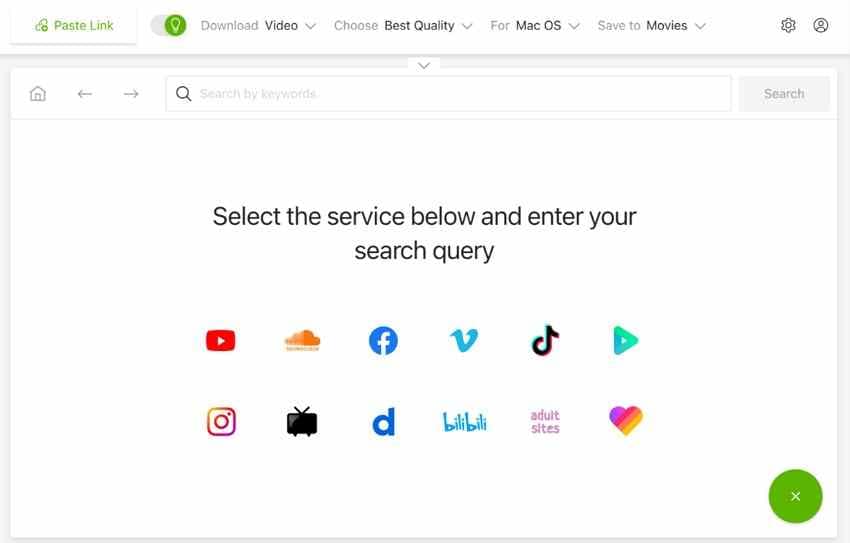
Many desktop users prefer a Cobalt Tools alternative that feels organized and predictable. With 4K Video Downloader, they can save videos, playlists, channels, and subtitles. Moreover, its installed interface suits users, avoiding risky mirror-style downloader pages during searches. This approach works best for lectures, tutorials, music clips, and creator archives.
Pros
- Smart Mode remembers settings for future download tasks.
- Built-in browser allows account login for protected media.
- Proxy support helps with region-restricted video access issues.
Cons
- Free plan keeps quantity limits on basic downloads.
- Private-content downloads require premium access and legitimate rights.
2. Video DownloadHelper
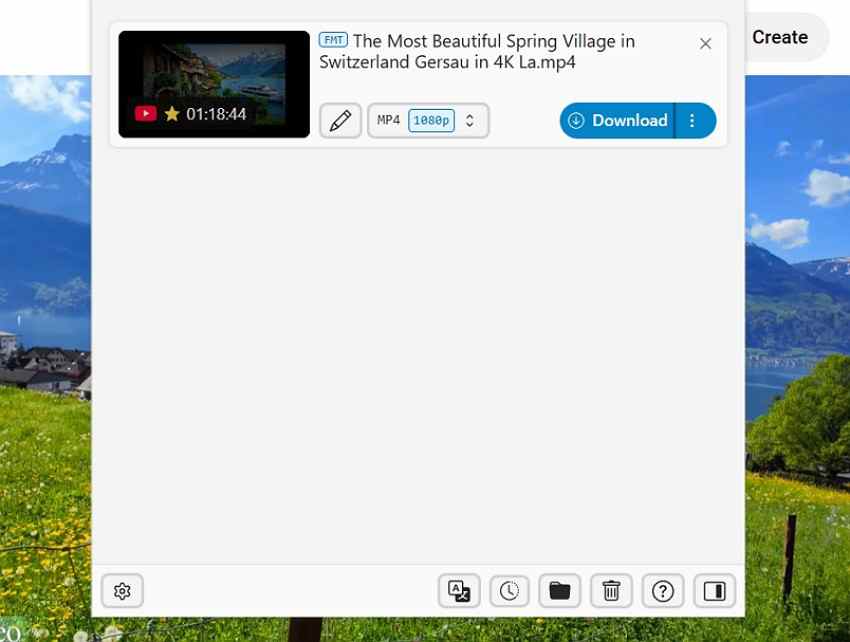
Browser-based saving feels easier when users dislike copying links between separate programs. Video DownloadHelper detects media on webpages and works through popular browser extensions. Instead of opening another platform, users can manage downloads during normal browsing. This option suits quick clips, embedded videos, lighter tutorials, and everyday media tasks well.
Pros
- Live-stream support enables offline viewing beyond broadcast timing.
- Audio extraction turns video soundtracks into portable files.
- HD conversion supports preferred formats for later playback.
Cons
- Some operations require installing the separate Companion Application.
- HLS limits apply without Premium status in Firefox.
3. SnapDownloader
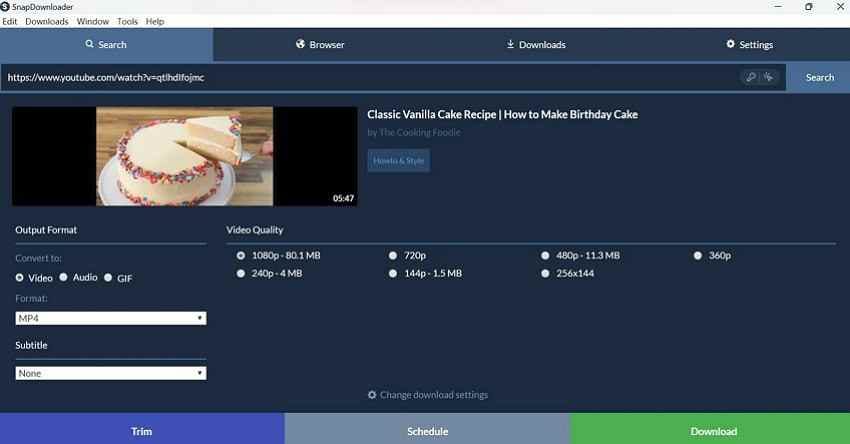
Broader site support makes SnapDownloader useful as a Cobalt Tools alternative. Users can download videos from many platforms and quickly choose available output formats. In addition, higher-resolution choices help when source videos offer clearer download quality.
Pros
- Built-in trimmer saves selected sections without full downloads.
- Scheduling suits overnight jobs during quieter bandwidth periods.
- GIF creation turns clips into lightweight shareable animations.
Cons
- Linux users still lack a finished Ubuntu release.
- Paid licensing follows trial use for continued access.
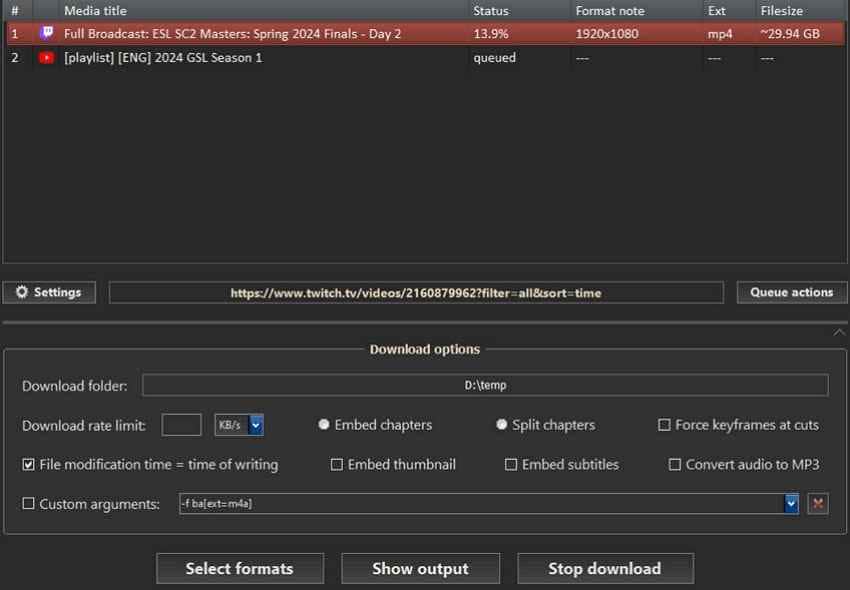
4. yt-dlp
Technical users often choose yt-dlp because detailed control matters more than polished design. Commands can manage formats, subtitles, playlists, cookies, and repeated download tasks well. Yet, beginners may initially find setting up harder than using visual downloader apps. For advanced workflows, it remains powerful across many supported online media sources.
Pros
- Configuration files store defaults across future terminal sessions.
- Output templates organize filenames using extracted metadata fields.
- Plugins extend extractors and postprocessors for custom workflows.
Cons
- Terminal syntax increases mistakes around quoting special characters.
- Unauthorized plugins may create security and trust risks.
5. JDownloader
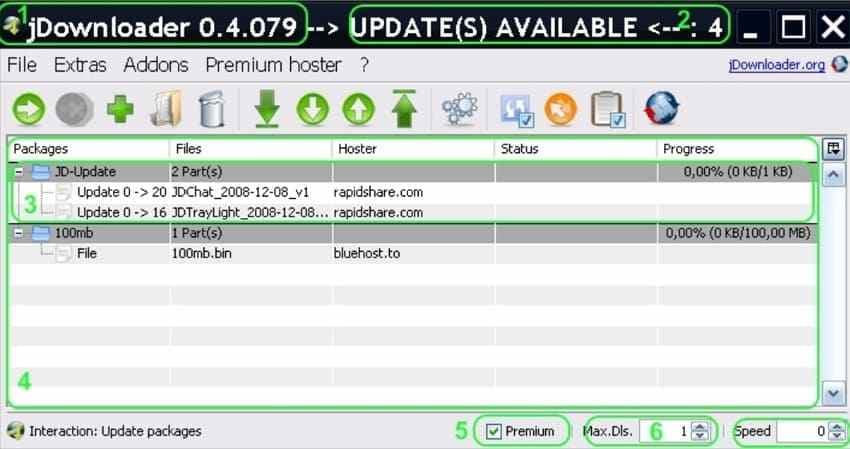
Large download queues need a Cobalt Tools alternative with stronger session management today. JDownloader helps users efficiently pause, resume, organize, and control multiple downloads. Meanwhile, bandwidth controls support longer sessions without overwhelming the connection during downloading. It is better for batches, mirrors, archives, and repeated file collection projects.
Pros
- Auto-extraction unpacks archives after multipart downloads complete successfully.
- MyJDownloader securely enables remote control through connected devices.
- LinkGrabber organizes copied URLs before download tasks begin.
Cons
- Remote access requires an active MyJDownloader account setup.
- Browser extensions are not standalone without a desktop installation.
6. ClipGrab
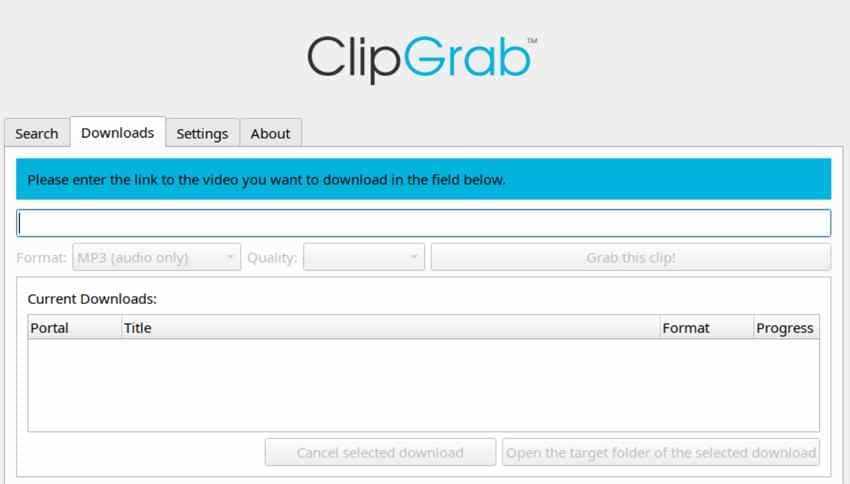
A simpler desktop route still matters to users who avoid complicated downloader settings. ClipGrab combines video downloading with conversion into common audio and video formats. Moreover, its familiar interface helps casual users handle occasional media saving without confusion. This makes it suitable for basic downloads rather than for advanced online automation needs.
Pros
- Official lists Tudou, Sevenload, MyVideo, and MySpass support.
- OGG Vorbis audio offers another lightweight extraction choice.
- Older-format exports include WMV and OGG Theora options.
Cons
- The official supported-site list excludes many newer social platforms.
- Fewer listed platforms limit comparisons against broader tools.
7. Wondershare UniConverter
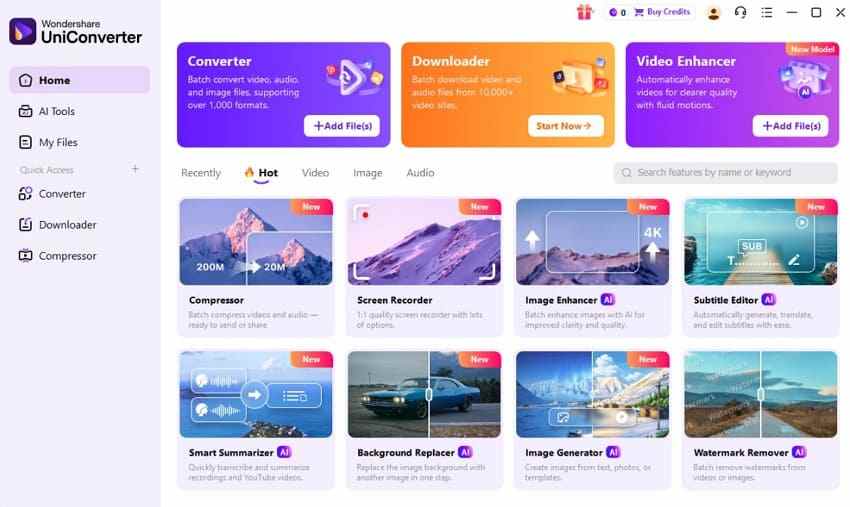
Editing needs can make Wondershare UniConverter a Cobalt Tools alternative for creators today. It combines downloading with conversion, compression, recording, and other media editing workflows. Therefore, users can later prepare files after saving them from supported online sources. This choice suits teams that polish downloaded material before sharing or publishing it online.
Pros
- Speech-to-text supports transcription in over 20 languages globally.
- Background remover processes image and video backgrounds automatically.
- Metadata repair improves organization across saved media libraries.
Cons
- Paid plans unlock full downloader and converter functionality.
- A heavy toolkit may confuse download-only users during setup.
8. DDownr
DDownr keeps media saving browser-based for users who dislike installing extra software. Its paste-link layout supports quick downloads from sources the platform currently accepts. Meanwhile, the lighter workflow feels closer to Cobalt's simple online experience. For casual needs, it can work as a clean Cobalt Tools alternative.

Pros
- No-tracking policy strengthens privacy for casual download sessions.
- Zero ads significantly reduce distractions on media-saving pages.
- Direct connections avoid proxy delays during supported downloads.
Cons
- High-resolution downloads currently need the browser extension version.
- A repository-based project may need a technical review before a recommendation.
Pro Tip. Enhance Downloaded Videos with Repairit AI Video Enhancer
Even after choosing a reliable Cobalt Tools alternative, downloaded videos may still look blurry, compressed, or dull. This often happens when the original upload has low resolution, heavy compression, poor lighting, or weak frame detail. Moreover, old tutorials, saved clips, and social videos can lose clarity when played on larger screens, making the viewing experience feel less polished.
Therefore, Repairit AI Video Enhancer works as a practical fix for saved footage. It helps improve clarity, sharpness, color balance, and overall viewing quality. Instead of changing download tools, it supports the video after saving. This makes it useful for compressed clips, old recordings, and tutorials. As a result, viewers can enjoy cleaner playback without having to replace sources.
Key Features
- AI Quality Enhancement: Improves sharpness, reduces noise, and removes blur for cleaner saved videos with clearer visual detail.
- Flexible Video Length Support: Handles short clips and longer recordings, helping users consistently enhance different saved media files.
- Wide Format Compatibility: Supports common video formats, such as MP4, MOV, AVI, MKV, FLV, and WEBM, for smoother enhancement of downloaded media files.
Guide to Enhance Downloaded Videos with Repairit AI
Once the video is saved, the enhancement should focus on visible playback problems. The following guide shows how Repairit AI Video Enhancer improves downloaded footage:
Step 1. Start inside Repairit's "AI Media Enhancer" area and choose "AI Video Enhancer." Afterward, import the downloaded clip that appears soft, noisy, or stretched onscreen.
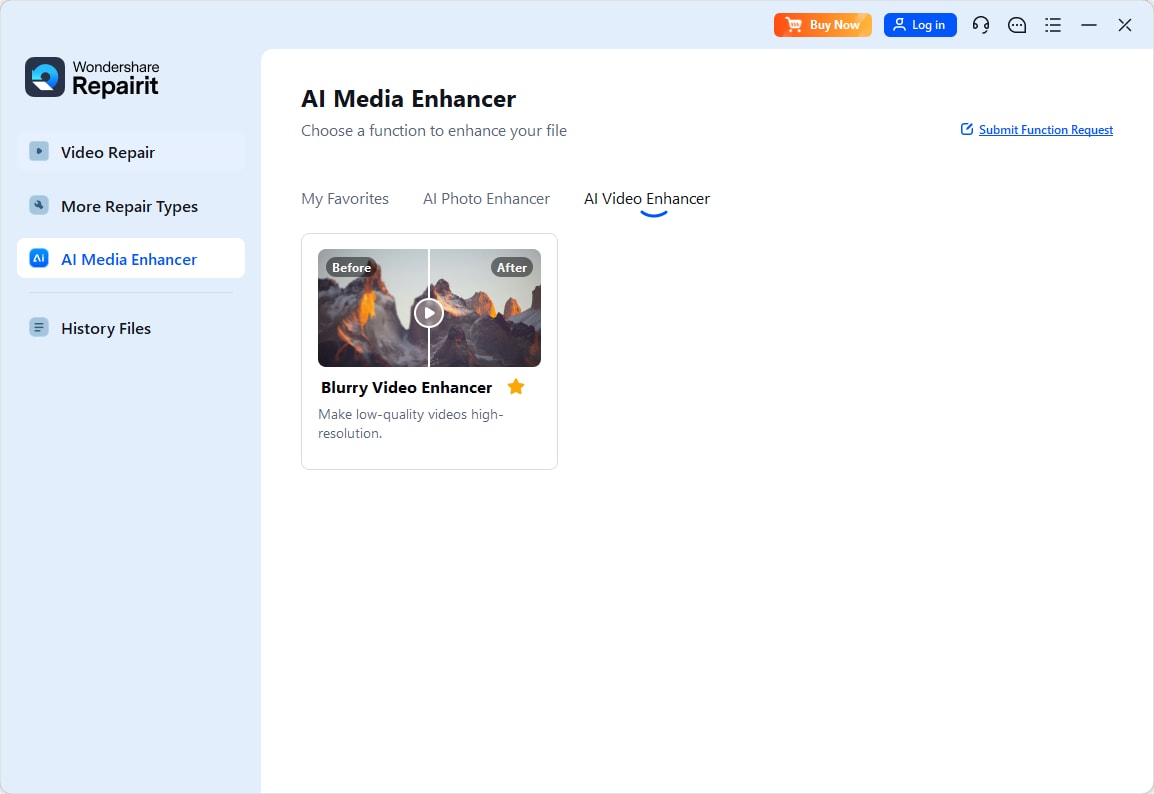
Step 2. After the file loads, match the "AI Model" with its issue. Choose 200% or 400% scaling, then press "Start Enhancing" to begin the full enhancement process.

Step 3. When processing ends, compare the preview against the original footage carefully. Next, select "Save All" exports of the improved version for cleaner viewing on larger screens.

Conclusion
To conclude, choosing the right Cobalt Tools alternative depends on download stability, supported platforms, safety, and workflow comfort. Some readers may prefer browser extensions, while others need desktop software, command-line control, or download managers. After saving media, blurry clips may still need visual improvement, making Repairit AI Video Enhancer a helpful finishing option for clearer playback.
Frequently Asked Questions
-
1. What is the best alternative to Cobalt Tools for regular media downloads?
The best option depends on format requirements, platform support, and overall download stability. Desktop tools suit heavier work, while browser extensions support quicker saving sessions online. -
2. Is Cobalt Tools still safe to use?
Cobalt remains known for avoiding ads, trackers, paywalls, and unnecessary interface clutter online. However, users should follow copyright rules and avoid suspicious clone pages during searches. -
3. Why do users look for Cobalt Tools alternatives?
Some users compare alternatives because YouTube blocks can affect the reliability of Cobalt's main instance. Others need different workflows, including extensions, desktop software, or command-line control options. -
4. Can Repairit AI Video Enhancer improve downloaded videos?
Repairit AI Video Enhancer can sharpen details, reduce noise, and remove visible blur. It helps save clips look clearer after downloads, especially on larger screens.