A yellow-tinted iPhone display does not always mean something is broken immediately either. True Tone and Night Shift intentionally warm the display under normal conditions daily automatically. Many users call this iPhone yellow screen of death, although Apple never does itself.
Remaining cases usually involve software faults or physical display damage requiring further checks. Start with display settings because they resolve most problems without costing anything. If a force restart becomes necessary and interrupts an active video recording, Repairit can help repair any corrupted footage afterward.
In this article
Part 1. What Does a Yellow Screen on an iPhone Mean?
Seeing a yellow screen of death does not automatically mean your iPhone is damaged. The same yellow appearance can come from 3 different situations, and only one points to an actual fault. Knowing which one you are dealing with saves unnecessary troubleshooting and helps you choose the right fix from the start.
Yellow Screen vs Normal Yellow Tint
A normal yellow tint simply makes the display look warmer without affecting readability. Text, icons, and apps remain clear because only the color balance changes. A true yellow screen is different, often hiding interface elements or severely distorting colors.
New iPhones can sometimes look slightly warm because display calibration, panel variation, or True Tone can affect perceived white balance. Before assuming something is wrong, place your phone beside another iPhone under the same lighting. Your eyes adapt to warm color tones surprisingly fast, making small differences harder to notice after only a few minutes.
Yellow Screen vs Orange, Green, or White Display
Understanding how the iPhone yellow screen of death differs from orange, green, or white screens helps identify the underlying cause more accurately.
| Screen Color | What It Usually Indicates | Where to Look First |
| Yellow | A warm display setting, or an aging panel | Display & Brightness settings |
| Orange | A warm setting pushed further than intended | The Night Shift temperature slider |
| Green | An OLED panel or display driver fault | Hardware, since settings rarely produce green |
Photographing the screen with a second phone is worth the effort, because a camera records what your own eyes have already normalized.
Temporary Color Change vs Persistent Yellow Screen
The yellow screen of death becomes easier to diagnose by watching how the yellow changes over time.
- Scheduled Yellow Tint: Night Shift is running, and normal color returns once the phone falls outside its window.
- Lighting-Dependent Yellow Tint: True Tone reacts to surrounding light, exactly as it was designed to do.
- Constant Yellow Screen: If both are off, check Color Filters before suspecting a software or hardware problem.
A better test is disabling True Tone in Settings because covering the ambient light sensor does not reliably confirm whether True Tone causes discoloration.
Part 2. Which iPhone Yellow Screen Problem Do You Have?
Match your iPhone yellow screen of death symptoms first, since each pattern points toward a different solution.
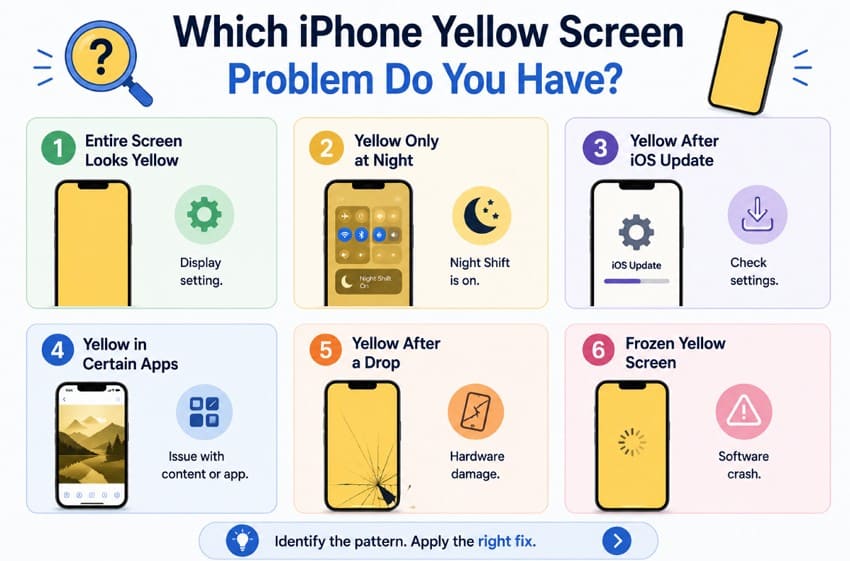
- Entire Screen Looks Yellow: A uniform cast across everything often points to a display setting like True Tone or Night Shift, but hardware faults can also produce uniform discoloration. Check display settings first before ruling out hardware.
- Yellow Only at Night: This is Night Shift running on its default sunset-to-sunrise schedule, behaving exactly as designed, and nothing is wrong with the phone.
- Yellow After iOS Update: Updates occasionally re-enable display settings or ship a color bug that a later release corrects. Check the settings before assuming the update broke something.
- Yellow in Certain Apps: Content-specific yellow points at the file or the app rather than the screen. A yellow photo on a normal-looking home screen rules the display out completely.
- Yellow After a Drop: Physical events point straight at the panel, its connector, or the logic board. No software fix reaches any of them.
- Frozen Yellow Screen: A frozen yellow screen is usually a software crash rather than a color problem. Treat it as a lockup and force restart first.
Part 3. Why Does Your iPhone Screen Look Yellow?
The causes below explain why the iPhone yellow screen of death appears and which fixes actually work for them:
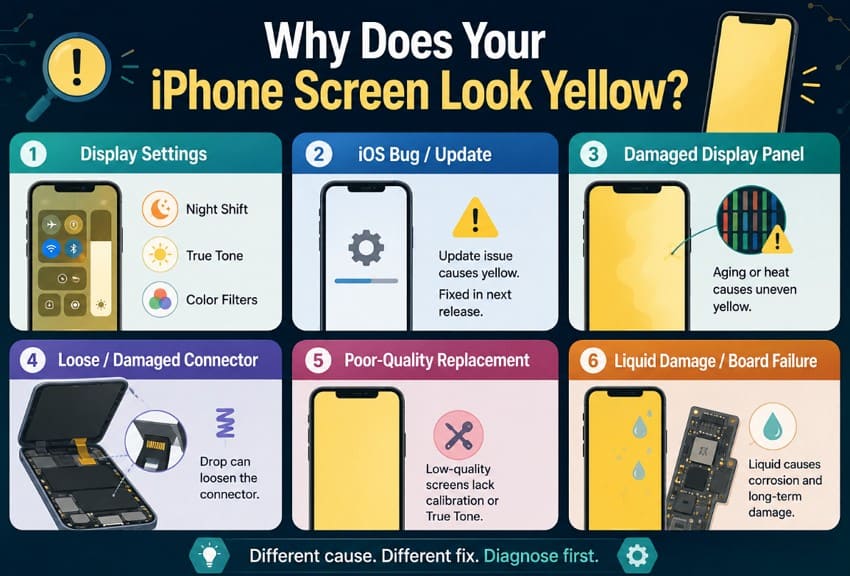
1. Night Shift, True Tone, or Color Filters
These three account for the overwhelming majority of cases. True Tone is enabled by default and matches color and intensity to the light around you. That is why it shifts as you move between rooms. Night Shift warms the display from sunset to sunrise, and Color Filters sit under Accessibility, adding a tint of their own on top of both.
2. iOS Bug or Interrupted Software Update
An update that installed badly can leave display settings in an inconsistent state. Beta releases in particular ship color handling that later builds correct. iPhone yellow screen of death that started on the same day as an update point here first. The fix is usually the next point release rather than anything you do.
3. Damaged OLED or LCD Display Panel
Panels age unevenly, and OLED in particular shifts warm as its blue subpixels degrade faster than the others. Heat and pressure both accelerate that process considerably. Uneven yellow across parts of the screen, rather than uniform warmth, is the giveaway. Leaving a phone on a car dashboard through a summer afternoon does more damage than most owners realize.
4. Loose or Damaged Display Connector
The display connects to the logic board through a small ribbon connector that a drop can unseat. Color faults that flicker or change when the phone is squeezed or flexed usually trace here. This is often among the cheaper repairs when caught early, since nothing needs replacing.
5. Incompatible or Poor-Quality Replacement Screen
Third-party panels frequently miss Apple's color calibration, and many disable True Tone entirely once fitted. A yellow screen of death that arrived with a repair rather than with an accident is almost always this. Calibration transfer matters as much as the panel, and not every shop performs it. Ask before the work starts rather than afterward.
6. Liquid Damage or Logic Board Failure
Liquid reaching the display circuitry causes corrosion that spreads over days, so the fault often appears well after the exposure itself. Furthermore, discoloration that worsens gradually after contact with water needs professional attention quickly. Rice does nothing for this, and powering the phone back on only speeds the damage up.
Part 4. How to Fix a Yellow Screen on iPhone
Work through these fixes in order, starting with the simplest solutions, until the iPhone yellow screen of death is resolved or the underlying cause is identified.
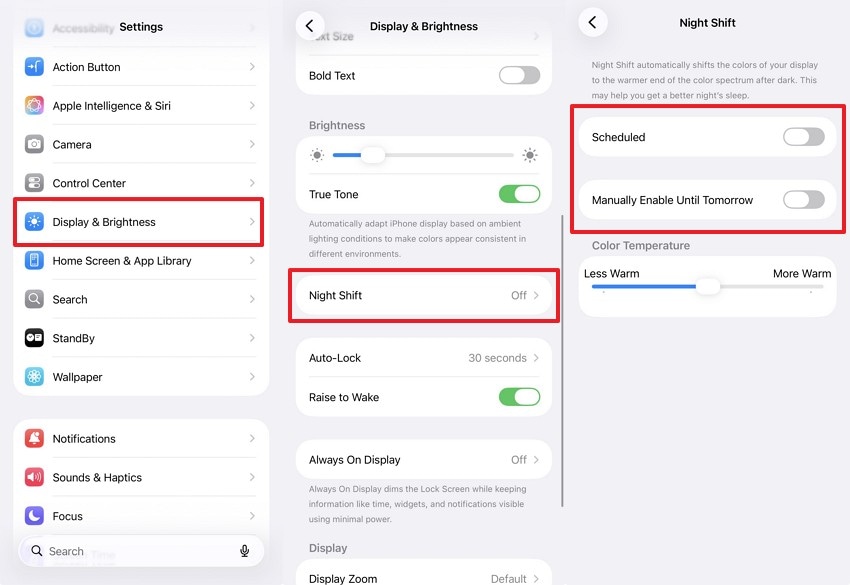
Fix 1. Disable Night Shift
Night Shift is the single most common answer, and it runs on a schedule you may never have set yourself. Because it defaults to sunset and sunrise, the yellow tends to arrive at roughly the same time each evening. Use the following instructions to disable Night Shift:
Instructions. Open Settings > Display & Brightness > Night Shift. Then turn off Scheduled, and set Manually Enable Until Tomorrow to off as well.
Fix 2. Turn Off True Tone and Color Filters
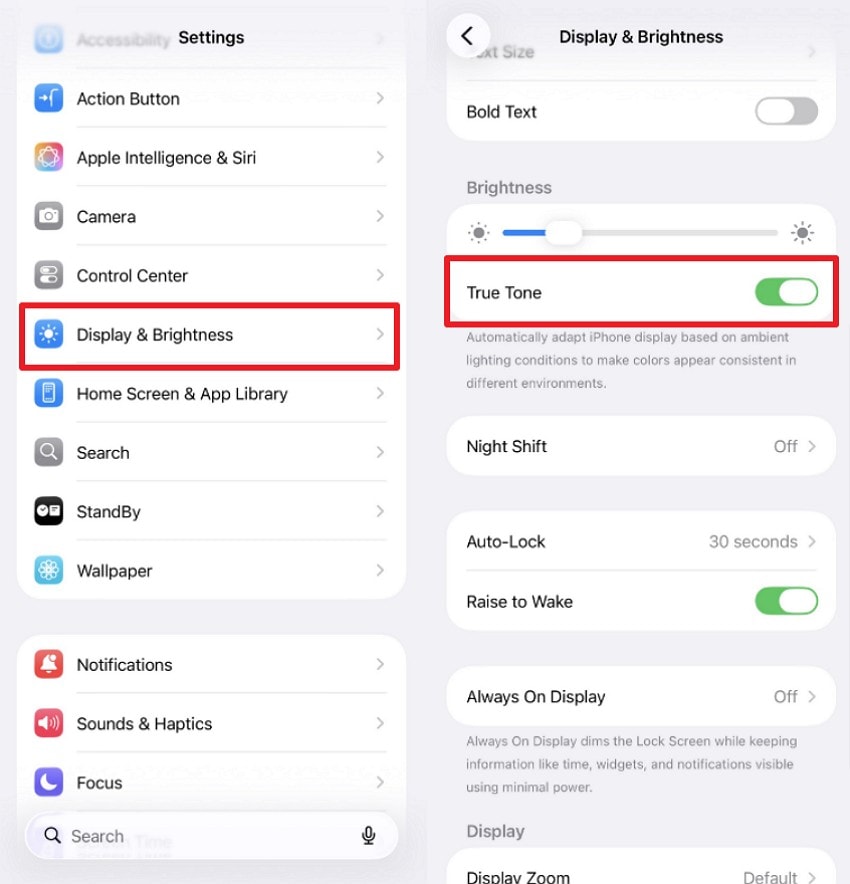
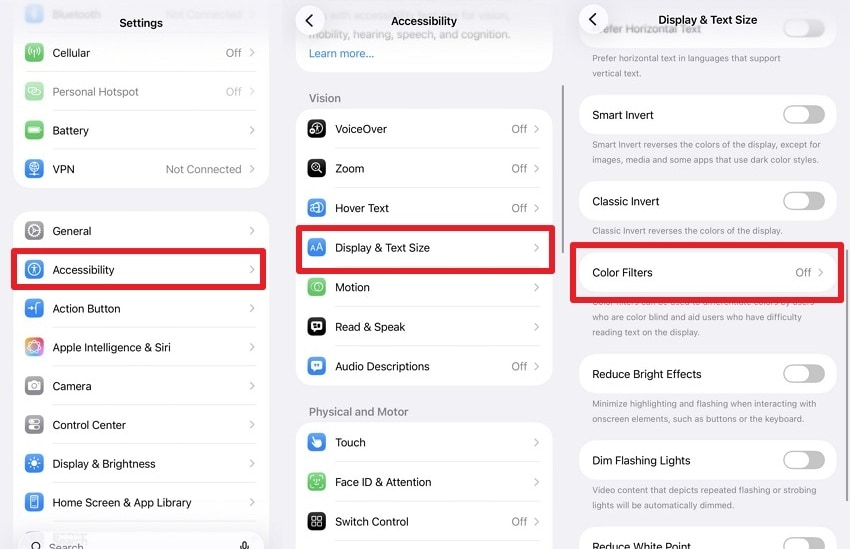
True Tone adjusts display warmth based on surrounding light, not the time of day. As a result, it can easily be mistaken for the iPhone yellow screen of death. Color Filters, found under Accessibility, can also leave a persistent yellow tint if accidentally enabled. Check and disable both settings before assuming the display has a hardware problem. Follow these steps to turn off True Tone and Color Filters:
Step 1. From Settings > Display & Brightness, turn off True Tone.
Step 2. Afterward, navigate to Settings > Accessibility > Display & Text Size > Color Filters and switch that off too.
Fix 3. Restart or Force Restart the iPhone
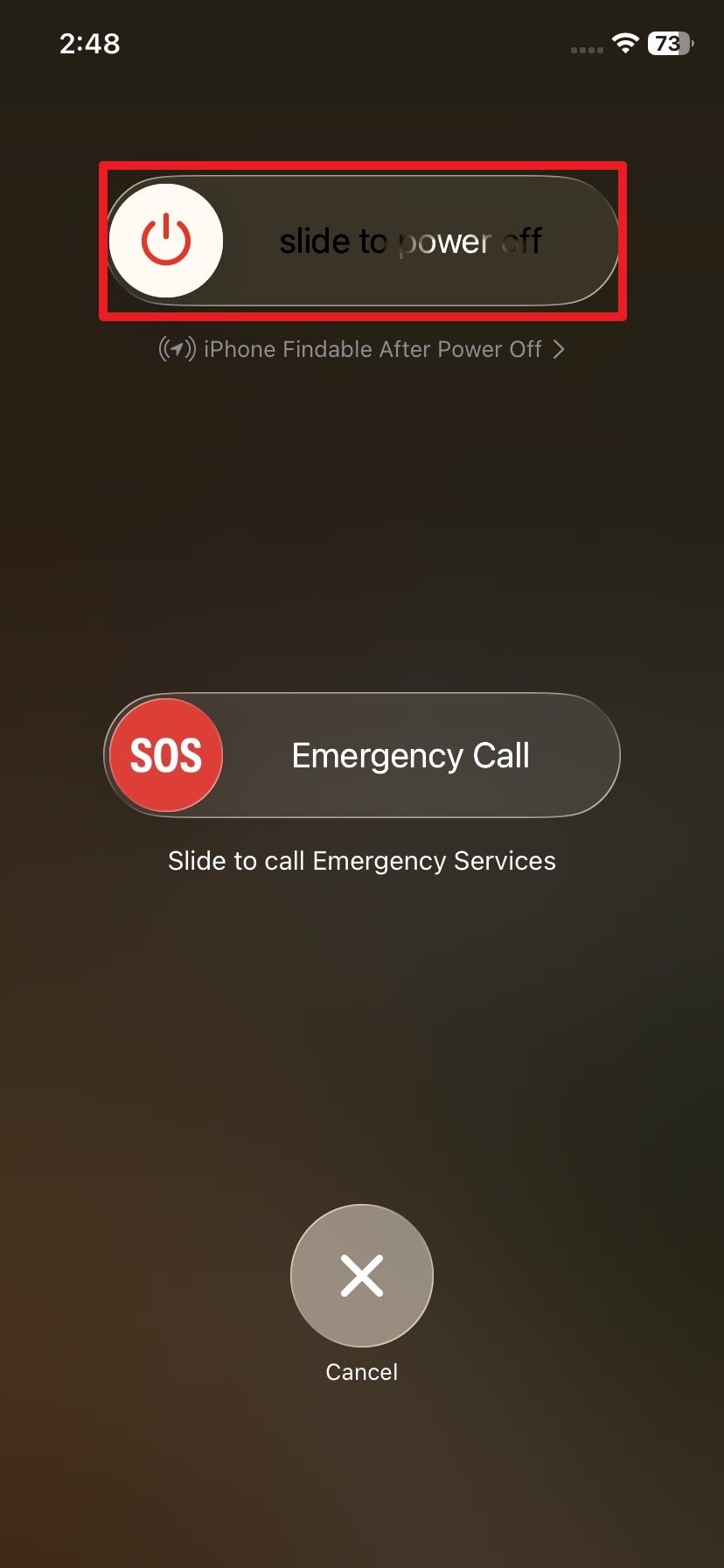
A restart clears the temporary state behind many display glitches, while a force restart reaches the cases where the phone has stopped responding altogether. Try the gentler option before escalating. Force restarting is safe and erases nothing, though it will interrupt whatever the phone happened to be recording. The following instructions will guide you on how to do a simple restart:
Instructions. Press and hold the Side button and either Volume button until the power-off slider appears. Drag the slider to turn off your iPhone. After it shuts down, press and hold the Side button again until the Apple logo appears.
Fix 4. Check the Screen for Physical or Liquid Damage
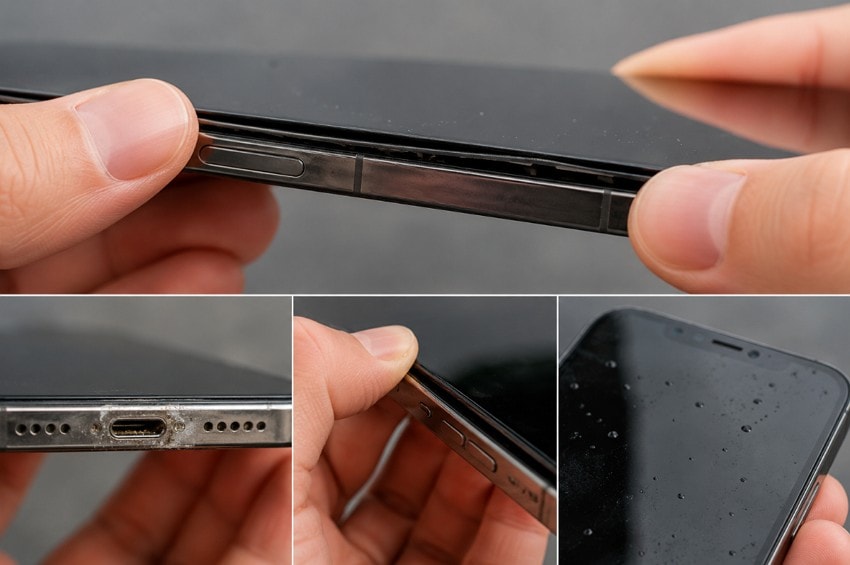
This is a 5-minute inspection that saves hours of software troubleshooting. Look along the seam between screen and frame for lifting or gaps. Check the charging port for corrosion, then press gently around the edges to see whether the color changes. Any of those findings makes the remaining software fixes pointless, and liquid exposure needs attention before corrosion spreads.
Fix 5. Update the iPhone to the Latest iOS Version
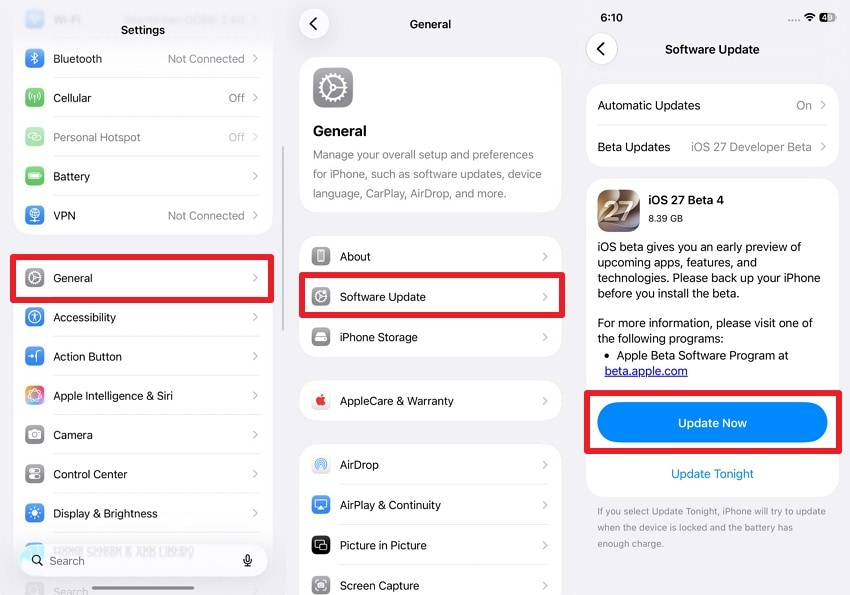
Display bugs get patched, and a yellow cast that arrived with one update is frequently resolved by the next. Updating also rules out an incomplete earlier install, which can leave display settings in an inconsistent state. Installing whatever is waiting takes only a few minutes. The instructions below will guide you to update your iPhone and fix the yellow screen of death:
Instructions. From Settings > General > Software Update, press Update Now to install any available updates, and let the phone finish restarting before judging the result.
Fix 6. Reset All iPhone Settings
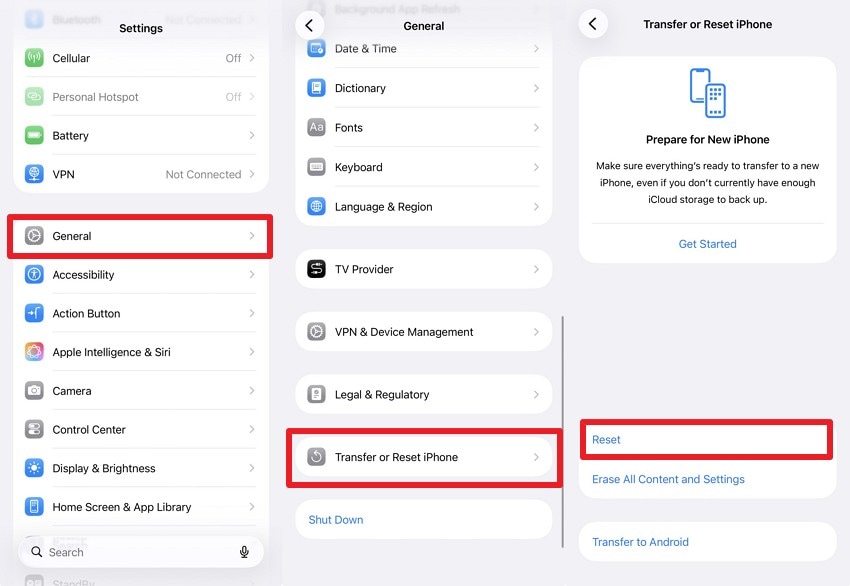
This returns every setting to its default without touching photos, messages, or apps, which clears any display configuration you cannot locate manually. It is the last purely software step before considering more advanced solutions for the iPhone yellow screen of death, and you will need to reconnect your Wi-Fi networks afterward.
Instructions. Open Settings > General > Transfer or Reset iPhone > Reset > Reset All Settings and confirm with your passcode.
Fix 7. Update the iPhone Using Recovery Mode
Updating your iPhone in Recovery Mode reinstalls iOS while keeping your data intact, which ordinary updates can't do when the system is corrupted. Apple lists the situations that call for it, including a phone stuck on the Apple logo with no progress bar. Here are the instructions to update an iPhone using Recovery Mode:
Step 1. Connect your iPhone to a computer using a USB cable. Open Finder on a Mac or the Apple Devices/iTunes app on Windows.
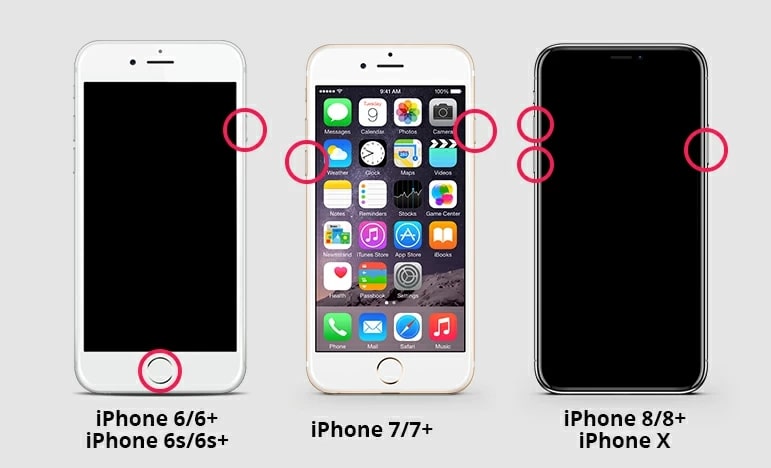
Step 2. Put your iPhone into Recovery Mode using the following instructions because each model requires different combinations:
- iPhone 8 or Later: Quickly press Volume Up, then Volume Down. Next, hold the Side button and continue holding it until the Recovery Mode screen appears, even if the Apple logo shows first.
- iPhone 7/7 Plus: Hold the Side and Volume Down buttons together. Release them only after the Recovery Mode screen appears.
- iPhone 6s or Earlier: Press and hold the Home button together with the Top (or Side) button. Keep holding both until the Recovery Mode screen is displayed.
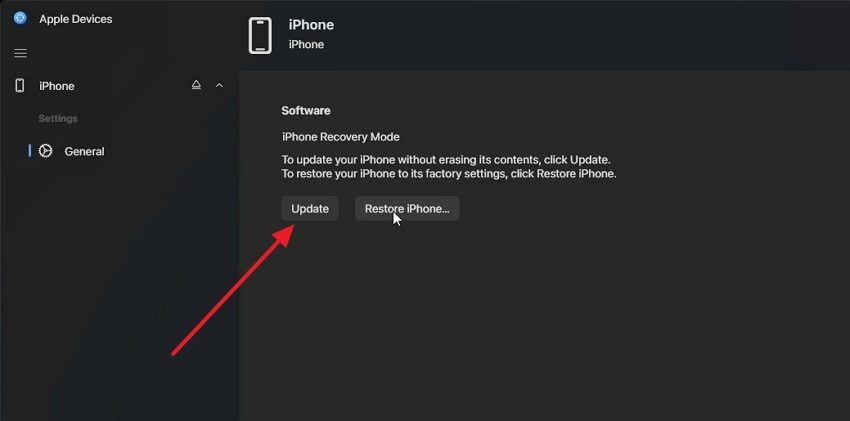
Step 3. When prompted on your computer, select Update. Your computer will download and reinstall iOS without erasing your data. If the download takes more than 15 minutes and your iPhone exits Recovery Mode, repeat the steps above.
Fix 8. Restore the iPhone Using Finder, Apple Devices, or iTunes
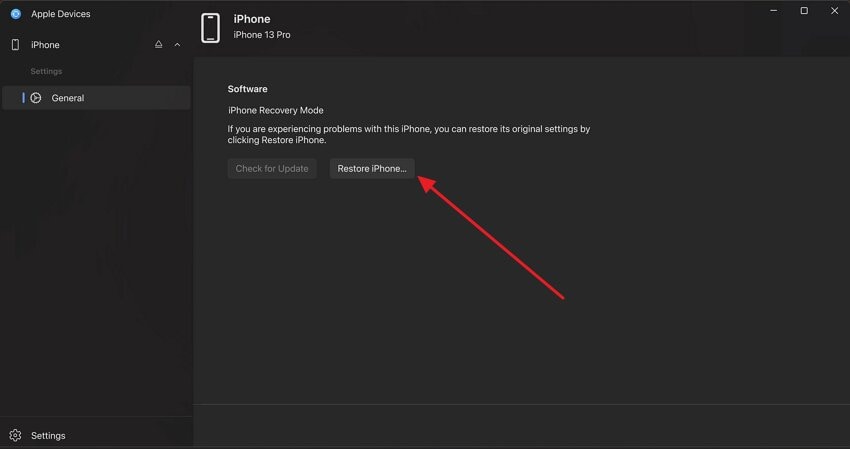
A full restore in Recovery Mode erases the phone and installs a clean copy of iOS, making it the definitive software test. Yellow that survives the process is hardware by elimination, which at least tells you where the money needs to go. Back up first, because this fix removes everything, then follow the steps below:
Step 1. Connect your iPhone to the computer and put it into Recovery Mode using the steps from Fix 7. Open Finder on a Mac or the Apple Devices/iTunes app on Windows, then select your iPhone.
Step 2. Click Restore iPhone, then confirm the prompt. Wait for iOS to reinstall before setting up your iPhone or restoring your backup.
Fix 9. Contact Apple Support for Display or Hardware Repair
iPhone yellow screen of death that survives a clean restore, appeared after a drop, or worsens over time is a hardware fault. Mention any liquid exposure honestly, since it changes both the diagnosis and the repair route. Screens replaced outside Apple's program may need calibration transfer to restore True Tone, which independent shops cannot always perform.
Pro Tip. Repair Videos Corrupted After an iPhone Crash Using Repairit
Repairit - Video Repair Tool
Repair corrupted iPhone videos after crashes, forced restarts, transfer errors, or interrupted recordings.
-
iPhone video repair. Repair supported MOV, HEVC, and common iPhone video files that become corrupted.
-
Batch repair workflow. Import several damaged clips and process them together on desktop.
-
Preview before saving. Check repaired footage before exporting copies.
A force restart is often necessary when the iPhone yellow screen of death leaves your device unresponsive. If it interrupts an active recording, the video may not finish saving correctly and could become corrupted or unplayable despite retaining its original file size.
Fortunately, Repairit rebuilds damaged video structures to restore playback without altering the recorded footage. This allows you to recover interrupted recordings instead of losing them permanently or recording everything again. Its guided repair process also makes recovery straightforward, even if you have never repaired a corrupted video before.
Key Features
- iPhone MOV and HEVC Support: Repairs damaged MOV and HEVC videos captured by iPhones without changing their original quality.
- Corrupted Transfer Recovery: Restores videos that become damaged during transfer from your iPhone to a computer, external drive, or storage device.
- Slow-Motion and Time-Lapse Repair: Fixes corrupted slow-motion and time-lapse recordings so they play back smoothly again.
Guide to Repair Interrupted iPhone Footage Using Repairit
Getting corrupt or damaged iPhone videos working again takes only these 3 steps with Repairit:
Step 1. Import the Damaged Videos
Transfer videos from iPhone to computer and launch Video Repair. Click Add to select and import the corrupted iPhone videos.

Step 2. Start the AI Video Repair Process
Once all damaged iPhone clips are imported, press Repair to process every file in a single batch.

Step 3. Preview and Export the Results
Open Preview to confirm each repaired iPhone video plays correctly. When satisfied, select Save to export the repaired video files.

Part 5. How to Prevent iPhone Yellow Screen Problems
Preventing the iPhone yellow screen of death is easier when you avoid the common causes and follow these preventive tips.
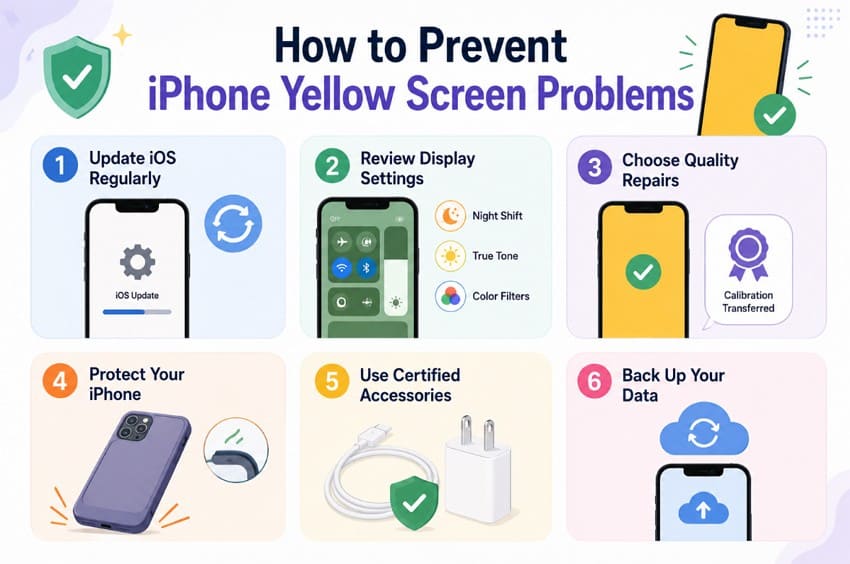
- Update iOS Regularly: Install the latest iOS updates because Apple often includes bug fixes and display-related improvements alongside security updates.
- Review Display Settings: Check True Tone, Night Shift, and Color Filters after an iOS update if your display colors look different.
- Choose Quality Repairs: Use qualified repair providers and properly calibrated replacement displays to help maintain accurate colors and display features.
- Protect Your iPhone: Use a protective case and avoid drops or excessive pressure, which can damage the display or internal connectors.
- Use Certified Accessories: Use Apple-certified or compatible charging accessories to help protect your iPhone from potential power-related issues.
- Back Up Your Data: Keep regular iCloud or computer backups so you can restore your data if troubleshooting or restoring your iPhone becomes necessary.
Conclusion
To conclude, most iPhone yellow screen of death cases trace back to display settings or temporary software issues, not hardware failure. Check the simplest fixes before considering repairs. If a forced restart leaves important videos unplayable, Repairit provides a reliable way to recover them. Following the fixes in order helps identify whether the problem can be resolved at home or requires professional repair.
Frequently Asked Questions
-
Why does my iPhone screen look yellow at night?
Night Shift automatically warms your iPhone display during scheduled evening hours every night. Disable or reschedule it through Display and Brightness if preferred for normal colors. -
Can an iOS update make the iPhone screen yellow?
Yes, updates sometimes restore display settings or introduce temporary color bugs unexpectedly afterward. Check settings first, then install newer updates because Apple often fixes these issues. -
How do I know if the iPhone display is damaged?
Disable color settings, then restart before deciding whether hardware damage actually exists underneath. Patchy, flickering, or shifting yellow usually indicates display or connector damage requiring repair. -
Will restoring the iPhone fix a yellow screen?
Restoring fixes yellow screens only when software problems caused the display issue originally. If videos become corrupted afterward, Repairit can restore unplayable recordings quickly and safely.