

ProRes RAW is Apple's high-quality, edit-friendly RAW video codec that stores sensor data with minimal processing while keeping file sizes manageable. It matters because it preserves far more color and exposure information than traditional compressed formats, giving filmmakers more room for grading and visual effects without crushing performance. Common use cases include professional editing, high-end streaming masters, HDR delivery, and VFX-heavy productions that demand both image flexibility and smooth playback.
Repair Corrupted Files To Save Your Data
 Security Verified. Over 7,302,189 people have downloaded it.
In this article
How ProRes RAW Works
Apple ProRes RAW records data directly from the camera sensor in a lightly compressed, Bayer-pattern format instead of turning it into a fully processed video image. The codec applies efficient, visually lossless compression to reduce file size while keeping key information about color, exposure, and dynamic range intact. Because debayering and heavy processing are deferred to post-production, editors and colorists can choose how the image should look later, while still benefiting from fast decoding and responsive timelines on supported hardware.
Compared with traditional codecs like H.264, the data in a ProRes RAW file is less baked in. White balance, ISO-like exposure adjustments, highlight recovery, and noise reduction can often be pushed further before artifacts appear. At the same time, ProRes-style optimization means playback remains smoother than many other RAW formats, striking a balance between high quality and practical efficiency.
Key Features, Pros, and Cons
Main features of ProRes RAW
- Captures RAW sensor data with ProRes-style compression for a blend of flexibility and performance.
- Supports high resolutions and frame rates suitable for 4K, 6K, and higher-end workflows.
- Integrates tightly with Final Cut Pro and selected hardware recorders and cameras.
- Enables deeper adjustments to exposure, white balance, and color grading compared with standard ProRes.
- Keeps decoding relatively lightweight for smooth editing on capable systems.
Pros and cons in real workflows
Pros
Creative latitude: Because it is a RAW video codec, ProRes RAW retains more highlight and shadow detail, making it ideal for HDR and heavy grading.
Performance: Compared with many RAW formats, it offers smoother playback and faster scrubbing on compatible Macs and workstations.
Efficient storage: Files are significantly smaller than uncompressed RAW and often more manageable than some competing RAW solutions.
Consistent image pipeline: The ProRes family is widely trusted in professional workflows, which simplifies handoffs and collaboration.
Cons
Platform focus: The strongest support is on macOS and Final Cut Pro, with more limited or conditional support on other systems.
Licensing and ecosystem: Camera and recorder support depends on licensing deals with Apple, so availability can vary between brands and models.
ProRes RAW vs Other Codecs
When comparing ProRes RAW vs ProRes, the key difference is image flexibility. Standard ProRes (such as ProRes 422 or 4444) is a processed, ready-to-view format that is excellent for editing and finishing but less forgiving for extreme grade changes. ProRes RAW keeps sensor-level information, allowing more aggressive adjustments at the cost of slightly higher complexity and storage.
In the ProRes RAW vs BRAW discussion, both are compressed RAW formats aimed at high-end production. Blackmagic RAW (BRAW) typically integrates best with DaVinci Resolve and Blackmagic cameras, while ProRes RAW is favored in Apple-centric and Atomos-based workflows. File sizes and performance can be broadly similar, though specifics depend on recording settings and hardware.
Compared with delivery-focused codecs like H.264, H.265/HEVC, AV1, or VP9, ProRes RAW is not meant for final streaming to the web. Those codecs prioritize tiny file sizes and bandwidth efficiency, often at the cost of editing responsiveness and grading headroom. ProRes RAW is optimized for production and post, providing higher bit depth, better color fidelity, and lower compression artifacts during creative work, even though files are much larger and less universally compatible for playback.
| Codec | Main use and characteristics |
|---|---|
| ProRes RAW | Compressed RAW for high-end production; great grading flexibility, moderate file sizes, best on macOS and supported NLEs. |
| Standard ProRes | Intermediate/edit codec; excellent performance and quality, but less flexible than RAW for extreme adjustments. |
| H.264 / H.265 / AV1 / VP9 | Delivery and streaming codecs; very small files and wide playback support, but slower to edit and less ideal for heavy color work. |
Compatibility and Practical Use
Apple ProRes RAW is most tightly integrated with Final Cut Pro on macOS, where it enjoys native support and optimized performance. Selected versions of Adobe Premiere Pro and Avid Media Composer also offer workflows for ProRes RAW on certain platforms, though capabilities can differ by OS and software release, so it is important to check current compatibility notes from each vendor.
On the capture side, many users rely on external recorders, such as Atomos devices, connected to capable cameras from brands like Sony, Nikon, Panasonic, and others. Some cameras can record ProRes RAW internally, but availability varies by model and firmware.
In terms of containers, ProRes RAW is usually stored in MOV files, which are well supported within Apple's ecosystem and many professional editing environments. For practical use, you will typically:
- Record to a fast SSD or CFast card via a compatible recorder or camera.
- Ingest the MOV files into an NLE that supports ProRes RAW workflow.
- Apply debayering, color space transforms, and grading within your editing or color tool.
- Export a delivery master in a more distribution-friendly codec like ProRes 422, H.264, or H.265.
How to Use Repairit to Fix a Corrupted ProRes RAW File
Why use Repairit for ProRes RAW
When a ProRes RAW clip refuses to import, stutters, or shows glitches, a specialized repair utility can often recover it. Wondershare Repairit is designed to handle damaged or unplayable media files, including high-quality production footage. It analyzes structural issues in video containers and streams, then rebuilds them so your NLE or player can read the content again. You can learn more and download it from the Repairit official website.
Key features of Repairit
- Repairs corrupted or unplayable video files created by many different cameras and codecs, including high-bitrate professional formats.
- Offers a streamlined interface that guides beginners and professionals alike through the repair process without technical jargon.
- Lets you preview repaired videos before saving them, so you can confirm that your repair ProRes RAW files efforts were successful.
Step-by-step repair guide
- Add corrupted video
Download and install Wondershare Repairit, then open the Video Repair module. Click the add button and browse to the location of your damaged ProRes RAW MOV files, whether they are on your main drive, external SSD, or camera media backup. Select one or multiple clips to place them in the repair list.

- Repair video codecs
Press the Repair button to start analyzing the selected files. Repairit checks the container structure, header information, and encoded streams for typical corruption patterns. It then automatically rebuilds damaged segments where possible so that the fix corrupted ProRes RAW files can play back smoothly again in compatible editing software.

- Save the repaired videos
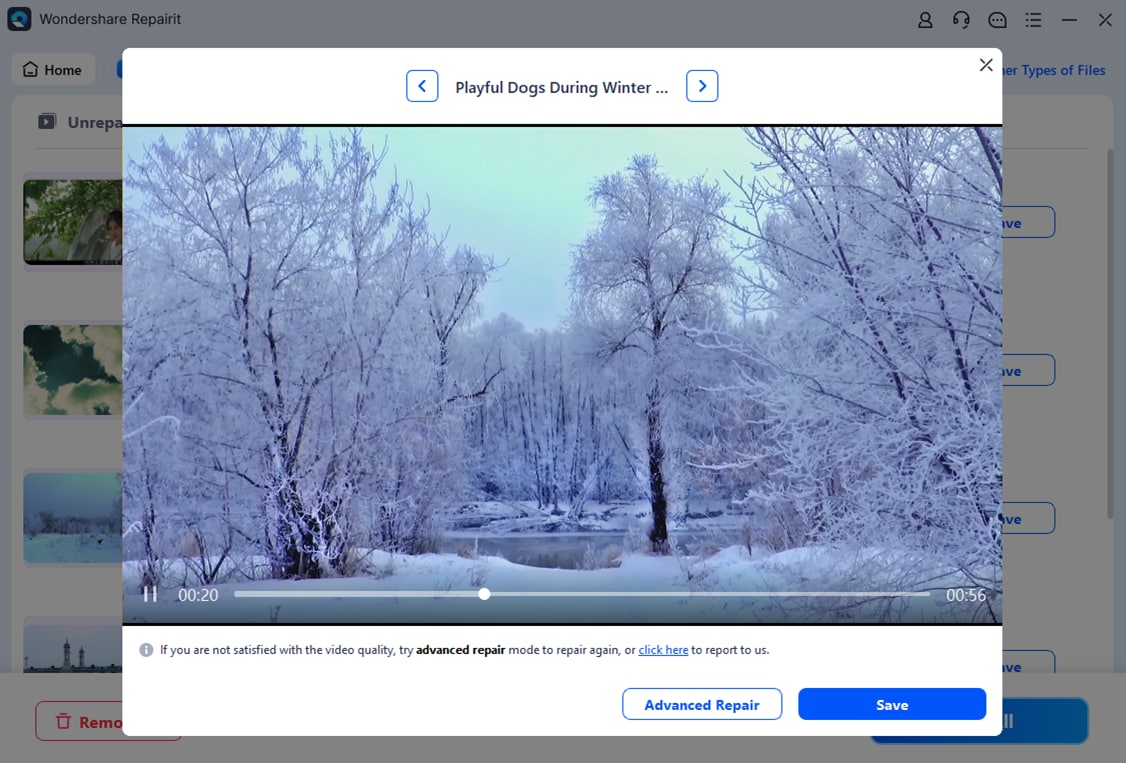
When the process completes, use the Preview option to verify that the repaired clips play correctly and that video, audio, and duration appear normal. If you are satisfied, click Save and choose a secure folder on a healthy drive. Repairit will export the fixed files there, leaving the originals untouched so you can safely continue your ProRes RAW workflow in your NLE.
Conclusion
ProRes RAW brings together the image flexibility of RAW capture and the responsive performance of the ProRes family, making it a strong choice for modern productions that rely on deep grading, HDR delivery, or complex VFX. By keeping sensor data accessible while still compressing efficiently, it helps creators push their images further without sacrificing a smooth editing experience on compatible systems.
Like any digital format, however, ProRes RAW footage can be lost or damaged by power failures, faulty cards, or interrupted transfers. Good backup practices and a reliable video repair tool such as Wondershare Repairit give you an extra layer of protection. If a critical clip becomes corrupted, Repairit's guided workflow can help you recover it quickly and keep your projects on schedule.
Next: What is Dnxhd/Dnxhr Codec?
FAQ
-
1. What is ProRes RAW used for?
ProRes RAW is mainly used in professional film, TV, and online production where teams need the flexibility of RAW capture for color grading, HDR mastering, and VFX work, but also want the smooth editing experience of the ProRes family. It is especially popular for high-end documentary, commercial, and narrative workflows.
-
2. Is ProRes RAW better than standard ProRes?
Neither format is universally better; they serve different needs. ProRes RAW vs ProRes comes down to flexibility versus simplicity. ProRes RAW keeps more sensor data and is better for aggressive grading, while standard ProRes offers simpler handling, smaller files, and broader compatibility in many post houses and broadcast environments.
-
3. Why will my ProRes RAW file not play or import?
If a ProRes RAW clip will not play or import, common causes include unsupported software versions, missing or outdated drivers, insufficient hardware performance, or file corruption from recording or transfer errors. Updating your NLE and OS, checking official support notes, and testing the file on another machine can help isolate the problem.
-
4. How can I repair a corrupted ProRes RAW file?
First, stop recording to the affected card and create a full backup of the damaged files. Then use a dedicated video repair tool such as Wondershare Repairit to fix corrupted ProRes RAW footage. Repairit analyzes and rebuilds broken file structures so your editing software can read the media again.
-
5. Which software supports ProRes RAW?
ProRes RAW is supported natively in Final Cut Pro on macOS and in some workflows within Adobe Premiere Pro and Avid Media Composer, depending on versions and operating systems. Because support can change, always review the latest documentation from your NLE vendor before planning a ProRes RAW-based project.




