
Seeing an “Error 153: Video Player Configuration Error” message can be frustrating, especially when a video fails to play on YouTube or within an embedded web player. In many cases, the webpage itself loads normally, but the video refuses to start—often without a clear explanation.
Error 153 is not a single, specific fault. Instead, it usually signals a video playback configuration issue, which may be related to browser settings, unsupported codecs, network interruptions, or problems within the video file itself. Because the same error message can be triggered by different causes, identifying where the problem occurs is essential before choosing the correct fix.
Key Takeaways
- Error 153 indicates a video player configuration or decoding failure
- The issue may stem from browser, system, network, or file-related causes
- Identifying the source helps determine whether playback fixes or file repair is required
Table of Contents
Part 1. What Is Error 153 Video Player Configuration Error?
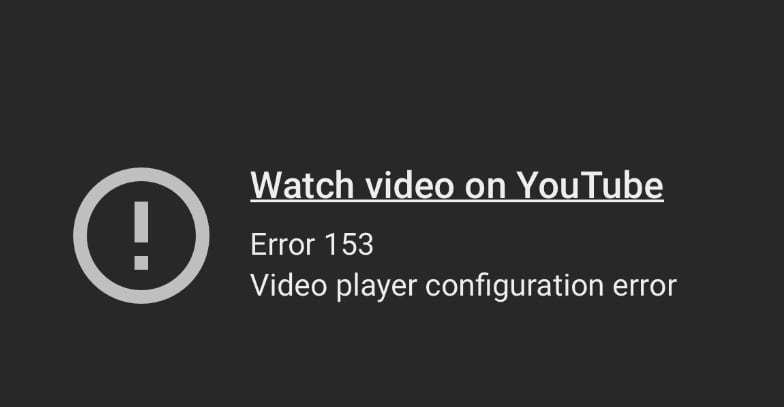
Error 153 is a video playback error that occurs when a video player is unable to load or decode a video file. In other words, the video player is able to access the video file but is unable to play it properly with the current settings.
It is commonly encountered on platforms such as YouTube, embedded web players, and desktop media players, and may appear as one of the following messages:
- “Error 153: Video Player Configuration Error”
- “Watch video on YouTube error 153”
- “Video player configuration error occurred”
Part 2. Common Causes of Error 153 Video Player Configuration Error
Error 153 can originate from the playback environment or from the video file itself. Understanding which category applies helps narrow down the correct solution.
Player or Environment-Related Causes
- Browser cache or corrupted cookies that interfere with video player loading
- Outdated browsers or media players that lack required playback components
- Disabled JavaScript or conflicting browser extensions affecting embedded players
- Unsupported codecs or hardware acceleration conflicts preventing proper decoding
- Network interruptions during streaming that disrupt video initialization
Video or File-Related Causes
- Partially downloaded or interrupted video streams
- Corrupted video files caused by incomplete transfers or storage issues
- Encoding inconsistencies during upload or export that affect playback compatibility
Part 3. Quick Diagnosis: Identify Your Error 153 Scenario
Error 153 can originate from the playback environment or from the video file itself. Understanding which category applies helps narrow down the correct solution.
- Only fails in one browser, app, or device: likely a player configuration, extension, or compatibility issue
- Other videos play normally, but one specific video always fails: likely a file-level problem
- Fails during streaming but works after download: often related to network conditions or browser configuration
- Fails on all devices and players: file-level corruption becomes more likely
Once the scenario is identified, you can proceed with fixes that match the root cause instead of guessing.
Part 4. How to Fix Error 153 Based on the Cause
Once the likely cause of error 153 has been identified, fixes should be applied in order—starting with the simplest playback checks before moving on to file-related solutions.
Method 1: Try Basic Playback Fixes
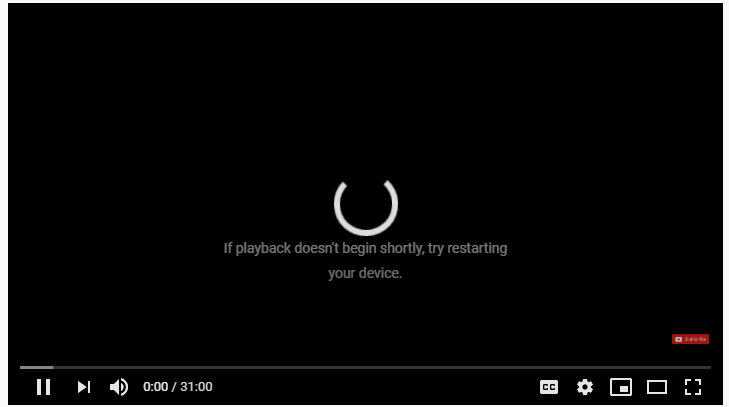
Many error 153 cases are caused by temporary player or browser issues and can be resolved with basic troubleshooting steps.
- Refresh the page or restart the app
- Clear browser cache and cookies
- Disable browser extensions that may interfere with video playback
- Update the browser or media player to the latest version
- Toggle hardware acceleration on or off in player or browser settings
Method 2: Check Device and Network Conditions
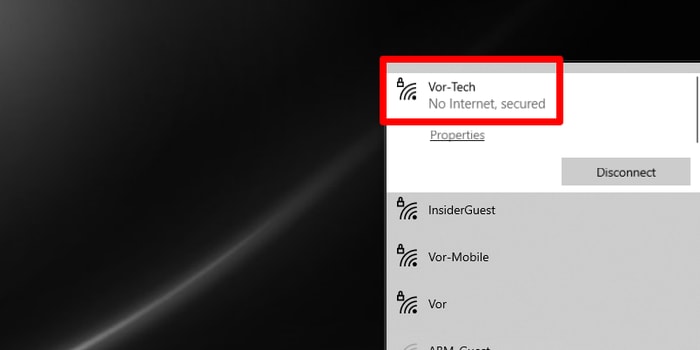
If basic playback fixes do not help, testing under different conditions can reveal whether the issue is device- or network-related.
- Try playing the video on a different browser or device
- Switch between Wi-Fi and mobile data to rule out network restrictions
- Restart the router to refresh the network connection
Method 3: Determine Whether the Video File Is Corrupted
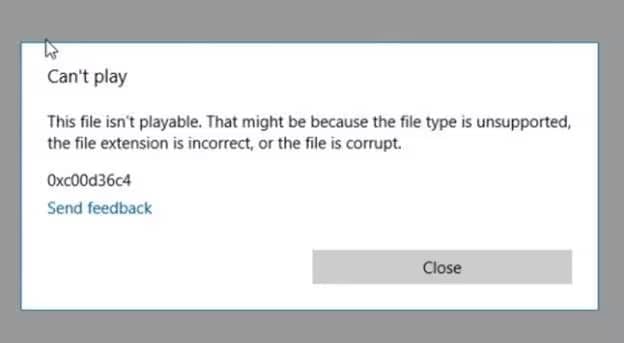
When playback consistently fails across multiple players and devices, the video file itself may be damaged.
- Test the video in different media players
- Check whether other videos play normally on the same device
- Look for repeated playback failures that occur regardless of environment
If file corruption is confirmed, a dedicated video repair solution may be appropriate.
Part 5. Why Does Error 153 Video Player Configuration Happen?
Error 153 occurs when a video player cannot load or decode a video correctly. Key reasons include:
- Configuration Issues: Players rely on settings about file format, resolution, and streaming. If these fail to load, playback errors occur.
- Codec Incompatibility: Videos require specific codecs to decode. Unsupported codecs or hardware acceleration conflicts can trigger error 153.
- Streaming vs. Local Playback: Streaming depends on stable internet connections; network interruptions can prevent initialization. Local files fail if corrupted or improperly encoded.
- Browser and Web Player Conflicts: On platforms like YouTube, disabled JavaScript, outdated plugins, or corrupted cache may stop the video before it starts—even if the file is fine.
Understanding these causes helps identify whether the error stems from the environment, the network, or the video file itself.
Part 6. Repairing Corrupted Videos When Playback Fixes Fail
When error 153 persists across multiple browsers, devices, and networks, file-level corruption becomes the most likely cause. At this point, browser or network fixes will no longer help.
Video repair tools are designed specifically for damaged local files. They do not fix browser settings, network interruptions, or streaming restrictions, and they cannot bypass online playback limitations.
One example of such a tool is Repairit Video Repair, which focuses on rebuilding damaged video structures.

-
Repair damaged videos with all levels of corruption, such as video not playing, video no sound, out-of-sync video or audio, playback errors, header corruption, flickering video, missing video codec, etc.
-
Repair full HD, 4K, and 8K videos and support 20+ popular formats, including MOV, MP4, M2TS, MDT, RSV, WMV, MPEG, DAT, etc.
-
Repair damaged or corrupted videos caused by video compression, system crash, video format change, etc.
-
Repair critically damaged or corrupted RAW/Log/HDR videos from professional cameras such as Blackmagic Design, RED Digital, and ARRI, etc.
-
Repairit has a quick and advanced scanning mode. You can use either depending on the level of corruption the video file has undergone.
-
No limit to the number and size of the repairable videos.
-
Repaired videos are more compatible with professional editing software such as DaVinci, Composer, Final Cut Pro, and Premiere Pro.
-
Support Windows 11/10/8/7/Vista, Windows Server 2003/2008/2012/2016/2019/2022, and macOS 10.12~macOS 15.
Step 1. Go to the link above and install the software on your computer. And add the corrupted videos.

Step 2: Click the Repair to start video repair process.

Step 3: Preview and save the repaired video.
⚠️ Always save the repaired video to a new location to avoid overwriting the original file. If repair fails, the video data may be permanently missing and cannot be reconstructed.
Part 7. How to Prevent Error 153 Video Player Configuration Error
Preventing error 153 is easier than fixing it after it occurs. Simple habits and precautions can help ensure smooth video playback:
- Keep browsers and media players updated: Updates include bug fixes and improved codec support for better compatibility.
- Avoid interrupting video downloads: Pausing or stopping downloads can cause partial files, leading to playback errors.
- Use supported formats and codecs: Ensure videos are encoded in widely supported formats to prevent decoding issues.
- Maintain stable internet connections: Streaming interruptions can trigger playback errors; a reliable connection minimizes risk.
- Safely transfer and store video files: Use proper storage devices and avoid sudden power losses or improper copying that may corrupt files.
By following these preventive steps, you reduce the chances of encountering error 153, whether streaming online or playing locally stored videos.
Conclusion
Error 153 is a common video playback issue, but it does not always indicate a corrupted file. Diagnosing the cause first—whether it’s a browser, network, device, or file-related problem—is crucial to applying the correct fix.
Start with basic playback checks, move on to device or network troubleshooting, and only consider file repair tools when the video itself is damaged. Following this approach ensures that you address the root cause efficiently and get your videos playing smoothly again.
FAQs
-
1. Is error 153 always caused by a corrupted video file?
No, error 153 can also result from browser, network, or device issues. File corruption is only one possible cause. -
2. Why does error 153 occur on YouTube but not downloaded videos?
Streaming relies on stable internet and browser settings. Downloaded videos bypass these factors, so they may play without issues. -
3. When should player or browser fixes be tried first?
Always start with environment-based fixes like clearing cache or updating your browser. Most playback errors are resolved at this stage. -
4. Can a video still be repaired if it won’t play anywhere?
Yes, file-level repair can restore videos that fail on all devices and players. This step is only needed when corruption is confirmed.




