
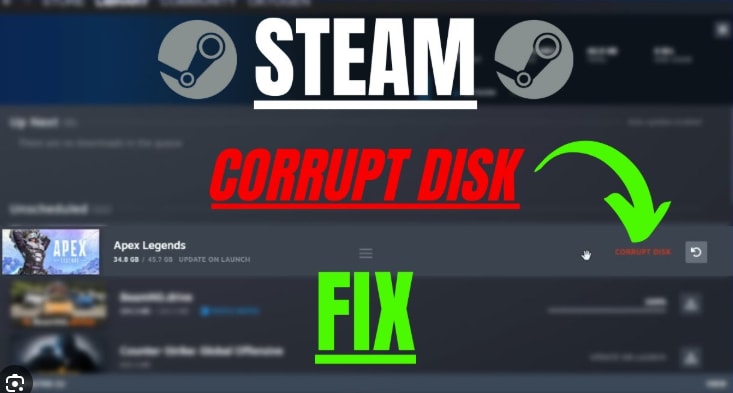
Steam users often expect instant access to their favorite games, so encountering errors that block launches can be confusing. One common yet disruptive issue is the corrupt disk Steam error, which occurs when the game fails to write data correctly. The problem doesn’t just interrupt installations; it can also prevent updates or cause repeated download failures.
Even if left unresolved, it can turn a simple gaming session into a cycle of retries, error messages, and wasted bandwidth. Beyond the annoyance, it now indicates deeper issues that can be addressed through tested solutions, as guided below.
Table of Contents
-
- Solution 1. Restart Steam
- Solution 2. Resume & Pause Downloads to Resolve Steam Corrupt Disk
- Solution 3. Run Steam as Administrator
- Solution 4. Repair Steam Library Folder
- Solution 5. Verify Game Files to Fix Steam Corrupt Disk Errors
- Solution 6. Change the Game Download Folder
- Solution 7. Clear the Download Cache in Steam
- Solution 8. Run a CHKDSK Scan
- Solution 9. Check S.M.A.R.T Status
- Solution 10. Disable Real-Time Protection Temporarily
- Solution 11. Firmware Update
- Solution 12. Ensure Stable Network Connections During Steam Downloads
Part 1. What Is the Steam Corrupt Disk Error and Why Does It Happen?
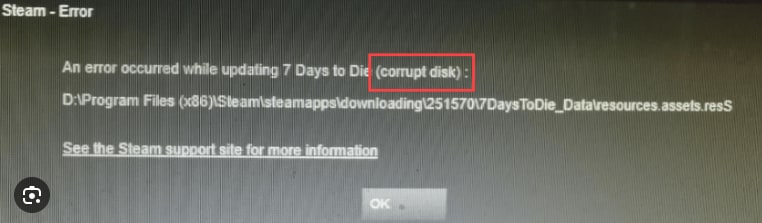
The Steam corrupt disk error means that Steam tries to read or write game data on your device and finds something wrong. In practice, it occurs during game downloads, installations, or updates when Steam pauses the process due to a file conflict. However, the disk itself may be fine; often, the specific game files in Steam's download or library folders are corrupted.
Common Symptoms of a Steam Corrupt Disk Error
- Steam stops a game download or update and shows “Corrupt Disk,” and will not continue until addressed.
- The progress bar gets stuck at a specific point because Steam keeps hitting the same damaged file.
- New games won't install, or existing games cannot update, even though your internet connection appears fine.
- Repeatedly running “Verify Integrity of Game Files” shows missing or corrupted files that are re-downloaded.
- You may also notice very slow download speeds and sudden Steam freezes while writing to disk.
Part 2. Common Causes of Steam Corrupt Disk Issues on Windows
Despite getting into specific fixes, isn’t it better to understand why this issue occurs in the first place? The following section breaks down the most common technical reasons for corrupted disk Steam error, helping you solve it more precisely:
Why Corrupt Disk Steam Errors Happen During Downloads or Updates
- A sudden Steam shutdown while the game is writing files can cause data corruption during the download.
- If the drive runs out of space mid‑process, some files might become incomplete or corrupted.
- Any bad chunk in Steam’s download cache or a broken temporary file can cause every retry to fail.
- Windows Defender or a third-party antivirus can block certain game files while Steam is writing them.
- Aggressive power-saving or heavy background disk use can interrupt writes and mark files as problematic.
How Hardware and File System Problems Cause Corrupted Disk Steam Errors
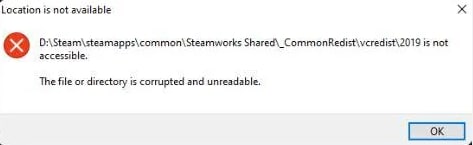
Hardware issues and file system damage can also sit behind Steam’s corrupt disk messages. If your drive has bad sectors or loose or failing cables, Steam may not store data correctly. Likewise, when the NTFS file system on that partition is damaged, files can be stored in corrupted areas of the disk. Later, Steam fails to read them and displays a corrupt disk error until the drive and file system are repaired.
How Steam Library Folder Conflicts Trigger Steam Corrupt Disk Problems
Steam's own library can cause corrupt disk errors when the paths, permissions, or internal metadata don't match what's actually on the disk. Moving games manually between drives or partially migrating the Steam library can leave Steam pointing to incomplete file locations. When Steam tries to update or verify those games, it finds missing or half-downloaded data in the library folder.
Part 3. Steam Corrupt Disk Fix Guide: Quick and Proven Solutions
In the section below, solutions for the corrupt disk Steam error are arranged from simplest to more technical for easy understanding. Each solution here will help you restore smooth downloads while understanding why each fix works and how to apply it:
Solution 1. Restart Steam
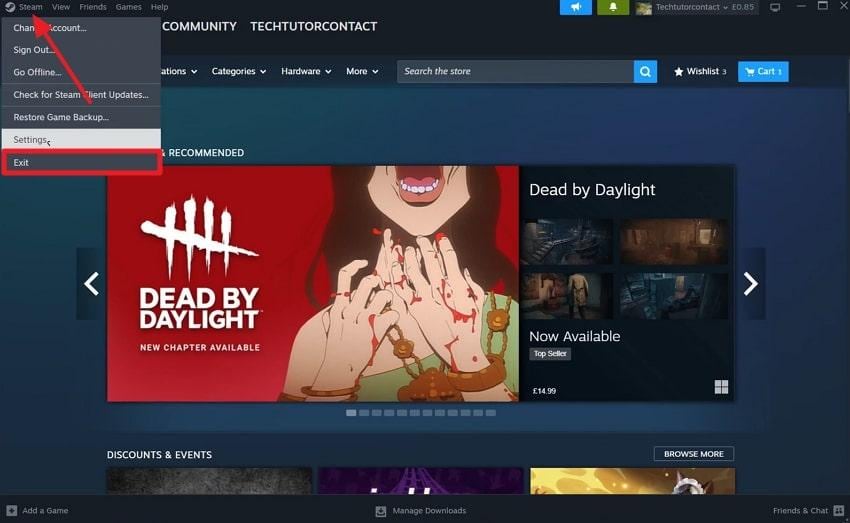
It might seem simple, but restarting Steam can be highly effective for resolving corrupted disk Steam errors caused by temporary glitches. A restart might clear stalled processes, reset active download threats, and force Steam to re-establish a clean connection with the drive. To know how to do it, follow the instructions to restart Steam on Windows:
Instructions: In the Steam system tray, click the “Steam” option, then select the “Exit” option to close the program. Afterward, locate the Steam icon on your desktop and restart the download to see if the issue is resolved.
Solution 2. Resume & Pause Downloads to Resolve Steam Corrupt Disk
Pausing and resuming a download helps Steam reset its download pipeline and revalidate the connection between the client and storage device. This simple action forces Steam to reinitialize the download session, re-check disk write paths, and continue from the last stable point. For the Steam corrupt disk error, explore the tutorial to pause or resume game download:
Instructions: Access the Steam “Library” section, locate the game in the process of downloading, then simply press the “Pause” button. Alternatively, right-click the game and select the “Pause” option to resume after a few seconds.

Solution 3. Run Steam as Administrator
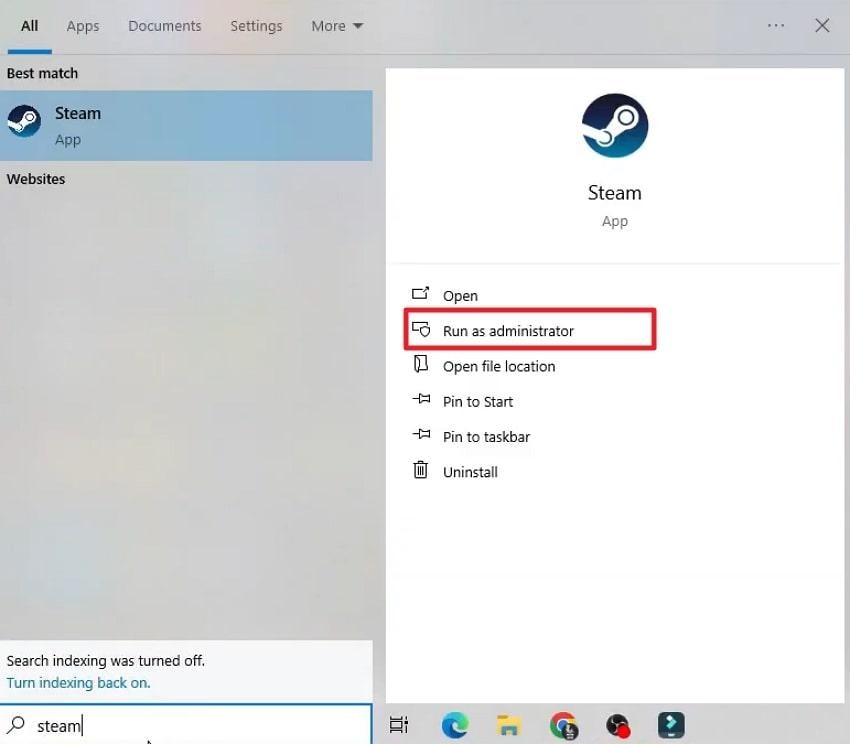
Steam as Administrator eliminates permission-related barriers, preventing the client from writing data to certain game systems. Additionally, when Steam is launched with administrator privileges, it grants full access to required folders, ensuring uninterrupted file updates and installations. Adhere to the instructions and learn how to run Steam as Administrator; a corrupt disk Steam fix:
Instructions: Search for Steam in Windows > select “Run as Administrator”> Retry downloading the game > Check whether the error persists.
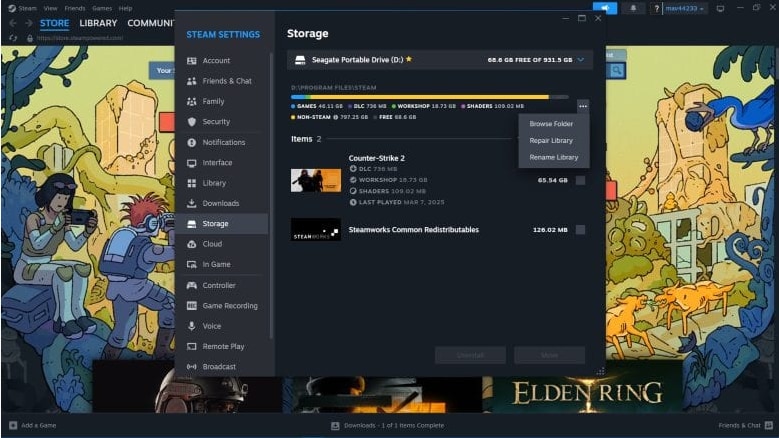
Solution 4. Repair Steam Library Folder
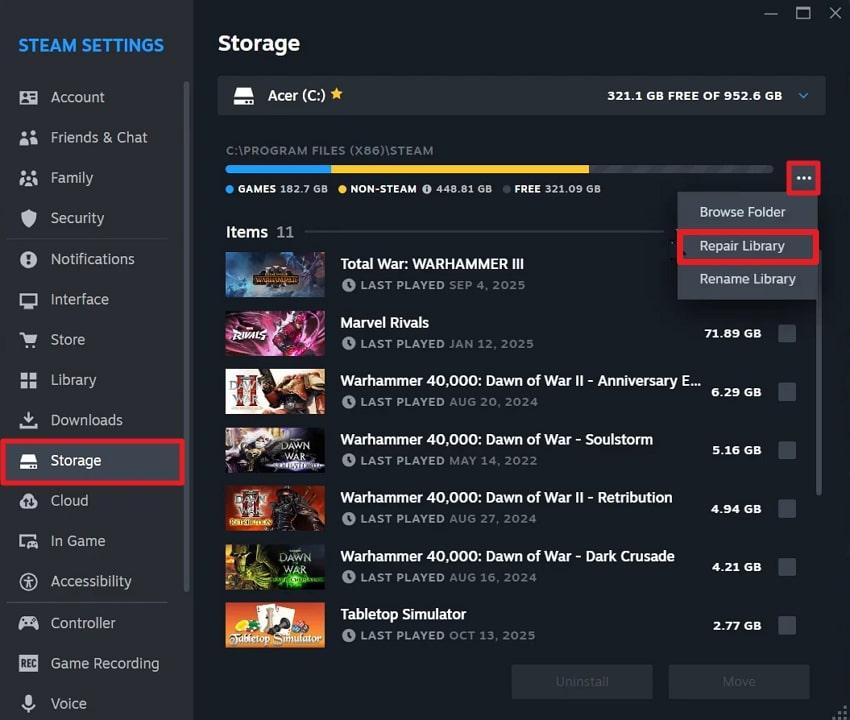
The Steam Library folder repair addresses underlying permission errors, damaged folder structures, and even missing library metadata. With the built-in repair option, Steam re-scans the folder, fixes access rights, and restores proper directory links, removing triggers. To resolve the corrupt disk Steam error, follow the guidelines and repair the Steam library folder:
Step 1. Navigate to the “Steam” option > Choose the “Settings” option > Reveal the Steam Settings window.

Step 2. Open the “Storage” section > press the “Three Dots” icon > Choose the “Repair Library” option > Start repair process > Retry download.
Solution 5. Verify Game Files to Fix Steam Corrupt Disk Errors
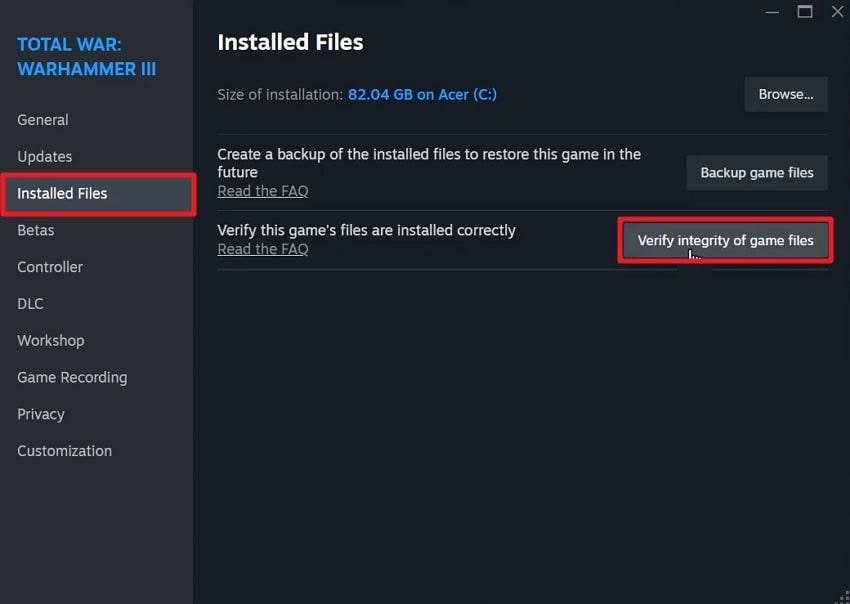
Verifying the game files can resolve the Steam corrupt disk error caused by incomplete, missing, or damaged game data. The feature allows Steam to compare your local files against the official versions on its server and automatically re-download only the problematic components. To overcome the corrupt disk issue with the game's stable, playable state, follow the guidelines:
Step 1. Locate the “Library” section > Find the game from the list > Right-click it and choose the “Properties” option.
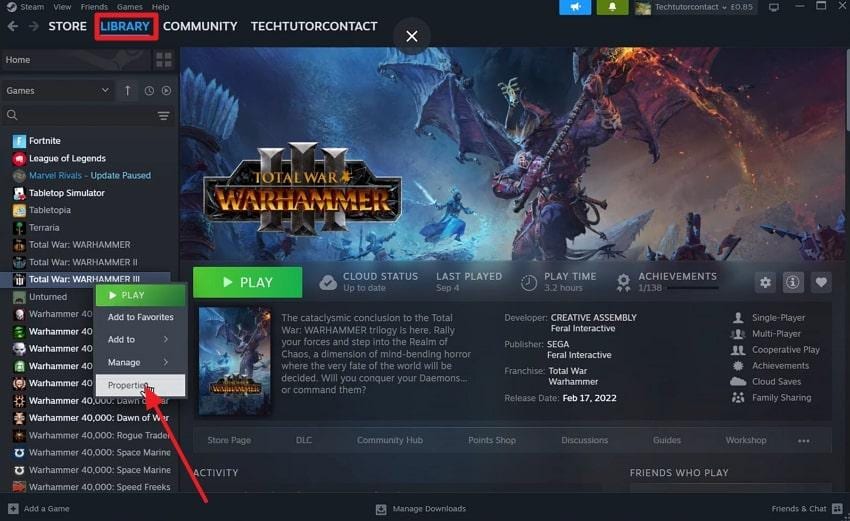
Step 2. Next, access the “Installed Files” section > Press the “Verify Integrity of Game Files” option > Wait for the verification to complete.
Solution 6. Change the Game Download Folder
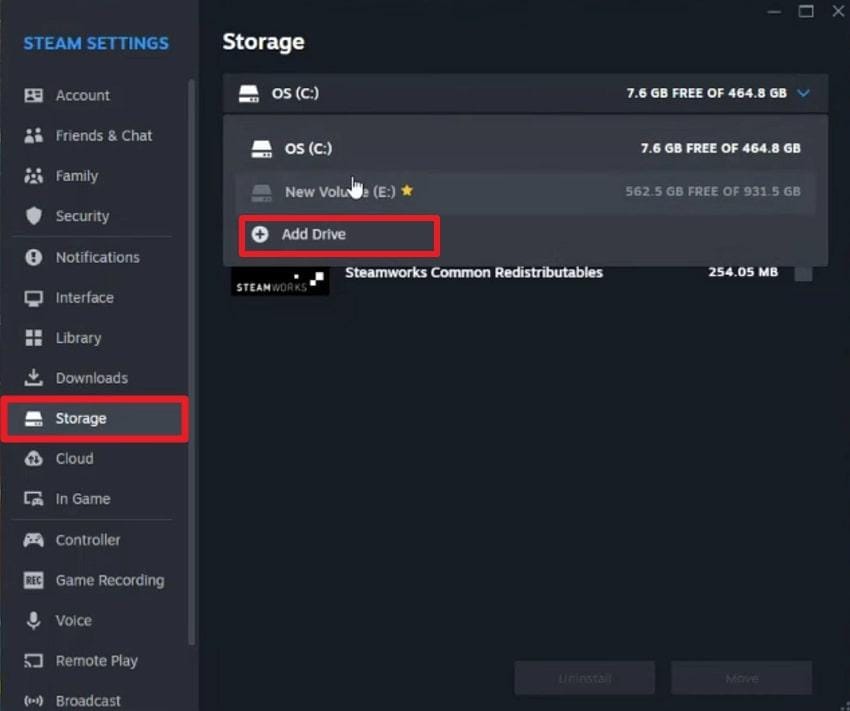
When you change the game download folder, you can overcome the corrupted disk Steam issue caused by misconfigured storage paths. Moving the game installation to a different folder or drive allows Steam to bypass problematic areas and ensure smoother downloads. For better understanding, read the tutorial and change the game download folder:
Step 1. Go to Steam Settings > Access the “Storage” section > Expand the menu for drives > Press the “Add Drive” option. Here, select a new drive available on your device and click the “Add” button.
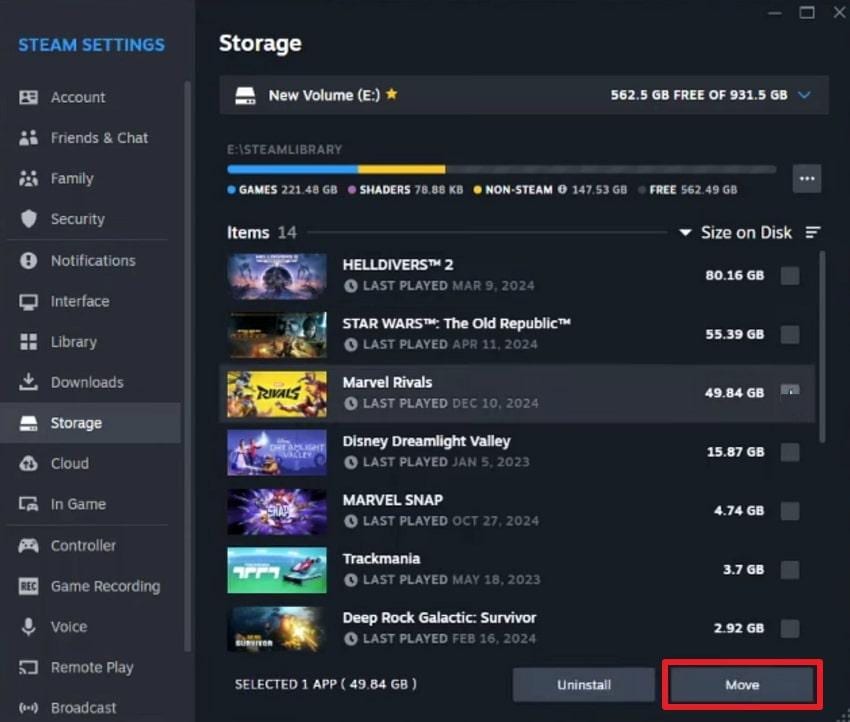
Step 2. Now, select the games downloaded in the existing drive > click “Move” > Choose target (new) drive > Press “Move” button.
Solution 7. Clear the Download Cache in Steam
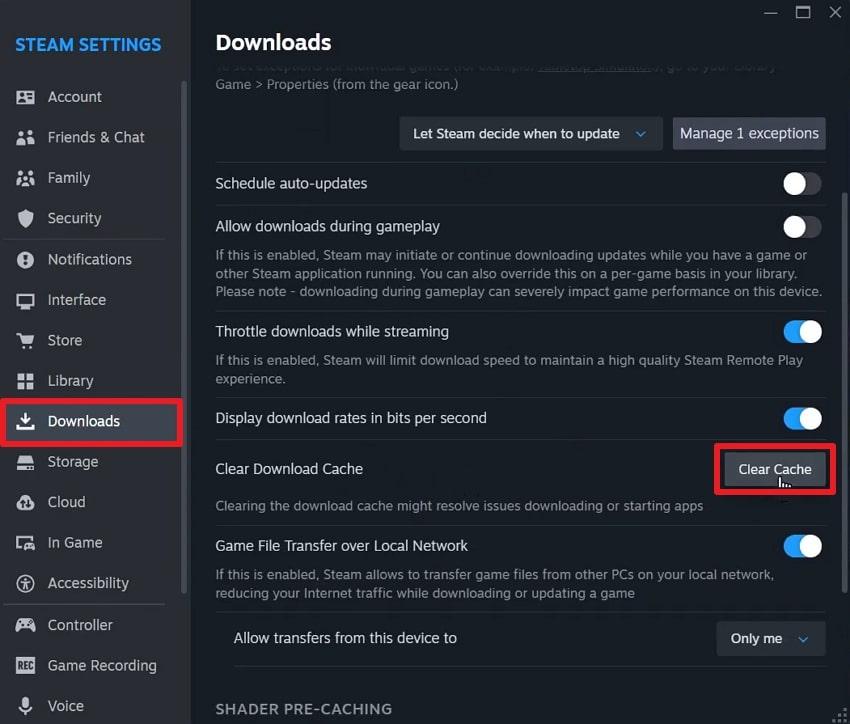
While incomplete downloads or interrupted installation leave invalid cache data behind, clearing them can eventually resolve corrupt disk Steam issues. This way, Steam is forced to rebuild fresh download metadata, ensuring a clean start for file transfers and reducing disk errors. How to clear download cache in Steam is explained precisely in the guide below:
Instructions. Initially, open Steam Settings > Access the “Downloads” section > Press the “Clear Cache” option > Click “Confirm" in the prompt window.
Solution 8. Run a CHKDSK Scan
The CHKDSK command prompt helps detect and repair file system errors on your drive that can prevent Steam from writing game data. It scans the drive thoroughly, fixes even minor disk issues, and attempts to recover readable data. To run the CHKDSK command, dive into the tutorial and resolve the recurrent corrupted disk Steam error:
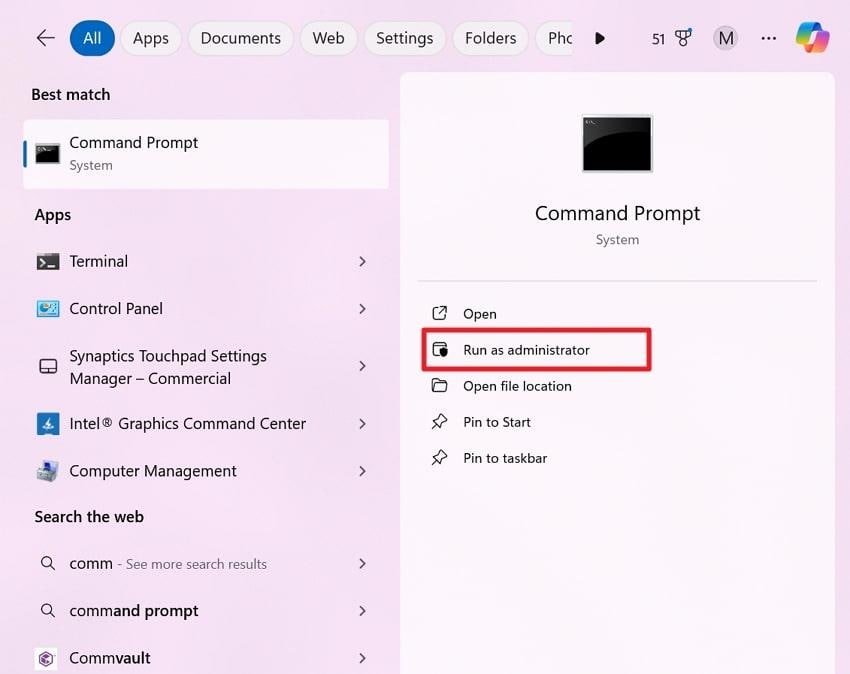
Step 1. Type “CMD” in the Windows search bar > Press the “Run as Administrator" option > Access the command prompt window.
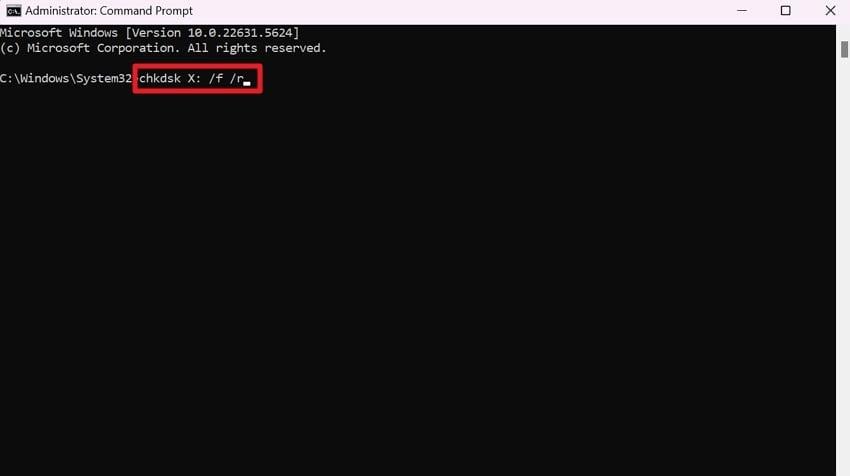
Step 2. Write “chkdsk X: /f /r” prompt (replace X: with your Steam drive letter) > press Enter > Let CHKDSK finish.
Solution 9. Check S.M.A.R.T Status
The S.M.A.R.T (Self-Monitoring, Analysis, and Reporting Technology) status allows you to identify warning signs of hard drive or SSD failure. By checking the S.M.A.R.T. status, you can take preventive measures, such as replacing the drive before data corruption becomes severe. Explore the tutorial to check the S.M.A.R.T. status and address the corrupt disk Steam issue:
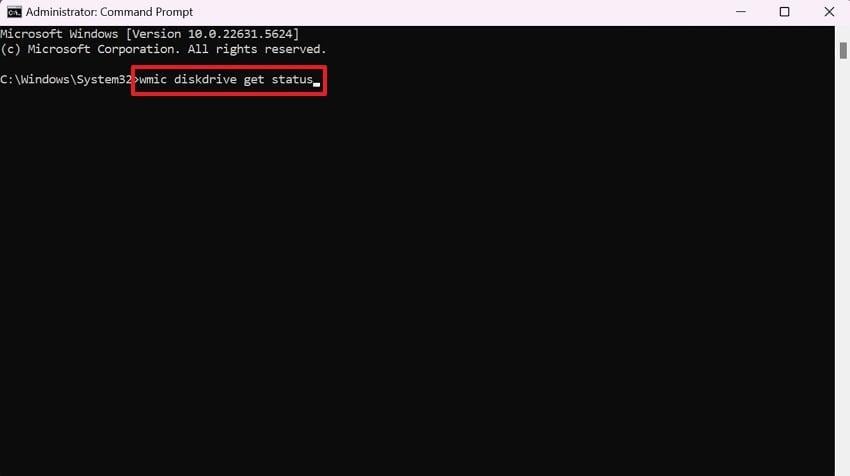
Instructions: Run CMD as an Administrator > Type “wmic diskdrive get status” > Press Enter > You’ll see “OK” or warnings for each drive. After this, back up your data immediately and consider replacing the drive.
Solution 10. Disable Real-Time Protection Temporarily
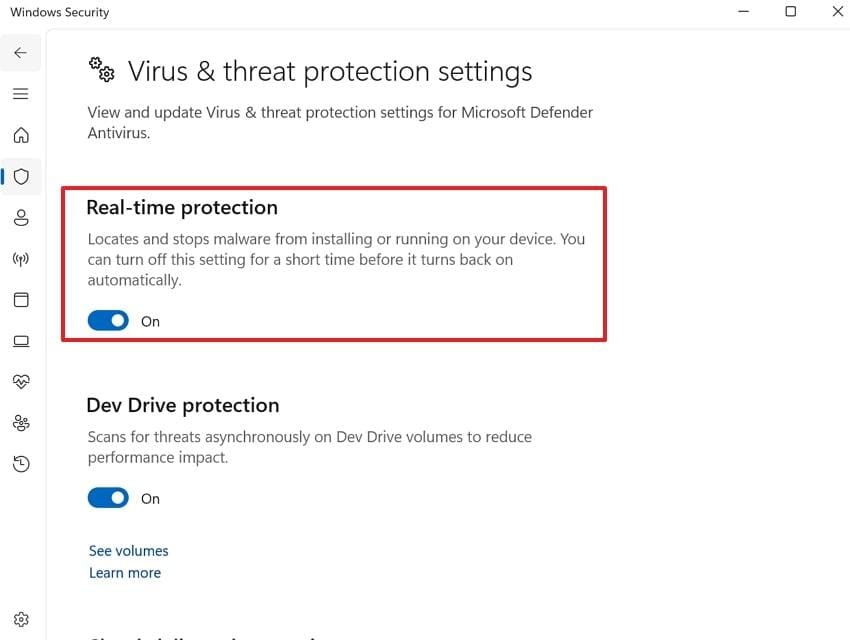
Antivirus or security software can mistakenly block Steam's write operations, interrupting frequent disk writes as suspicious activity. To avoid this, temporarily disabling real-time protection ensures that Steam has uninterrupted access to the installation folder during downloads. Simply, follow the guidelines and disable real-time protection for the corrupt disk Steam fix:
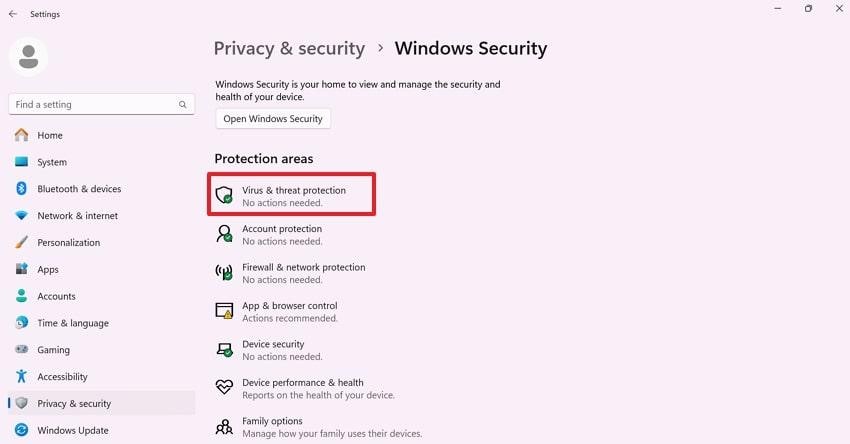
Step 1. Open Windows Settings > Access “Privacy and Security” tab > Choose “Windows Security” option > Select “Virus and Threat Protection” option.
Step 2. After this, press the “Manage Settings” option and toggle off the “Real-Time Protection” option.
Solution 11. Firmware Update
Update your SSD or HDD firmware to resolve compatibility and stability issues between the drive, Windows, and Steam. This is important because outdated firmware might cause inconsistent write behavior, slower performance, and “Steam corrupt disk” issues. To do this, identify your SSD or HDD model, visit the manufacturer’s website, and download the latest firmware.
Solution 12. Ensure Stable Network Connections During Steam Downloads
Unstable network connections can even interrupt downloads, causing partial file writes and corrupt disk Steam errors. Thus, a consistent internet ensures that Steam downloads complete without interruption, reducing the likelihood of repeated errors.
Pro Tip. Fix Corrupted Game Video Files After Steam Corrupt Disk Errors
Besides addressing underlying causes, remember that corrupted disk Steam errors can also damage important game files. For this, the following section explains how this error affects game video files and introduces a method to repair them:
- Steam might stop while writing large cutscene or in-engine video files, leaving them half-saved or unreadable.
- A corrupted update can overwrite working video assets with broken ones, so the intro video might fail to play.
- NTFS errors often damage large HD/4K video files, causing black screens or crashes when the game loads them.
- Several failed updates can leave mixed old/new video files, activate stutters, or freeze on scenes.
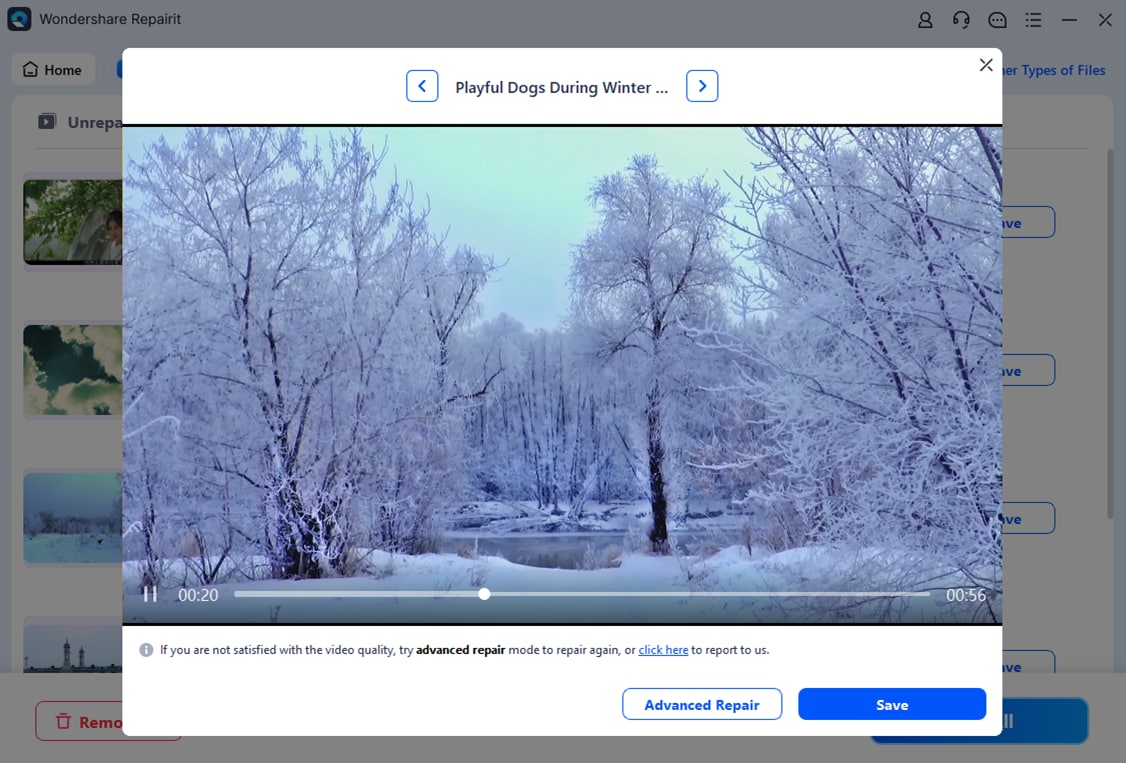
Considering the above reasons, it's clear that even a minor disk error can severely affect a game video file, requiring Repairit Video Repair after all. With its Professional Mode, you can handle HD/4K videos, and even advanced video codecs without any hassle. Besides this, it allows users to preview their repaired files and save them, once they’re convinced.

-
Repair damaged videos with all levels of corruption, such as video not playing, video no sound, out-of-sync video or audio, playback errors, header corruption, flickering video, missing video codec, etc.
-
Repair full HD, 4K, and 8K videos and support 20+ popular formats, including MOV, MP4, M2TS, MDT, RSV, WMV, MPEG, DAT, etc.
-
Repair damaged or corrupted videos caused by video compression, system crash, video format change, etc.
-
Repair critically damaged or corrupted RAW/Log/HDR videos from professional cameras such as Blackmagic Design, RED Digital, and ARRI, etc.
-
Repairit has a quick and advanced scanning mode. You can use either depending on the level of corruption the video file has undergone.
-
No limit to the number and size of the repairable videos.
-
Repaired videos are more compatible with professional editing software such as DaVinci, Composer, Final Cut Pro, and Premiere Pro.
-
Support Windows 11/10/8/7/Vista, Windows Server 2003/2008/2012/2016/2019/2022, and macOS 10.12~macOS 15.
Following the guidelines below, you can restore corrupt game videos, even if damaged due to a corrupt disk Steam issue:
Step 1. To begin, access the “Video Repair” toolkit and press the “Start” button to insert all the corrupted game videos.

Step 2. Once done, proceed to the “Repair” button and initiate the process to fix damaged videos.

Step 3. After this, review your repaired footage and press the “Save” button to download it to your device.
Part 5. How to Prevent Steam Corrupt Disk Errors in the Future
To avoid repeated Steam corrupt disk errors, go through some effective tips and reduce frustration during updates or installations:
- Keep Steam and Games Updated: Make sure both Steam and your installed games are up to date, as it minimizes conflicts that activate disk errors.
- Consider a Reliable Storage Device: Invest in a high-quality SSD or HDD and avoid drives with frequent bad sectors or signs of wear.
- Maintain a Stable Internet Connection: Use a wired connection where possible and avoid heavy network traffic during game downloads or updates.
- Run Steam with Proper Permissions: Always run Steam as an administrator to ensure it has complete access to installation and library folders.
- Check Disk Health Regularly: Maintain healthy storage by using tools like CHKDSK or S.M.A.R.T to detect and repair file system errors beforehand.
Conclusion
In conclusion, the corrupt disk Steam is a common yet manageable issue that can disrupt game downloads and overall gameplay. As discussed, the problem often emerges from permission conflicts or disk health issues, but most users can resolve it effectively. In any such case, Repairit can help you repair game videos if they get corrupted due to a problem.
Fix Corrupted Game Video Files After Steam Corrupt Disk Errors
 Security Verified. Over 7,302,189 people have downloaded it.
Frequently Asked Questions
-
Q1. Why does Steam keep saying corrupt disk during downloads?
Steam repeatedly shows the corrupt disk error when it cannot write downloaded data to your storage drive correctly. This usually happens due to interrupted downloads, insufficient permissions, or even because of underlying file system errors. -
Q2. Is the corrupt disk Steam a hardware failure?
While failing HDDs or SSDs can cause corrupted disk Steam errors, the issue is more commonly related to software-level problems. However, if the error persists despite all fixes, checking drive health using S.M.A.R.T tools is strongly recommended. -
Q3. Can CHKDSK fix Steam corrupt disk errors?
CHKDSK can detect and repair file system errors and bad sectors that prevent Steam from writing data properly. It often resolves corrupt disk Steam errors caused by logical disk issues, especially when the problem occurs repeatedly on the same drive.




