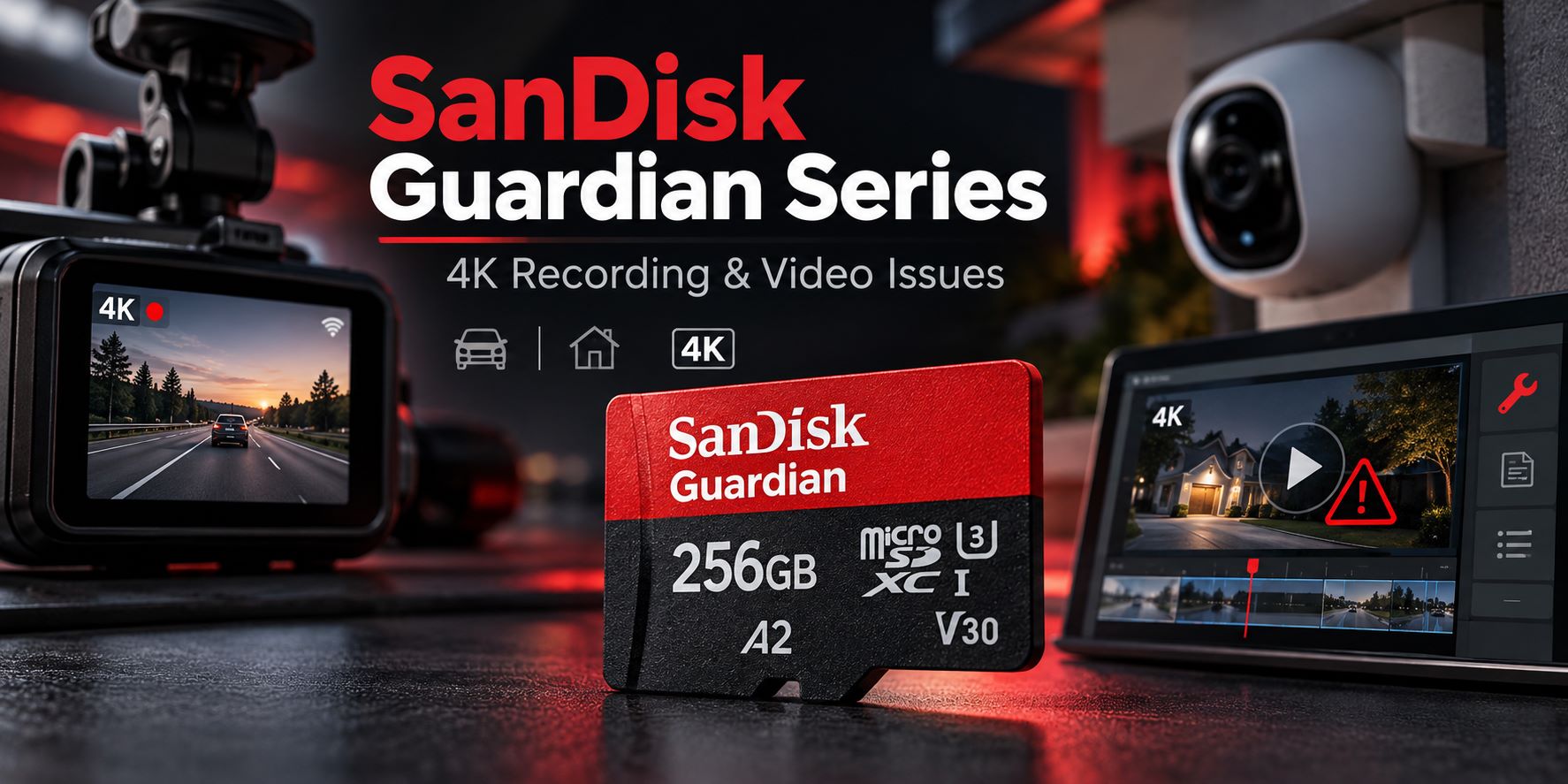
A dash cam records a collision, but the clip will not open when you need it. A security camera works all night, yet one important recording freezes midway. These are exactly the moments when dependable storage matters. Launched on October 13, 2026, the SanDisk Guardian Series introduces high-endurance microSD cards designed for dash cams and home security cameras. Both support recording up to 4K UHD in compatible devices. Here is what sets them apart, what their endurance ratings actually mean, and how to protect important footage if a video stops playing.
In this article
Part 1. What Is the SanDisk Guardian Series?
The SanDisk Guardian Series is a family of microSD cards for cameras that record repeatedly or for long periods. Unlike an occasional-use memory card in a handheld camera, a dash cam or security camera may write new video every minute and overwrite older clips when storage fills. This repeated writing makes endurance and environmental tolerance important buying considerations.
SanDisk announced two variants on October 13, 2026: the Dash Cam Card for driving environments and the Security Cam Card for home surveillance. The cards were announced in capacities from 32GB to 512GB, with a starting US suggested price of $28.99 for 32GB at launch. Prices and availability vary by region and retailer. Both families target continuous local recording in compatible cameras rather than general-purpose removable storage.
According to SanDisk's October 2026 announcement, both card lines support Full HD through 4K UHD recording when the host camera supports those modes. This does not establish compatibility with every dash cam, security system or video format.
| Specification | SanDisk Guardian Series launch information |
| Announcement | October 13, 2026 |
| Products | Dash Cam Card; Security Cam Card |
| Capacity range | 32GB, 64GB, 128GB, 256GB, 512GB |
| Video recording | Full HD to 4K UHD with a compatible camera |
| US launch MSRP | Starting at $28.99 for 32GB |

Part 2. SanDisk Dash Cam Card vs. Security Cam Card: Which One Fits Your Camera?
The two versions share a focus on repeated video recording, but the intended environments are different. Choose by the device's actual storage requirements rather than assuming the names alone guarantee compatibility.
Dash Cam Card: Recording on the Road
The Dash Cam Card is designed for continuous driving footage, including lengthy trips where the camera keeps replacing older segments. SanDisk describes resistance to demanding heat and humidity conditions and recording support up to 4K UHD. Before buying, check your dash cam manual for accepted card capacities, speed class, recording format and any manufacturer-approved models. Some cameras require initial formatting through their own menu, which should only be done after important footage has been preserved.
Security Cam Card: Local Footage for Home Monitoring
The Security Cam Card is built for compatible security cameras that record frequently, including outdoor installations. SanDisk describes temperature, water and dust resistance at the card level. A local card can retain footage when a camera supports offline recording during a Wi-Fi interruption, but the camera's own behavior determines what is actually captured. Some cloud-dependent cameras do not record locally simply because a card has been installed.
| Choose based on | Dash Cam Card | Security Cam Card |
| Intended equipment | Car dash cameras | Compatible home security cameras |
| Typical recording | Driving and parking footage | Continuous or event-triggered monitoring |
| Environmental emphasis | Heat and humidity on the road | Outdoor temperature, water and dust resistance |
| Supported video quality | Up to 4K UHD, device-dependent | Up to 4K UHD, device-dependent |
Neither version should be treated as a universal solution to missed recordings. A weak power supply, incompatible file system, faulty camera or full cloud account can still interrupt the overall recording process.
Part 3. Can SanDisk Guardian Series Record 4K Video for 40,000 Hours?
No. The advertised 40,000 hours is an endurance-test figure, not the amount of video a single card can store. SanDisk associates the maximum figure with the 512GB Dash Cam Card under internal Full HD recording conditions. Its published capacity-specific endurance figures include 2,500 hours at 32GB, 5,000 at 64GB, 10,000 at 128GB, 20,000 at 256GB and 40,000 at 512GB. Actual longevity depends on operating conditions; SanDisk explicitly states that the total hours are lower for 4K UHD video.
Why Endurance and Storage Capacity Are Different
Endurance describes a card's expected tolerance for repeated recording over time under defined test conditions. Storage capacity determines how much video can remain on the card before a camera begins looping over old footage. A camera may overwrite many generations of files throughout the card's service life. The camera's bitrate, frame rate, compression, audio and number of video channels all affect how quickly available space is consumed.
What Matters for Reliable 4K Recording?
Use the camera manufacturer's minimum sustained write-speed and capacity recommendations, and confirm the card's compatibility with the host device. Do not assume a card's advertised peak read speed proves it can sustain every recording mode. When possible, perform a short test recording, let the camera close the file normally, and copy it to a computer to confirm playback before relying on a new installation.

Part 4. Why Can Videos Still Become Corrupted on a High-Endurance microSD Card?
A high-endurance card reduces one source of recording risk, but the camera, power supply, card reader and video file still have to work together. An interrupted write can leave a clip incomplete. A player that cannot decode the footage may produce an error even when the file itself is healthy. And missing clips may have been overwritten by the camera's loop-recording policy rather than corrupted.
Sudden Shutdown During Recording
When a vehicle's power cuts out or a security camera loses power, the last video segment may not finish writing. Depending on the camera and recording container, metadata needed for normal playback can be missing or incomplete. Preserve the recording as it is and avoid recording new material onto the same card until you know whether important clips are at risk.
Playback Errors and Unsupported Codecs
An MP4 file can be valid while one computer refuses to play it. Before calling the file damaged, try the original camera's player or another trustworthy player with compatible video decoding. Check whether the video opens on a different computer. Do not repeatedly convert or rewrite the only copy of an important recording.
Missing, Overwritten or Unreadable Files
If a card is not detected, requests formatting or becomes read-only, you are dealing with a storage or file-system problem first. If a clip is missing because loop recording overwrote it, a video repair program cannot recreate the earlier footage. The safest next action depends on the symptom:
| What you see | Likely issue | Safer next action |
| Video copies successfully but fails in several players | Possible file corruption | Preserve a copy and investigate video repair |
| Works in camera but not on one computer | Possible player or codec issue | Check compatible decoding first |
| Card asks to format or shows as RAW | Storage or file-system problem | Stop writing; protect data before repair or formatting |
| Expected clip is absent after weeks of looping | Possible overwrite | Stop further recording; assess recovery options |
| File is zero bytes | No usable file content visible | Locate original source or recovery options first |
If you need a broader diagnostic path for a card-level failure, begin by identifying the SD card error affecting recorded videos before attempting any modification to the source card.
Part 5. How to Repair a Damaged Dash Cam or Security Camera Video
If the card is readable and you can copy the affected file to stable computer storage, repair the copied video, not the microSD card itself. The steps below are suitable only for a genuinely damaged, supported media file. If the original recording is missing, the card will not mount, or the camera uses a proprietary container that is not supported, address those issues first.
Step 1. Save an Untouched Copy of the Recording
Stop recording to the affected card. If it remains readable, copy the relevant video and any associated files to a separate drive. Keep an untouched original. For evidence related to an accident or security incident, preserve the original file, date and time information, and a clear record of where each copy was stored.
Step 2. Rule Out a Playback-Only Problem
Inspect the copied file's size and extension. Try opening it in another compatible player. If the clip plays normally in one environment but not another, the problem may be decoding or application support rather than damage to the video structure. Avoid modifying the source until that distinction is clear.
Step 3. Import the Damaged Video into Repairit
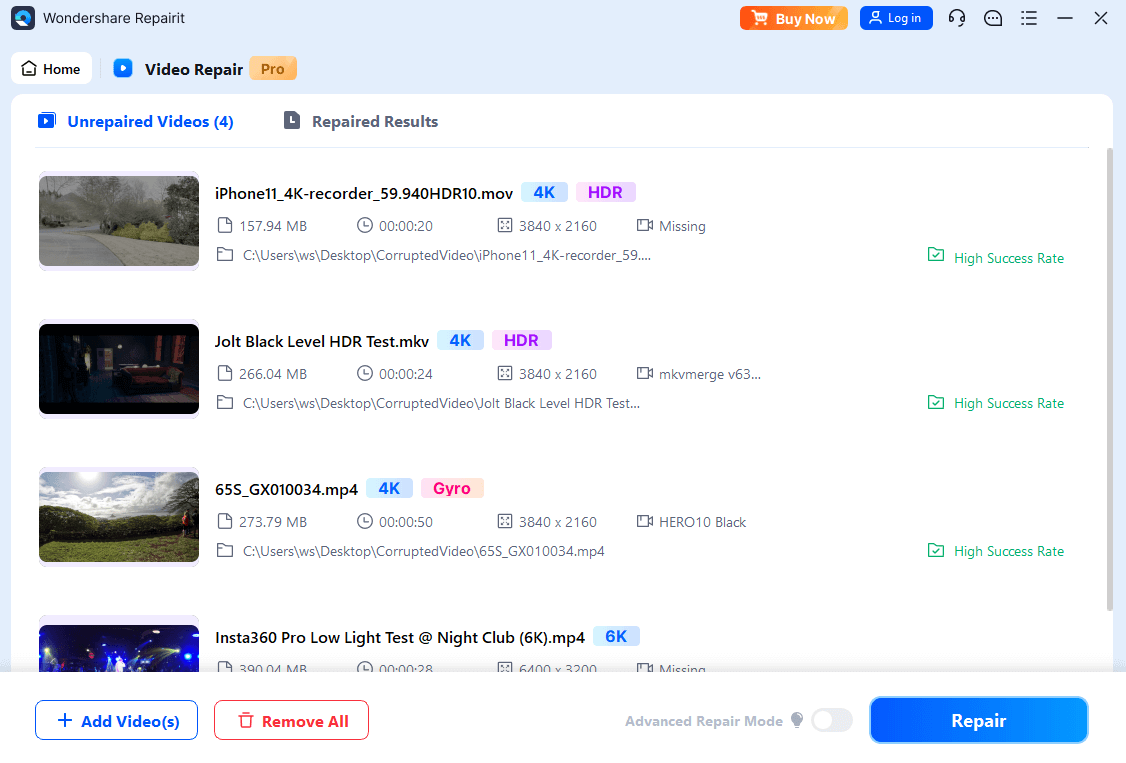
When a supported MP4, MOV or other compatible video is damaged and still contains usable media data, Repairit Video Repair offers a file-level repair workflow. Open Wondershare Repairit, select Video Repair and add the copied recording. Confirm that you selected the correct clip, then start the repair process. Results depend on the type and extent of corruption and the file's compatibility.
Step 4. Preview, Check and Save the Repaired File
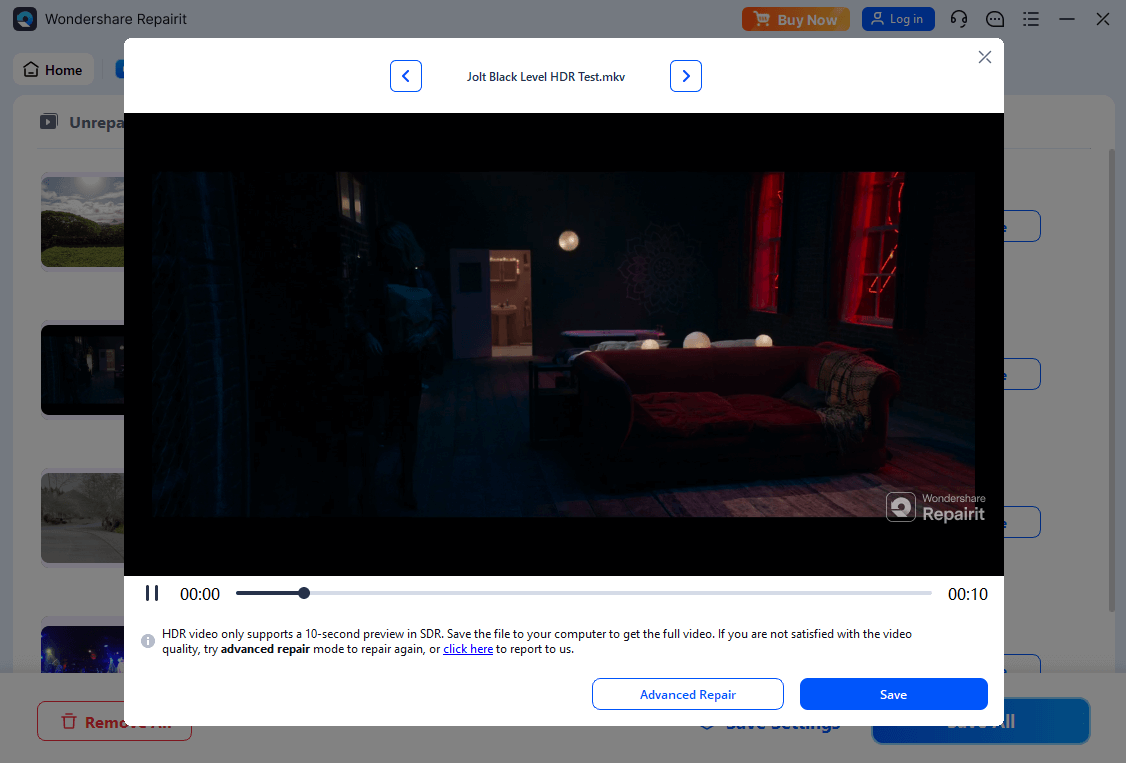
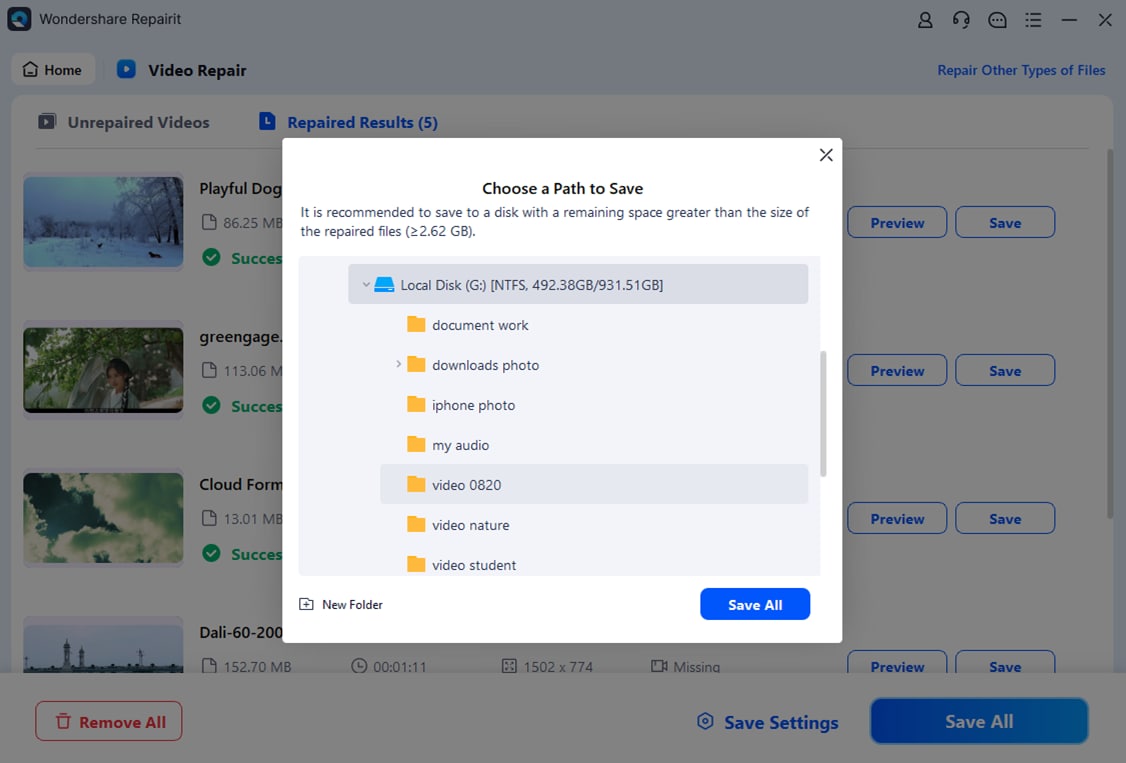
Preview the output if the repair completes. Check the opening, middle and ending, plus the audio and duration. A clip that opens but freezes halfway through has not necessarily been fully restored. Save any usable output to a different folder, without overwriting the source. If ordinary repair is insufficient, Advanced Repair may use a healthy reference clip from the same camera and similar settings when that workflow is supported.
For additional symptoms such as black screens or playback errors on a dash cam, the dash cam video playback troubleshooting steps can help narrow down whether the camera, storage or file is responsible.
Part 6. How to Reduce Future Recording Problems
Before using a new Guardian Series card, check the camera manufacturer's supported capacity, card type and formatting requirements. Install the card correctly and complete a test recording. If the device supports error notifications, monitor them instead of assuming continuous recording is still active.
- Export event footage early. Loop recording can overwrite older clips even when the card is perfectly healthy. Save important segments to another device before they disappear from the retention window.
- Keep power stable. Inspect adapters, wiring and backup power for the camera. An unexpected shutdown can interrupt the last video segment.
- Check recordings periodically. Spot-check recent clips for visible picture, audio and timestamps; do not rely on a recording indicator alone.
- Replace a card showing repeat errors. Once important data is safe, follow the camera manufacturer's guidance to troubleshoot or replace storage that consistently fails to write or read.
Conclusion
The SanDisk Guardian Series brings purpose-built, high-endurance storage to compatible dash cams and security cameras. Its 4K support and long-duration endurance tests are useful specifications, but they do not eliminate power failures, playback incompatibility or missing files. Choose the appropriate card for your camera, back up clips worth keeping, and diagnose the exact failure before taking action. If an important video is still present but genuinely corrupted, working on a duplicate gives you a safer path to explore file repair.
FAQ
-
Will loop recording erase an important accident clip?
It can. Many dash cams overwrite their oldest unprotected clips when the card fills up. Some cameras lock event recordings automatically, but the behavior and retention period vary. Export critical footage promptly and verify the backup before resuming normal recording. -
Should I format a Guardian Series card when my camera says it has an error?
Not while you still need unsaved footage. Formatting can erase accessible file entries and reduce recovery options. Stop recording, preserve readable videos and investigate the card or reader first. Follow the camera's formatting instructions only after the recordings you need are safe. -
Why does a security camera show a 0 KB video file?
A 0 KB file may indicate that recording did not write usable content or that the file system cannot expose it correctly. Check the original recording source and storage state. Video repair cannot reconstruct a clip from an empty file with no recoverable media data. -
Can I use the same Guardian Series card in a different camera?
Possibly, if the new camera supports the card's capacity and required specifications. Back up the files first: switching devices may require reformatting and can change folder structures or recording behavior. -
Does a Wi-Fi outage mean my security footage is lost?
Not necessarily. A compatible security camera may continue recording locally to microSD while offline, but some systems require connectivity for particular features. Check your camera's settings and local recording history rather than assuming the card guarantees offline capture.