The best GoPro MISSION 1 PRO ILS settings depend on your shooting objective: standard 8K for high-detail widescreen shots, 8K Open Gate for flexible reframing, 4K high frame rates for action and GP-Log2 for controlled color grading. Because the ILS mount has no electronic contacts, manual focus, aperture and lens-profile setup matter as much as the resolution menu. Start with the recommendations below and confirm the available combinations on your firmware.
In this article
Part 1: Best Settings at a Glance
There is no single perfect preset for the GoPro MISSION 1 PRO ILS. For clean straight-out-of-camera results, start with 10-bit color, Cinematic color, an appropriate frame rate and GoPro’s Balanced image tuning. For a deliberate grading workflow, consider GP-Log2 and check exposure carefully. Lens focus and aperture need manual planning.
| Shooting goal | Suggested starting mode | Color / workflow | What to verify |
| Cinematic scenes | 8K 16:9 at 24/25/30 fps | Cinematic or GP-Log2 | Manual focus, shutter and available light |
| High-resolution action | 8K 16:9 up to 60 fps | Natural / Cinematic | Lens support, stabilization, card and light |
| Reframe for two formats | 8K Open Gate 4:3 up to 30 fps | 10-bit when applicable | Keep extra framing room |
| Slow motion | 4K at 120/240 fps as available | Natural / Cinematic | Bright lighting and playback speed |
| Professional grade | Supported 10-bit GP-Log2 mode | Log-to-display transform / LUT | Expose without clipping highlights |
| Lower-light scenes | A suitable 4K mode with manageable fps | Avoid excessive shutter speed | Noise, motion blur and lens aperture |
These choices are starting recommendations, not measurements from hands-on tests. Available combinations should be confirmed in your current firmware and GoPro’s official settings field guide.
Part 2: Resolution, Frame Rate and Color: What Do They Change?
Resolution and aspect ratio
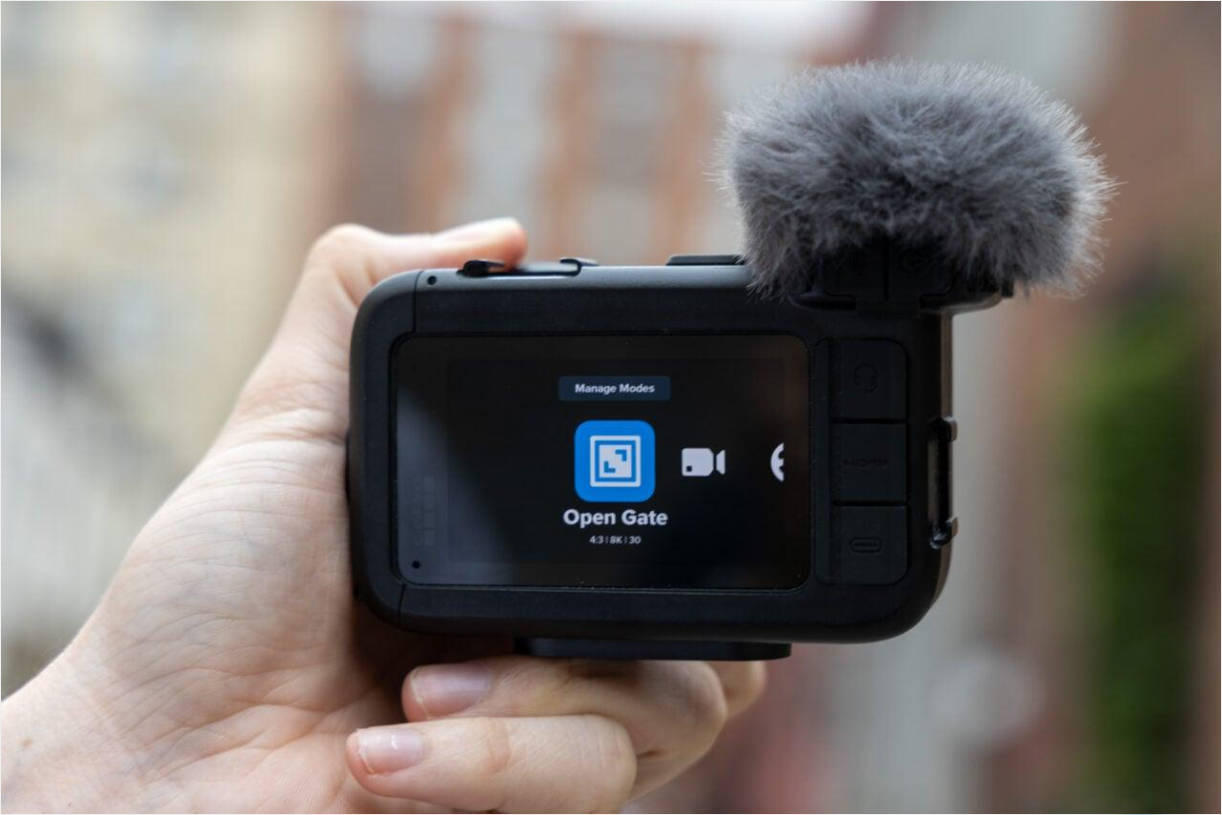
8K offers room for cropping; 4K can simplify storage and editing. Standard 8K60 records 16:9, while 8K Open Gate reaches 30 fps in 4:3. Use Open Gate if you expect to create several crops from one original frame.
Frame rate and shutter
24/25/30 fps are typical starting points for conventional motion. Higher frame rates can be slowed down in a matching timeline but often require more light. A shutter around twice the frame rate is a common cinematic starting point when a manual shutter setting and exposure conditions permit; this is not a fixed rule for action footage.
Color depth and GP-Log2
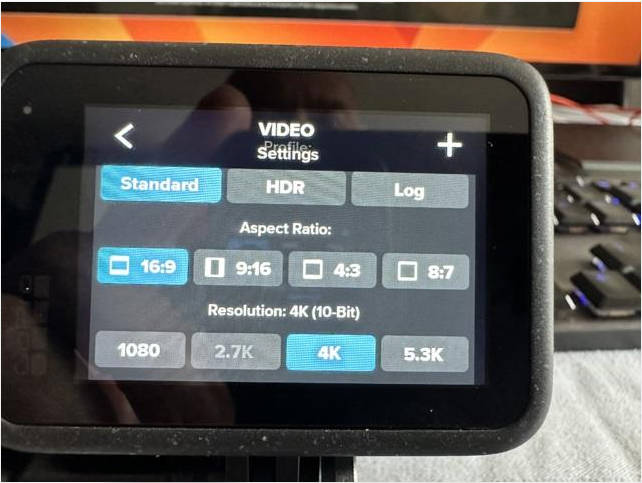
10-bit capture can preserve more tonal precision for post-production than 8-bit. GP-Log2 footage may look flat before a suitable transform or LUT is applied. Select a finished-look profile if the production does not include grading.
Bitrate and storage
Higher bitrates can preserve more information while generating larger files. GoPro specifies up to 240 Mbps in standard modes; that figure is not the speed class printed on your SD card.
Part 3: Best Settings for Six Real Shooting Scenarios
1. Cinematic landscapes and documentaries
Start with an 8K 16:9 mode at a timeline-matched frame rate, 10-bit capture, Cinematic color or GP-Log2, a controlled shutter and carefully set manual focus. Plan stabilization crop when choosing the lens focal length.
2. Fast-moving action
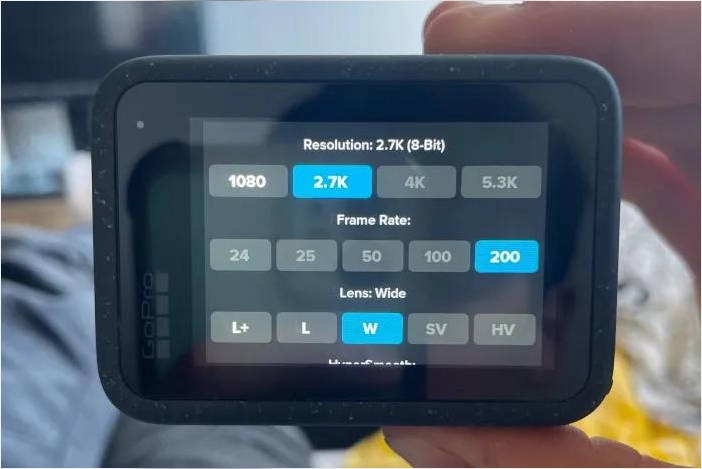
Choose 4K 60/120 fps when timing and slow-motion flexibility matter more than delivering 8K. Increase frame rate only when lighting, card throughput and editing requirements support it. Use the appropriate HyperSmooth mode after entering the lens profile.
3. Indoor and low-light scenes
Start with a frame rate that does not force an unnecessarily short exposure. A faster compatible lens and conservative ISO may be more useful than maximum frame rate. Inspect shadows and subject movement instead of assuming a high ISO number guarantees usable footage.
4. Dramatic slow motion
For planned slow motion, select a supported 4K high-frame-rate mode, then interpret the footage in a lower-frame-rate project. Keep exposure and storage in mind; high frame rates do not improve every subject.
5. Color grading and professional delivery
Use a supported 10-bit GP-Log2 setup, monitor exposure with zebras and a suitable preview LUT when available, record a consistent white balance and test the project color pipeline before the main shoot.
6. Vertical social clips from one master
Use Open Gate to retain extra height for 16:9 and 9:16 crops. Keep critical subjects away from the edge of both planned crops; a 4:3 recording is not automatically a finished vertical video.
Part 4: Set Up an MFT Lens, Focus and Stabilization
- Mount a compatible lens designed for manual focus and practical manual or fixed aperture control. Do not assume electronic lens controls work.
- Adjust aperture and focus directly on the lens; use the camera’s Focus Assist and Focus Peaking tools to inspect sharpness.
- Choose or create the appropriate lens profile and enter the relevant focal length before stabilization.
- Choose HyperSmooth Off, On or Boost according to the shot and check how much cropping changes the field of view.
- Record a short test clip and inspect both edges and sharpness before a critical take.
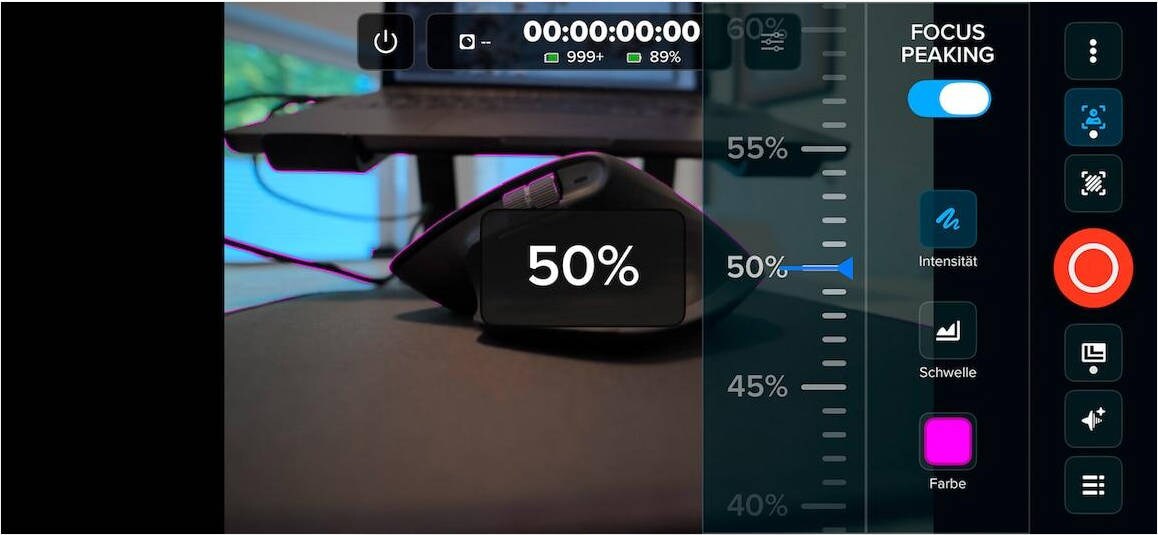
According to GoPro’s field guide, On uses approximately a 10% stabilization crop and Boost approximately 20%; your composition should account for this. A supported focal length does not ensure every unusual optical design will be stabilized correctly.
Part 5: Common Settings Mistakes to Avoid
| Mistake | Likely visible result | Better first action |
| High fps with insufficient light | Dark or noisy footage | Reduce frame rate or improve lighting |
| Wrong manually entered lens profile | Unexpected framing or stabilization behavior | Check focal length and profile |
| GP-Log2 viewed without a transform | Flat, low-contrast appearance | Use a suitable color-managed workflow |
| Aggressive sharpening or ISO | Overprocessed detail or noise | Make a short comparison test clip |
| No vertical-safe framing | Subject cropped in social exports | Use Open Gate and framing guides |
Poor focus, unwanted noise or incorrect white balance are capture-quality problems, not the same as corruption. Re-recording or appropriate editing may be more useful than file repair.
Part 6: Prepare the Card and Confirm Your Footage
Use an officially supported microSD card. GoPro’s field guide calls for brand-name microSD/microSDHC/microSDXC media rated A2 V30 or higher with capacities up to 1 TB; check the latest guidance before buying or reusing a card. Back up existing recordings before formatting because formatting erases the card.
- Charge the camera and check firmware before the shoot.
- Record a short sample using the intended mode and lens.
- Play the sample on camera and copy it to a computer.
- Verify the copied MP4 opens in a compatible player.
- Keep originals safe before editing or formatting the card.
If your next question is how to copy, decode, proxy and grade that sample, use the GoPro MISSION 1 PRO ILS 8K recording and editing. If you want to revisit the hardware and lens differences, the GoPro MISSION 1 PRO ILS specifications and lens options provides context.
If an MP4 remains unreadable in several compatible applications after a safe transfer, preserve the original and distinguish file damage from a codec issue. For supported damaged videos, Repairit Video Repair is one option within Wondershare Repairit; verify the recording format is supported before attempting repair.
Conclusion
The best MISSION 1 PRO ILS settings are the ones that suit your lens, light, movement and delivery format. Test focus, exposure and short sample recordings before an important project. Use the GoPro MISSION 1 PRO ILS specifications and lens options for hardware context and the GoPro MISSION 1 PRO ILS 8K recording and editing for everything that happens after recording.
FAQ
-
What are the best GoPro MISSION 1 PRO ILS settings for cinematic video?
Begin with 8K or 4K at a frame rate that matches your delivery, 10-bit color where supported, a suitable shutter and carefully checked manual focus. Choose Cinematic for faster delivery or GP-Log2 for controlled grading. -
Can I use 8K60 in Open Gate mode?
No. The published 8K60 mode is 16:9; 8K Open Gate in 4:3 runs up to 30 fps. -
How do I focus the MISSION 1 PRO ILS?
Focus manually using a compatible MFT lens. Focus Assist and Focus Peaking help check sharpness; the camera does not provide electronic autofocus. -
Should I always use HyperSmooth Boost?
No. Boost applies a larger crop than On. Choose stabilization according to movement and final framing, then test your lens profile. -
Why does GP-Log2 video look washed out?
Log footage is intended for a color-managed workflow and can look low-contrast without a proper conversion or LUT; this appearance alone does not mean the video file is corrupted.