
A sudden computer shutdown while saving is a nightmare because it may corrupt your file and make it unreadable. This happens when the saving process is interrupted, causing the file structure to break. If this happens to you, there are several simple and effective ways to repair files damaged during save and recover your work before assuming it is lost.
In this article
Why File Corruption Happens During Shutdown
When a computer shuts down while saving happens, the saving process is interrupted before the file is fully written. Since files are saved in parts, losing power mid-process can damage the file structure, especially the file header, which helps the system read the data, making the file corrupted or unreadable.
Common Causes
- Incomplete cache saving - Temporary data isn't fully written to the drive.
- File system errors - The system is unable to correctly update or track the file's storage location.
- Power interruptions - Sudden shutdowns or surges disrupt the saving process.
During File Transfers
- Interrupted transfer - Copying stops halfway, leaving incomplete files.
- USB issues - External drives may disconnect, causing files to become unusable.
How to Tell if a File is Damaged After a Save Failure
When a computer shuts down while saving, the file may not open correctly because the saving process was interrupted. You can usually spot corruption through clear error signs.
Common Signs of File Corruption
- Unrecognized file format error - The file cannot be opened even though it appears to have the correct extension.
- Strange or broken content - The file shows random symbols, blank pages, or unreadable text.
- App crashes or freezes - The program may stop responding or crash when trying to open the file.
Other Warning Signs
- File shows 0 KB size - This means the data was not properly saved.
- Access or permission errors - The system may incorrectly say the file is in use or cannot be opened.
- Missing preview or thumbnail - Images or videos may lose their preview and show a generic icon instead.
Simple Fixes You Should Try First
Before using advanced recovery tools, try these basic methods first. They use built-in system features that may help recover files damaged when a computer shut down while saving.
Fix 1. Restore Previous Versions
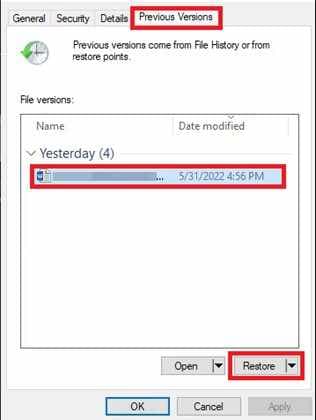
Windows may save earlier copies of your file through Previous Versions or restore points. You can try restoring the file to an earlier, working state.
Step 1. Right-click the damaged file in File Explorer and select Properties.

Step 2. Navigate to the Previous Versions tab, select the most recent functional backup, and click Restore.
Fix 2. Run CHKDSK (Disk Check)
The file itself may not be fully broken, only its storage record. Running CHKDSK can help fix disk errors and may repair files damaged during save caused by file system issues.
Step 1. Type cmd in the Windows search bar, and select Run as Administrator.
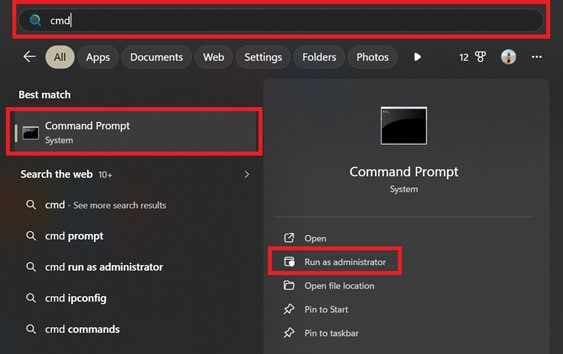
Step 2. Type chkdsk C: /f (replace C: with your drive letter) and press Enter to scan and fix inconsistency.
Fix 3. Try Opening with a Different Extension
If the file header is damaged, changing how the file is opened (or using a different format option) may help recover at least part of the content.
Step 1. Enable File name extensions in your folder view options, then right-click the file to Rename it.
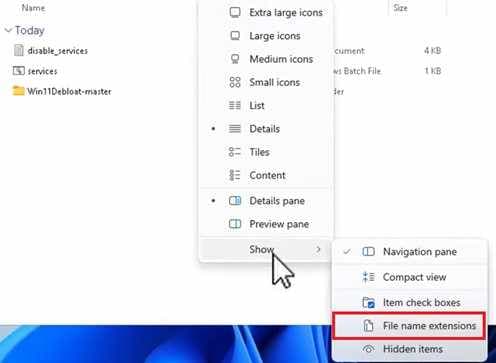
Step 2. Change the extension (e.g., from .docx to .txt or .rtf) and attempt to open it to extract any readable strings of information.
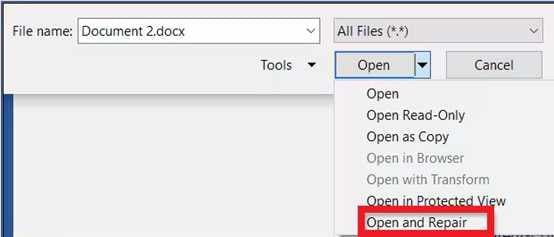
Fix 4. Use Open and Repair
Programs like Microsoft Office have a built-in repair option that can automatically fix and open corrupted files.
Step 1. Open the application (Word, Excel, etc.), go to File, then Open, and browse to your damaged document.
Step 2. Click the arrow beside the Open button, then choose Open and Repair from the dropdown menu.
Fix 5. Check Temporary Files
After a computer shuts down while saving, temporary or backup fragments of your file may still exist in the system's temp folders and can sometimes be recovered.
Step 1. Press Win + R, type %temp%, and hit OK to open the local temporary files folder.

Step 2. Sort by Date Modified and look for files with a .tmp extension or a name starting with a tilde (~) that matches your lost work's timestamp.
Advance Fix to Restore Severely File Corrupted
If basic fixes don't work, you may need advanced recovery tools. These programs go beyond normal system repair and try to rebuild the file's broken structure. This is especially useful when a computer shuts down while saving causes serious corruption.
It CAN:
- Restore missing information so the system can recognize the file again.
- Repair the instructions that tell software how to read the file.
- Improve or restore partially saved images, videos, or documents that became distorted.
If you confirm the file is corrupted, a repair tool can safely restore its functionality. One example is Repairit, which works with common file types like MP4, MOV, PDF, and various Microsoft Office formats.
Step-by-Step (Optional)
Step 1. Upload the corrupted file.

Step 2. Start the Repair process.

Step 3. Preview and save the restored file to a new location.

How to Prevent File Corruption
To avoid problems caused by a computer shut down while saving, it's important to use simple prevention habits.
- Use a UPS - Keeps your computer running long enough to save and shut down safely during power loss.
- Turn on AutoSave - Saves your work every few minutes to reduce data loss.
- Back up your files - Follow the 3-2-1 rule, keep multiple copies, including one in the cloud.
- Check drive health - Regularly check your storage for errors or failure signs.
- Safely eject drives - Always remove external storage properly to avoid file damage.
Conclusion
A computer shut down while saving can be worrying, but it doesn't always mean your file is permanently lost. In many cases, you can still repair files damaged during save by checking system tools or using simple recovery methods. For more serious damage, recovery software may still help restore your work. To avoid this problem in the future, using tools like AutoSave and a UPS can greatly reduce the risk of file loss.
FAQs
-
Can I repair files damaged during save without extra software?
Yes. You can try built-in tools like Previous Versions, Microsoft Office's Open and Repair, or CHKDSK for minor issues. -
Why does a computer shut down while saving causes corruption?
Because the saving process is interrupted, leaving the file incomplete or missing important data needed to open it. -
Will CHKDSK delete my files?
No, it mainly fixes disk errors and tries to recover data, but it's still best to back up your files first. -
How do I know if a file is corrupted or just missing?
Corrupted files often won't open, show errors, or display strange content, while missing files simply aren't found in their folder. -
Can a 0 KB file still be recovered?
Sometimes yes, but it depends on whether temporary or backup data still exists. Recovery tools may help in some cases.




