
Are you dealing with a corrupted video after USB transfer? It usually means something went wrong during the file copying process. This can happen when transferring videos using USB flash drives, external drives, or even USB cables between devices.
In many cases, the file isn't completely lost; it's just structurally damaged. That means you can often still repair it with the right approach.
In this guide, you'll learn why videos get corrupted after USB transfer, how to identify the issue, and how to prevent it from happening again.
In this article
Why Does Video Corruption Happen After USB Transfer?
USB transfers may seem simple, but they involve multiple processes that can fail. Common causes include:
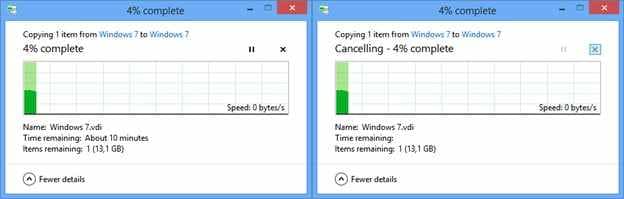
- Interrupting the transfer before completion
- Removing the USB device without safe ejection
- Faulty USB ports or cables
- Corrupted or low-quality USB drives
- File system errors
- Incomplete copying process
Unlike internal storage, USB devices are more vulnerable to physical and connection-related problems:
- Loose connections can briefly disconnect during transfer
- Slow write speeds may struggle with large video files
- Power instability can interrupt how data is written
- Flash memory wear can cause unreliable storage over time
Because of these factors, USB transfers are more prone to silent corruption---even when no error message appears.
How the Issue Appears
Corrupted videos can behave differently depending on how much of the file was affected. Common symptoms:
- The video won't open at all
- Playback shows a black or blank screen
- Error messages like "unsupported format."
- Video freezes or stops midway
- Audio is missing, delayed, or distorted
- Media player crashes when opening the file
In some cases, the video may partially play but fail at a certain point, indicating incomplete data.
Basic Fixes to Try First
Before using advanced repair solutions, try these simple troubleshooting steps:
- Re-transfer the Video - Copy the original file again from the source device. Make sure the transfer completes fully without interruption.
- Try Another Media Player - Different media players use different decoding methods, and some can handle minor corruption better.
- Copy the File to Local Storage - Move the video from the USB drive to your computer and try opening it there instead.
- Restart Your Device - This can resolve temporary system or playback-related issues.
- Test the USB Device - Try accessing the file on another computer to determine whether the issue is device-related.
Fix Based on External Drive Scenario
External drives introduce specific risks that can lead to video corruption during copying.
Why External Drives Cause This Issue
- File transfers may be interrupted due to loose USB connections
- Drives may use incompatible file systems across devices
- Power loss during transfer can damage the file structure
Fix 1. Use a Different USB Port or Cable
Step 1. Disconnect the external drive from your current USB port.
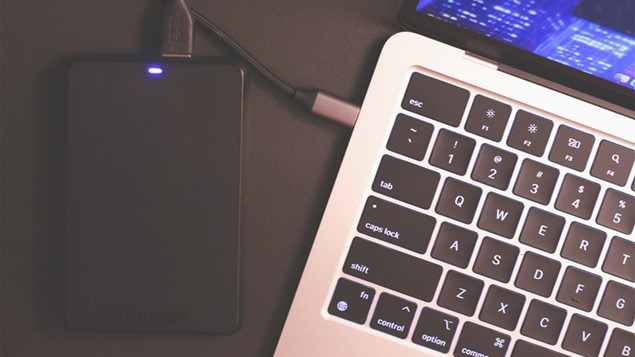
Step 2. Connect it to another port or use a different USB cable, then try accessing the video again.
💡Why this works: A weak or unstable connection can interrupt data transfer, leading to incomplete or corrupted video files.
Fix 2: Avoid Copying Large Files All at Once
Break transfers into smaller batches to reduce risk.
Step 1. Select smaller batches of video files instead of transferring everything at once.
Step 2. Copy each batch separately and wait for each transfer to fully complete.
💡Why this works: Large transfers increase the risk of interruption, which can corrupt files during the copying process.
Fix 3: Check File System Compatibility
Step 1. Right-click the external drive and open Properties to check its file system format.
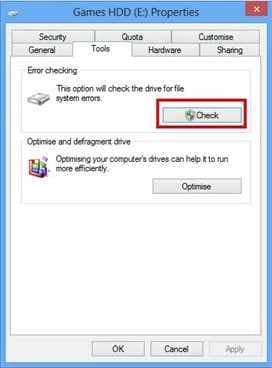
Step 2. Ensure the format (e.g., exFAT) is compatible with all devices you're using.
💡Why this works: Incompatible file systems can cause files to become unreadable or behave unexpectedly after transfer.
Fix 4: Safely Eject the Drive Every Time
Step 1: Click the "Safely Remove Hardware" option on your computer.
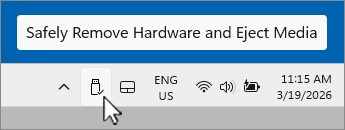
Step 2: Wait for the confirmation before unplugging the external drive.
💡Why this works: Removing a drive while data is still being written can damage file structure and cause corruption.
Fix 5: Test the Drive on Another Computer
Step 1. Connect the external drive to a different computer.
Step 2. Try opening the same video file on that device.
💡Why this works: This helps determine whether the issue is with the file itself or a problem with your original system.
Advanced Fix: Repair the Corrupted Video
If the video still won't play, it likely has structural corruption, meaning parts of the file's internal data are damaged or missing. In this situation, a tool like Repairit Video Repair is often required.
Step-by-step:
Step 1. Add the corrupted video file.

Step 2. Run the repair process.

Step 3. Preview the repaired result, then save the fixed video.

Note: This method is especially effective when corruption happens during transfer rather than deletion or overwriting.
How to Prevent External Drive Video Corruption
To avoid this issue in the future:
- Always wait for transfers to fully complete
- Safely eject your external drive before unplugging
- Use high-quality USB cables and ports
- Avoid moving files during power interruptions
- Regularly check your external drive for errors
- Keep backup copies of important videos
Conclusion
If your videos won't open after copying to an external drive, the issue is usually caused by interrupted transfers, connection problems, or file system incompatibility.
Start with simple fixes like re-copying the file and checking the drive. If that doesn't work, advanced repair methods can often restore the video. With proper handling and precautions, you can also prevent this issue from happening again.
FAQs
-
Why do videos get corrupted when copied to an external drive?
Interruptions or storage issues can damage the file structure during transfer. -
Can I recover a video that won't open?
Yes, especially if the corruption happened during copying. Professional repair tools can often restore it. -
Is my external drive broken?
Not necessarily. The issue may be with the transfer process, not the drive itself. -
Should I format my external drive?
Only as a last resort, since formatting deletes all data.




