
You remove your SD card, thinking everything is done, no transfers, no recordings, and then suddenly your files won't open. Photos appear blank, videos refuse to play, or entire folders seem inaccessible.
This situation often happens when a memory card is removed too early or without proper ejection. Even if nothing seems active, your device may still be processing data in the background.
When files become unreadable after SD card removal, the issue is usually linked to how data was written, or interrupted, at the moment the card was removed.
In this article
What Happens When You Remove an SD Card Improperly
Removing an SD card isn't just a physical action---it interrupts an active data process if the system hasn't fully completed its tasks.
Most devices don't instantly write data to storage. Instead, they:
- Temporarily store data in memory (cache)
- Write files in multiple stages
- Finalize the file structure at the end
If the card is removed during any of these stages, the process stops immediately.
As a result:
- Files may be incomplete
- File headers may not be written
- File system records may not update properly
Even if the file name appears, the actual content may be unusable.
Why Files Become Unreadable After SD Card Removal
These are the most common situations that lead to corruption:
- Removing the card while recording -- Pulling out the card mid‑recording interrupts data writing, leaving video headers incomplete and causing playback errors.
- Disconnecting during file transfer -- Unplugging the card before the transfer finishes creates partial copies that look complete but won't open properly.
- Using incompatible card readers -- Low‑quality or mismatched readers can cause unstable connections that interrupt the writing process.
- Switching devices too quickly -- Moving the card between cameras, computers, or phones without proper ejection can confuse file systems and damage stored data.
Signs Your Files Were Affected
When an SD card is removed unsafely, the damage often shows up immediately in the way files behave. These are the most common signs that your files were affected:
- Files won't open or show errors -- Attempts to access them trigger warnings or failure messages.
- Photos appear blank or partially loaded -- Images may display empty screens or incomplete visuals.
- Videos won't play or freeze -- Playback may stop midway, stutter, or fail to start at all.
- Missing thumbnails or previews -- Instead of quick previews, you'll see generic icons or blank spaces.
- Entire folders become inaccessible -- Multiple files may disappear or refuse to open at once.
These signs usually indicate that the file structure or file system was disrupted by unsafe removal.
How to Confirm It's Caused by SD Card Removal
Before assuming permanent damage, check if the issue matches improper removal behavior:
- Files worked before removing the SD card
- Multiple files are affected at once
- Files fail across different devices
- The issue appeared immediately after the removal
- The SD card still shows storage usage, but files don't open
If these conditions apply, the corruption likely occurred during removal.
What You Can Do After Files Become Unreadable
When files on your SD card become inaccessible, there are several practical fixes you can try before moving on to advanced recovery tools:
Fix 1: Reinsert the SD Card Properly
Reconnecting the card correctly may restore temporary access.
Step 1: Insert the SD card securely into your device or reader.
Step 2: Open File Explorer, go to This PC and find the SD card. Afterward, check the files again.
Why this works: A stable reconnection allows the system to re-read file data.
Fix 2: Copy Files to Another Location
Accessing files from another location may improve readability.
Step 1: Open File Explorer → SD card folder.
Step 2: Copy files (Ctrl + C then Ctrl + V) to your computer drive.
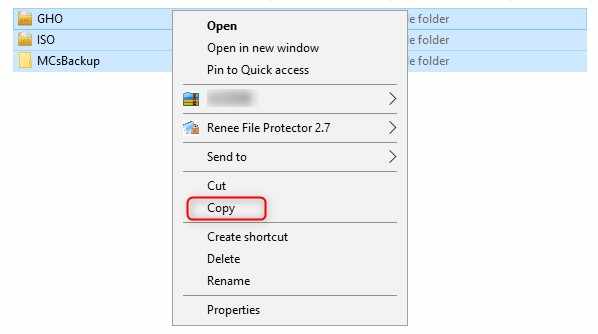
Why this works: Different storage locations may handle partially damaged files better.
Fix 3: Use Another Device or Card Reader
The issue may be related to how the card is being read.
Step 1: Remove the SD card from the current device.
Step 2: Insert it into another computer or card reader and try again.
Why this works: Different hardware may access the data more effectively.
Fix 4: Check the SD Card for Errors
File system errors can be repaired in some cases.
Step 1: Open File Explorer. Go to This PC.
Step 2: Right-click SD card → Properties → Tools → Error Checking → Check.
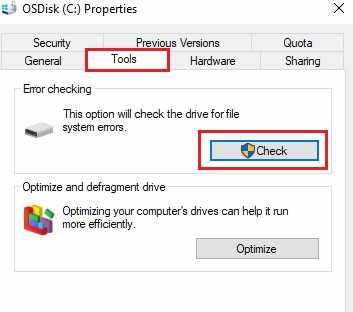
Why this works: Repairs logical errors that affect file accessibility.
Advanced Fix: Repair Corrupted Media Files
If the files still won't open, they likely have structural damage caused by the sudden disconnection.
How to Confirm:
- Files fail on multiple devices
- Files won't open in any app
- Playback or viewing errors persist
What Repairit Video Repair Can Do:
- Rebuild the damaged file structure
- Restore playback or viewing
- Fix missing data or broken metadata
Step 1. Add the corrupted video file.

Step 2. Run the repair process.

Step 3. Preview the repaired result, then save the fixed media file.

Prevent SD Card Disconnection Issues in the Future
To reduce the risk of losing valuable photos, videos, or documents, do the following:
- Always safely eject the SD card -- Use your device's "Eject" or "Safely Remove" option before unplugging. This ensures all data is finalized and prevents incomplete writes.
- Avoid removing during transfer or recording -- Interrupting a file transfer or pulling the card out while recording video can instantly corrupt files. Wait until the process is fully complete.
- Use high‑quality card readers -- Cheap or faulty readers often cause unstable connections. Investing in a reliable reader helps maintain consistent data flow and reduces errors.
- Handle SD cards carefully -- Physical damage like bending, scratching, or exposure to dust and moisture can weaken the card's connectors and increase the chance of disconnections.
- Regularly back up important files -- Even with careful handling, SD cards can fail over time. Keeping duplicates on external drives or cloud storage ensures you won't lose irreplaceable data.
Conclusion
If you need to repair media files from a suddenly disconnected SD card, the issue is usually caused by interrupted data writing during disconnection.
Start with basic fixes like reconnecting the card and copying files safely. If the issue persists, repair methods can help restore your media files and make them usable again.
FAQs
-
Can files from a disconnected SD card be repaired?
Yes, files can often be repaired if the corruption only affected part of the data. -
Why does sudden disconnection cause corruption?
Sudden disconnection causes corruption because it interrupts the file-writing process. -
Is my SD card damaged?
Not necessarily, though repeated disconnections may eventually indicate physical wear or failure. -
Should I format the SD card?
You should only format the SD card after attempting repair or recovery methods.




