
It can be really stressful when suddenly your camera turned off while recording and leaves you with a video file that won't play properly. This often happens because of sudden battery loss or unexpected camera errors, but your footage may still be recoverable.
In this guide, you'll learn practical ways to repair video after camera turned off and restore unplayable or unfinished video files.
In this article
Why Video File Corrupt When a Camera Turned Off
When your camera is turned off while recording, the video file can become corrupted or unreadable because the recording was not properly finished. Video formats like MP4 or MOV need to save important file information, such as metadata and file headers, after you stop recording.
If the camera suddenly loses power or shuts down before this process is completed, the file may remain incomplete and won't play correctly.
Common Causes of Recording Interruptions
- Sudden Power Loss - A drained battery or loose power connection can cause the camera to shut off before saving the video properly.
- SD Card Problems - A slow, damaged, or full memory card may interrupt recording and cause file errors.
- Camera Errors or Overheating - Software issues, firmware bugs, or overheating can force the camera to shut down unexpectedly.
- Accidental Movement or Impact - Dropping or shaking the camera may interrupt the connection between the camera and storage card.
Signs of a Corrupted Recording
When a recording stops suddenly, the video file may not be properly saved, making it unreadable or partially broken. In many cases, the system cannot fully recognize the file because its structure was not finalized.
Common Signs of a Broken Video File
- 0 KB or Missing Preview - The file may show 0 KB size or no thumbnail, even if it looks like a normal video file.
- Format Not Supported Error - Media players may say the file can't be opened or the format is not recognized.
- No Duration Display - The video properties may not show a length or playback time.
- Freezing or Glitchy Playback - The video may freeze early, play only a few seconds, or have audio without proper visuals.
- File Transfer Errors - Copying or moving the file from an SD card may fail or show errors like corrupted data.
Basic Troubleshooting and Simple Fixes
Before trying advanced repair tools, you can attempt a few basic fixes that often work for minor file issues. These methods help rebuild missing file information or fix small errors in the storage system.
Fix 1. Use VLC Media Player Repair
VLC has a built-in feature that can sometimes fix damaged video files by rebuilding missing or broken file data, especially for MP4 or AVI formats.
Step 1. Open VLC and navigate to Tools, Preferences, and Input / Codecs.
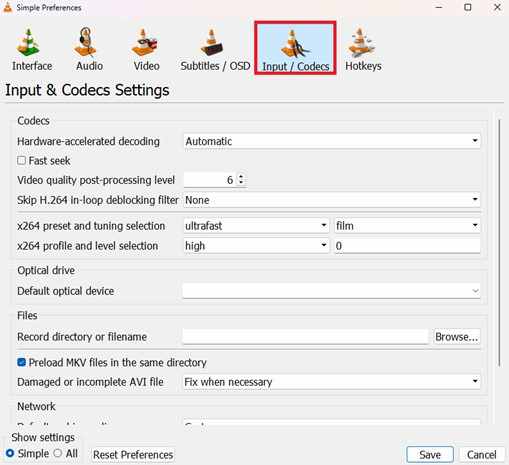
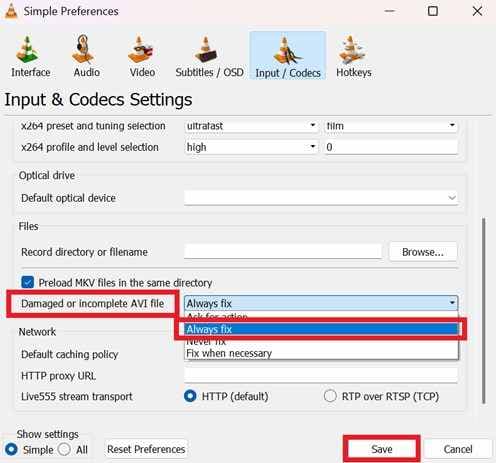
Step 2. Locate the Damaged or incomplete AVI file dropdown, select Always fix, and save before attempting to open your corrupted video.
Fix 2. Convert the Video File
Changing the video into another format can help fix header issues by creating a fresh file structure while keeping the original video data.
Step 1. Use a free tool like Handbrake or an online converter to upload the damaged file and select a standard output preset (e.g., MP4 H.264).
Step 2. Initiate the Start Encode or Start process; the software will attempt to read the raw data stream and write a completely new, finalized header.

Fix 3. Check the SD Card (chkdsk)
If the file won't copy to your computer, the problem may be the SD card. Running a disk check can fix storage errors that affect file access.
Step 1. Connect your SD card to a PC, open the Command Prompt as Administrator, and type chkdsk [Drive Letter]: /f.

Step 2. Once the process completes, attempt to move the file to your local drive again to see if the I/O error is resolved.
Advance Fix to Restore Severely Corrupted Video Files
When basic fixes don't work, it usually means the video's internal structure (metadata and index) is missing or badly damaged. Advanced repair tools fix this by scanning the raw data and rebuilding the missing structure so the video can be played again.
It CAN:
- Rebuild broken file headers needed for playback
- Sync audio and video streams affected by sudden interruption
- Recover unfinished recordings that were not properly saved
- Fix or skip damaged frames that cause freezing or errors
If you confirm the video is corrupted, a repair tool can safely restore its functionality. One example is Repairit Video Repair, which supports formats like MP4, MOV, MKV, and AVI.
Step-by-Step (Optional)
Step 1. Upload the corrupted video file.

Step 2. Start the Repair process.

Step 3. Preview and save the restored file to a new location.

How to Prevent Video Loss in the Future
While repair tools can help recover files, it's better to prevent video loss by reducing the chances of your recording being interrupted or not saved properly.
- Avoid full battery drain - Stop recording before the battery gets too low.
- Use fast SD cards - Choose high-speed cards (U3 or V30) to prevent errors.
- Format cards in-camera - This keeps the storage system properly optimized.
- Enable auto-segment recording - Short clips reduce risk if the camera shuts down.
- Secure connections - Ensure cables or power sources are firmly attached during recording.
Conclusion
When your camera turned off while recording, it doesn't always mean your footage is gone for good. By learning how to repair video after camera turned off, you can start with simple fixes like renaming files or using VLC, and move on to advanced repair tools if needed.
Whether the issue is a dead battery or an SD card problem, these recovery and prevention steps can help you restore and protect your videos.
FAQs
-
Why does my video show 0 KB after my camera is turned off?
This happens because the camera shuts down before saving important file data (metadata), so the system sees the file as empty even if data is still on the card. -
Can I fix a corrupted video without software?
You can try basic methods like renaming the file or using online converters, but heavily damaged files usually need repair tools. -
Will repairing a video affect its quality?
In most cases, repair tools keep the original video quality since they rebuild the file structure without changing the actual footage. -
What is a sample file in video repair?
It is a working video from the same camera and settings, used as a reference to help rebuild the corrupted file. -
How do I know if my SD card caused the problem?
Warnings like slow card, recording delays, or overheating often mean your SD card is not fast enough for the camera's recording speed.




