
Removing an SD card before clicking "Safe to Remove" can easily cause problems with your files, especially videos that suddenly won't open or play. This usually happens because the video file didn't finish saving properly, leading to missing or damaged data. If you are dealing with a video corrupted after SD card removal, don't worry, it is often still possible to fix it. In this guide, we will show you simple ways to repair video after SD card removal using recovery tools and basic fixes that can help bring your footage back to normal quality.
In this article
Part 1. What Causes the SD Card File Corruption
Removing an SD card while it's still reading or writing data can interrupt the process and corrupt video files. Since SD cards use file systems like FAT or exFAT, even a brief interruption can leave files incomplete or unreadable.
Common causes of video corruption
- Interrupted saving - File isn't fully written before removal.
- Damaged header - Missing key info makes the video unplayable.
- Unsynced data - Data in temporary memory isn't saved to the card.
- Sudden disconnection - Causes minor read/write errors.
Transfer-related issues
- Background saving not finished - "100%" may still be processed.
- Incomplete transfer - Moving (not copying) files can result in missing or corrupted data if interrupted.
Signs your video is corrupted
- The file size looks normal, but it says "can't play" or "invalid format"
- The video starts but freezes, while the audio continues
- No thumbnail or a blank icon appears
- The media player crashes when trying to open the file
Part 2. What are the Signs of a Corrupted Video File
Before fixing the file, it helps to understand how the problem shows up. When an SD card is removed incorrectly, the video file can lose important data that media players need to read it properly.
Common signs of corruption
- No thumbnail/preview - Preview data is missing.
- Playback errors -Messages like "unsupported file" or "can't open."
- Glitches during playback - Freezing, pixelation, or distorted visuals (audio may still work).
- Incorrect duration - Shows 0:00 or wrong video length.
- System lag - File explorer may freeze when trying to open the file.
How different players react
- VLC Media Player - May attempt auto-repair but playback can be unstable.
- Default players (Windows or QuickTime Player) - Often fail to open heavily damaged files.
Part 3. Fixes to Try First to Repair Corrupted Video
Before using advanced recovery tools, you can try simple built-in tools or media players to fix small file issues. These basic methods can help rebuild the file information or correct minor errors in how the video is stored.
Fix 1. Use VLC Media Player's Built-in Repair Tool
VLC has a native feature designed to fix damaged AVI files and "transcode" other formats to bypass broken headers caused by sudden SD card removal.
Step 1. Open VLC, navigate to Tools and Preferences, and select the Input / Codecs tab.
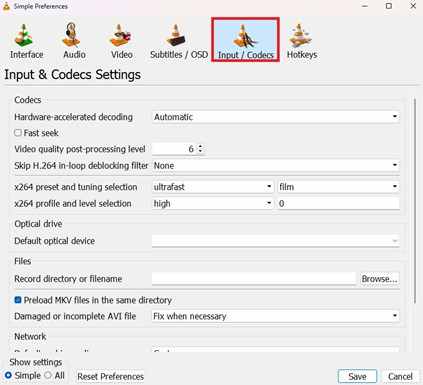
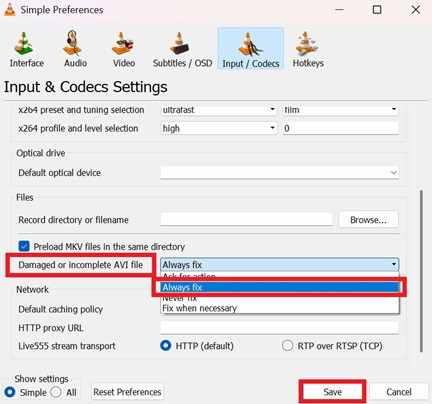
Step 2. Locate the "Damaged or incomplete AVI file" dropdown, change it to Always Fix, and click Save before opening your video.
Fix 2. Change the File Extension Manually
Sometimes the metadata mismatch prevents the OS from choosing the correct decoder. Manually toggling the container format can force a fresh handshake between the file and the player.
Step 1. Right-click the corrupted file, select Rename, and change the extension (e.g., from .mp4 to .m4v or .avi).
Step 2. Confirm the change in the warning prompt and attempt to play the file in a different media player like PotPlayer or MPC-HC.
Fix 3. Execute a CHKDSK Command
If the file won't even copy to your desktop, the SD card's file system index is likely the problem. The Check Disk command can repair these directory errors.
Step 1. Connect the SD card, type cmd in the Windows search bar, run it as Administrator, and type chkdsk E: /f (replace "E" with your SD card's drive letter).
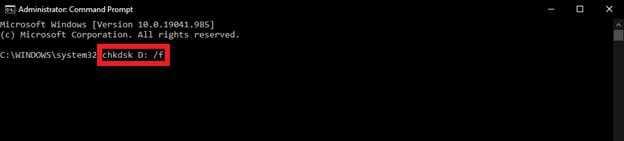
Step 2. Hit Enter and wait for the utility to scan and re-link any orphaned file fragments found on the card.
Fix 4. Re-download or Transfer via Different Port
In cases where the corruption occurred during a "Move" command, the data may be stuck in the system's temporary cache or interrupted by a faulty USB port.
Step 1. Connect your SD card reader to a different physical USB port (preferably a rear port if using a PC) to ensure stable power delivery.
Step 2. Attempt to copy the file again, as the previous "corruption" might simply have been a failed read/write pass due to a loose connection.
Part 4. Advance Fix to Restore Severely Corrupted Files
If your video is confirmed corrupted, you can use a video repair tool like Repairit Video Repair Tool. It supports common formats like MP4, MOV, and 3GP. Some tools also use a healthy video from the same device to help rebuild and fix the broken file.
Step-by-Step (Optional)
Step 1. Upload the corrupted video file.

Step 2. Start the Repair process.

Step 3. Check the recovered file and save it to a different location.

Part 5. How to Fix Video Problems Caused During File Transfer
File corruption can also happen during transfer, not just from unsafe removal. Since your computer uses a write cache (temporary storage), a file may appear "100% copied" even though it's still finishing in the background. Interrupting this process can leave the video incomplete or unreadable.
Simple fixes for transfer-related corruption
- Check partial files - Look for .tmp or .part files and try renaming them (e.g., to .mp4/.mov).
- Retry with command line - Tools like Robocopy handle errors better than normal copying.
- Use stable connection - Plug directly into a reliable USB port or card reader.
- Restart system - Clears stuck cache data and helps the device read files properly again.
Part 6. How to Prevent and Reduce Video Corruption During File Transfer
Fixing corrupted videos is possible, but it's always better to prevent the problem in the first place. Most SD card issues happen not because the card is old, but because it is removed or used incorrectly during saving or transfer.
- Always safely eject the SD card - Don't just pull it out after copying. Use "Eject" on Windows or macOS first so your computer can finish saving all data properly.
- Format the SD card in your camera - Instead of formatting on your computer, use your camera's built-in format option. This helps the card work better with your device and reduces file errors.
- Avoid low battery during transfer or recording - If your device is about to run out of power, don't transfer or record files. Sudden shutdowns can interrupt saving and cause corrupted videos.
- Copy files instead of moving them - Always copy files first, then check if they open properly before deleting them from the SD card. This adds a safety step in case something goes wrong.
- Replace old or worn-out SD cards - SD cards don't last forever. If you notice slow performance or frequent errors, it may be time to replace them to avoid future corruption.
Conclusion
Dealing with a video corrupted after SD card removal can be stressful, but it usually doesn't mean the file is gone forever. Most of the time, the issue happens because the video wasn't fully saved or the file structure got damaged. With the right steps, you can still repair video after SD card removal using simple fixes or more advanced recovery tools. To avoid this in the future, always safely eject your SD card and make sure your device has stable power during transfers.
FAQs
-
Why does my video show the correct file size but won't play?
This usually means the video data is there, but important information needed to open the file is missing because the SD card was removed too early. -
Can VLC repair any corrupted video format?
VLC can fix some simple issues and may help with certain MP4 or AVI files, but it cannot repair heavily damaged videos. -
Will formatting my SD card fix the corruption issue?
Formatting can fix the SD card for future use, but it will delete all files. Try recovering your videos first before formatting. -
What is a "sample file" in advanced repair?
It is a working video from the same camera used as a reference to help repair and rebuild a damaged video file. -
Is it safe to use cut and paste for large videos?
Copying is safer. If something goes wrong during "cut," your file could be lost before it is fully transferred.




