
It's a common problem, your computer suddenly turns off while recording or saving a file, leaving you with a video corrupted after sudden shutdown. This usually happens because the file isn't fully saved, especially its important data (metadata), making it unreadable.
Luckily, you don't have to lose your video. Knowing how to repair video after shutdown means fixing or rebuilding the missing file information so it can play again. This guide explains why this happens and the simple ways you can recover and restore your video files.
In this article
Why Video Corruption Happens After a Sudden Shutdown
A sudden shutdown can interrupt saving or recording, causing a video corrupted after sudden shutdown because the file is not fully written.
Common Causes
- Missing header data - Important file details aren't saved, so the video can't be opened properly.
- Incomplete indexing - The file doesn't finish organizing its data, making it unreadable.
- Unsaved cache data - Temporary data in memory is lost before it is written to the drive.
Transfer Issues
- Interrupted transfer - Copying stops midway, leaving an incomplete file.
- File system errors - Sudden power loss can damage how the file is recorded in storage.
What Are the Signs of Video Corruption
A video corrupted after a sudden shutdown is usually easy to spot, but the signs can vary depending on when the shutdown happened. These symptoms help you know if the file only needs basic repair or deeper recovery.
Common Signs
- Playback errors - The video won't open and shows messages like "File not supported" or missing codec errors.
- No preview thumbnail - The file appears as a blank or generic icon instead of a video frame.
- Seek bar not working - You can't skip or move through the video, or the time stays stuck at 00:00.
- Distorted video quality - If it plays, you may see pixelation, glitches, or broken visuals due to missing data.
- Playback stops early - The video may freeze, close suddenly, or loop before finishing.
Basic Fixes for Corrupted Video Recovery
Before using advanced tools, there are simple methods that can often repair video after shutdown by fixing small file errors or rebuilding the video index.
Fix 1. VLC Media Player Repair
VLC can automatically try to fix damaged video files, especially AVI or MP4, by rebuilding parts of the file so it can play again.
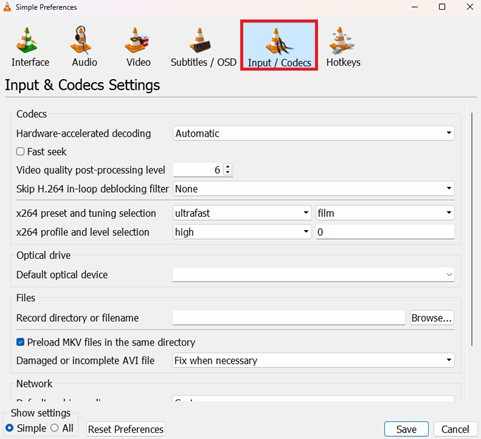
Step 1. Open VLC, navigate to Tools then Preferences, and select the Input / Codecs tab.
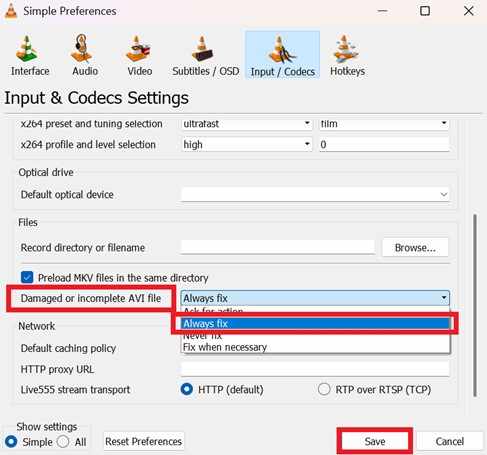
Step 2. Locate the Damaged or incomplete AVI file dropdown and change the setting to Always fix.
Fix 2. Convert Using HandBrake
If the video still opens but has glitches, converting it into a new format can create a fresh, clean version of the file.
Step 1. Load the corrupted file into Handbrake and select a standard output preset like Fast 1080p30.

Step 2. Click Start Encode or Start to attempt to re-sequence the video frames into a stable MP4 or MKV format.

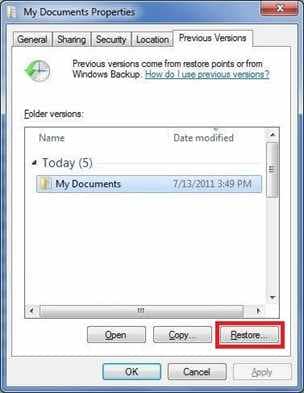
Fix 3. Restore Previous Version (Windows)
If the file was edited or saved before the crash, Windows File History may let you recover an earlier working version.
Step 1. Right-click the corrupted video file and select Restore previous versions or Properties then Previous Versions.
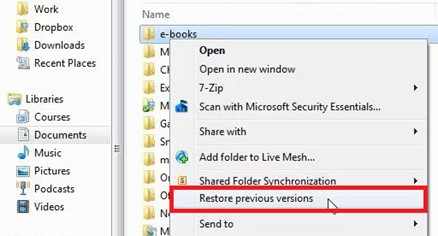
Step 2. Choose the most recent stable timestamp from the list and click Restore to retrieve the uncorrupted state.
Fix 4. Rename File Extension
Sometimes the system mislabels the file after a crash. Changing the file extension may help the correct program open it properly.
Step 1. Enable File name extensions in your folder view and right-click the file to select Rename.
Step 2. Change the suffix (e.g., from .mov to .mp4) and attempt to open it in a high-compatibility player like MPC-HC.
Advance Fix to Restore Severely Corrupted Video Files
If basic fixes don't work, the video is likely more seriously damaged, usually due to missing or corrupted internal data like the metadata or moov atom, which are needed to play the file properly. In this case, a professional repair tool is required.
It CAN:
- Restore missing file information so the video can play
- Fix audio and video sync issues
- Repair damage in any part of the file
- Recover multiple corrupted videos at once
If you confirm the video is corrupted, a repair tool can safely restore its functionality. One example is the Repairit Video Repair, which works with common file types like MP4, MOV, MKV, and AVI.
Step-by-Step (Optional)
Step 1. Upload the corrupted video file.

Step 2. Start the Repair process.

Step 3. Preview and save the restored file to a new location.

Simple Ways to Prevent Video Corruption
You can avoid most video corruption issues by following a few simple habits:
- Use a UPS - Keep your PC running during power cuts so you can shut down safely.
- Enable auto-save - Lets your software regularly save progress to avoid major data loss.
- Check storage health - A healthy hard drive or memory card reduces file errors.
- Use stable formats (like MKV) - More resistant to sudden shutdowns than MP4.
- Safely eject devices - Prevents data from being cut off while still saving.
Conclusion
Dealing with a video corrupted after sudden shutdown can be very stressful, especially if the footage is important. This usually happens when the video file doesn't finish saving properly, causing missing metadata or broken file headers.
Using the methods discussed, such as built-in media player fixes and special tools to repair video after shutdown, you can often restore and recover your video successfully. To avoid this in the future, it helps to use a UPS (backup power supply) and choose more stable recording formats like MKV to protect your files from sudden power loss.
FAQs
-
Why does a video corrupted after a sudden shutdown often show as 0 KB?
This happens because the file was not fully saved. The system didn't finish writing the file's index, so it cannot read or display the video data properly. -
Can VLC repair any type of video file?
VLC can fix small issues in formats like AVI and MP4, especially when the problem is just indexing. But if the damage is severe, you may need a more advanced tool to repair video after shutdown. -
Does changing the file extension actually fix corruption?
No, it doesn't fix the actual damage. However, it can help if the file type was misread after a crash, allowing media players to open it correctly. -
Is it possible to repair video after shutdown if I don't have a sample file?
Yes. Some basic repair tools can work without a sample file. But for heavily damaged videos, advanced tools may need a healthy sample to improve recovery results. -
Are MKV files really safer than MP4 files for power cuts?
Yes. MP4 files need final processing (moov atom) to be playable, which can be lost during sudden shutdowns. MKV files don't rely on this step, making them more resistant to corruption.




