

RealVideo is a proprietary video compression format created by RealNetworks for delivering streaming media over the early internet. This RealVideo codec was optimized for low-bitrate connections, allowing smoother playback when bandwidth was limited. Although it is now a legacy technology, the RealVideo format still matters for accessing old streaming archives, educational recordings, and corporate libraries, where you may need reliable playback, conversion, or repair of historic content.
Repair Corrupted Files To Save Your Data
 Security Verified. Over 7,302,189 people have downloaded it.
In this article
How RealVideo Works
RealVideo compression basics
The RealVideo codec uses lossy compression to reduce video data so it can be streamed over limited bandwidth. Like many codecs, it divides each frame into blocks, analyzes motion between frames, and stores only the changes instead of every full image. Early versions relied on proprietary techniques similar to MPEG-4 Part 2, while later generations moved closer to modern block-based designs. By discarding visual details that are less noticeable to the human eye, RealVideo shrinks file size at the cost of some image fidelity.
Bitrates, quality, and streaming efficiency
RealVideo was tuned for constant or variable bitrates suited to dial-up and early broadband connections. Lower bitrates meant smaller files and smoother streaming but could introduce artifacts such as blocking or blurriness. At higher bitrates it produced cleaner images, but still lags behind modern options like RealVideo vs H264 in terms of efficiency. The codec also supported adaptive streaming through RealNetworks servers, adjusting quality to avoid buffering on unstable connections.
Key Features, Pros, and Cons
Main characteristics of RealVideo
The RealVideo codec was tightly integrated with RealNetworks tools, including RealServer and RealPlayer, to deliver end-to-end streaming. It commonly appeared alongside RealAudio for synchronized audio-visual playback and was packaged in RealMedia container files. Features such as buffering control, low-latency playback, and server-side bandwidth management made it a pioneer of early web video.
Strengths and weaknesses in practice
Pros
Optimized for low-bitrate streaming, making video feasible on slow internet connections.
Close integration with RealNetworks infrastructure simplified large-scale deployment.
Reasonably small files compared with many early codecs at similar quality levels.
Cons
Proprietary technology and licensing limited adoption outside the Real ecosystem.
Lower visual quality and efficiency compared with modern formats such as H.264 and HEVC.
Real-world performance: On historic hardware and networks, RealVideo often delivered smoother streaming than alternatives of its era. On current systems, however, it is generally outperformed by newer codecs in terms of quality per bitrate, hardware acceleration, and ease of playback.
RealVideo vs Other Codecs
RealVideo vs H.264/AVC
When comparing RealVideo vs H264, the differences are clear. H.264/AVC is a standardized, widely supported codec used for streaming, editing, and playback across almost all modern platforms. At the same bitrate, H.264 usually delivers sharper detail, fewer artifacts, and better motion handling than the RealVideo codec. H.264 also benefits from broad hardware acceleration on GPUs and mobile chips, reducing CPU load and improving battery life. RealVideo, in contrast, often requires software decoding and specific legacy players, which limits its practicality today.
RealVideo vs H.265, AV1, and VP9
Next-generation codecs such as H.265/HEVC, AV1, and VP9 push compression efficiency even further beyond RealVideo. They can provide similar or better quality at significantly lower bitrates, reducing storage and bandwidth costs for high-resolution content. In terms of compatibility, these newer formats are widely supported by browsers, mobile devices, smart TVs, and streaming platforms, whereas RealVideo format playback is often restricted to older software or custom workflows. Encoding and decoding speed is also better optimized in modern tools, especially with hardware support, making migration from RealVideo to newer codecs a common archival strategy.
Compatibility and Practical Use
Supported devices and players
Native support for RealVideo player files is now limited. Historically, RealPlayer on Windows, macOS, and some Linux distributions was the primary way to view RealMedia streams. Certain third-party players can still handle RealVideo through legacy codec packs or built-in demuxers, but this is not guaranteed on modern operating systems. Mobile and smart TV platforms rarely support RealVideo out of the box, so conversion to formats like MP4 (H.264) is often required for convenient playback.
Common containers and workflows
Most RealVideo files are stored in RealMedia containers, typically using extensions like .rm or .rmvb. These containers can bundle video, audio, subtitles, and streaming metadata. In current workflows, RealVideo usually appears when accessing old corporate training libraries, research archives, or educational content. A practical approach is to preserve the originals while transcoding them into modern formats for everyday use, especially when maintaining compatibility across editors, players, and online platforms.
How to Use Repairit to Fix a Corrupted RealVideo File
Why choose Repairit for RealVideo repair
When a RealVideo file refuses to play, freezes, or shows only a black screen, the cause is often corruption in the stream or container. Instead of attempting risky manual fixes, you can rely on a dedicated video repair utility. Wondershare Repairit is designed to handle many legacy and modern formats, including fix corrupted RealVideo issues from different devices and storage media. You can explore all capabilities and download the tool from the Repairit official website.
Key features of Repairit
- Repairs videos that will not play properly, freeze, stutter, or trigger error messages across various formats, including legacy RealVideo codec content.
- Supports recovery from cameras, computers, memory cards, and external drives, helping you repair RealVideo files wherever they are stored.
- Provides an intuitive, guided interface suitable for beginners while still offering detailed previews for advanced users.
Step-by-step RealVideo repair guide
- Add corrupted video
Start Wondershare Repairit and choose the Video Repair module. Click the option to add files, then navigate to the folder containing your problematic RealVideo format clips (for example, .rm or .rmvb). Select one or multiple damaged videos so they appear in the repair list, along with basic details like file size and duration.

- Repair video codecs
After loading the clips, click the Repair button to begin analyzing the internal structure of each file. Repairit inspects headers, metadata, and the underlying video and audio streams to detect corruption. The tool then reconstructs playable streams, fixing issues that may prevent a RealVideo player from decoding the content correctly. When the process finishes, preview the repaired versions inside Repairit to confirm that images display properly and that audio is synchronized.

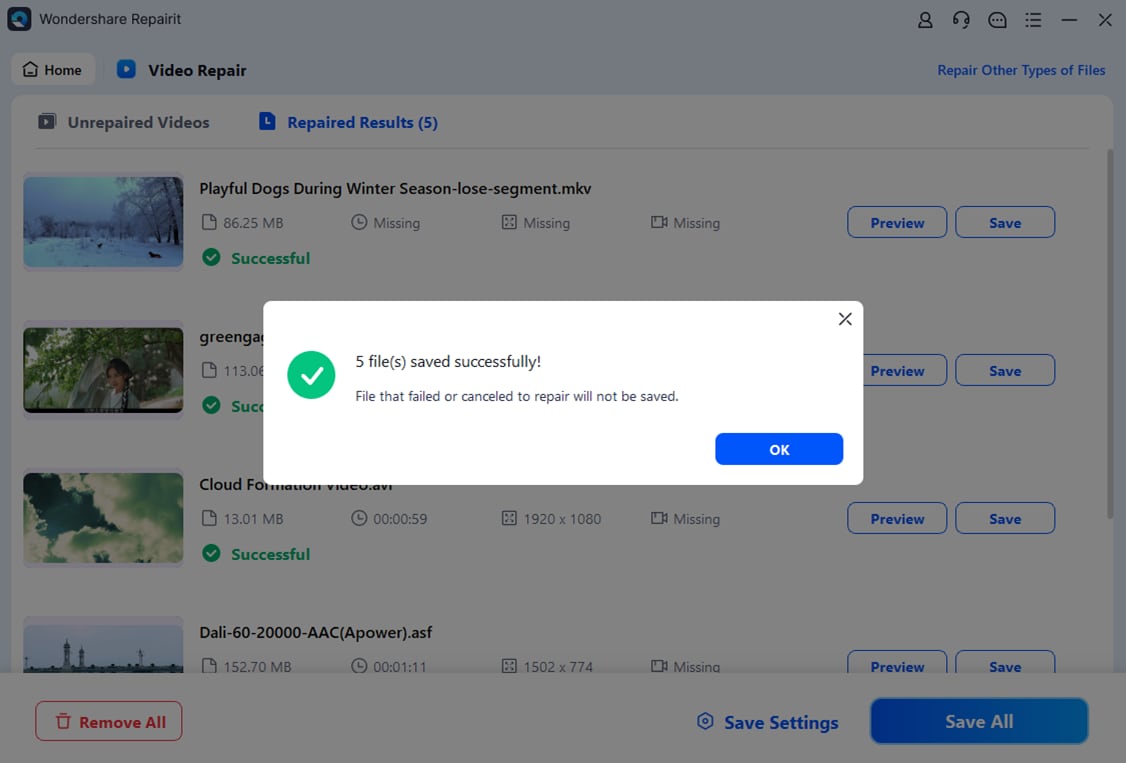
- Save the repaired videos
If the previews look good, choose the Save option. Select a secure destination folder that is different from the original location to avoid overwriting your source files. Repairit will export the fixed clips, allowing you to back them up, convert them to newer formats, or integrate them into your current workflows. Keeping both the repaired RealVideo files and any converted versions helps protect your archive against future data loss.
Conclusion
RealVideo played a pivotal role in the early days of online streaming by making low-bitrate video realistic on slow connections. Although it has been surpassed by modern standards, many organizations and individuals still maintain archives encoded with the RealVideo codec, making it important to understand how to access, convert, and safeguard these files.
By recognizing the strengths and weaknesses of RealVideo vs H264 and newer formats, you can plan effective preservation and migration strategies. When legacy clips become corrupted or unplayable, using a specialized tool like Wondershare Repairit offers a practical way to fix corrupted RealVideo, recover valuable footage, and move it into more future-proof formats.
Next: What is H.264/Avc Codec?
FAQ
-
1. What is RealVideo used for today?
Today, RealVideo is mainly encountered in legacy video archives, older training materials, and institutional streaming libraries created when RealNetworks technology was common. It is rarely chosen for new production work, but remains important when you need to access, convert, or preserve historic content that was originally encoded with the RealVideo codec.
-
2. How can I play RealVideo files on a modern computer?
You can try installing an old version of RealPlayer or a third-party media player that still supports RealVideo format through built-in codecs or plugins. In many cases, the most practical option is to convert RealVideo clips to a widely supported format such as MP4 (H.264) using a trusted converter, and then play the converted files in your preferred media player.
-
3. Why will my RealVideo file not play or only show a black screen?
Playback failures with RealVideo files can result from corruption caused by interrupted downloads, storage errors, or problems during recording or encoding. Another possibility is missing codecs on your system, preventing a RealVideo player from decoding the stream. Updating your player, installing compatible codecs, or using Repairit to fix corrupted RealVideo are common ways to address these issues.
-
4. Can corrupted RealVideo files be fully repaired?
In many situations, yes. If the damaged RealVideo files still contain most of their data, repair software can rebuild the structure and restore playability. However, if entire sections have been overwritten or permanently lost, certain frames or segments may remain unusable even after repair. Using a tool like Repairit improves your chances of recovery while keeping the process safe and guided.
-
5. Should I convert RealVideo to a newer codec like H.264?
For long-term accessibility, converting from RealVideo to a modern codec such as H.264 or HEVC is generally recommended. Newer formats offer better quality at smaller file sizes, broader compatibility, and hardware acceleration on current devices. Before conversion, it is wise to repair any damaged clips with a tool like Repairit so you do not carry corruption into your new archive.




