
H.264, also known as AVC (Advanced Video Coding), is a digital video compression standard that delivers clear video at relatively low bitrates. It efficiently reduces file size while keeping quality high enough for everyday viewing, which is why it powers online streaming, smartphone recording, video editing, security cameras, and Blu-ray discs. Because H.264 codec files are so compact and widely supported, they are a practical choice for content creators, businesses, and everyday users who need reliable playback across many platforms.
Repair Corrupted Files To Save Your Data
 Security Verified. Over 7,302,189 people have downloaded it.
In this article
How H.264/AVC Works
At a basic level, H.264/AVC compresses video by removing visual information the viewer is unlikely to notice. Instead of storing every full frame, it saves one complete frame (I-frame) and then a series of predicted frames (P-frames and B-frames) that only record what has changed. It also breaks each frame into small blocks and uses mathematical transforms to describe patterns more efficiently.
This approach sharply reduces file size while keeping perceived quality high, especially at typical streaming and recording bitrates. H.264 also uses techniques like motion estimation, entropy coding, and in-loop deblocking filters to improve compression efficiency, so you can get smoother playback even on slower connections or less powerful hardware.
Key Features, Pros, and Cons
Main features of H.264/AVC
Core capabilities that define the H.264/AVC standard include:
- Support for a wide range of resolutions, from low-bitrate mobile video up to HD, Full HD, and even some 4K workflows.
- Multiple profiles and levels (Baseline, Main, High, etc.) tailored for streaming, broadcast, editing, or low-power devices.
- Advanced motion compensation and prediction tools that reduce redundant information between frames.
- Entropy coding methods like CABAC and CAVLC that squeeze more data into fewer bits.
- Flexible GOP (Group of Pictures) structures for balancing compression efficiency and seekability.
- Broad support in hardware encoders/decoders, GPUs, cameras, smartphones, and media players.
Pros, cons, and real-world performance
Pros
Excellent compatibility: Almost every modern device, OS, browser, and editor supports H.264 format out of the box.
Good quality at modest bitrates: You can stream HD video smoothly over typical home and mobile connections.
Mature ecosystem: Hardware acceleration, optimized encoders, and extensive documentation make it easy to work with.
Low playback requirements: Decoding H.264 is efficient enough for older laptops, budget phones, and embedded systems.
Cons
Less efficient than newer codecs: Compared with H.264 vs H.265 or AV1, you typically need higher bitrates for the same quality.
Not ideal for very high resolutions: For 4K and above, file sizes and bandwidth demands grow quickly.
Typical real-world performance
In real-world workflows, H.264/AVC delivers a reliable mix of visual clarity and manageable file sizes for streaming platforms, online courses, video conferencing, and social media uploads. Encoders like x264 or hardware encoders on GPUs strike a balance between speed and quality, making H.264 ideal when you need dependable results and wide playback support rather than cutting-edge compression efficiency.
H.264/AVC vs Other Codecs
H.264 vs H.265/HEVC
H.264 vs H.265 is one of the most common comparisons. H.265/HEVC is more efficient, often delivering similar quality at 30–50% lower bitrate than H.264. However, HEVC decoding is more CPU/GPU intensive, licensing is more complex, and older devices or browsers may not support it. H.264 usually wins for compatibility and ease of use, while H.265 is preferable when saving bandwidth or storing lots of 4K content.
H.264 vs AV1
AV1 is a newer, royalty-free codec designed for very high compression efficiency, especially for streaming. It can outperform H.264 at low bitrates, but encoding AV1 is typically much slower and hardware support is still growing. For now, H.264 remains the safe, universal option, while AV1 is gradually being adopted by major streaming services for bandwidth savings.
H.264 vs VP9
VP9, created by Google, offers better compression than H.264 and is common on platforms like YouTube for higher resolutions. However, VP9 hardware support is less universal than H.264, particularly on older devices. In many mixed-device environments, H.264 is still the fallback codec that plays almost anywhere.
Summary comparison
| Codec | Key takeaway |
|---|---|
| H.264/AVC | Balanced quality, file size, and compatibility; ideal for general use. |
| H.265/HEVC | Better compression for HD/4K but requires newer hardware and software. |
| AV1 / VP9 | Higher efficiency for streaming; support is expanding but not as universal as H.264. |
Compatibility and Practical Use
Supported devices and software
One of the main reasons H.264/AVC remains dominant is its exceptional compatibility. You will find H.264 playback support on:
- Windows, macOS, Linux, iOS, Android, and most smart TV operating systems.
- Web browsers like Chrome, Firefox, Edge, and Safari via HTML5 video.
- Editing tools such as Adobe Premiere Pro, Final Cut Pro, DaVinci Resolve, and many consumer editors.
- Hardware devices including smartphones, DSLRs, action cameras, drones, CCTV/NVR systems, game consoles, and Blu-ray players.
Common file containers
H.264 format video is usually stored inside a container file, which holds audio, subtitles, and metadata alongside the video stream. The most frequently used containers include:
- MP4 (.mp4) – the de facto standard for web, mobile, and general delivery.
- MOV (.mov) – common in camera recordings and professional workflows, especially on macOS.
- MKV (.mkv) – popular for high-quality rips, archival copies, and enthusiast use.
- AVI (.avi), TS (.ts), M2TS (.m2ts) – found in older systems, broadcast, and some Blu-ray structures.
For daily streaming, editing, and sharing, MP4 with H.264 codec video and AAC audio is one of the most universally supported combinations.
How to Use Repairit to Fix a Corrupted H.264/AVC File
Why use Repairit for H.264/AVC repairs
Even though H.264/AVC is mature and robust, files can still become corrupted due to interrupted recording, power loss, faulty storage, or transfer errors. When this happens, a dedicated repair utility is more effective than simply re-opening the file in a media player. Wondershare Repairit is designed specifically to repair damaged media, including repair H.264 video tasks, by analyzing the file structure and rebuilding broken video and audio data. You can learn more and download it from the Repairit official website.
Key features of Repairit for H.264/AVC
- Repairs corrupted or unplayable H.264/AVC videos from cameras, phones, memory cards, and external drives.
- Offers both quick and advanced repair modes to handle everything from minor glitches to severe structural damage.
- Lets you preview repaired H.264 clips before saving them, so you know exactly what has been recovered.
Step-by-step: Repair corrupted H.264/AVC video
- Add corrupted video
Install and launch Wondershare Repairit on your computer, then switch to the Video Repair module. Click the add button and browse to the damaged H.264/AVC files, whether they are stored on your local drive, SD card, USB stick, or other media. Repairit will list each imported video with its name, size, and path so you can confirm you selected the right clips.

- Repair video codecs
After loading your files, start the repair process with a single click. Repairit examines the internal structure of each H.264 codec stream, looking for header issues, index errors, and damaged frames that can stop the file from playing. For heavily corrupted footage, you may be prompted to use Advanced Repair, where you provide a working sample video from the same device so Repairit can better reconstruct the broken data.

- Save the repaired videos
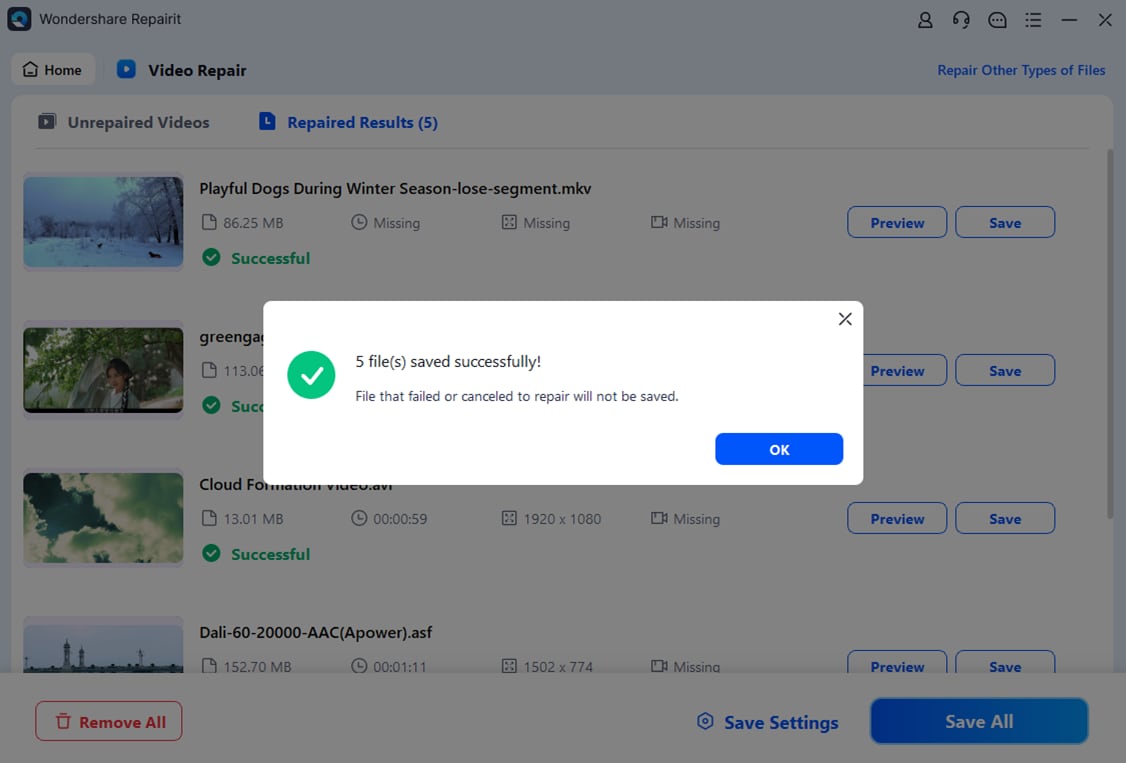
When the repair finishes, use the built-in player to preview each recovered H.264/AVC video. Check that the picture, audio, and duration look correct. If you are satisfied, choose a safe output folder on your computer and click Save to export the fixed files. It is best to save them to a different drive than the original source to avoid overwriting potentially recoverable data.
Conclusion
H.264/AVC remains a cornerstone of modern video because it combines solid visual quality, reasonable file sizes, and exceptional compatibility across devices, platforms, and editing environments. Understanding how it compresses video, where it excels, and how it compares to newer codecs like H.265, VP9, and AV1 helps you choose the best settings for recording, streaming, and delivering your content.
Despite its reliability, H.264 format files can still become corrupted during capture, transfer, or storage. When that happens, specialized tools such as Wondershare Repairit give you a straightforward way to diagnose and fix damaged clips. By following a guided workflow, you can restore important recordings without needing deep technical knowledge or complex command-line tools.
Next: What is H.265/Hevc Codec?
FAQ
-
1. What is H.264/AVC mainly used for?
H.264/AVC is used to record, compress, and distribute digital video for streaming platforms, video conferencing, mobile recordings, CCTV systems, and Blu-ray discs. Because it balances quality and file size so well, it is the default choice for many cameras, editors, and online services.
-
2. Is H.264 the same as AVC?
Yes. H.264 and AVC (Advanced Video Coding) are two names for the same video compression standard. H.264 is the ITU-T designation, while AVC is the ISO/IEC designation, so you will often see files, devices, and software labeled as H.264/AVC.
-
3. Why is H.264/AVC still so popular?
H.264/AVC remains popular because it offers a dependable combination of compression efficiency, visual quality, and universal support. It plays on older and newer devices, benefits from hardware acceleration, and integrates smoothly with almost all consumer and professional video tools.
-
4. Can H.264/AVC be lossless?
While H.264 codec is primarily used in lossy mode, the standard does include lossless profiles. These modes preserve every pixel exactly but generate much larger files, so they are less common than standard lossy H.264 used for streaming and distribution.
-
5. How can I fix a corrupted H.264/AVC video file?
First, try simple steps such as re-downloading the file, copying it again from the memory card, updating your media player, or transcoding it to another format. If the video is still broken or will not open, use a dedicated repair tool like Wondershare Repairit, which can automatically scan and fix corrupted H.264 file structures so the clip becomes playable again.




