
When Discord fails to load, you may see the error message: “Loading chunk XXXXX failed.” This error often appears after updates or during startup, and it signals that Discord is trying to load outdated or mismatched files. In most cases, the problem comes down to corrupted cache data, incomplete updates, or CDN delivery issues that prevent the app from running properly.
This guide explains what the error means, why the numbers in the message change, and how to fix loading chunk failed errors like 48083, 21905, 22721, 40769, and 9241 on Windows, Mac, and web browsers.
In this article
Part 1. What Does “Discord Loading Chunk Failed” Mean?
The loading chunk failed error in discord occurs when the application cannot load one of its required JavaScript files during startup. Discord is built as a web-based application that runs inside a desktop wrapper, meaning it relies on multiple JavaScript bundles called “chunks.”
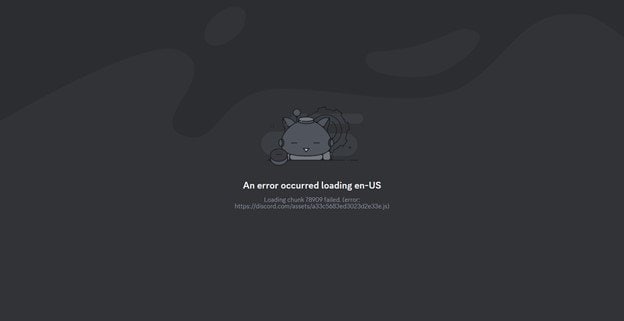
These chunks contain different parts of the application’s code, such as:
- User interface elements
- Messaging functions
- Voice and video features
- Media rendering components
How Discord Uses Chunks
Instead of downloading one large program file every time an update is released, Discord splits its code into many smaller files called chunks. This modular structure allows the application to load faster and update individual components without reinstalling the entire program.
For example, one chunk might contain code for the messaging interface while another handles notifications or server lists. When Discord updates, some of these chunks are replaced with newer versions.
Why This Causes the App to Crash
When Discord starts, it expects every required chunk file to load successfully. If even one chunk fails to load, the application cannot build the full interface or run the required scripts.
Because of this, Discord often stops loading entirely and displays the error instead of partially opening the application. This behavior is intentional. Allowing the app to run with missing components could cause additional bugs, broken features, or security risks.
Part 2. Why Different Numbers (48083, 21905, 22721, etc.) Appear
Many users assume that errors such as 48083, 21905, 22721, 40769, or 9241 represent different problems. In reality, these numbers are not separate error categories.
The number shown in the message is simply the unique identifier of the chunk file that Discord attempted to load.
Common Chunk Error Numbers
Although the numbers vary between updates, several chunk IDs appear frequently because users often encounter the error shortly after Discord pushes a new update.
| Error Number | What It Represents | Recommended Fix |
| 48083 | Missing or outdated cached chunk | Clear Discord cache |
| 21905 | Failed CDN asset load | Restart and clear the cache |
| 22721 | Version mismatch after update | Reinstall Discord |
| 40769 | The browser cached the old version | Hard refresh the browser |
| 9271 | Local file conflict | Delete Discord AppData |
Although the numbers change, the troubleshooting steps remain the same because all chunk errors share the same underlying cause: a mismatch between local files and server assets.
Part 3. Main Causes of Discord Loading Chunk Failed
Since Discord relies on dynamically loaded JavaScript bundles, several issues can interrupt the loading process. Below are the most common causes:
- Corrupted Local Cache (Most Common) - Discord stores temporary files on your computer to help the app load faster. However, when these cached files become outdated after an update, Discord may attempt to load an old chunk file that no longer exists on the server, triggering the error.
- Incomplete Auto Update - If Discord begins downloading an update but fails to finish installing it, the system may end up with a mix of old and new files. This version mismatch often causes chunk loading failures during startup.
- Browser Cached Old Version - For users accessing Discord through a web browser, the browser may cache older JavaScript files. If Discord deploys a new version while your browser still stores the previous one, the loading process may fail.
- CDN Delivery Failure - Discord serves its application assets through a Content Delivery Network (CDN). Temporary network interruptions or regional routing issues can sometimes prevent chunk files from downloading properly.
- Firewall / Antivirus Blocking Files - Security software occasionally blocks newly downloaded files from running, especially when Discord updates its internal scripts. This can interrupt the loading process and trigger chunk errors.
- VPN / Proxy IP Routing Issue - Using a VPN or proxy can sometimes cause routing conflicts with Discord’s CDN servers. If the connection fails to retrieve a required asset, the application may display the chunk loading error.
- Rare: Corrupted Media Rendering Attempt - In uncommon situations, Discord may encounter errors when attempting to preview or process a damaged media file during upload.
Part 4. Quick Fixes You Should Try First
Many users resolve the Discord loading chunk failed error using one of the following methods.
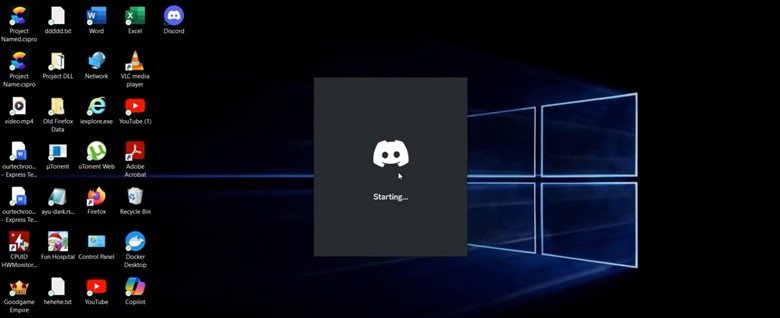
Restart Discord
Step 1. Completely close Discord from the system tray or task manager.
Step 2. Launch Discord again and check if the error disappears.
Perform a Hard Refresh
A hard refresh forces Discord to reload scripts and assets without using cached files.
Step 1. Open Discord and press Ctrl + Shift + R.
Step 2. Wait for the application to reload and check if the error is resolved.
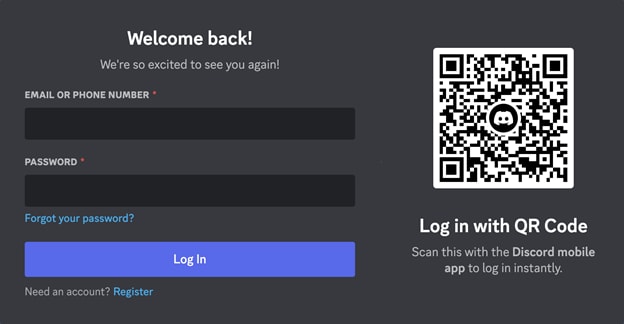
Log Out and Log Back In
Refreshing your session can clear temporary account data that may interfere with the loading process.
Step 1. Click your profile icon and select Log Out from the settings menu.
Step 2. Sign back in to your Discord account and reopen the application.
Part 5. Clear Discord Cache (Most Effective Fix)
Deleting the Discord cache removes outdated files that may conflict with the latest version of the application.
Clear Cache on Windows
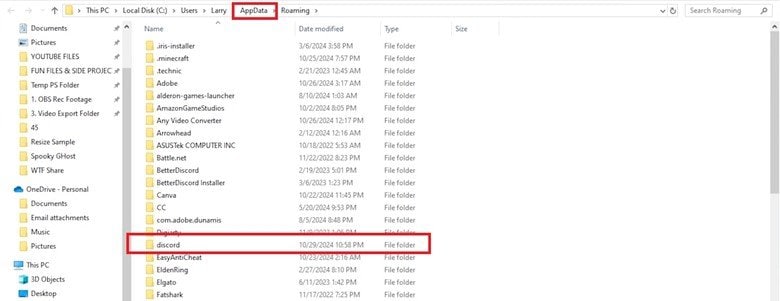
Step 1. Press Win + R, type %appdata%, and press Enter.
Step 2. Locate the Discord folder and delete it completely.
Clear Cache on Mac
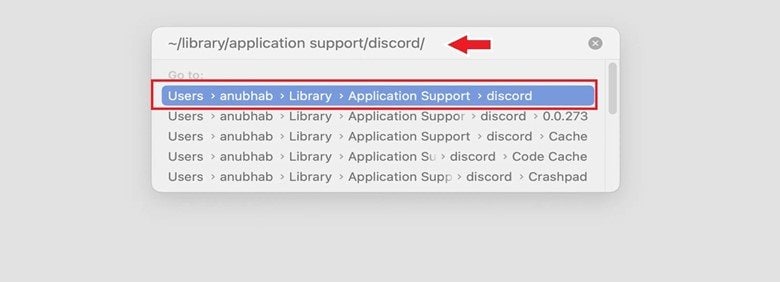
Step 1. Open Finder, click Go, then select Go to Folder.
Step 2. Enter ~/Library/Application Support/ and delete the Discord folder.
Part 6. Fix Incomplete or Corrupted Updates
If the update process was interrupted, some Discord files may remain outdated and cause chunk loading errors.
Reinstall Discord
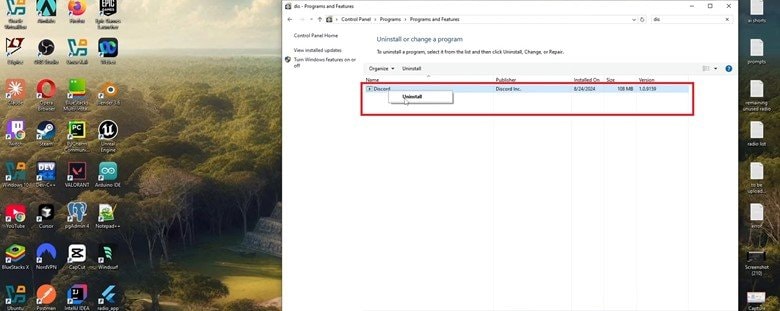
Step 1. Uninstall Discord from your computer through Control Panel or Applications.
Step 2. Download and install the latest version from Discord’s official website.
Part 7. Fix Discord Loading Chunk Failed in Browser
Browser versions of Discord can also encounter chunk errors due to cached scripts or extension conflicts.
Clear Browser Cache
Step 1. Open your browser settings and navigate to Delete browsing data.
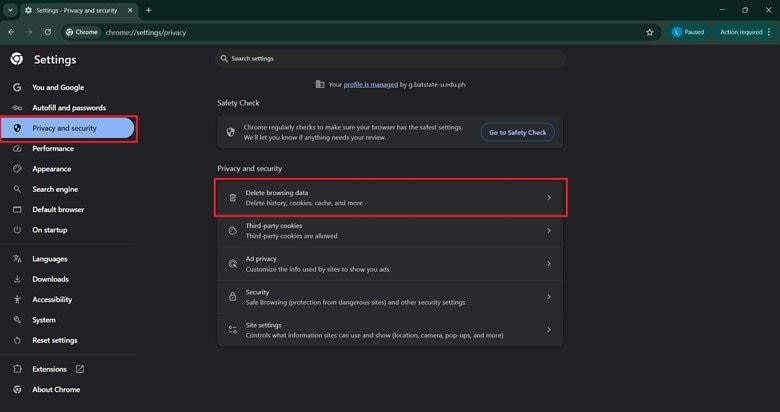
Step 2. Delete cached images and files, then reload Discord.
Disable Browser Extensions
Extensions that block scripts or modify webpages can interfere with Discord’s loading process.
Step 1. Open your browser’s Extensions or Add-ons page.
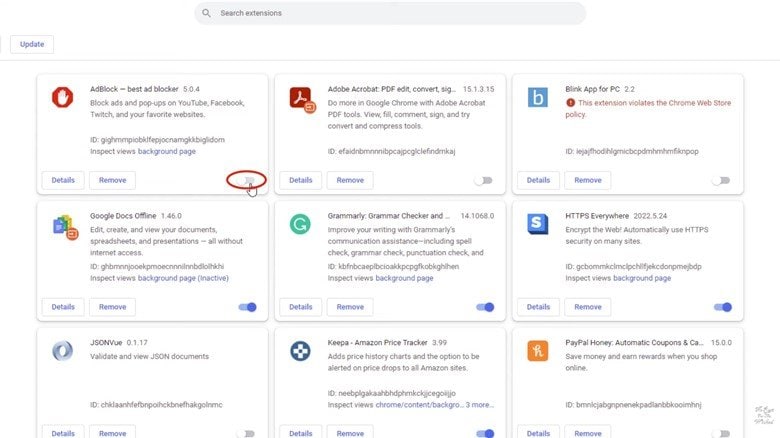
Step 2. Disable all extensions and reload the Discord webpage.
Part 8. Advanced Network & System Fixes
If the cache and reinstall steps don’t work, the error may be caused by network or security settings. Try these quick advanced fixes:
- Flush DNS – clears outdated records that may block Discord’s servers.
- Disable VPN/Proxy – prevents routing issues that interfere with CDN delivery.
- Temporarily disable firewall/antivirus – ensures Discord’s files aren’t mistakenly blocked.
- Check Discord server status – confirm if the issue is on Discord’s end.
These steps target deeper connection problems and often resolve stubborn cases of the error.
More related articles you can’t miss:
[Easy-to-Solve] Uncovering Top 6 "Discord Videos Not Playing" Fixes
How to Fix Discord Not Opening on PC or Mac
Part 9. Rare Case: Corrupted Media Triggering Preview Failure
Although uncommon, some users report chunk loading errors only when uploading specific media files.
This situation may occur when:
- The video file is partially corrupted
- Metadata inside the file is damaged
- The container format contains broken headers
When Discord attempts to generate a preview or process the media, the rendering process may fail. If the file also does not play correctly on your computer, it likely indicates corruption.
Repairing Corrupted Videos Before Uploading
If the chunk error only appears when uploading certain videos, repairing the file may resolve the issue.
A specialized repair tool, such as Repairit Video Repair, can rebuild damaged video containers and restore missing metadata. The tool focuses on repairing playback-related corruption in formats such as MP4 and MOV by reconstructing headers, fixing structural errors, and restoring video integrity.
It may help with:
- broken MP4/MOV metadata
- damaged container structure
- corrupted file headers
It does not fix:
- Discord cache mismatch
- incomplete app updates
- CDN asset delivery failures
- browser-side script errors
Once the file is repaired and plays normally again, uploading it to Discord typically proceeds without triggering preview or rendering errors.
Conclusion
The loading chunk failed error usually occurs when Discord cannot load a required JavaScript asset during startup. In most cases, the problem is caused by corrupted cache files or incomplete updates that create a mismatch between local files and Discord’s latest version. Although users may see different numbers such as 48083, 21905, or 22721, these numbers simply represent chunk identifiers rather than different types of errors.
Clearing the Discord cache and reinstalling the application are typically the most effective solutions. Browser cache conflicts, network configuration issues, or security software can also interfere with asset loading in some cases.
In rare situations, corrupted media files may trigger rendering errors during uploads, which can be resolved by repairing the affected file before uploading it again.
FAQs
-
Why does Discord say loading chunk failed?
This happens when Discord cannot load a required JavaScript asset, usually because of outdated cache files or an incomplete update. -
What does chunk 48083 mean?
It is simply the ID of the asset file Discord failed to load. It does not represent a separate error category. -
How do I clear Discord cache?
On Windows, open %appdata%, locate the Discord folder, and delete it. On Mac, delete the Discord folder from ~/Library/Application Support/. -
Why does the error happen after updating Discord?
After an update, Discord may still reference old local files that no longer match the new version on the server. -
Can corrupted files cause this error?
In rare cases, yes. If the error appears only when uploading one specific media file, that file may be damaged and fail during preview or rendering.




