
"Why are Twitter images not loading?" is a question many users ask when their feed doesn’t display images correctly. From memes and screenshots to thumbnails in threads, this issue can make your Twitter experience frustrating and incomplete.
The problem can occur on any device, such as Android phones, iPhones, or desktop computers, and can be caused by simple network issues, app settings, or corrupted image files. Fortunately, most issues can be resolved quickly with simple troubleshooting steps.
Table of Contents
Part 1. Why Twitter Images Are Not Loading
Before applying fixes, it’s important to know why images fail to load. The reasons can be technical, device-related, or app-specific.
Twitter images may appear as blank placeholders, partially loaded thumbnails, or broken media previews. These problems are not only frustrating but can also reduce engagement, especially if the images are memes, screenshots, or promotional content.
Common scenarios include:
- Memes failing to appear in timelines or threads
- Uploaded photos in tweets are showing as broken images
- Media previews in retweets or links are not displaying properly
The issue may be temporary, caused by network glitches or Twitter server hiccups, or persistent, due to app errors, corrupted files, or device-specific settings. Understanding why images fail to load is the first step toward effectively resolving the problem.
Part 2. Common Causes of Twitter Image Loading Issues
Before applying fixes, it’s important to know why Twitter images fail to load. The reasons can be technical, device-related, or app-specific.
- Slow or unstable internet connection: A weak Wi-Fi signal or inconsistent mobile data can interrupt how images load on Twitter. When the connection drops or fluctuates, images may appear blurry, incomplete, or fail to load entirely.
- Twitter server outages or bugs: At times, the issue is on Twitter’s side rather than yours. Temporary server outages, maintenance, or app bugs can prevent images from loading properly, even if your internet connection is working fine.
- Corrupted app cache or temporary data: Over time, Twitter stores temporary files to help the app load faster. If these files become outdated or corrupted, they can interfere with image loading and cause media display issues.
- Data-saving or image-blocking settings: Settings such as Data Saver or media restrictions are designed to reduce data usage, but they may also stop images from loading automatically. This is common when using mobile data or customized app preferences.
- VPN, proxy, or DNS interference: Using a VPN, proxy server, or custom DNS can sometimes block or reroute Twitter’s media requests. As a result, images may fail to load or appear delayed, depending on the network configuration.
- Outdated Twitter app or browser: Using an older version of the Twitter app or an outdated browser can lead to media loading issues. These versions may contain unresolved bugs or lack compatibility with recent updates, which can affect how images are displayed.
- Corrupted or broken images: In some cases, the image file itself is the problem. Downloaded memes, screenshots, or photos may fail to open if the file is incomplete, damaged, or not saved properly, making it impossible for Twitter or your device to display them correctly.
Part 3. Quick Fixes for Twitter Images Not Loading
Before trying advanced solutions, it’s best to start with these quick and easy fixes. In many cases, Twitter images fail to load due to temporary glitches, unstable connections, or minor app issues. The steps below work for both mobile and desktop users and usually take only a few minutes to try.
1. Refresh Twitter / Reload the Page
Sometimes, Twitter simply needs a refresh to load images properly.
- On mobile: Pull down on your Twitter feed and release to refresh the page.
- On desktop: Click the browser’s reload button or press F5 / Ctrl + R (Windows) or Command + R (Mac).
Refreshing forces Twitter to reload the content, which can fix temporary loading errors or missing images caused by slow network responses.
2. Check Your Internet Connection
A weak or unstable internet connection is one of the most common reasons images won’t load on Twitter.
- Switch between Wi-Fi and mobile data to check if one connection works better.
- If possible, move closer to your Wi-Fi router or disconnect other devices using the same network.
- You can also run an internet speed test to make sure your connection can handle image-heavy feeds.
If images load after switching networks, the issue is likely related to your original connection.
3. Log Out and Log Back In
If the problem persists, refreshing your account session can help.
- Log out of your Twitter account.
- Close the app or browser for a few seconds.
- Log back in and check if images are loading normally.
This step reconnects your account to Twitter’s servers and can resolve syncing or session-related issues.
Part 4. How to Fix Twitter Images Not Loading on Mobile
If Twitter images are still not loading on your phone, the issue is often related to app settings, system restrictions, or outdated software. Android and iPhone devices handle data, permissions, and background activity differently, so the solutions vary slightly by platform.
Option 1: Fix Twitter Images Not Loading on Android
On Android devices, Twitter images may fail to load due to:
- The accumulated app cache is causing performance issues
- Data Saver or background data restrictions
- An outdated Twitter app version
- VPN or Private DNS is interfering with media delivery
Below are step-by-step solutions to address each of these causes.
Clear Twitter Cache
Over time, cached files can become corrupted and prevent images from loading properly.
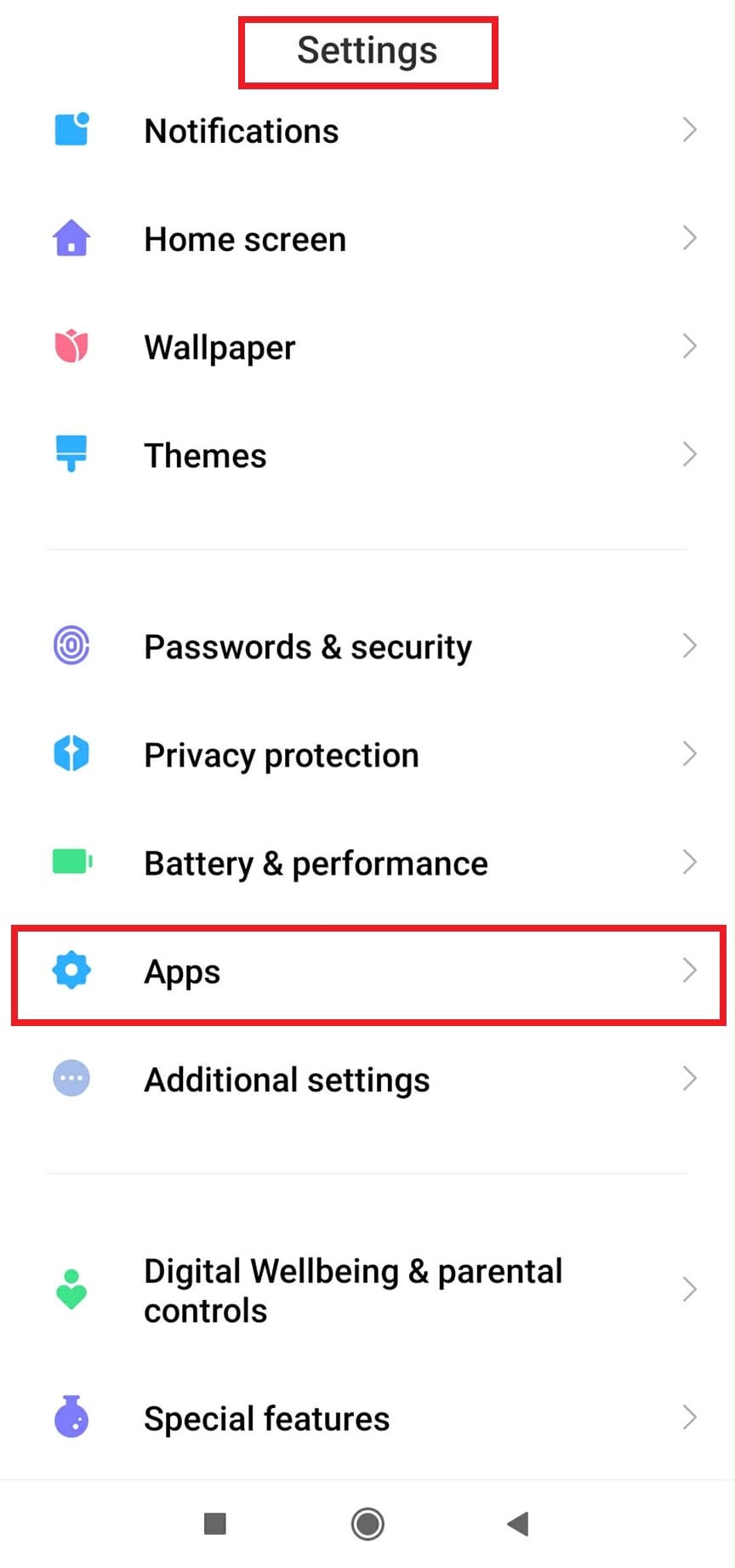
Step 1: Open Settings on your Android phone. Tap Apps or App Management.
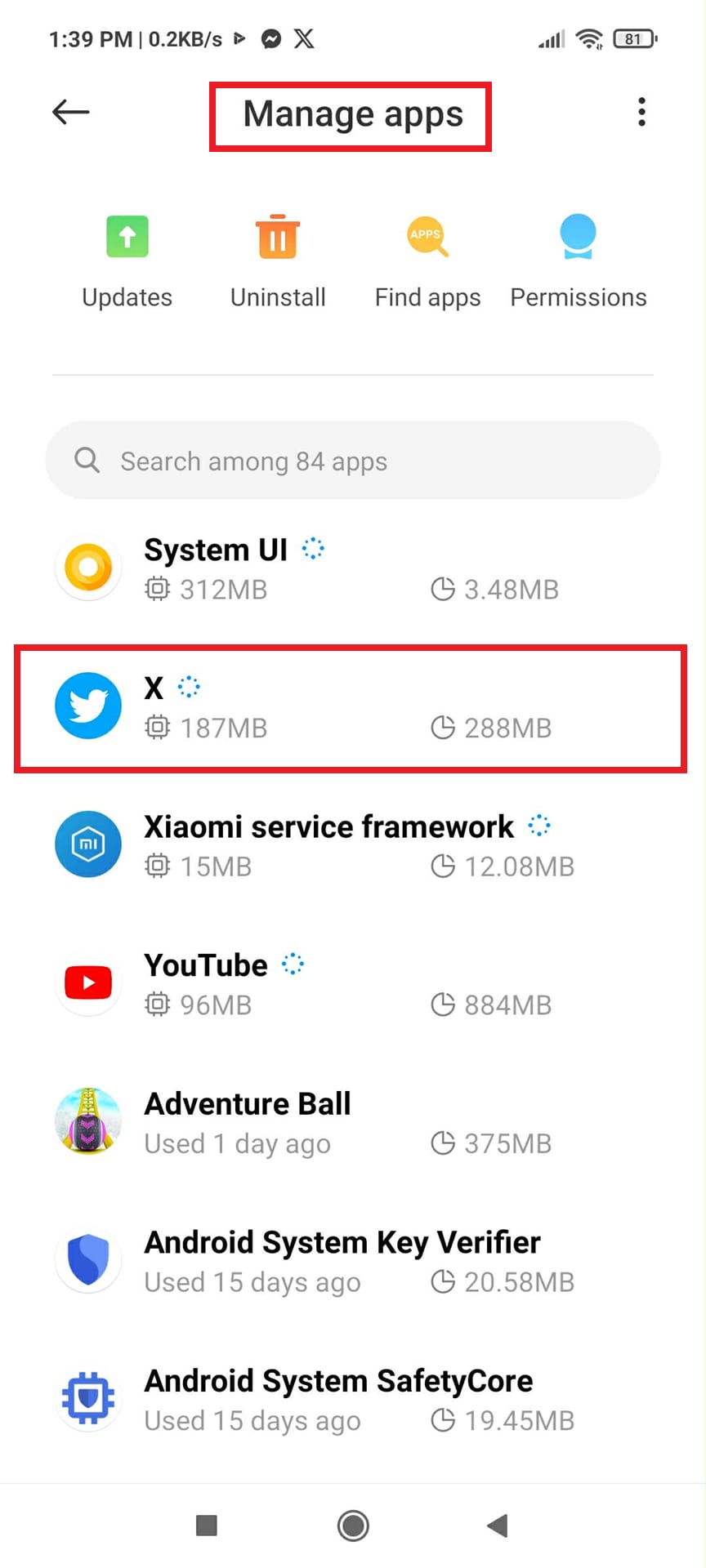
Step 2: Choose Manage Apps. Then, select X (formerly Twitter).
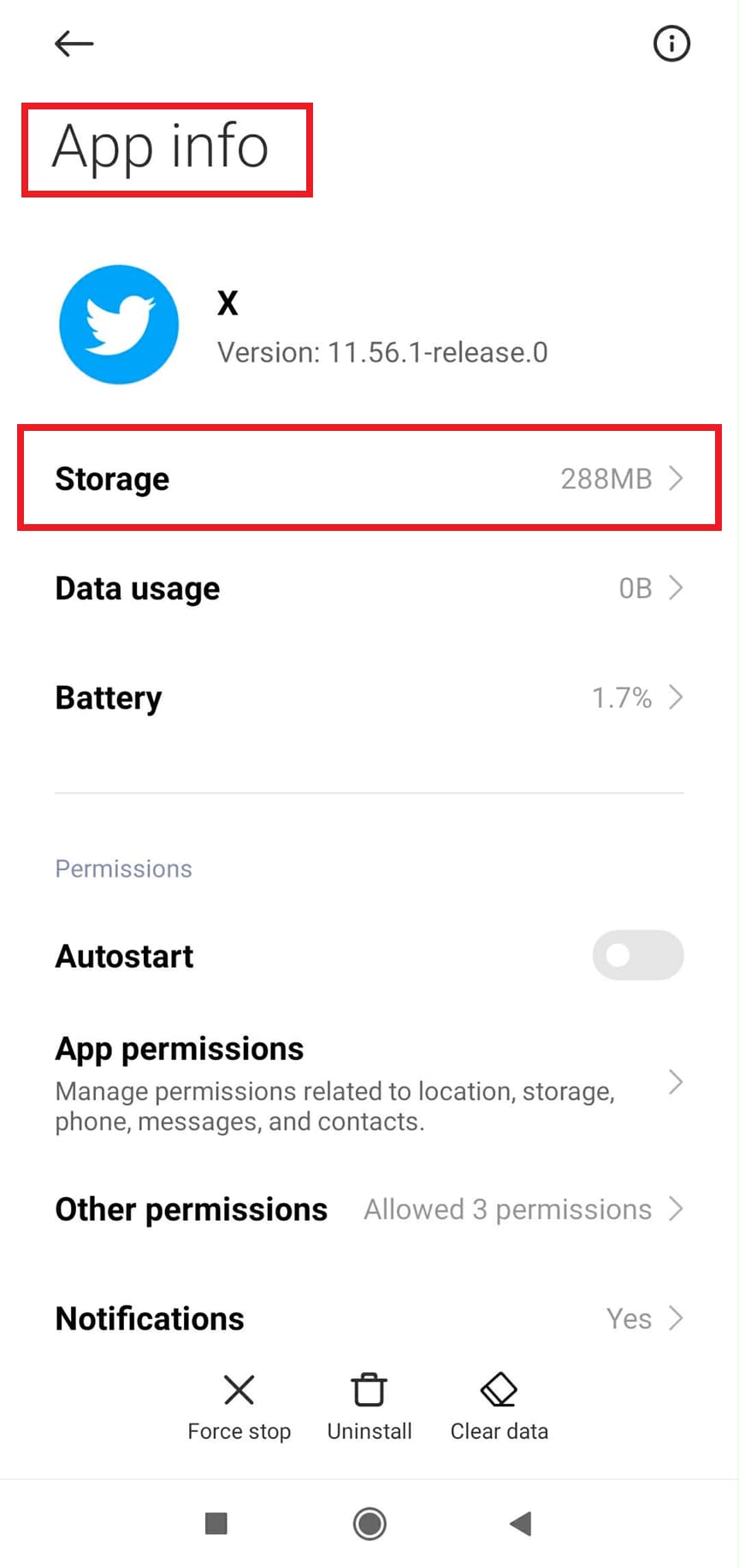
Step 3: On the App info, Tap Storage.
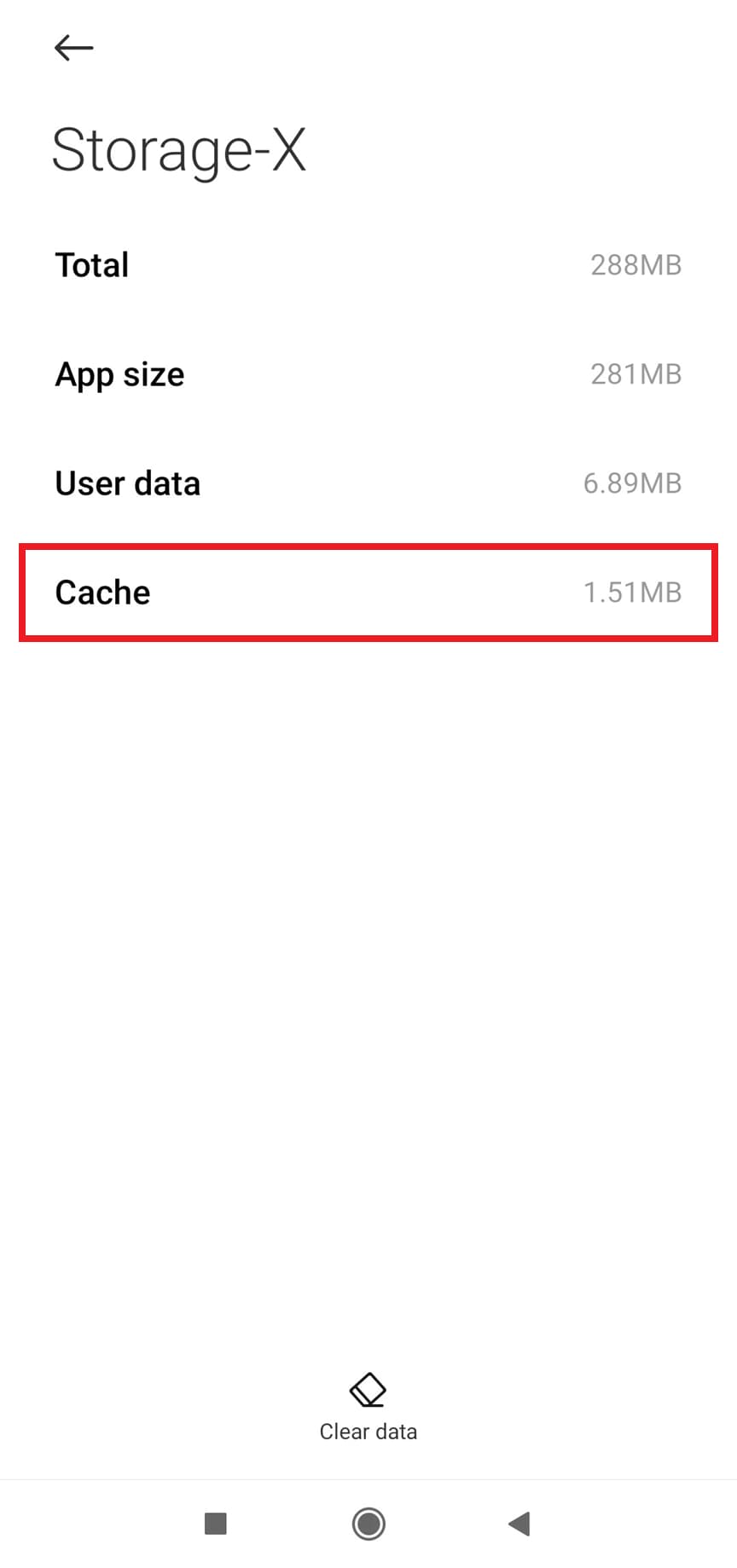
Step 4: Select Clear Cache/Cache (do not tap Clear Data).
Enable Image Loading in Data Saver Settings
Twitter’s Data Saver reduces data usage by limiting image and video loading.
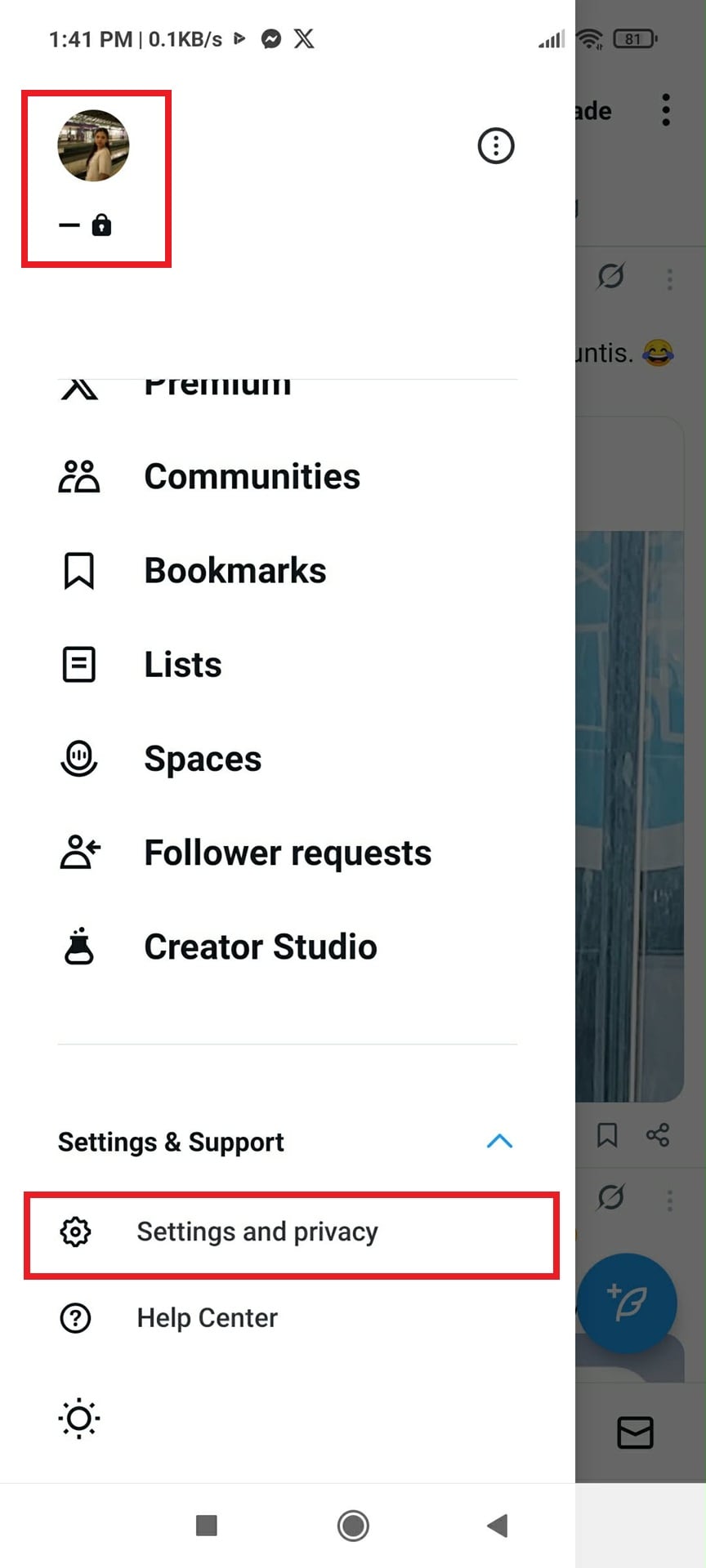
Step 1: Open the Twitter (X) app. Then, tap your profile icon.

Step 2: Under your profile, go to Settings and Privacy.
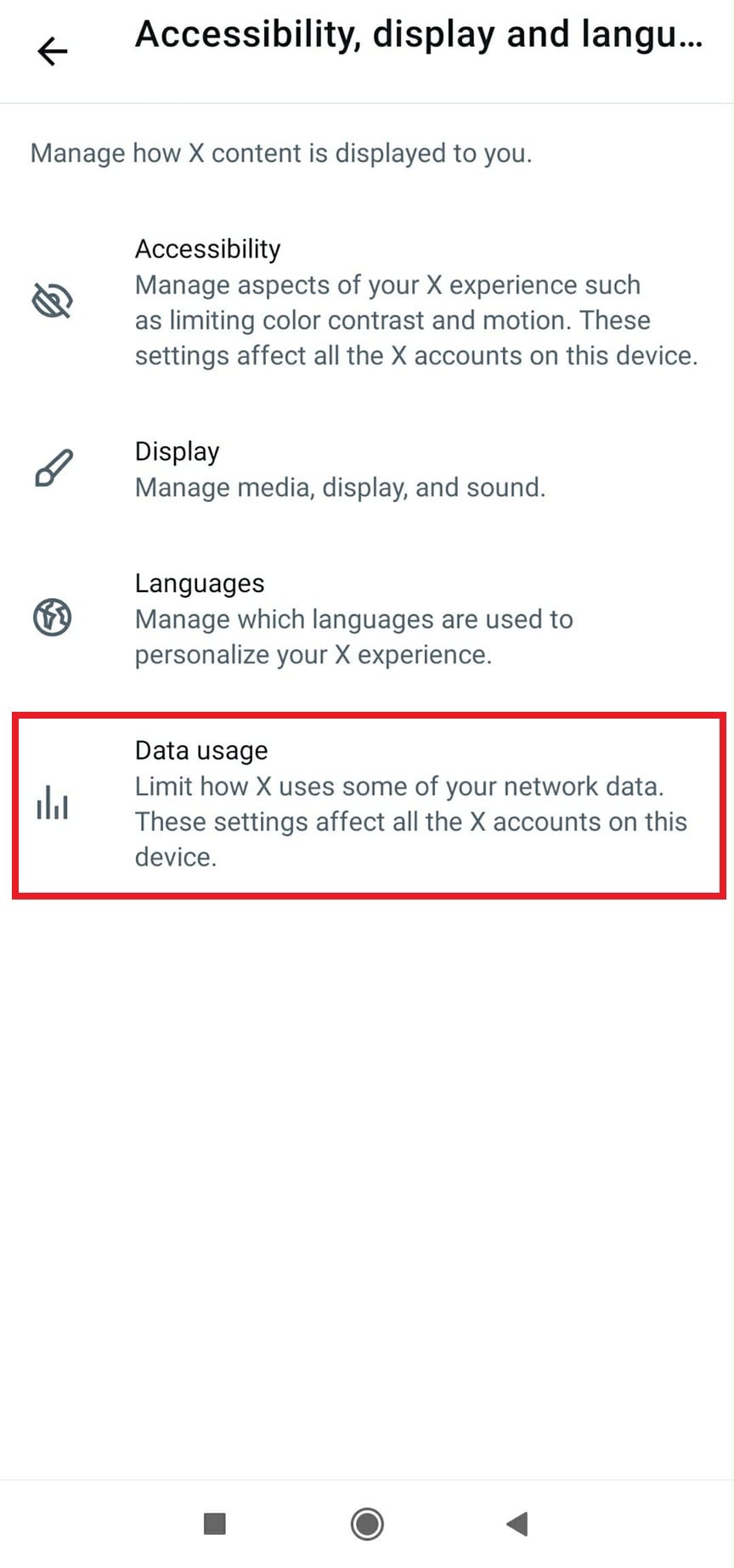
Step 3: Tap Accessibility, display, and languages. Select Data usage.
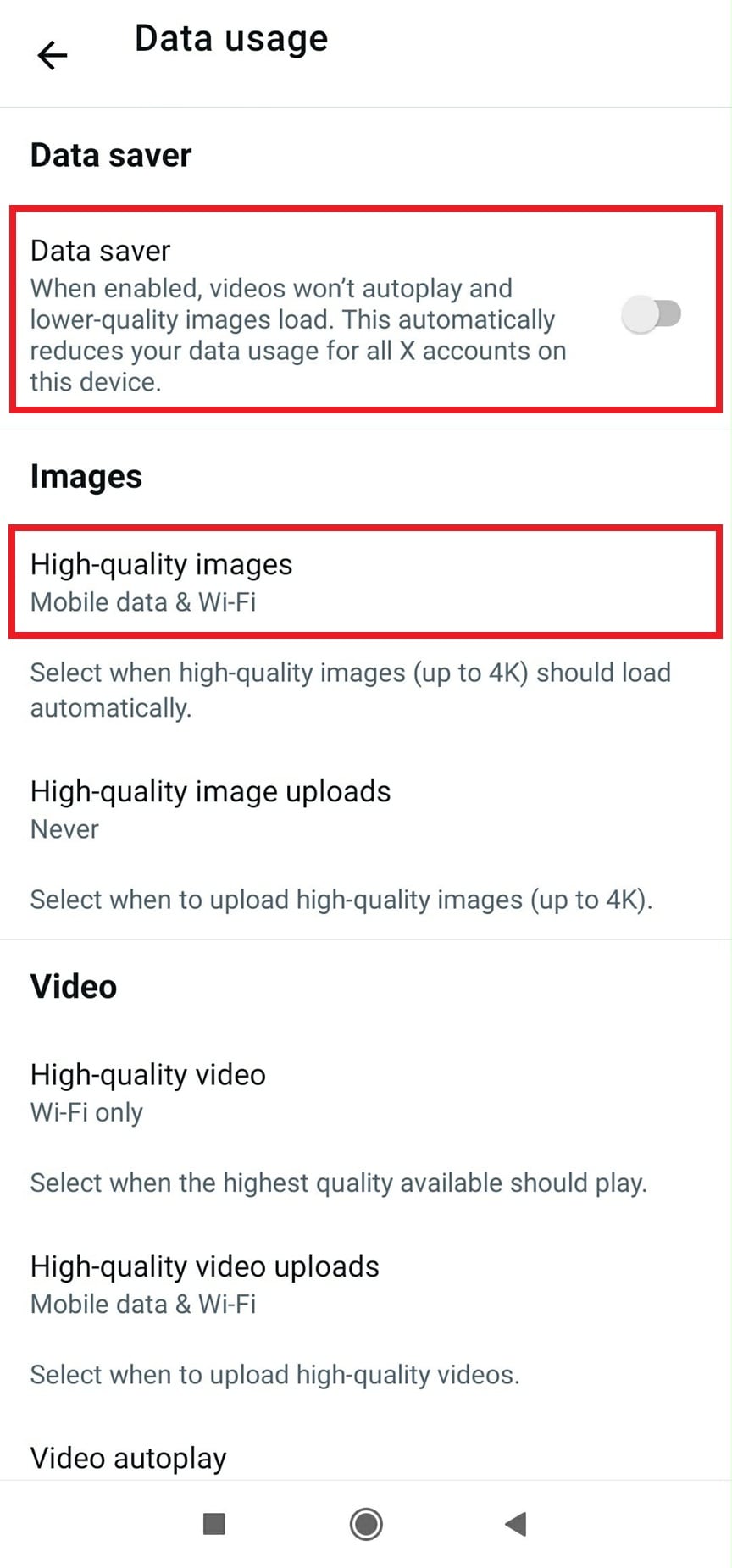
Step 4: Turn Data Saver off. Also, ensure high-quality Images are set to load on mobile data and Wi-Fi.
Update the Twitter App
Outdated app versions may contain bugs that affect image loading.
Step 1: Open the Google Play Store.

Step 2: Search for Twitter.
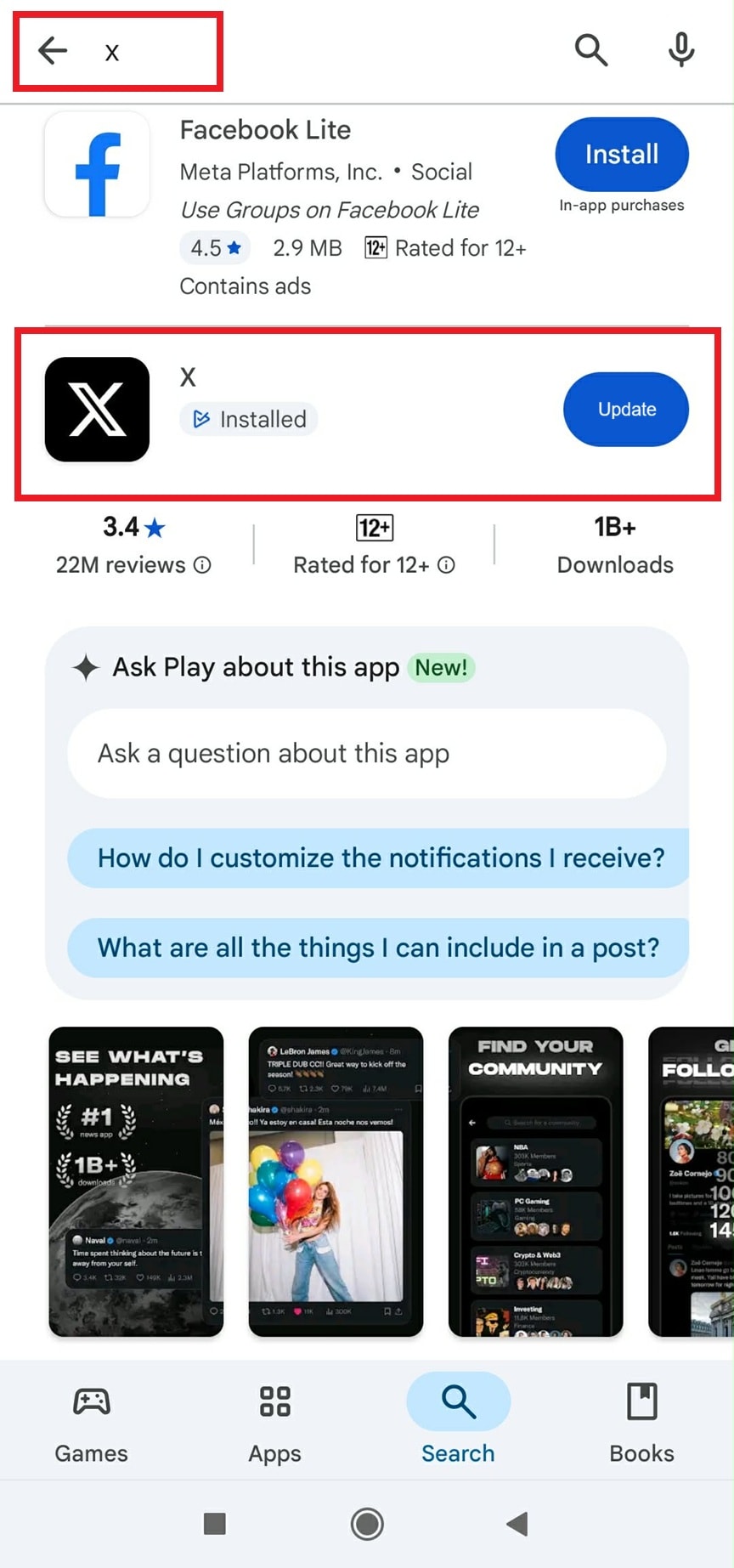
Step 3: Tap Update if available. Wait for the installation update and see if it works.

Disable VPN or Private DNS
VPNs and Private DNS services can block or delay media content.
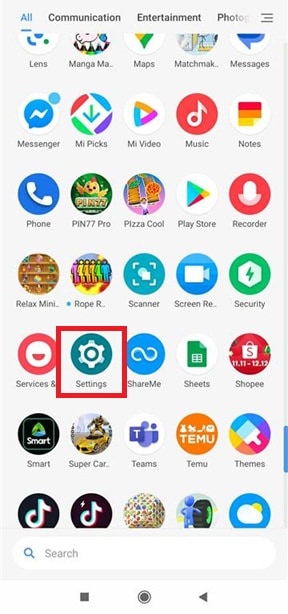
Step 1: Open Settings.
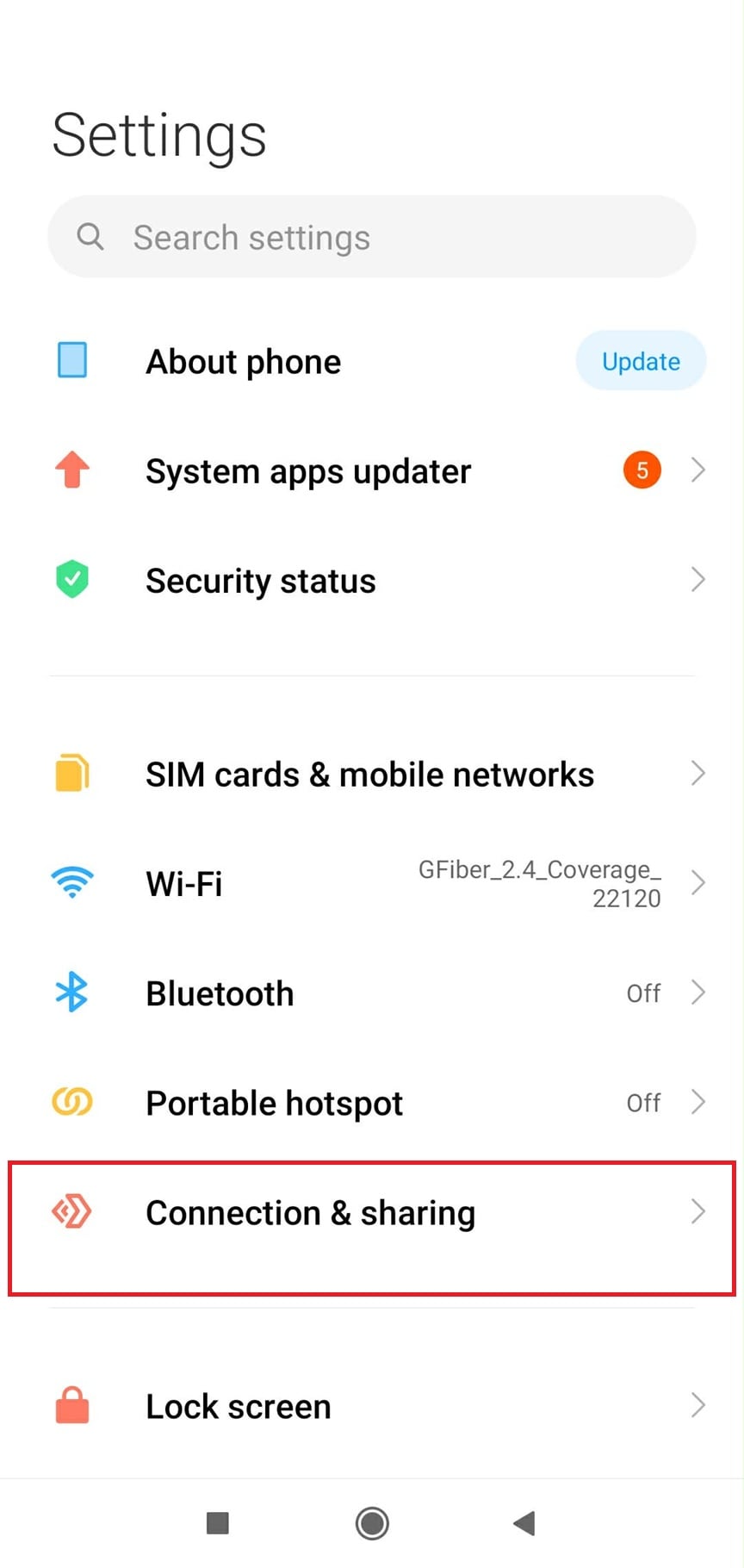
Step 2: Go to Connection and Sharing.
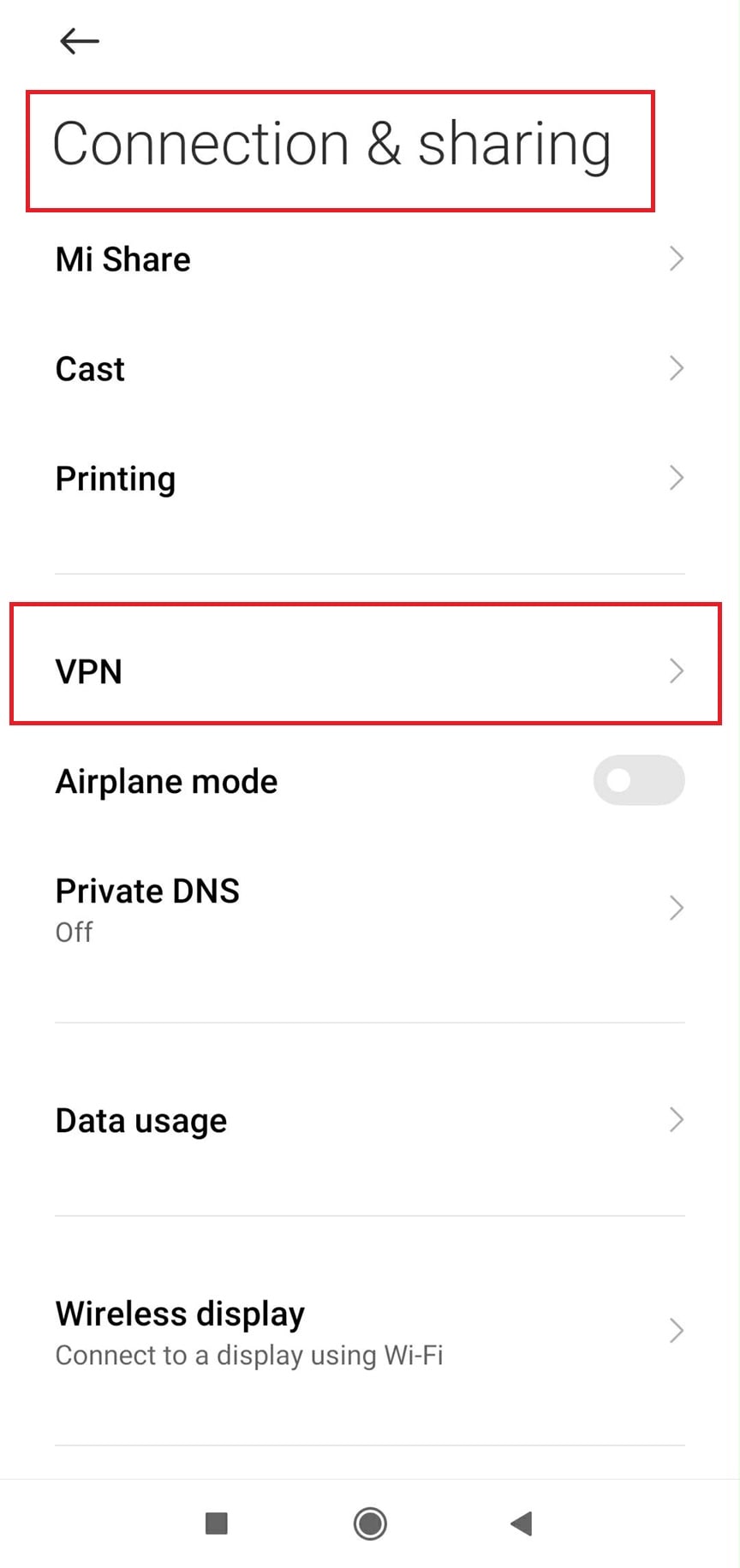
Step 3: Turn off VPN, if enabled.
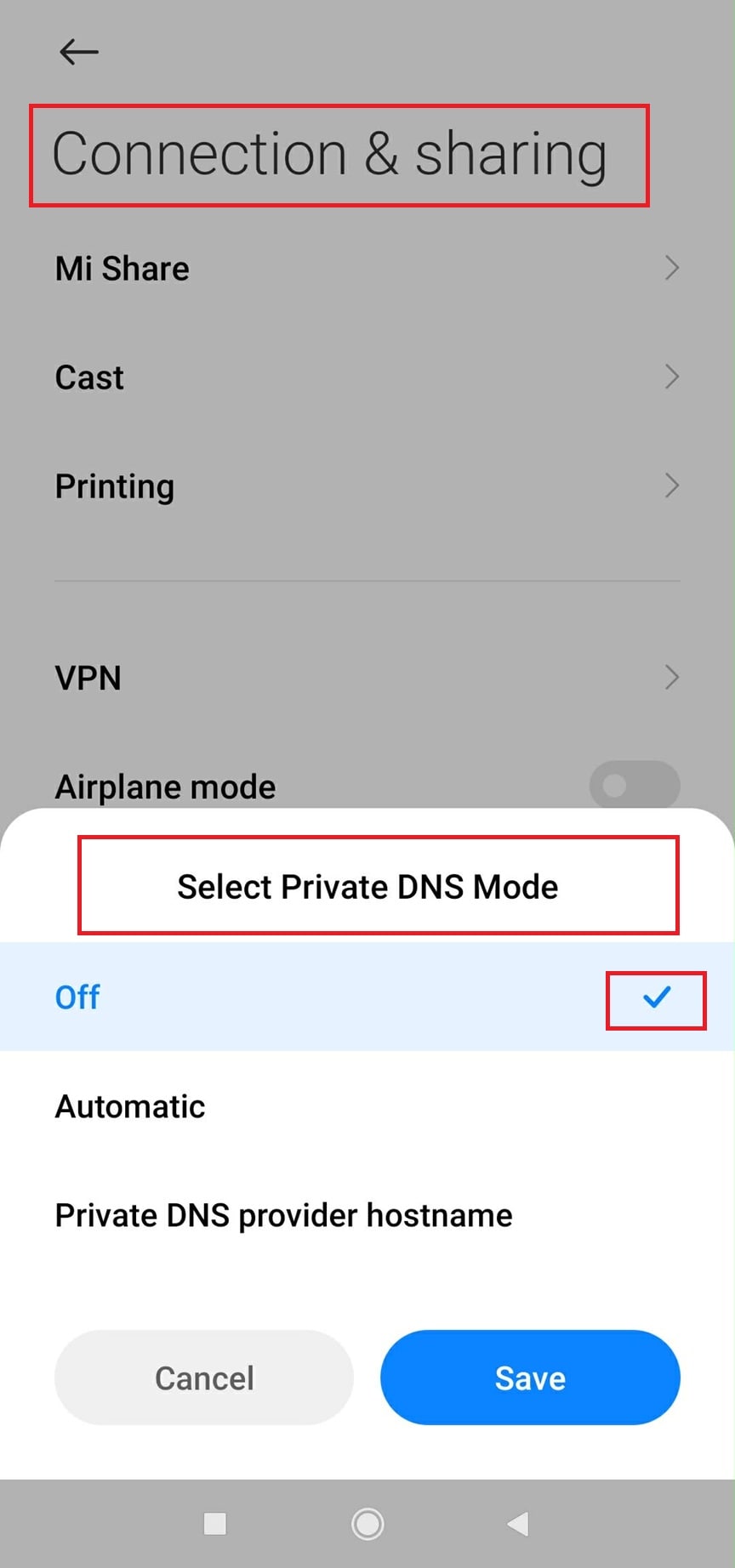
Step 4: Tap Private DNS and set it to Automatic or Off. Restart the Twitter app afterwards.
Option 2: Fix Twitter Images Not Loading on iPhone
On iPhones, Twitter images may not load due to:
- Cellular data restrictions for the app
- Network configuration issues
- Outdated iOS or Twitter versions
Follow the steps below to resolve these issues.
Enable Image Loading on Cellular Data
If Twitter is restricted from using mobile data, images may not load outside Wi-Fi.
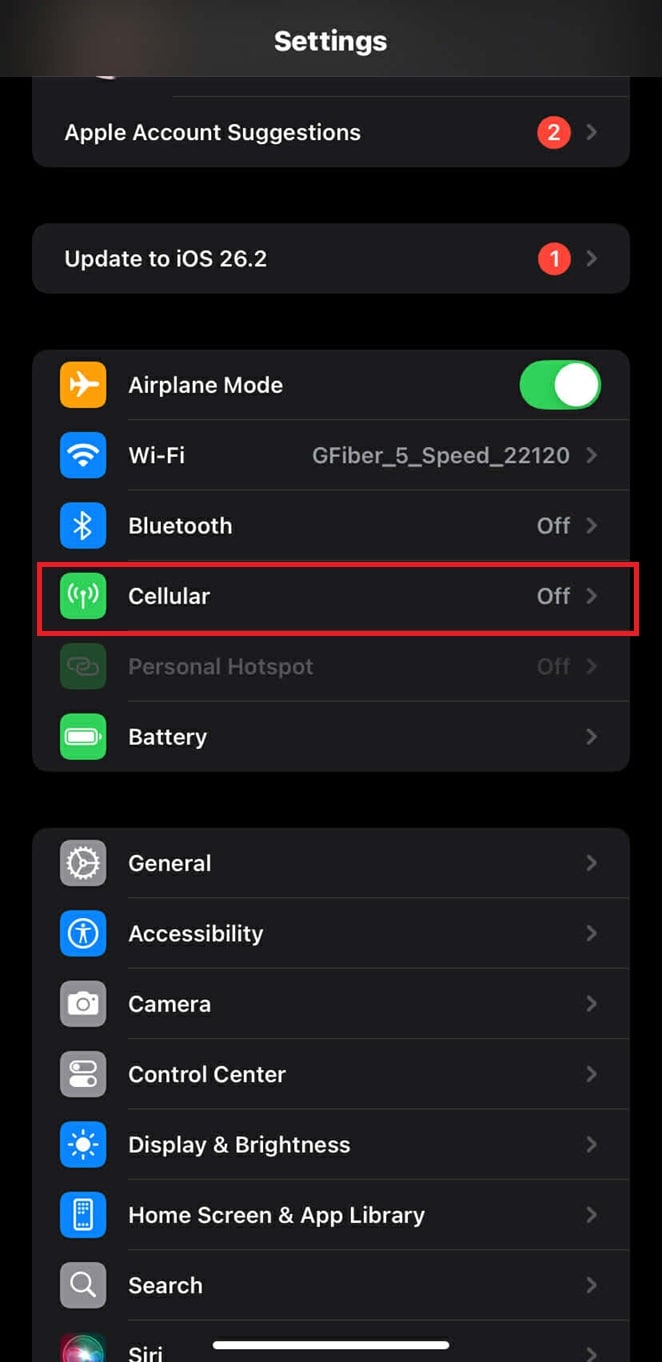
Step 1: Open Settings.

Step 2: Scroll down and find Cellular.
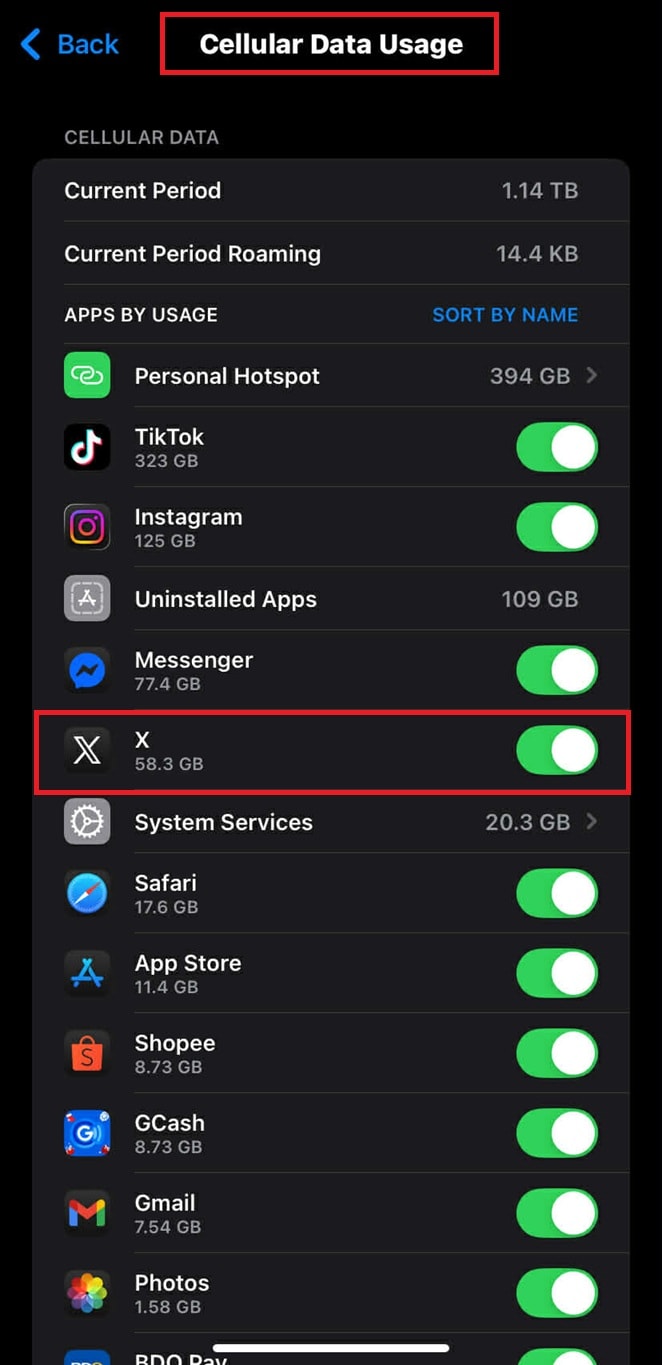
Step 3: Find Twitter and enable it.
Update iOS and the Twitter App
Software updates often include bug fixes and performance improvements.
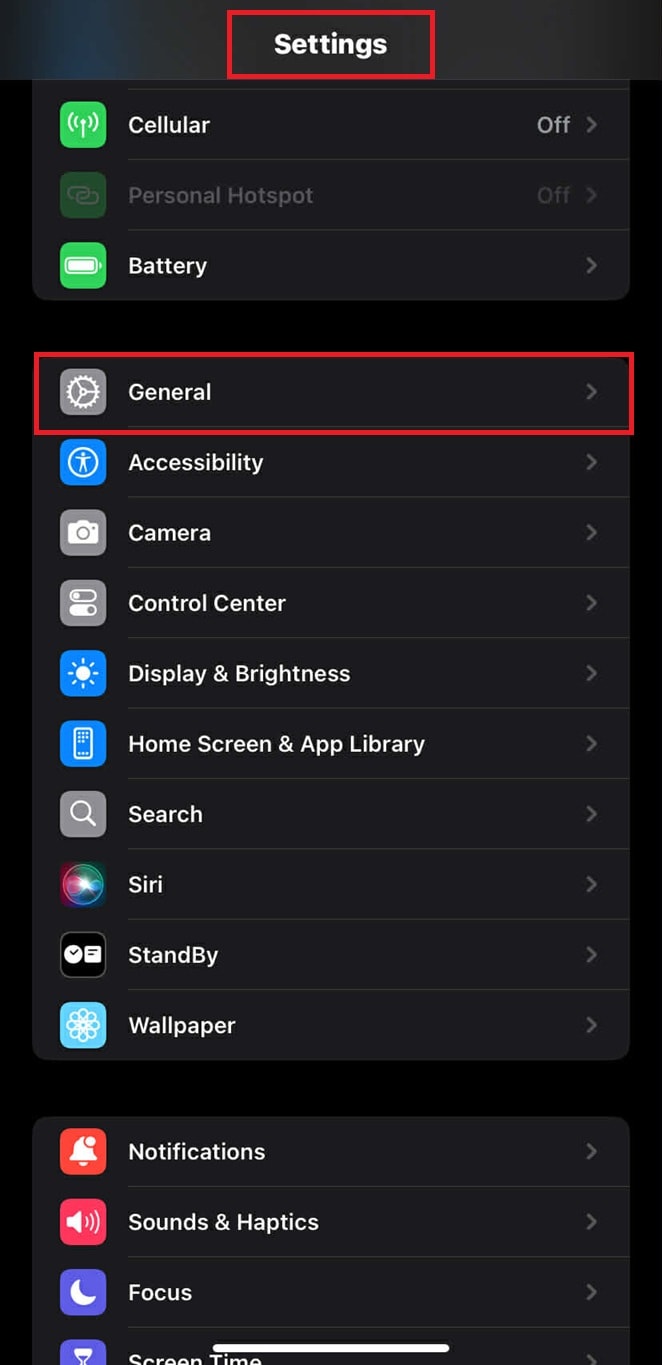
Step 1: To update iOS, go to Settings. Click on General.
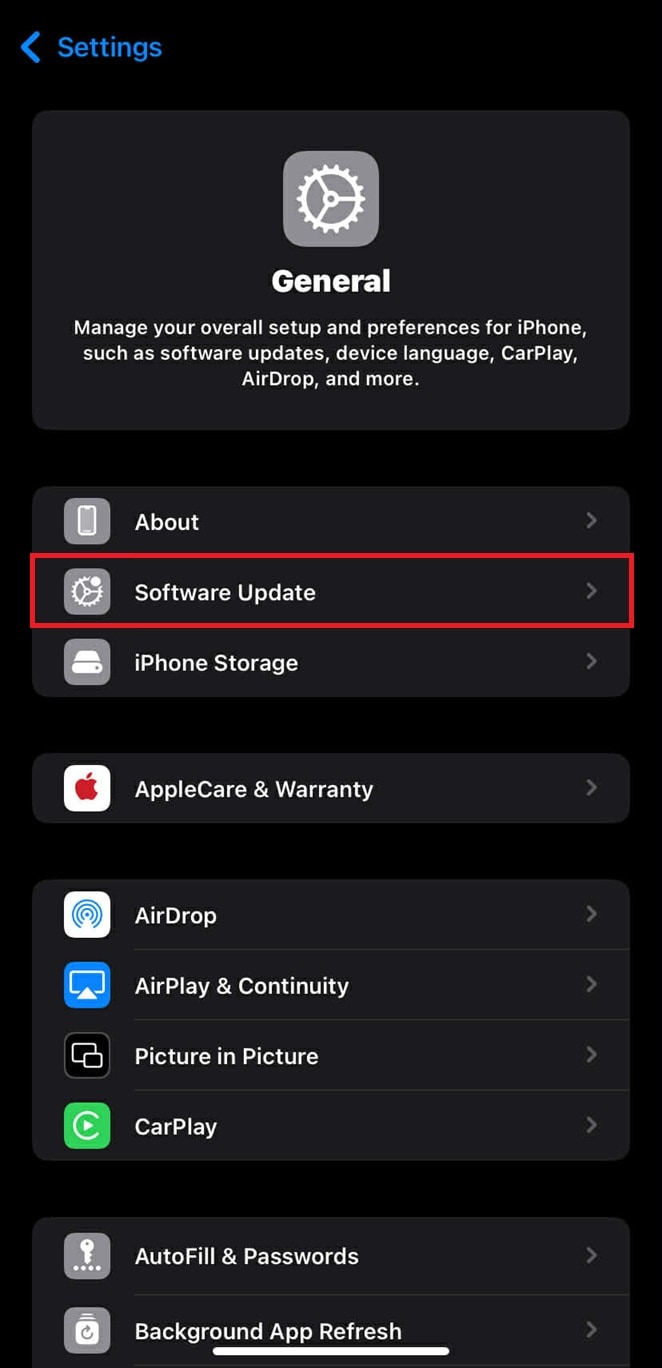
Step 2: Tap Software Update and install any available updates.
Step 3: After updating the software, update the Twitter app. Open the App Store.
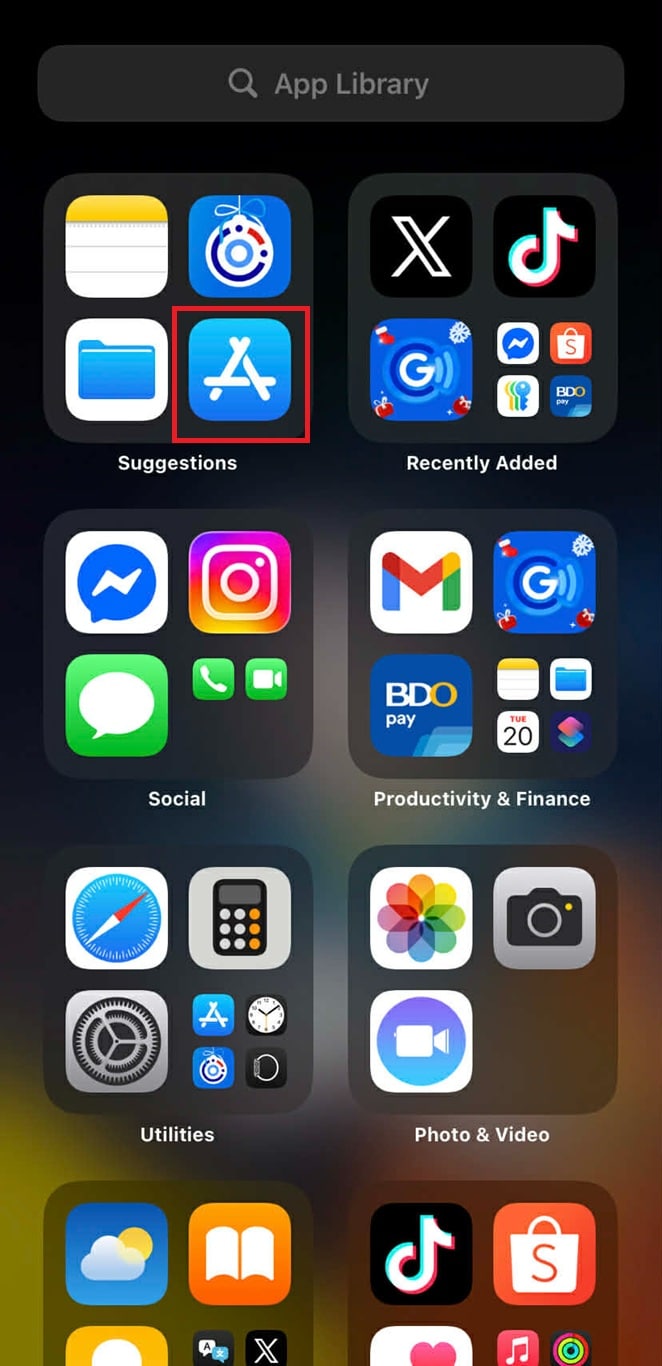
Step 4: Search for Twitter. Tap Update. Wait for the changes, then open the application.

Part 5. How to Fix Twitter Images Not Loading on Desktop
On desktop, browser-related issues are the most common cause of image loading failures.
Below are the most effective desktop-specific fixes.
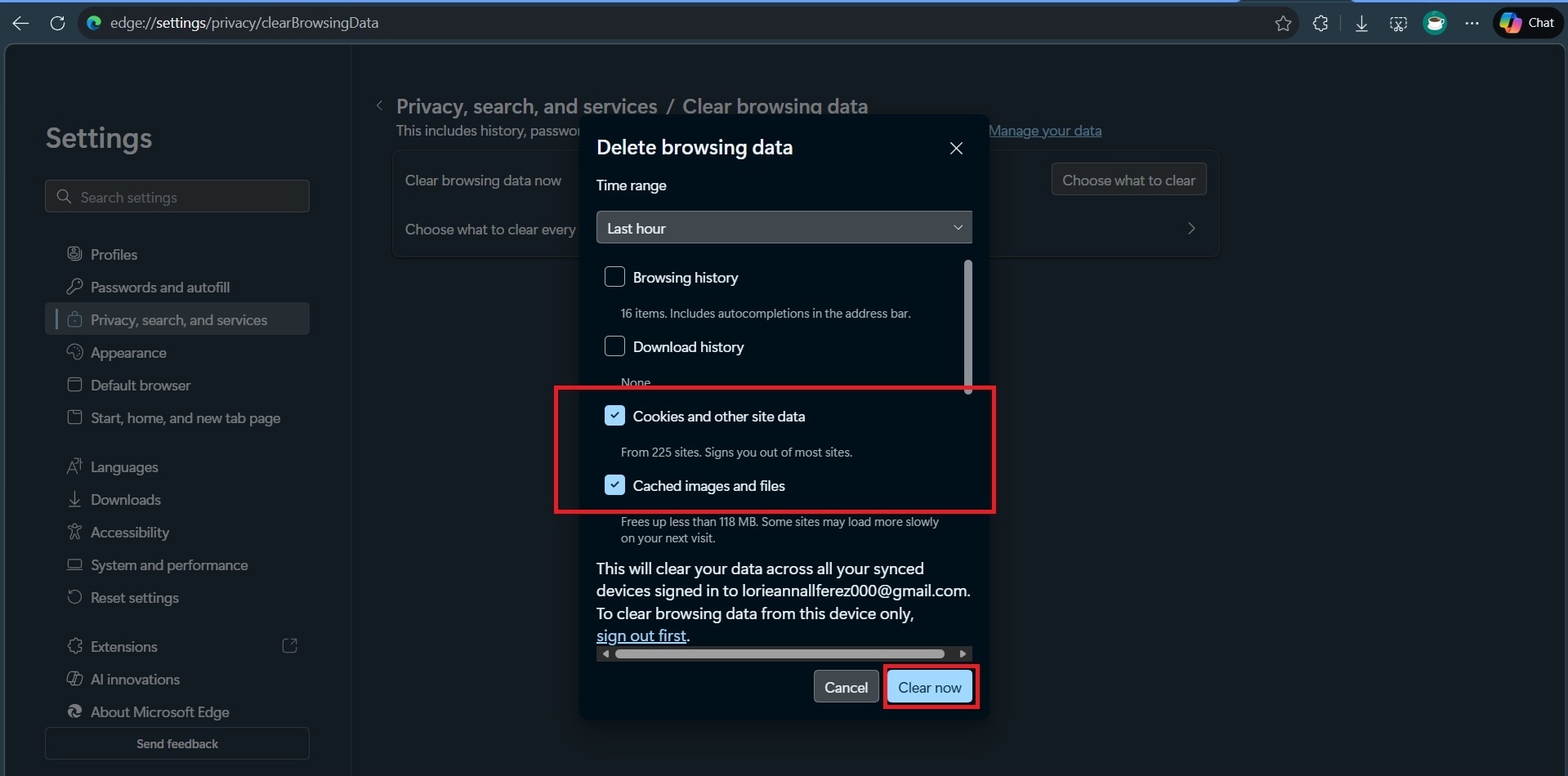
Clear Browser Cache and Cookies
Browsers store cached files to speed up loading, but corrupted or outdated cache data can prevent images from displaying correctly.
Step 1: Open your browser settings (for example, MS Edge).
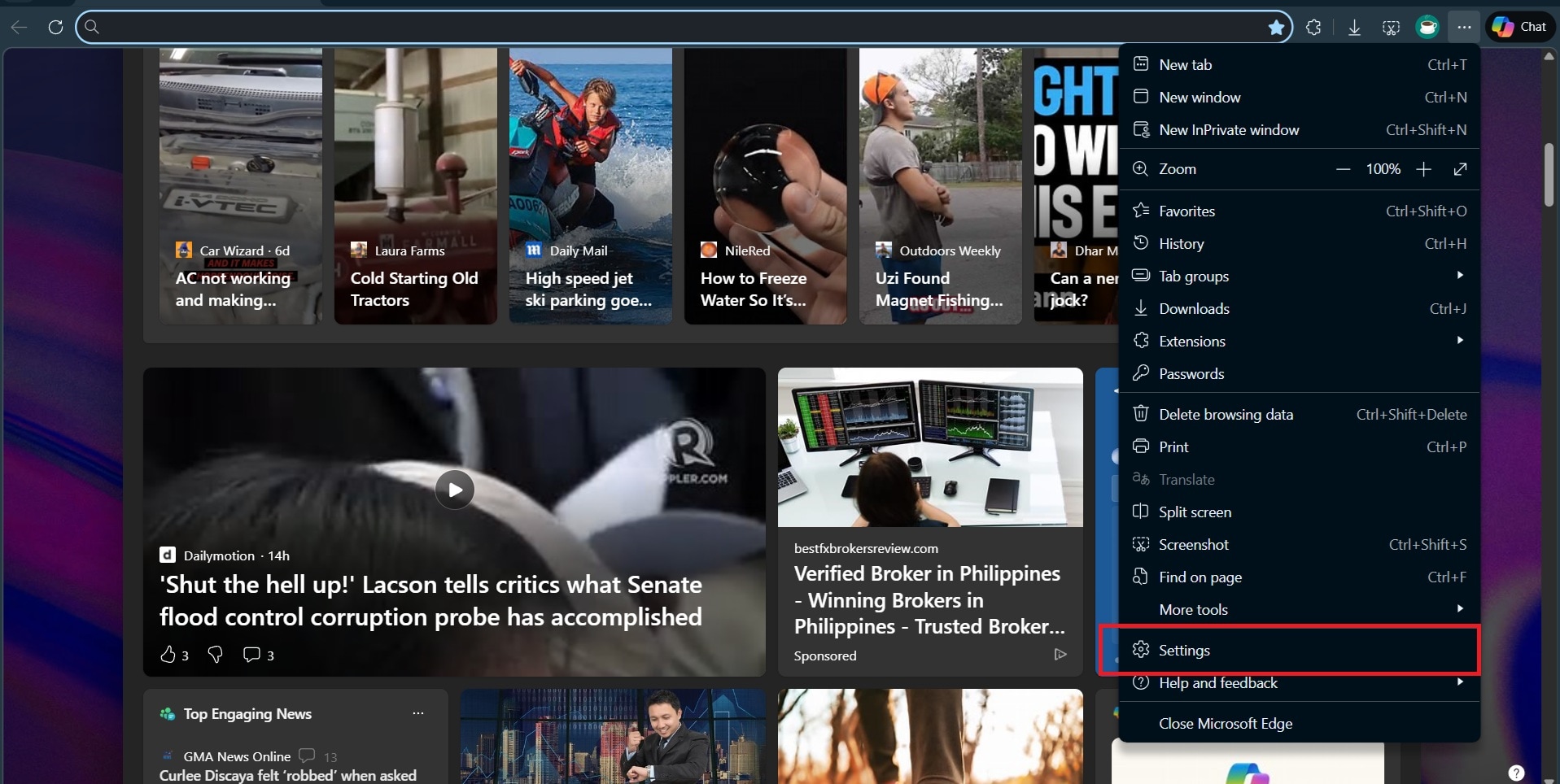
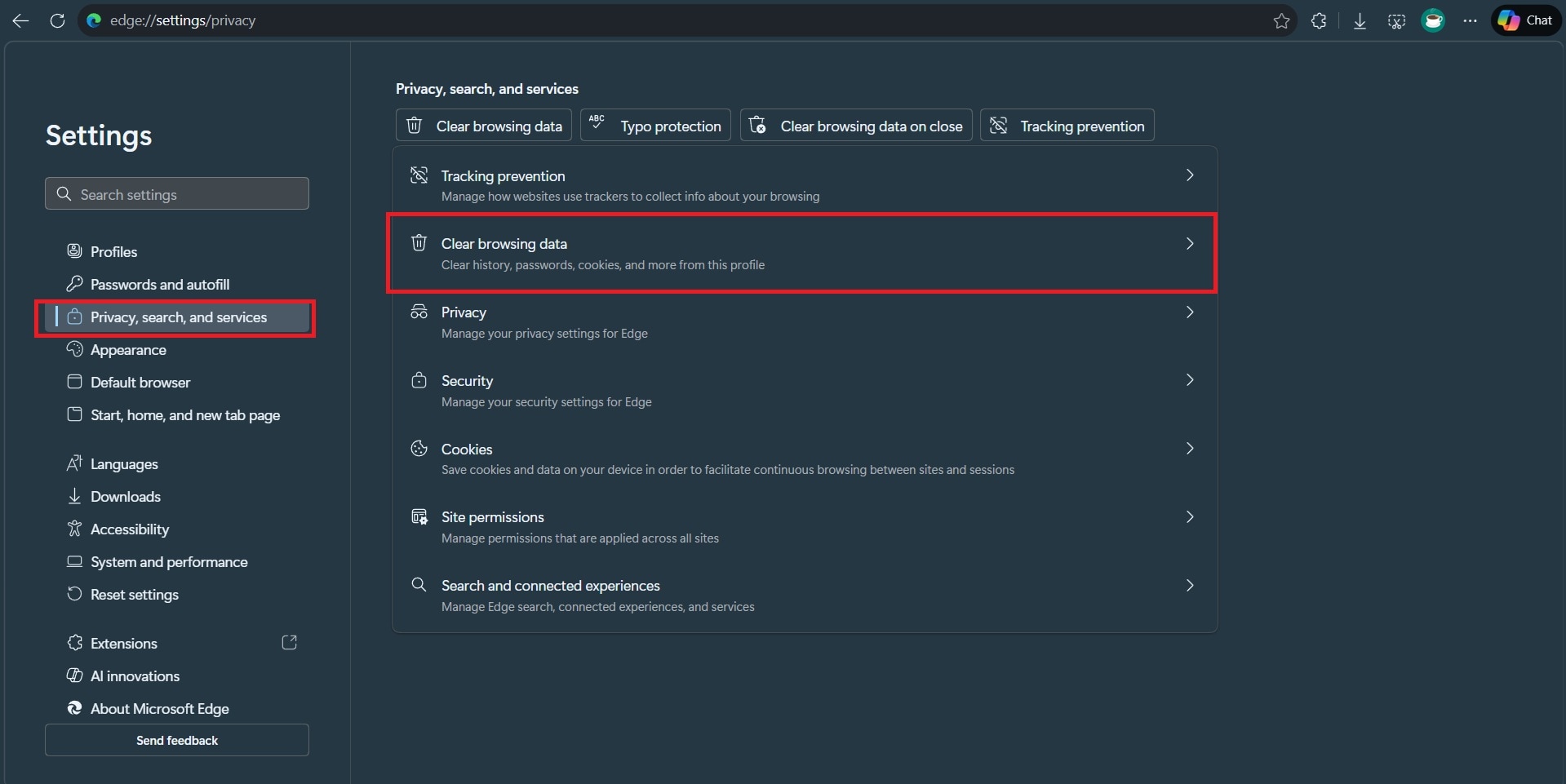
Step 2: Locate Privacy, search, and services. Choose clear browsing data.
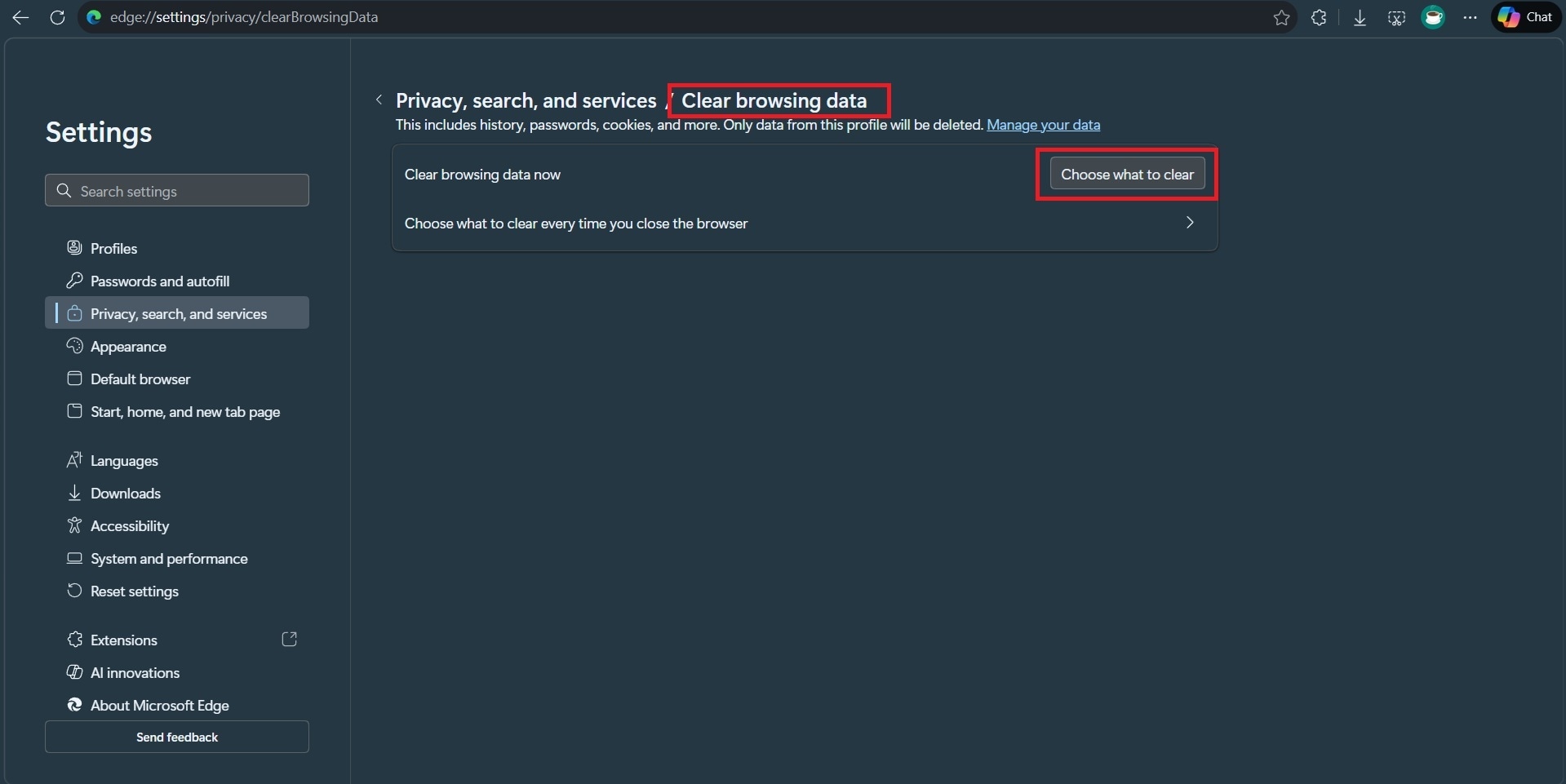
Step 3: Under Clear browsing data, tap on Choose what to clear.
Step 4: Tick the box of cookies and other site data, cached image and files. Click on Clear Now. Then, restart the browser.
Disable Browser Extensions
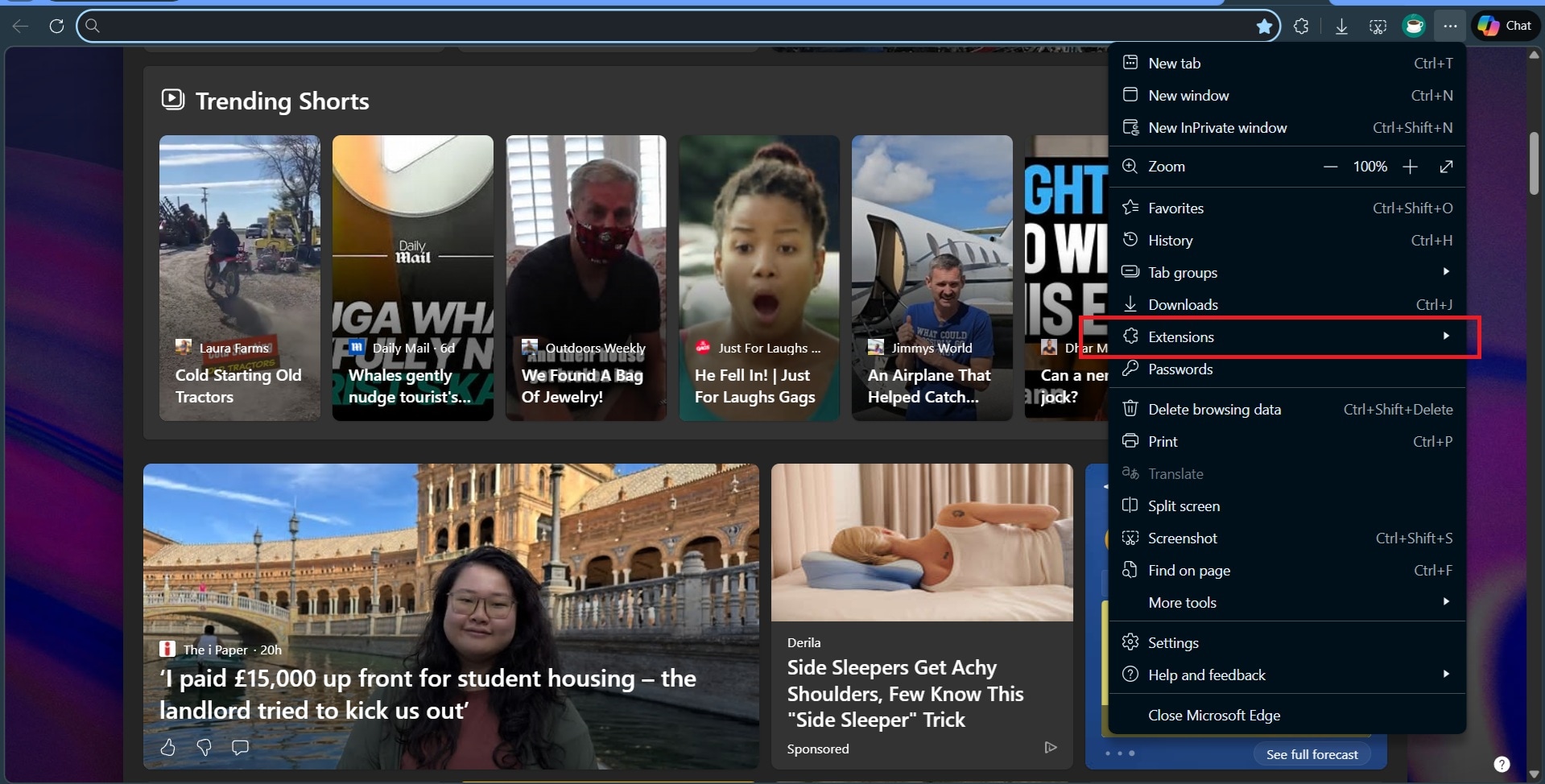
Ad blockers, privacy tools, and script-blocking extensions can block Twitter’s image requests.
Step 1: Open your browser. On the upper right (you’ll see 3 dots), find Extensions.
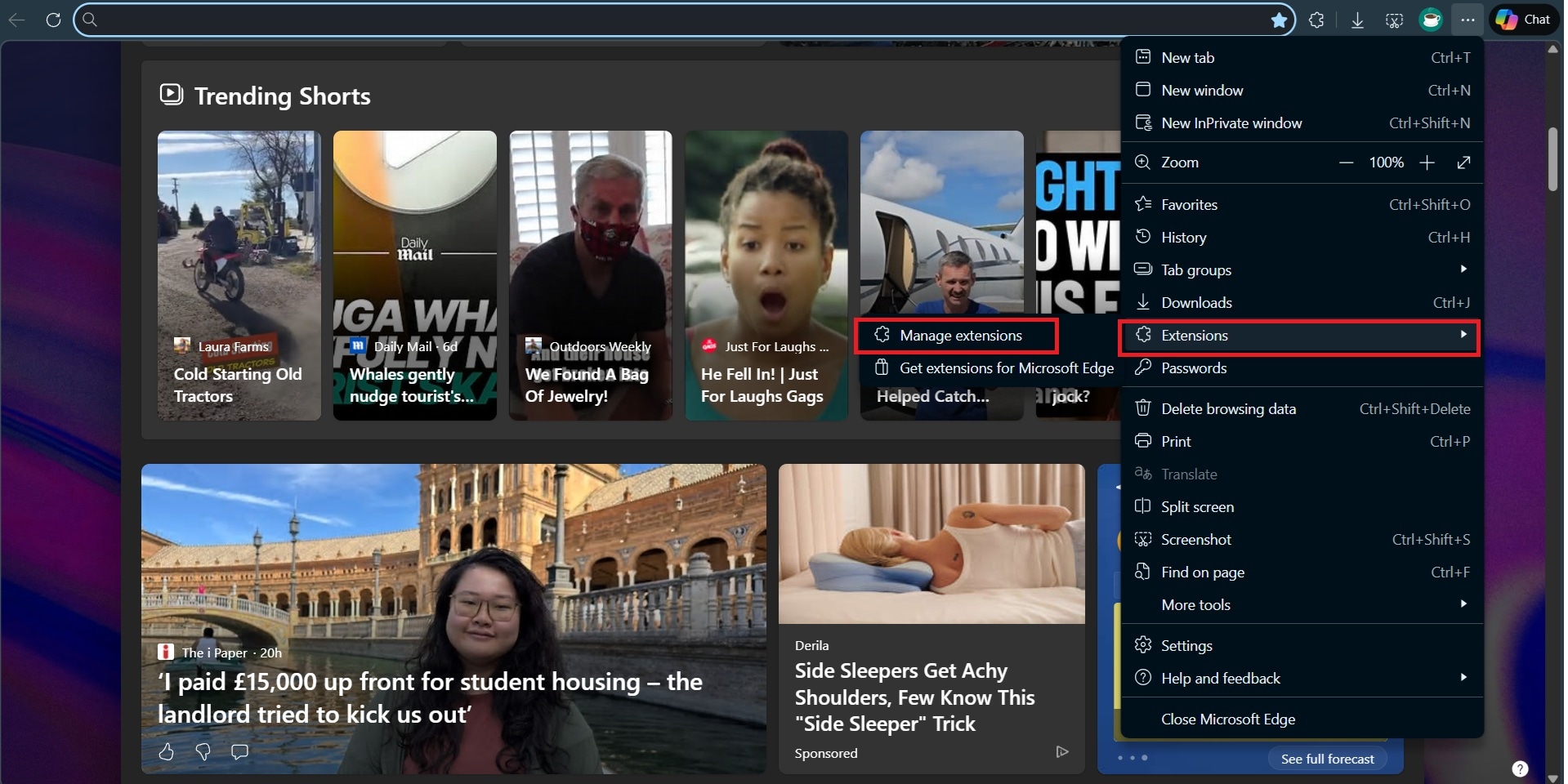
Step 2: Click on Manage Extensions. You’ll see your installed browser extensions.
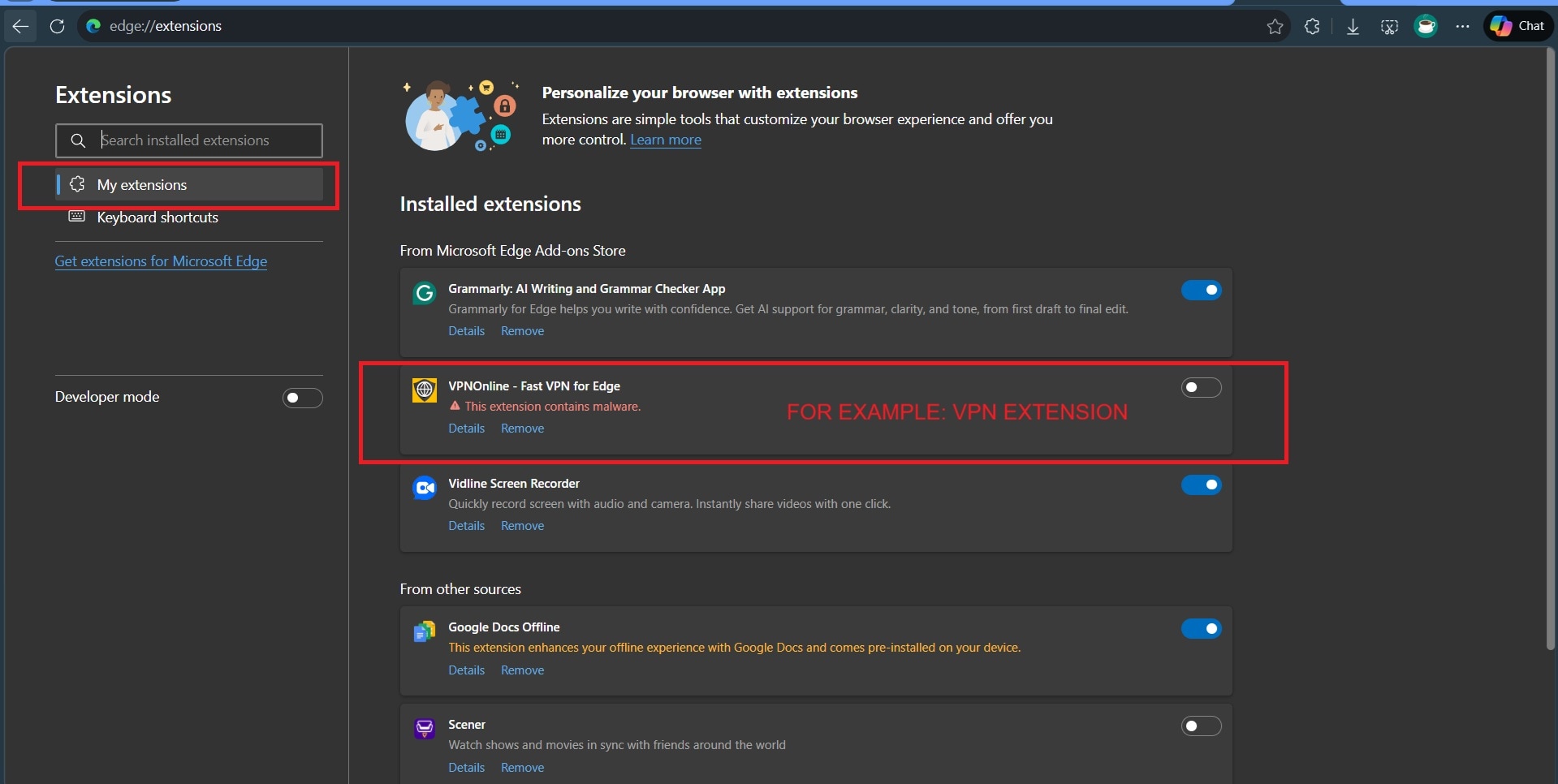
Step 3: Temporarily disable or turn off ad blockers, privacy extensions, or VPN extensions. Afterwards, reload Twitter and check if images load properly.
Flush the DNS Cache
DNS cache issues can prevent browsers from resolving Twitter’s media servers correctly.
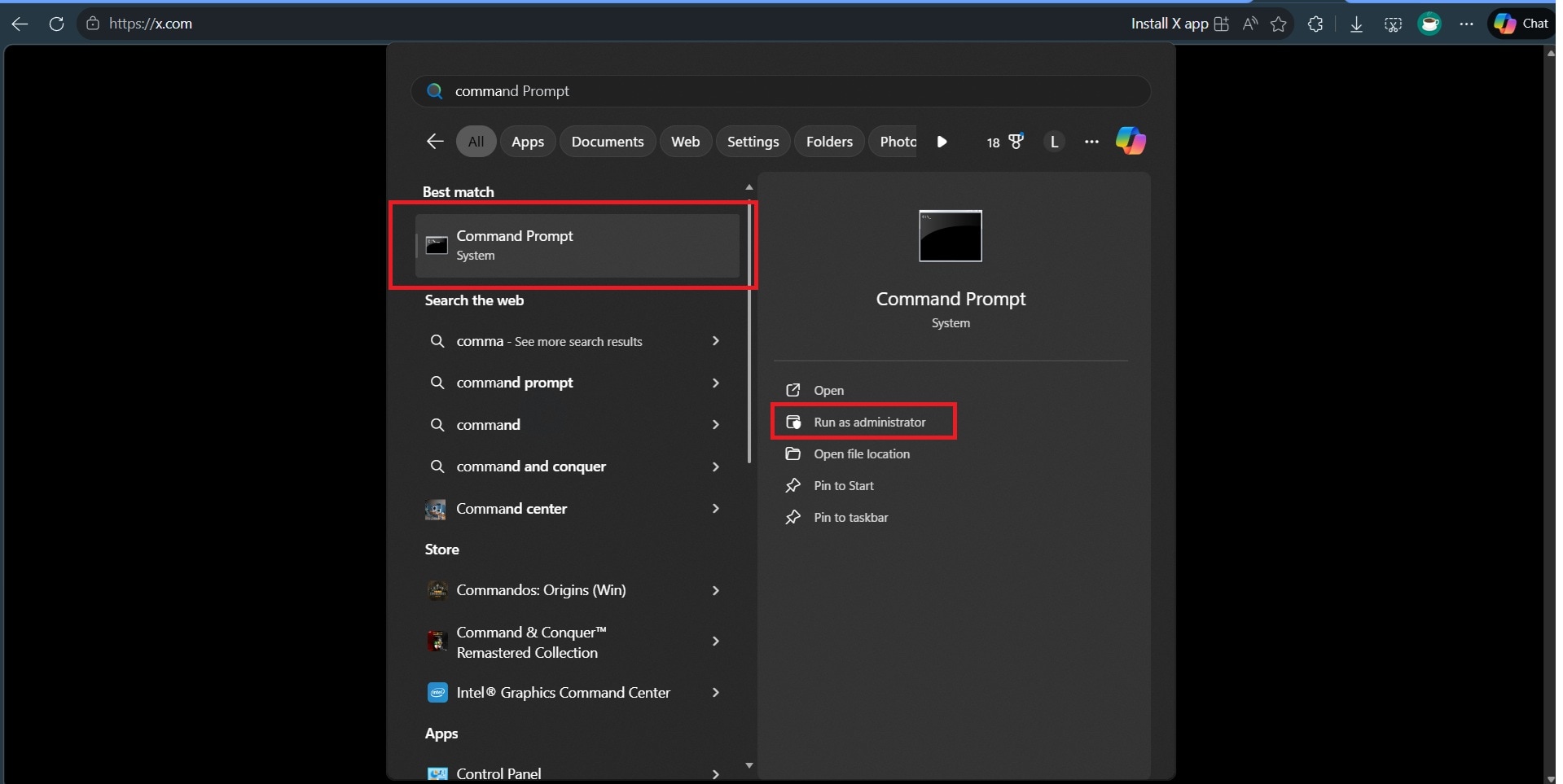
Step 1: Open Command Prompt and run it as Administrator.
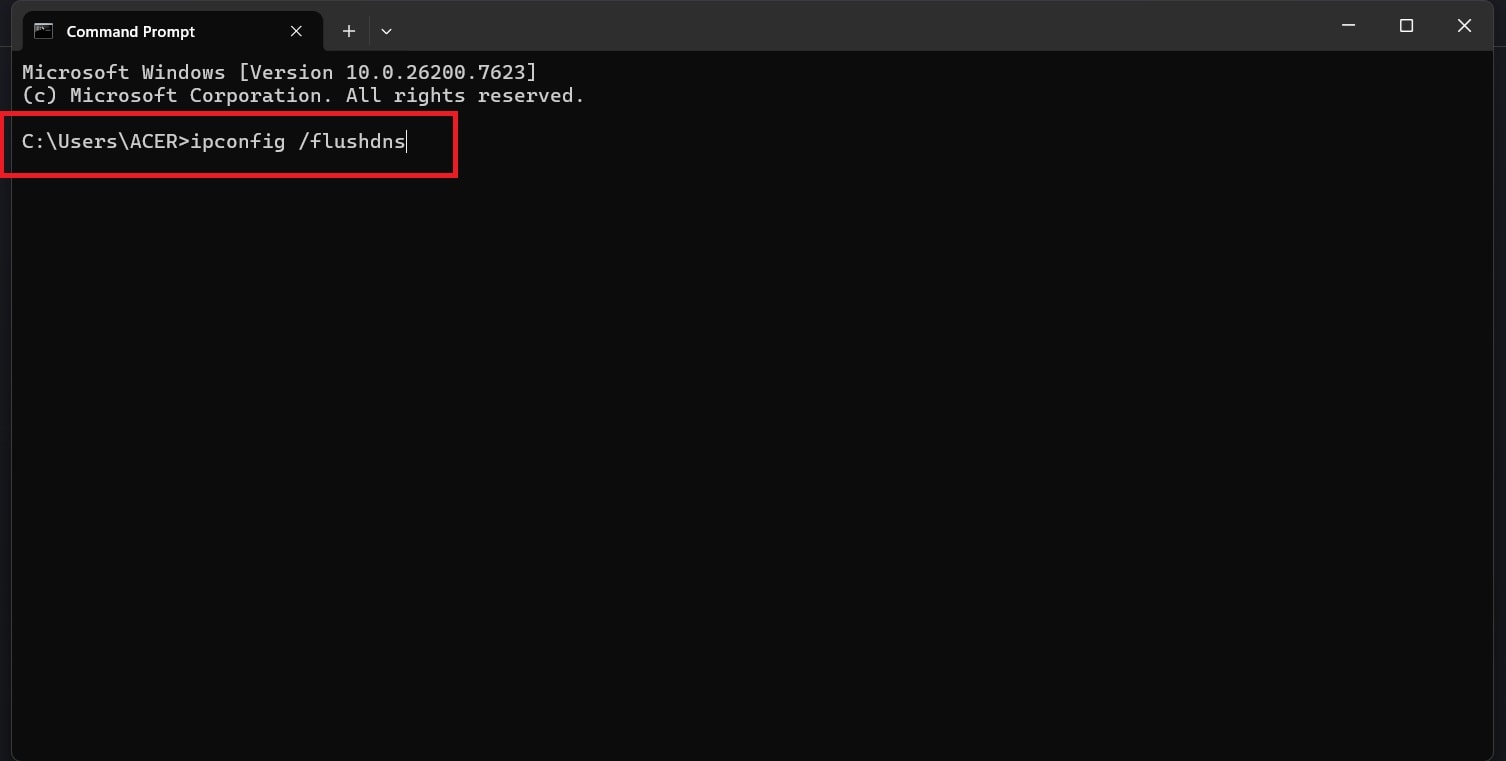
Step 2: Type ipconfig / flushdns and press Enter. This will clear your computer’s cache.
Part 6. Advanced Fix: Repair Corrupted Twitter Images (Recommended)
In some cases, Twitter images load incorrectly or fail to open after being downloaded, even when other images work fine. This usually indicates that the image file itself is corrupted or incomplete.
Important note: Repair tools cannot fix Twitter server issues or live image loading bugs. They only repair image files that have already been downloaded and are damaged.
You may need advanced repair if:
- Downloaded Twitter images fail to open on your device
- Images appear partially loaded, distorted, or broken
- Screenshots or memes saved from Twitter are unreadable
- Network, app, and device-level fixes do not resolve the issue
Repairit Photo Repair is designed to help repair corrupted image files in cases where downloaded Twitter images fail to open due to file damage. It supports common image formats such as JPEG, PNG, and GIF, which are frequently used for photos, memes, and screenshots shared on Twitter.
The tool analyzes the internal structure of damaged image files and attempts to reconstruct missing or corrupted data. While repair results depend on the severity of the damage, this approach can be useful when standard troubleshooting steps have already failed.
Step 1: From the main interface, select Photo Repair. Click the + Add button in the center of the screen to upload the Twitter images that are not loading properly.

Step 2: Click the Repair button to initiate the image repair process. The tool will automatically analyze and fix the corrupted Twitter image files. A progress indicator will appear in the bottom-left corner of the screen, showing the repair status.

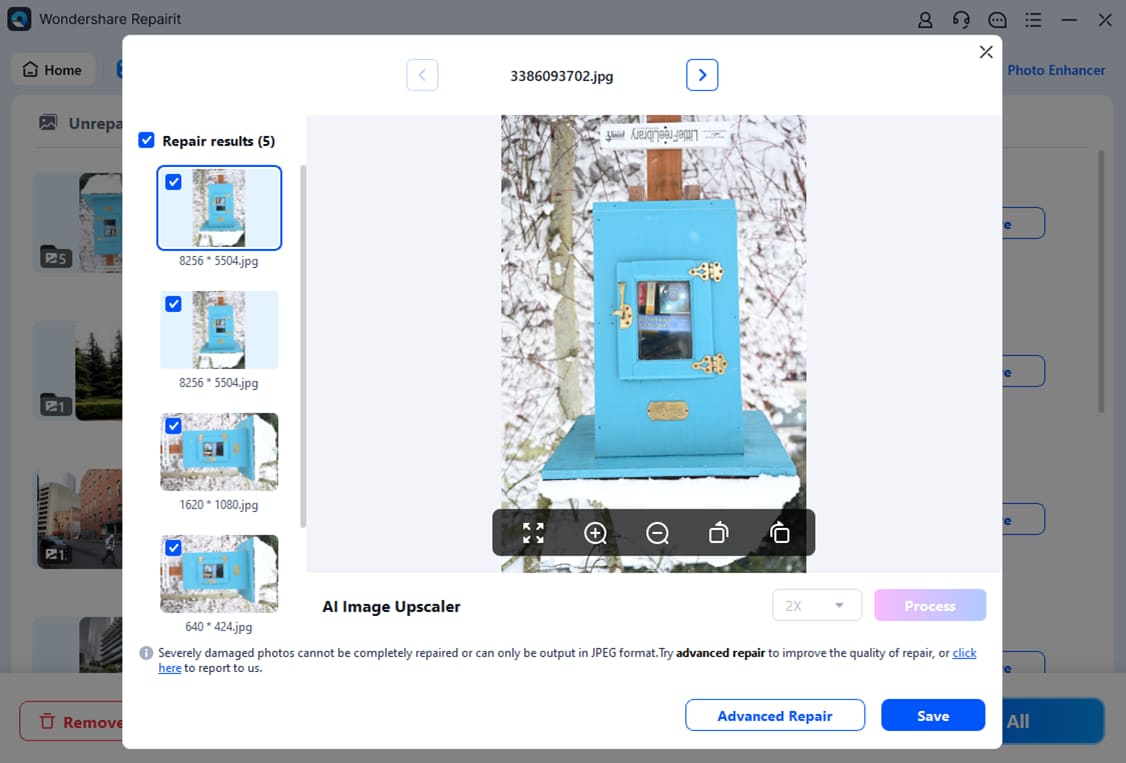
Step 3: After the repair is complete, a list of repaired images will be displayed. Preview the restored Twitter images to confirm they now load correctly. Select the files you want to keep, then click Save to store the repaired images on your device.
Part 7. Tips to Prevent Twitter Image Loading Issues
Even when troubleshooting solves immediate problems, there are some practices that can reduce how often Twitter images fail to load. These focus on keeping your device, network, and app environment stable, rather than pushing performance or features.
Tip 1. Maintain a Stable Network Environment
Images on Twitter rely on consistent communication with the platform’s media servers. Interruptions or frequent network changes can cause images to load incompletely or not at all.
- Use a single, reliable internet connection when scrolling through image-heavy feeds.
- Avoid switching repeatedly between Wi-Fi and mobile data during active sessions.
- When on public or shared networks, expect slower or less consistent media loading.
Tip 2. Use Data-Saving Features Selectively
Data-saving modes can reduce bandwidth use, but they may also limit how and when images appear.
- Turn off Data Saver when browsing timelines with multiple images or media.
- Check app-level image loading settings after system or app updates.
- Ensure images are allowed to load over both Wi-Fi and mobile data.
Tip 3. Keep Apps and Browsers Updated
Software updates often include fixes for media rendering, security patches, and compatibility improvements.
- Keep the Twitter app up to date on mobile devices.
- Ensure desktop browsers are running the latest version.
- Update your operating system periodically to avoid conflicts with new image formats or media delivery methods.
Tip 4. Limit VPN and Custom DNS Usage During Media Browsing
VPNs and custom DNS settings change how network requests are routed, which can sometimes interfere with image loading.
- Temporarily disable VPNs when troubleshooting image display issues.
- Use automatic DNS settings unless a specific configuration is required.
- If a VPN is necessary, testing different server locations may improve media access.
Tip 5. Clear Cached Data Periodically
Cache helps speed up loading, but corrupted or outdated files can create persistent display issues.
- On mobile, clear the app cache every few weeks.
- On a desktop, clear the browser cache if images fail to load repeatedly.
- Avoid clearing all data too often, as it may slow down loading temporarily.
Tip 6. Monitor Downloaded Images for File Integrity
Problems can also occur after downloading images from Twitter. Interruptions during download may corrupt the file.
- Avoid closing the app or browser while downloading images.
- Check file size and preview images soon after download.
- Re-download images that fail to open or appear incomplete.
If you follow these practices, you can reduce the recurrence of image loading issues and more easily distinguish between network-related problems, app limitations, and corrupted files. While preventive measures cannot eliminate every failure, they make troubleshooting more predictable and consistent across devices.
Conclusion
Twitter images may fail to load for a variety of reasons, including unstable network connections, restrictive app or browser settings, outdated software, and cached data conflicts. These issues can affect both mobile devices and desktop systems and may appear intermittently or across entire timelines.
In most cases, image loading problems can be resolved through basic troubleshooting steps such as refreshing the app or browser, checking network stability, clearing cached data, and keeping the Twitter app and operating system up to date.
When images have already been downloaded but still fail to open or appear corrupted, the issue is typically related to file integrity rather than live image loading. In such cases, repairing the damaged image file may be necessary to make it viewable again. Tools designed for image repair can help reconstruct corrupted files and allow users to preview results before saving repaired copies.
Choosing the appropriate solution depends on whether the problem is caused by network delivery, app behavior, or file-level damage. Identifying the root cause first can help avoid unnecessary steps and make troubleshooting more effective.
FAQs
-
1. Why are Twitter images not loading, but videos work?
Images and videos use different delivery methods. Videos often stream in segments, while images require full file retrieval, so interruptions may affect images without affecting video playback. -
2. Why is one Twitter image not loading while others do?
A single image may be corrupted, improperly uploaded, or restricted by privacy settings. Other images load normally because their files and server paths are intact. -
3. Does Twitter compress or reduce image quality?
Yes, Twitter compresses images to reduce file size and improve loading speed. This can slightly affect resolution or color, but it does not usually prevent images from displaying. -
4. Can Twitter server issues cause images not to load?
Temporary server outages or platform bugs can block image delivery. In such cases, network and device troubleshooting may not resolve the issue until service is restored. -
5. What should I do if downloaded Twitter images are corrupted and won’t open?
If an image won’t open after download, the file may be incomplete or damaged. In such cases, repairing or replacing the file is necessary to view it correctly.