Losing precious memories because your camera or phone suddenly shut off can be very annoying. When you notice photos corrupted after battery failure, it usually means the saving process was interrupted, leaving the image file incomplete or unreadable, sometimes showing blank or half-loaded photos.
The good news is you can often repair photos after battery died by fixing damaged file data or using recovery tools to restore the missing information. In this guide, you'll learn simple steps to recover your photos and avoid losing files in the future.
In this article
Why Sudden Battery Failure Corrupted Your Images
Digital photos are saved step by step, and if your device suddenly loses power before the process is finished, the file can become corrupted and unreadable. This usually happens because the image wasn't fully saved to the storage device.
Common causes include
- Interrupted saving process - The battery dies while the photo is still being written.
- Low battery instability - Weak power can lead to incomplete or damaged files.
- USB disconnection - Power loss during transfer can corrupt files being moved.
- Unsaved cache data - Temporary data is lost if the device shuts down before saving it properly.
How to Tell if the Photos are Corrupted
When a battery failure interrupts saving, the photo file may still exist but won't open properly because it was not fully written. This leads to different types of errors and visual problems.
Common signs include
- Partial images - Only part of the photo loads, while the rest appears grey, black, or distorted.
- File not supported error - Your device says the image is invalid or can't be opened, even if it's a normal photo format.
- 0 KB file size - The file appears in the folder but shows zero size, meaning no data was properly saved.
- Wrong or broken previews - The thumbnail may look fine, but opening the image shows glitches, distortion, or no proper display.
Basic Ways to Fix Corrupted Photos
Before using advanced recovery tools, try simple fixes first. These methods can help repair small errors caused by sudden shutdowns or battery failure.
Fix 1. Run CHKDSK Utility
This built-in Windows tool checks your storage device for errors and fixes file system issues caused by unexpected power loss.
Step 1. Connect your storage device to a PC, open the Command Prompt, run it as an administrator and type chkdsk [drive letter]: /f.
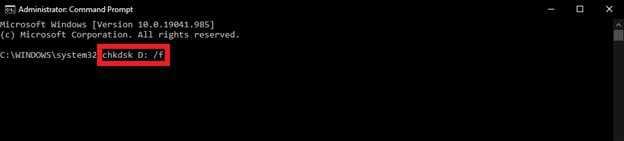
Step 2. Allow the process to complete; it will automatically attempt to relocate data from bad sectors and repair.
Fix 2. Try File Conversion or Re-save
Sometimes the photo data is still there, but the file structure is slightly damaged. Re-saving or converting the file can help restore it.
Step 1. Open the corrupted file in a basic editor like Microsoft Paint or a web-based image converter.
Step 2. Use the Save As function to export the file into a different format (e.g., converting a corrupted JPEG to a PNG) to trigger a fresh header.
Fix 3. Use First Aid on macOS
On Apple devices, Disk Utility's First Aid feature scans and repairs disk problems that may be affecting your photos.
Step 1. Open Disk Utility, select the affected drive, and click the First Aid button.
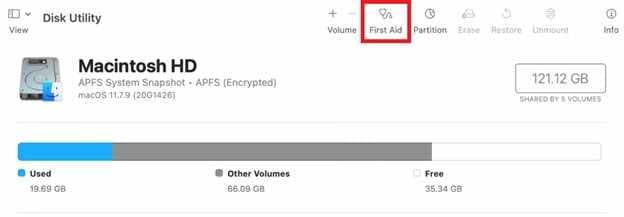
Step 2. Run the utility to verify and repair the disk's catalog file and multi-link files that were likely damaged during the battery failure.
Fix 4. Clear Thumbnail Cache
If the image preview is broken but the file size looks normal, the issue may be a corrupted cache. Clearing it can restore proper previews.
Step 1. Use the Disk Cleanup tool in Windows and ensure the Thumbnails checkbox is selected before hitting OK.
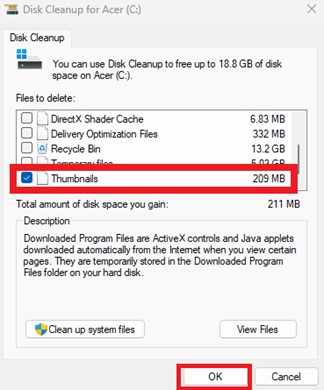
Step 2. Restart your file explorer; the system will refresh uncorrupted previews for all images in the folder
Advance Fix to Restore Severely Corrupted Images
If basic fixes don't work, the damage is usually inside the file itself. In this case, advanced tools are needed to rebuild and restore the broken image data.
It CAN:
- Restores missing data needed to open the photo.
- Repairs damaged pixels and colors.
- Finds and restores missing parts of the file.
- Fixes several corrupted photos at once.
If you confirm the image is corrupted, a repair tool can safely restore its functionality. One example is Repairit Photo Repair, which works with common file types like JPEG, PNG, and various RAW formats.
Step-by-Step (Optional)
Step 1. Upload the corrupted photo file.

Step 2. Start the Repair process.

Step 3. Preview and save the restored file to a new location.

How to Prevent Photo Corruption
Preventing data loss is much easier than trying to repair damaged files. A few simple habits can help protect your photos even if your device suddenly shuts down.
- Avoid low battery use - Try not to take photos or transfer files when your battery is below 20% to reduce the risk of sudden shutdowns.
- Use fast SD cards - High-speed memory cards (like V30 or V60) save data faster, reducing the chance of corruption.
- Safely eject devices - Always use Safely Remove Hardware before unplugging storage devices to make sure all data is fully saved.
- Keep battery accurate - Calibrate your battery occasionally so your device can warn you before it suddenly runs out of power.
Conclusion
When you experience photos corrupted after battery failure, it can be stressful, but it doesn't always mean your files are gone for good. In many cases, the issue happens because the saving process was interrupted.
You can often still repair photos after battery died using basic tools or advanced recovery software. Going forward, keeping your battery charged and using reliable storage devices can help protect your photos from future damage.
FAQs
-
Can a corrupted photo always be fixed?
Not always. Photos can often be recovered if some data was saved, but files showing 0 KB usually cannot be restored. -
Why does my corrupted photo look like a grey box?
This happens when the image data was not fully written, so the file can't properly display the picture. -
Will running CHKDSK delete my other photos?
No, it mainly repairs storage errors. However, it's still best to back up your files before running it. -
Is it safe to use online image converters for corrupted files?
Yes, for minor corruption. They may help rebuild the file by fixing damaged parts. -
How do I know if the battery or SD card is the problem?
If corruption happens when the battery is low, it's likely a power issue. If it happens often even with a full battery, the SD card may be failing.