Choosing between Repairit Photo Eraser and GIMP comes down to how you like to remove unwanted objects. Repairit focuses on quick, AI-driven cleanup with minimal setup. GIMP is a free, open-source image editor that offers powerful manual tools but a steeper learning curve. This guide compares their object removal, realism, workflow, and pricing so you can decide which tool fits your skills and projects.
Remove Unwanted Objects with Repairit Photo Eraser
 Security Verified. Over 7,302,189 people have downloaded it.
In this article
- Repairit Photo Eraser vs GIMP: Quick Verdict
- Repairit Photo Eraser vs GIMP: Key Differences
- Repairit Photo Eraser vs GIMP: Comparison Table
- What Repairit Photo Eraser and GIMP Are Best For
- Repairit Photo Eraser vs GIMP: Object Removal Capabilities
- Repairit Photo Eraser vs GIMP: Background Fill and Realism
- Repairit Photo Eraser vs GIMP: Workflow and Ease of Use
- Repairit Photo Eraser vs GIMP: Pricing and Trial Options
- Who Should Choose Repairit Photo Eraser
- Who Should Choose GIMP
- Pros and Cons of Repairit Photo Eraser and GIMP
- How to Remove Unwanted Objects After Choosing the Right Tool
Repairit Photo Eraser vs GIMP: Quick Verdict
Both tools can erase objects, text, and watermarks, but they suit different working styles. Repairit Photo Eraser focuses on speed and AI-driven automation, which is helpful when you want to remove distractions in a few clicks. GIMP is better for users who want free, manual control and do not mind spending more time with clone and heal tools to refine details.
Repairit Photo Eraser vs GIMP: Key Differences
The core difference between these tools is how they approach object removal and background cleanup.
Repairit Photo Eraser uses an AI-based erasing engine. You highlight the unwanted person, object, watermark, or text, and the tool automatically fills in the background. This saves time, especially when you need natural-looking results quickly for social media, product photos, or casual edits.
GIMP, by contrast, relies on manual brushes and selections. You paint over distractions with clone and heal tools, sampling nearby areas to cover them. This gives you fine control over every stroke, which can be powerful for complex or irregular objects, but it also requires more skill and patience.
In most cases, users who prioritize simplicity and a guided flow will find Repairit more approachable. Users who enjoy manual, layer-based editing and want to control every pixel may lean toward GIMP, especially if they already use it for other editing tasks.
Repairit Photo Eraser vs GIMP: Comparison Table
| Criteria | Repairit Photo Eraser | GIMP |
|---|---|---|
| Best for | Everyday users who want fast, AI-assisted object removal with minimal editing knowledge. | Advanced users wanting free manual editing and deep control in an open-source image editor. |
| Ease of use | Very simple; upload, highlight, and let the AI erase objects automatically. | Complex interface; tools are powerful but require practice and familiarity. |
| Object removal | Automated removal with AI trying to fill the background naturally in one or two passes. | Manual clone and heal tools that can be highly precise but slower to master. |
| Workflow | Streamlined: upload photo, select object, process, then export in a few clicks. | Manual workflow: open image, apply clone or heal tools, refine details, then export. |
| Strengths | Speed, simplicity, AI background fill, and focused object removal tools. | Free, powerful, customizable, and flexible for broader image editing tasks. |
| Weaknesses | Less suited for complex multi-layer editing beyond object removal. | Time-consuming, steeper learning curve, and fully manual cleanup process. |
What Repairit Photo Eraser and GIMP Are Best For
GIMP is a well-known open-source image editor best suited for advanced users wanting free manual editing and total control. For object removal, it relies on clone and heal tools, while Repairit Photo Eraser focuses on fast, AI-driven cleanup. Most users deciding between them should weigh GIMP s flexibility against Repairit s speed and simplicity.
Repairit Photo Eraser is typically a better fit when you need to:
- Clean up casual photos for social media or online listings.
- Remove small distractions, signs, or strangers quickly.
- Erase simple watermarks or text overlays without manual painting.
- Handle repeated object removal tasks with minimal effort.
GIMP is often better when you want to:
- Spend time hand-refining the removed area for a very specific look.
- Combine object removal with more complex, layered edits in the same file.
- Use masks, selections, and multiple tools together for difficult scenes.
- Stay fully within a free, open-source ecosystem.
Repairit Photo Eraser vs GIMP: Object Removal Capabilities
Both tools can handle a wide range of object removal tasks, but the way you achieve results differs.
Range of removable objects
- Repairit Photo Eraser is designed for common cleanup tasks such as removing people in the background, logos, simple watermarks, timestamps, and stray objects like wires or trash bins. You highlight the area, and the AI estimates how the scene should look without it.
- GIMP can remove the same kinds of objects using clone and heal tools. You manually paint over the unwanted area, sampling from surrounding textures. In skilled hands, this can extend to complex subjects and challenging edges.
Watermark and text removal
- With Repairit Photo Eraser, you brush over the watermark or text and let the AI reconstruct the underlying background. This may work well when the watermark does not cover large or intricate details.
- In GIMP, watermark or text removal usually combines clone, heal, and sometimes manual painting or layering. This can be more time-consuming but offers precision if the watermark overlaps important details.
People removal and scene complexity
- For simple backgrounds such as skies, walls, or ground textures, Repairit s AI can often erase people or objects in one or two passes, with little extra masking.
- For busy scenes with overlapping elements and complex patterns, GIMP s manual approach may let you selectively rebuild the area using multiple samples and layers, though it takes more effort.
In most everyday use cases, Repairit Photo Eraser will feel faster for basic cleanup, while GIMP remains viable when you are comfortable investing time to refine difficult areas manually.
Repairit Photo Eraser vs GIMP: Background Fill and Realism
Achieving a natural-looking background after removal is often more important than the act of erasing itself.
Automatic background fill (Repairit Photo Eraser)
- Repairit uses AI-driven background fill to try to blend erased areas with surrounding textures.
- Depending on the image, it can handle patterns like grass, sky, roads, or simple indoor walls with little effort from the user.
- Some complex scenes may still show subtle artifacts or repetition in textures, but these can often be reduced by running the eraser again or adjusting the selection.
Manual reconstruction (GIMP)
- GIMP relies on you to guide the fill using clone and heal brushes.
- Because you choose where to sample from, you can avoid obvious pattern repetition and manually align lines, edges, or shadows.
- The trade-off is time: achieving seamless realism can require zooming in, carefully sampling, and painting multiple passes.
When manual cleanup still helps
Even after AI-based removal in Repairit, some users export the result and fine-tune it in GIMP. This hybrid approach works well when:
- The AI leaves minor blur or repeating patterns that you want to touch up.
- There are small edges or shadows that need manual adjustment.
- You want to combine quick automatic removal with pixel-level control on a few key details.
Repairit Photo Eraser vs GIMP: Workflow and Ease of Use
Repairit Photo Eraser emphasizes a simple, guided flow: upload a photo, select the distracting object, let the AI process it, and save. GIMP follows a manual workflow: open image, use the clone or heal tools, refine edges, then export. Users comfortable with complex interfaces may appreciate GIMP, while others will likely prefer Repairit s streamlined approach.
Simplicity and interface
- Repairit offers a focused interface centered on object erasing with a straightforward brush and basic controls.
- GIMP presents a full image-editing environment with menus, panels, and multiple tools, which can feel dense if you only need quick cleanup.
Brush selection and control
- In Repairit, adjusting brush size and selecting the target area is typically enough. The AI handles the heavy lifting of blending.
- In GIMP, you not only choose brush size but also sample points, opacity, hardness, and sometimes layers and masks, which provides fine control but adds complexity.
Effort to get a usable result
- For simple distractions, Repairit often produces a usable result with minimal user input, making it suitable for quick turnarounds.
- With GIMP, quality improves as you invest more time and technique, so it favors users who edit less frequently but are willing to refine carefully when they do.
Repairit Photo Eraser vs GIMP: Pricing and Trial Options
Repairit Photo Eraser is offered as a commercial tool, typically with limited free access or trial options so users can test object removal before committing. GIMP is entirely free and open source, which is appealing if you need no-cost manual editing. The choice often comes down to whether you value your time and simplicity over a zero-cost but more hands-on solution.
For users who remove objects regularly, saving minutes on each edit with an AI workflow may matter more than the license cost. For those who only occasionally clean up images or who prefer not to pay for software, GIMP s free model may be sufficient, especially if they are willing to learn its tools.
Who Should Choose Repairit Photo Eraser
Repairit Photo Eraser may be the better fit for users who:
- Want to erase objects from photos quickly with AI help.
- Are beginners who find complex editing interfaces overwhelming.
- Often remove background distractions for social media or listings.
- Need fast, repetitive image cleanup with minimal manual work.
Who Should Choose GIMP
GIMP tends to suit users who:
- Are comfortable with detailed, manual editing steps.
- Prefer free, open-source software and customization.
- Want fine control over how unwanted objects and watermarks are removed.
- Already use GIMP for broader image editing or photo compositing.
Pros and Cons of Repairit Photo Eraser and GIMP
Repairit Photo Eraser Pros and Cons
GIMP Pros and Cons
How to Remove Unwanted Objects After Choosing the Right Tool
Once you decide which workflow suits you, the next step is to put it into practice. Many users start with an AI-based pass for fast cleanup and then refine details only if needed. Below is how that process looks using Repairit.
Key Features
- AI-assisted object erasing with automatic background fill.
- Simple brush selection to highlight distractions and watermarks.
- Fast processing designed for quick image cleanup and export.
- GIMP provides clone and heal brushes to manually cover distractions and watermarks.
- Both tools allow users to export cleaned-up images in common formats after object removal.
- GIMP supports layered editing and detailed selections so users can refine complex object removal by hand.
- Experienced GIMP users can combine masks and manual retouching for highly controlled cleanup workflows.
Repairit Photo Eraser focuses on common image formats and a streamlined experience across typical desktop and web environments. GIMP, as an open-source image editor, runs on major desktop operating systems and supports a wide range of file types. For typical users interested mainly in removing unwanted objects and exporting standard images, both tools are usually sufficient.
Step-by-step guide
Repairit s workflow keeps the process simple from import to export.
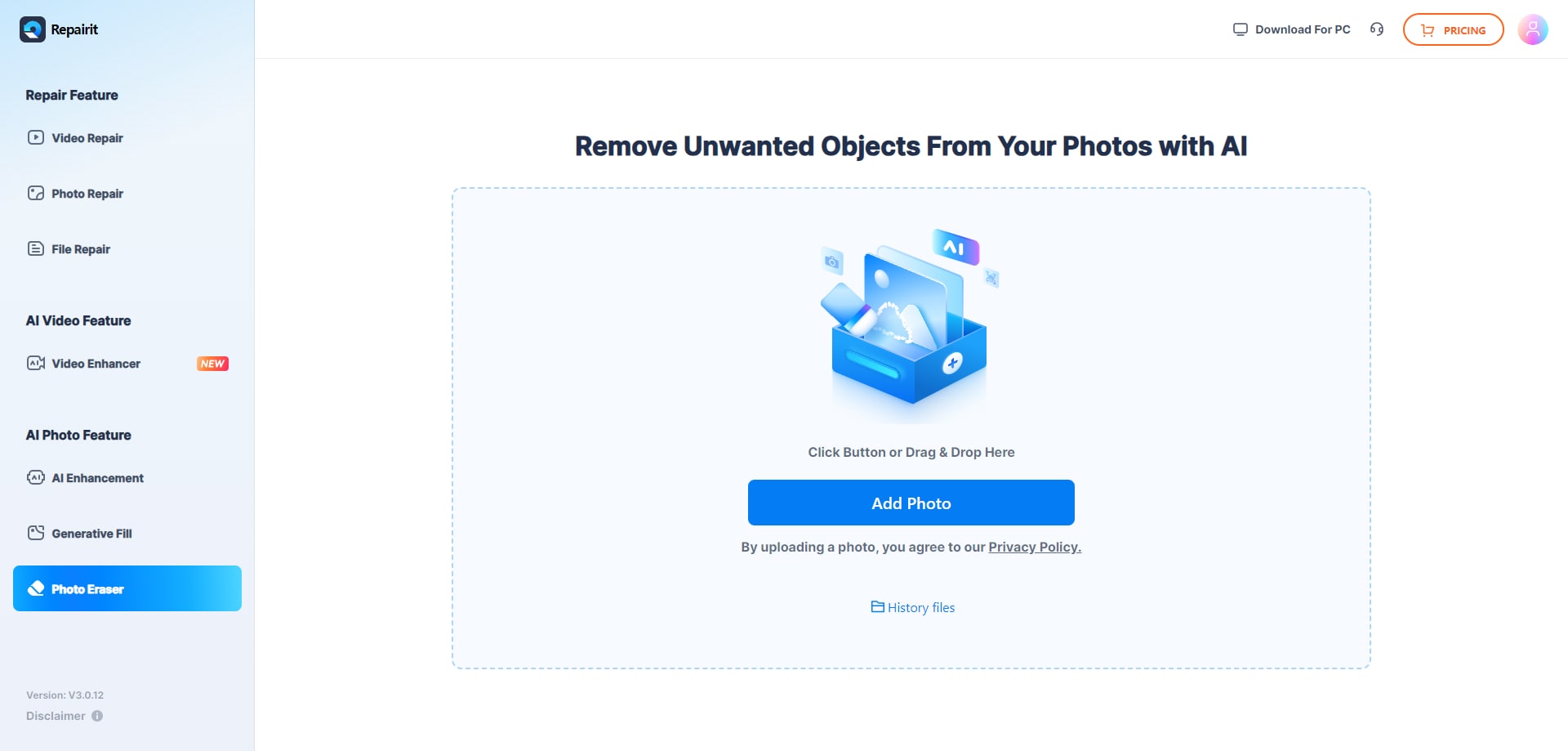
Step 1. Upload the photo you want to edit and start the object removal process.
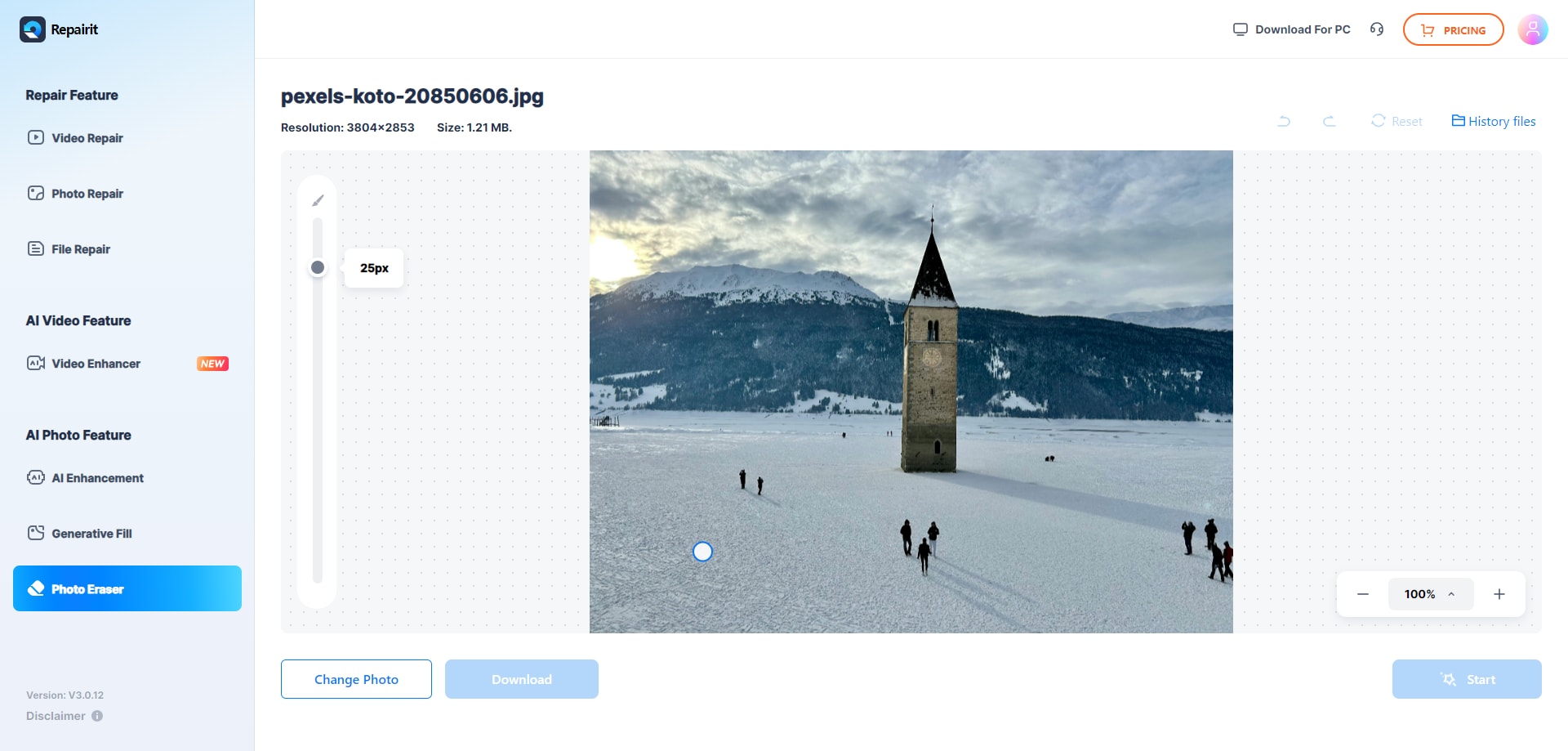
Step 2. Adjust the brush size and select the object or area you want to remove from the image.
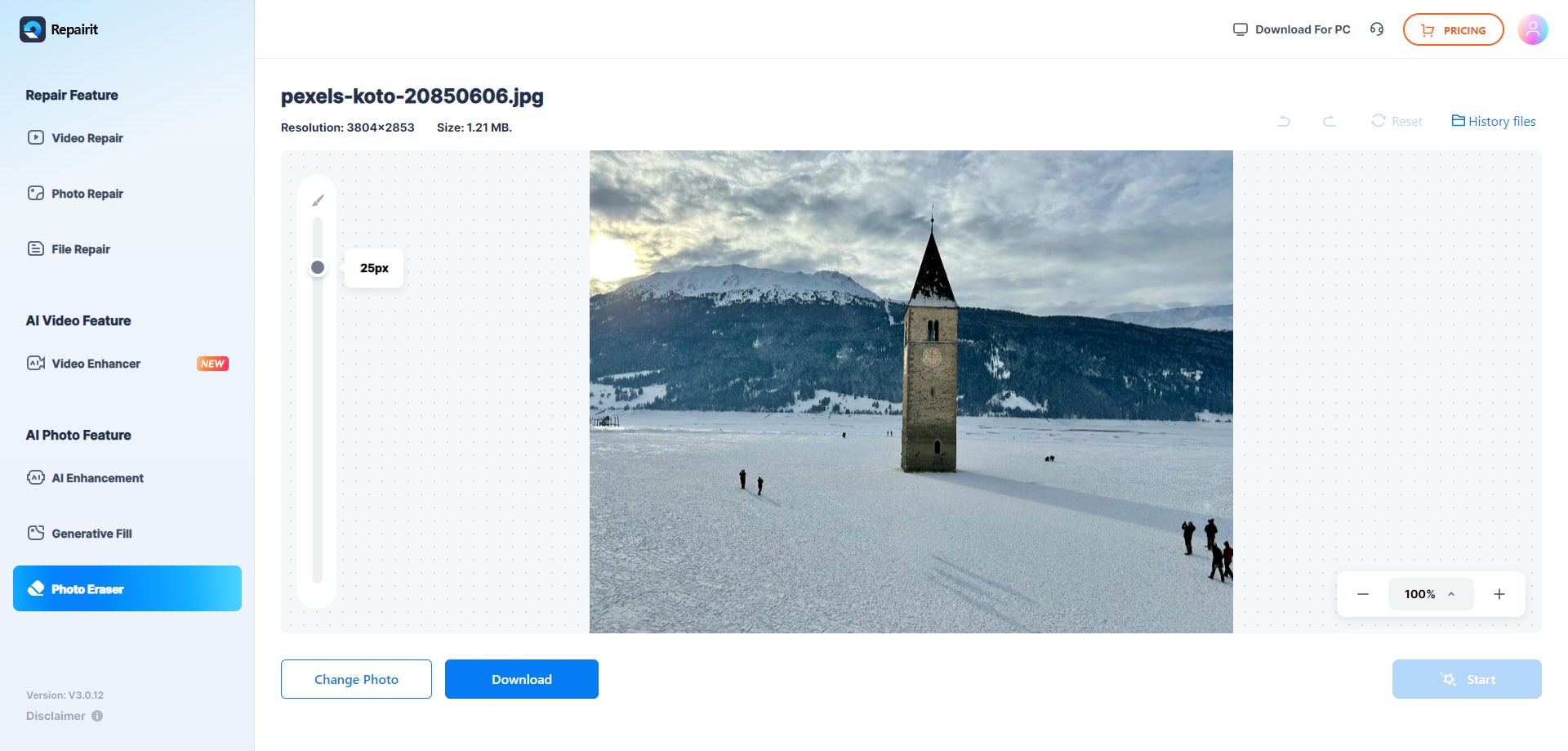
Step 3. Let the AI process the image and download the cleaned photo after the object is removed.
Final Verdict
Repairit Photo Eraser and GIMP both remove unwanted objects, but they serve different types of users. Repairit focuses on fast, AI-driven cleanup with almost no learning curve, which suits people who simply want distractions gone and images ready to share.
GIMP, by contrast, is ideal if you prefer a free, open-source image editor with manual control and are willing to invest time in refining clone and heal work. In many everyday scenarios, Repairit will feel more efficient, while GIMP remains a strong choice for advanced users already comfortable with detailed editing.
Next: Repairit Photo Eraser vs Affinity Photo
FAQ
-
1. Is GIMP good for removing unwanted objects from photos?
GIMP can remove unwanted objects effectively using its clone and heal tools, especially in the hands of experienced users. However, it is fully manual, so you need time to learn the tools and refine the details. -
2. When is Repairit Photo Eraser better than GIMP for object removal?
Repairit Photo Eraser is usually better when you want to erase objects from photos quickly, without dealing with complex settings. Its AI tries to fill the background automatically, which is convenient for casual or frequent cleanup tasks. -
3. Can I use both Repairit Photo Eraser and GIMP in the same workflow?
Yes. Many users remove major distractions in Repairit Photo Eraser for speed, then open the result in GIMP for any fine, manual touch-ups or additional editing, combining automation with detailed control. -
4. Is GIMP really free compared to Repairit Photo Eraser?
GIMP is fully free and open source, which is attractive if cost is your main concern. Repairit Photo Eraser is a paid product with possible trial options, but it can save time through faster, AI-assisted cleanup, which some users find worth the cost.