Choosing between Repairit Old Photo Restoration vs Inpaint usually comes down to how damaged your old photos are and how much manual work you want to do. Inpaint focuses on simple object and scratch removal on selected areas, while Repairit Old Photo Restoration offers a more guided way to repair aging photos, improve faces, and restore faded memories. This comparison breaks down repair quality, workflows, and use cases so you can decide which tool fits your old photo repair needs.
Restore Old Photos with Repairit
 Security Verified. Over 7,302,189 people have downloaded it.
In this article
- Repairit Old Photo Restoration vs Inpaint: Quick Verdict
- Repairit Old Photo Restoration vs Inpaint: Key Differences
- Repairit Old Photo Restoration vs Inpaint: Comparison Table
- What Repairit Old Photo Restoration and Inpaint Are Best For
- Repairit Old Photo Restoration vs Inpaint: Repair Capabilities and Damage Handling
- Repairit Old Photo Restoration vs Inpaint: Restoration Quality and Real Results
- Repairit Old Photo Restoration vs Inpaint: Workflow and Ease of Use
- Repairit Old Photo Restoration vs Inpaint: Pricing and Trial Options
- Who Should Choose Repairit Old Photo Restoration
- Who Should Choose Inpaint
- Pros and Cons of Repairit Old Photo Restoration and Inpaint
- How to Restore Old Photos After Choosing the Right Tool
Repairit Old Photo Restoration vs Inpaint: Quick Verdict
In most cases, the choice between Repairit Old Photo Restoration vs Inpaint depends on whether you are doing full restoration of an aged, faded print or just cleaning a few marks.
Quick verdict:
- Repairit Old Photo Restoration is generally a stronger choice for repairing heavily damaged, faded, or low quality old photos where you want AI assistance to fix scratches, improve faces, and restore tones across the whole image.
- Inpaint is usually enough if your scanned photos are mostly intact and you just need to remove a few scratches, dust spots, or small unwanted objects with a simple brush.
Many users can benefit from using both: start with Repairit for global old photo restoration, then rely on Inpaint for any remaining local defects.
Repairit Old Photo Restoration vs Inpaint: Key Differences
The key difference between Repairit Old Photo Restoration and Inpaint is how they approach damage:
- Repairit Old Photo Restoration focuses on the entire photo, aiming to repair scratches and cracks, reduce noise and grain, restore faded colors, and improve facial details in one guided process.
- Inpaint, including the online version and desktop editions such as Inpaint, focuses on local areas you manually brush over, filling them using nearby pixels to hide scratches, dust, stains, or distracting objects.
This matters if you are working with severely aged prints or portraits where overall clarity and facial recovery are just as important as removing visible scratches.
Repairit Old Photo Restoration vs Inpaint: Comparison Table
| Dimension | Repairit Old Photo Restoration vs Inpaint |
|---|---|
| Best for | Repairit Old Photo Restoration: Restoring heavily damaged, faded, or low quality old photos with guided tools and AI assistance. Inpaint: Removing scratches or small unwanted objects from otherwise decent scans of old photos. |
| Ease of use | Repairit Old Photo Restoration: Beginner friendly with a structured old photo restoration flow and clear options. Inpaint: Very simple; load, mark, and remove, but requires more manual judgment for complex damage. |
| Restoration quality | Repairit Old Photo Restoration: Designed to improve faces, reduce noise, and restore faded or damaged areas in one process. Inpaint: Works well on isolated scratches or spots but can struggle with large cracks or severe fading. |
| Workflow | Repairit Old Photo Restoration: Import old photo, pick restoration options, preview AI repairs, then export the improved image. Inpaint: Load image, mark area, remove, and export; mainly focused on local object and defect cleanup. |
| Strengths | Repairit Old Photo Restoration: Covers multiple restoration needs at once, including damage repair and quality enhancement. Inpaint: Simple, fast object and scratch removal with minimal learning curve. |
| Weaknesses | Repairit Old Photo Restoration: May feel more advanced than needed for tiny fixes on otherwise clean photos. Inpaint: Limited features for overall restoration, color repair, or facial detail improvement. |
What Repairit Old Photo Restoration and Inpaint Are Best For
Both tools help you repair damaged old photos, but their strengths are different.
Repairit Old Photo Restoration is best for:
- Old family portraits with heavy fading, grain, or facial detail loss.
- Prints with many scratches, cracks, or stains spread across the image.
- Users who want to colorize black and white photos while also repairing damage.
Inpaint is best for:
- Otherwise clean scans where only a few scratches, dust spots, or creases need fixing.
- Removing small unwanted objects or marks, such as date stamps or logos.
- Users who want a very lightweight tool for occasional spot cleanup.
In practice, many people scan their photos, run a global restoration in Repairit, and then open the result in Inpaint for any small defects that still stand out.
Repairit Old Photo Restoration vs Inpaint: Repair Capabilities and Damage Handling
The two tools approach scratch and crack repair differently.
Repairit Old Photo Restoration is designed to handle:
- Global defects such as fading, discoloration, and noticeable grain in old prints.
- Common physical damage including scratches, cracks, and mild stains across the entire image.
- Portrait issues like blurred or low detail faces due to age, scanning, or camera limitations.
- Color restoration and optional colorization for black and white photos, depending on the options you choose.
Inpaint focuses on:
- Local repairs where you manually brush over a defect, such as a scratch, dust speck, or fold line.
- Removing small objects or intrusions at the edge or center of the photo.
- Filling in selected areas using nearby pixels, which can work well for simple backgrounds and small flaws.
For heavily torn or stained photos, manually brushing every crack in Inpaint can become time consuming, while a global AI-based approach in Repairit can be more efficient. For a single scratch on an otherwise sharp scan, Inpaint can be a quick fix.
Repairit Old Photo Restoration vs Inpaint: Restoration Quality and Real Results
When it comes to visible results, users typically care about how natural the restored photo looks and how much detail they can recover.
Repairit Old Photo Restoration aims to:
- Reduce noise and grain that make old photos look rough or low resolution.
- Enhance facial features so eyes, skin, and expressions appear clearer without heavy manual retouching.
- Restore or rebalance faded tones, which is especially relevant for very old prints and color-shifted photos.
- Prepare a foundation that can be colorized or further edited if needed.
Inpaint tends to shine when:
- The rest of the scan already looks good, and only specific spots are distracting.
- You want to carefully choose which elements to remove to avoid altering the overall look.
- You are comfortable testing different brush sizes and redoing an area until it blends naturally.
Neither tool can rescue every severely damaged photo, but for many family archive images, combining a global Repairit pass with occasional Inpaint touchups can deliver more balanced, realistic restorations.
Repairit Old Photo Restoration vs Inpaint: Workflow and Ease of Use
Workflow can be just as important as raw capability, especially when you have dozens of photos to process.
Inpaint workflow and ease of use:
- Load a scanned image into the tool.
- Brush over scratches, dust, stains, or unwanted objects.
- Let the tool fill the selected area using surrounding pixels.
- Export the cleaned photo.
This approach is very direct and beginner friendly for spot fixes, but it becomes more manual as the amount of damage increases.
Repairit Old Photo Restoration workflow and ease of use:
- Import the old photo into a guided restoration panel.
- Pick options such as damage repair, face enhancement, or color restoration.
- Let the AI process the whole photo, then compare before and after views.
- Export the restored image if you are satisfied.
Beginners who want to fix multiple issues at once often find this guided flow less tiring than brushing every crack by hand, especially on large or heavily aged photos.
Repairit Old Photo Restoration vs Inpaint: Pricing and Trial Options
Budget and trial access also affect which tool you choose first.
Repairit Old Photo Restoration typically provides:
- Online access and desktop tools, often with free or limited trials so you can test the old photo repair workflow on a few images.
- Paid plans or licenses that unlock more photos or additional features, depending on current offers.
Inpaint generally offers:
- An online editor you can try with smaller images or limited export options.
- Paid desktop licenses if you want to work offline or process more photos.
Since pricing and limits can change, it is best to check each official site before deciding on a long term solution, especially if you plan to restore a large archive of family photos.
Who Should Choose Repairit Old Photo Restoration
You may want to prioritize Repairit Old Photo Restoration if the following descriptions match your situation:
- People restoring very old, faded, or heavily scratched family photos that need more than simple spot fixes.
- Users who want AI assisted tools to improve damaged facial details and reduce grain in portraits.
- Anyone looking to both repair damage and restore or enhance color in aged photos and scanned prints.
- Beginners who prefer a guided restoration workflow instead of manually brushing every defect.
Because it addresses multiple issues at once, Repairit is especially useful when you are working through boxes of prints and do not want to micro-edit every single flaw.
Who Should Choose Inpaint
Inpaint remains a reasonable, lightweight choice for users whose scans are mostly in good shape and who only need basic cleanup.
- Users who mainly need to remove a few scratches or cracks from otherwise clean scans using a simple brush tool.
- People who want a fast way to delete small unwanted objects or stains from old photos without learning a complex editor.
- Those who already restored most of a photo elsewhere and just need final spot cleanup on specific areas.
- Budget conscious users who are comfortable with limited features focused on basic object and scratch removal.
If your photos show only light aging and you enjoy hands-on control over each fix, Inpaint can be a straightforward solution.
Pros and Cons of Repairit Old Photo Restoration and Inpaint
Repairit Old Photo Restoration Pros and Cons
Inpaint Pros and Cons
How to Restore Old Photos After Choosing the Right Tool
After comparing Repairit Old Photo Restoration vs Inpaint, the next step is to actually restore your old photos. Once you know whether you need broad AI powered repair or quick spot cleanup, you can put that decision into practice. For users who want a guided, photo wide workflow, Repairit Old Photo Restoration offers a practical way to repair scratches, improve faces, and restore faded colors with minimal manual effort.
Key Features
- AI assisted repair of scratches, cracks, and overall photo damage.
- Enhancement of facial details and clarity in old portraits.
- Options to restore faded colors and colorize black and white photos in a guided way.
In addition to these, both Repairit and Inpaint support common image formats like JPG and PNG created from scanned prints. Repairit is available via web and desktop, while Inpaint provides an online editor and downloadable versions, so most users can plug either tool into an existing scanning workflow.
In many real world projects, users first run their scanned photos through Repairit to address global fading and facial clarity, then open the result in Inpaint for any remaining small scratches or objects the automated process did not fully remove.
Step-by-step guide
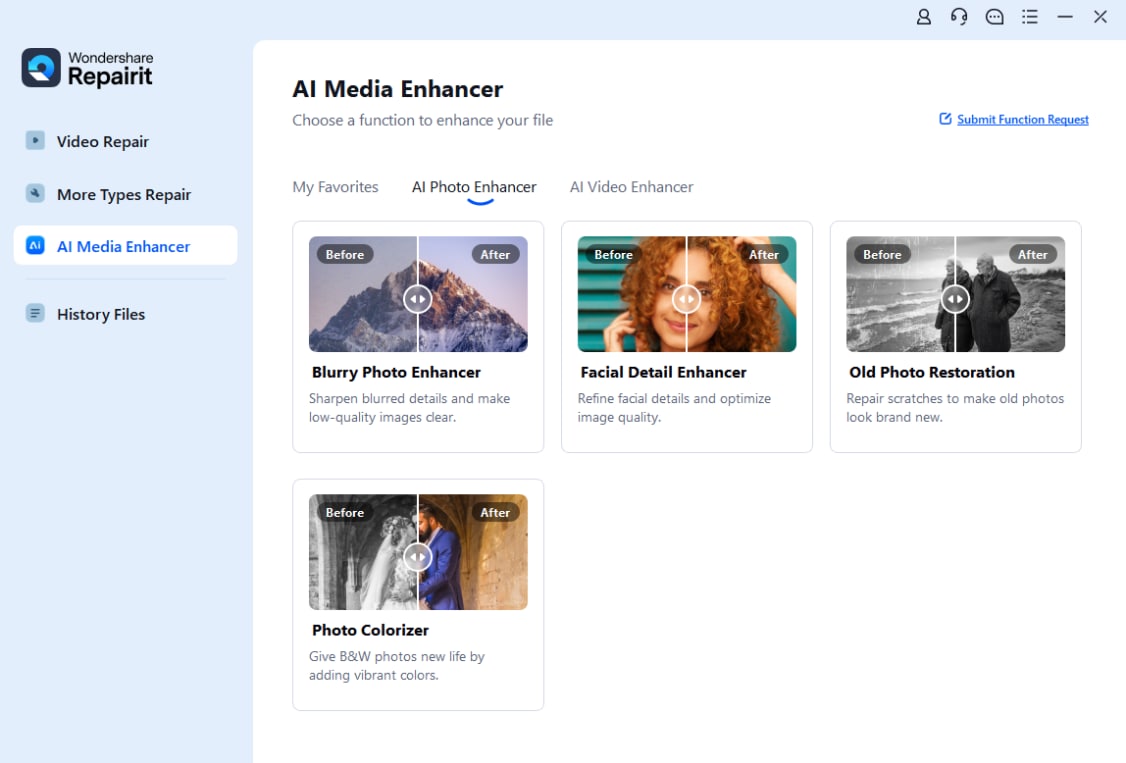
Step 1. Choose the AI restoration model based on your needs, such as repairing damaged photos or restoring old images.
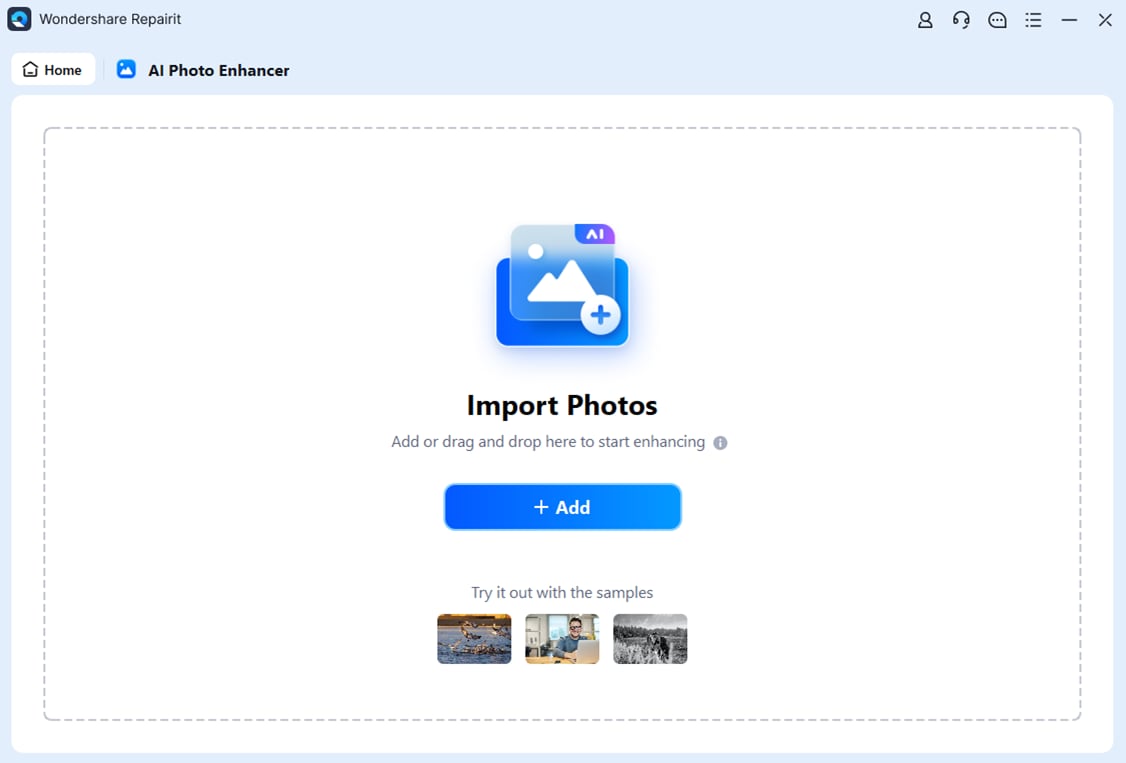
Step 2. Import your old or damaged photos into Repairit to begin the restoration process.
Step 3. Apply the old photo restoration model to fix scratches, restore colors, and improve image quality.
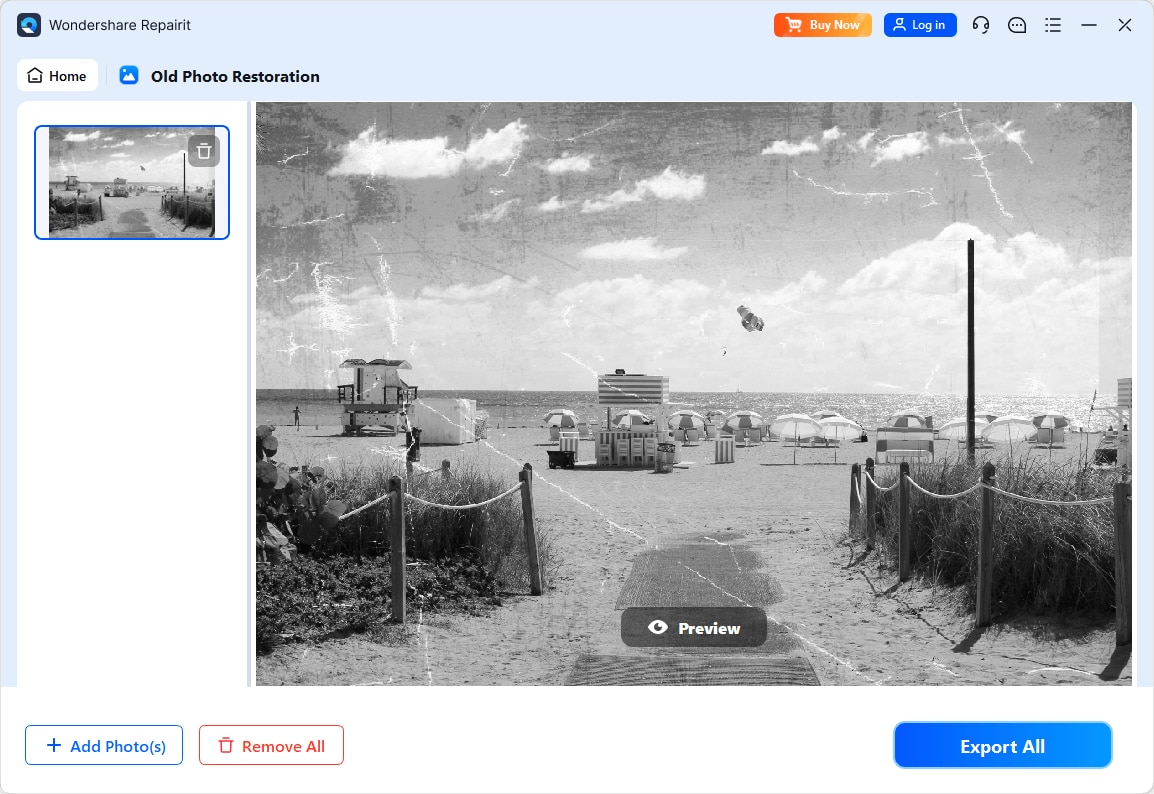
Step 4. Preview the restored result and save the repaired photo to your device.
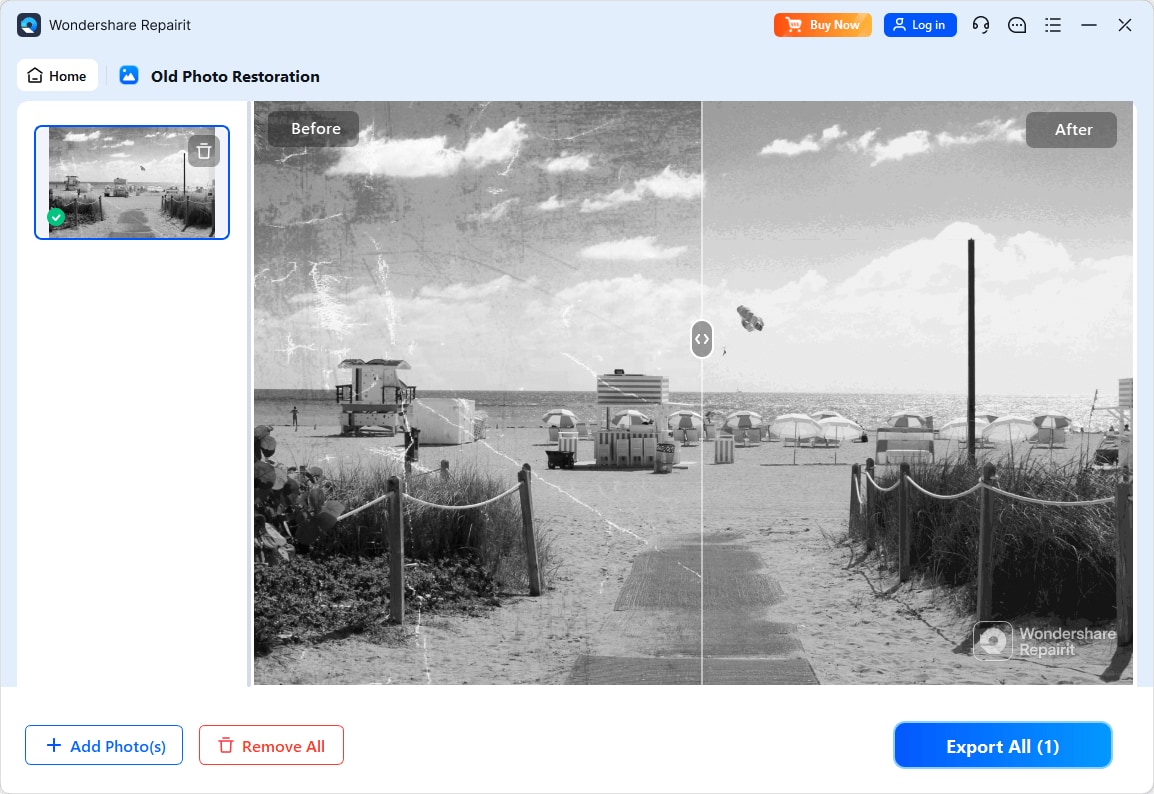
Final Verdict
Both Repairit Old Photo Restoration and Inpaint can play useful roles in an old photo restoration workflow, but they shine in different situations.
- Choose Repairit Old Photo Restoration when you are dealing with visibly aged prints that show fading, noise, multiple scratches, and softer facial details, or when you want help colorizing old black and white photos in one guided process.
- Choose Inpaint when your scans already look decent and you mainly need quick, precise control to remove a few scratches, stains, or unwanted objects.
In many cases, a hybrid workflow works best: run a global repair in Repairit, then open the exported file in Inpaint for targeted touchups. This approach balances AI powered enhancement with manual control so you can bring old family photos back to life while keeping them looking natural.
Next: Repairit Old Photo Restoration vs Photoscape X
FAQ
-
1. Is Repairit Old Photo Restoration better than Inpaint for fixing heavy scratches on old photos?
For heavily scratched or cracked photos, Repairit Old Photo Restoration is usually more efficient because it targets global damage across the whole image, while Inpaint works best on small, manually selected areas. If the photo is covered in cracks or stains, starting with Repairit can save time, and you can still use Inpaint afterward for any remaining problem spots. -
2. Should I use Inpaint or Repairit Old Photo Restoration to colorize black and white photos?
Inpaint mainly focuses on removing objects and scratches rather than colorizing entire photos. Repairit Old Photo Restoration is generally more suitable if you want to both repair damage and colorize old black and white images, since it provides a guided workflow for restoring tones and enhancing details before or during colorization. -
3. Which is easier for beginners, Repairit Old Photo Restoration or Inpaint?
Inpaint is simpler for tiny fixes because you just load, mark, and remove specific defects. For complete restoration of an old photo, many beginners find Repairit easier because the workflow is guided: you select restoration options once, let the AI process the full image, and then review the before and after rather than brushing every crack by hand.