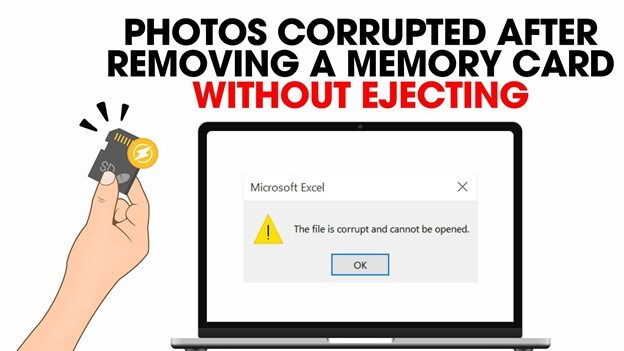
Pulling out a memory card too quickly can cause serious problems. When you notice photos corrupted after removing memory card, it usually happens because the device was still saving or transferring files when the card was removed. This interrupts the process and can damage the file structure, making photos unreadable or causing the card to appear as RAW.
This issue, often called memory card unsafe removal photos, doesn't always mean your photos are gone. In many cases, the actual image data is still stored on the card, but the system can no longer properly locate or open it because the file "map" is damaged.
If you act quickly and avoid saving new data on the card, there is still a good chance that your photos can be recovered.
In this article
Part 1. What Causes Photo Corruption During Unsafe Memory Card Removal
Skipping Eject or Safely Remove interrupts the final write process. Modern systems use write caching, where data is temporarily stored before being fully written to the SD card. Removing the card too early can damage the file structure.
Common causes of corruption
- Interrupted file system update - FAT or exFAT may not finish updating, making files unreadable.
- Incomplete saving - Image data and metadata (EXIF, headers) may not fully write, leaving broken files.
- Background processes - Camera writing or syncing may still be active during removal.
- Camera buffer delay - Files may still be saving after capture, so early removal interrupts completion.
Signs of corruption
- Format prompt - The system asks to format the card (avoid doing this).
- Broken images - Photos may show gray or distorted sections.
- File errors - Files appear normal but won't open or show "invalid format."
Part 2. How to Identify If The Photos Are Damaged
When a memory card is removed suddenly, the damage doesn't always mean everything is lost. Instead, corruption often shows up in clear and specific ways. When photos corrupted after removing memory card, these are the most common signs:
Visual and system signs
- Half-loaded images - Part of the photo may look normal, while the rest shows gray, black, or colorful distortion. This usually means the file was only partially saved.
- Missing or 0 KB files - Photos may still appear with correct names, but show zero file size. This means the file entry exists, but the actual image data is missing.
- Drive shows as RAW - The computer may say the memory card is "RAW" instead of FAT32 or exFAT. This means the file system structure is damaged.
- Thumbnail but no image - You may see a preview image, but it won't open when clicked. The small preview is saved, but the full file is corrupted.
- Error messages - The system may show errors like file access failure or read/write problems, meaning it cannot properly access the damaged data.
Part 3. How To Restore Access To a Memory Card Using Basic Fixes
Before trying expensive recovery services, you can fix many issues using built-in tools on your computer. These methods help repair the file system and restore access after an unsafe removal.
Fix 1. Use CHKDSK (Windows)
This tool scans your memory card for errors and fixes problems in the file system so your files can be read again.
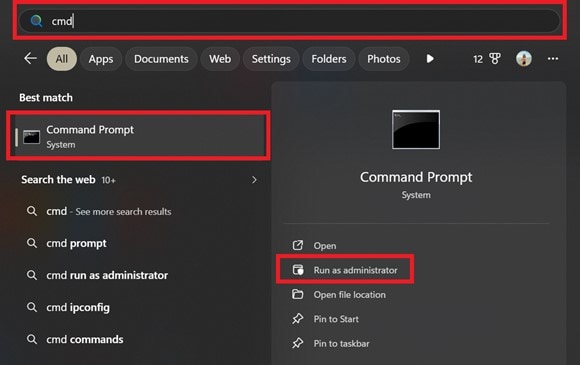
Step 1. Connect your memory card to your PC, type cmd in the Windows search bar, and run the Command Prompt as Administrator.
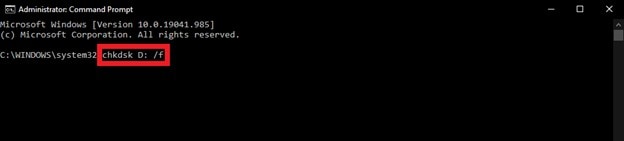
Step 2. Input the command chkdsk X: /f (replace X with the actual drive letter assigned to your SD card) and hit Enter to allow the system to locate and repair corrupted sectors.
Fix 2. Change the drive letter
Sometimes the issue is how your computer detects the card, not the files themselves. Assigning a new drive letter can refresh the connection.
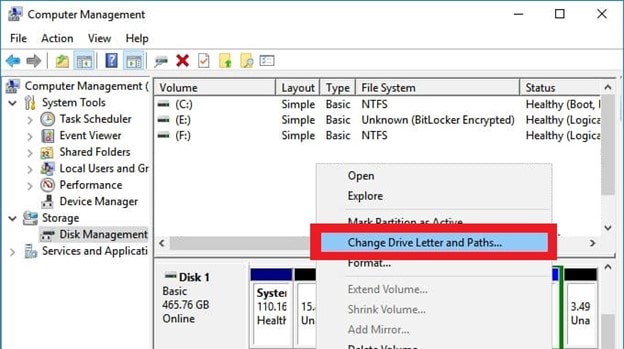
Step 1. Right-click the Start button and select Disk Management, then locate your memory card in the visual list of drives.
Step 2. Right-click the card's partition, select Change Drive Letter and Paths, and click Change to pick a different letter (e.g., changing E: to M:).
Fix 3. Use First Aid (macOS)
Mac users can use Disk Utility's "First Aid" feature to check and repair the memory card's file structure.
Step 1. Open Disk Utility via Spotlight search, select your corrupted memory card from the external sidebar, and click the First Aid icon at the top.
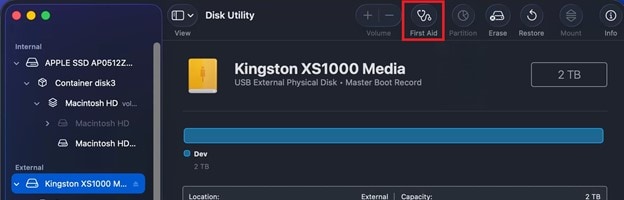
Step 2. Click Run to initiate the diagnostic; macOS will automatically attempt to repair damaged partition maps caused by the abrupt disconnection.
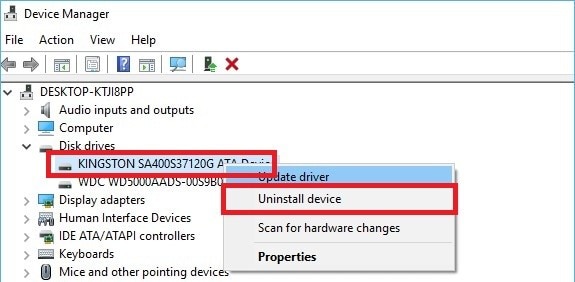
Fix 4. Reinstall device drivers
If the card isn't working properly, the driver may be corrupted. Reinstalling it can restore proper communication between your computer and the card.
Step 1. Open Device Manager, expand the Disk drives section, and right-click your specific memory card reader or SD card entry.
Step 2. Select Uninstall device, unplug your card reader, restart your computer, and plug it back in to trigger a clean driver re-installation.
Part 4. Advance Fix to Restore Severely Corrupted Files
If your photo is confirmed corrupted, a repair tool can safely restore its functionality. One example is Repairit Photo Repair Tool which works with common file types like JPEG, PNG, and RAW files.
Step-by-Step (Optional)
Step 1. Upload the corrupted photo file.

Step 2. Start the Repair process.

Step 3. Preview and save the restored file to a new location.

Part 5. Why File Transfers Fail and How to Fix Memory Card Data Errors
The most critical risk for file corruption happens during transfer between a memory card and a computer. Even if a progress bar shows 100%, background writing may still be ongoing. Removing the card too early can interrupt updates to the file system (such as FAT), leaving files incomplete or unreadable.
Why transfer interruptions cause corruption
- Interrupted write process - Files are left incomplete if copying is stopped early.
- File system update failure - The storage map (FAT) may not finish updating.
- Background tasks still running - Transfers may still be processed even after "completion."
Targeted fixes for transfer failures
- Check temporary files - Look for .tmp files that may be recoverable by renaming.
- Use recovery tools - Deep scan software can detect hidden or deleted files.
- Restart system - Refreshes cache and clears stuck transfer processes.
- Advanced check - Hex analysis can confirm if data still exists for recovery.
Part 6. How to Protect Your Memory Card and Prevent Data Corruption
The best way to avoid photos corrupted after removing a memory card is to prevent the problem before it happens. Keeping your data safe depends on careful handling and simple habits that make sure files are fully saved before removing the card.
Essential prevention tips
- Wait a few extra seconds - Even if saving or transfer looks complete, give it a few more seconds. Devices may still be finishing the process in the background.
- Always eject properly - Use "Safely Remove" on Windows or "Eject" on macOS. This ensures all processes are stopped and reduces the risk of memory card unsafe removal photos issues.
- Turn off write caching (optional) - On Windows, switching to "Quick Removal" writes data directly to the card. It's slightly slower but safer if you often forget to eject.
- Format using the camera - Instead of deleting files on a computer, use your camera's format option after backing up your photos. This keeps the file system clean and stable.
- Check battery levels - Avoid transferring files when your device has low battery. A sudden shutdown during transfer can cause the same damage as unsafe removal.
Conclusion
Experiencing photos corrupted after removing a memory card can be stressful, but it doesn't always mean your files are lost forever. In many cases, the problem is just a system error that can be fixed using tools like CHKDSK or photo repair software. Most memory card unsafe removal photos can still be recovered, as long as you stop using the card right away to avoid overwriting the data. By safely ejecting your card and giving it time to finish saving, you can prevent this issue in the future.
FAQs
-
Can I recover photos if my computer asks to format the card?
Yes. Do not click format. This usually means the file system is damaged (RAW). You can still recover your photos using repair or recovery tools. -
Why do some photos appear half grey?
This happens when only part of the image was saved. The rest of the file is missing, but repair tools may still fix it. -
Can I reuse the memory card after corruption?
Yes, but only after backing up your files and formatting the card using your camera. This resets the file system. -
Does "Safely Remove" really matter?
Yes. Even if the transfer shows 100%, the system may still be finishing tasks in the background. Proper ejection ensures everything is fully saved. -
Will repair tools reduce photo quality?
No. They only fix the file so it can open again. The image quality and resolution are still the same.