Choosing between Repairit Photo Eraser and Inpaint comes down to how quickly and how precisely you want to remove unwanted objects. Repairit focuses on fast, AI-driven cleanup with minimal effort, while Inpaint offers a straightforward manual approach where you mark objects and let the software fill the background. This guide compares object removal quality, workflow, pricing, and best-fit use cases so you can decide which tool matches your typical images and editing style.
Remove Unwanted Objects with Repairit Photo Eraser
 Security Verified. Over 7,302,189 people have downloaded it.
In this article
- Repairit Photo Eraser vs Inpaint: Quick Verdict
- Repairit Photo Eraser vs Inpaint: Key Differences
- Repairit Photo Eraser vs Inpaint: Comparison Table
- What Repairit Photo Eraser and Inpaint Are Best For
- Repairit Photo Eraser vs Inpaint: Object Removal Capabilities
- Repairit Photo Eraser vs Inpaint: Background Fill and Realism
- Repairit Photo Eraser vs Inpaint: Workflow and Ease of Use
- Repairit Photo Eraser vs Inpaint: Pricing and Trial Options
- Who Should Choose Repairit Photo Eraser
- Who Should Choose Inpaint
- Pros and Cons of Repairit Photo Eraser and Inpaint
- How to Remove Unwanted Objects After Choosing the Right Tool
Repairit Photo Eraser and Inpaint both target the same core task: removing unwanted objects, distractions, and watermarks so your images look cleaner and more focused. The key difference is how they get there. Repairit Photo Eraser leans on AI to detect and erase elements with minimal manual work, while Inpaint keeps you in control by asking you to brush over the objects you want to remove. Understanding these approaches will help you choose the tool that fits your usual photos and editing habits.
Repairit Photo Eraser vs Inpaint: Quick Verdict
If you mainly want to erase people, text, logos, or random distractions from everyday photos as quickly as possible, Repairit Photo Eraser is likely to feel more efficient thanks to its AI assistance and streamlined workflow.
If you prefer to mark every object yourself and want a simple, focused app for occasional object or watermark removal, Inpaint may be a better fit, especially when you are comfortable doing more manual brushing.
Repairit Photo Eraser vs Inpaint: Key Differences
At a high level, the tools differ in how they balance automation and control, and in how easily you can get natural-looking background fill.
- Workflow style: Repairit Photo Eraser focuses on an AI-guided flow. You upload a photo, let the AI detect and erase objects, then refine if needed. Inpaint follows a traditional manual process where you paint over objects and run the fill operation.
- Removal logic: Repairit relies more on AI object understanding, which can speed up removing people, signs, or text in common scenes. Inpaint is selection driven: the result depends heavily on how accurately you mask unwanted areas.
- Manual control: Inpaint offers direct control over what is removed and what stays, which some users prefer for simple, clearly defined shapes. Repairit allows manual selections but is designed to cut down on the amount of brushing you need to do.
- Natural-looking results: In many everyday photos, Repairits AI-based fill aims to reconstruct backgrounds in a realistic way with fewer manual edits. Inpaint can also produce believable results, but you may spend more time adjusting selections or running multiple passes, especially in busy backgrounds.
In practice, the right choice depends on whether you value automation and speed, or hands-on, brush-based control over each object you erase.
Repairit Photo Eraser vs Inpaint: Comparison Table
| Criteria | Repairit Photo Eraser | Inpaint |
|---|---|---|
| Best for | Users wanting quick, mostly automatic object removal with minimal manual work | Users comfortable with manual selection who want a simple object removal tool |
| Ease of use | Beginner friendly; guided, AI-focused workflow | Straightforward but more hands-on masking and refining |
| Object removal | Strong at general unwanted object and distraction removal in everyday photos | Reliable on clearly defined objects when you mark them accurately |
| Workflow | Upload photo, let AI detect and erase, then fine-tune if needed | Load image, mark object, process, and save using manual selections |
| Strengths | Fast, automated cleanup and realistic background fill for common scenes | Direct control over which areas to erase and keep |
| Weaknesses | Less precise than fully manual tools for very complex edits | Limited advanced features and more manual effort on detailed images |
What Repairit Photo Eraser and Inpaint Are Best For
Both tools focus on the same main jobs: removing objects, getting rid of text or logo watermarks, and cleaning up distractions so the subject stands out. Where they differ is in how they match different users and photo types.
Repairit Photo Eraser is generally best for users who:
- Want AI to handle most of the selection and background fill work.
- Frequently clean up travel photos, social media shots, group pictures, or product images.
- Prefer a guided experience without learning complex editing tools.
- Need to remove multiple unwanted elements quickly in a batch of images.
Inpaint is generally best for users who:
- Like a simple, manual tool where they brush directly over objects.
- Only perform object or watermark removal occasionally.
- Are comfortable with a load image -> mark object -> process -> save routine.
- Do not need broader editing features beyond object and text removal.
Repairit Photo Eraser vs Inpaint: Object Removal Capabilities
From an object removal standpoint, both solutions can handle a similar range of tasks, including erasing people, signs, cables, and simple text logos. The main difference is how much help you get from the software when selecting what to remove.
- General unwanted objects: Repairit Photo Eraser uses AI-assisted logic to identify and remove common subjects. This can be helpful when dealing with distracting bystanders, trash bins, or clutter around your main subject. Inpaint works reliably when the objects are clearly defined and you brush over them carefully.
- Watermark cleanup: Both tools can remove simple text or logo watermarks by allowing you to select the marked area and fill it with surrounding pixels. Depending on the complexity of the watermark and background, you may need to run multiple passes or adjust selections for the cleanest result.
- People and moving subjects: For casual photos where you want to remove one or two people from the background, Repairit Photo Eraser can often speed things up since you do not have to mask every edge manually. Inpaint can still do this work but may require more care with selection to avoid halos or visible outlines.
- Text and signage: Both tools can erase text overlays, timestamps, and basic signage. Repairits AI can help estimate the missing background behind the text, while Inpaint depends more heavily on your masking and the surrounding content for believable fill.
- Scene complexity: In simple backgrounds such as skies, walls, or blurred areas, both tools usually perform well. In highly detailed patterns (crowds, foliage, repeating textures), Repairits AI may save time, but you might still need to refine and re-run removal. Inpaint can also work, but complex scenes often demand more manual adjustments and selective passes.
Repairit Photo Eraser vs Inpaint: Background Fill and Realism
Convincing object removal is not just about deleting pixels; it is about how natural the filled background looks afterwards. Both tools aim to reconstruct surrounding content where the object used to be.
- AI-based filling in Repairit: Repairit Photo Eraser leans on AI to analyze the surrounding region and synthesize a plausible fill. In many typical travel, portrait, and product photos, this can make the result look integrated with fewer visible seams or blur patches.
- Texture and pattern handling: Depending on the image, AI-based fill in Repairit may better handle gradients, soft edges, and mixed textures, though extremely complex patterns may still show some artifacts. In those cases, running another pass or adjusting the selection area can help smooth out issues.
- Manual-driven filling in Inpaint: Inpaint uses the areas you define to guide its fill. On clean, uniform backgrounds, results can be quite natural. On busy or irregular surfaces, you may notice leftover smudges or repeated patterns if the selection is not tuned, and additional passes or smaller selections may be required.
- Residual artifacts: With both tools, small artifacts can appear, particularly where the foreground object overlapped strong edges or detailed structures. Repairits AI may reduce the number of artifacts in many everyday cases, while Inpaint gives you the option to refine your mask and try again with tighter selections.
- When manual cleanup still helps: For demanding edits, such as removing large objects that cover key scene elements, manual cleanup is often necessary in any tool. In these situations, using a combination of careful selections and multiple removal attempts in either Repairit or Inpaint can lead to more believable results.
Repairit Photo Eraser vs Inpaint: Workflow and Ease of Use
Workflow is where these tools feel the most different, even though the goal is the same.
Repairit Photo Eraser workflow and usability
- Designed around a guided, AI-focused process: upload, select (or let AI detect), erase, and export.
- Reduces the amount of time you spend brushing precisely, which can be helpful for beginners or users working on many photos.
- Refinement options allow you to rerun removal if the first fill does not look natural enough.
Inpaint workflow and usability
- Follows a classic manual approach: load image, paint over unwanted areas, process, then save.
- Brush-based selection offers straightforward, predictable control, but requires more care and time for intricate shapes.
- Because it focuses on object removal and watermark cleanup, the interface tends to stay simple, with fewer extra editing tools.
For users who want to minimize manual work, Repairit Photo Eraser may feel easier to use day to day. For those who prefer to decide exactly where removal starts and stops, Inpaints manual brushing can feel more familiar.
Repairit Photo Eraser vs Inpaint: Pricing and Trial Options
Both tools are commercial products, but they are offered in slightly different ways.
- Repairit Photo Eraser: Typically available as part of the broader Wondershare ecosystem, with options that often include a free trial or limited testing so you can evaluate object removal on sample images before deciding. It may be available as a standalone component or bundled with other Repairit functions, depending on current offers.
- Inpaint: Provided through its website and desktop downloads, with purchasing options that may vary by platform. There may be trial or limited-use versions so you can check how well it handles your typical removal tasks.
Since exact prices, licenses, and bundles change over time, the most reliable approach is to visit each product page and confirm current plans, supported platforms, and what is included in any trial version.
Who Should Choose Repairit Photo Eraser
Repairit Photo Eraser is a good match for users who want AI to do much of the heavy lifting while still retaining simple tools for selection and review.
- People who want AI to remove unwanted objects quickly with minimal manual work.
- Beginners who are new to photo editing and need a simple, guided workflow.
- Users who frequently clean up social media or everyday photos in batches.
- Anyone who values realistic background fill more than fine-grained manual control.
Who Should Choose Inpaint
Inpaint remains practical for users who are comfortable managing selections themselves and only need a focused object-removal utility.
- Users who like a simple, manual tool to mark and erase specific objects.
- People who only need occasional object removal without broader editing features.
- Those comfortable with a load image - mark object - process - save workflow.
- Users who want predictable, hands-on control rather than AI-driven decisions.
Pros and Cons of Repairit Photo Eraser and Inpaint
Repairit Photo Eraser Pros and Cons
Inpaint Pros and Cons
How to Remove Unwanted Objects After Choosing the Right Tool
Once you know whether you prefer an AI-assisted or manual approach, the next step is to put that choice into practice on your own photos. If you decide to use an AI-focused solution, Repairit Photo Eraser provides a straightforward flow for turning cluttered shots into cleaner images with fewer distractions.
Key Features
- AI-driven object detection and removal for everyday photos.
- Automatic background fill to keep results looking natural.
- Streamlined interface for quick, repeatable cleanup tasks.
- Support for removing multiple objects in one pass on busy scenes.
- Options to re-run object removal until the background appears more natural.
Step-by-step guide
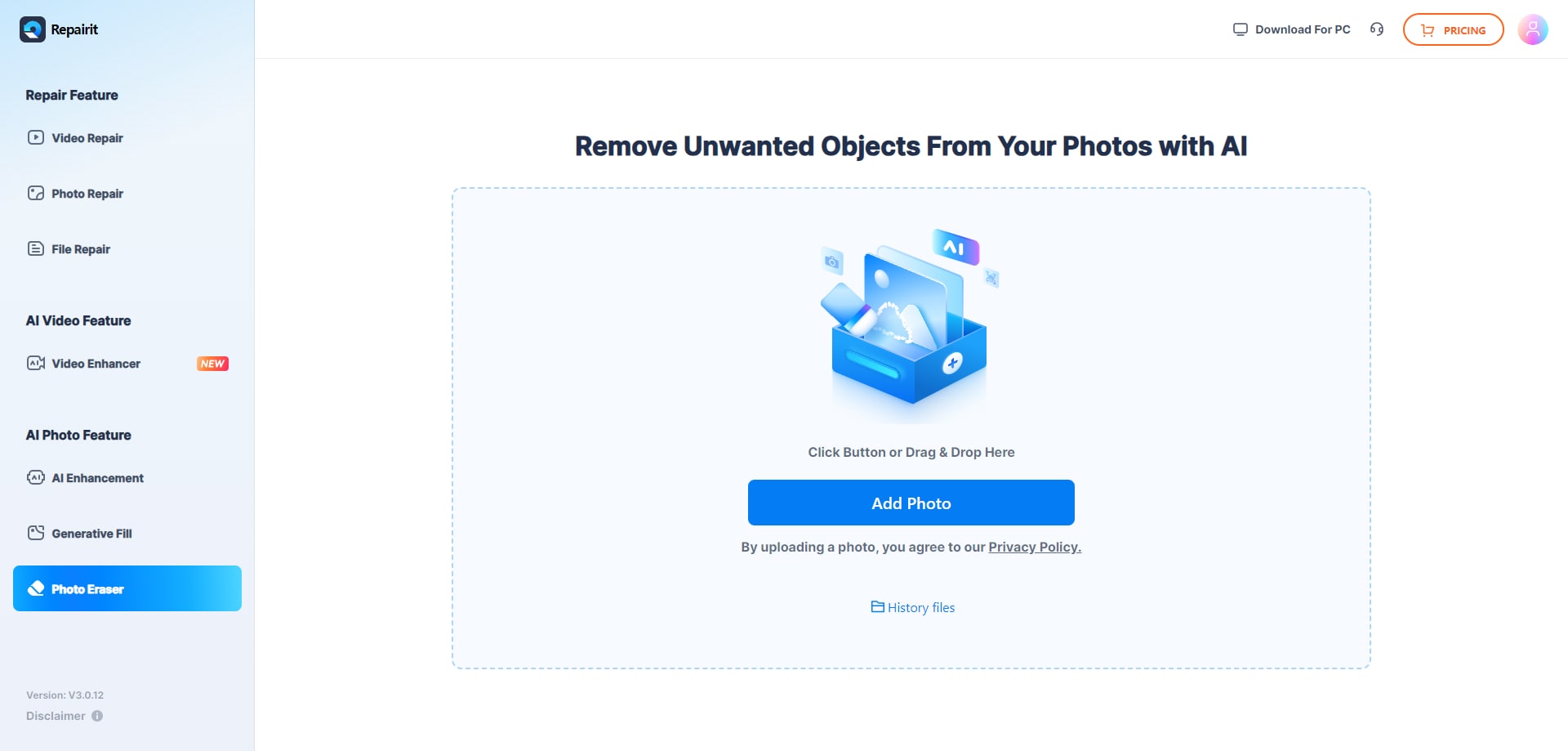
Step 1. Upload the photo you want to edit and start the object removal process.
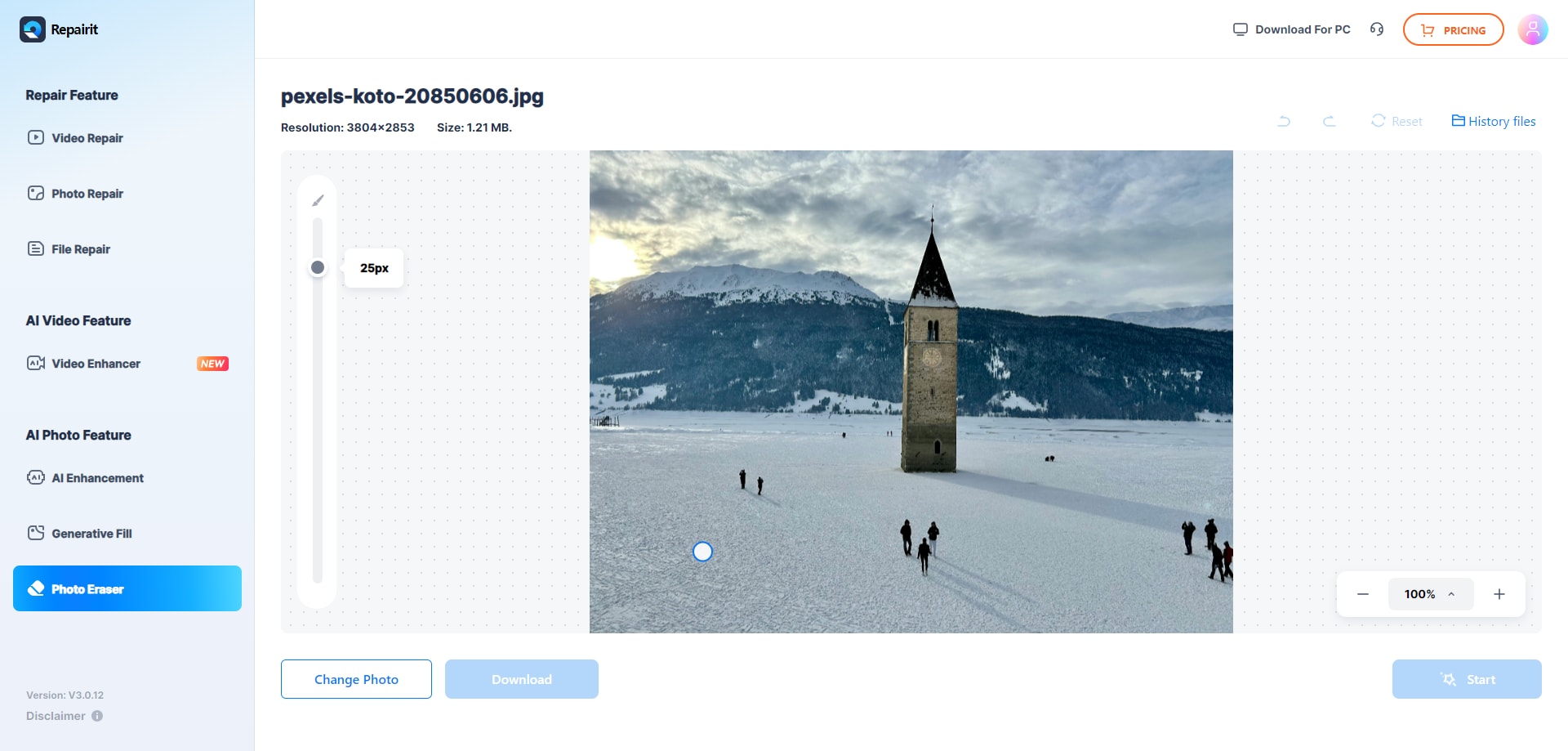
Step 2. Adjust the brush size and select the object or area you want to remove from the image.
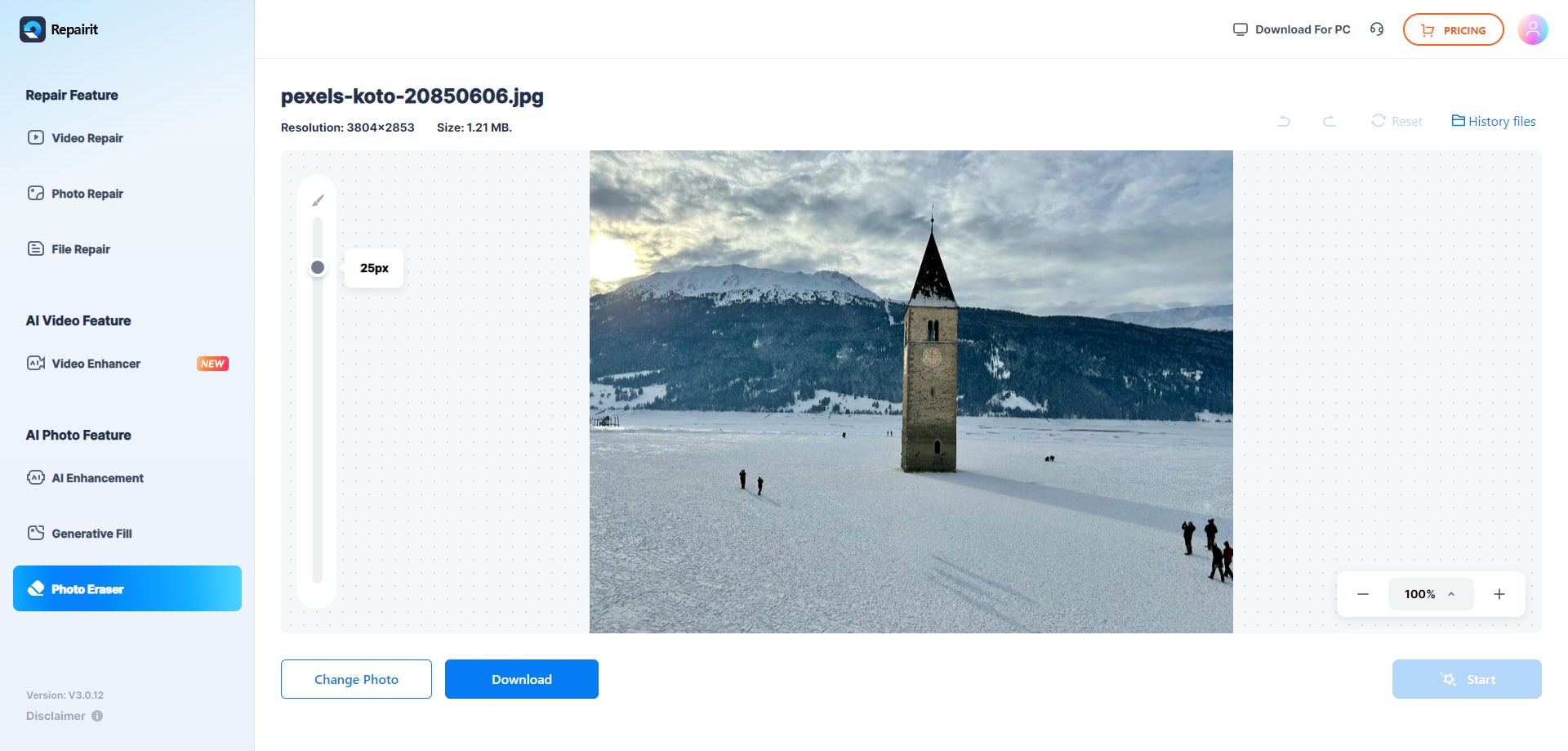
Step 3. Let the AI process the image and download the cleaned photo after the object is removed.
Final Verdict
Repairit Photo Eraser and Inpaint both focus on removing unwanted objects and background distractions, but they suit different working styles. Repairit leans on AI to speed up cleanup and keep the workflow simple, which helps if you process many everyday images or do not want to spend time fine-tuning masks.
Inpaint, by contrast, stays close to a manual approach: you load an image, mark objects, process, and save. This can be sufficient for occasional or straightforward tasks when you want direct control. For most users who value speed and automation, Repairit Photo Eraser will feel more efficient, while Inpaint remains a practical option for those who prefer hands-on selection in a lightweight tool.
Next: Repairit Photo Eraser vs Jihosoft Photo Eraser
FAQ
-
1. Is Repairit Photo Eraser better than Inpaint for removing unwanted objects?
Repairit Photo Eraser is generally better if you want faster, AI-assisted removal with minimal effort. Inpaint can still be a good choice if you prefer manually marking objects and do not need automation. The best option depends on how often you edit and how much control you want. -
2. Which is easier for beginners, Repairit Photo Eraser or Inpaint?
Repairit Photo Eraser is typically easier for beginners because it relies on AI and guides you through upload, select, and erase steps with less manual precision required. Inpaint is simple, but it expects you to carefully mark objects, which may take more practice on complex images. -
3. Can both Repairit Photo Eraser and Inpaint delete watermarks?
Both tools can help delete watermarks by letting you select and erase text or logo areas, then fill the background. Results will vary by image complexity. For large or patterned watermarks, you may need to run removal more than once or adjust the selection to get cleaner output. -
4. When should I choose Inpaint instead of Repairit Photo Eraser?
Choose Inpaint if you prefer a straightforward, manual workflow where you mark exactly what to remove, use it only occasionally, and do not need many advanced or AI features. It can be suitable for users who want a focused, simple object removal tool and are comfortable doing more of the selection themselves.