
TL; DR
- Core Function: Pixelcut is an AI-powered tool that is designed for fast, automated background removal. It primarily caters to the needs of e-commerce sellers and content creators.
- Key Features: It offers a simple interface, batch editing capabilities, and a library of professional templates and shadows. Users can also use AI to create custom backgrounds by adding simple prompts.
- Performance: The AI is highly accurate for well-designed subjects, though complex edges may occasionally require manual touch-ups. In addition, the AI works best when the image is clean, and the main object is already separated.
- Free Vs. Paid: The free version offers a basic function and 4 downloads, while the Pro version offers high-resolution exports and advanced batch tools.
- Alternative: For complex object removal beyond backgrounds, Repairit is recommended for precise cleanup. The tool works well in complex backgrounds, and AI doesn’t add extra shadow or details.
Quick Answer Box: Though Pixelcut is an AI-powered tool, it adds extra shadow and blur effect on images with complex details. In addition, the download is limited to 4 options, and all AI functions need Pro access. Repairit Online offers better control over background and object removal, as well as extensive format support.
In the past, removing the simple background from images used to be a technical nightmare for editors, requiring professional software and a steep learning curve. If you’ve ever tried to cut off the person or edge manually from the scene, you know the frustration and the time it takes. To make it simple and quick, AI tools like Pixelcut Background Remover have stepped in to automate the heavy editing.
The tool is known to offer studio-quality results, yet is rumored to miss the minor, complex edges. Additionally, there is an ongoing debate about its pricing plans, which confuses users about whether to consider it. To address this issue, review the detailed guide on the Pixelcut background remover and consider a better alternative.
In this article
Part 1. What Is Pixelcut Background Remover?
Pixelcut background remover is an AI tool that uses proprietary, advanced AI models and is trained on millions of images to detect the subjects. Using this ability, the tool enables users to drag and drop or upload images in JPG, PNG, or HEIC format. Additionally, users can access this platform on mobile through the API and on web platforms.
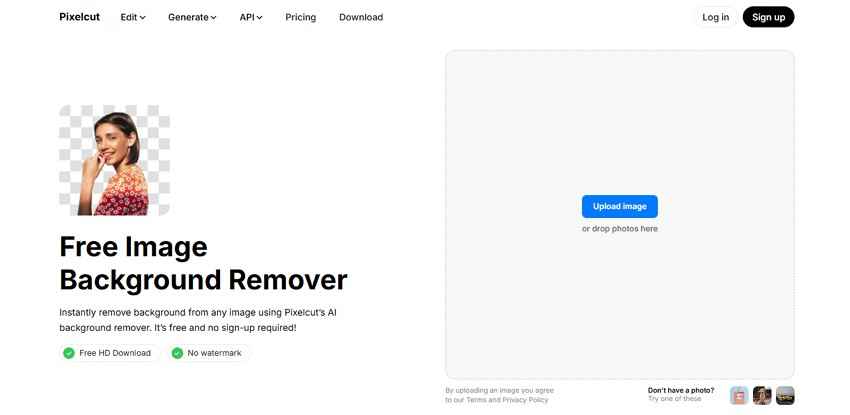
Since a clear background keeps the viewer’s focus entirely on the subject, this tool suits e-commerce sellers' needs. In addition, it keeps the background uniform, making it ideal for social media creators and small business owners. So, whether you are a graphic designer or a content creator, this tool can help you remove, create, and edit backgrounds for clutter-free images.
Part 2. How to Remove Backgrounds Using Pixelcut
Using Pixelcut background remover is seamless when you need to remove a backdrop. However, if you want precise backdrop editing, you need to pay a fee and might need a learning curve if you are new to this. Since the tool works with AI automated models, review this section to know if it's worth considering:
Key Features of Pixelcut Background Remover
Regarding the Pixelcut remove background tool, here are some aspects you need to know about:
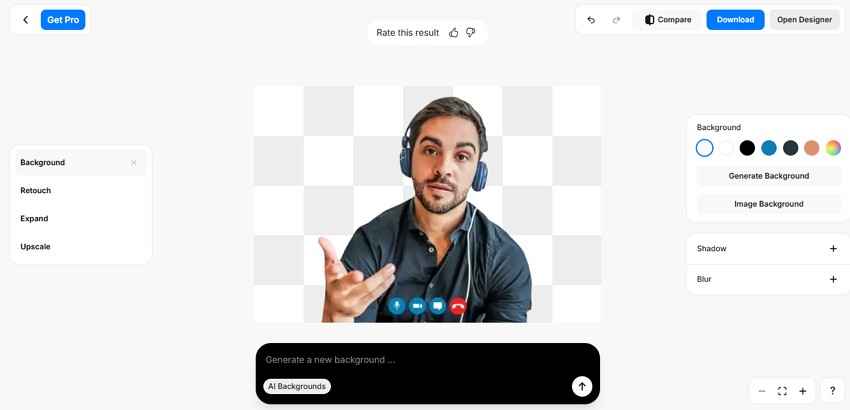
- Batch Image Processing: The tool lets you upload multiple images and instantly removes the backdrop after upload (if you are a Pro user). Even though the tool is AI-powered and offers one-click backdrop removal, it can affect the image quality and isn’t free.
- Change Background: When the background is removed after upload, users can choose from a set of simple backdrop colors. Moreover, they can choose from “Image Background” options such as studio, marble, or wood for bright, textured backdrops. There, you can also add your images, but the process requires a detailed sign-in method.
- Built-in Editor: You can either use “Shadow” or “Blur” options provided on the tool or pick the “Refine” option on the image. Both options offer manual and AI methods to further tailor the image and achieve tailored outcomes. Nonetheless, the “Refine” option offers manual options that require skill and can confuse the editor’s choice.
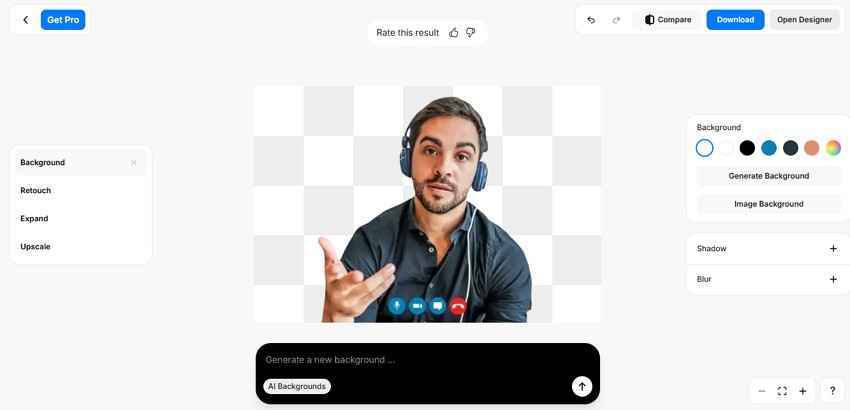
- Create New Background: Though the tool claims no sign-up, all the main AI features require a time-consuming sign-up and login, including creating a background. Furthermore, the tool offers suggestions after changing the backdrop, but adds unnecessary details, such as shadows, which require extra editing.
- Compare and Revert Changes: This tool lets users zoom in and undo and redo the results to make precise changes. Despite that, removing the minor details like the shadow beside the hand or hair is a bit complex and time-consuming. In addition, users can compare the result and can restore the original image when needed.
Step-by-Step Guide: How to Remove Backgrounds with Pixelcut
After having the features overview, if you want to know how to use the Pixelcut remove background tool, here is the guide. In this section, a real-world test is performed by using a Zoom meeting screenshot with a complex background to see how AI removes or changes it.
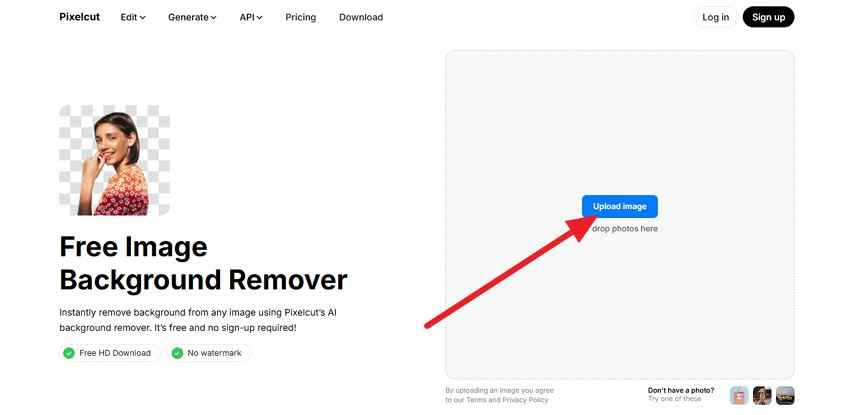
Step 1. Tap the “Upload Image” on the tool and upload a single or multiple images based on the plan you are using.
Step 2. The tool will remove the background immediately, and there can be a minor delay if the backdrop is complex. Now that you have a clean background, you can choose the “Image Background” option to add your custom or premade backdrop.

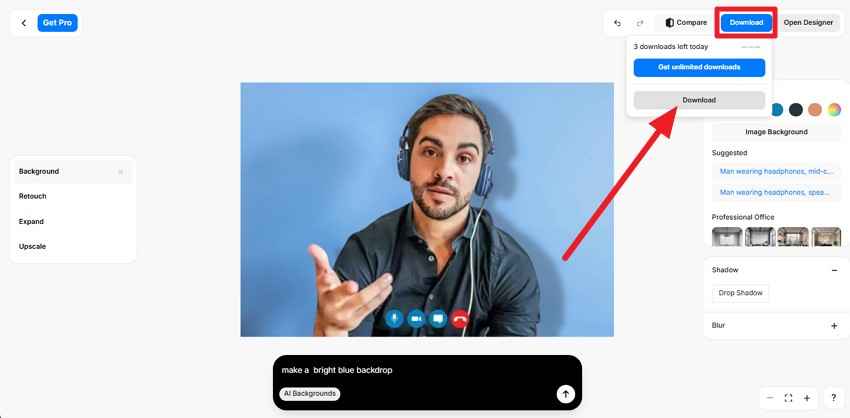
Step 3. Other than that, type the prompt in the “AI Backgrounds” textbox and wait for the AI to make a personalized background. There, you can tap the “Refine” option to use the brush or object tool to edit or restore the image.
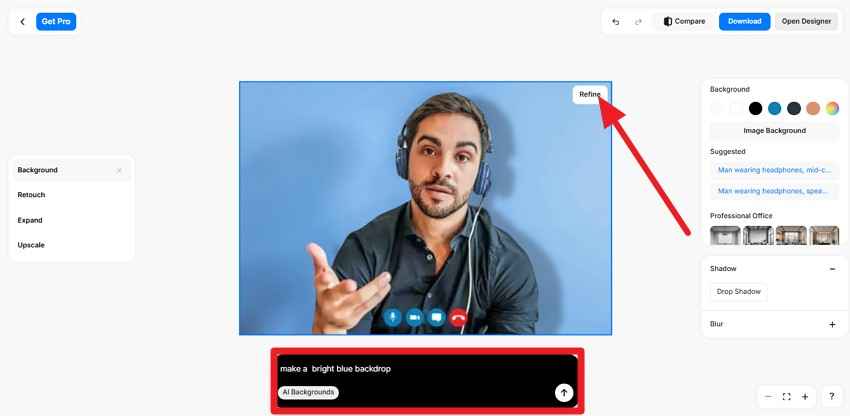
Step 4. Once you get the desired results, tap the “Download” button, then tap “Download” in the popup menu again.
I found this software overpriced because a single image used up most of my monthly credits, pushing me to buy more. I also disliked the image quality and usability, and honestly got better results for free from Google AI. - Lisa
What Types of Images Work Best with Pixelcut?
Note that the Pixelcut background remover works best when the image is high quality and the main subject is already separated from the background. Simply, it is suitable for e-commerce product photography and portraits or headshots with well-defined edges. If the image is of low quality or has intricate details, the AI will add unnecessary details and shadow, as evident in its guide.
Common Background Removal Problems in Pixelcut
Other than neglecting the minor details, here are some other issues you can have with this background remover:
| Issue | What Happens | Why It Occurs |
|---|---|---|
| Messy Edges | The AI adds blurry lines around the hair, hand, and thin objects. | The AI favors speed over detail in complex border regions. |
| Eraser Glitches | When using the Refine option, the eraser freezes or fails to remove the tiny edges. | Limited brush precision on mobile and software seizing. |
| Crashes & Freezes | The app closes or stops during editing. | Handling large files or batch processing can overheat devices. |
| Upload Errors | In most cases, images other than JPG, PNG, or HEIC fail to upload. | Incompatible file sizes or poor contrast can cause detection to fail. |
| Export Problems | Either saving takes too long or is limited to 4 tries in its free plan. | Processing delays or hidden usage limits on specific accounts. |
Pros and Cons of Pixelcut Background Remover
So far, you might have decided to use the Pixelcut background remover. Nevertheless, review the pros and cons given below to determine whether a substitute is needed:
Pros
- Offers a library of image backgrounds to choose from.
- Removes background precisely on images with fewer details.
Cons
- There are only 4 download options in its free version.
- The API can process images up to 6000x6000px only.
- API usage is limited to credits and PNG and JPEG formats.
- All AI models and batch processing are tied to the Pro version.
- Any custom import needs a detailed signup method.
- With intricate image details, AI results are poor and unmatched.
Part 3. How Fast and Accurate Is Pixelcut Background Removal?
If you still have doubts about the Pixelcut background remover, this section provides quick answers.
How Long Does Pixelcut Take to Remove Backgrounds?
The Pixelcut background remover is designed to remove the background in under 3 seconds, if the image is clean. However, with low-quality and complex background images, this time can be as long as 5-8 seconds.
How Accurate is Pixelcut AI Background Removal?
Mainly for e-commerce product photos and portraits, the results are highly accurate because the products or main objects are already separated. If the image has too many details, it can add a slightly blurred effect around the edges that the eraser can’t remove properly. In addition, when using its Generate Background tool, you can get the new backdrop in seconds, but with an extra shadow added.

Can You Edit Images After Removing the Background?
Yes, you can edit the images with Pixelcut background remover since the tools are built in. After the background is automatically removed, you can use the Image Background tool to add a new premade or custom backdrop. Additionally, you can use the Refine option on the image to use the Brush, Object, or Eraser tool. Other than background, you can retouch, expand, and upscale the image while adjusting the shadow and blur effect.
Pixelcut Free vs Paid Features
To make the most of these features, it's important to know the tool's cost. Thus, review the mentioned table and explore its yearly and monthly charges to see if they’re budget-friendly:
| Plans | Price | Details |
|---|---|---|
| Monthly | Pro: $10 Business: $30 | 600 AI Credits Monthly Unlimited Background Removal 3 Person Team 1,000 Batch Exports Monthly Commercial license |
| Yearly | Pro: $8 Business: $24 | 3,600 AI Credits Monthly Access all AI models Unlimited Background Removal 10 Person Team 2,000 Batch Exports Monthly Commercial license |
Pro Tip. Use Repairit Photo Eraser When You Need More Precise Object Removal
Pixelcut remove background is best for quick edits, but it falls short for professional scenarios that require extreme precision. In this situation, Repairit Online Photo Eraser precisely removes background, objects, and complex details from landscapes, portraits, product images, and event records. Unlike Pixelcut AI, it supports JPG/JPEG/PNG/BMP/WEBP file formats. Users can also use it to remove glare, watermarks, and Moiré from images that Pixelcut lacks.
Additionally, the Free Trial gives access to all features so users can test it before committing. This tool is also powered by AI, and users can use it across multiple devices and systems. Besides editing, the tool claims to have 10+ secured patents, offering high-quality, industry-leading file recovery and precision repair using unique, legally protected algorithms. Overall, the interface is simple, and the lack of sub tools makes the background removal process confusing.
Key Features
Precision Brush with Zoom: For detailed background removal, you can zoom the image up to 500%. In addition, you can adjust the brush up to 160px to remove the complex and minor details from the scenes.
Non-Destructive Editing: Repairit Online ensures that while the background is being removed, the surrounding pixels remain in-painted. Furthermore, the Pixelcut background tool has corrupted your image; you can repair it online.
- Access History Files and Affordable: Despite being a versatile tool, Pixelcut fails to provide the file history that users can access. So, whether you purchase individual plans or bundles for $8.75/month, you can get all the AI features, including repair and recovery facilities.
- One-Click Image Change & Batch Process: Both in the free and paid versions, the tool offers batch processing, allowing users to change images with one click.
- Preview Before Save: The tools let you preview the image before saving it to the device, allowing you to redo/undo changes if needed.
- How to Remove Unwanted Objects Using Repairit Photo Eraser
- Other than the Pixelcut remove background tool, if you want to try Repairit Online, here is the detailed guide. Here, a real-world test is performed by using a complex scene image to see if its AI is better than Pixelcut.
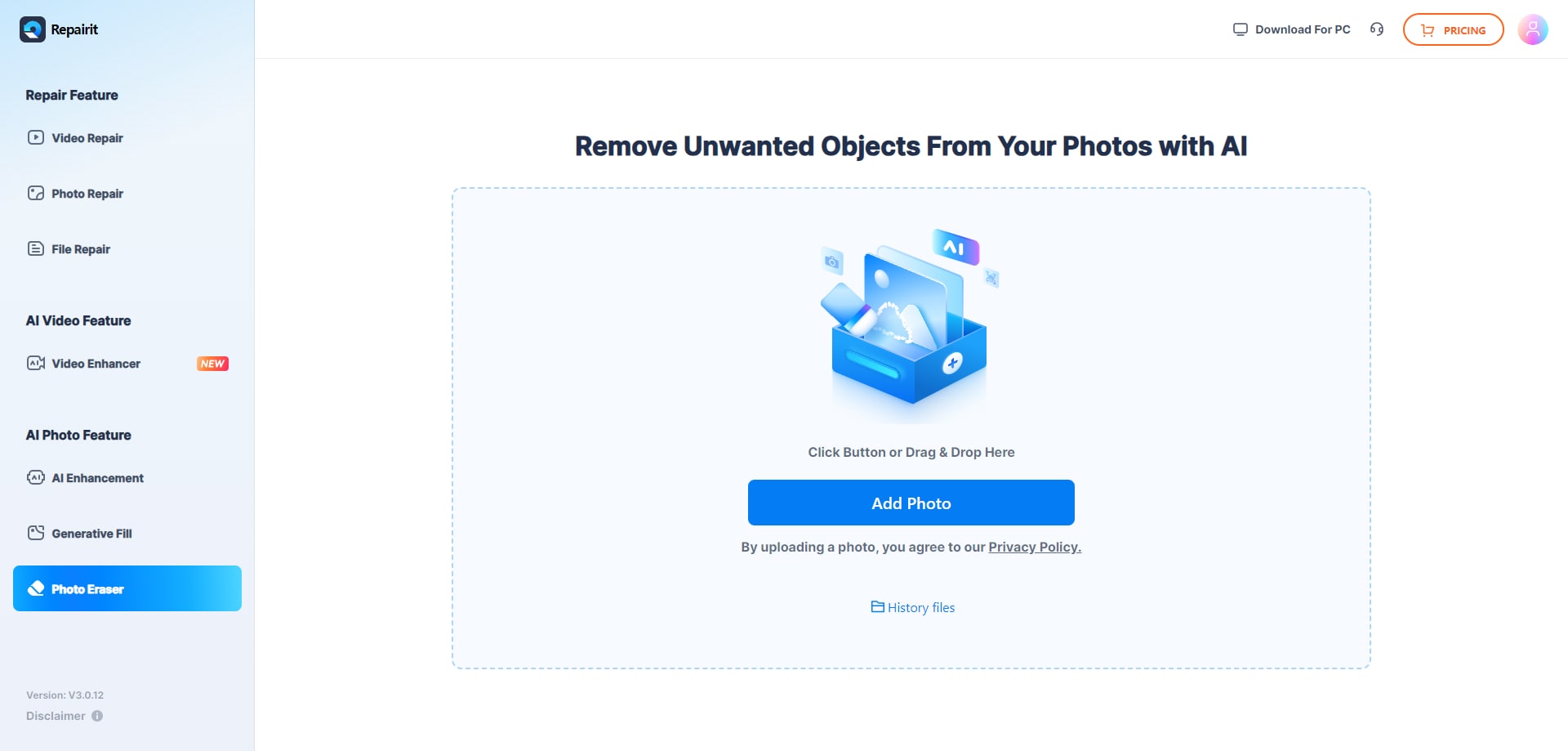
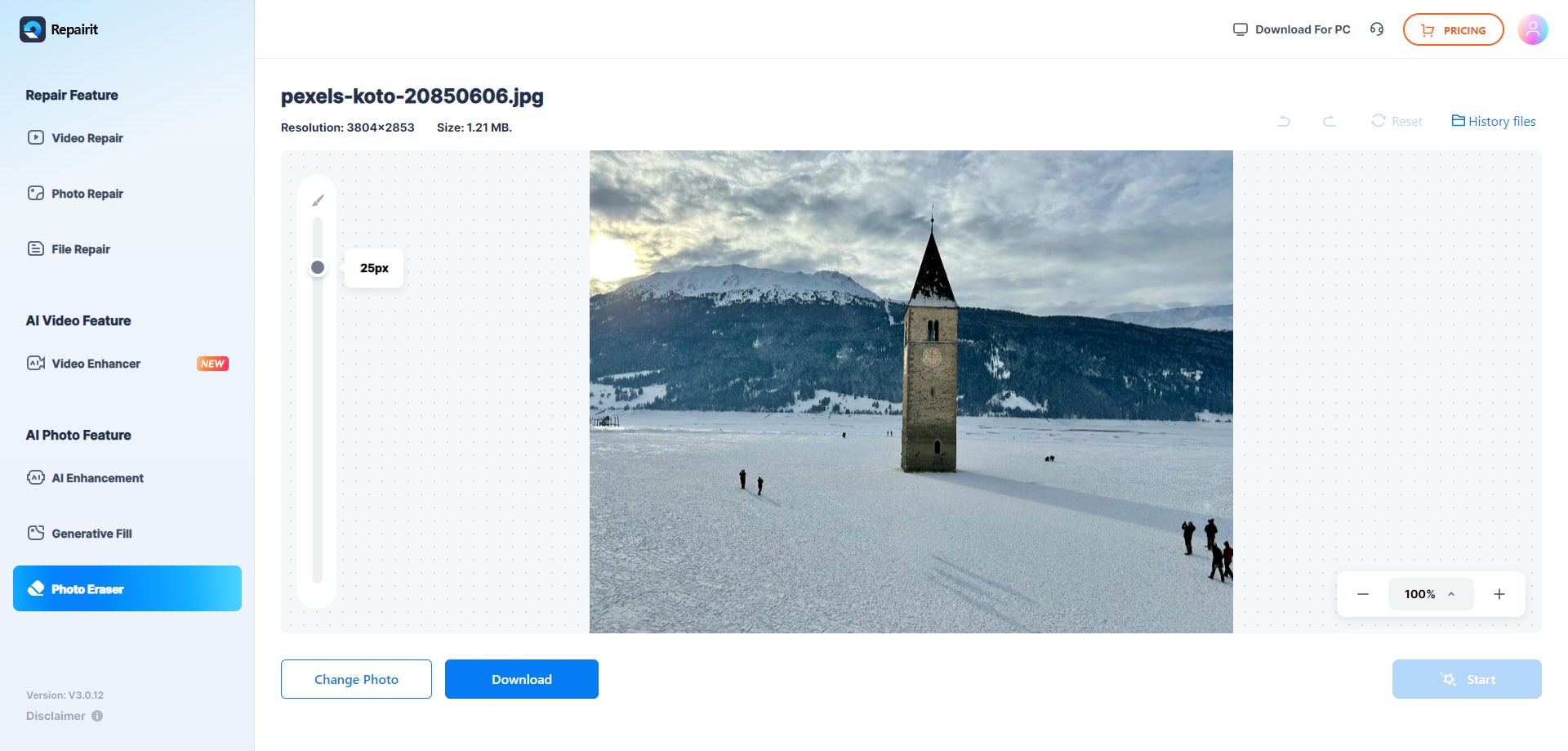
Step 1. Access the Repairit Online Photo Eraser
Go to the “Photo Eraser” section on Repairit Online and tap the “Add Photo” button to upload the image.
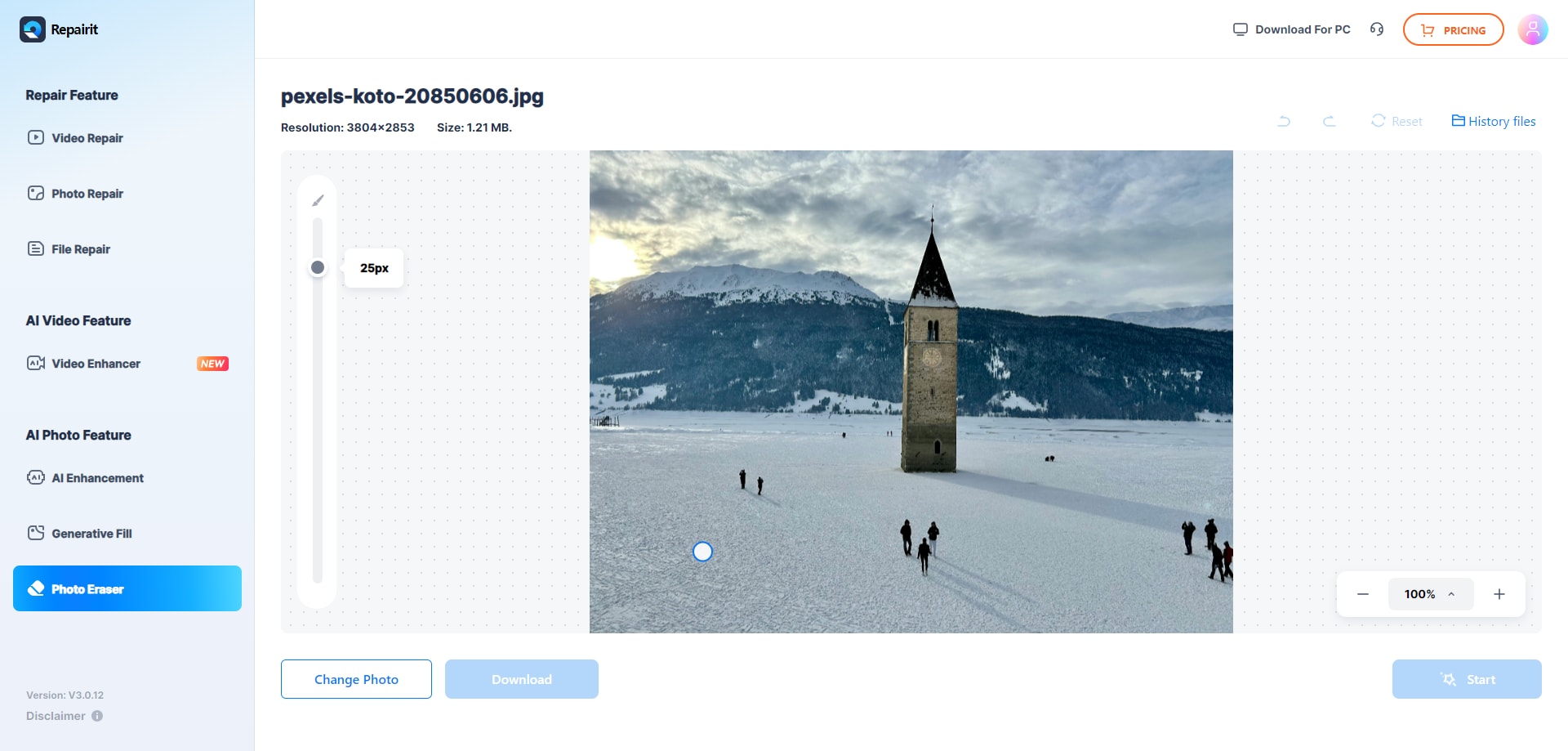
Step 2. Use the Brush to Remove Objects/Background Details
After that, adjust the “Brush” and highlight the objects or complex background details you want to remove.
Step 3. Preview AI Results and Press Download to Save
When the AI automatically removes the selected object, preview the details, and choose the “Download” button to export.
Part 5. How to Improve Background Removal Accuracy Like a Pro?
Choosing between Pixelcut background remover and Repairit Online is up to you. However, experts say that results are more accurate, surrounding pixel quality is better, and complete detail removal is more effective in Repairit Online. Regardless of the choice you made, here are some tips to improve accuracy:
| Tip | Action to Take | Why It Works |
|---|---|---|
| Use High-Quality Images | Start with high-resolution photos (1080p+) and avoid motion blur or low light. | Clear, defined edges help the AI avoid creating halos or jagged outlines. |
| Maximize Contrast | Shoot subjects against plain, solid-colored backgrounds with even lighting. | High contrast helps the AI distinguish complex details, such as hair or fur, from the background. |
| Refine Edges Manually | Zoom in and use small brush sizes to fix fringes or restore over-erased strands. | This step polishes complex subjects and fixes errors that the automated process missed. |
| Batch Process | Apply settings across similar photos with consistent lighting and setups. | Ensures uniform quality across a set while saving significant time. |
| Export as PNG | Always download as a transparent PNG and preview on different backgrounds. | Preserves edge quality without compression and helps you spot hidden issues. |
Part 6. Common Pixelcut Background Remover Issues and Fixes
If you have used the Pixelcut remove background tool for quick background edits and faced issues, this section is for you.
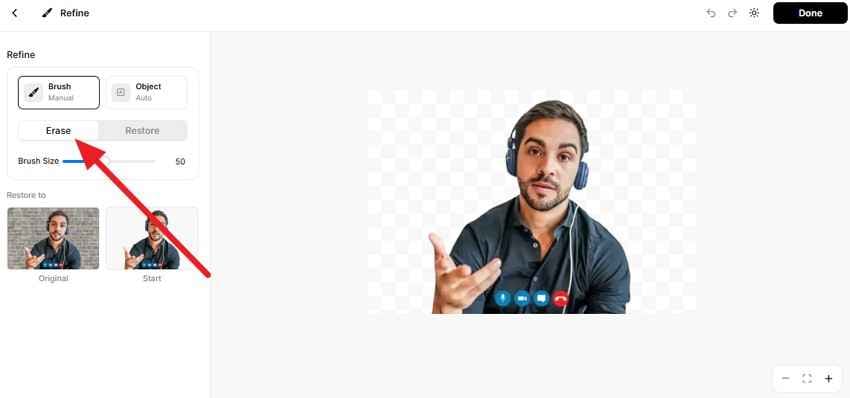
Messy or Jagged Edges
The AI often struggles to perfectly cut out complex areas, such as hair or fur.
Fix: Zoom in and use the Eraser tool in the Refine section to smooth out the borders.
Inaccurate Object Removal
Part of the main object disappears accidentally if they are the same color as the background.
Fix: Use the Restore option in the Refine section to paint back the missing parts.
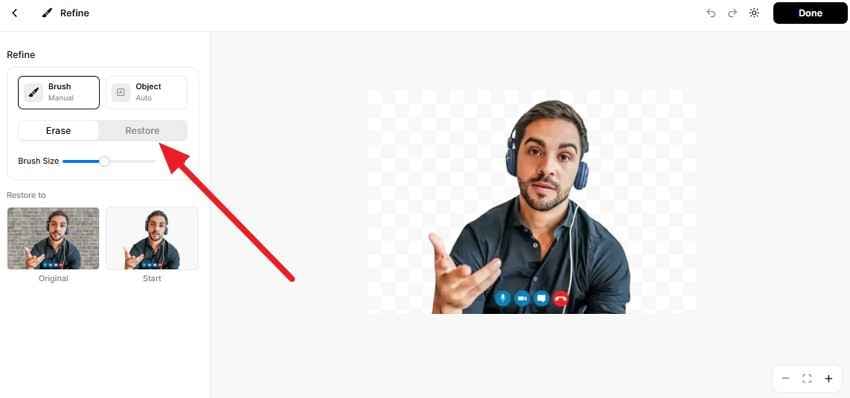
Image Upload Failures
You may see an error like “Could Not Upload the Image” if the format is not supported.
Fix: Make sure the image is in JPG, PNG, or HEIC format and check your internet connection.
Conclusion
To sum up, Pixelcut background remover is an AI-powered tool designed for a one-click background remover. However, all AI features are tied to Pro plans, and this guide has explained whether it can be a cost-effective and accurate choice to make in 2026 or not.
Based on reviews and real-world tests, the tool only works when the image is clean, and the AI can change colors and apply blur effects. So, to save the hassle of extra editing, experts say Repairit Online offers better background removal control, even in complex scenes, and offers better format support.
Frequently Asked Questions
Does Pixelcut support transparent exports for free?
According to the pricing details, the free version allows users to export images without a watermark. However, this option is limited to 4 downloads, making the Pro version a must-purchase.Can I remove text or watermarks with Pixelcut?
Since the tool is mainly for background removal, you can use its Refine and Object tools to remove minor details. Regarding the text and watermarks, you can use Repairit Online, as it supports glare, watermark, and Moiré removal in its Photo Eraser.Does Pixelcut work on screenshots?
Yes, the AI can remove the background from screenshots, but the results will be inaccurate. You can have extra shadow, blur effects around edges, and prominent color changes.